

Get elf AI support on mobile
Need instant answers while you work? Elf AI is your 24/7 in-app assistant. This guide shows iPhone and Android users how to launch Elf AI, ask platform questions and start a fresh chat whenever required. Screenshots highlight every tap, so you can reach help without leaving the roster. Tell Elf AI which device and operating system version you use—this improves guidance and speeds up troubleshooting. If the bot cannot solve an issue, it escalates to RosterElf support in real-time. Drop your email address in the chat box, and a team member will follow up. For a full list of support channels including a booked support call and email, see getting help with RosterElf.
1. Access elf AI support
This section walks through the exact pathway to open Elf AI on the mobile app. You will learn to reach the More menu, tap Support & Questions and launch the chat panel. Each screenshot matches its step, so you can copy the flow in seconds. Once finished you will know how to summon live guidance from any screen.
1.1 open the more menu
1.1.1 Tap the More icon on the bottom-right of the navigation bar.

1.2 select support & questions
1.2.1 In the list, tap Support & Questions to launch Elf AI.

1.3 ask elf AI a question
1.3.1 Type your query in the message field and press send. Include your device type and OS for the best answer.

1.4 start a new chat
1.4.1 Tap the + icon in the top-right to clear messages and open a fresh thread.
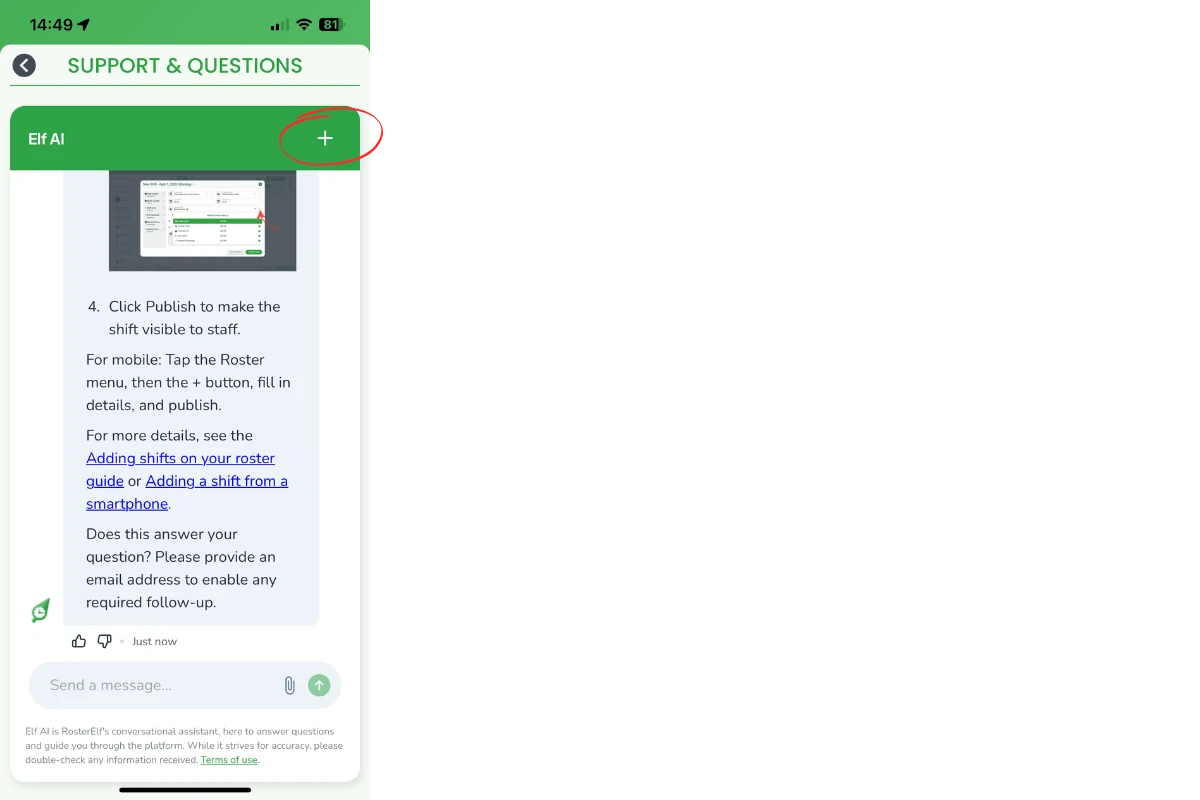
1.4.2 Confirm by selecting New Chat in the pop-up window.

Frequently asked questions
1. Where do I find Elf AI on the app?
Tap More in the bottom navigation bar, then choose Support & Questions and the chat panel opens instantly.
2. What details help Elf AI answer faster?
State your device model, operating-system version and a brief description of the issue. This helps Elf AI provide more accurate and relevant guidance.
3. Will Elf AI escalate to a human?
Yes. If the bot cannot solve your query, it auto-escalates to RosterElf support in real-time for further assistance.
4. How do I start a fresh conversation?
Tap the + icon in the top-right corner, then select New Chat to clear previous messages and start a new conversation.
5. Do I need to add my email?
Yes. Adding your email lets the support team follow up with additional guidance or solutions if needed.