

This article explains how to accept and reject a shift in RosterElf as a staff member. Shift acceptance allows you to confirm whether you can work a scheduled shift. Rejecting a shift lets you notify the managers of your site that you are unavailable. This process helps keep rosters accurate and improves communication between staff and managers.
When shift confirmations are enabled, you may receive shifts that require action before they are locked in. The confirmation window starts from when the shift is posted, so respond as soon as possible to ensure managers can make changes early if required. It also reduces confusion, missed shifts, and last-minute roster updates.
Using the RosterElf mobile app, staff can quickly review pending shifts, see shift details, and respond in just a few taps. You do not need to contact your manager separately, as your response is recorded directly in the roster.
In this guide, you will learn how to open the RosterElf app, view pending shifts, and accept or reject a shift. Each step is simple and easy to follow. Completing these steps ensures your availability is clear and your roster stays up to date.
1. Accept or reject shifts in mobile rostering app
This section explains how to accept or reject a shift in RosterElf using the staff mobile app. Pending shifts require your response before they are confirmed. Reviewing and responding to these shifts helps managers finalise rosters and find cover if needed.
By following these steps, you can quickly confirm whether you are available. Accepting a shift locks it in for you. Rejecting a shift alerts your manager so they can take action. This process supports clear communication and reduces scheduling issues.
1.1 Open pending shifts in rostering app
1.1.1 Open the RosterElf app on your mobile device.
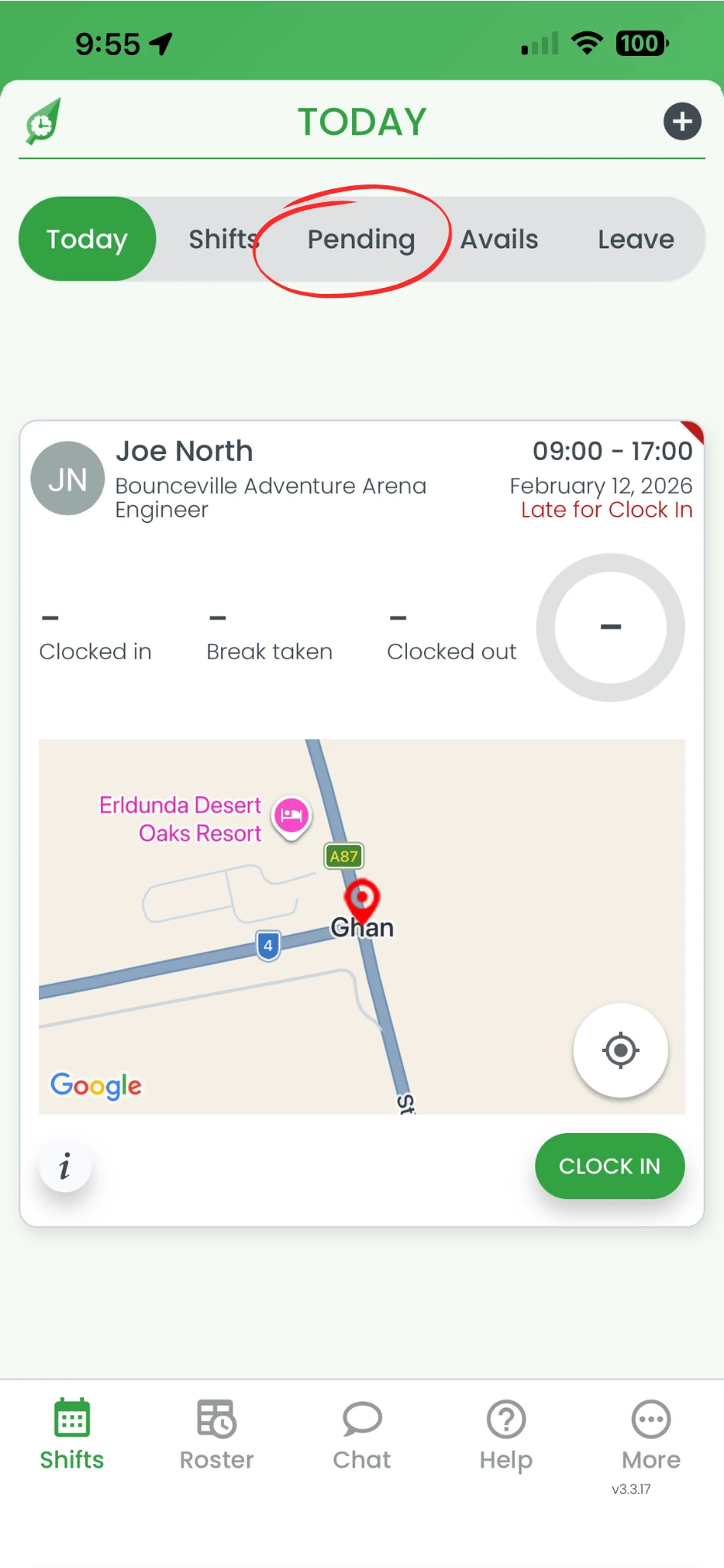
1.1.2 Press Pending from the menu.
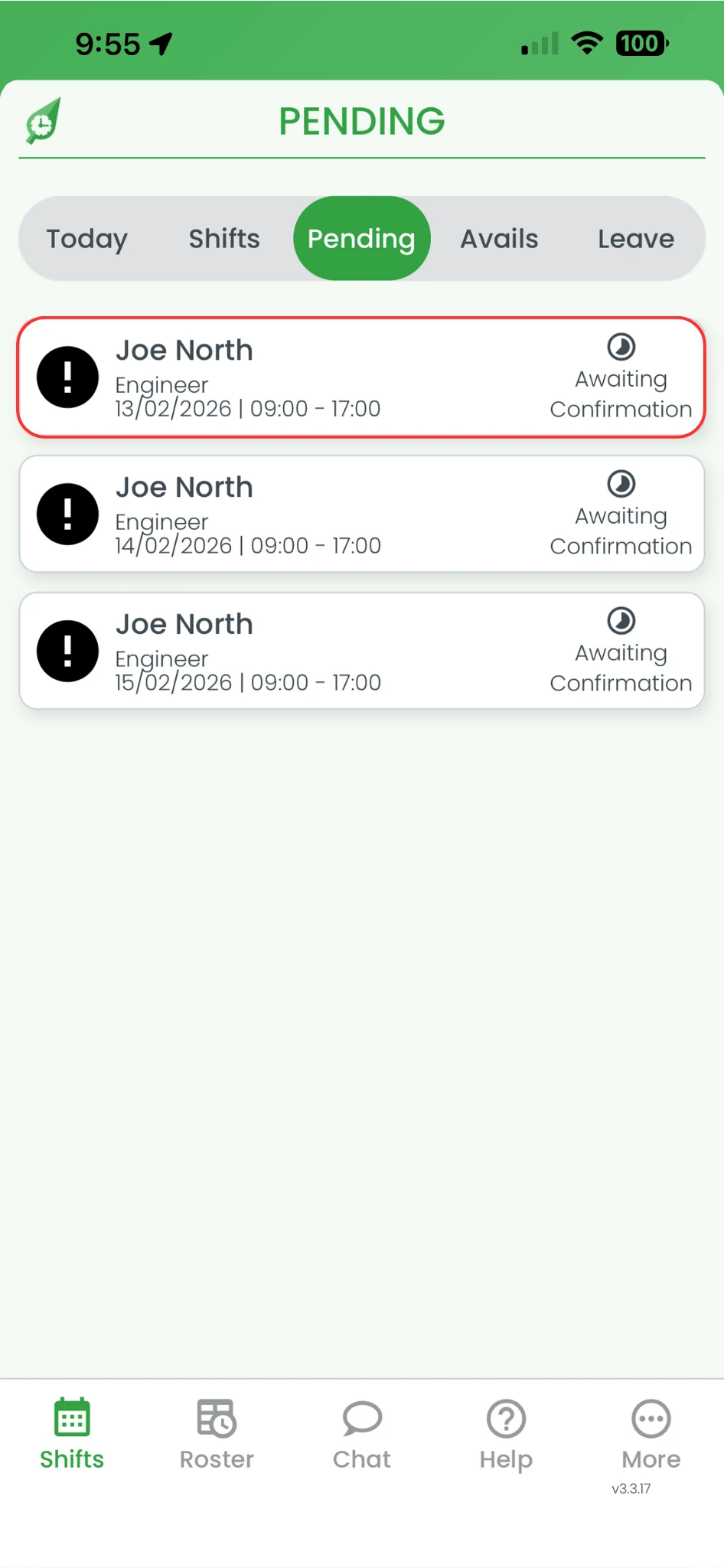
1.1.3 Select a shift awaiting your response.
1.2 Confirm or decline your shift
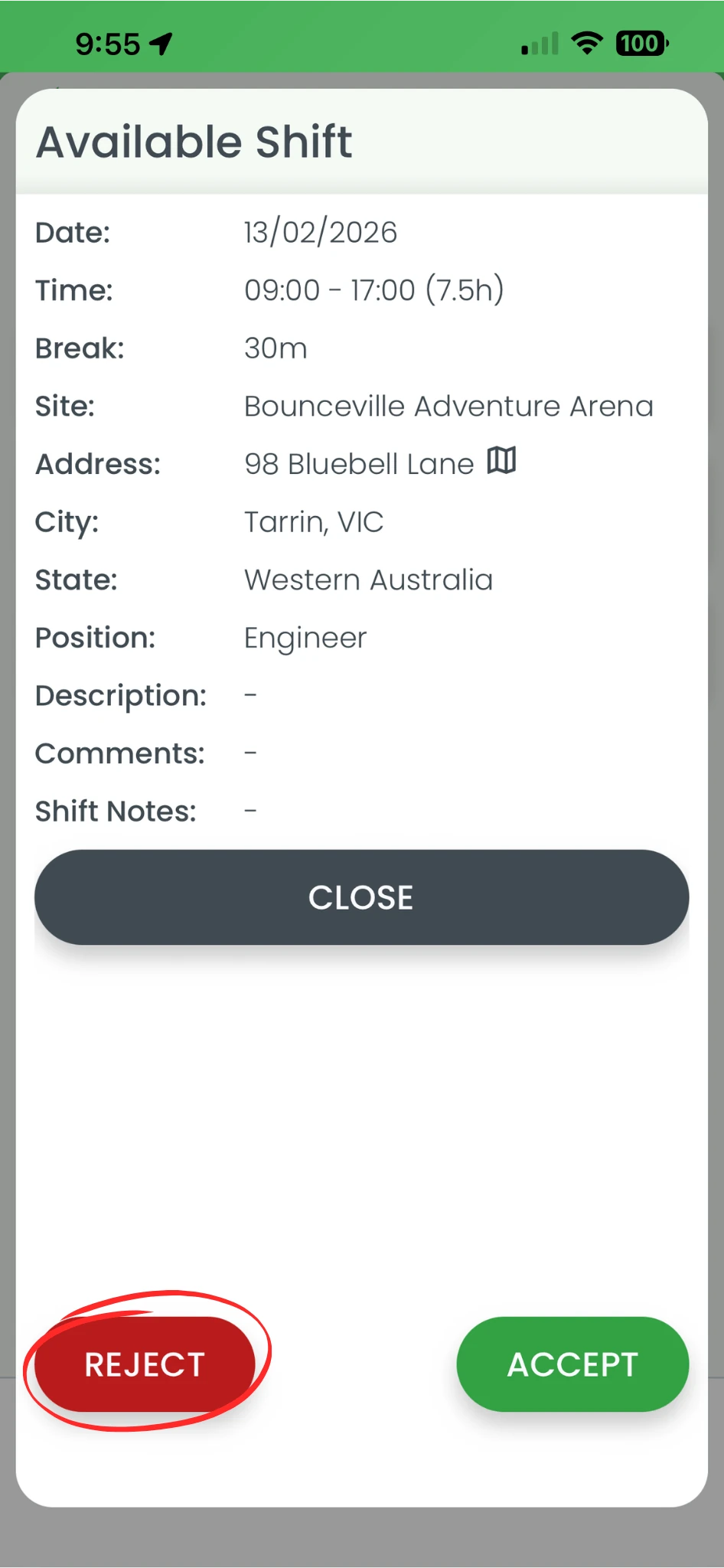
1.2.1 Check the shift details carefully.
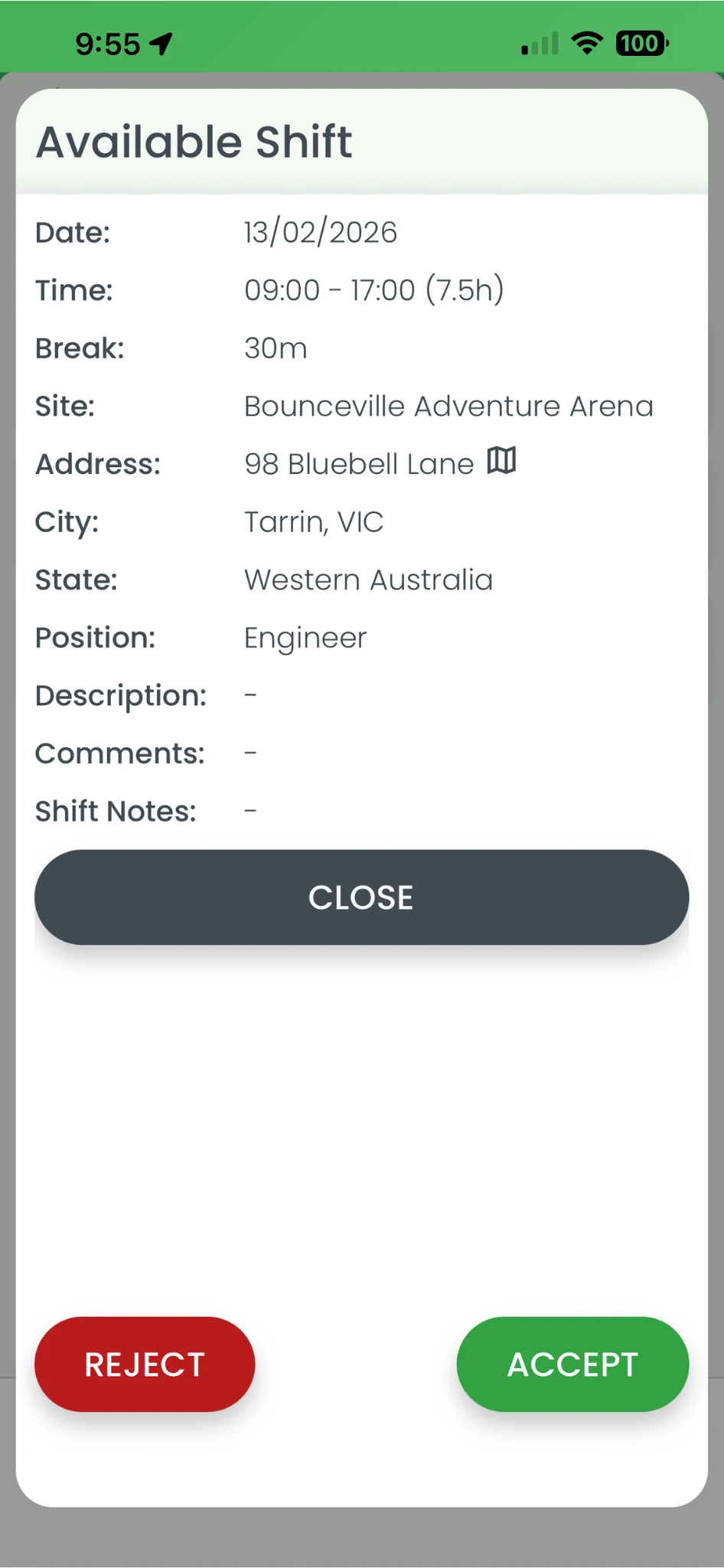
1.2.2 Press Accept to confirm the shift.
1.2.3 Press Reject if you cannot work the shift.
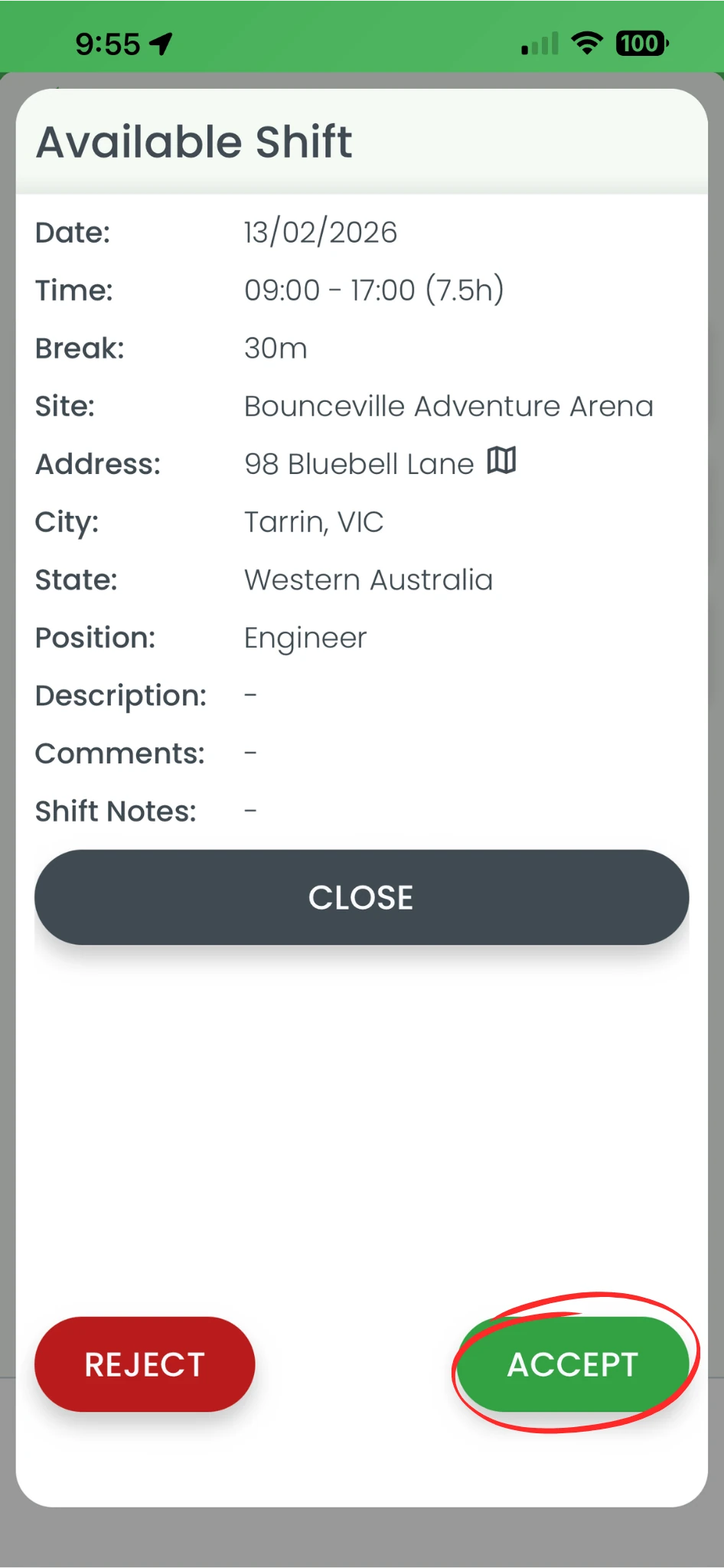
1.2.4 Press Confirm to finalise acceptance.
Frequently asked questions
1. How do I accept a shift in RosterElf?
To accept a shift in RosterElf, open the RosterElf mobile app and go to Shifts. Select Pending to view shifts awaiting your response. Open the shift, review the details, and press Accept. Once accepted, the shift is confirmed and added to your roster.
2. How do I reject a shift in RosterElf?
To reject a shift in RosterElf, open the pending shift in the mobile app and press Reject. This notifies the Account Owners, Administrators, Managers and Assistant Managers assigned to that site, so they can update the roster or find a replacement. You do not need to contact your manager separately.
3. What happens after I accept a shift in RosterElf?
After you accept a shift, the shift is locked in for you. Your manager can see that the shift is confirmed, and no further action is required unless the shift changes. Accepting shifts early helps keep rosters accurate and reduces last-minute changes.
4. What happens if I reject a shift in RosterElf?
When you reject a shift, RosterElf records your response and alerts your manager. The shift is not assigned to you, allowing your manager to make adjustments or offer the shift to another staff member.
5. Where can I see shifts that need my response in RosterElf?
You can see shifts that need your response by opening the RosterElf app, pressing Shifts, and selecting Pending. This section shows all shifts that require you to accept or reject before they are confirmed. The confirmation window opens from when the shift is posted, so respond as soon as you can.
6. Can I accept or reject a shift from a browser instead of the app?
Yes. In a browser, click the pending shift in My Calendar and the same Accept/Reject buttons appear in its detail view — see an overview of My Calendar for the full walkthrough.