

Payroll approvals on the RosterElf mobile app
This article shows managers how to use payroll approvals on the RosterElf iPhone and Android apps. You will learn to open the payroll screen, move between dates, filter by site or staff and approve each shift with a single tap. Screenshots guide every action so you never miss a wage change or overtime tweak. The workflow is fast, accurate and keeps your payroll data consistent with the web platform. By the end you can approve hours, add custom times, leave payroll notes and confirm every change from your pocket, saving a trip back to the office.
1. Open payroll approvals screen
This section explains how to reach the payroll approvals list in two taps. You will open the More menu and choose Payroll. A daily list of shifts then appears, ready for review. Mastering this entry point means you can jump straight into approvals without hunting through extra screens, even when you are on the go.
1.1 navigate to payroll approvals
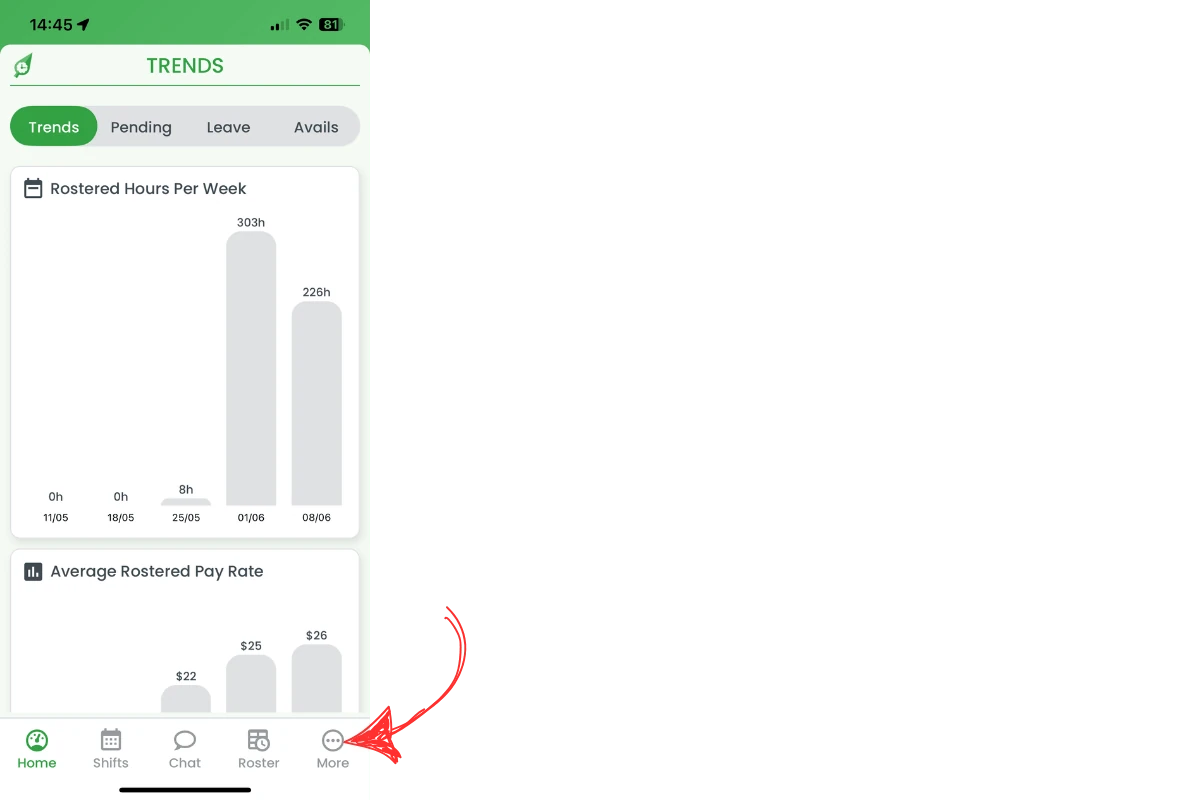
1.1.1 Tap the More icon at the bottom-right of the navigation bar.
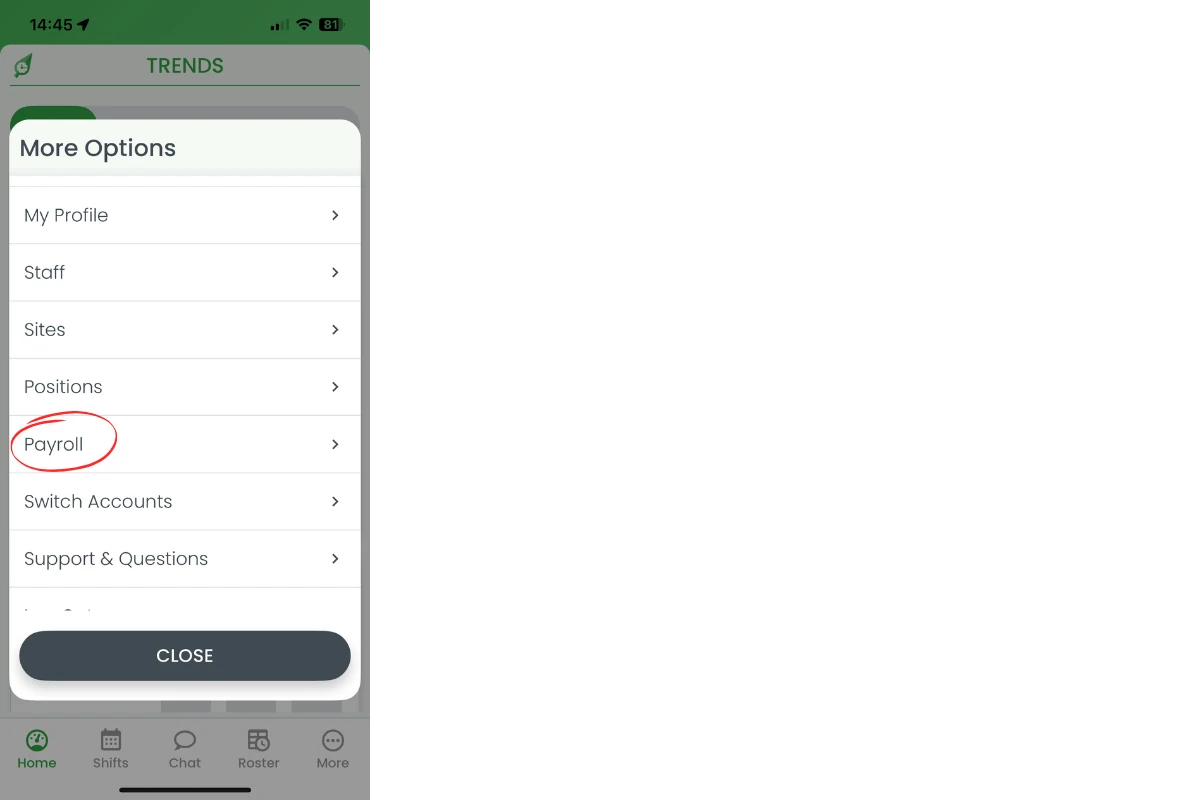
1.1.2 In the list, select Payroll to launch the approvals view.
2. Review shifts for payroll approval
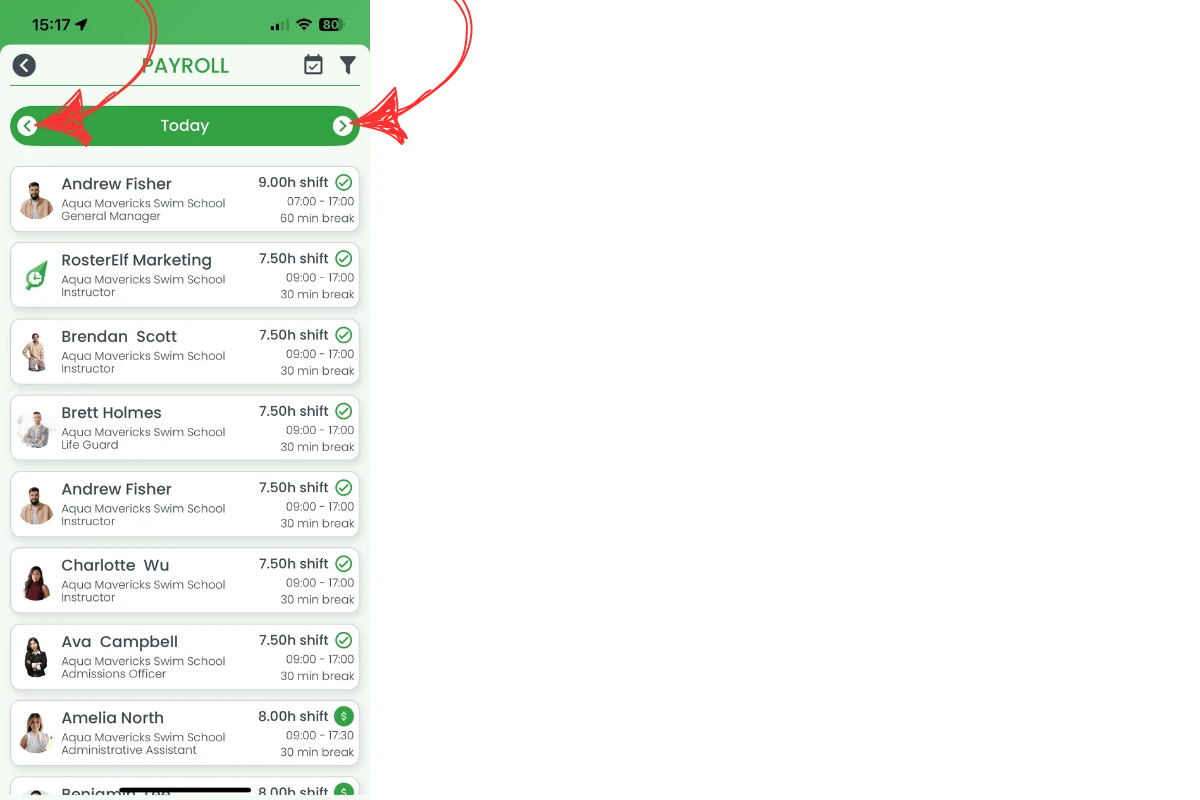
The payroll screen defaults to today. Use the arrows to move forward or back, jump to the Today button and apply filters for site or staff. This introduction covers every navigation tool so you can locate the correct shifts before approving or editing hours.
2.1 change dates and apply filters
2.1.1 Tap the left or right arrows beside the date to move one day at a time.
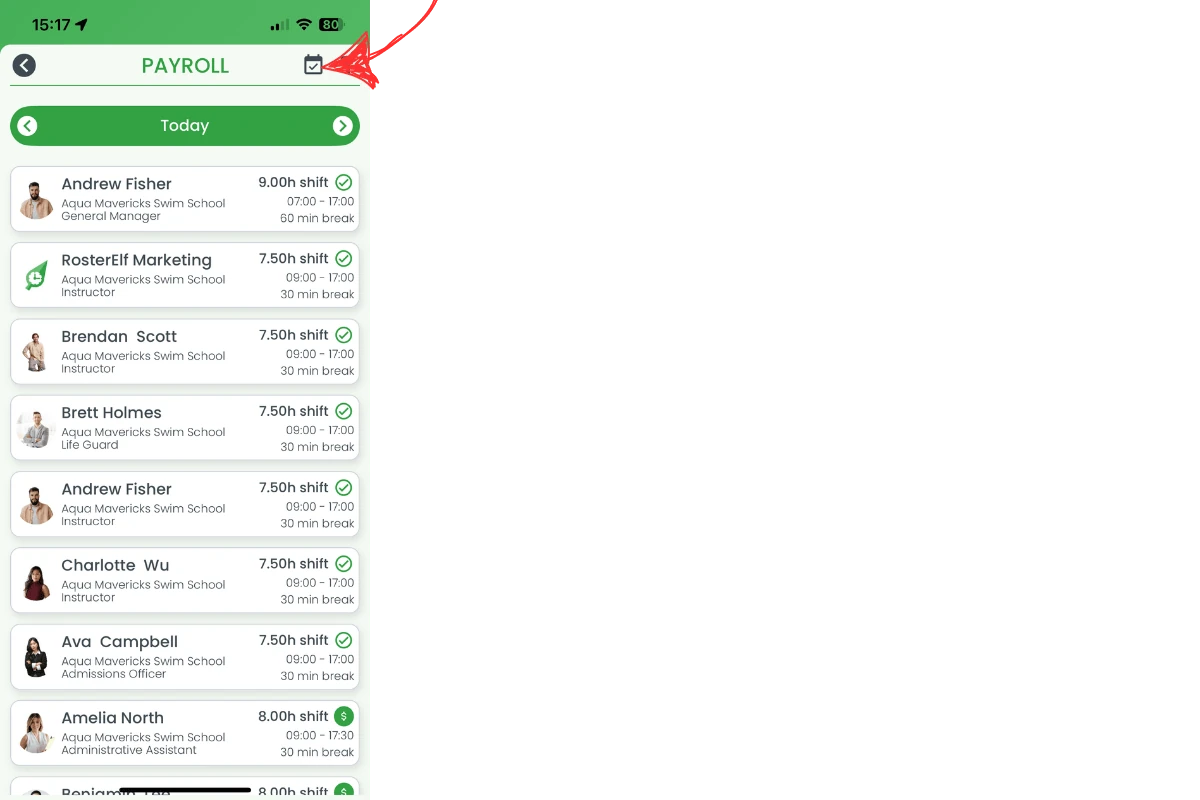
2.1.2 Press the Today shortcut to return to the current roster date.
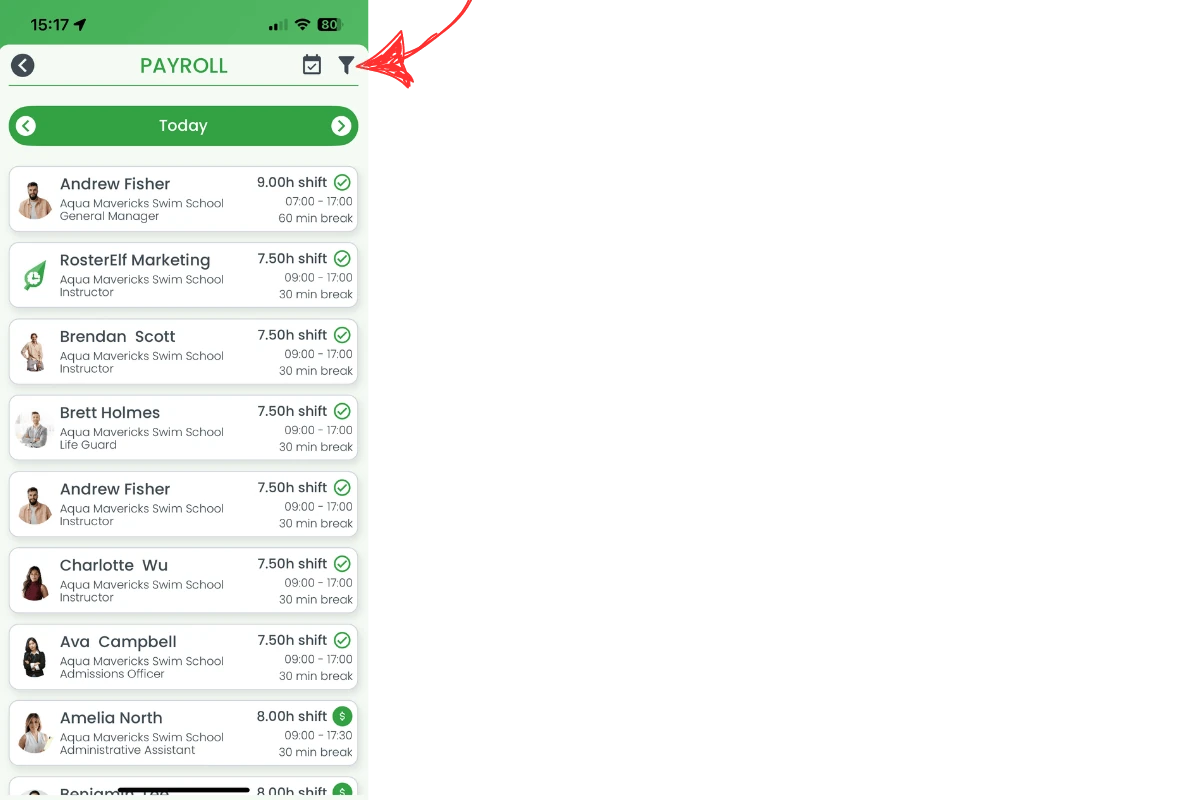
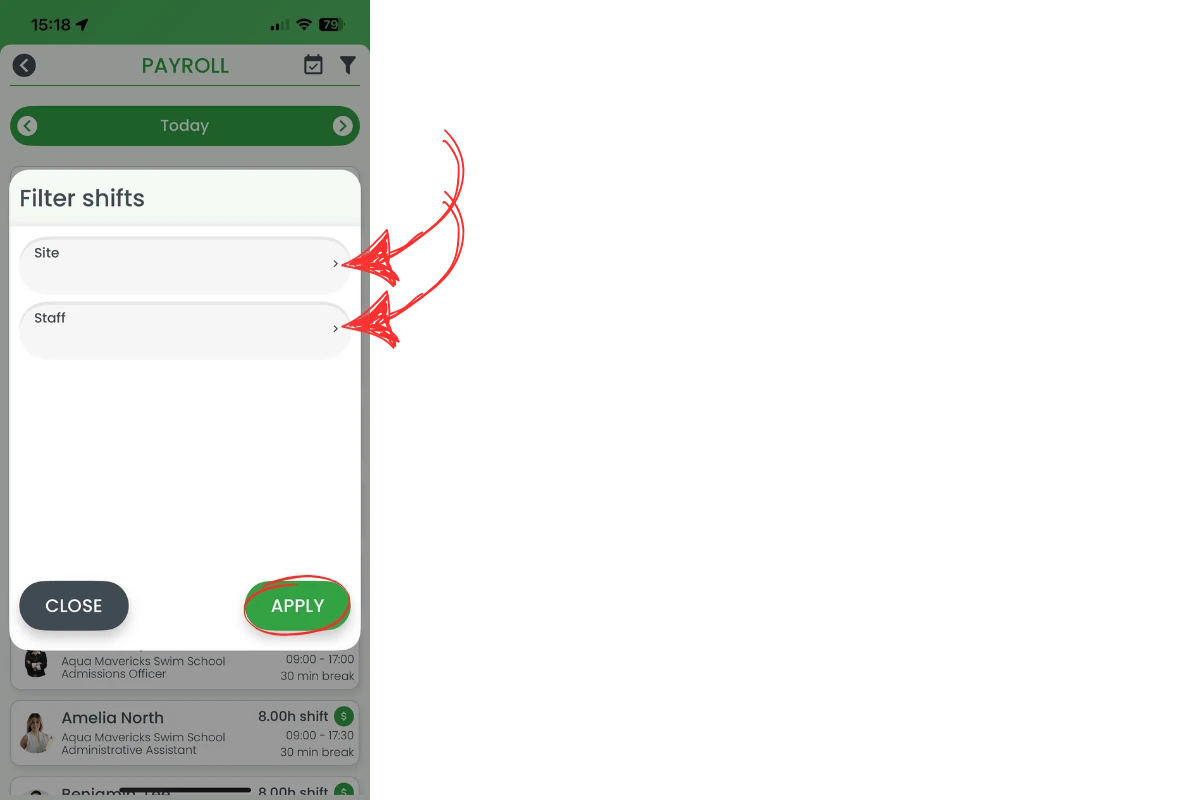
2.1.3 Tap the filter icon to open Site and Staff filters, then hit Apply.
2.2 approve or edit shift hours
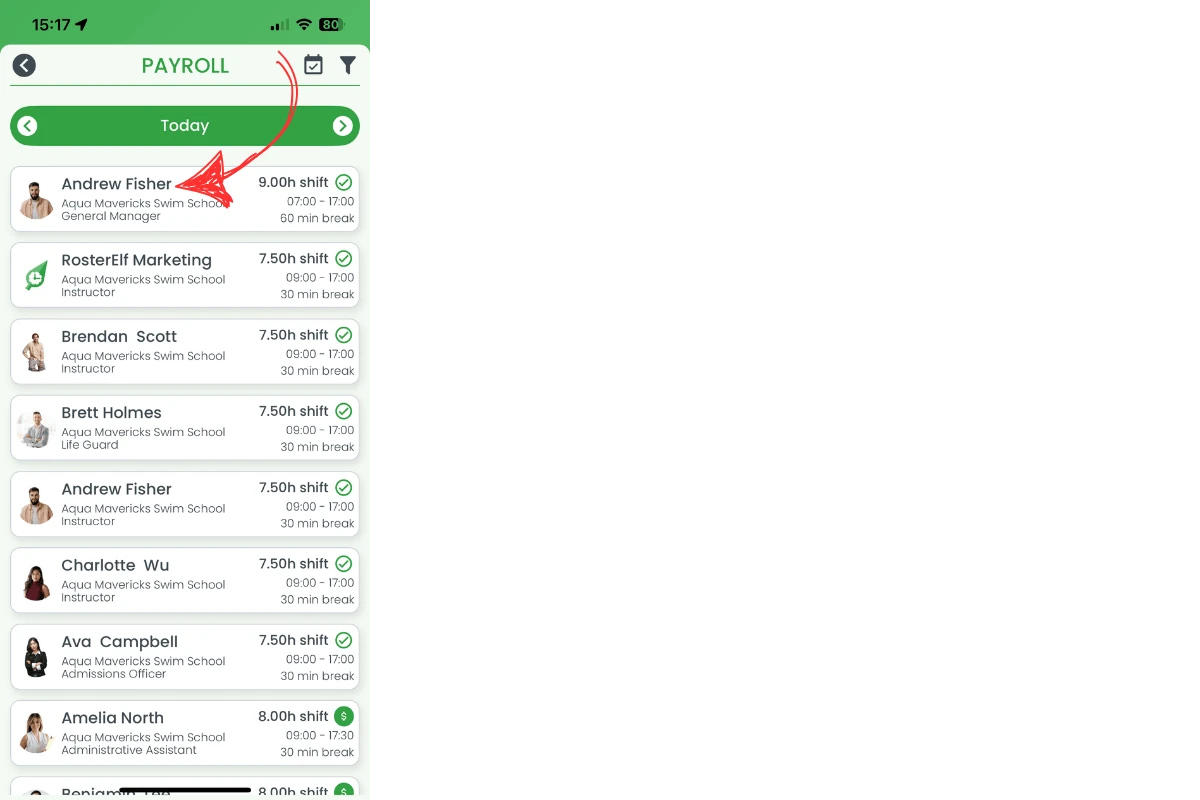
2.2.1 Tap a staff member’s shift to open approval options.
2.2.2 Choose Rostered, Time-Clock, Auto or Custom hours, then tap Save.
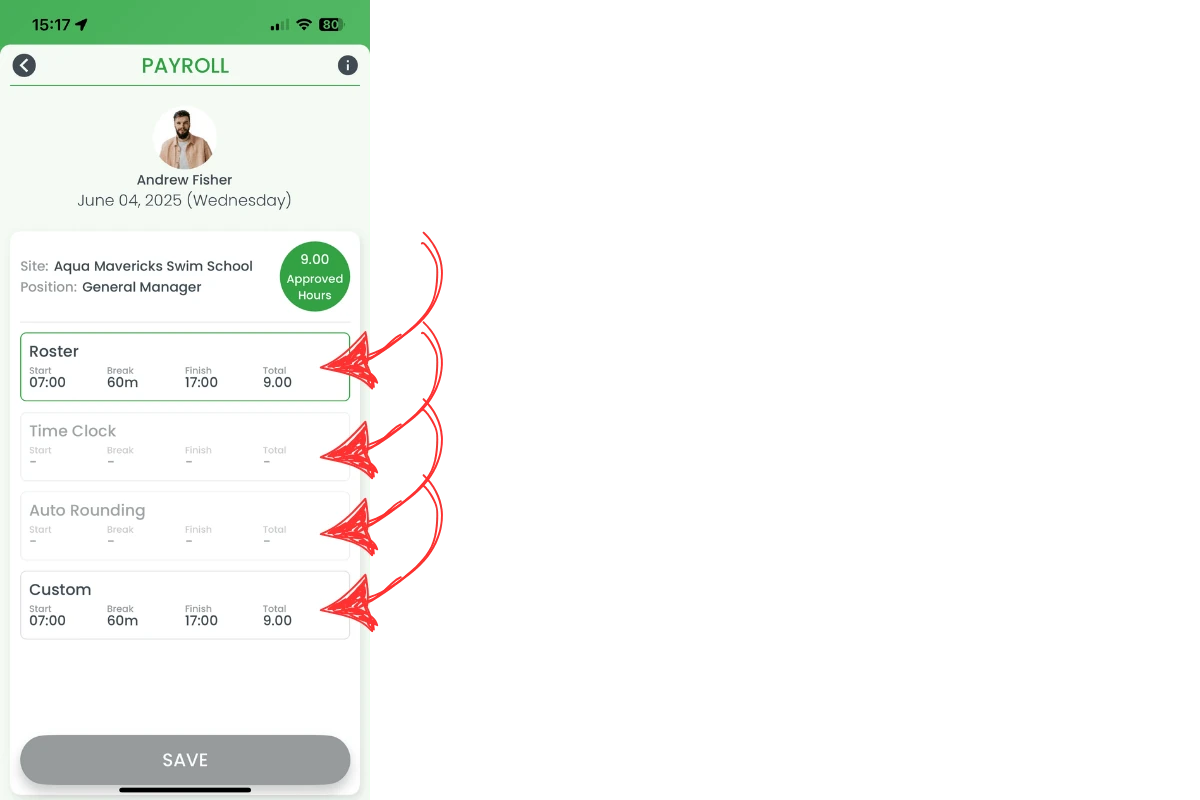
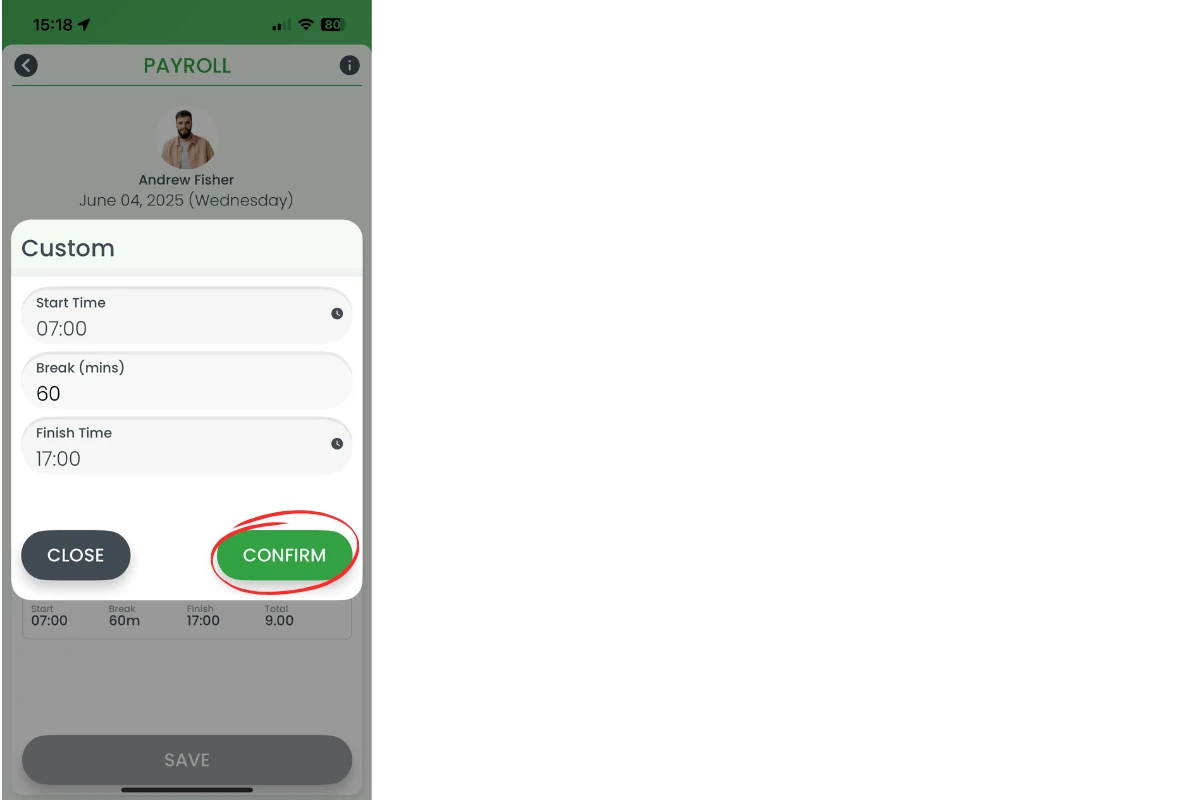
2.2.3 If you pick Custom, edit start, break and finish times, then press Confirm.
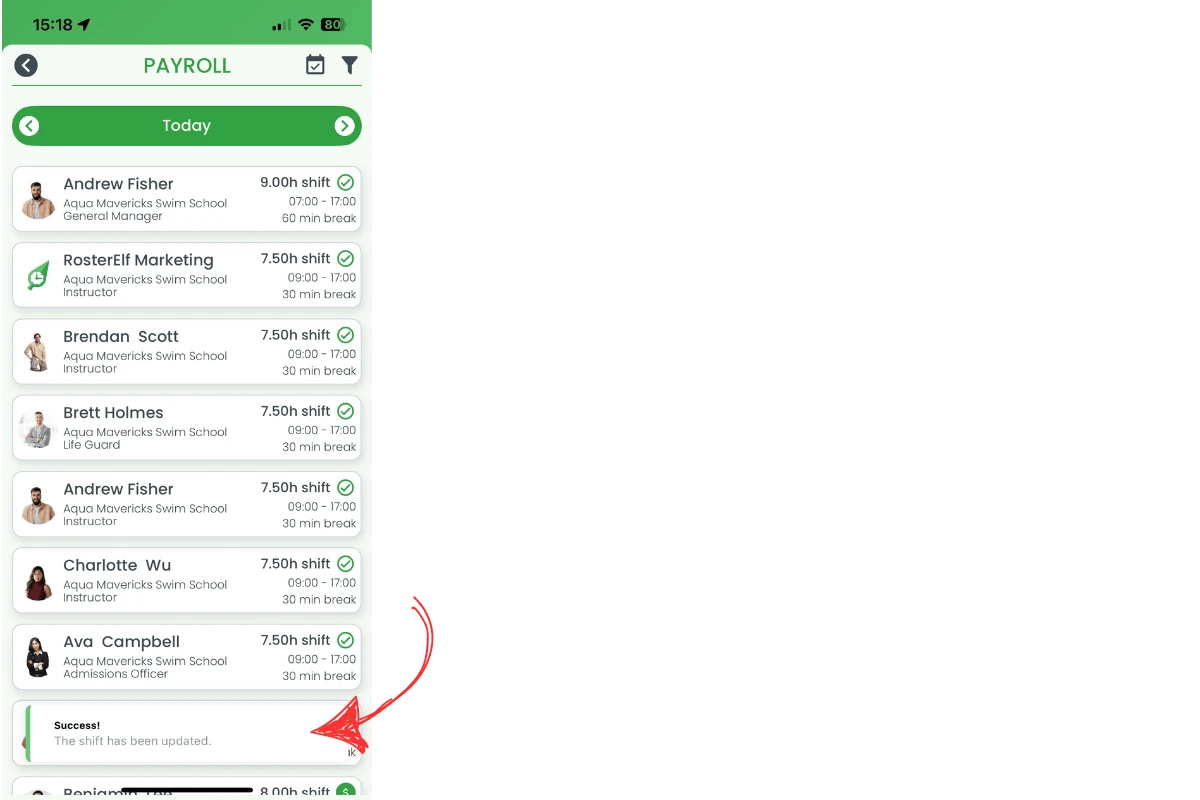
2.2.4 A green success banner shows the shift is updated.
3. Add payroll notes after approval
Payroll notes help explain edits, overtime or special rates. This final section covers opening shift details, switching to the Notes tab, saving comments and checking the confirmation banner. Clear records protect you at audit time and keep payroll paperwork tidy.
3.1 record payroll notes
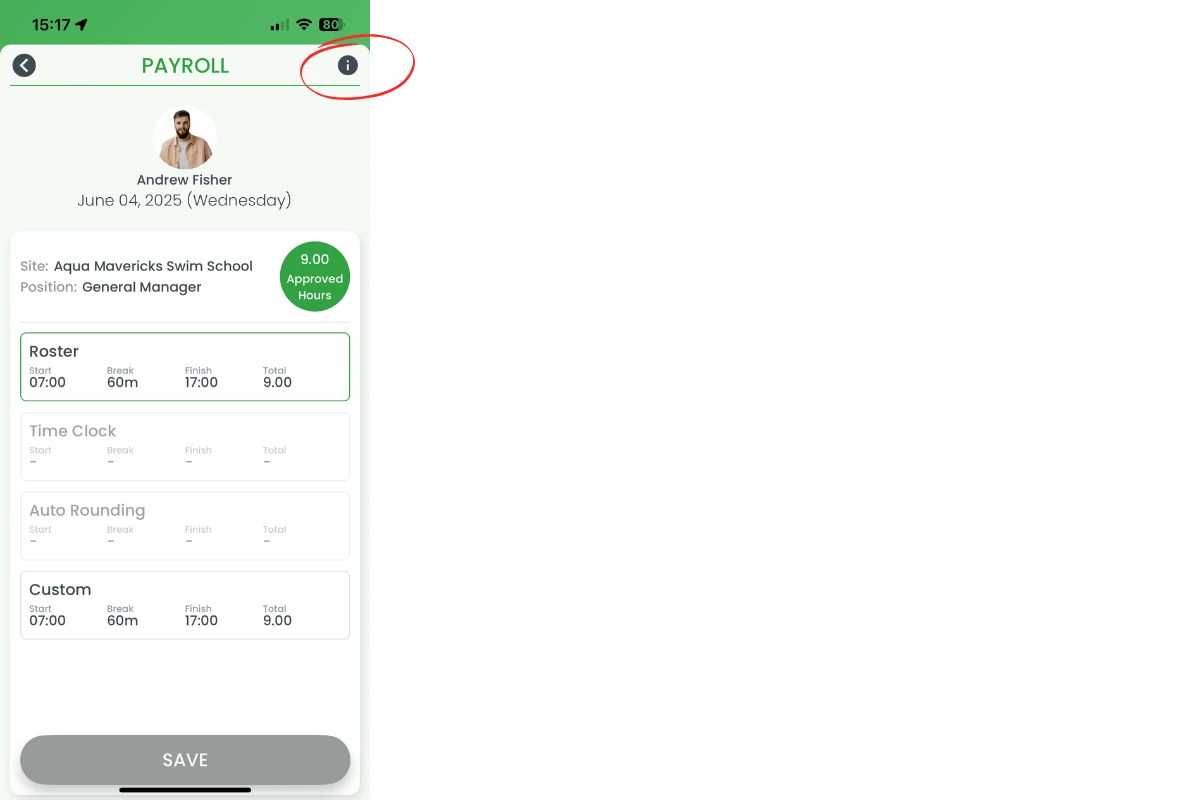
3.1.1 On the shift approval page, tap the i icon to open Shift Details.
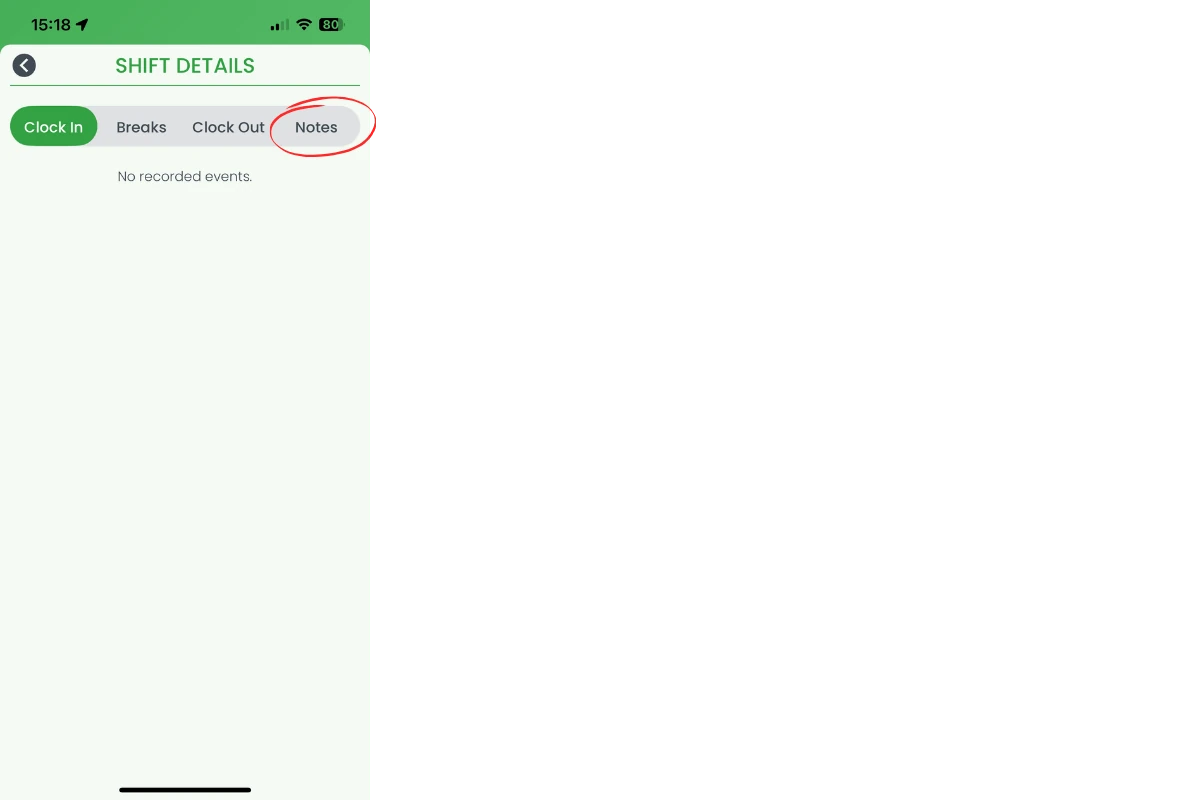
3.1.2 The Shift Details page shows tabs for Clock In, Breaks, Clock Out, Photo Proof and Notes. Review these records before saving any changes.
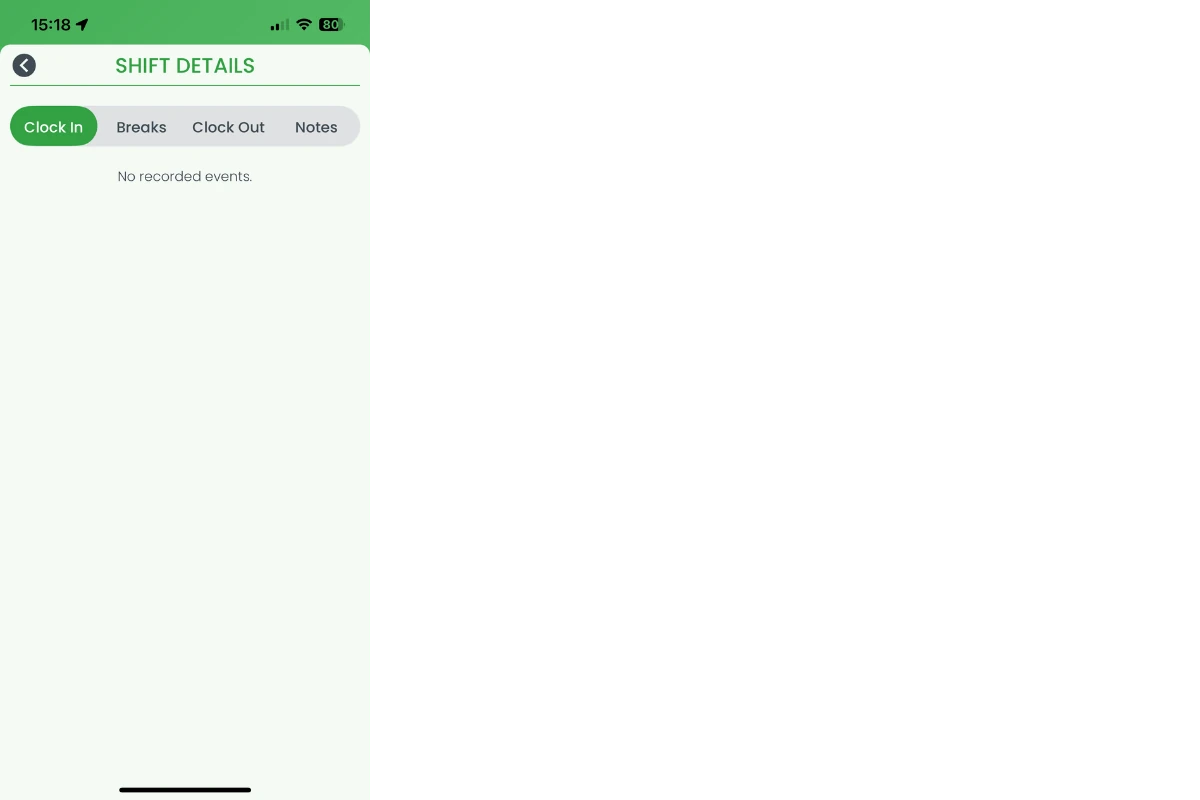
3.1.3 Select the Notes tab, enter your payroll comment and tap Save.
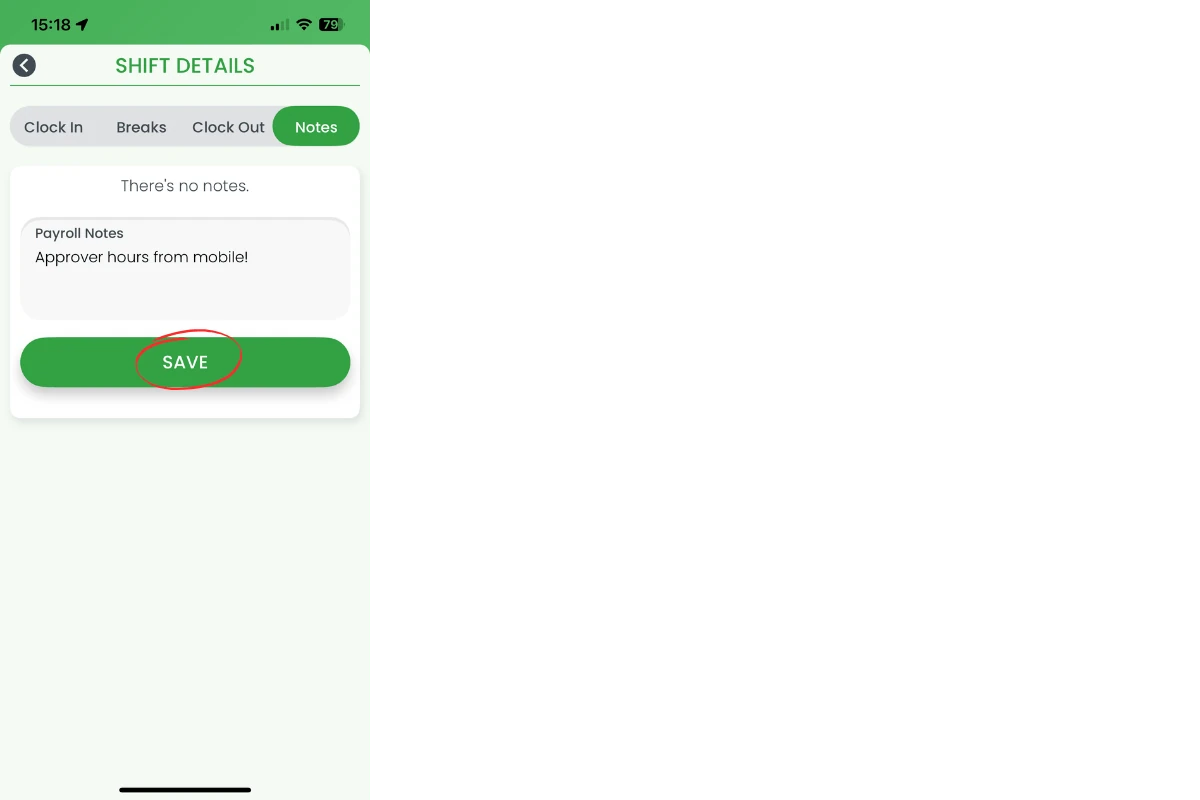
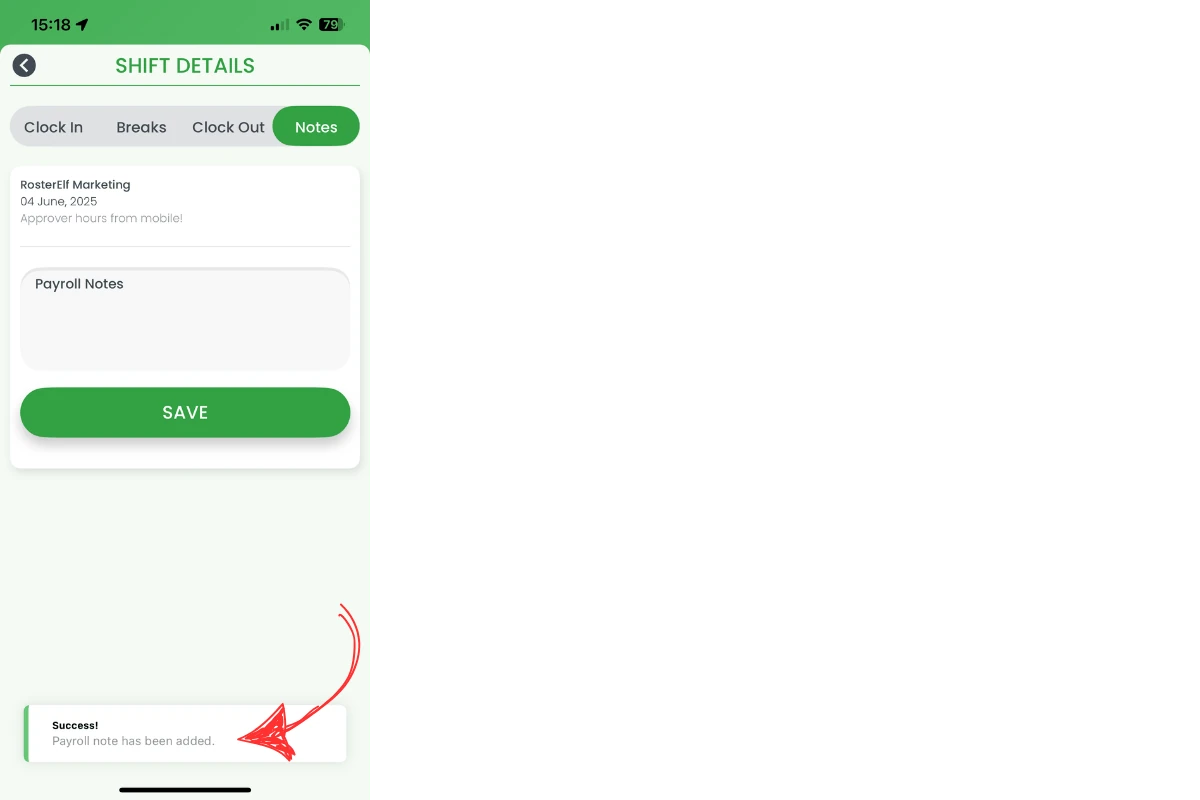
3.1.4 A green success banner confirms your note is stored with the shift.
Frequently asked questions
1. Where can I find payroll approvals on my mobile device?
Tap More in the bottom-right navigation, then select Payroll to open the approvals list for the current day.
2. Can I filter shifts by site or staff?
Yes. Tap the filter icon at the top of the payroll screen, pick a site or staff member and tap Apply to narrow the list.
3. How do I override rostered hours with custom times?
Select a shift, choose Custom from the approval options, edit the start, break and finish times, then press Confirm to save.
4. Will changes sync with the web app?
Yes. All approvals and notes are updated instantly in the web payroll view, ensuring consistency across devices and platforms.
5. Why should I add payroll notes?
Notes explain adjustments for auditing and help payroll staff understand special rates, overtime or manual corrections at review time.