

Call or text an employee
Need to reach a team member fast? This guide shows you how to call or send a text from the RosterElf mobile app. In moments, you can open an employee’s profile, tap a single icon and start a call or SMS. Using the built-in contact tools keeps your roster up to date and your people informed. You’ll save time, cut mis-communication and make sure urgent messages never get lost.
1. Contact an employee via the app
This section walks you through every tap, from opening the More menu to choosing Call or SMS. Follow the numbered steps in order. Each image appears after the step it illustrates so you can check your screen matches ours before you move on.
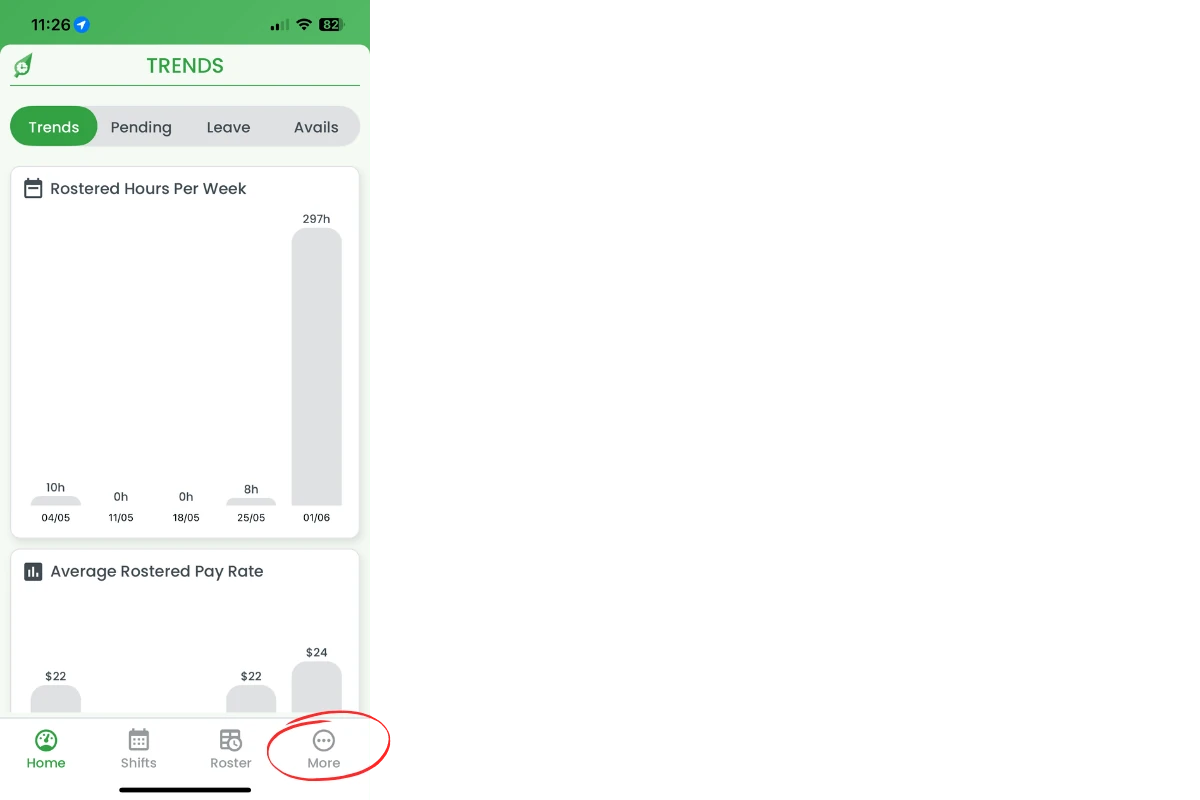
1.1 Open the more menu
1.1.1 Tap More at the bottom-right of the screen.
1.2 Select staff
1.2.1 In the More options list, tap Staff.

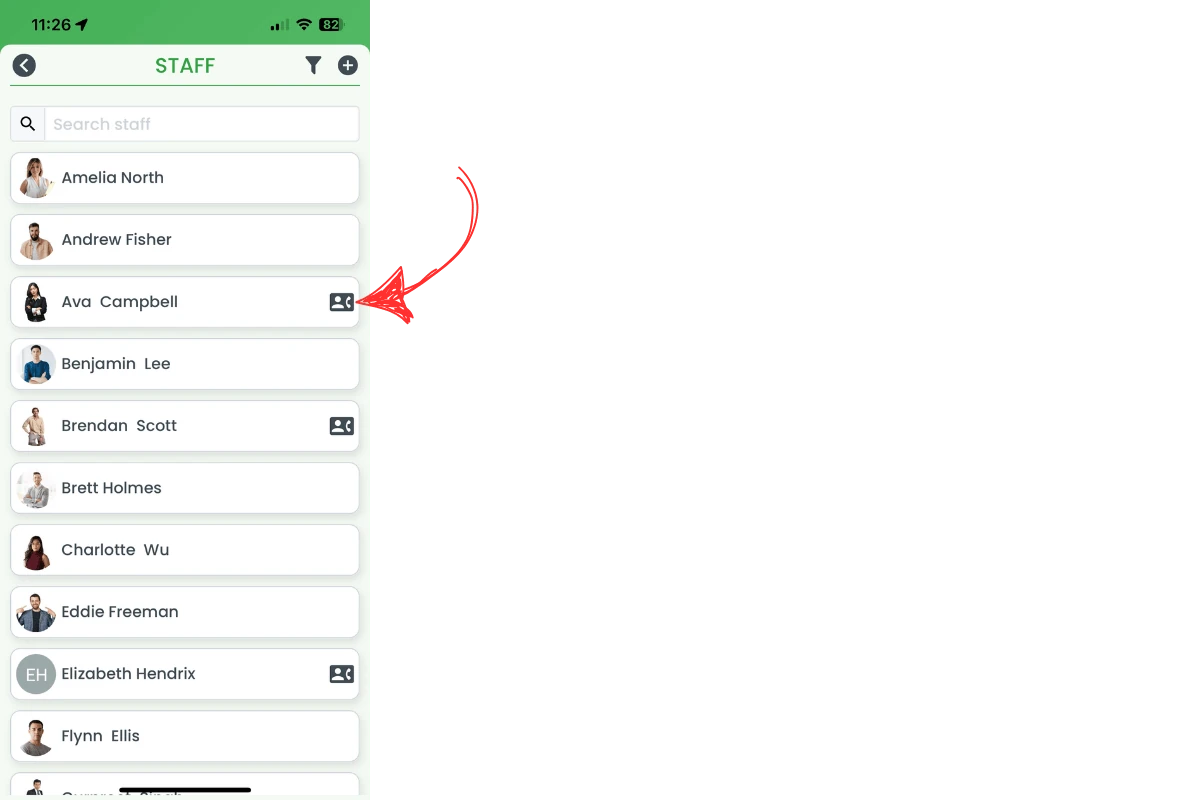
1.3 Open contact options
1.3.1 Find the employee and tap the contact icon on the right. The icon only appears beside staff who have a mobile number saved in their profile.
1.4 Choose call or SMS
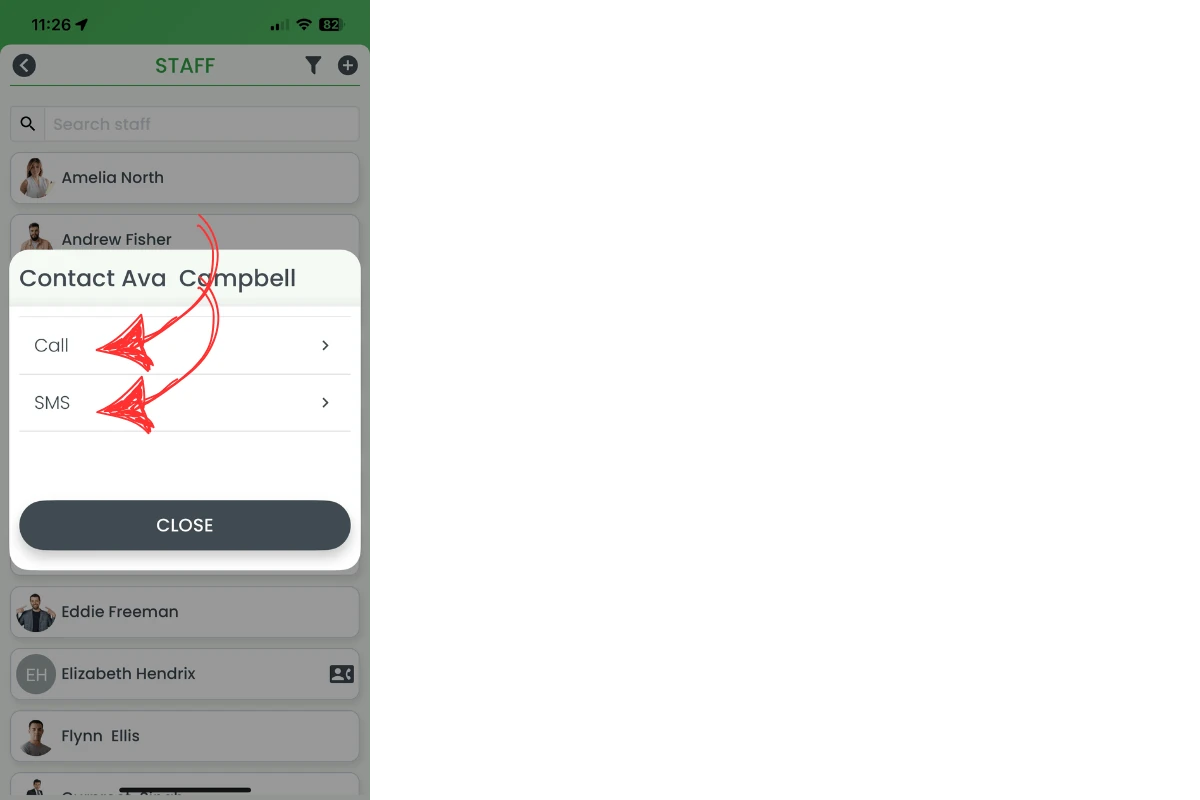
1.4.1 A Contact window opens, titled with the employee’s name, showing Call, SMS and CLOSE.
1.4.2 Tap Call to ring the employee instantly.
1.4.3 Tap SMS to open your phone’s messaging app with their number filled in and a greeting (Hey followed by their first name) already typed.
Frequently asked questions
1. Will my number stay private when I call an employee?
RosterElf passes the call to your phone app, so your normal caller ID settings apply. The call uses your device’s native dialer.
2. Why don't I see a contact icon next to a staff member's name?
The staff member has no phone details saved in their profile. Edit their profile to add a mobile number and the contact icon will appear.
3. Does the SMS option use my plan or an app credit?
The message is sent by your default texting app, so standard carrier rates apply. RosterElf does not charge for these SMS messages.
4. Can I disable calling or texting for some roles?
Yes. Remove phone numbers from employee profiles. Without a saved phone number, the contact icon will not appear for that staff member.
5. Can I send a message to multiple employees at once?
No. This feature calls or texts one employee at a time. For group messages, use the roster notifications feature to send shift alerts to multiple staff.