

How to complete a shift task on your smartphone
Shift tasks attach a checklist to your shift, so you know exactly what needs doing on site — an opening or closing run-sheet, a cleaning job, or a compliance check. This guide shows you how to open your checklist in the RosterElf app and tick each item off as you complete it.
You’ll only see a Tasks button if your admin has activated shift tasks and attached a checklist to your shift. If Tasks doesn’t appear, ask your manager — they can turn it on and build a template using Get started with shift tasks.
1. Open your shift
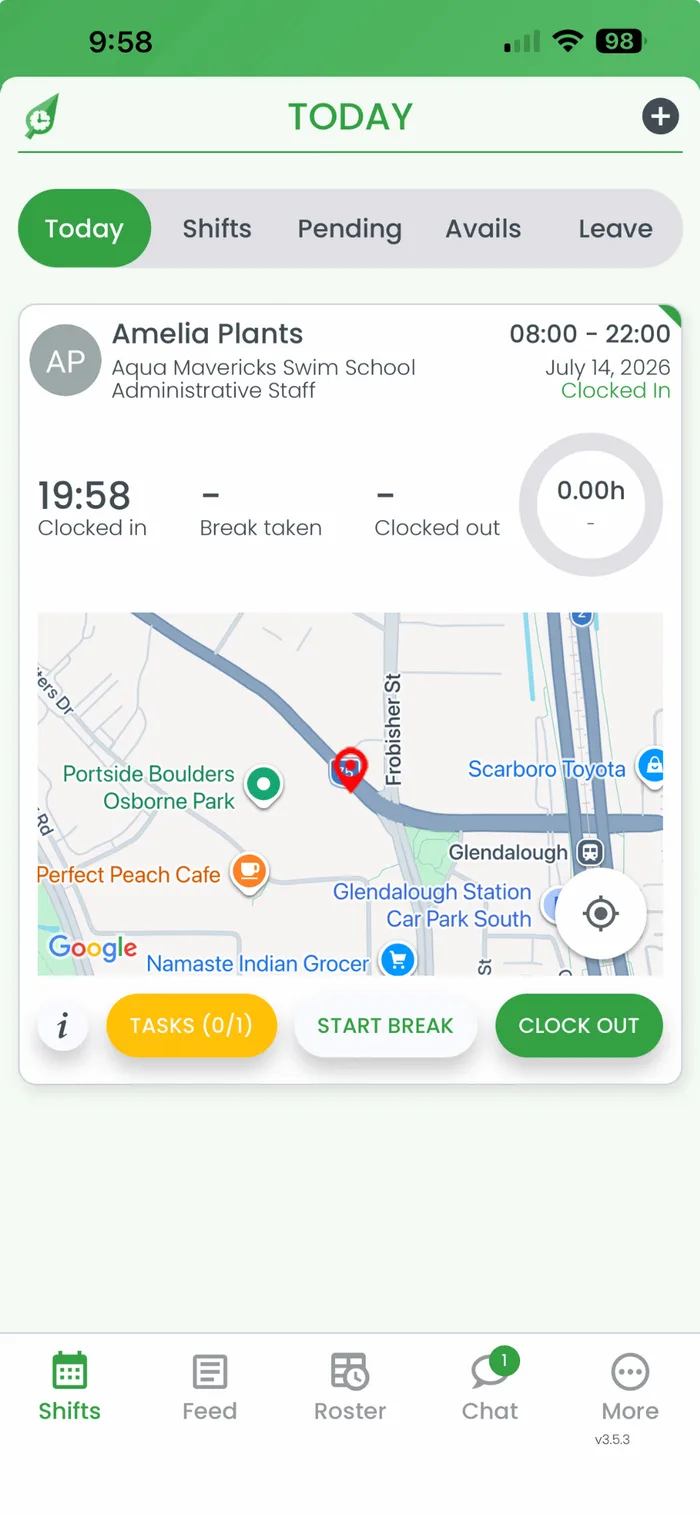
1.1 Open the RosterElf app. It opens on the Today tab, showing your current shift with a Tasks button and how many items are outstanding.
1.2 Clock in for your shift first. Tasks can only be ticked off once you’re clocked in — if you try before then, the app shows “Clock in not detected”.
2. Open shift tasks
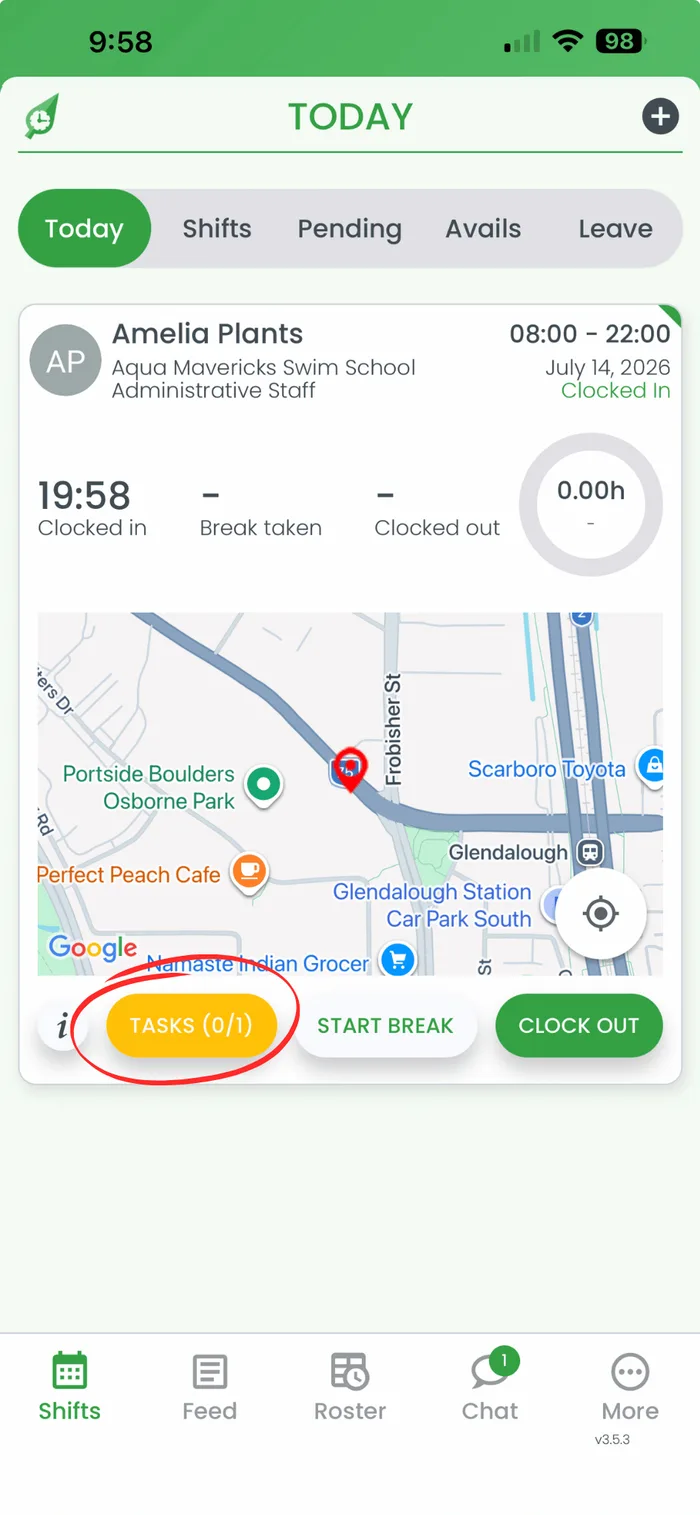
2.1 Press Tasks on your shift card to open your checklist for the day.
3. Tick a task as complete
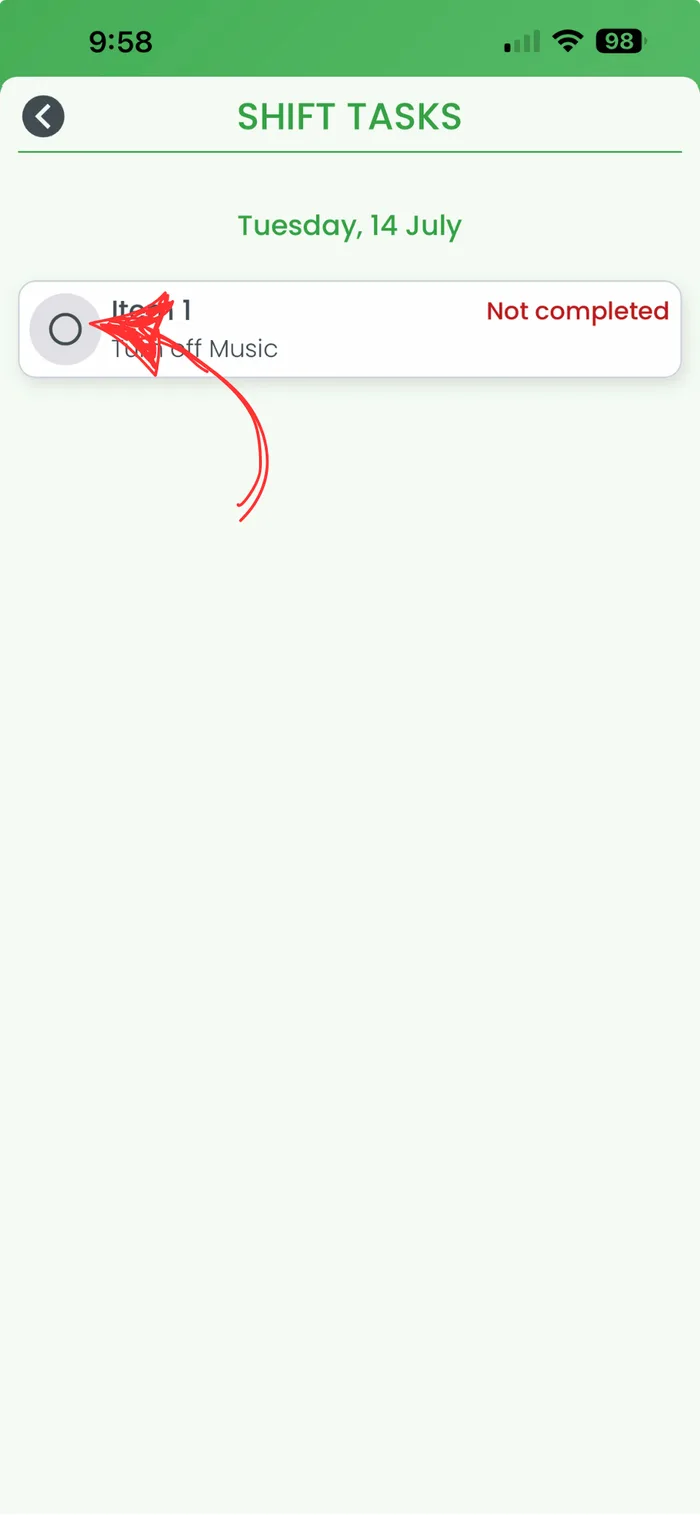
3.1 Press the checkbox beside a task once you’ve finished it.
4. Confirm the task
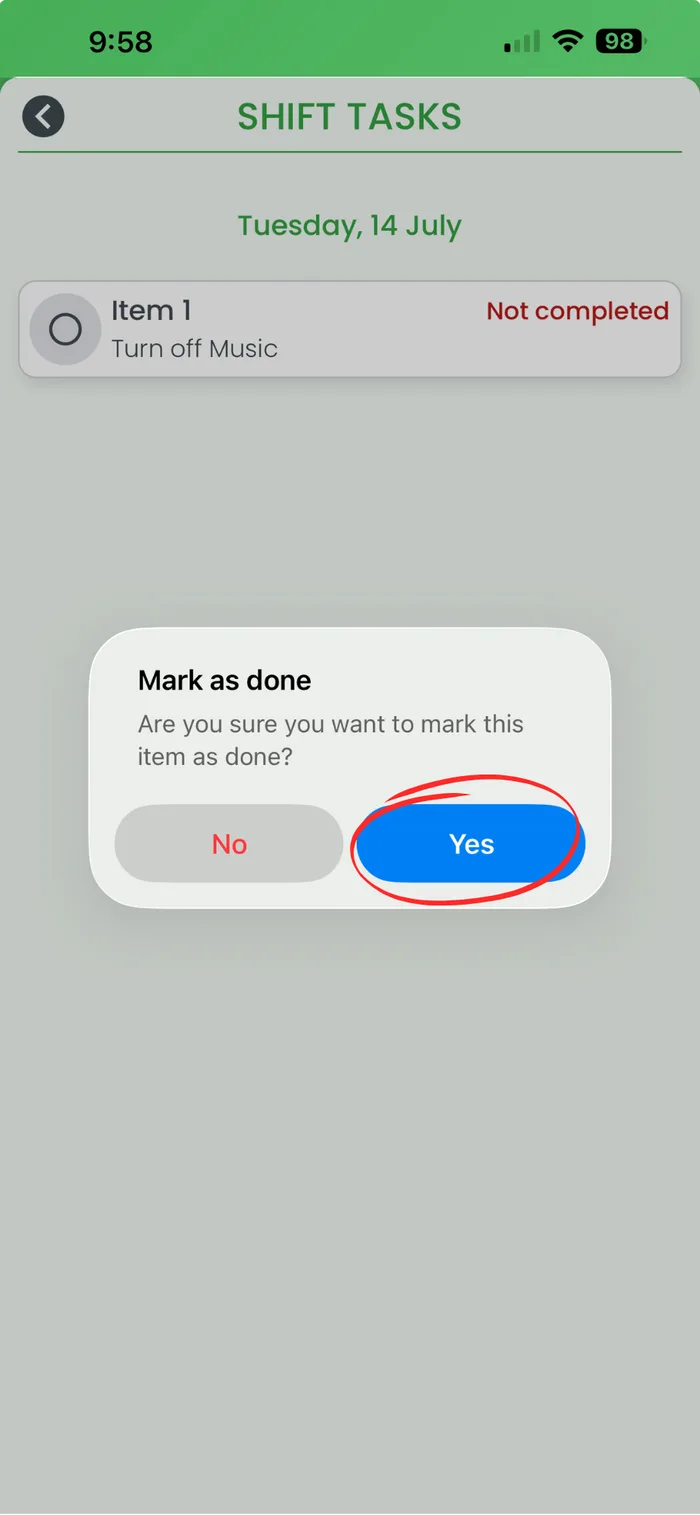
4.1 Press Yes on the Mark as done popup to confirm you’ve completed the task.
5. Return to your shift
5.1 Press the back arrow to return to your shift. The task now shows as Completed.
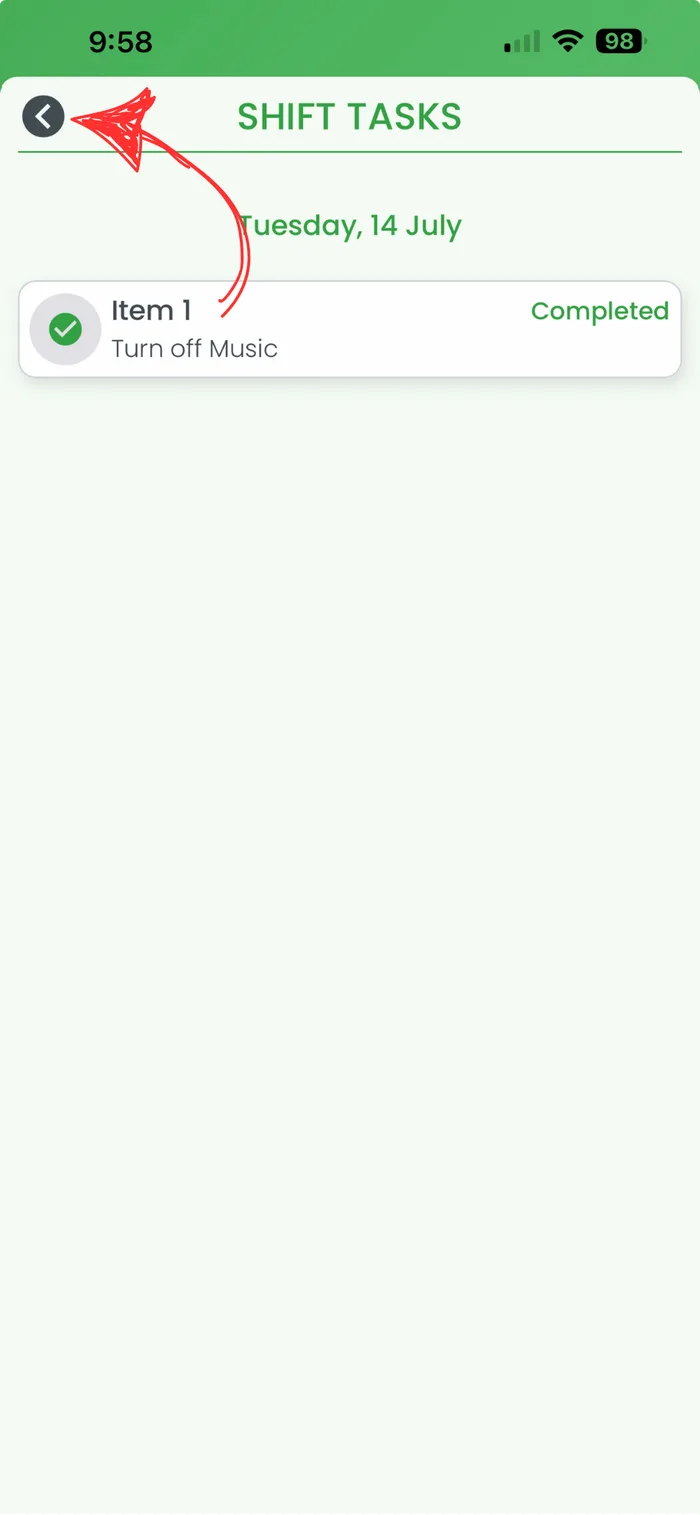
Repeat these steps for each item on your checklist. Once every task is ticked off, your shift’s checklist is complete — if anything is left unfinished by midnight, it’s flagged Incomplete for your manager to follow up.
Related guides: Get started with shift tasks, Adding a shift from a smartphone, Complete shift tasks on the Timeclock app.
Frequently asked questions
1. How do I mark a shift task as complete on my phone?
Open the RosterElf app and clock in for your shift — tasks can only be ticked off once you’re clocked in. Then press Tasks on your shift, press the checkbox beside the task you’ve finished, then press Yes to confirm. Press the back arrow to return to your shift once you’re done.
2. Do I need a separate app to complete shift tasks?
No. Shift tasks appear inside the same RosterElf app you already use to view shifts and clock in. There’s no extra app and no extra login — your checklist is there the moment your shift starts, ready to tick off once you clock in.
3. Until when can I complete my shift tasks?
You can tick items off any time up to midnight of the shift date. After that, the shift’s tasks resolve automatically — completed items archive and anything left unfinished is flagged Incomplete for your manager to review.
4. Why am I asked for a photo or note before I can complete a task?
Some checklist items are set up by your admin or manager to require a photo or a note — for example, a fridge temperature check or proof a cleaning task was done. You won’t be able to tick that item off until you’ve added the photo or note it asks for.
5. Why can't I see Tasks on my shift?
Tasks only appear on a shift if your admin has activated shift tasks and attached a checklist template to it. If you can’t see a Tasks button, check with your manager — they can activate the feature and build a checklist in Get started with shift tasks.