

How to complete a shift task on the Timeclock app
Some sites use a shared Timeclock tablet for staff to clock in and out, rather than everyone using their own phone. Shift tasks work the same way on the Timeclock — you’ll just select your name from the roster and confirm with your TimeClock PIN, since the device is shared. This guide shows you how to open your checklist and tick each item off.
Using your own phone instead? See completing a shift task on a smartphone. You’ll only see a Tasks button if your admin has activated shift tasks and attached a checklist to your shift — if it’s missing, ask your manager, who can turn it on using Get started with shift tasks.
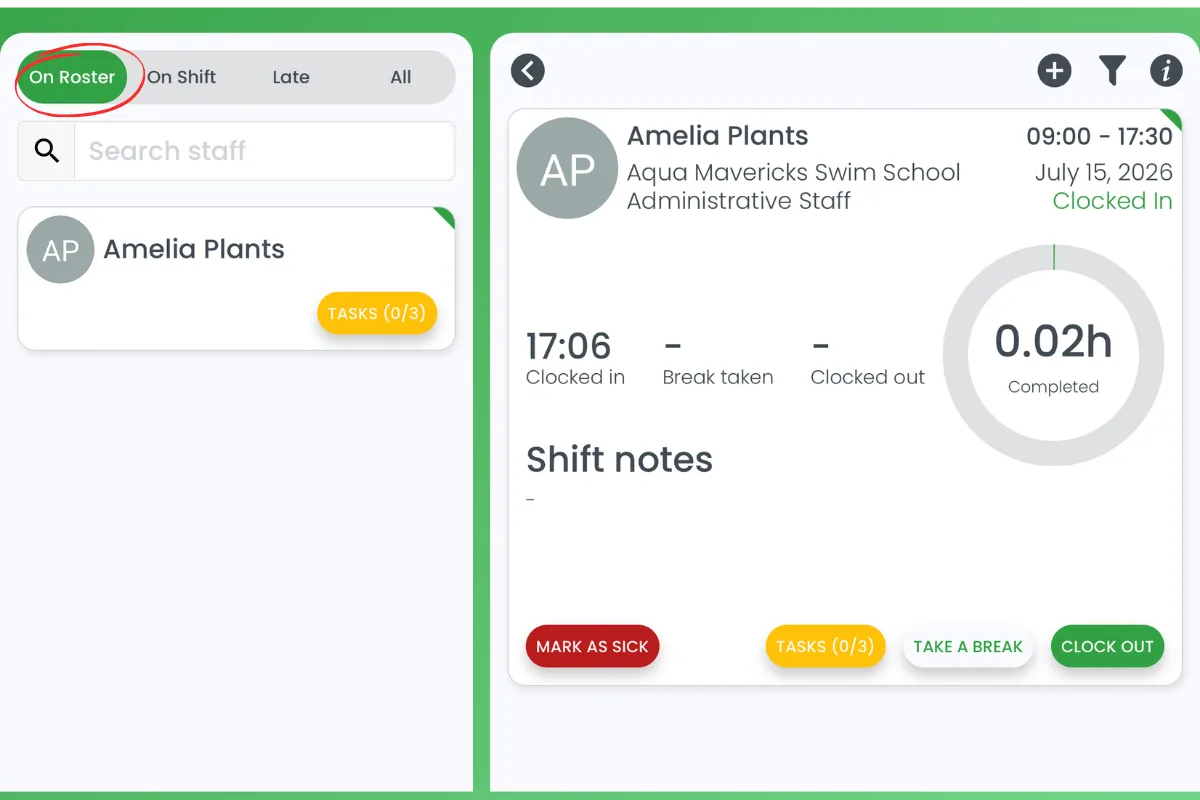
1. Press On Roster
1.1 Press the On Roster tab on the Timeclock to find your name and see how many tasks are outstanding.
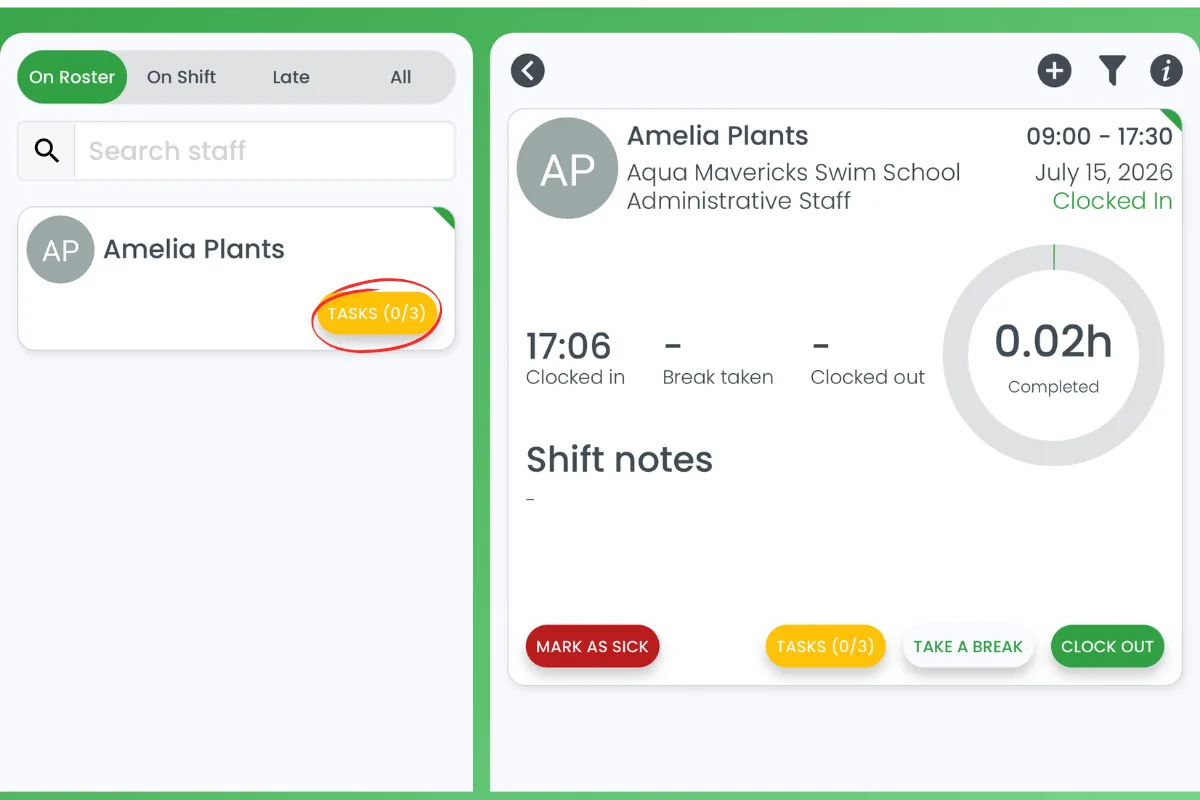
2. Press Tasks
2.1 Press the Tasks button next to your name to open your checklist for the day.
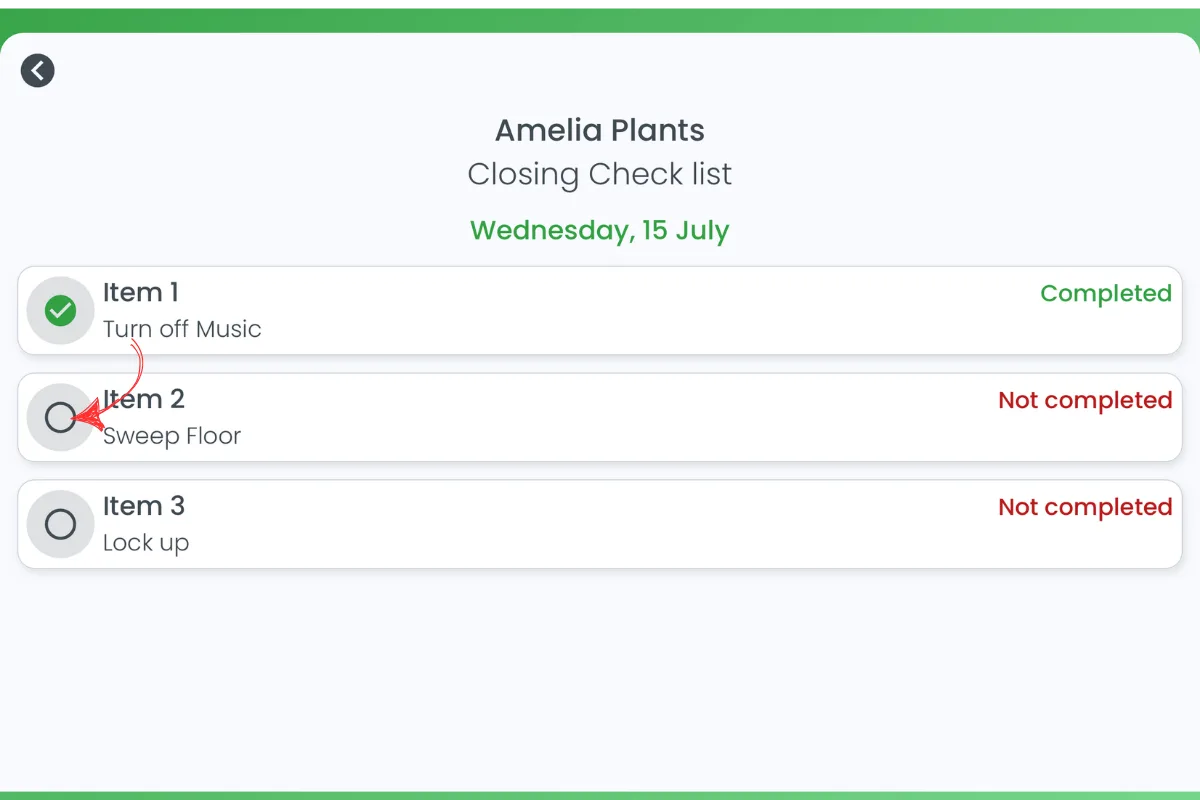
3. Tick a task as complete
3.1 Press the checkbox beside a task once you’ve finished it.
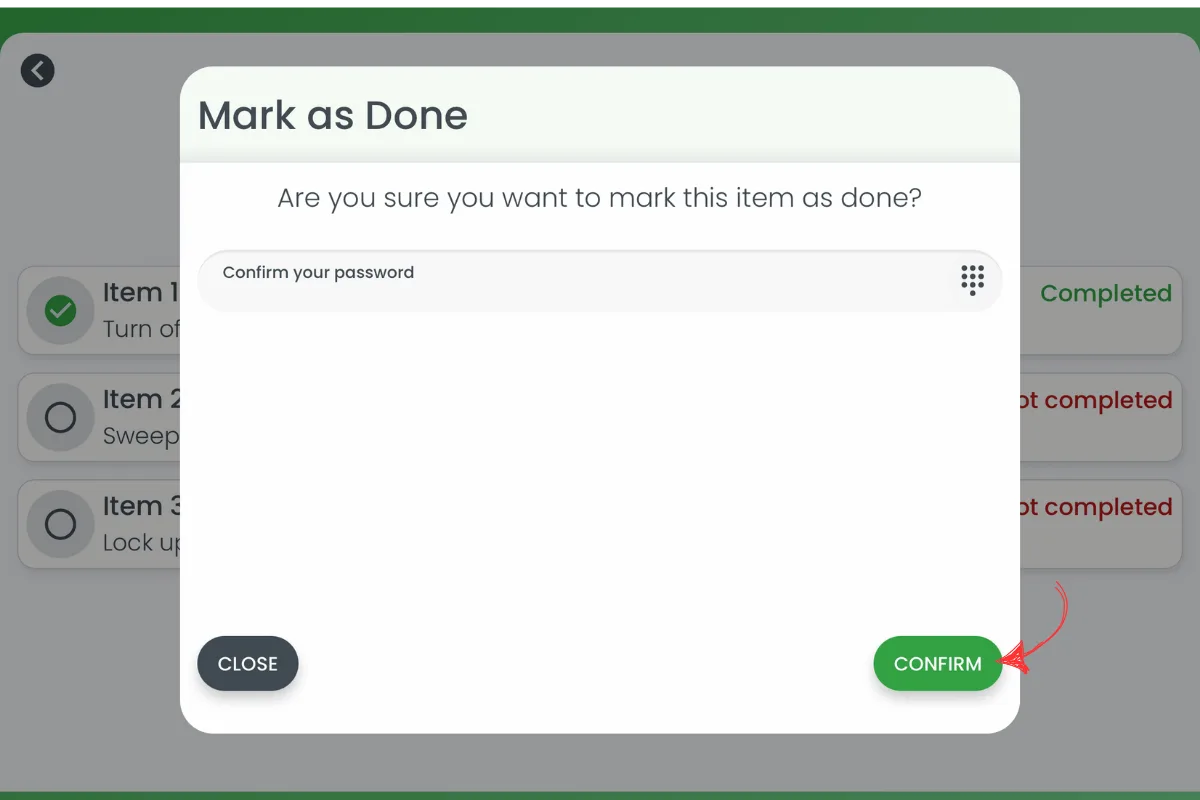
4. Enter your TimeClock PIN
4.1 Enter your TimeClock PIN into the “Confirm your password” field to verify it’s you marking the task as done.
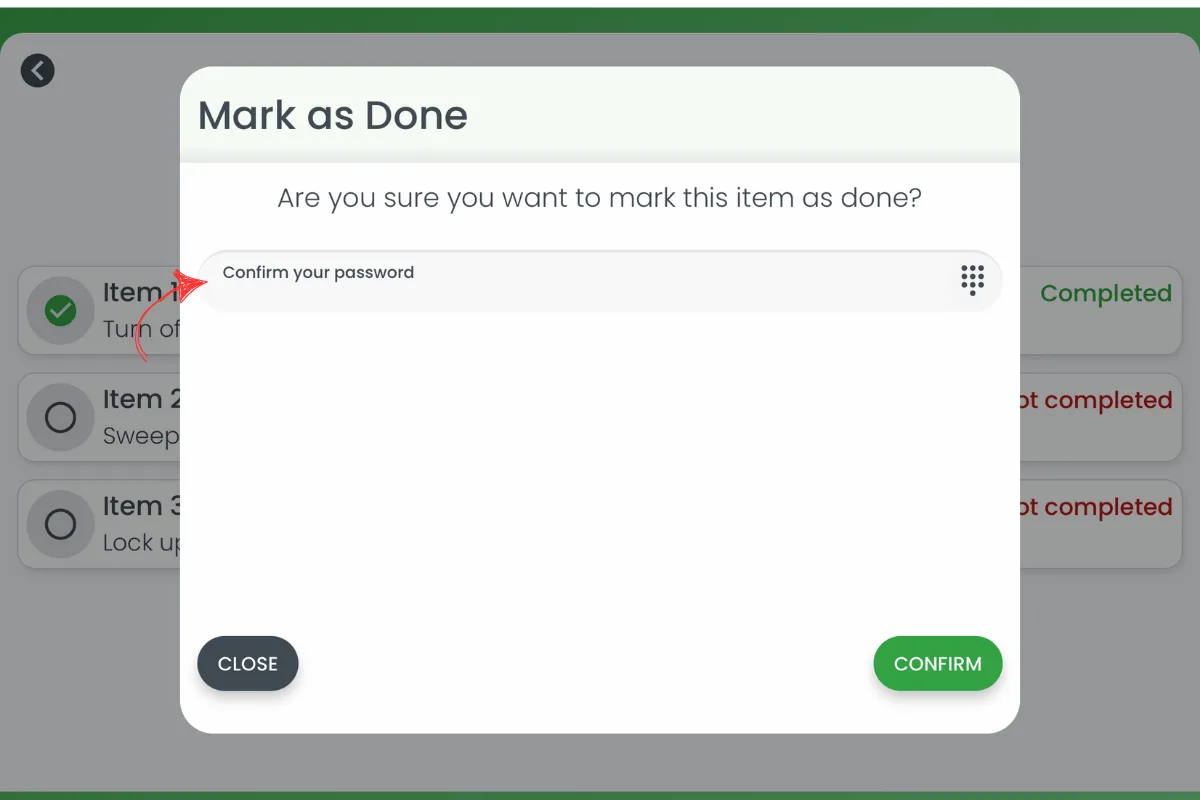
5. Press Confirm
5.1 Press Confirm to mark the task as done.
6. Return to the roster
6.1 Press the back arrow to return to the roster. The task now shows as Completed.
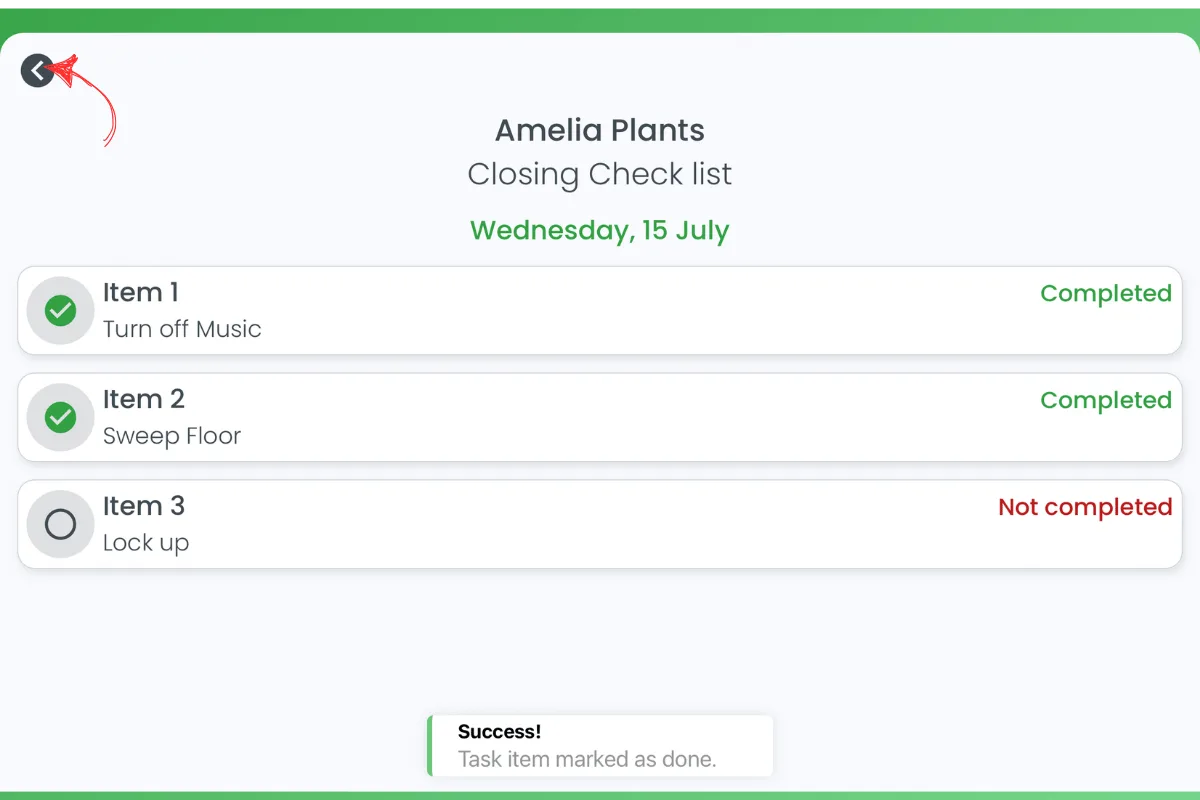
Repeat these steps for each item on your checklist. Once every task is ticked off, your shift’s checklist is complete — if anything is left unfinished by midnight, it’s flagged Incomplete for your manager to follow up.
Related guides: Get started with shift tasks, Complete a shift task on the RosterElf app, Set and manage your TimeClock PIN.
Frequently asked questions
1. How do I mark a shift task as complete on the Timeclock app?
On the Timeclock, press On Roster, then press Tasks next to your name, press the checkbox beside the item you’ve finished, enter your TimeClock PIN and press Confirm. Press the back arrow to return to the roster once you’re done.
2. Why do I need to enter a password or PIN to complete a task on the Timeclock?
The Timeclock is a shared device used by your whole team, so entering your TimeClock PIN confirms it was really you who completed the task — the same PIN you use to clock in and out.
3. What's the difference between completing tasks on the Timeclock app and the smartphone app?
They work the same way — tick an item off and confirm — but on the shared Timeclock you first select your name under On Roster and confirm with your PIN, since the device isn’t logged in as just you. If you clock in on your own phone instead, see completing a shift task on a smartphone.
4. Why can't I see Tasks for my shift on the Timeclock?
Tasks only appear if your admin has activated shift tasks and attached a checklist template to your shift. If you can’t see a Tasks button, check with your manager — they can activate the feature and build a checklist in Get started with shift tasks.
5. Haven't set up a TimeClock PIN yet?
See Set and manage your TimeClock PIN to create one — you’ll need it both to clock in and to confirm shift tasks on the Timeclock.