

Add TimeClock to your iPad home screen
This guide explains how to add the TimeClock app to your iPad home screen. By following these steps, you’ll have quick access to your TimeClock login directly from your home screen. This will save time and make it easier to manage your tasks.
1. Open safari on your iPad
To begin, you’ll need to access Safari on your iPad. Safari is the default web browser on all Apple devices and will allow you to navigate to the TimeClock website.
1.1.1 Open Safari from your iPad’s home screen.
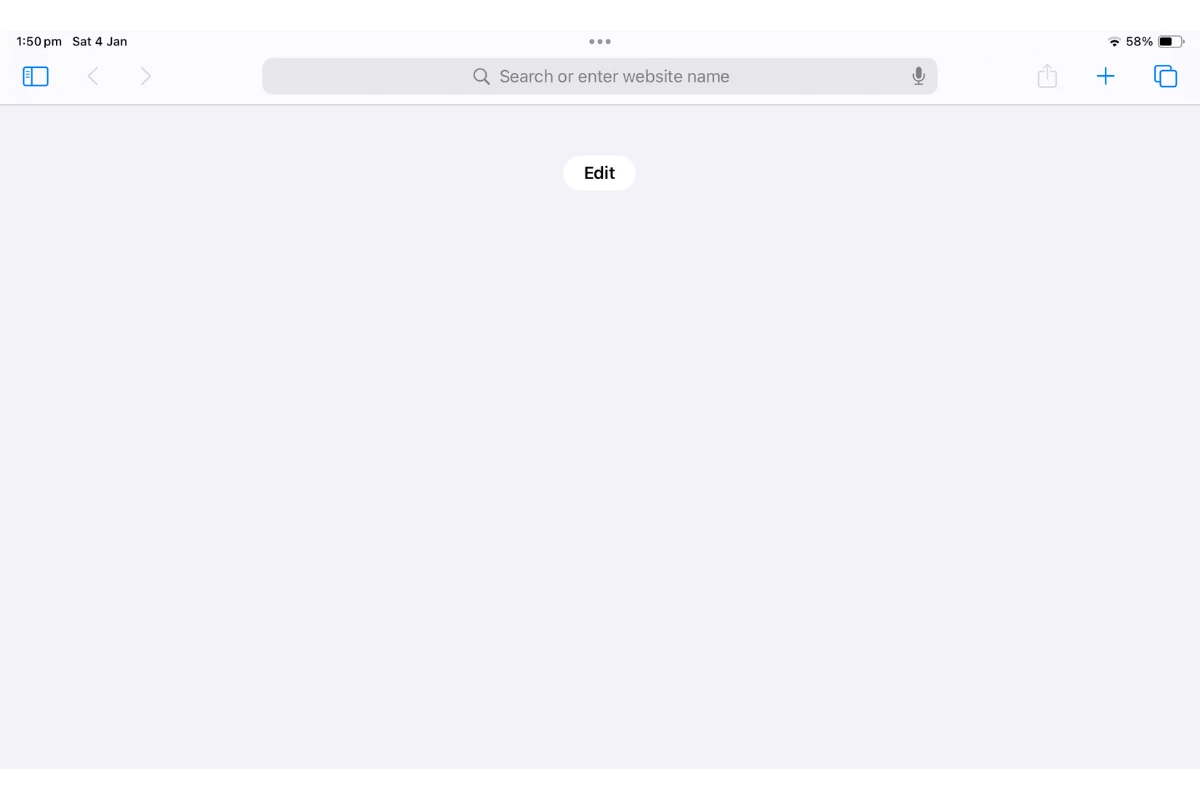
1.1.2 Type https://timeclock.rosterelf.net/login into the address bar.
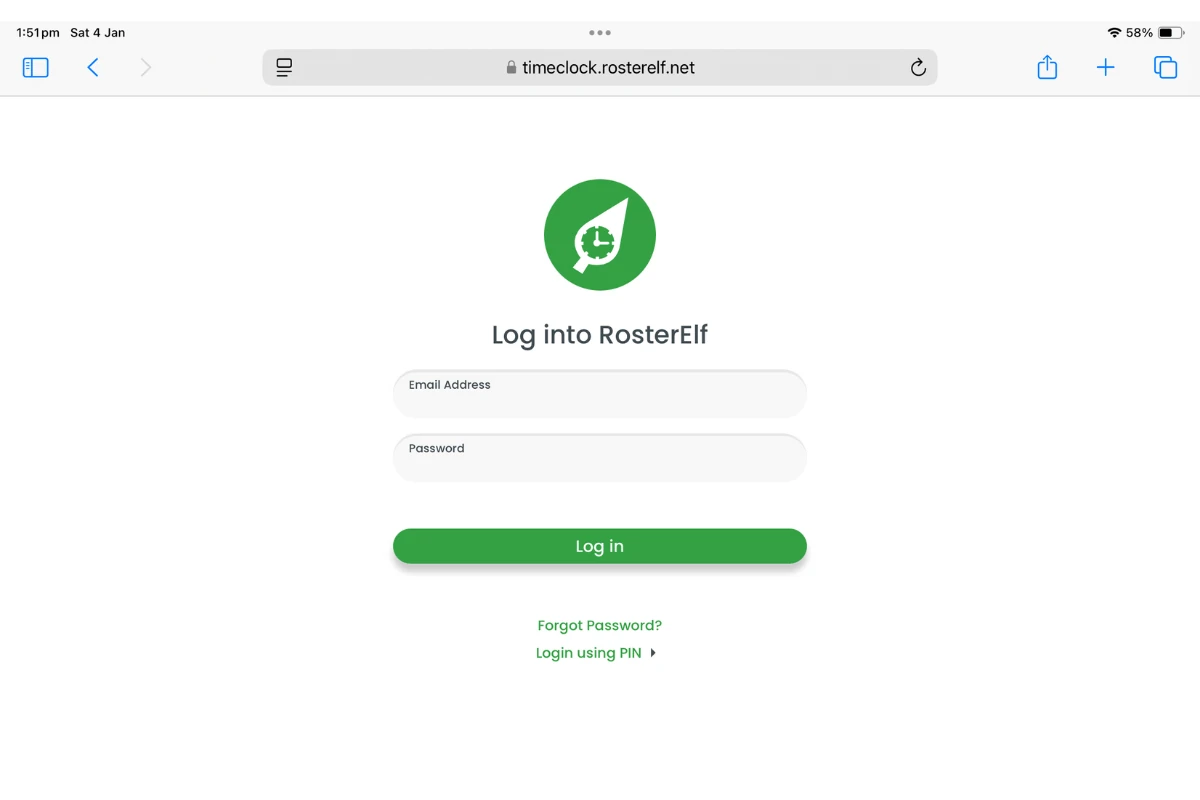
2. Log in to your TimeClock account
You can log in to your TimeClock account using your admin details or the PIN login feature. This ensures access to all admin functionalities.
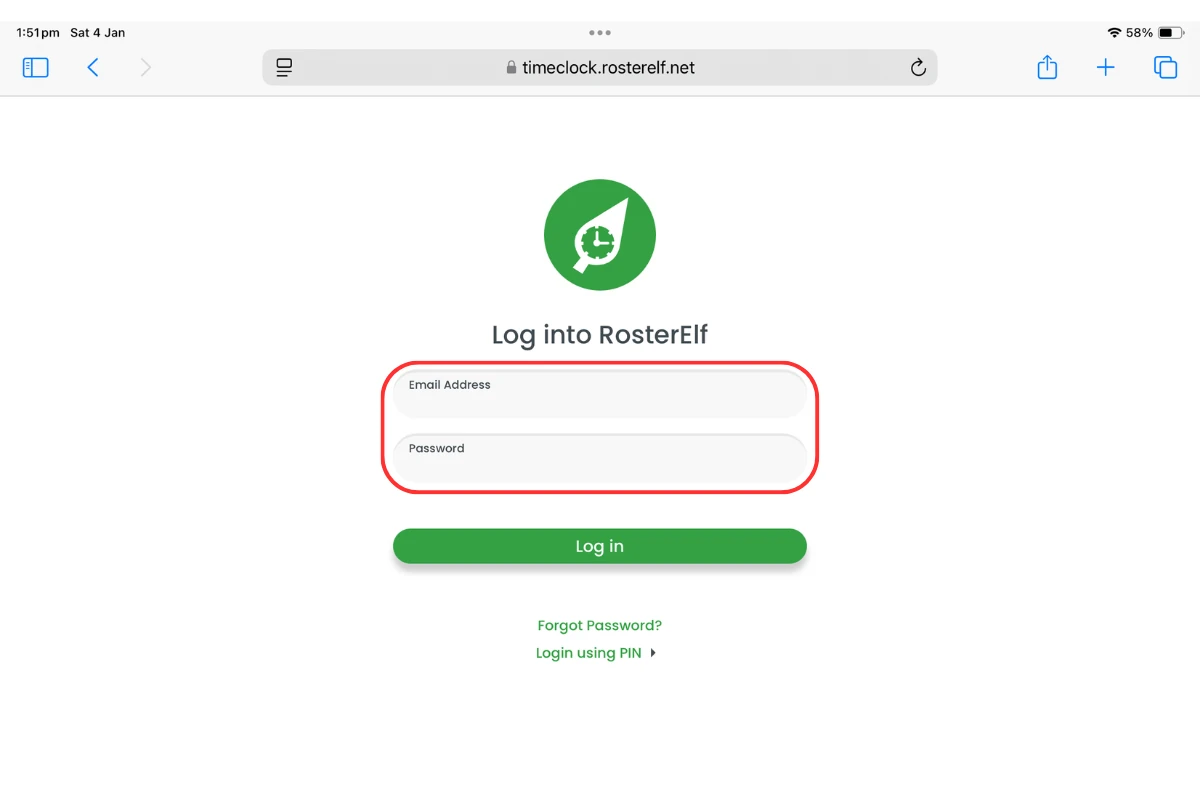
2.1.1 Enter your admin username and password.
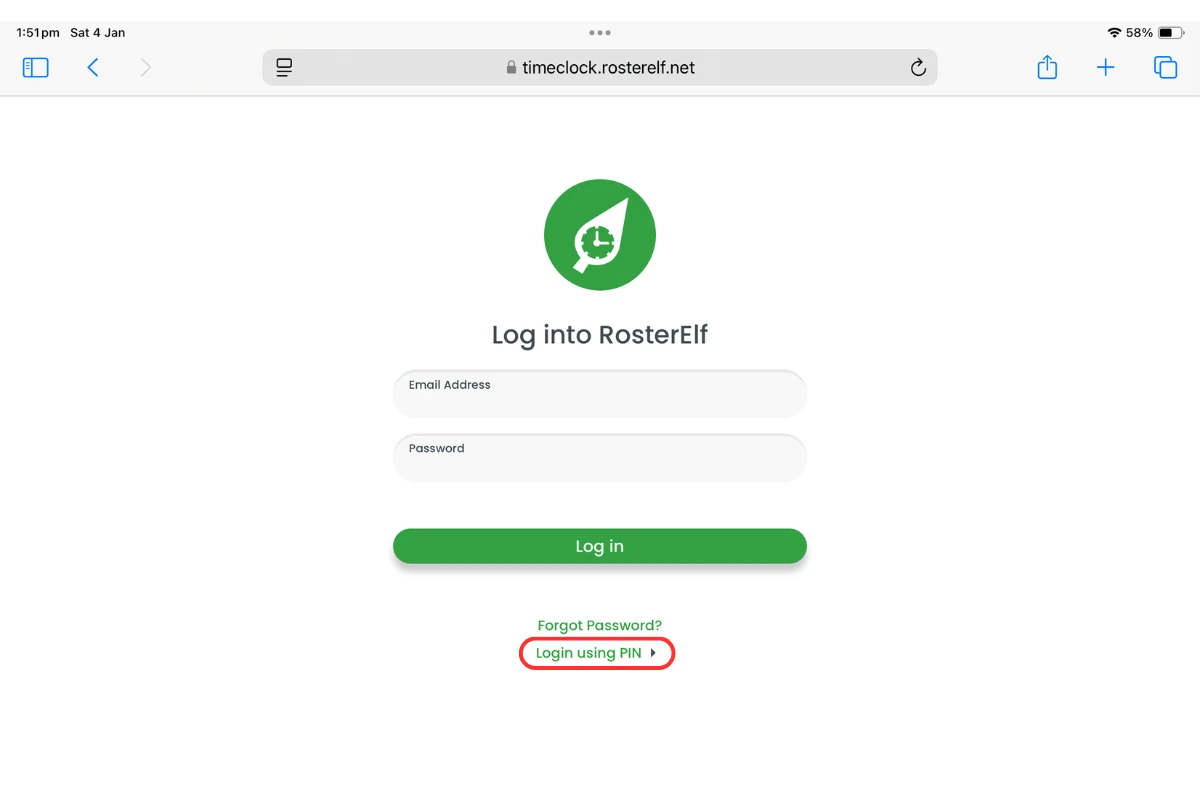
2.1.2 Alternatively, use the PIN login feature if enabled.
3. Save TimeClock to your home screen
Once logged in, you can add the TimeClock app to your iPad home screen for quick and easy access.
3.1.1 Tap the Share button at the bottom of Safari.
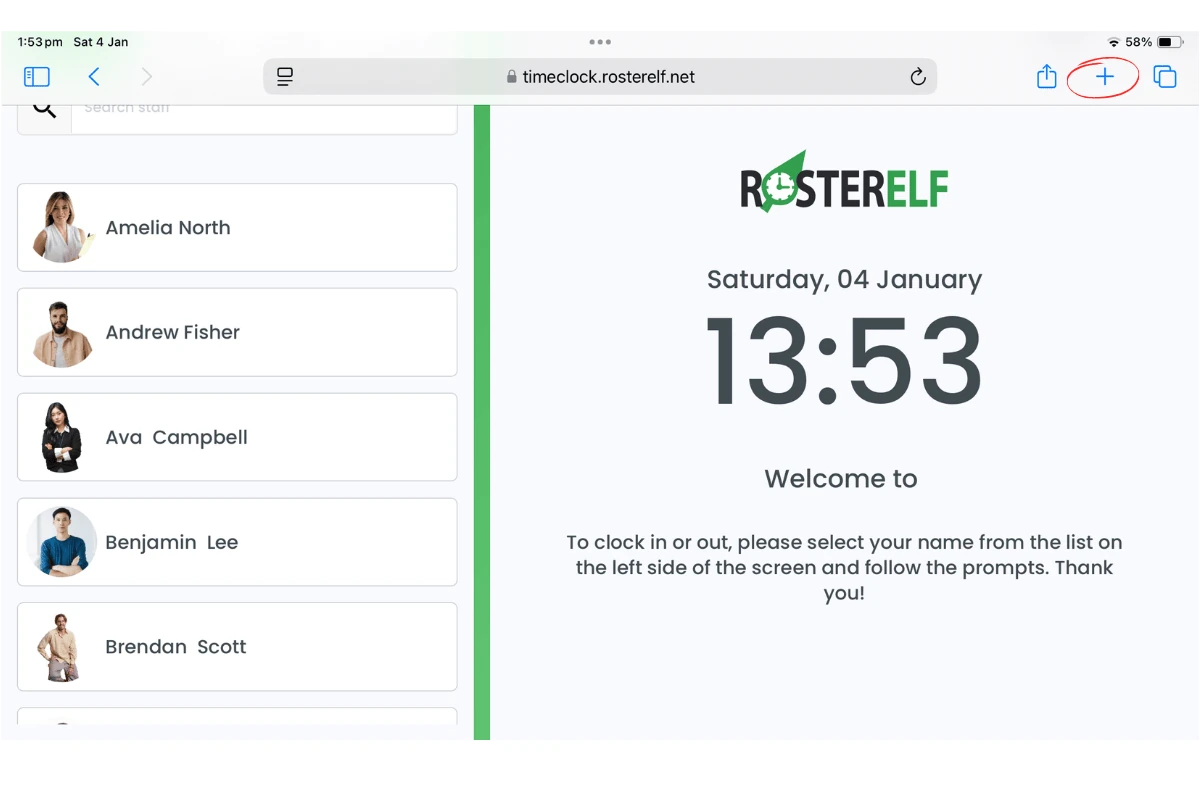
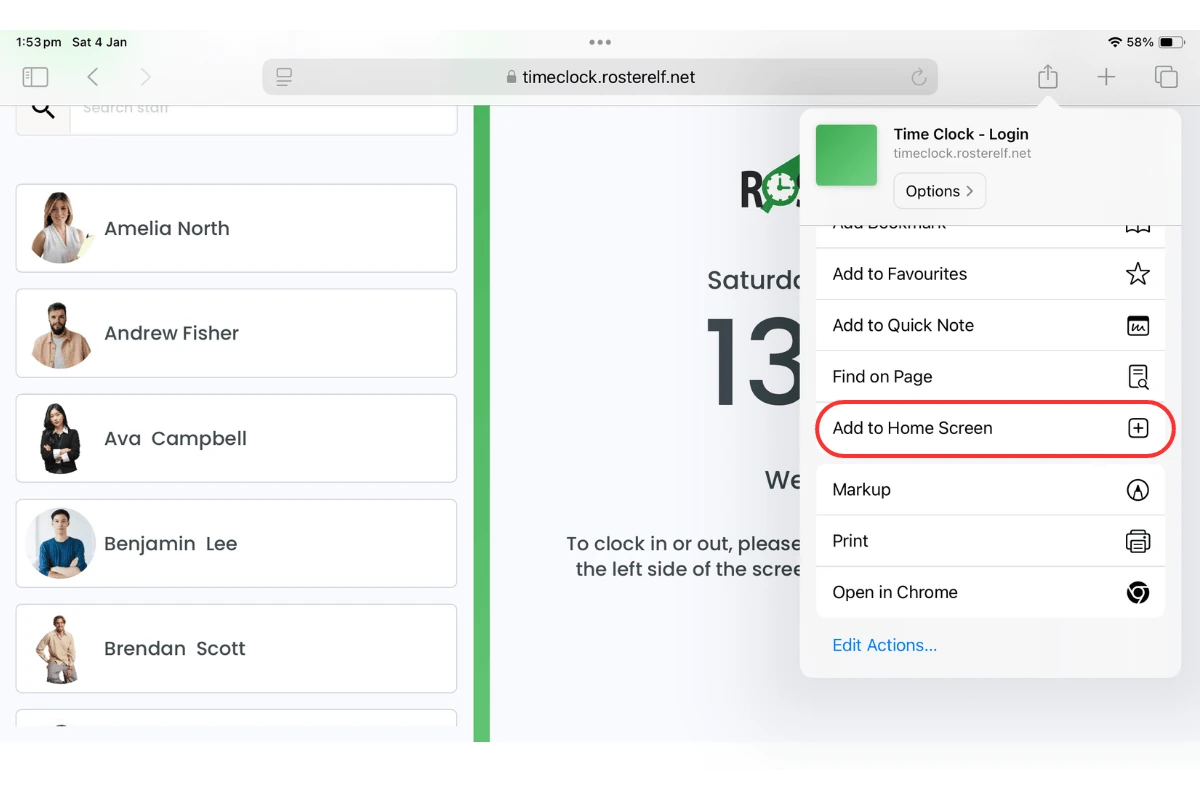
3.1.2 Scroll through the options and select Add to Home Screen.
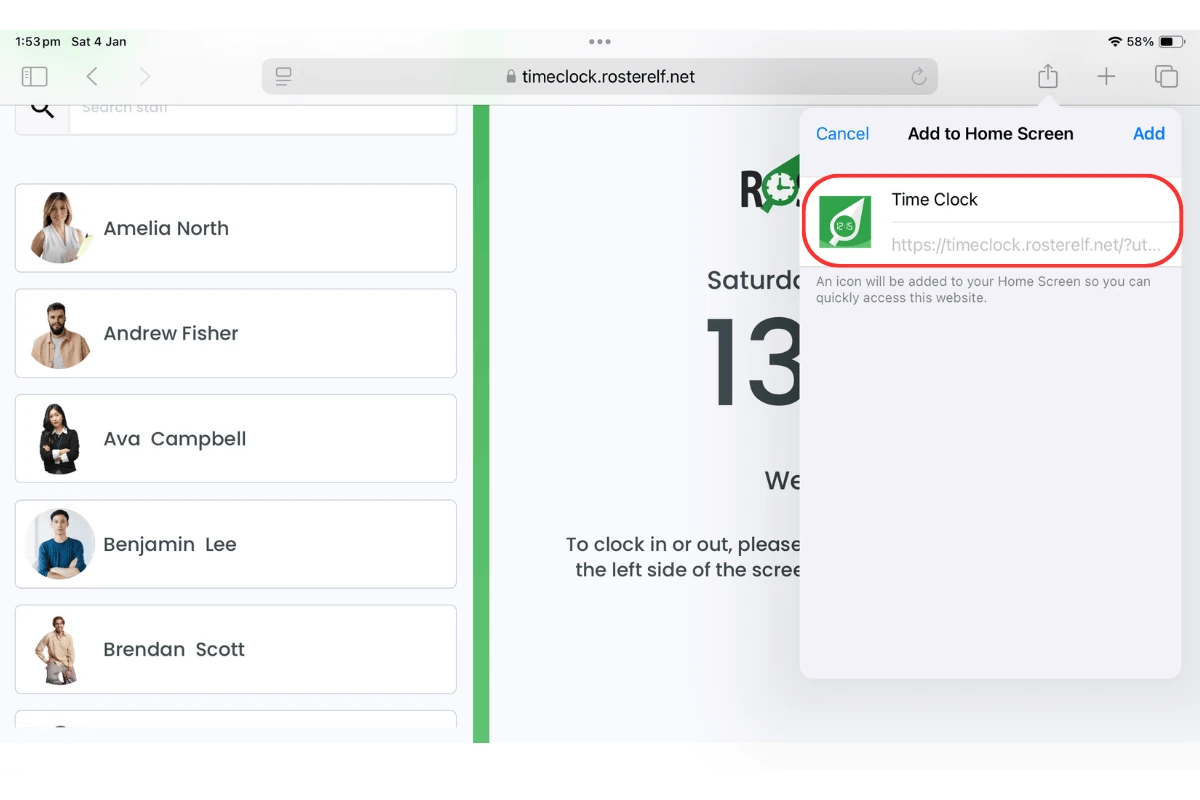
3.2.1 Set a name for the app, such as TimeClock.
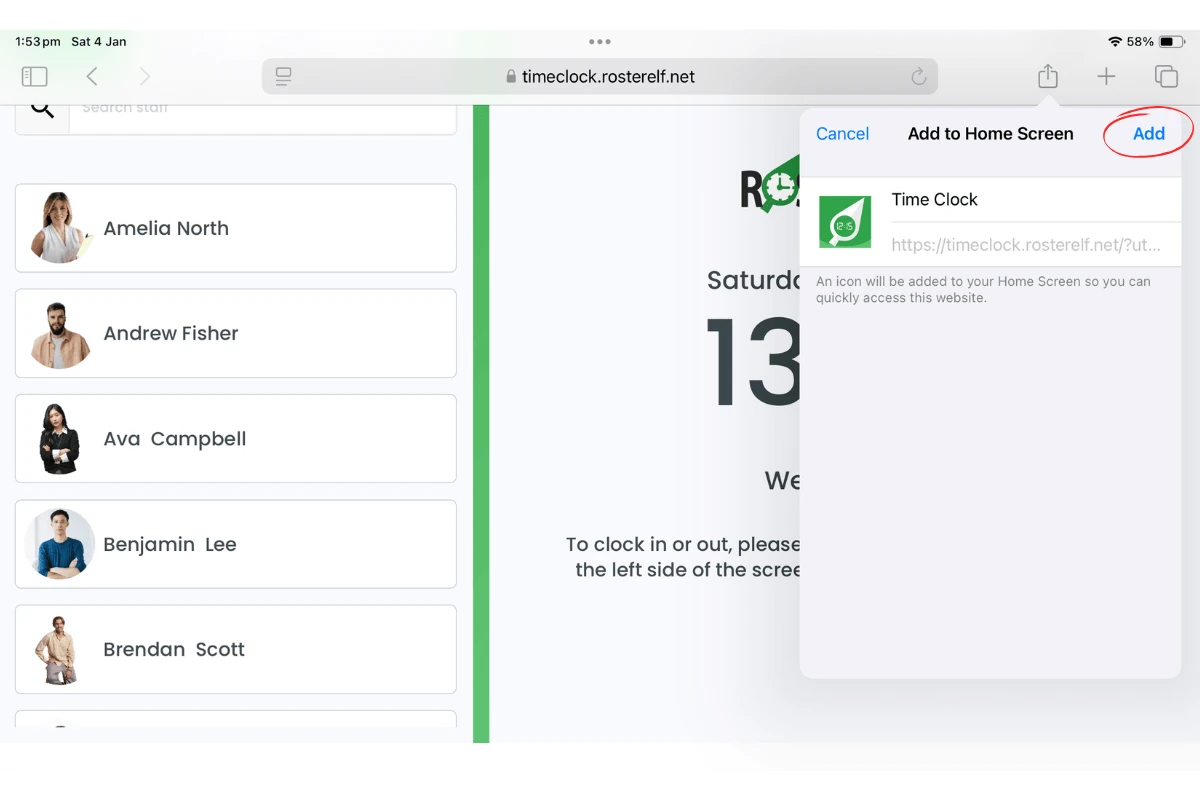
3.2.2 Tap Add to save it to your home screen.
Frequently asked questions
1. How do I access the TimeClock login page on my iPad?
Open Safari on your iPad, type https://timeclock.rosterelf.net/login into the address bar, and press Go to load the page.
2. Can I log in to TimeClock using a PIN instead of a username?
Yes, TimeClock allows you to log in using a PIN if this feature is enabled on your account.
3. How do I add the TimeClock app to my iPad home screen?
Tap the Share button in Safari, select Add to Home Screen, set a name like TimeClock, and tap Add.
4. Why should I add TimeClock to my home screen?
Adding TimeClock to your home screen provides quick access to the app, saving time and making it easier to manage your tasks.
5. What name should I give the TimeClock app when adding it?
You can name it anything you prefer, but TimeClock is a clear and convenient option for quick recognition.