

Add TimeClock to your iPad home screen
This guide explains how to add the TimeClock app to your iPad home screen. By following these steps, you can quickly access TimeClock from your home screen, making it easier to log in and manage your roster. You’ll learn how to open TimeClock in Chrome, save it to your home screen, and name the app for easy identification.
1. Open TimeClock in chrome
To begin, you need to access TimeClock in your iPad’s Chrome browser. This ensures you have the website ready for the next steps.
1.1. Open Chrome on your Apple iPad.
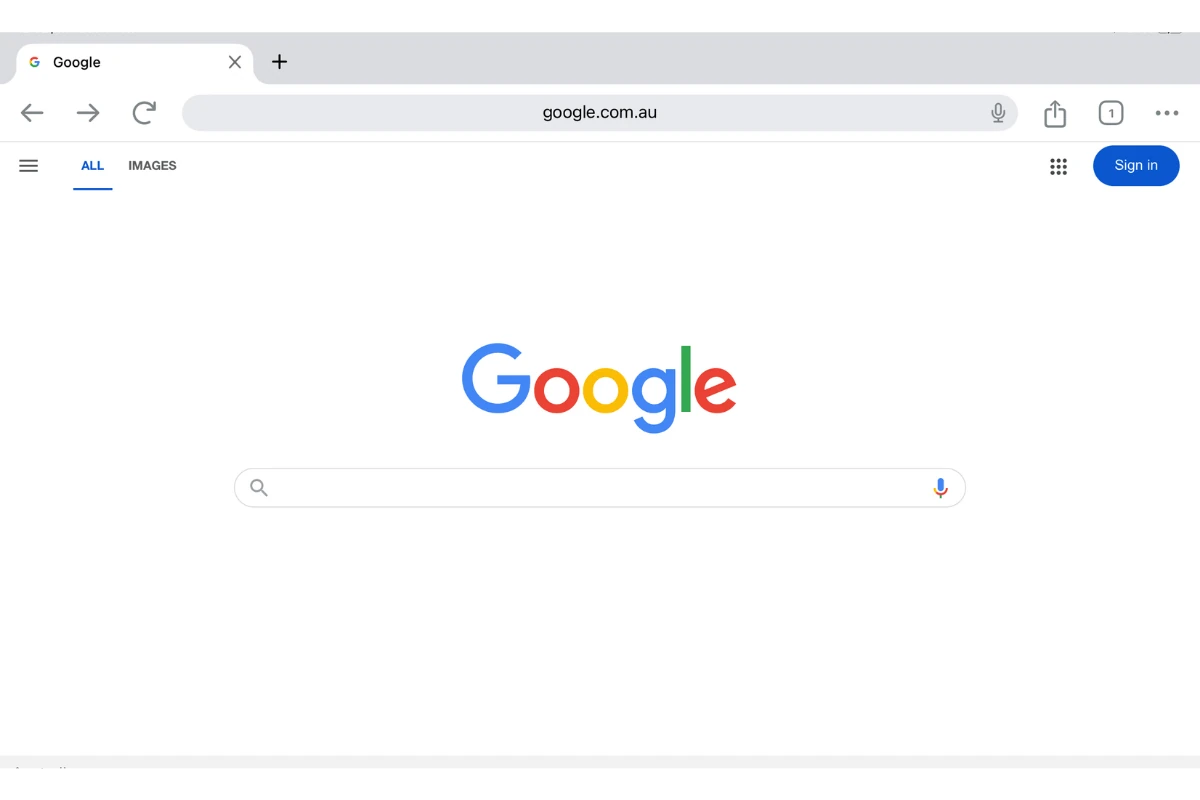
1.2. Enter the URL: timeclock.rosterelf.net/login
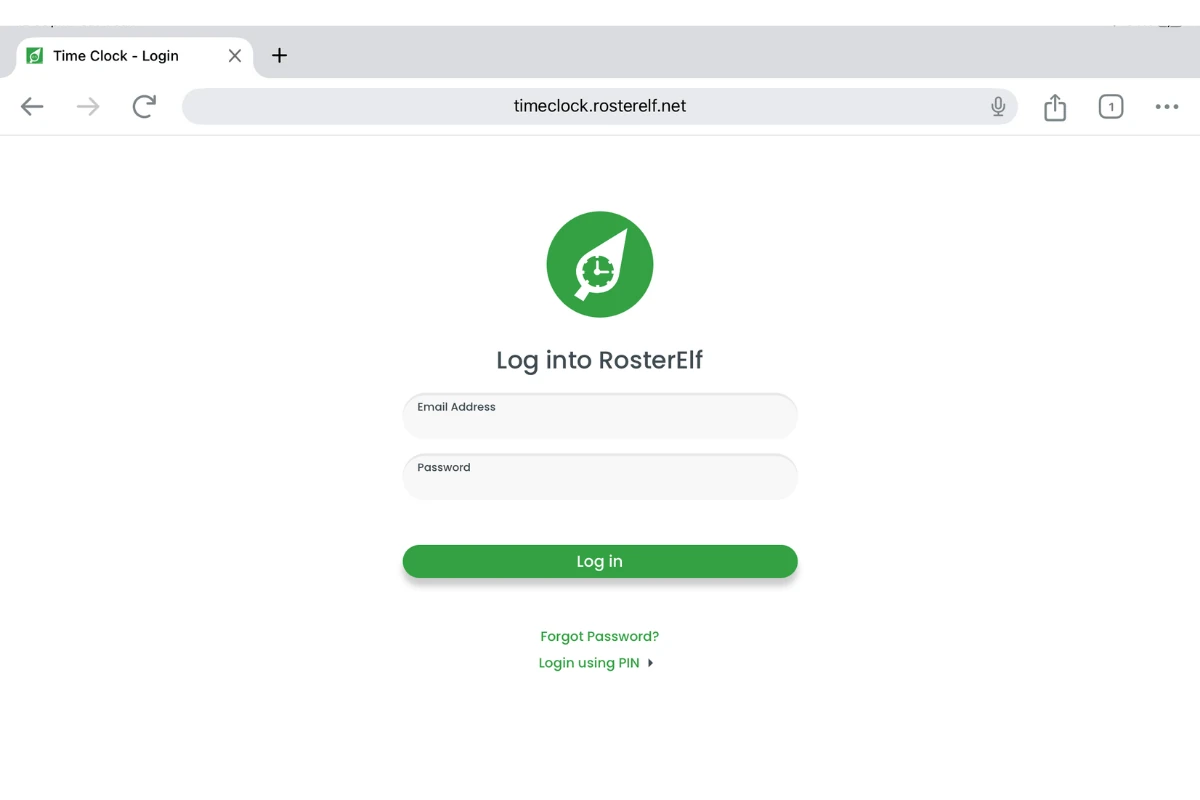
1.3. Log in using your admin credentials or the PIN login feature. 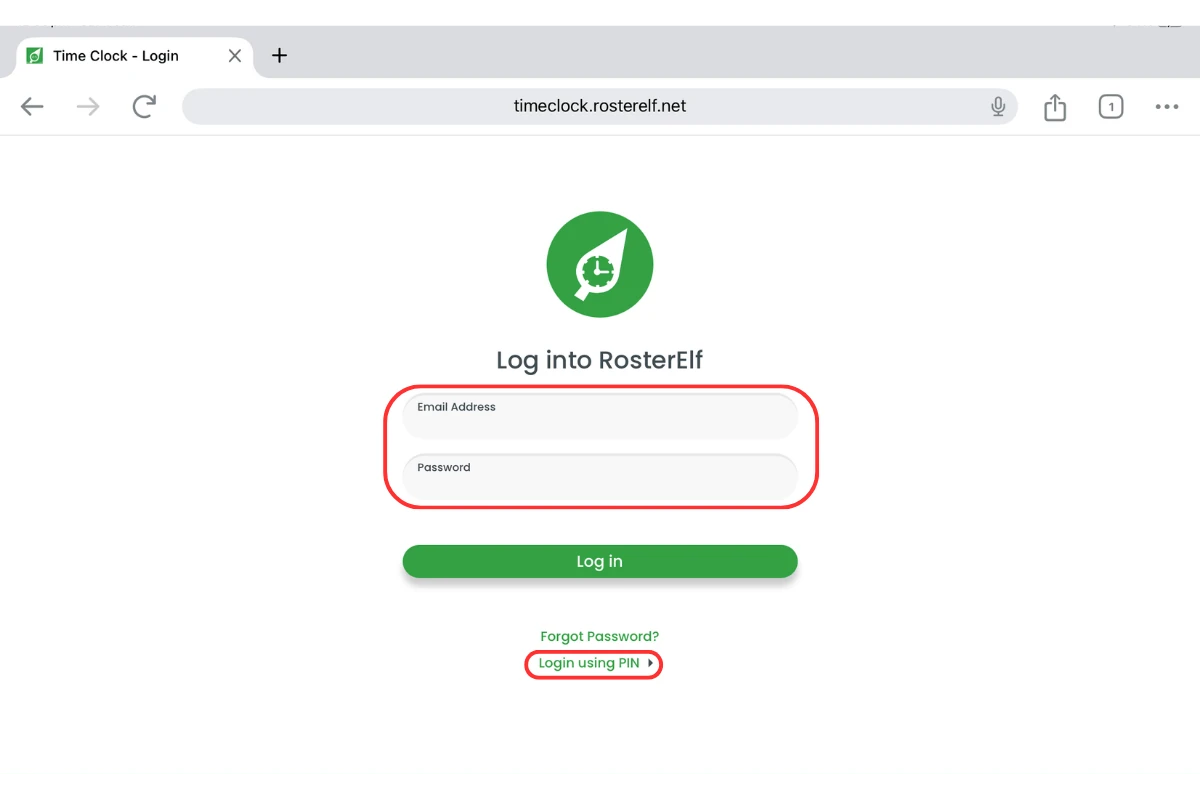
2. Save TimeClock to home screen
Once you’ve accessed TimeClock, you can save it as an app on your home screen. This step ensures quick and easy access in the future.
2.1.1. Click on the share button in Chrome.
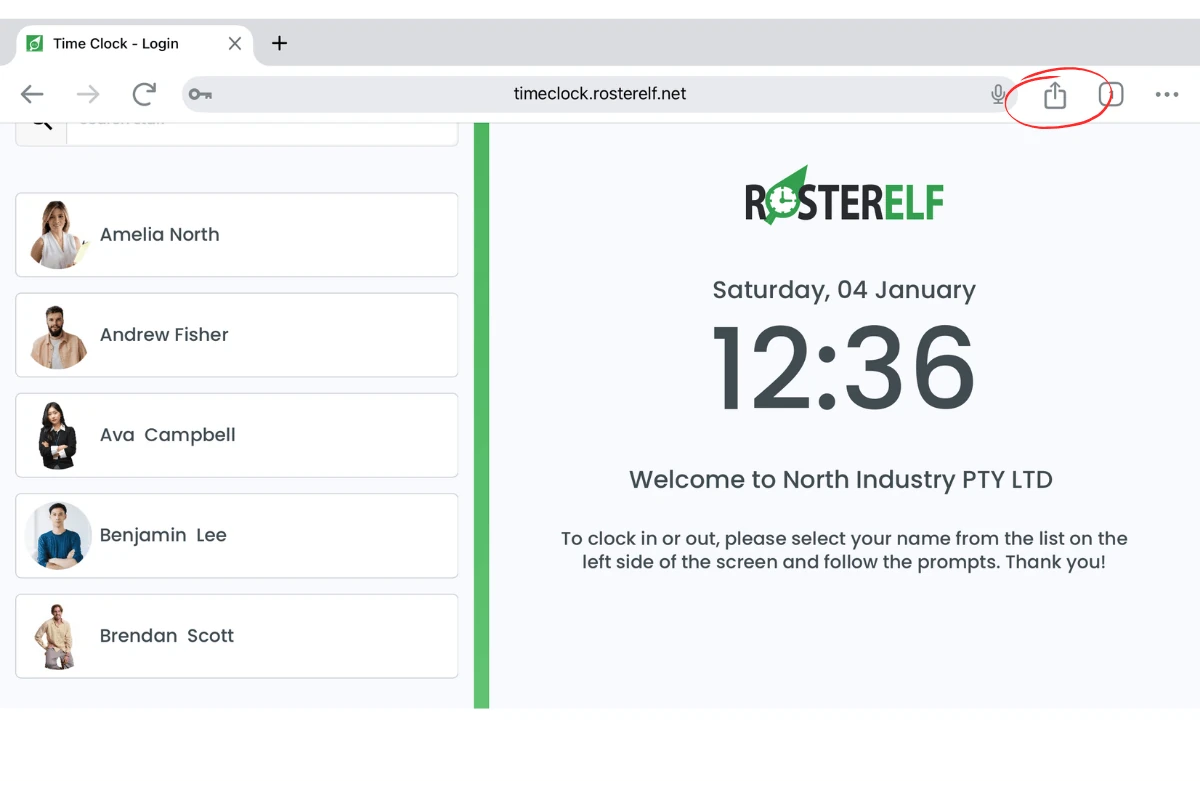
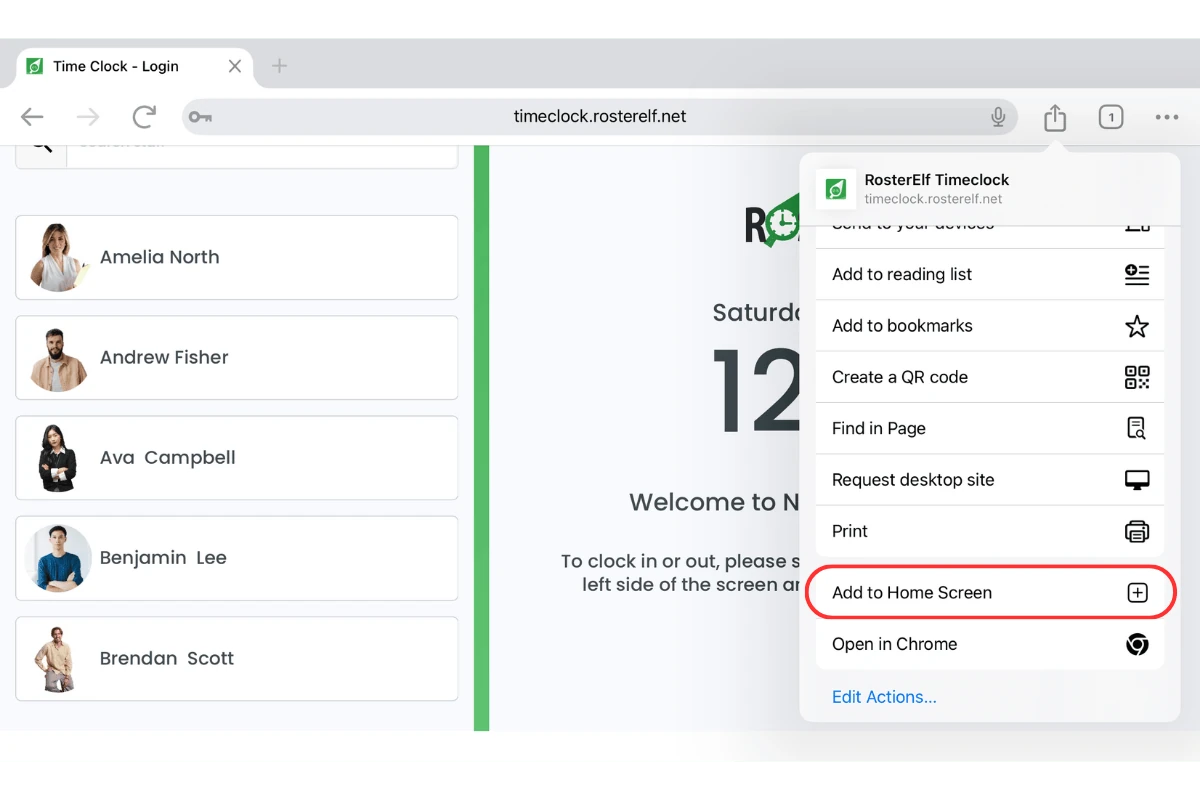
2.2.1. From the share menu, select Save to Home Screen.
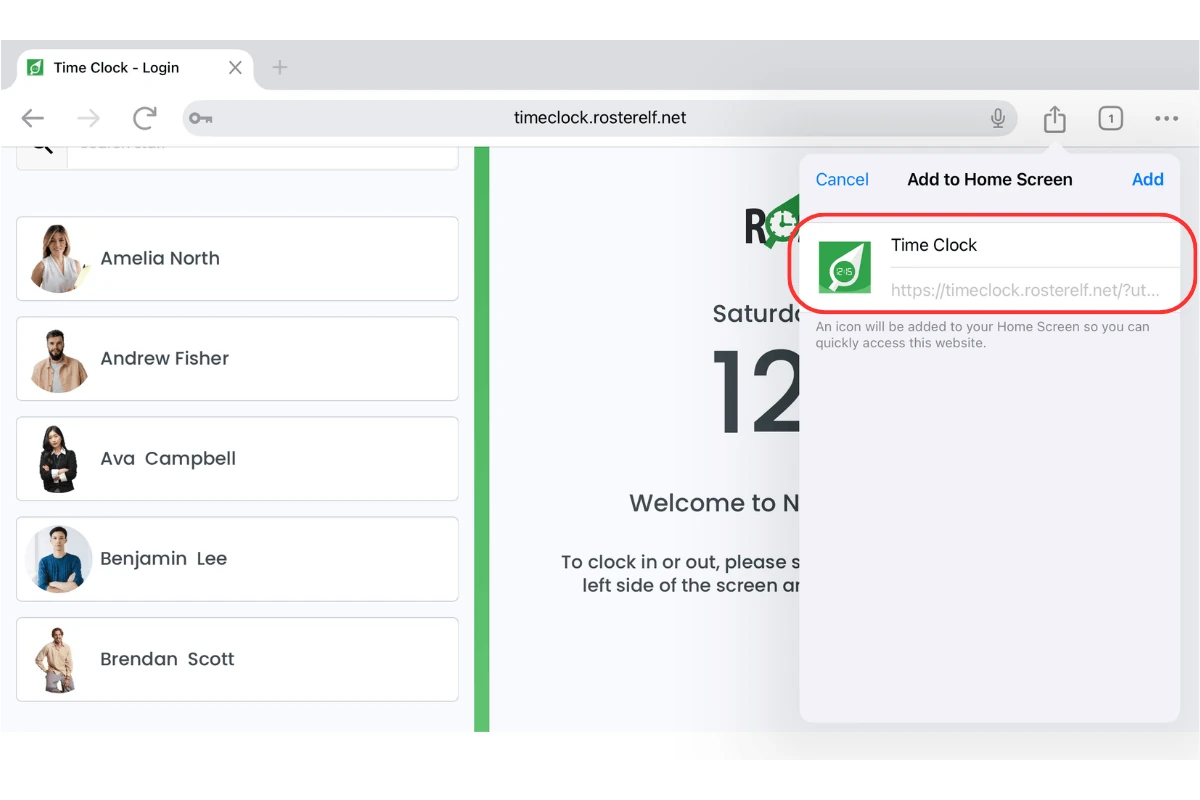
2.2.2. Enter a name for the app (e.g., TimeClock).
2.2.3. Press the Add button.
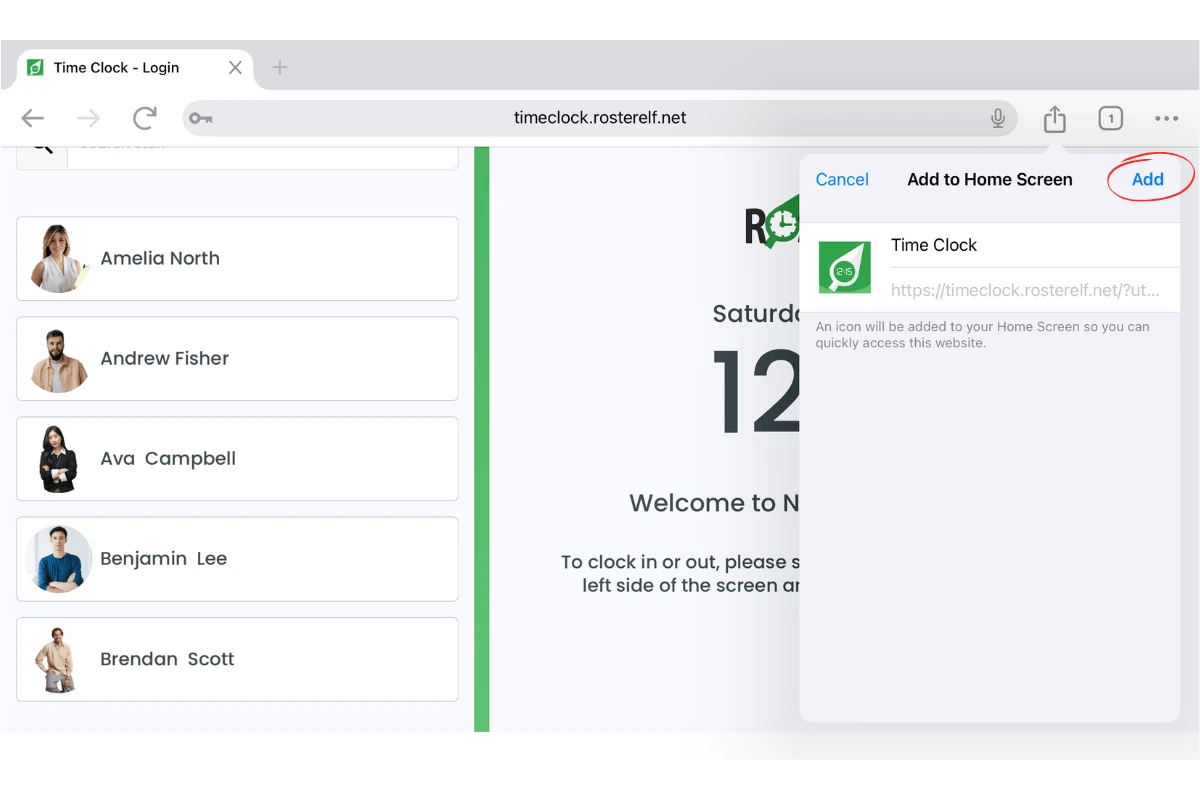
Now, you’ll find the TimeClock app icon on your home screen. Tap it anytime to launch TimeClock directly.
Frequently asked questions
1. How do I add the TimeClock app to my iPad home screen?
To add TimeClock to your iPad home screen, open Chrome, visit TimeClock, and log in. Use the share button, select Save to Home Screen, name the app, and press Add. The TimeClock icon will appear on your home screen for easy access.
2. Can I add TimeClock to my home screen using Safari?
No, this guide specifically explains how to add TimeClock using Chrome on your iPad. If you use Safari, the steps may differ slightly.
3. Do I need admin credentials to log into TimeClock?
No, you can log in using either admin credentials or the PIN login feature, depending on your role and setup.
4. Can I rename the TimeClock app when saving it to my home screen?
Yes, you can customise the app name when adding it to your home screen. Enter a name like TimeClock to easily identify the app.
5. Why can't I see the share button in Chrome?
If the share button isn’t visible, ensure that your Chrome browser is updated. The share button is typically located in the toolbar at the top or bottom of the browser screen.