

How to enable location settings for safari
This article explains how to enable location settings for Safari on your tablet. Following these steps ensures that Safari can access your location when needed. Allowing location access helps Safari provide relevant information, such as local search results and tailored website content. By the end of this guide, you’ll have enabled location settings quickly and easily.
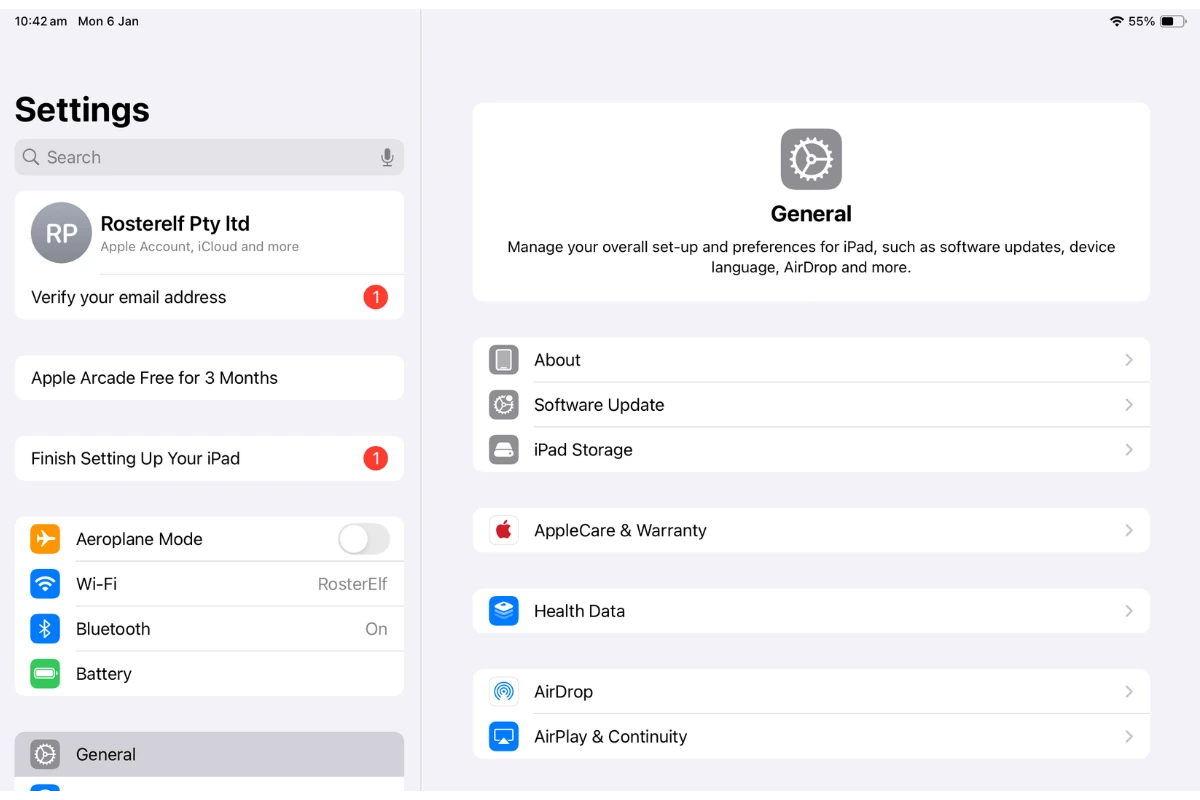
1. Open settings on your tablet
To start, you’ll need to access the main settings menu on your tablet. This is where all app and system preferences are managed.
1.1 Locate the Settings app on your tablet’s home screen.
1.2 Tap on the Settings app to open it.
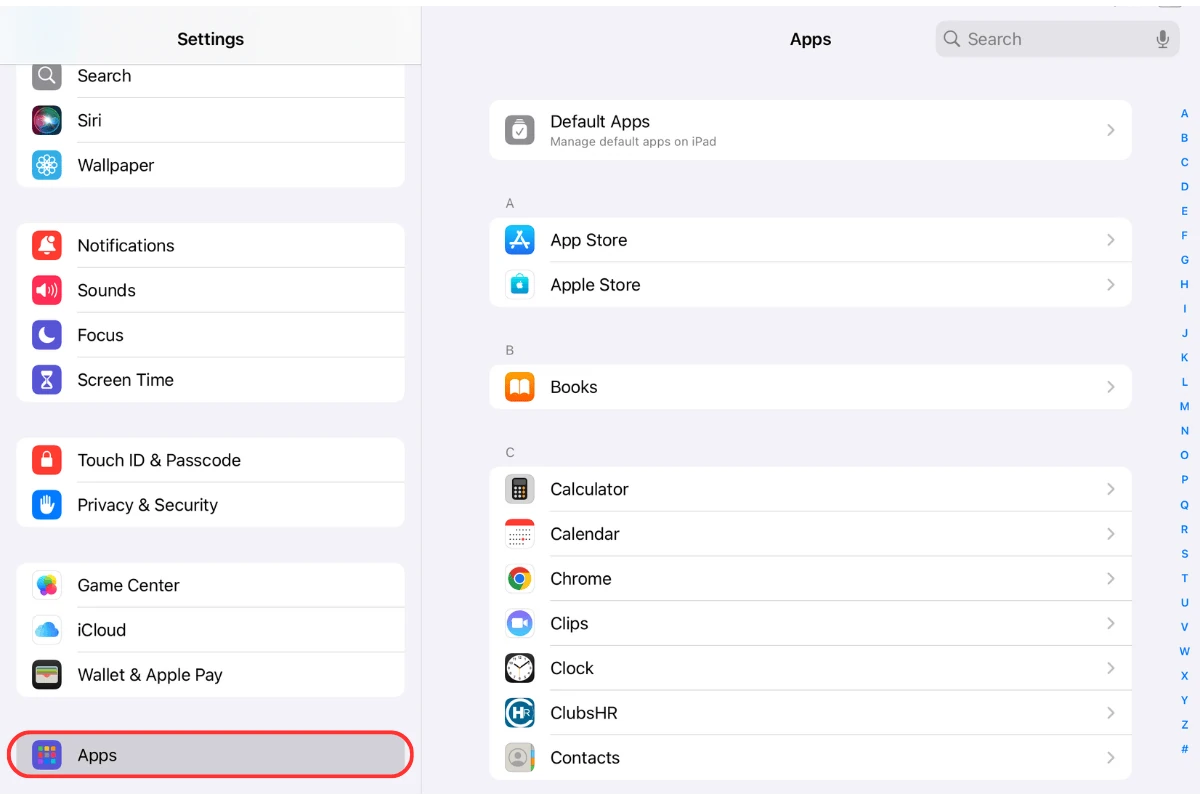
2. Navigate to the apps section
The next step is finding the app-specific settings where Safari is listed.
2.1 Scroll down within the settings menu until you see Apps or Applications.
2.2 Tap on Apps to view the list of installed applications.
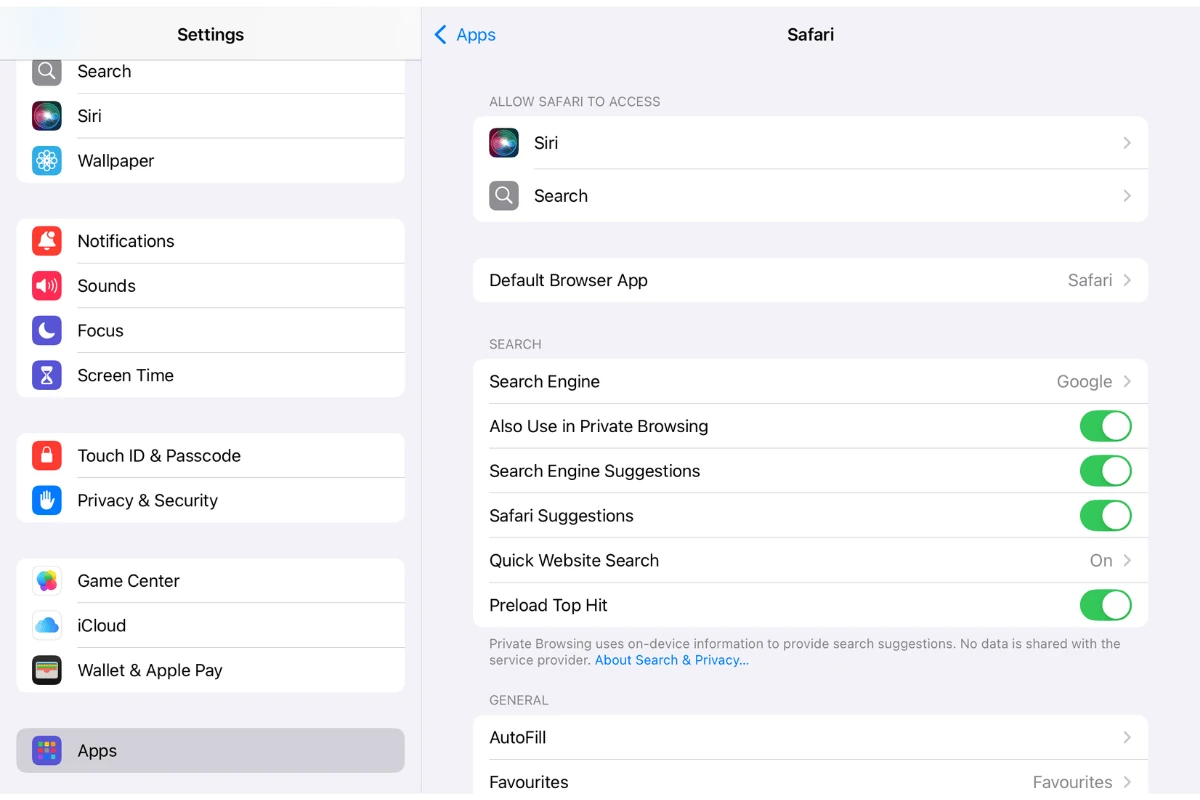
3. Select safari
Once in the apps section, you’ll choose Safari to adjust its settings.
3.1 Find Safari in the list of apps displayed.
3.2 Tap on Safari to access its settings.
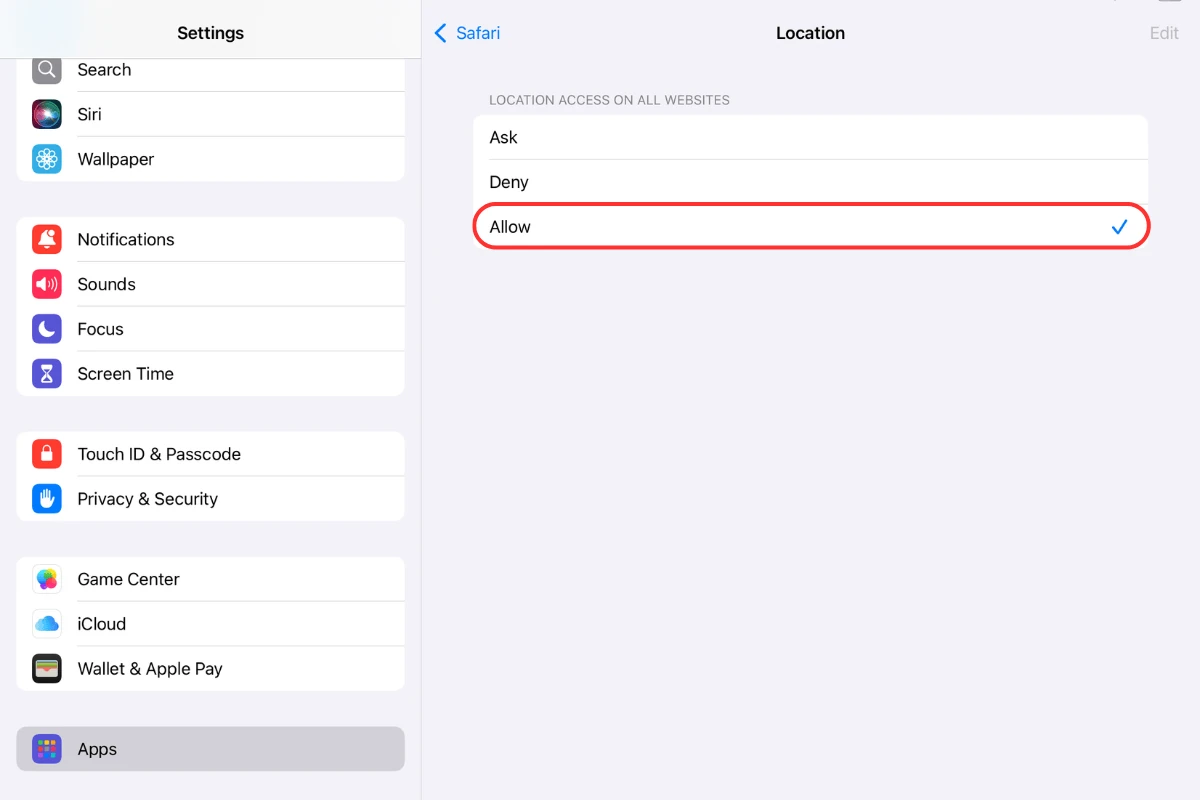
4. Adjust location settings
Finally, you’ll update the location settings for Safari to ensure it can access your location when required.
4.1 Tap on Location settings within Safari’s settings menu.
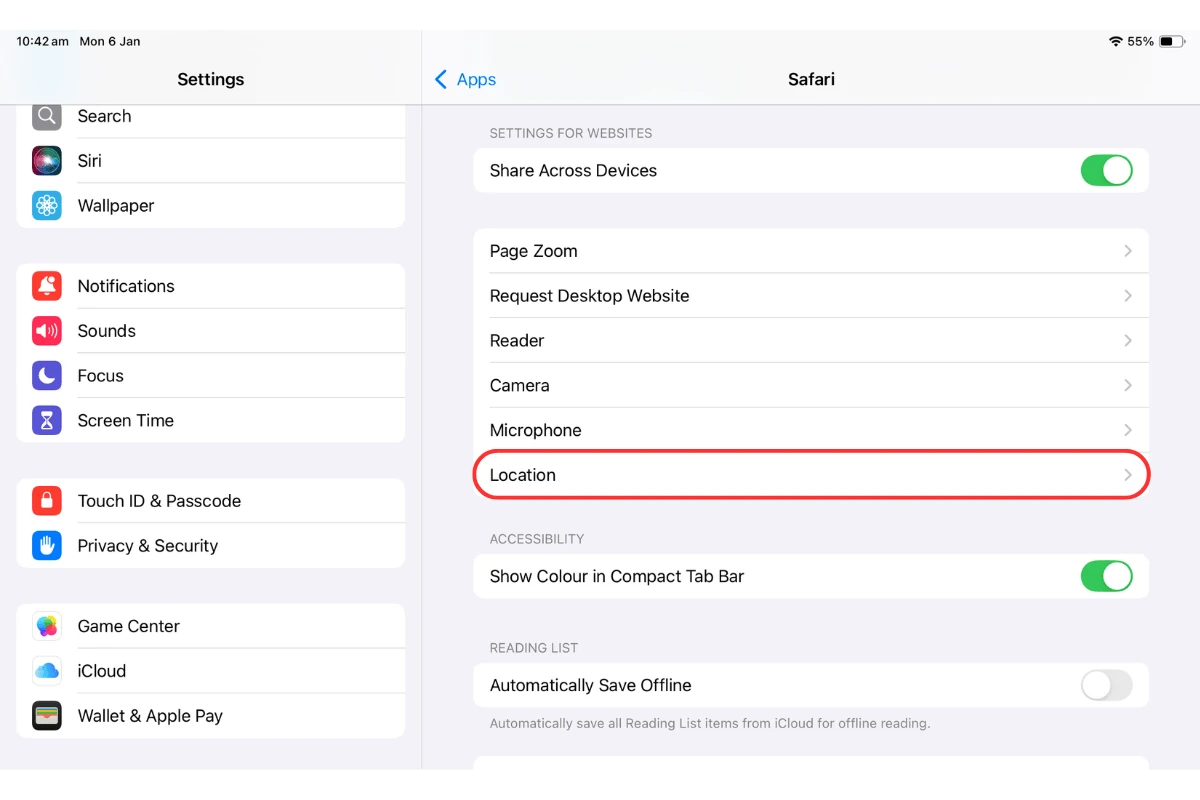
4.2 Choose the option labelled Allow to enable location access.
Frequently asked questions
1. How do I enable location settings for Safari on my tablet?
Open the Settings app on your tablet, navigate to the Apps section, select Safari from the list, and adjust the location settings to Allow.
2. Why should I enable location settings for Safari?
Enabling location settings allows Safari to provide personalised experiences, such as local search results and content relevant to your location.
3. Where can I find the location settings for Safari?
You can find Safari’s location settings under the Settings app on your tablet. Go to Apps, select Safari, and then tap on Location settings.
4. Can I adjust Safari's location settings at any time?
Yes, you can update Safari’s location settings whenever needed. Simply follow the steps to access Safari’s settings in your tablet’s Settings menu and modify the location access preference.
5. What happens if I don't enable location settings for Safari?
If location settings are disabled, Safari cannot access your location. This may result in less accurate search results and reduced functionality for websites requiring location information.