

Add RosterElf time clock to your Android tablet
This guide explains how to add the RosterElf Time Clock to the home screen of your Android tablet. By doing this, you’ll have quicker access to the Time Clock feature. It’s convenient and helps streamline your workflow. Follow these simple steps to set it up in no time.
1. Open chrome and visit the time clock page
This section shows how to access the RosterElf Time Clock using Chrome on your Android tablet. Ensure you have Chrome installed and an active internet connection.
1.1. Open the Chrome browser on your Android tablet.
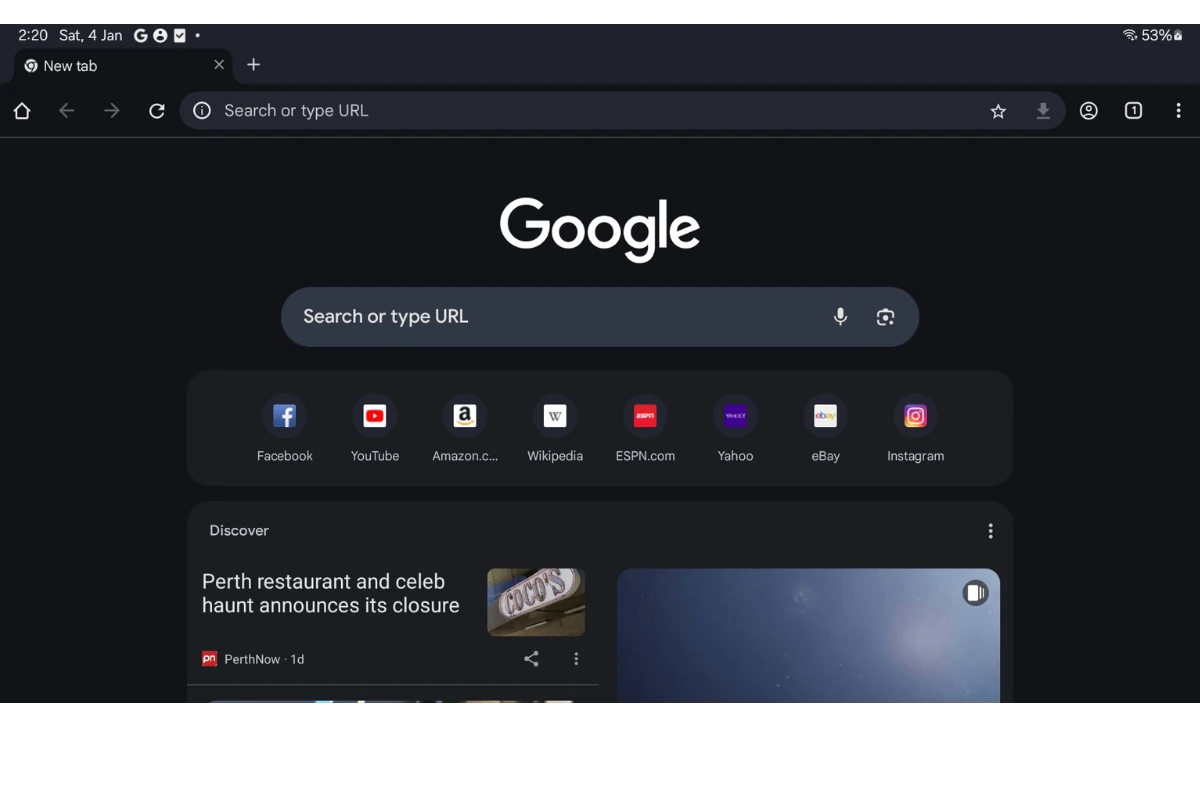
1.2. Type or paste https://timeclock.rosterelf.net/login into the address bar.
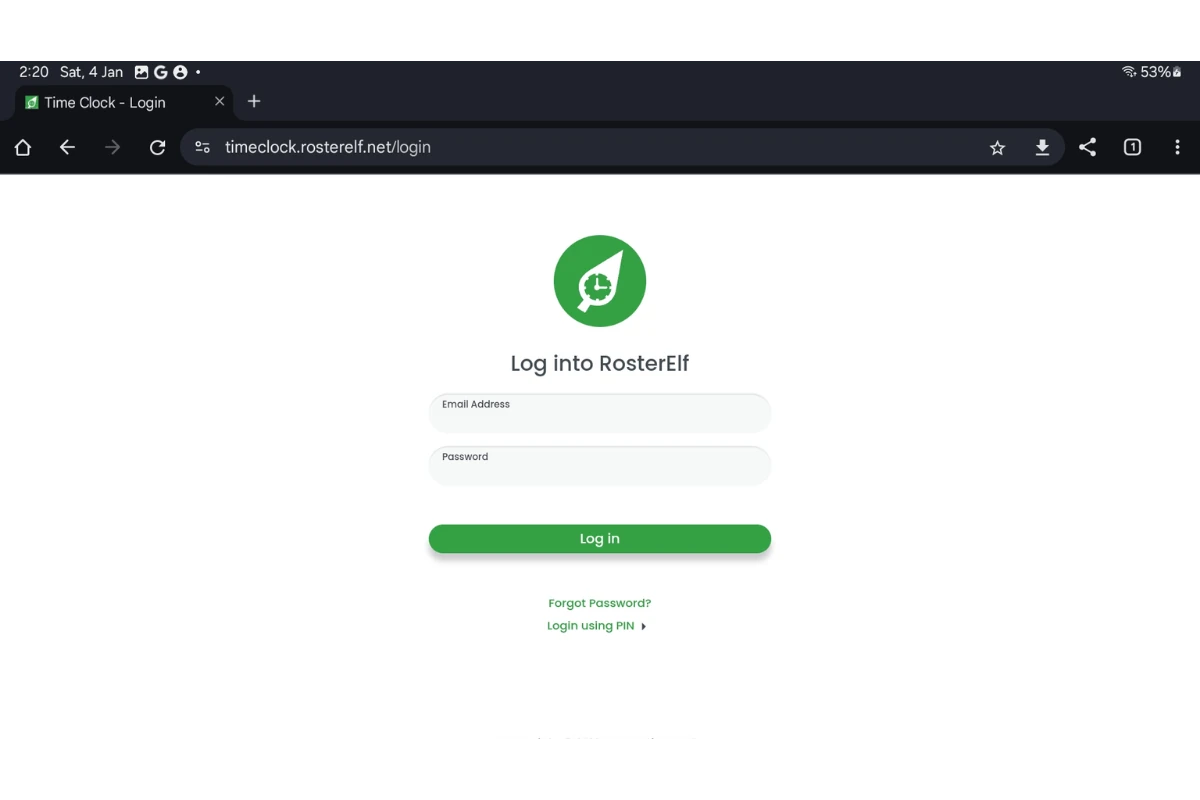
1.3. Press Enter to load the Time Clock login page.
2. Log in to your admin account
Here, you’ll log in to the RosterElf Time Clock with your admin credentials.
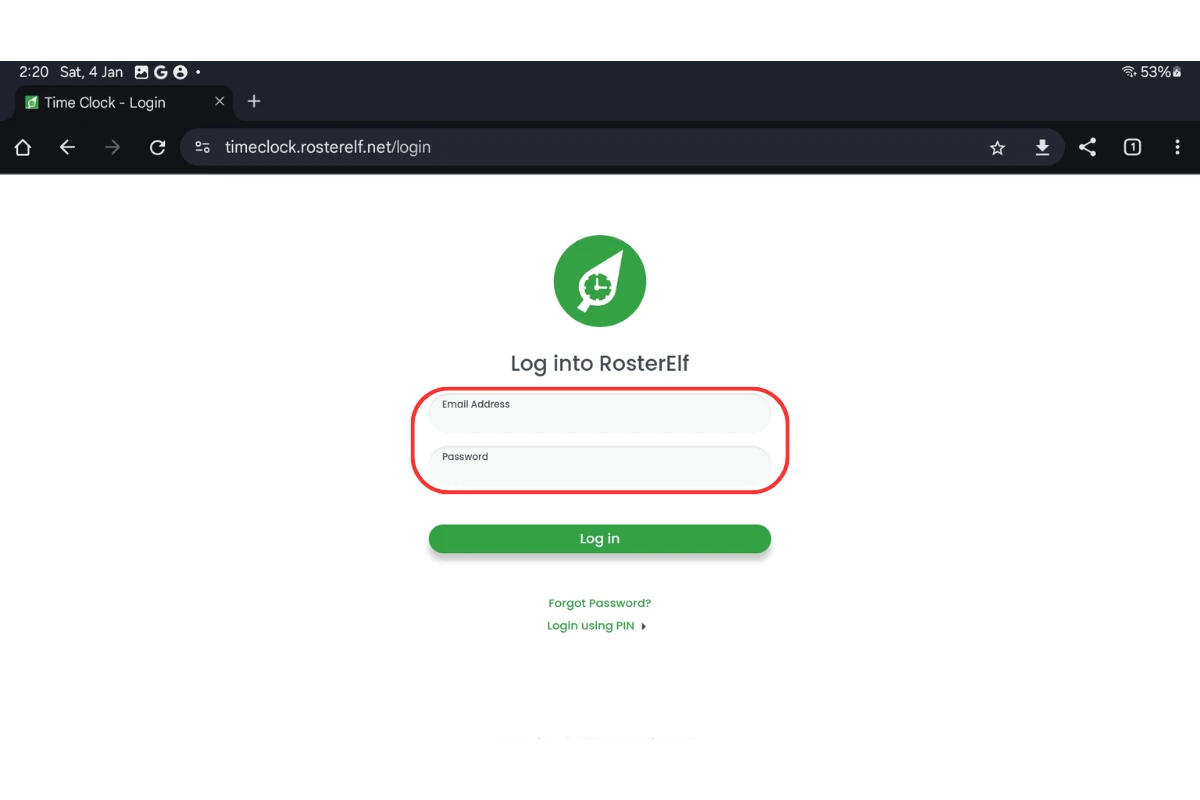
2.1. On the login page, enter your admin username and password.
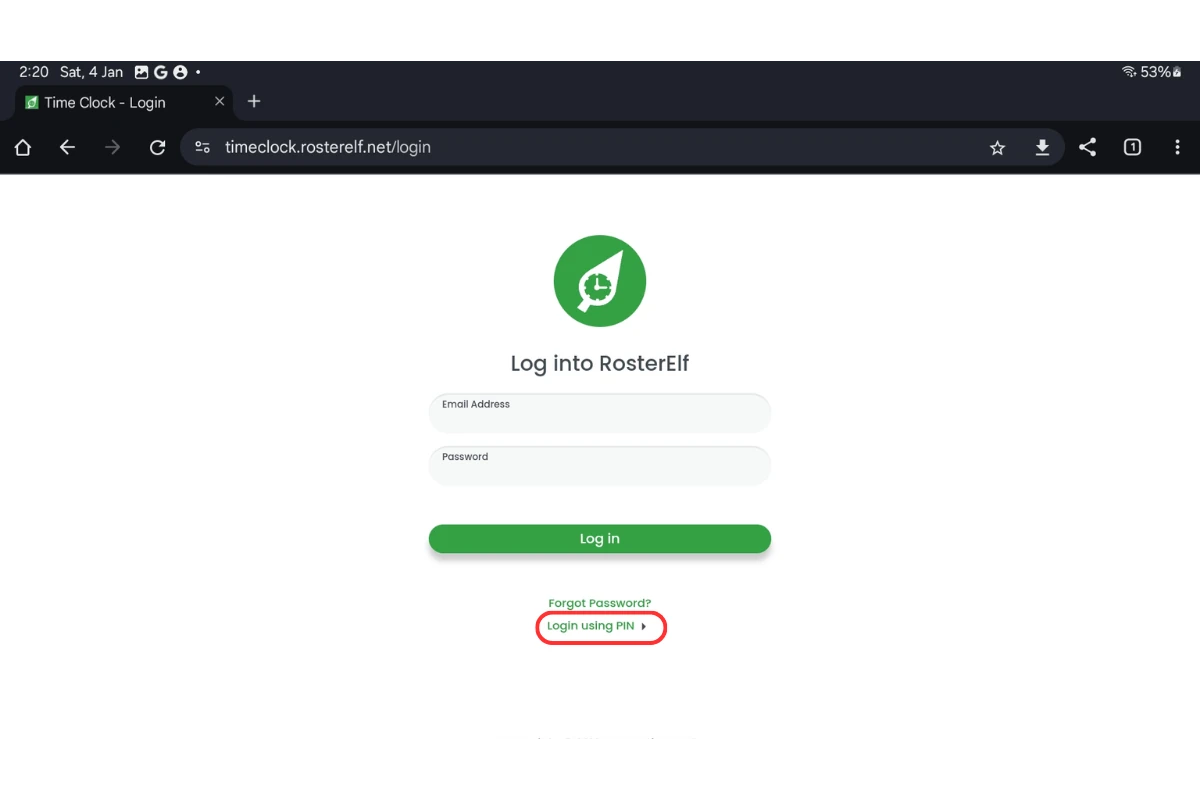
2.2. Alternatively, use the pin login feature if preferred.
2.3. Confirm login by pressing the login button.
3. Save the time clock to your home screen
This section explains how to save the RosterElf Time Clock to your Android tablet’s home screen for easy access.
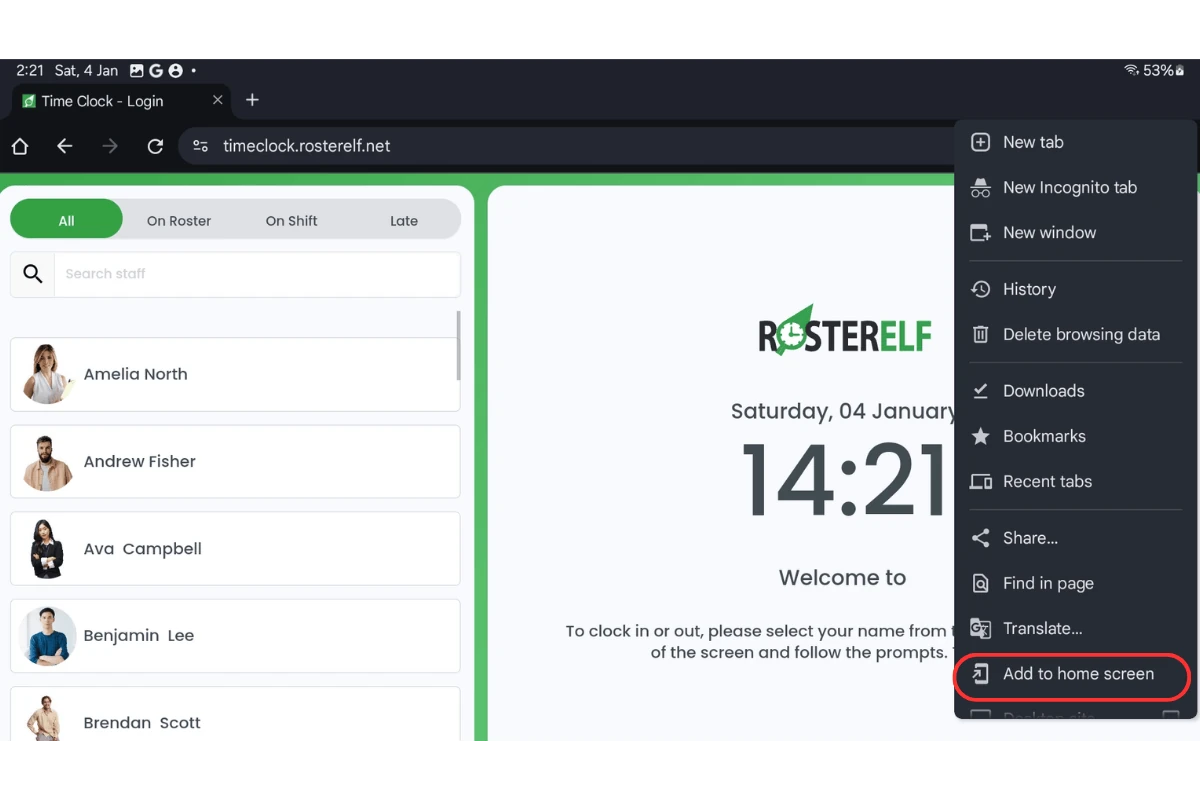
3.1. Tap the three-dot menu or the share button in Chrome.
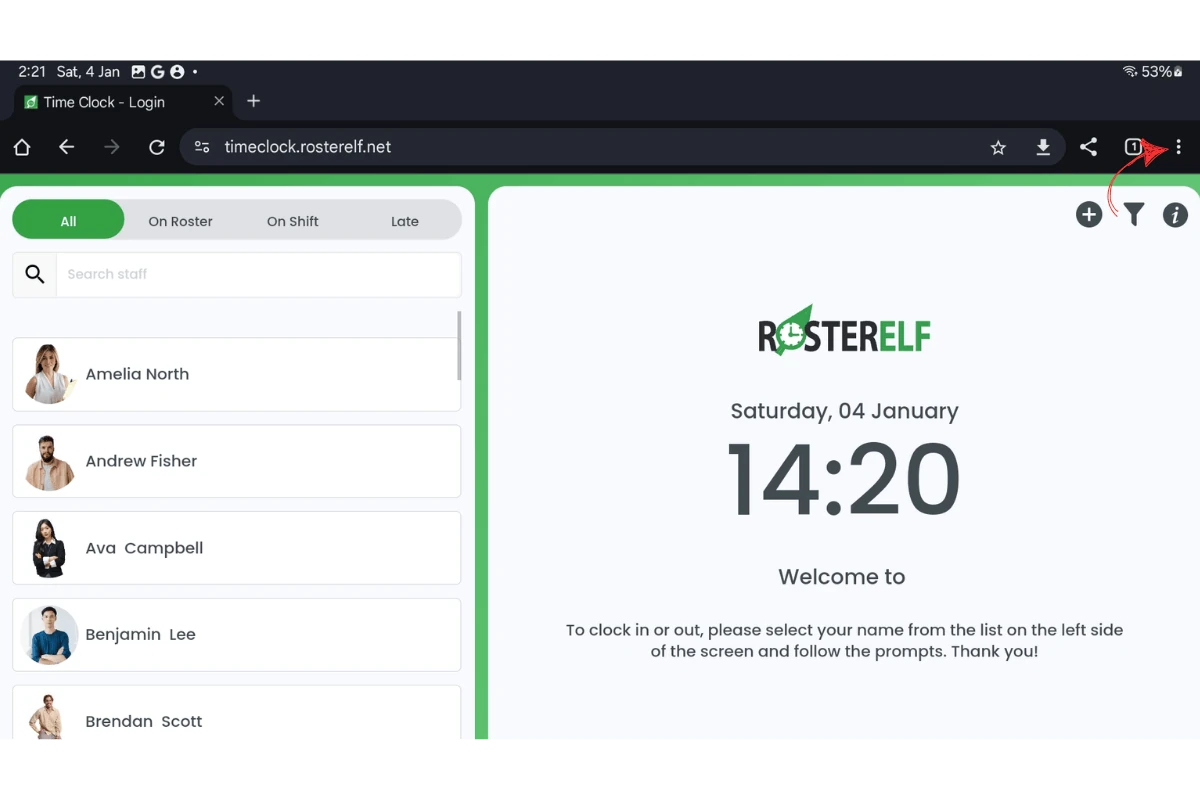
3.2. From the options, select Add to Home Screen.
Frequently asked questions
1. How do I access the RosterElf Time Clock on my Android tablet?
To access the RosterElf Time Clock, open the Chrome browser on your Android tablet. Type or paste https://timeclock.rosterelf.net/login into the address bar and press Enter. This will take you to the Time Clock login page.
2. What login options are available for the RosterElf Time Clock?
You can log in to the RosterElf Time Clock using your admin username and password. Alternatively, you can use the pin login feature for added convenience.
3. How can I add the RosterElf Time Clock to my home screen?
To add the Time Clock to your home screen, tap the three-dot menu or share button in Chrome. Then, select Add to Home Screen and confirm by pressing Install. The Time Clock icon will appear on your home screen.
4. Do I need Chrome to use the RosterElf Time Clock?
Yes, you need Chrome installed on your Android tablet to access and save the RosterElf Time Clock to your home screen. Ensure you have an active internet connection.
5. Can I customise the RosterElf Time Clock shortcut on my home screen?
The shortcut icon added to your home screen is standard and linked to the Time Clock login page. However, you can reposition it like any other app for easy access.