

Filter roster by site on mobile
Need to focus on one venue, team or role without scrolling a full roster? The RosterElf iPhone and Android apps let you narrow shift views by site, position or staff in seconds. This guide walks you through opening the roster, setting precise filters and clearing them when you are done. With filters, managers can confirm cover at a single store, highlight open lifeguard shifts or check one employee’s hours without desktop access. The process uses the Roster tab, a simple filter icon and three tidy fields, so you will master it on the first try and pull targeted rosters any time you are on the move.
1. Open the roster screen
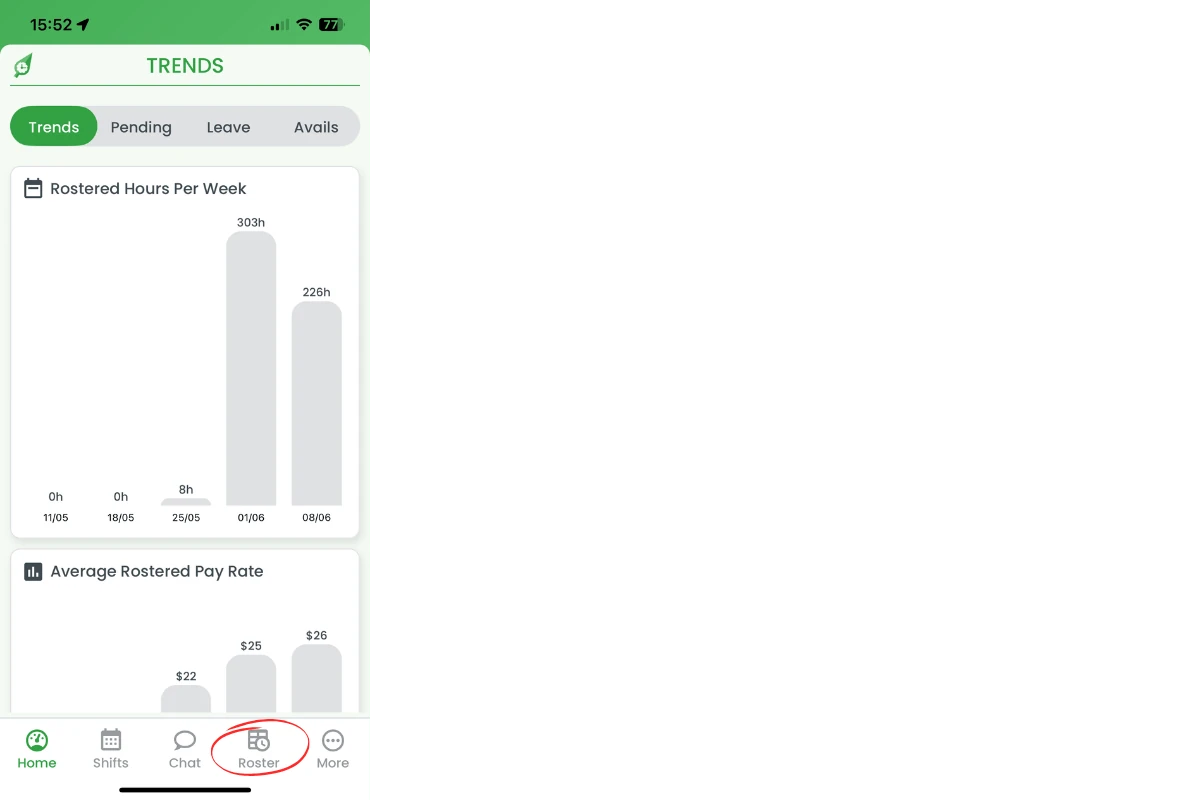
This section shows how to reach the daily roster on your phone. You will tap the Roster icon in the bottom bar to reveal every shift for today. Knowing this entry point is the first step toward applying filters and reviewing only the information you need.
1.1 Access daily roster
1.1.1 Tap Roster in the bottom navigation bar to load today’s shifts.
2. Apply roster filters
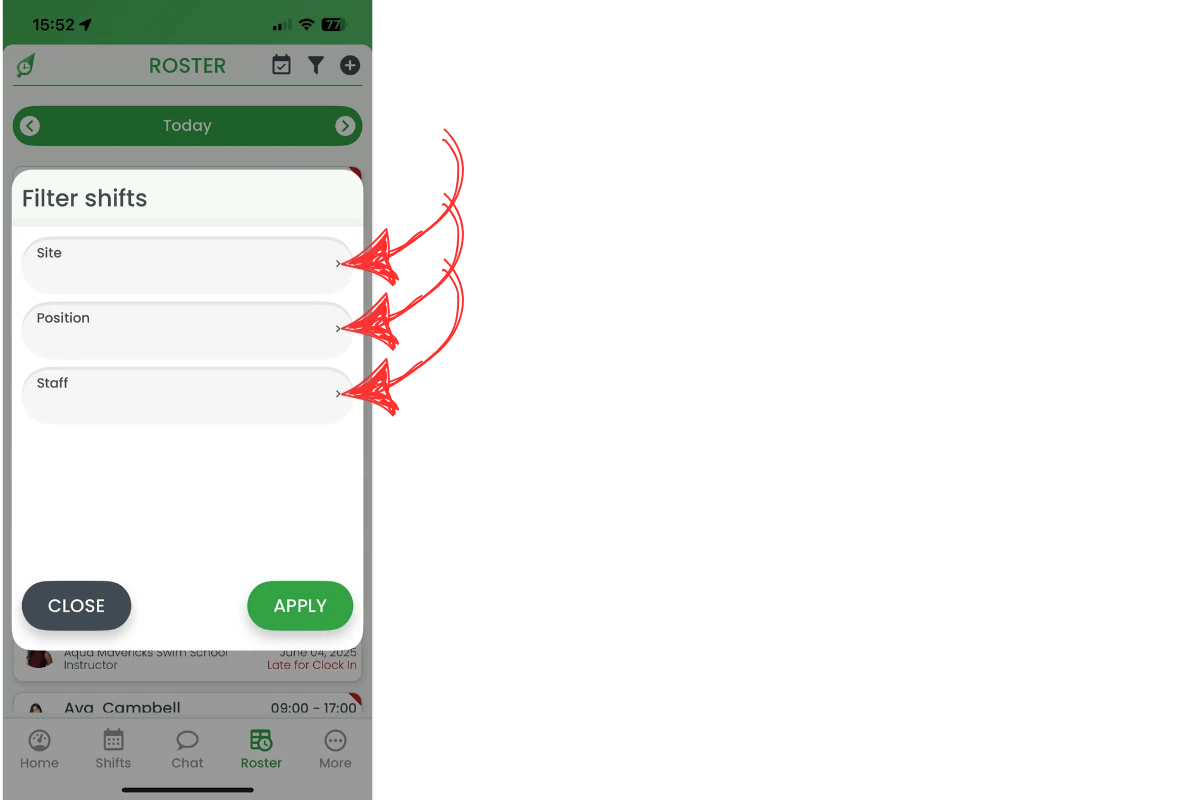
Filters refine the roster to show only the shifts that matter to you. Choose a specific site, a single position or an individual staff member—or combine all three. Once set, the roster updates instantly, giving you a clean list for quick checks or edits.
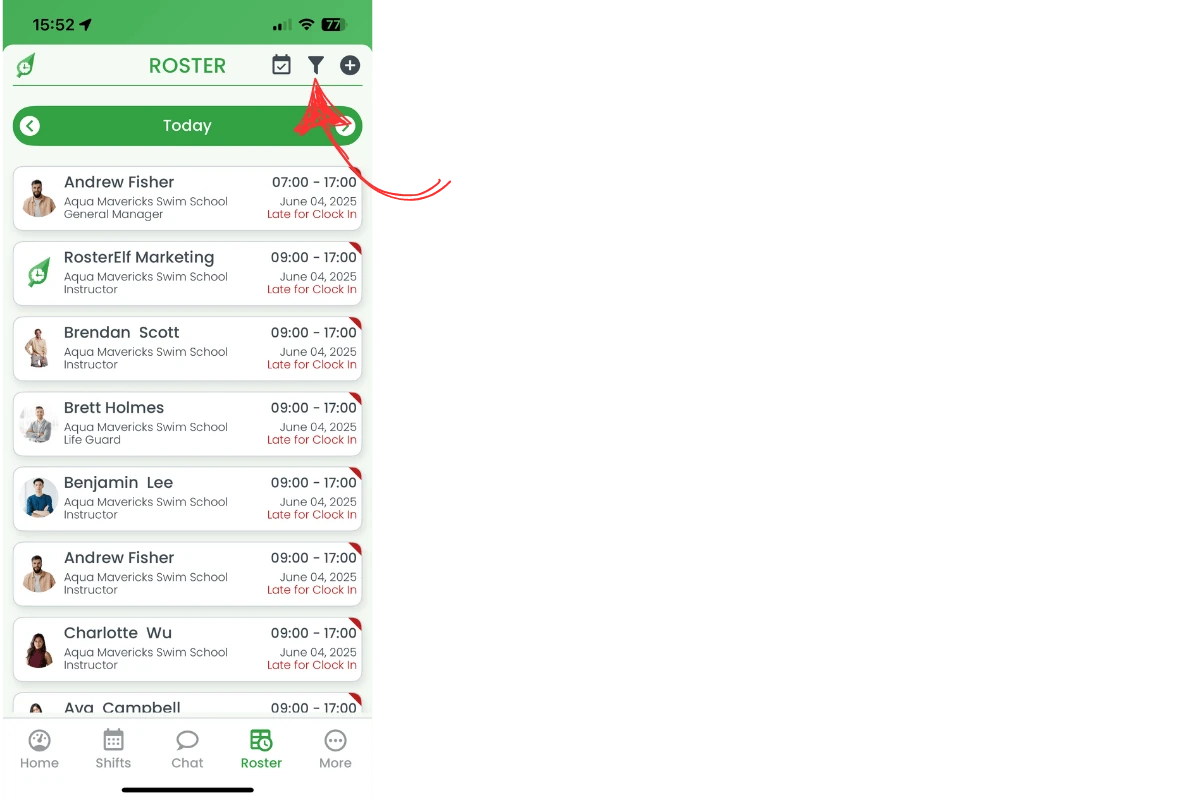
2.1 Select filter icon
2.1.1 Tap the filter funnel in the top-right corner of the roster header.
2.2 Choose filter fields
2.2.1 In the Filter shifts window, tap Site, Position or Staff and pick your options in each list. Site opens a Select Sites list — tick the sites you want and tap CONFIRM to return to the filter window.
2.3 Apply filters
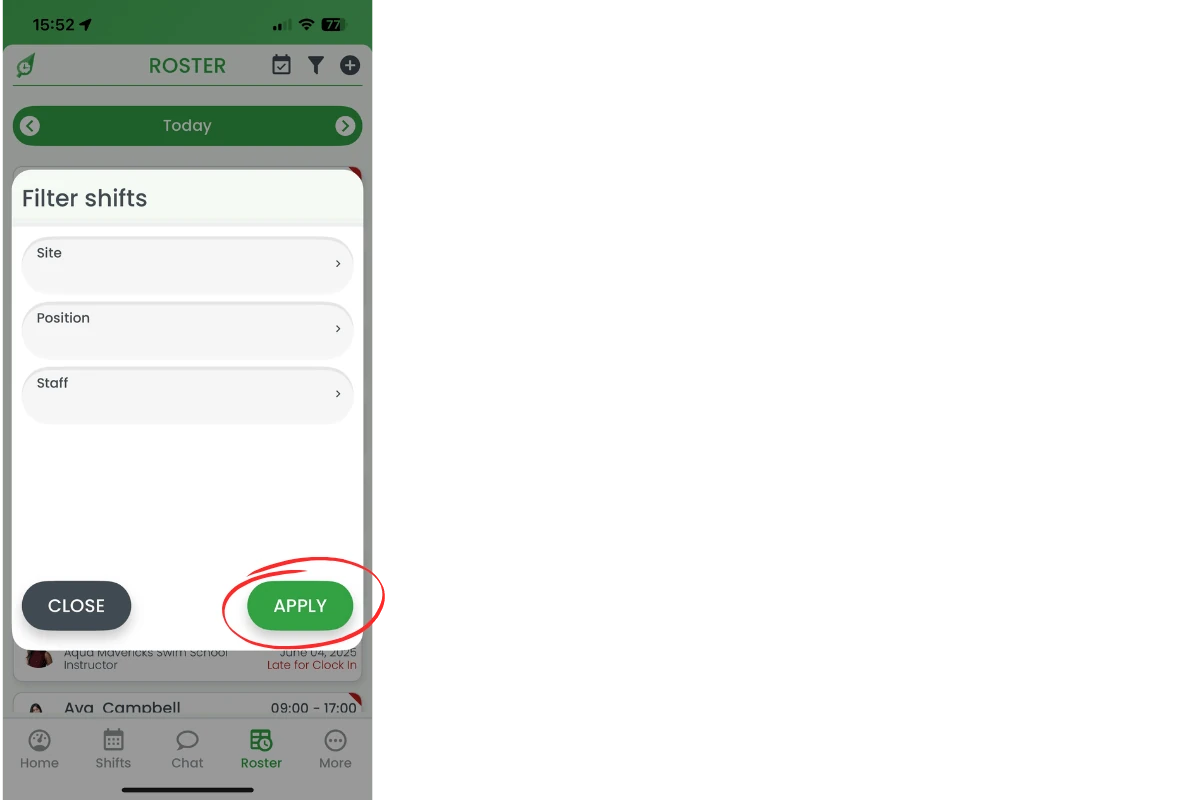
2.3.1 Press APPLY. The roster refreshes to display only shifts that match your selections.
3. Clear roster filters
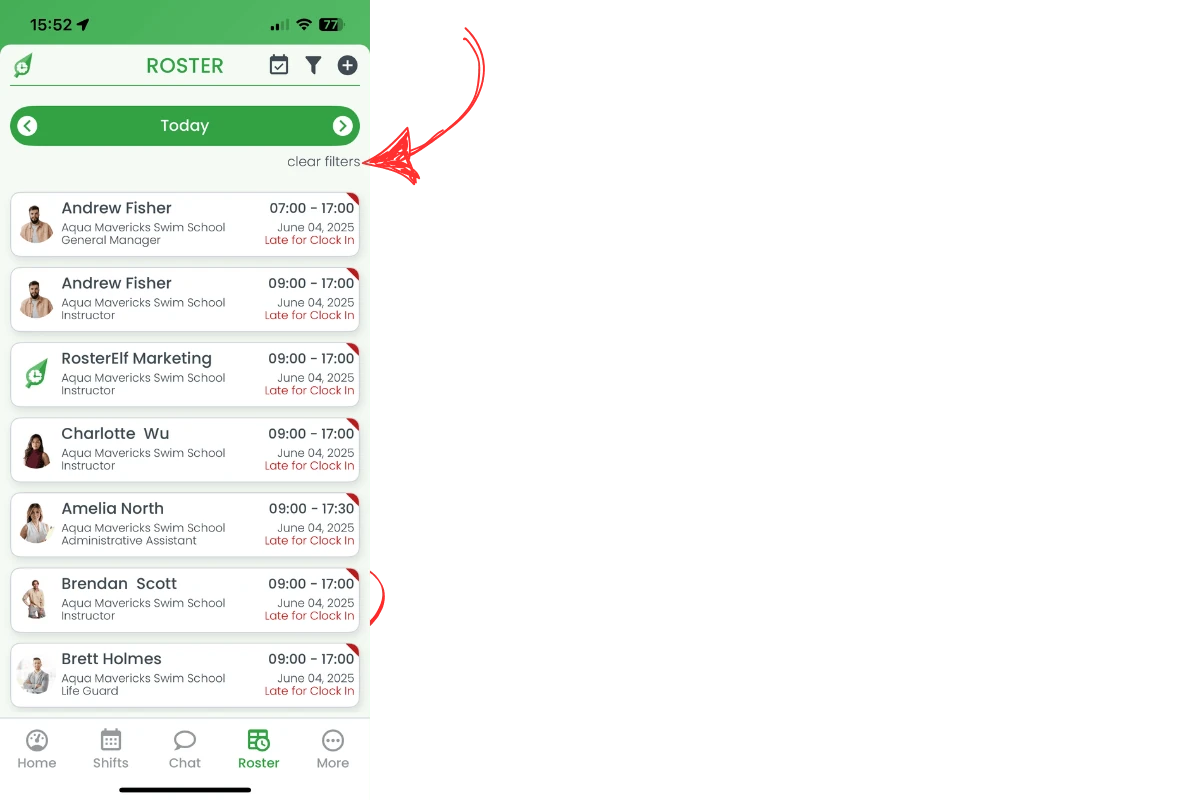
When you finish reviewing a focused list, clear your filters to return to the full roster. A quick link appears under the header any time a filter is active, so you can reset in a single tap and view every shift again.
3.1 Remove all filters
3.1.1 Tap clear filters under the date header to restore the complete roster list. Filters also reset on their own when you leave the Roster tab.
Frequently asked questions
1. Where is the filter icon on mobile?
Open the Roster tab and look for the funnel icon in the top-right corner of the header.
2. Can I combine multiple filters?
Yes. Select any mix of Site, Position and Staff before tapping APPLY to refine your roster view.
3. How do I tell if a filter is active?
A clear filters link appears under the date header whenever one or more filters are applied to the roster.
4. Will filters stay when I close the app?
No. Filters reset as soon as you leave the Roster tab, as well as when you log out or fully close the app, so you start fresh next time you open the roster.
5. Does filtering change the roster for other managers?
No. Filters affect only your personal view on your device and do not alter the roster for anyone else in your organization.