

How to log out of the RosterElf mobile App
This article explains how to log out of the RosterElf mobile app on iOS and Android devices. Logging out is an essential step to secure your account, especially when using shared devices. The guide below provides a straightforward method to log out quickly and safely.
If you’re looking for instructions on logging out of the Time Clock app on a tablet, refer to Logging out of the Time Clock app.
1. Logging out of the RosterElf mobile app
This section provides a step-by-step guide to log out of the RosterElf mobile app on iOS or Android devices. Following these steps ensures your account remains secure.
1.1 steps to log out
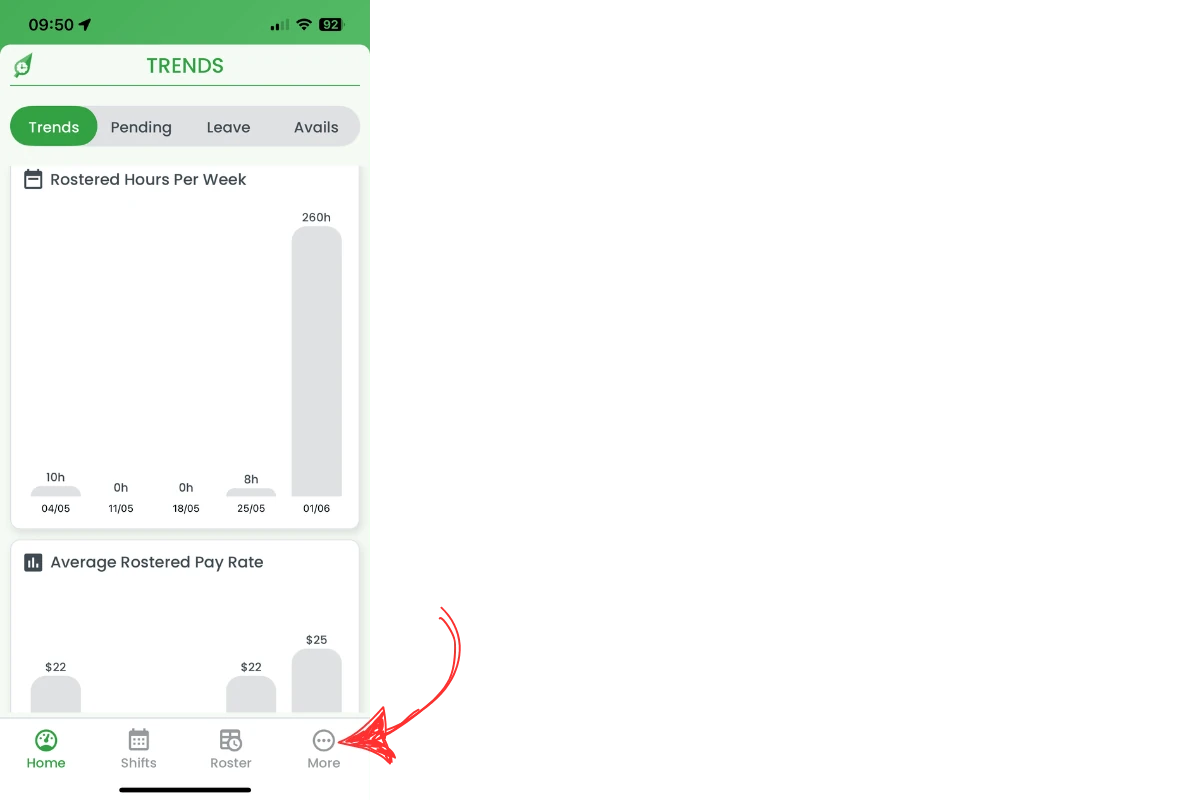
1.1.1 Tap More in the bottom-right corner of the screen.
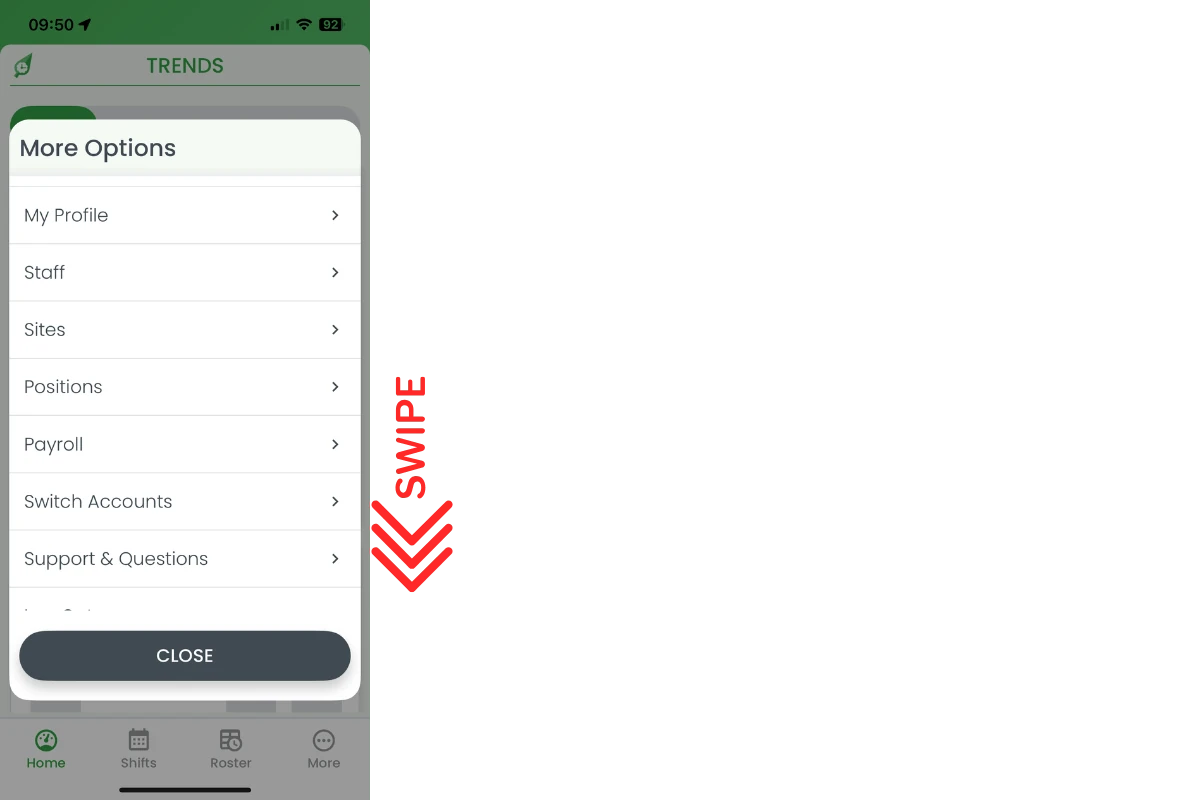
1.1.2 In the More Options panel, swipe down until you see Log Out.
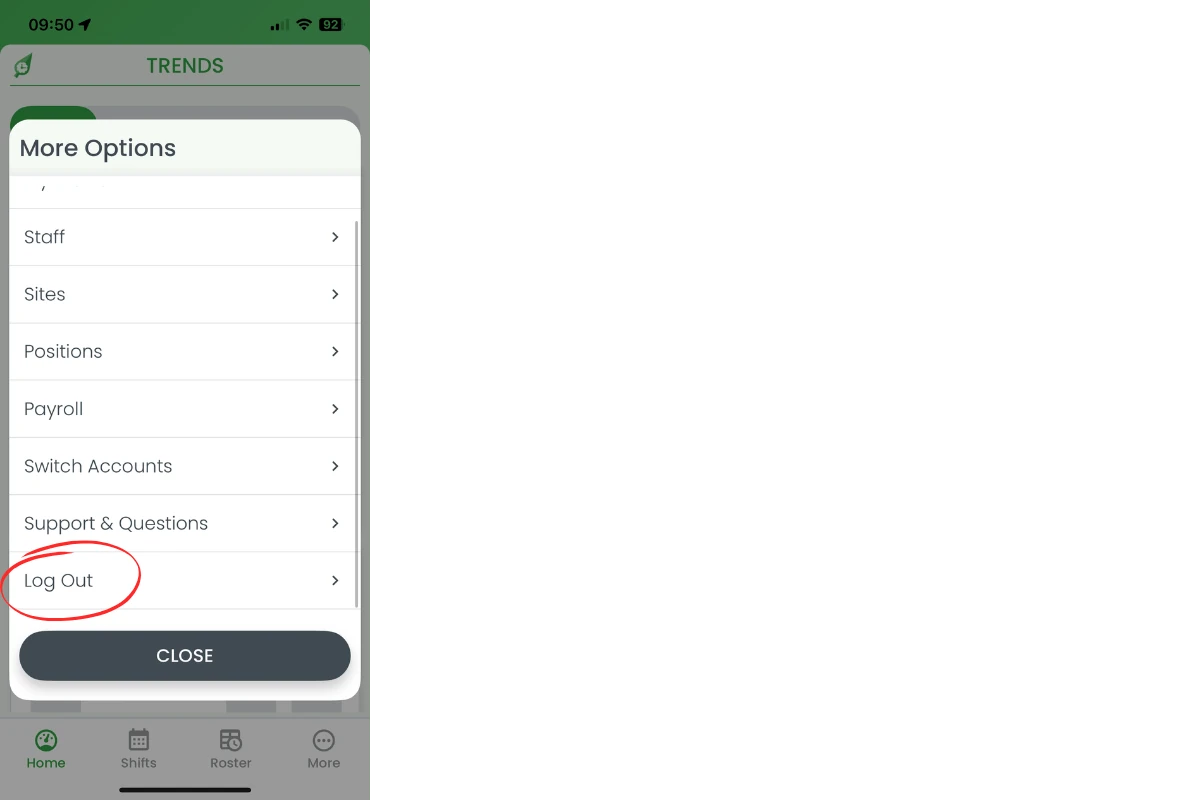
1.1.3 Tap Log Out.
1.1.4 By completing these steps, you will successfully log out of the RosterElf mobile app.
Frequently asked questions
1. How do I log out of the RosterElf mobile app?
Tap More in the bottom-right corner of the screen, swipe down to Log Out, then tap Log Out to exit the app.
2. Why is it important to log out of the RosterElf app on shared devices?
Logging out on shared devices prevents unauthorised access to your account and secures sensitive information, such as rosters and timesheets.
3. Can I log out of RosterElf on both iOS and Android devices?
Yes. The log-out process is identical on iOS and Android—follow the steps above to secure your account.
4. What should I do if I forget to log out of the RosterElf app?
If you forget to log out, we recommend changing your password as a precaution. This prevents anyone from accessing your account without permission.
5. Where can I find instructions for logging out of the Time Clock app?
If you need to log out of the Time Clock app on a tablet, refer to Logging out of the Time Clock app.