

Marking staff as sick on your smartphone
If a staff member cannot work due to illness, you can mark them as sick using the RosterElf smartphone app. This ensures that the absence is recorded accurately and payroll is updated automatically. This guide walks you through the steps to record sick leave efficiently.
Handling staff absences is essential for keeping your schedule organised and ensuring payroll accuracy. RosterElf simplifies this process with a feature that lets you record sick leave directly from your smartphone. By marking staff as sick, you ensure their leave is approved and reflected in payroll records. Follow the instructions below to complete this process in just a few taps.
If your staff use the Time Clock to clock in/out, you can also refer to our Recording staff as sick in Time Clock guide for additional options.
Steps to mark staff as sick using the smartphone app
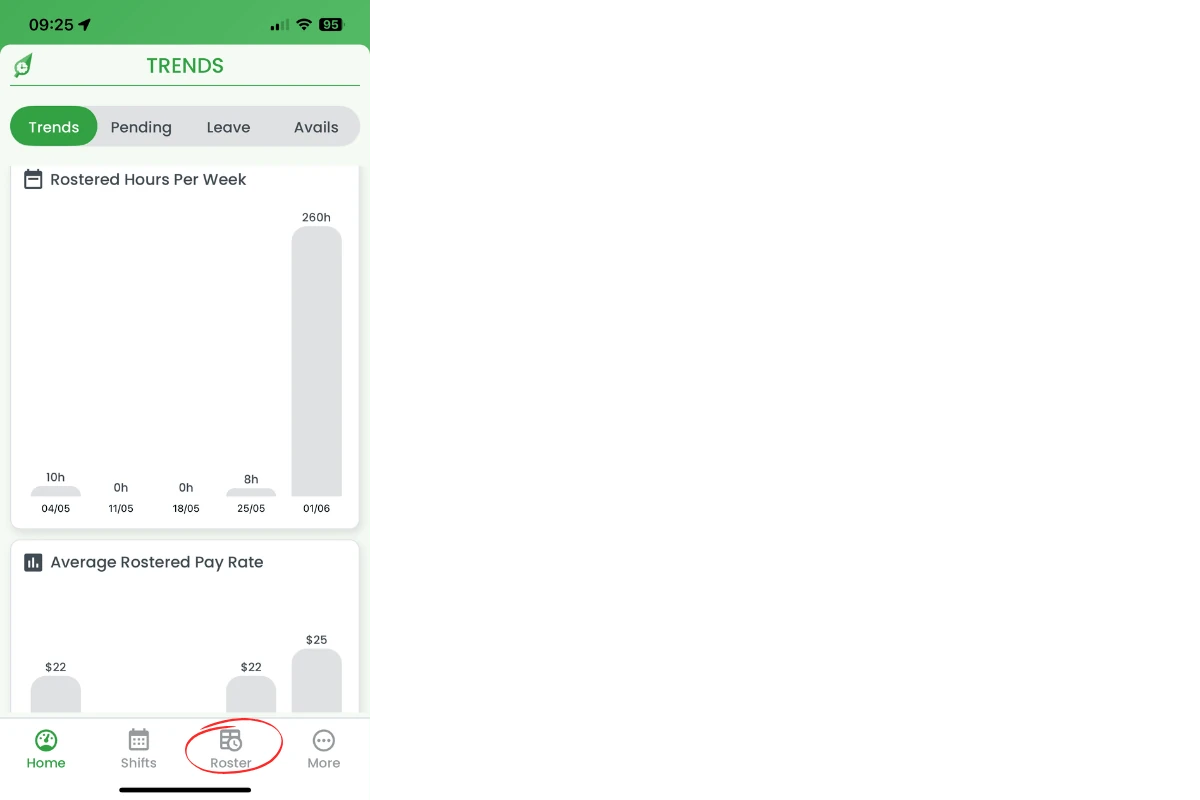
2.1 On the mobile app, tap Roster in the bottom navigation bar.
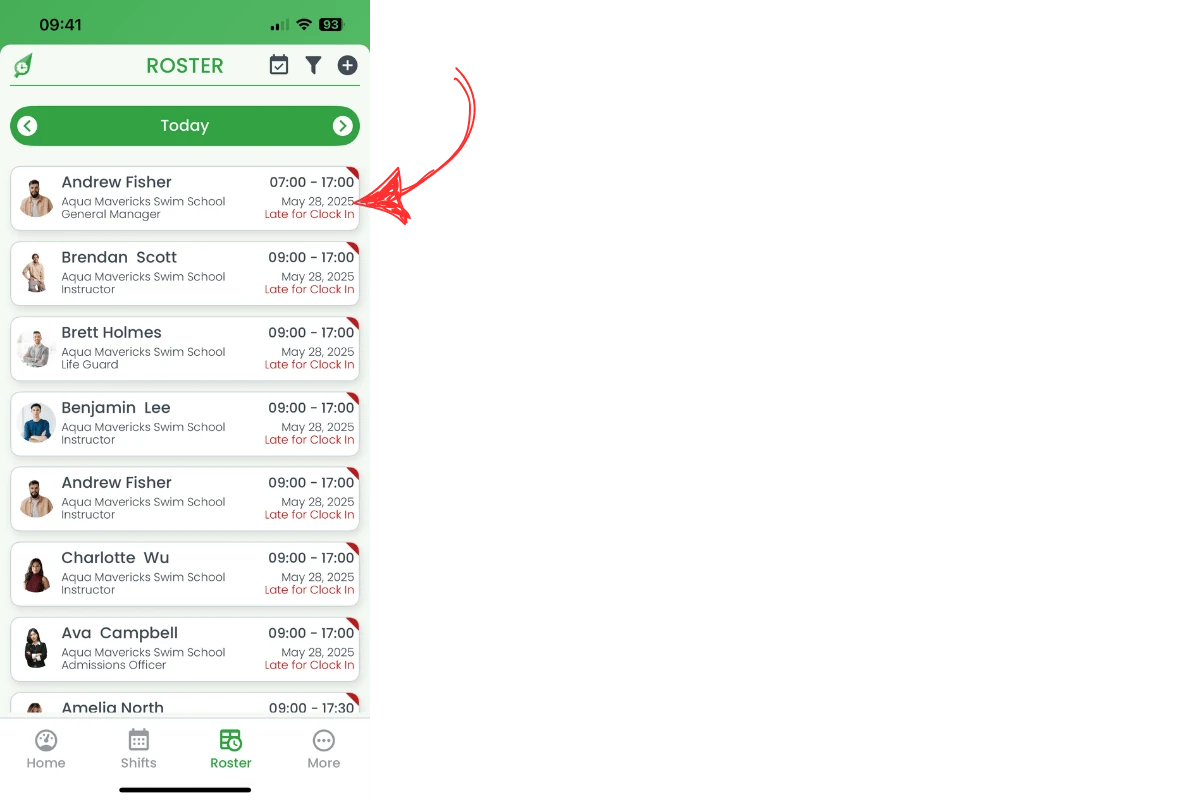
2.2 Select the shift of the staff member you need to mark as sick to open the Update Shift screen.
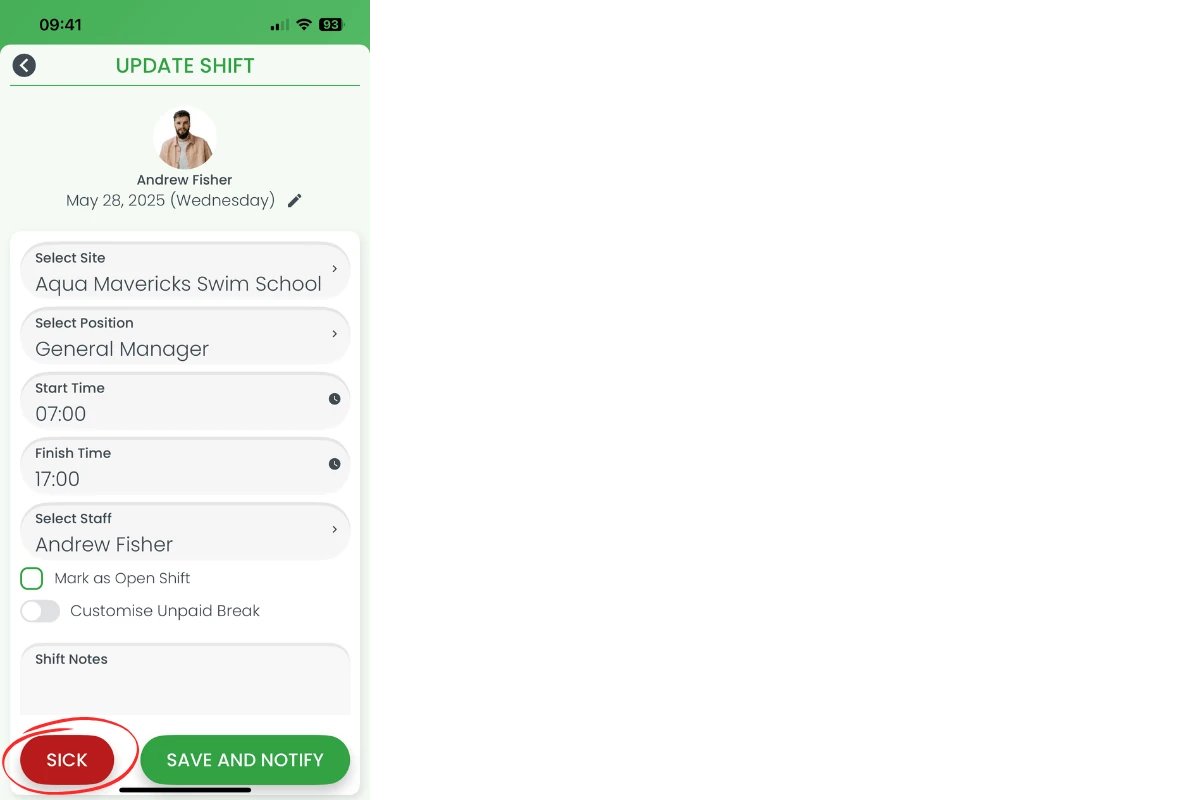
2.3 Tap the red Sick button at the bottom-left of the screen.
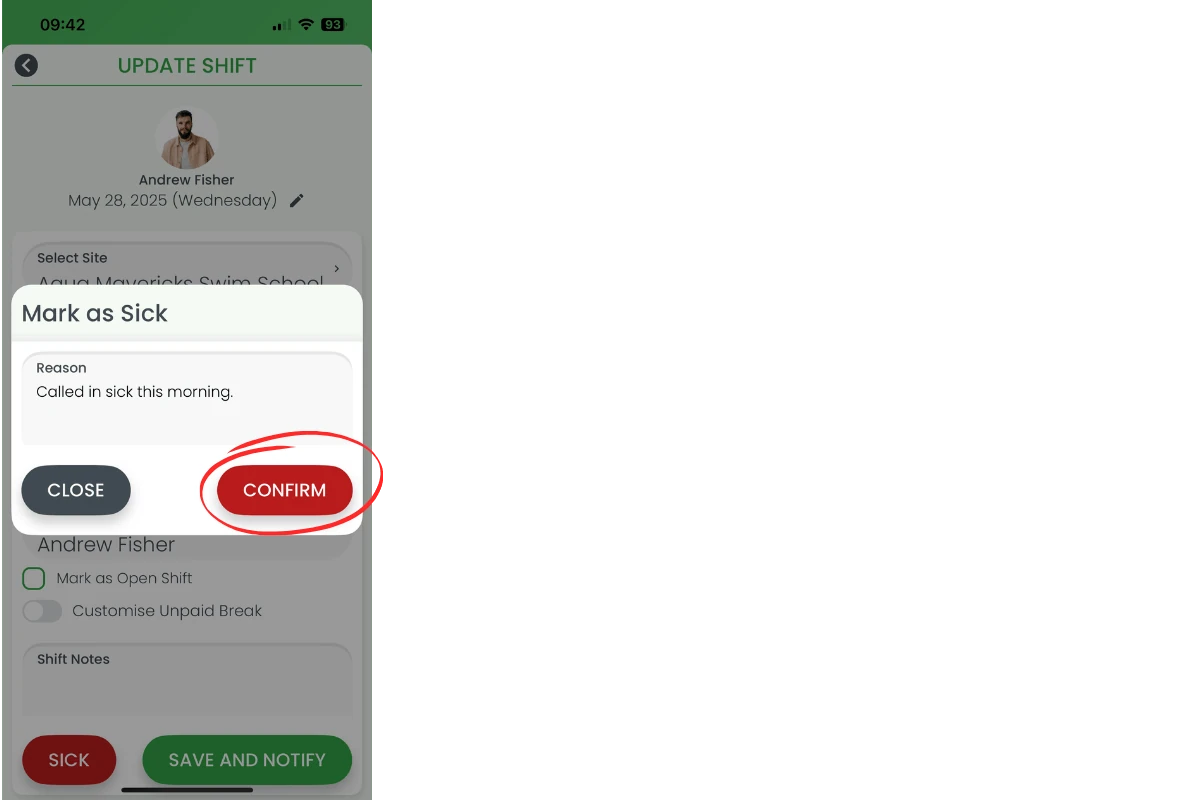
2.4 In the Mark as Sick modal, enter a reason for the absence.
2.5 Tap Confirm.
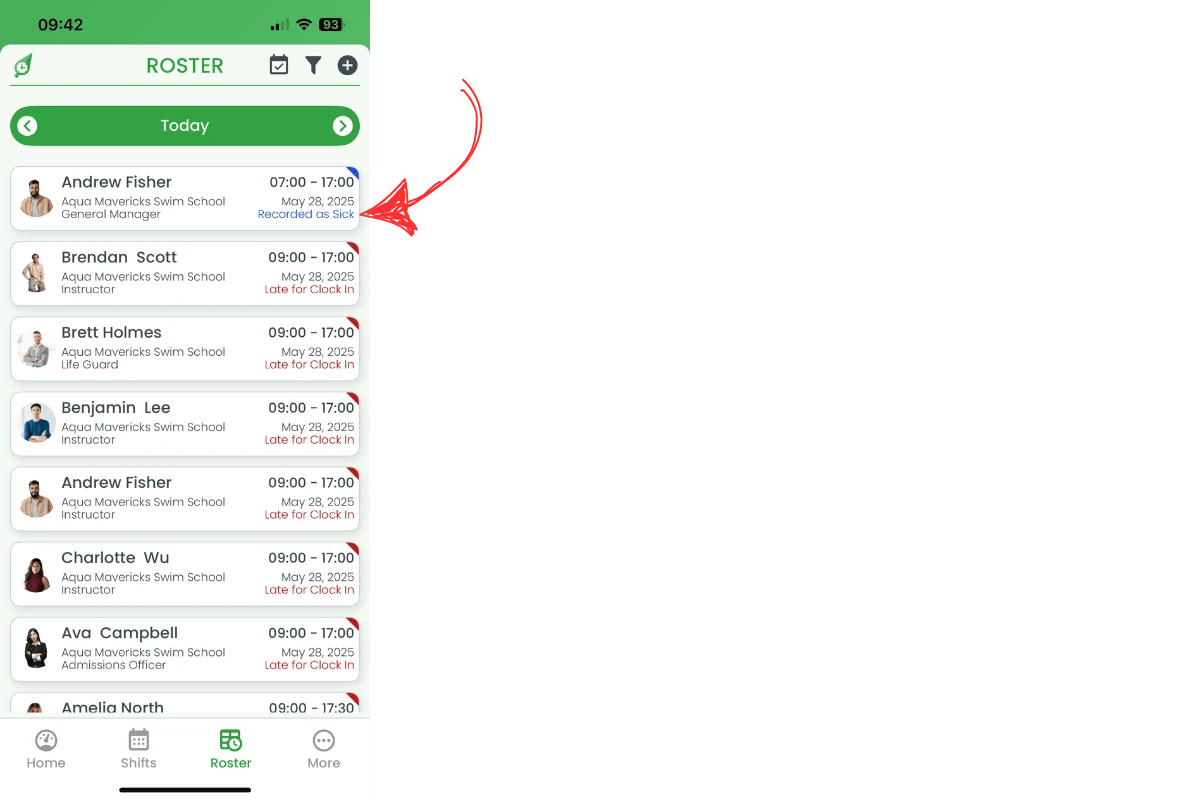
2.6 The shift will refresh on the roster with a blue banner displaying recorded as sick.
2.7 This process ensures accurate records and simplifies absence management. For staff using the Time Clock, check out Recording staff as sick in Time Clock for alternative recording methods.
Frequently asked questions
1. How do I mark a staff member as sick in the RosterElf app?
Open the RosterElf app, go to the Roster tab, select the staff member’s shift, and tap Sick on the Update Shift screen. This updates the roster and payroll records automatically.
2. Can I add comments when marking someone as sick?
Yes. In the Mark as Sick modal, enter a reason or additional details before tapping Confirm.
3. Does marking a staff member as sick update payroll automatically?
Yes. Once you mark a staff member as sick, their leave is approved automatically and payroll records update in RosterElf.
4. Where can I see if a staff member is marked as sick?
The roster will show a blue banner labelled recorded as sick on the shift, indicating the staff member’s absence.
5. What should I do if my staff use the Time Clock instead of the app?
Refer to Recording staff as sick in Time Clock for detailed instructions on recording sick leave through the Time Clock.