

Set your TimeClock PIN on the smartphone app
This article explains how to set your TimeClock PIN in the RosterElf smartphone app. Your TimeClock PIN is a secure code you use to clock in and out of shifts. Setting up a PIN ensures that only you can record your start and finish times. This helps prevent errors, protects your details, and ensures accurate payroll records.
With this guide, you will learn how to open the app, access your profile, and create your PIN. Once set, you can use the PIN at any workplace device running the RosterElf TimeClock. Following these steps makes it easy to keep your times secure and ensures smooth clock-in and clock-out each shift. It’s also the same PIN you’ll enter to confirm shift tasks on the Timeclock app.
Prefer a web browser? You can set the exact same PIN from rosterelf.net instead — see the Time clock PIN guide.
1. Open profile settings in the smartphone app
In this section, you will learn how to access your profile settings in the RosterElf smartphone app. You need to reach this area before you can update or set your TimeClock PIN. Profile settings contain your personal details and preferences. Accessing this ensures you are in the right place to update your PIN securely.
1.1 access your profile
1.1.1 Open the RosterElf smartphone app.

1.1.2 Press More on the bottom menu.

1.1.3 Select My profile.

2. Set your TimeClock PIN
This section explains how to create your TimeClock PIN. A PIN allows you to securely clock in and out on any TimeClock device. By setting it, you ensure that your attendance is tracked correctly and linked to your account.
2.1 create your PIN
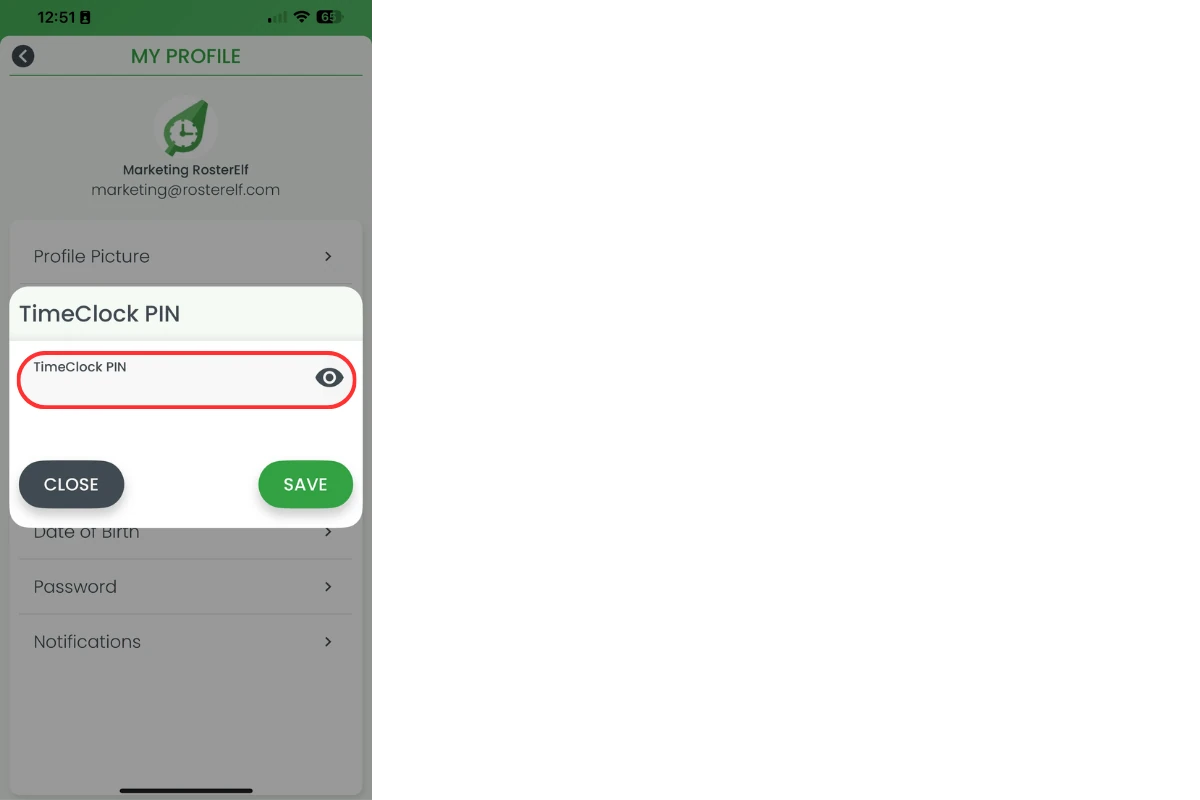
2.1.1 Press TimeClock PIN.

2.1.2 Enter your chosen PIN.
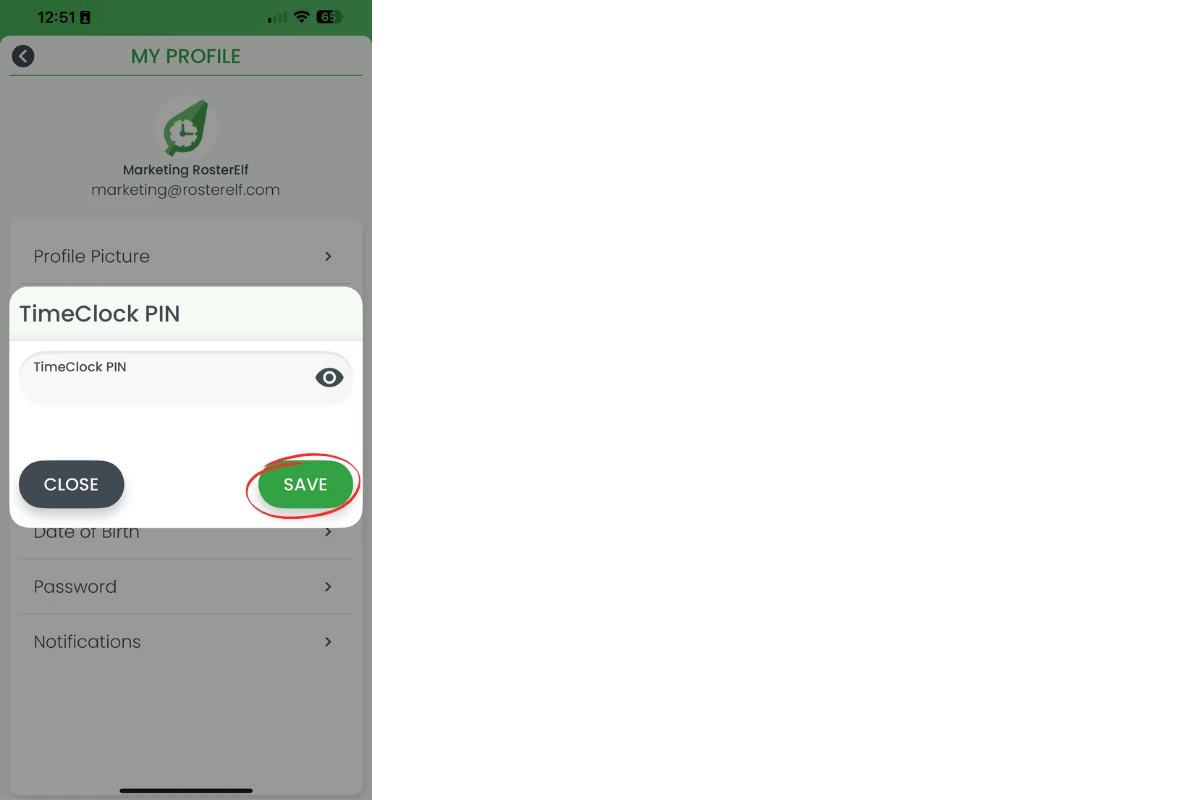
2.1.3 Press Save to confirm.
Frequently asked questions
1. How do I set my TimeClock PIN on the RosterElf app?
You can set your TimeClock PIN by opening the RosterElf smartphone app, going to More → My profile → TimeClock PIN, entering your chosen code, and pressing Save.
2. Why do I need a TimeClock PIN?
A TimeClock PIN secures your clock-in and clock-out times. It ensures only you can record your attendance, which prevents errors and protects payroll accuracy.
3. Can I change my TimeClock PIN later?
Yes, you can update your TimeClock PIN anytime in the RosterElf app by following the same steps: More → My profile → TimeClock PIN → Save.
4. Where can I use my TimeClock PIN?
You can use your PIN on any workplace device running the RosterElf TimeClock. This allows you to securely clock in and out no matter which site you are working at.
5. What happens if I forget my TimeClock PIN?
If you forget your PIN, you can reset it directly in the RosterElf smartphone app under My profile. If needed, ask your manager for help.