

When an employee cannot attend their scheduled shift due to illness, RosterElf’s Time Clock lets you quickly record them as sick. By following this process, you maintain accurate timesheets and keep your roster up to date. A manager can confirm the sick record using a secure password, ensuring proper documentation of the absence.
This guide explains how to select the correct staff member, mark them as sick, provide a reason, and finalise the record. Whether you manage a single location or multiple sites, accurate sickness recording is essential for managing workforce capacity and planning future shifts. Read on to learn how to complete this process in a few simple steps.
1. Record a staff member as sick
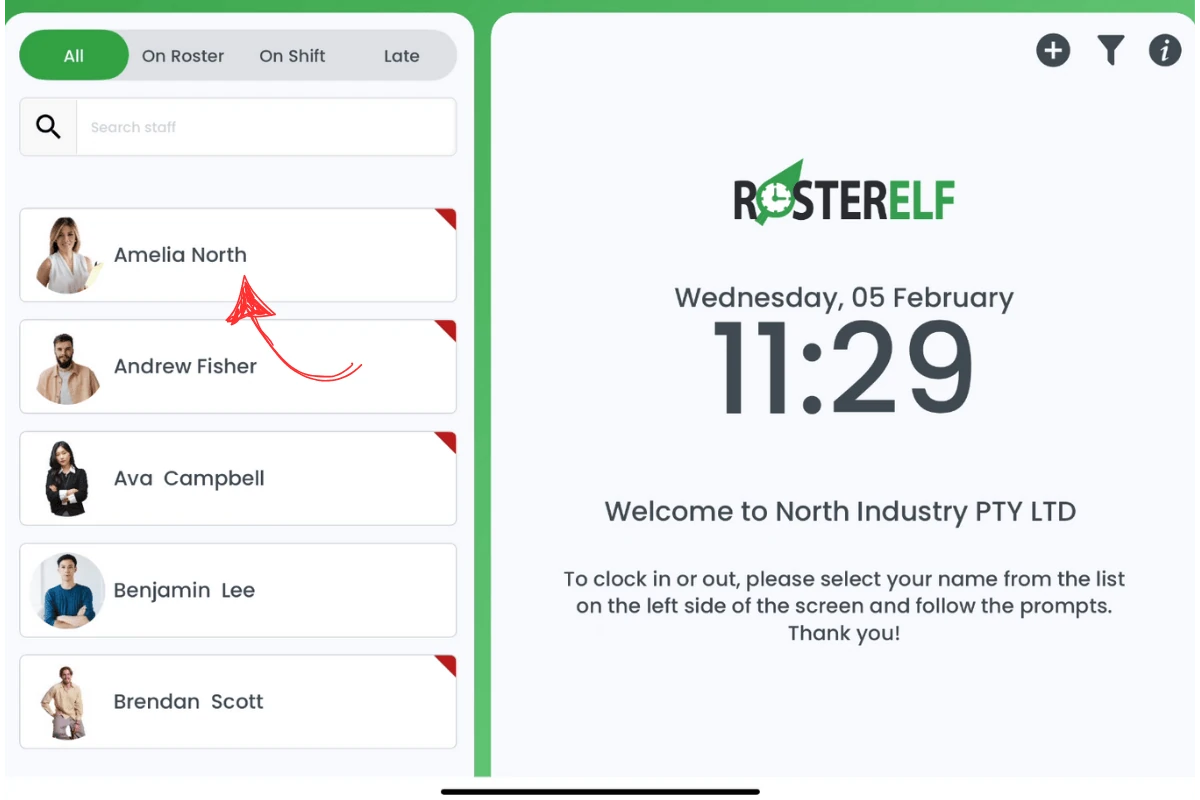
1.1.1 Click on the relevant staff member in the main view on the left side of the screen.
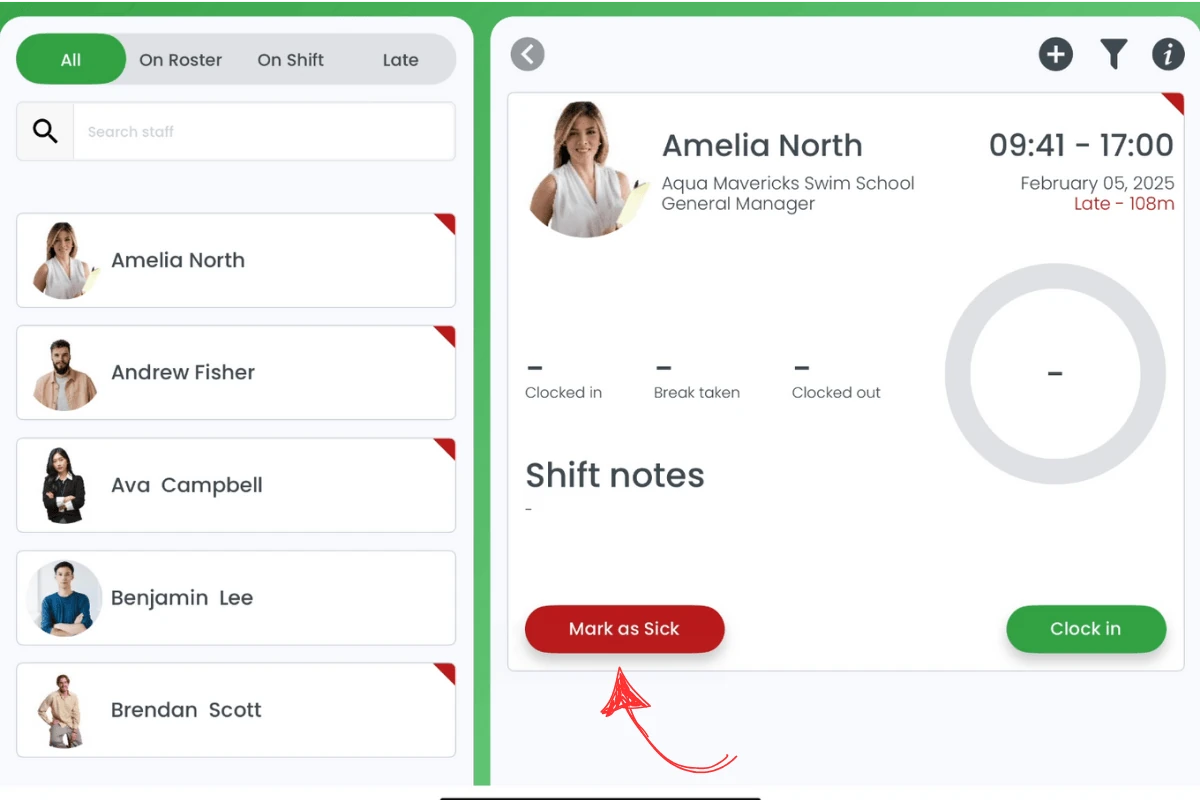
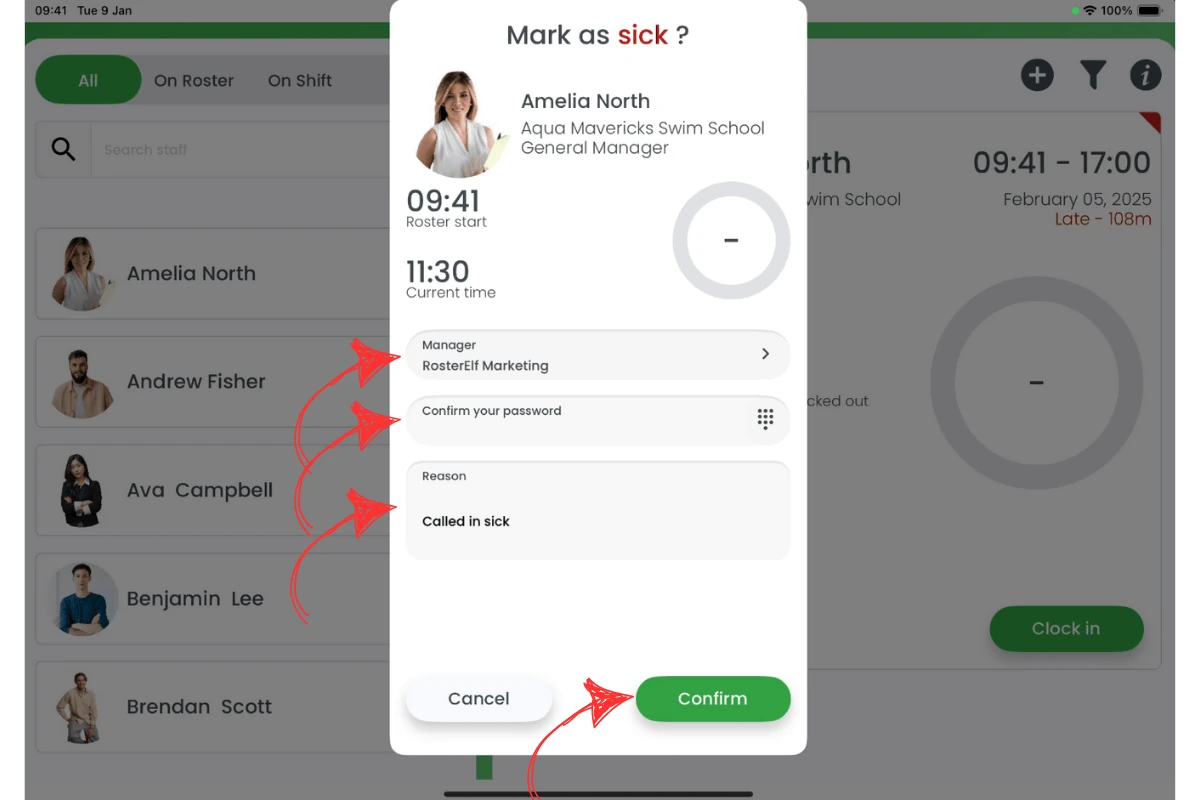
1.1.2 The staff member’s shift details will appear on the right. If the shift card is collapsed, tap it to expand it, then select Mark as Sick at the bottom left. The Mark as sick? window shows the roster start and current time, then asks for the manager, your password and a reason.
1.1.3 A pop-up modal will open, prompting you to select the manager from a dropdown list.
1.1.4 Enter the manager’s password and a reason for the sick leave.
1.1.5 Click confirm to finalise the record.
Frequently asked questions
1. Does marking staff as sick remove them from the roster?
It doesn’t remove them entirely but flags their shift as sick. You can still see the record for payroll and administrative purposes.
2. Can the staff member mark themselves as sick?
No, a manager or admin must enter their password to confirm the sick record, ensuring accurate tracking.
3. Do I need to provide a reason for every sick record?
Yes, adding a reason helps document the absence properly and maintain transparent records.
4. Will the sick shift automatically adjust their hours to zero?
Yes, the system recognises a sick status and won’t record worked hours for that shift.
5. How do I revert a sick status if it was marked by mistake?
A manager or admin can adjust the shift back to a regular status from the roster or timesheet view.