

View estimated costs and add sales revenue in RosterElf
Efficient payroll and revenue management is essential for keeping accurate financial records and tracking performance in RosterElf. This guide explains how to view estimated staffing costs and enter sales figures, so your payroll costs and sales revenue are recorded correctly, giving you precise insight into your financial health.
To understand the full set of budgeting metrics, see financial summary and roster budgeting.
1. View estimated cost
Viewing estimated payroll costs in RosterElf is straightforward. These costs are calculated automatically from each employee’s assigned pay template for specific positions, sites, or shifts. This helps you monitor payroll expenses effortlessly, giving you a clear view of staffing costs for each rostered shift.
1.1 Estimated cost calculation
1.1.1 Estimated costs are calculated using the pay template assigned to each staff member.
1.1.2 The costs are displayed within the payroll summary, reflecting staffing expenses based on shift details.
2. Enter sales figures (for sales-based businesses)
Adding sales revenue data in RosterElf is essential for sales-based businesses. By entering weekly and daily sales figures, you can monitor how payroll costs align with your revenue, allowing for better financial tracking and planning and giving you insight into profitability and cost-effectiveness.
2.1 Weekly sales entry
2.1.1 Click the slide panel on the left side of your screen.
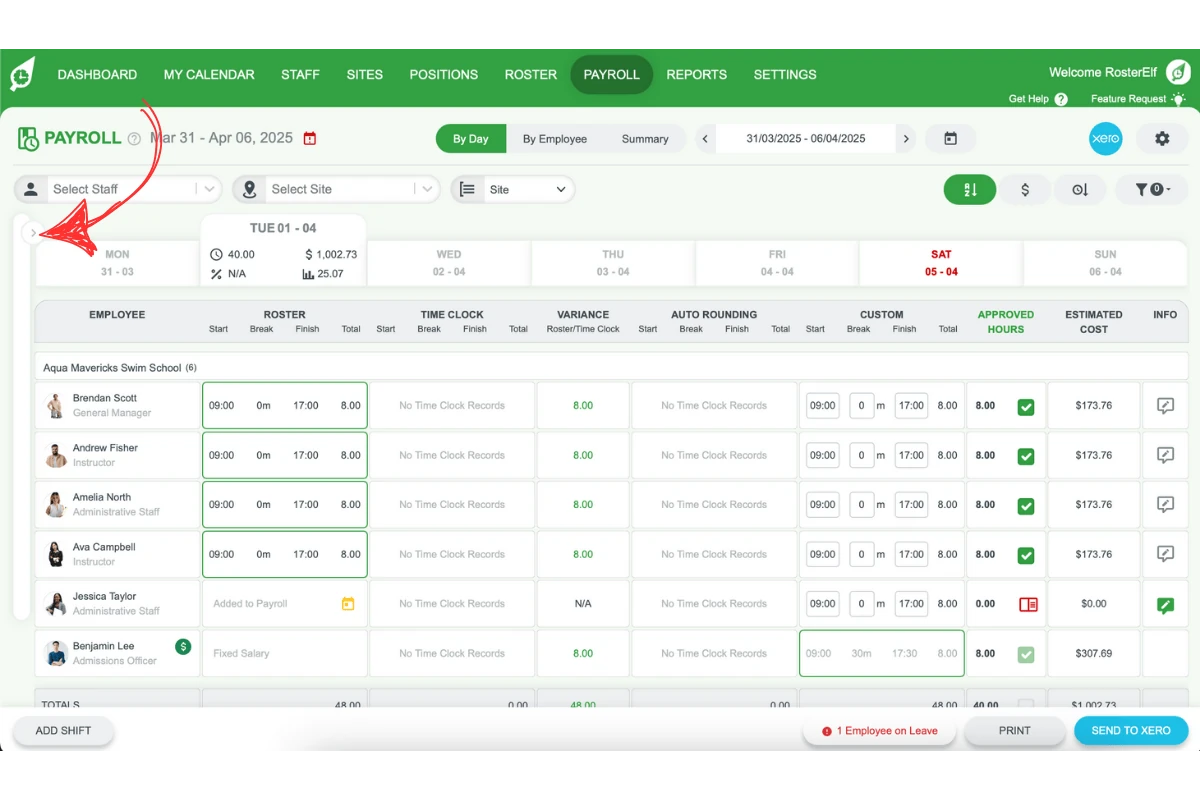
2.1.2 Open the payroll summary to locate the sales entry fields.
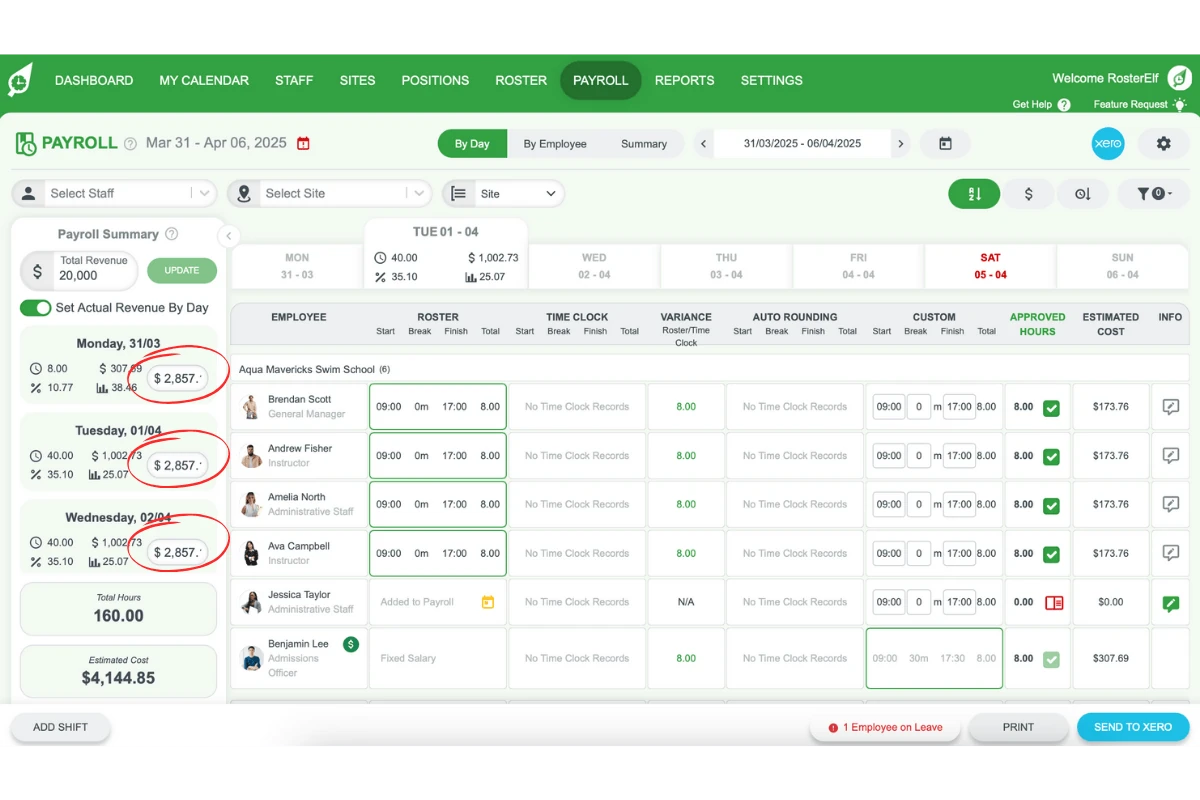
2.1.3 Enter the weekly revenue amount in the Tot Rev box (labelled Total Revenue in older versions, as in the screenshot below).
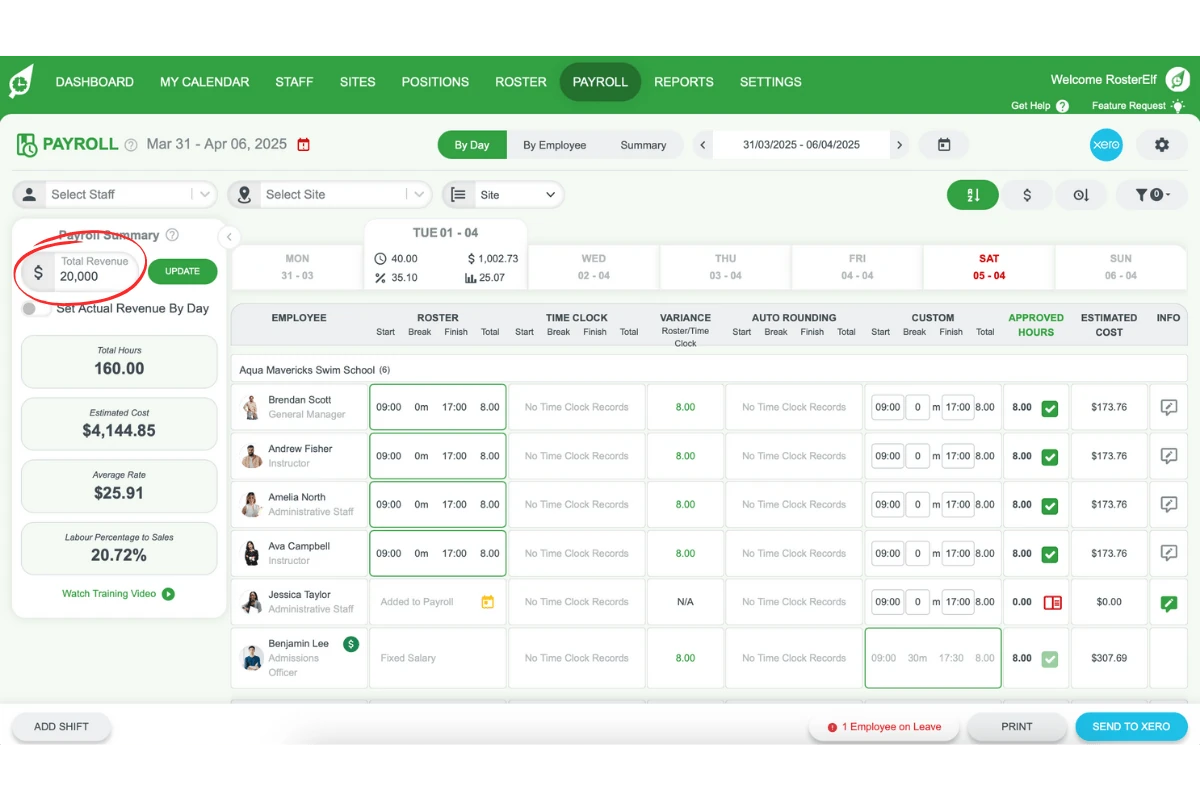
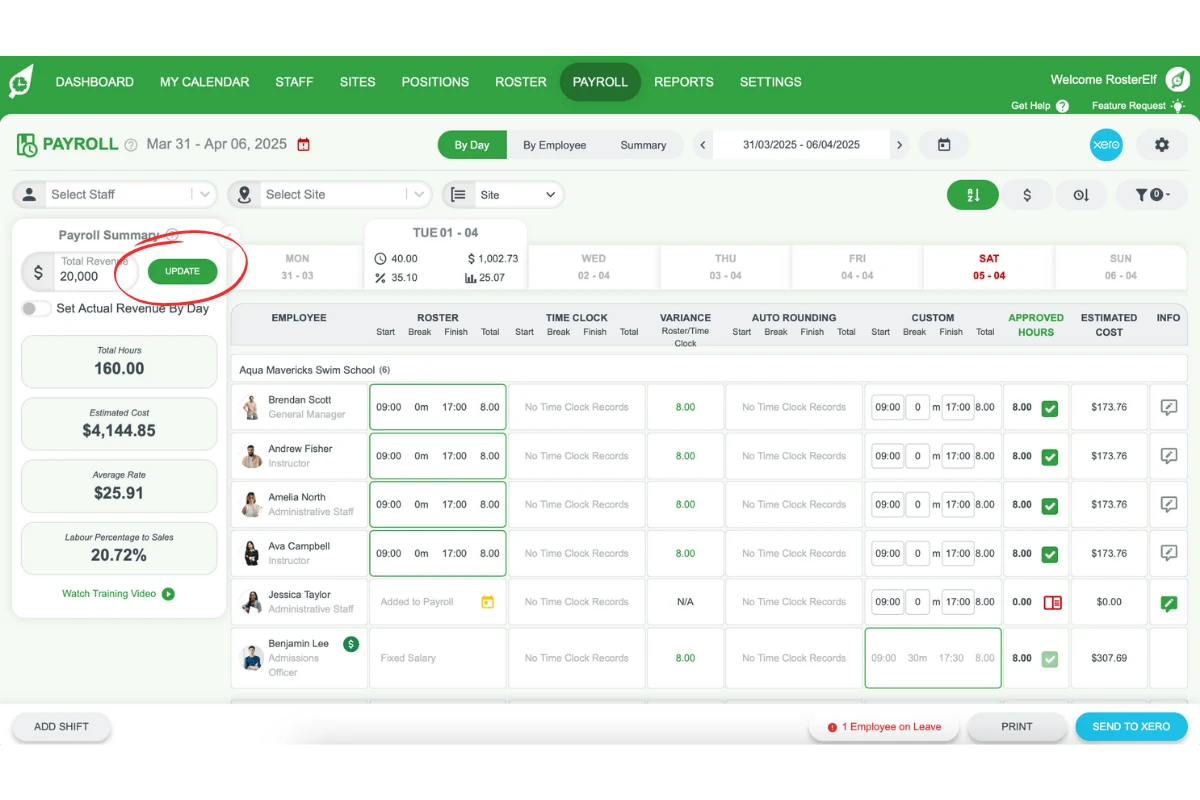
2.1.4 Click Update to save the weekly revenue entry.
2.2 Daily sales entry
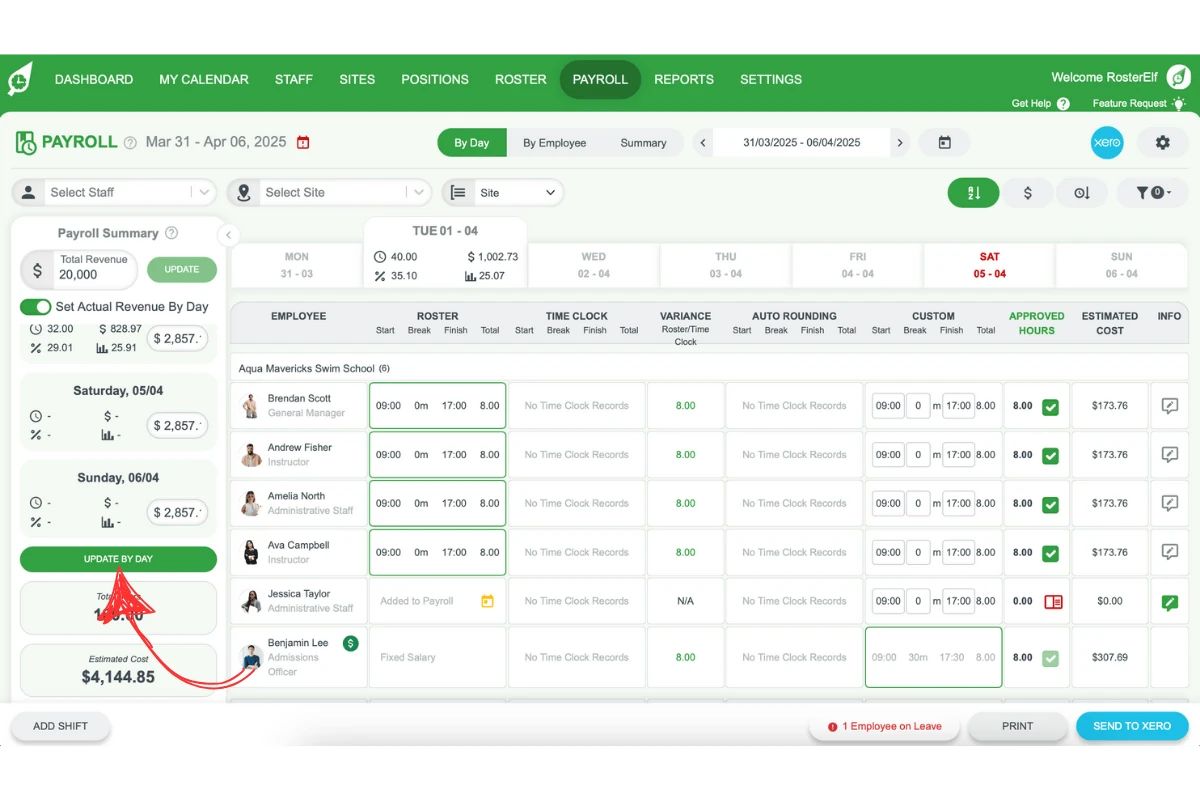
2.2.1 In the payroll summary, turn on the Set Actual Revenue By Day switch. The day boxes and the Update by Day button only appear while it is on.
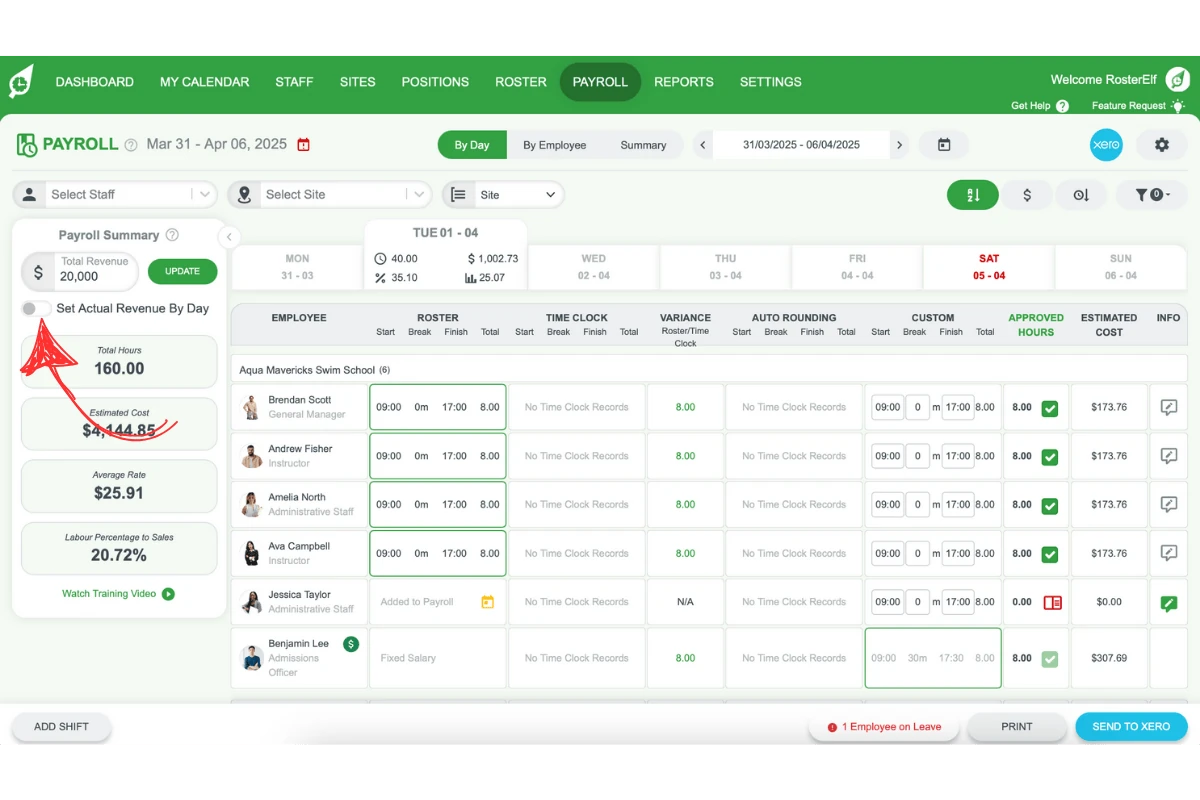
2.2.2 Enter the revenue figure in each day’s box.
2.2.3 Click Update by Day to save the daily revenue figures.
Frequently asked questions
1. How do I view estimated payroll costs in RosterElf?
Open the payroll summary panel. RosterElf calculates estimated costs automatically using the pay template assigned to each employee’s specific role or shift, giving you a quick view of staffing costs for your rosters.
2. How does RosterElf calculate estimated staffing costs?
RosterElf calculates estimated costs based on each employee’s assigned pay template, reflecting expenses for their scheduled shifts. The calculated costs appear in the payroll summary, helping you manage staffing expenses accurately.
3. Can I add weekly sales revenue in RosterElf?
Yes. Open the payroll summary, enter the weekly revenue amount in the Tot Rev box (labelled Total Revenue in older versions), and click Update to save it. This lets you track revenue against your payroll costs.
4. How do I record daily sales revenue in RosterElf?
In the payroll summary, turn on the Set Actual Revenue By Day switch. A revenue box appears for each day, along with the Update by Day button. Enter the revenue for each day, then click Update by Day to save the figures.
5. Why is it important to add sales revenue data in RosterElf?
Adding sales revenue lets you monitor how payroll expenses compare to your income, which is essential for sales-based businesses. It gives you insight into profitability and labour cost as a percentage of sales. To plan ahead, you can also set revenue forecasts in the roster.