

This article explains how roster warnings work within the shift management screen, helping managers identify potential scheduling conflicts and errors. Roster warnings provide guidance without blocking any actions. They alert managers to shifts that may need attention but do not mandate changes, allowing managers the flexibility to address issues as needed for their business requirements.
Each visible shift is checked for roster warnings, which will update if you adjust the roster period, filters, or shift details. This proactive approach ensures you are aware of potential scheduling conflicts or compliance concerns. By understanding how to interpret and address these warnings, you can maintain an organised roster and avoid potential scheduling complications.
1. Viewing roster warnings
In this section, we will cover how to identify and view warnings associated with shifts. Roster warnings display a small warning icon on affected shifts, giving you insight into specific issues. Understanding where to find and interpret these warnings will help you address any problems efficiently.
1.1 shift warning icons
A warning symbol appears next to any shift with issues.
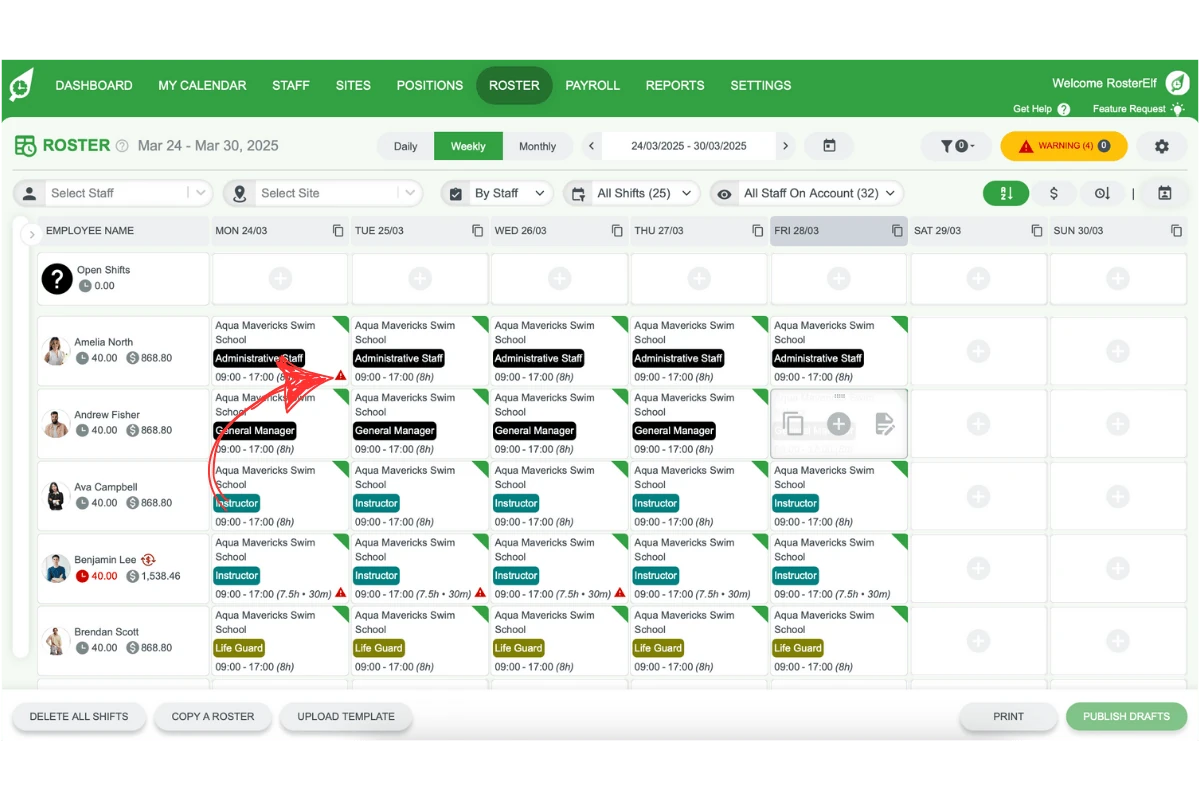
Hover over the warning symbol to view details of the issue.
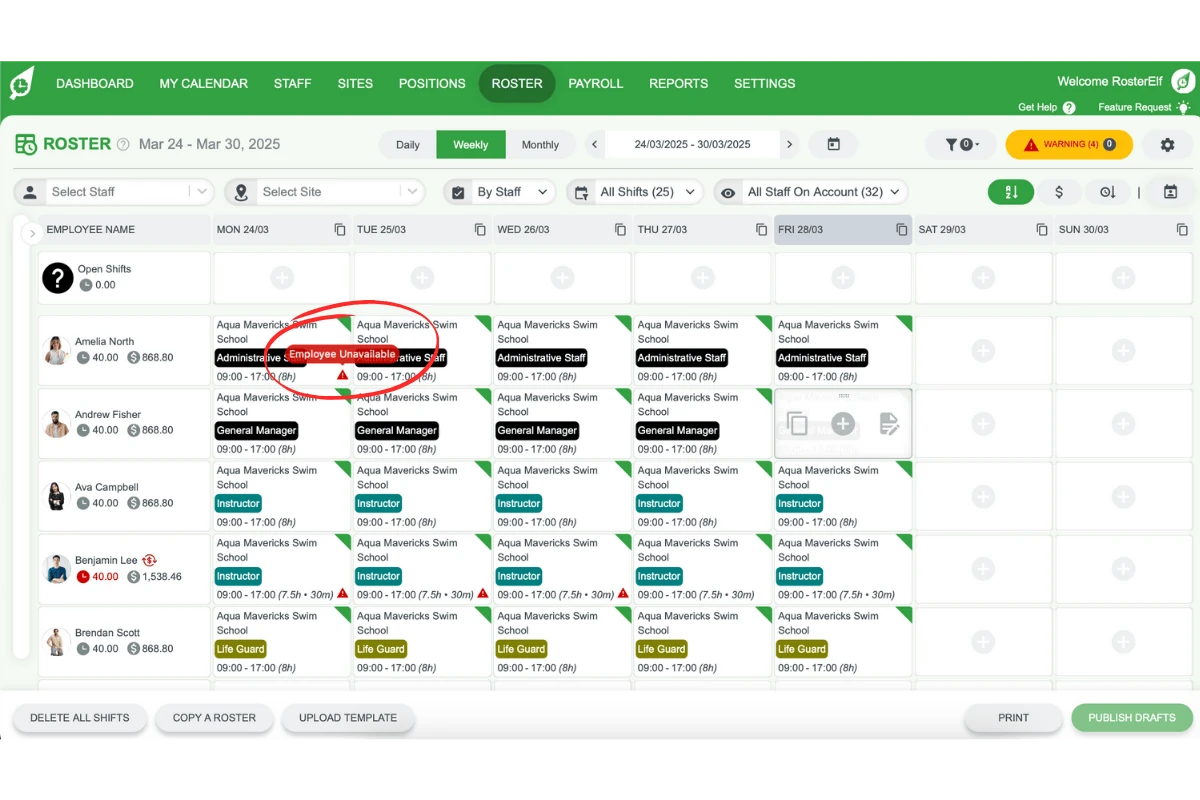
Multiple warnings may appear for a single shift.
1.2 header warning counter
A warning counter in the roster header displays the total shifts with warnings.
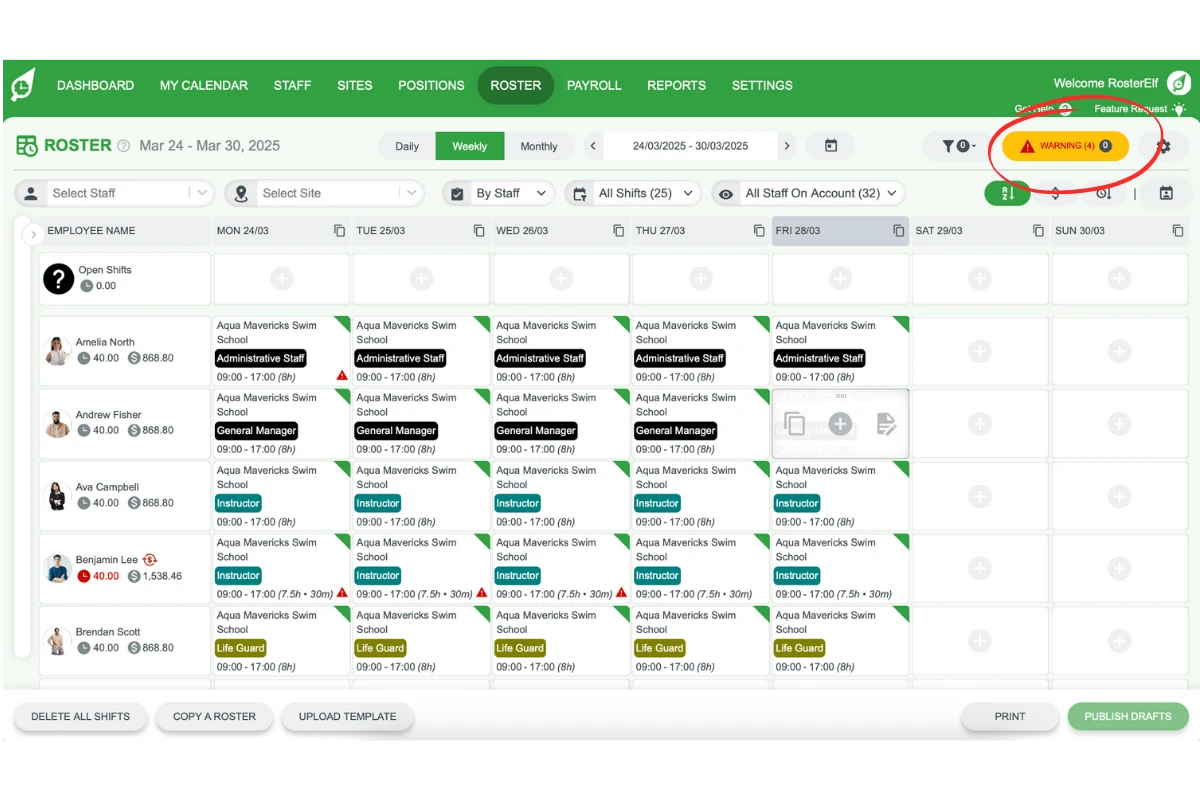
Click the WARNING (n) counter to open the Warnings panel. Use Show all warnings, or tick and switch individual types on or off.
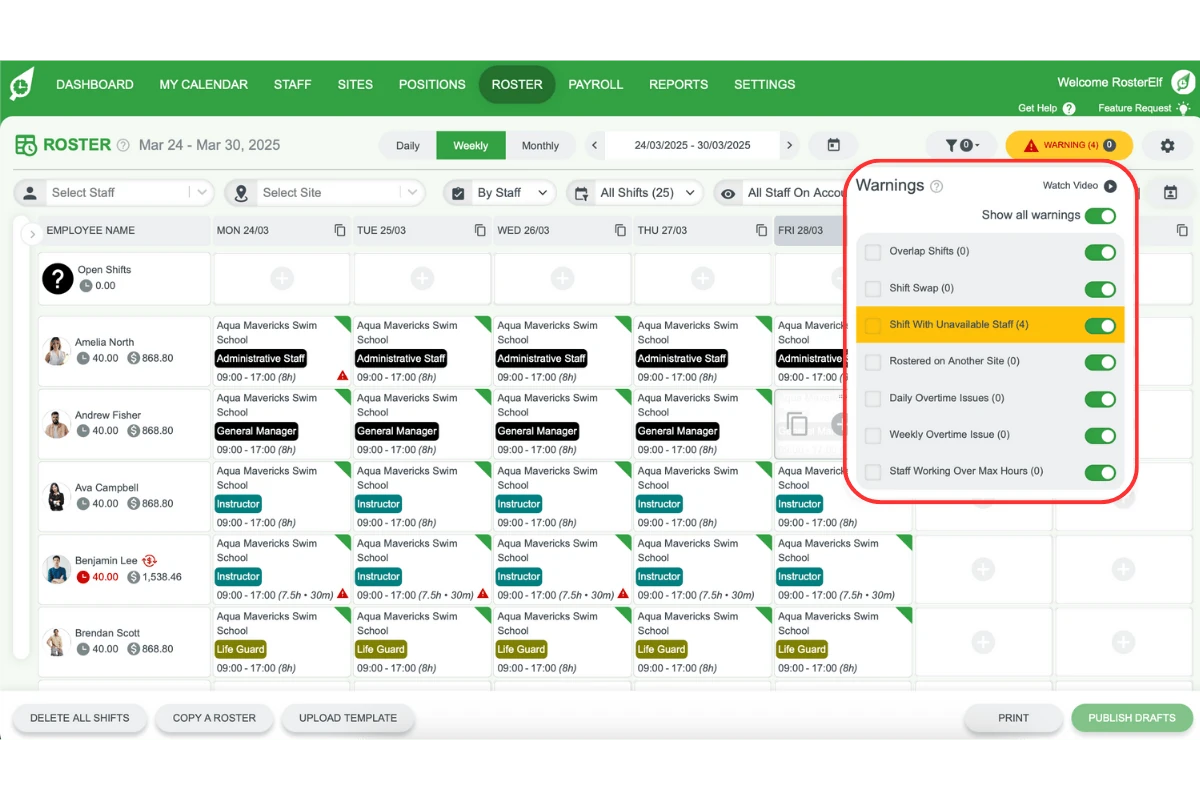
Check specific warnings to focus on the affected shifts.
2. Types of roster warnings
Roster warnings highlight potential issues with shifts that may impact staff or compliance. This section explains each type of warning and provides recommended actions. By addressing these warnings, you can optimise shift management and avoid potential conflicts.
2.1 overlapping shifts
Occurs when a staff member’s shift overlaps with another at the same site.
Fix by assigning one shift to another staff member.
Adjust shift times to avoid overlap.
Delete one of the overlapping shifts if necessary.
2.2 shift swaps
Triggered when a staff member requests to swap a published shift.
Process shift swaps via the Pending Shifts widget on the dashboard.
Alternatively, assign the shift to a different staff member.
Delete the shift if needed.
2.3 shifts with unavailable staff
Occurs if a shift conflicts with staff availability or approved leave.
Assign shift to another staff member.
Shorten the shift to fit within staff availability.
Delete the shift if necessary.
Frequently asked questions
1. What are roster warnings in shift management?
Roster warnings in shift management alert managers to potential scheduling conflicts or compliance issues. They don’t restrict any actions but help highlight shifts that may need attention for a smoother scheduling process.
2. How can I view and understand roster warnings?
You can identify roster warnings by a warning icon next to any shift with an issue. Hovering over the icon reveals the specific details of the warning, allowing you to assess and address the issue.
3. What types of issues do roster warnings highlight?
Roster warnings can flag overlapping shifts, shift swap requests, shifts with unavailable staff, employees rostered at multiple sites, daily and weekly overtime issues, and staff working over maximum hours.
4. How do I address a shift that overlaps with another?
To resolve overlapping shifts, you can assign one of the shifts to a different staff member, adjust shift times, or delete one of the overlapping shifts as necessary.
5. What should I do if a shift conflicts with a staff member's availability?
For shifts that conflict with staff availability, consider reassigning the shift to another staff member, shortening the shift to fit within available hours, or deleting the shift if needed.