

Choosing standard or custom unpaid breaks
This article guides you in choosing between standard and custom unpaid breaks when creating rosters. Understanding these options helps you set break times that best meet your team’s needs and your business requirements. While standard unpaid breaks offer a default structure, custom unpaid breaks provide flexibility for unique shifts. Importantly, you don’t have to choose one over the other—custom breaks override standard settings whenever needed. This flexibility allows you to set up standard unpaid breaks as a default and customise them per shift as required. Here, we’ll discuss how each option works, their differences, and use cases to help you decide the best approach for your rostering needs.
Note that unpaid breaks are always deducted from a shift’s paid hours. If you instead need to pay staff for a break — such as a paid rest break — see manage paid breaks in RosterElf instead.
1. Standard unpaid breaks
Standard unpaid breaks provide a default break structure that automatically applies to shifts meeting minimum length requirements. With this approach, you can set varying break times for different shift lengths to meet industry or legal standards. This section will walk you through how standard breaks work, including automatic application and benefits.
1.1 Setting standard unpaid breaks
To set up standard unpaid breaks, you must have admin permissions. See also: setting standard unpaid breaks for a detailed walkthrough of the break settings screen.
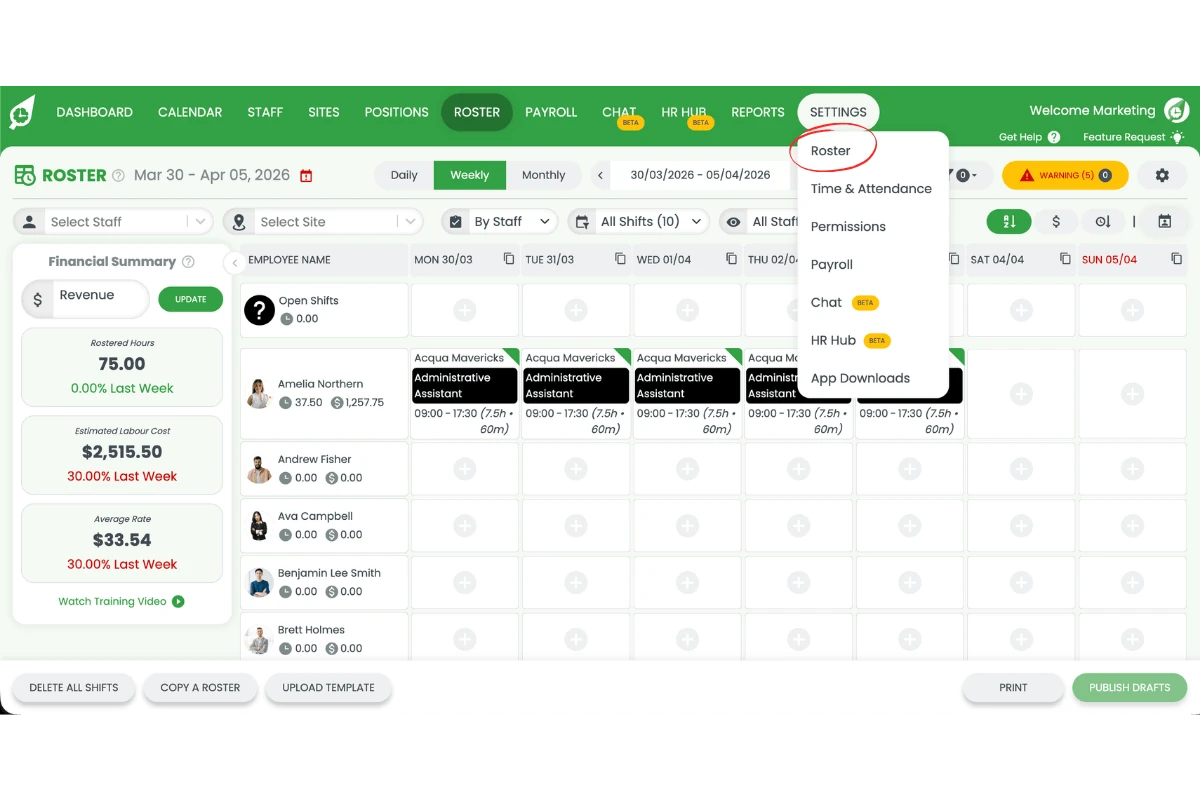
Click Settings in the top menu and select Roster from the dropdown.
In the Roster Settings panel, click the Unpaid Breaks tab to define break durations for different shift lengths.
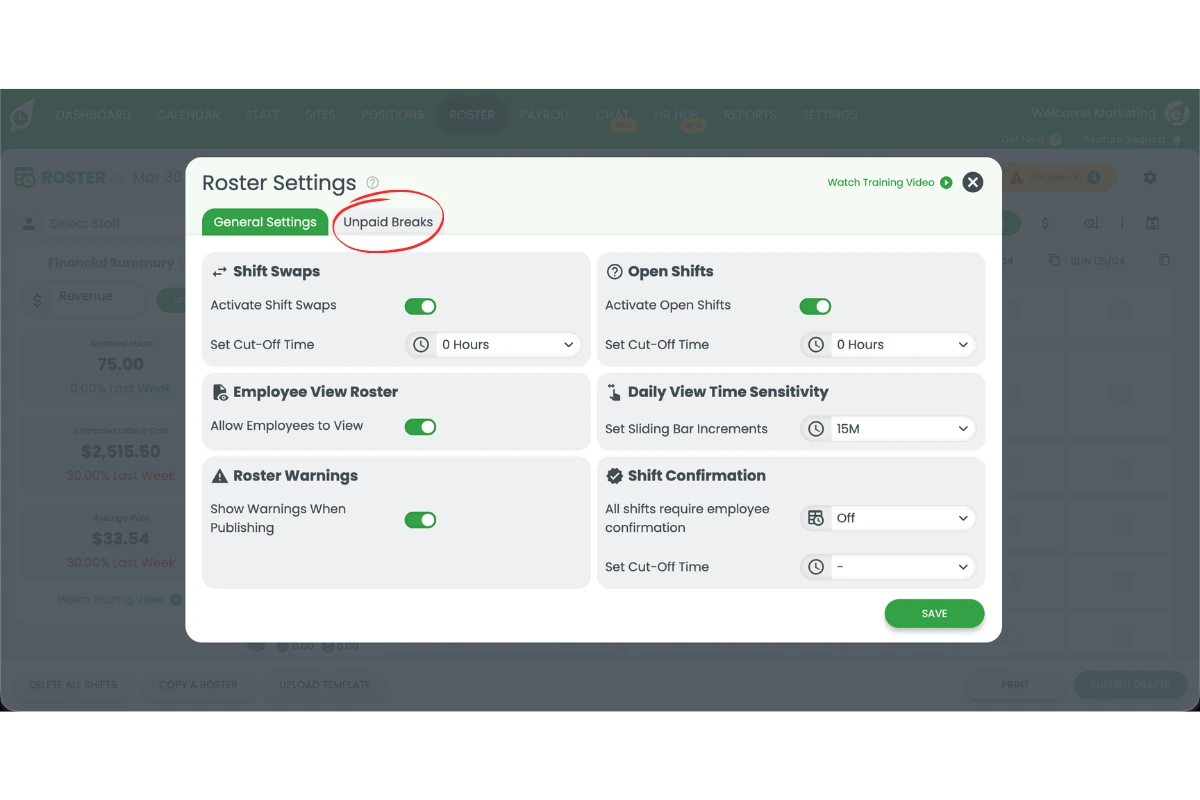
Adjust break times to match your country’s break laws or industry needs (for example, 30 minutes for shifts over 5 hours and 60 minutes for shifts over 10 hours). Once set, these breaks apply automatically to all relevant shifts.
1.2 How standard breaks work
The system assigns break times to each shift that meets the minimum shift length.
Break duration adjusts according to the length of the shift based on the settings you’ve configured.
Staff will only see the break duration in their roster, not specific start times.
2. Custom unpaid breaks
Custom unpaid breaks allow rostering staff to set unique break details on a shift-by-shift basis, including the break type, start time, and duration. This feature offers more control over specific shift requirements, making it ideal for settings where exact break times need to be managed. This section explains how to use custom unpaid breaks and how they benefit both you and your staff.
2.1 Setting custom unpaid breaks
Anyone with permission to create rosters can set custom unpaid breaks.
Turn on the Customise Unpaid Break switch in the shift window when creating or editing a shift. Staff who use the time clock app will see their custom break times displayed on their shift.
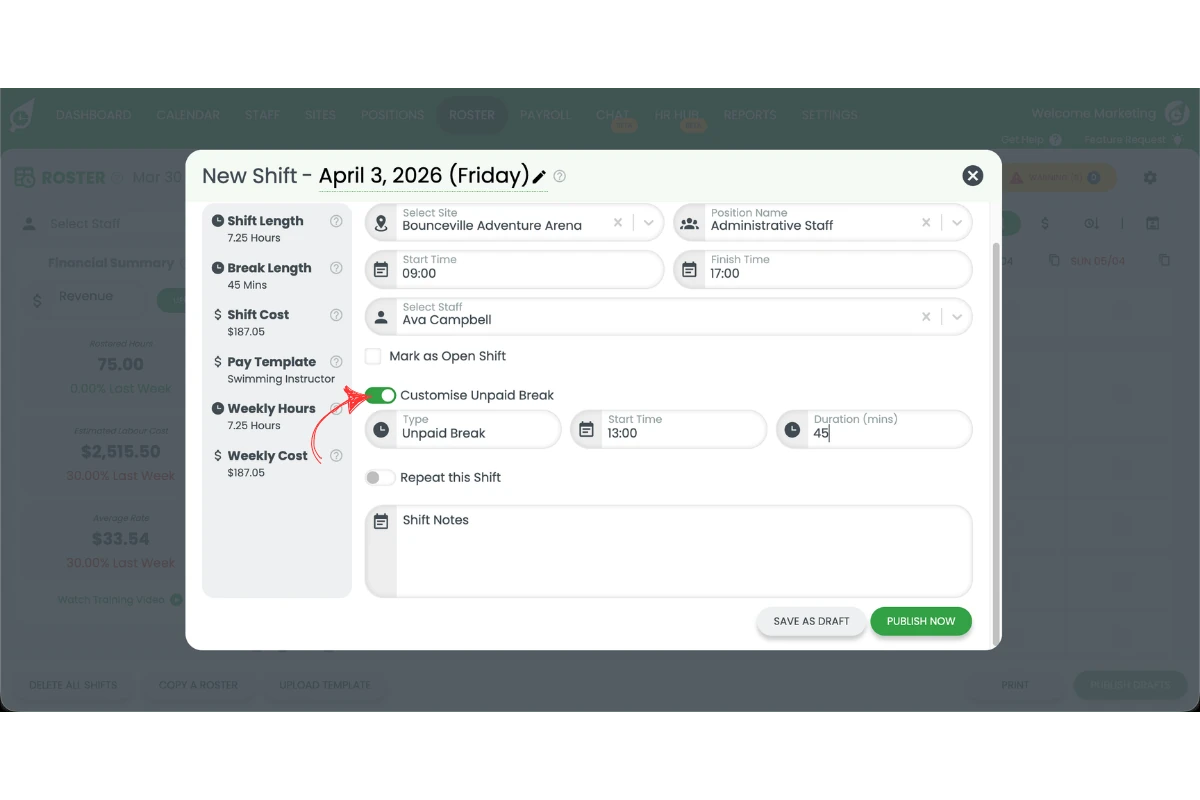
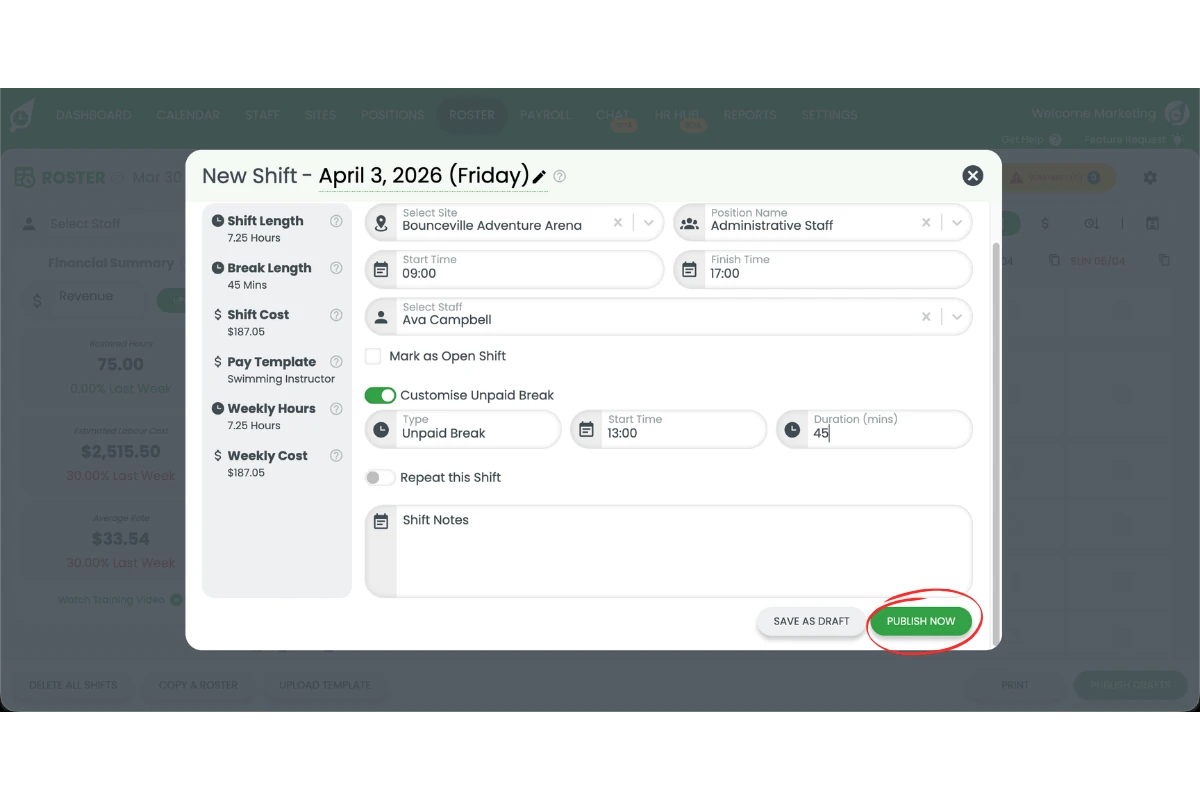
Turning the switch on shows three fields: Type, Start Time and Duration (mins). Fill them in to customise the break, then click PUBLISH NOW or SAVE AS DRAFT.
2.2 How custom breaks differ from standard breaks
Unlike standard breaks, custom breaks allow you to specify start times.
Custom breaks display the break type, start time, and duration to staff.
These breaks are ideal for shifts with specific coverage requirements or for employees subject to different break regulations.
3. Choosing between standard and custom breaks
Deciding between standard and custom unpaid breaks depends on your work environment and coverage needs. This section outlines common scenarios for using standard and custom breaks to help you make the best choice for your team.
3.1 Use cases for standard breaks
Standard breaks suit environments where all staff can take breaks simultaneously.
This option works well if no specific break timing is required by legislation.
Standard breaks are time-efficient, allowing you to set and forget — a key advantage of using automated rostering software.
3.2 Use cases for custom breaks
Custom breaks are ideal for workplaces that need staggered breaks, such as hospitals or call centres.
This option is helpful when different staff fall under varying break compliance requirements.
You can set standard breaks as a baseline and customise specific shifts as needed.
Frequently asked questions
1. What are standard unpaid breaks in a roster?
Standard unpaid breaks are preset breaks that apply automatically to shifts based on their length. You can define different break durations for various shift lengths, ensuring they meet legal or industry standards. This option provides a default break structure for consistent application.
2. How do custom unpaid breaks work in rostering?
Custom unpaid breaks allow for specific break settings per shift, including the break type, start time, and duration. These are ideal for shifts that need unique break times, allowing managers to customise breaks according to specific shift requirements or legal obligations.
3. Can I use both standard and custom unpaid breaks in my roster?
Yes, you can use both. Standard unpaid breaks set a default, while custom unpaid breaks override this default on a per-shift basis, allowing flexibility when specific break times are required.
4. When should I choose custom breaks over standard breaks?
Choose custom breaks if your workplace needs staggered breaks or if specific shifts require different break times due to coverage needs. Custom breaks offer more control and are ideal for environments like hospitals or call centres.
5. What are the main benefits of using standard unpaid breaks?
Standard unpaid breaks simplify rostering by applying preset breaks to relevant shifts automatically. This approach is ideal for workplaces where all staff can break at the same time, making it efficient and easy to manage.