

Setting unpaid break rules by shift length
Managing unpaid breaks based on shift length helps your business stay consistent and compliant with workplace regulations. With RosterElf rostering software, you can configure standard unpaid break rules once and have them apply automatically whenever you create a shift — saving time on manual calculations and keeping breaks consistent across every roster.
This article walks through setting standard unpaid break rules by shift length. For an overview of how default and per-shift breaks differ, see standard and custom unpaid breaks. Looking to pay staff for a break instead of deducting it? See manage paid breaks in RosterElf.
1. Access roster settings
This section explains how to find the Roster Settings, where you can manage the unpaid break rules. Following these steps will help you locate the specific settings to set standard unpaid breaks.
1.1 Go to roster settings
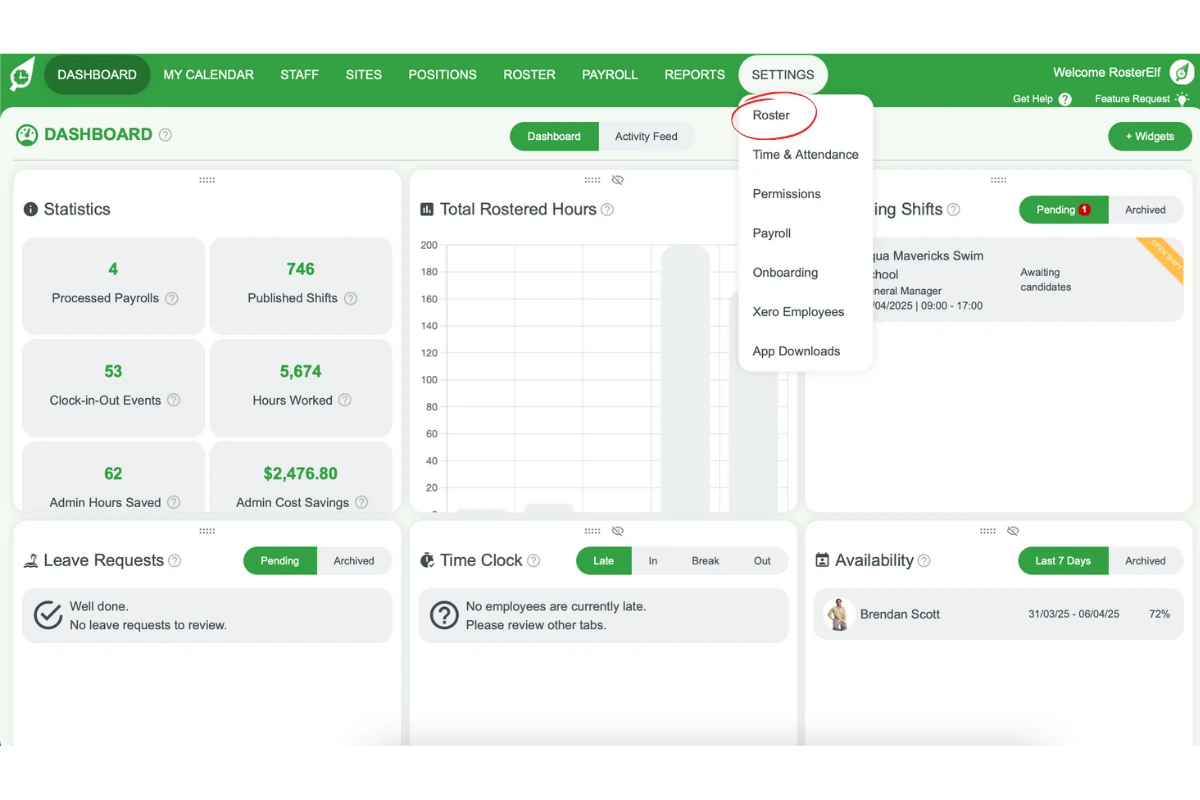
Access the Settings section in the top menu.
Select Roster from the dropdown.
2. Navigate to unpaid breaks tab
This section shows where to find the Unpaid Breaks tab, which allows you to set custom rules for breaks based on the duration of each shift.
2.1 Select the unpaid breaks tab
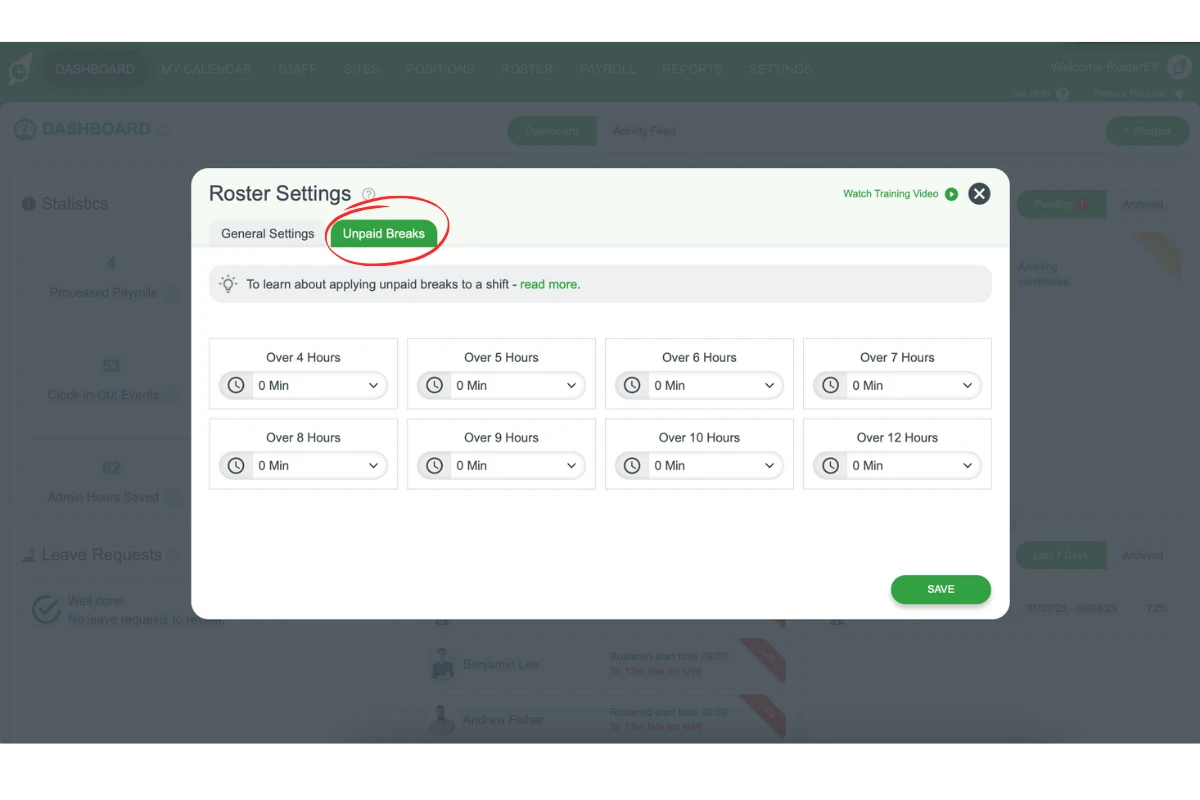
Click on the Unpaid Breaks tab within Roster Settings.
3. Customise unpaid breaks by shift length
Here, you’ll learn how to customise unpaid breaks by specific shift lengths. By setting these up, breaks will be automatically applied based on the scheduled shift time.
3.1 Define unpaid break durations
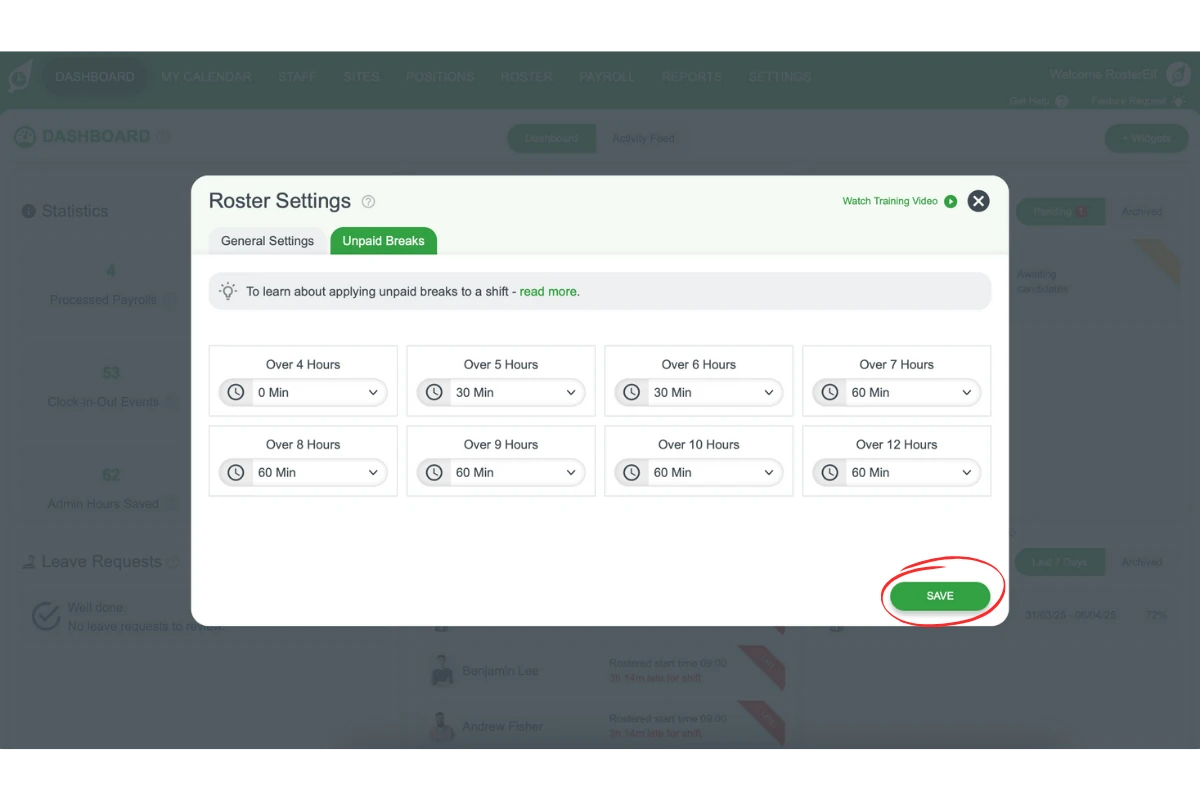
Each box sets the unpaid break for shifts over that length: Over 4 Hours, Over 5 Hours, Over 6 Hours, Over 7 Hours, Over 8 Hours, Over 9 Hours, Over 10 Hours and Over 12 Hours (there is no 11-hour box). For example:
- Over 5 Hours: 30 Min
- Over 6 Hours: 30 Min
- Over 7 Hours: 60 Min
- Over 8 Hours: 60 Min
- Over 9 Hours: 60 Min
- Over 10 Hours: 60 Min
- Over 12 Hours: 60 Min
Start from the shortest shift length and work up. When you choose a break in a box, RosterElf copies it into every longer box, so you only need to change the longer boxes that need a different break. Double-check the values align with your workplace policies and legal obligations.
4. Save your unpaid break rules
Once your break durations are set, save the configuration so RosterElf applies it to your rosters.
4.1 Save unpaid break settings
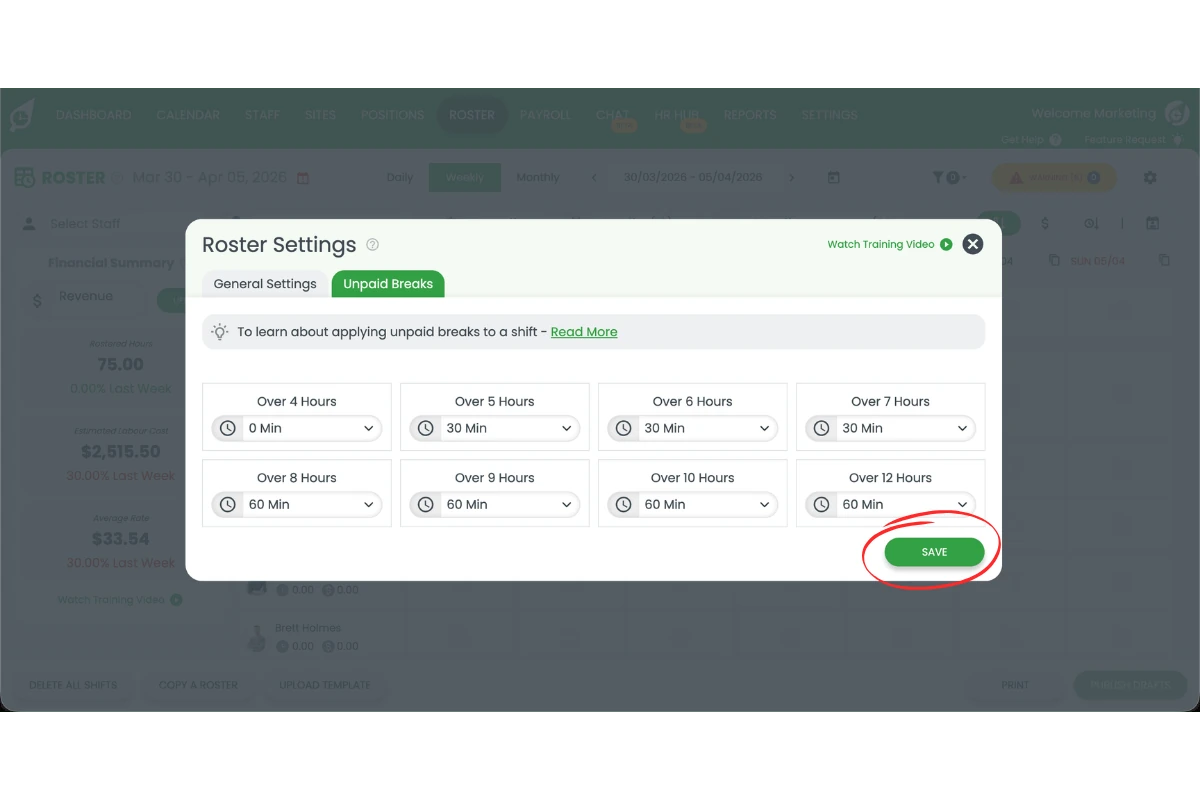
Click Save at the bottom right of the Roster Settings window. RosterElf then applies these rules automatically to any new or existing shift that matches the specified length criteria. Staff who take breaks via the time clock app will have their break times tracked against these rules.
Frequently asked questions
1. How do I access Roster Settings for unpaid breaks?
To access Roster Settings, go to the Settings section in the top menu, then select Roster from the dropdown to open the Roster Settings window. This is where you can manage your unpaid break rules.
2. Where can I find the Unpaid Breaks tab?
Within Roster Settings, click on the Unpaid Breaks tab. This section allows you to set customised unpaid break rules based on shift durations.
3. Can I set different unpaid break times for varying shift lengths?
Yes. The Unpaid Breaks tab has a box for each shift length: Over 4, 5, 6, 7, 8, 9, 10 and 12 Hours (there is no 11-hour box). For example, choose 30 Min in Over 5 Hours and 60 Min in Over 7 Hours.
4. How do unpaid breaks apply to shifts automatically?
Once set, unpaid break rules are applied automatically based on the shift length whenever you create a new shift, ensuring consistent break times across schedules.
5. What are the default unpaid break settings based on shift length?
Standard unpaid breaks might look like this: Over 5 Hours: 30 Min, Over 6 Hours: 30 Min, Over 7 Hours: 60 Min, Over 8 Hours: 60 Min, Over 9 Hours: 60 Min, Over 10 Hours: 60 Min, Over 12 Hours: 60 Min.
6. How does RosterElf autofill break settings for longer shifts?
When you choose a break in one box, RosterElf copies that choice into every longer box, so you don’t have to set every box by hand. Work from the shortest shift length up, then change any longer box that needs a different break.
7. How do I save my unpaid break configuration?
Once your rules are set, click Save at the bottom right of the Roster Settings window. RosterElf then applies them automatically to any new or existing shifts that match your specified length criteria.