

Set staff max weekly hours
This article explains how to set a staff member’s maximum weekly hours in their payroll tab. Setting these limits supports compliance with work-hour restrictions and helps flag any issues on the roster screen. By following these steps, you can manage your team’s schedules more effectively.
1. Access staff payroll tab
This section outlines how to locate a staff member’s payroll tab. You need to access this area to set their maximum weekly hours.
1.1 Navigate to the staff tab
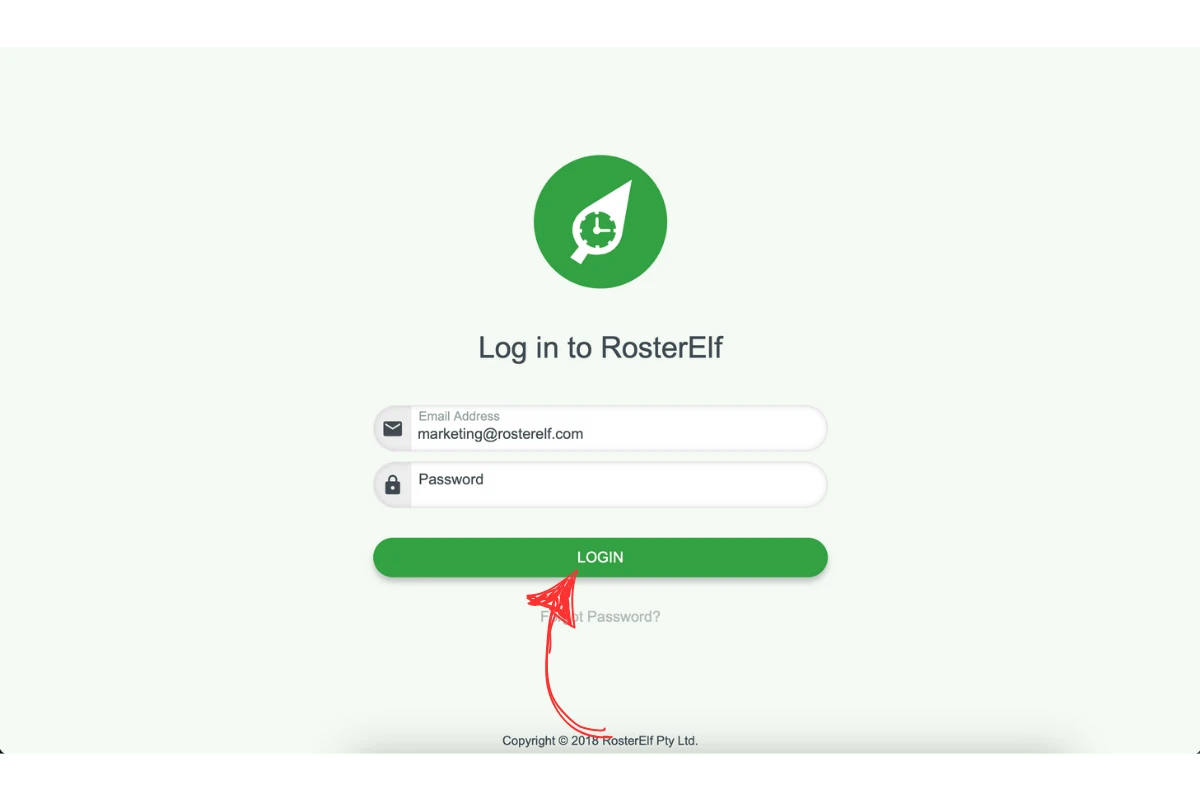
Log in to RosterElf.
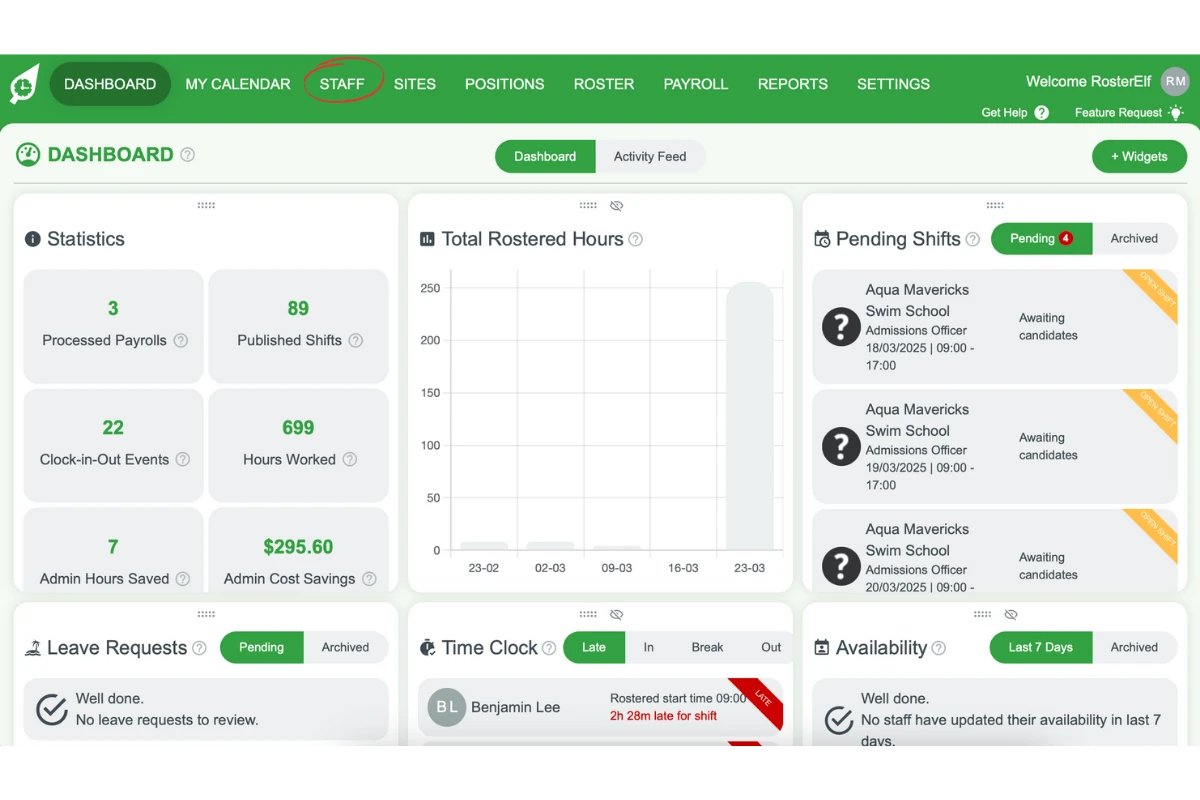
Click on the Staff tab in the main menu.
1.2 Select the staff member
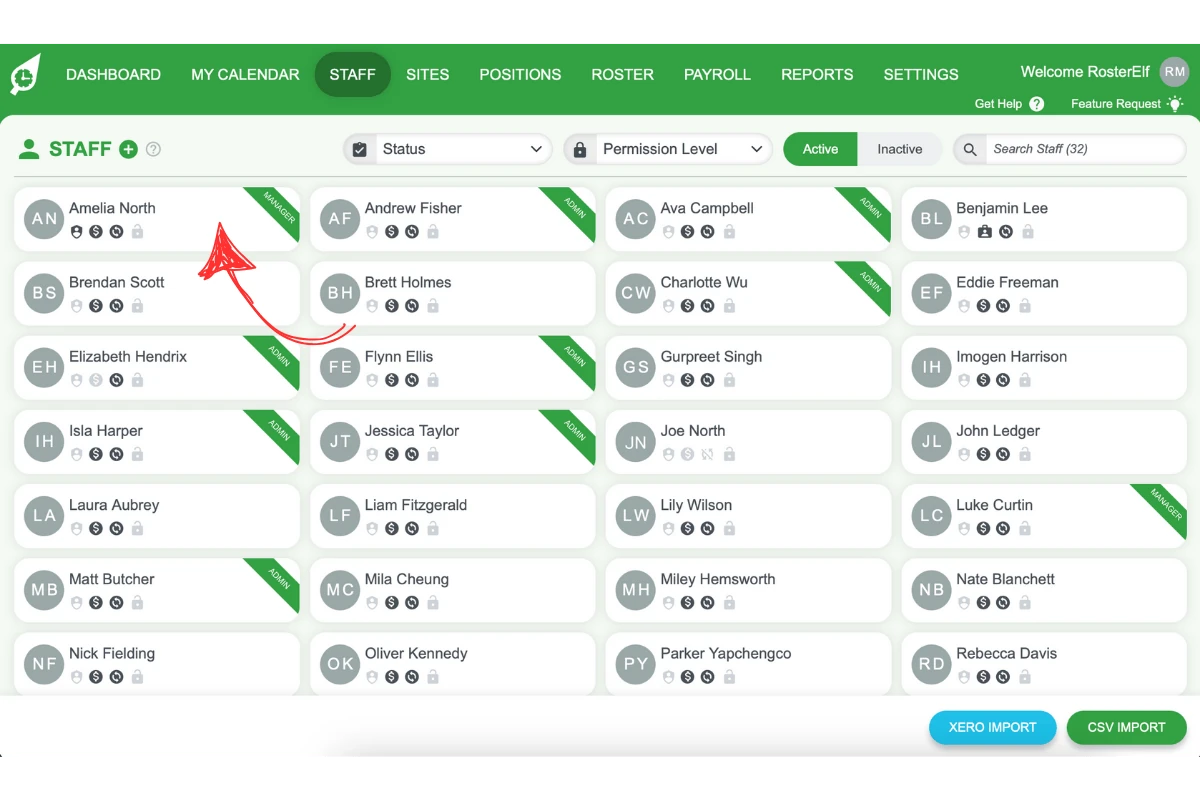
Locate the staff member’s card on the Staff page.
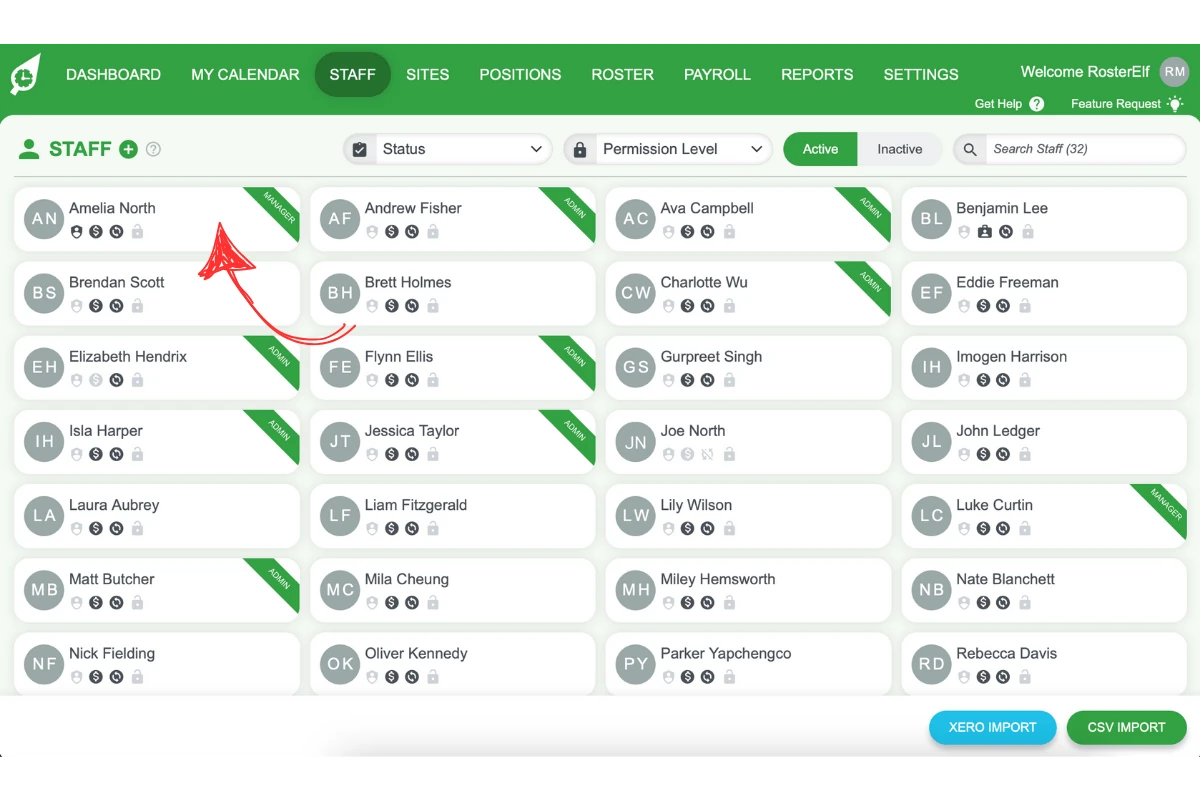
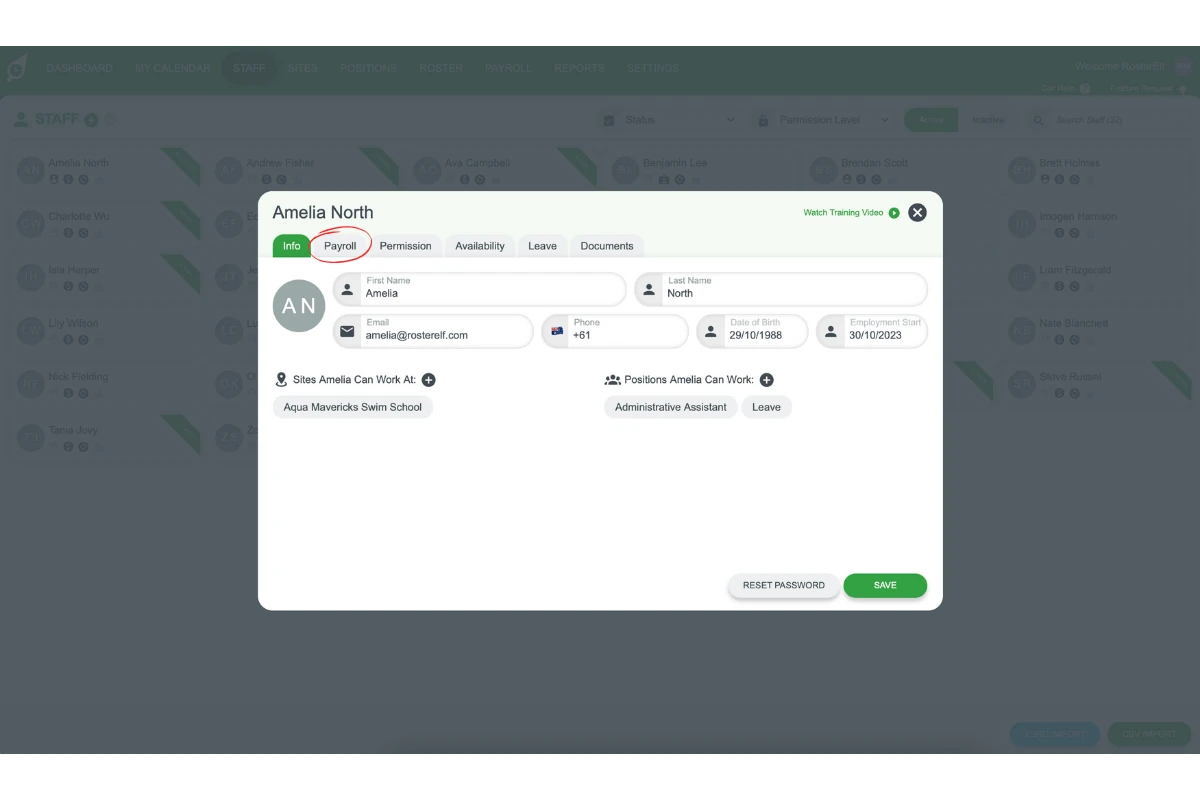
Click their card to open their details window. It has tabs including Info, Payroll, Permission, Availability and Leave.
2. Set max weekly hours in payroll
This section explains how to update a staff member’s maximum weekly hours. These hours will trigger a flag in the roster screen if exceeded.
2.1 Open the payroll tab
In the staff member’s window, click the Payroll tab.
2.2 Adjust maximum weekly hours
Locate the Max Weekly Hours field at the top right of the Payroll tab.
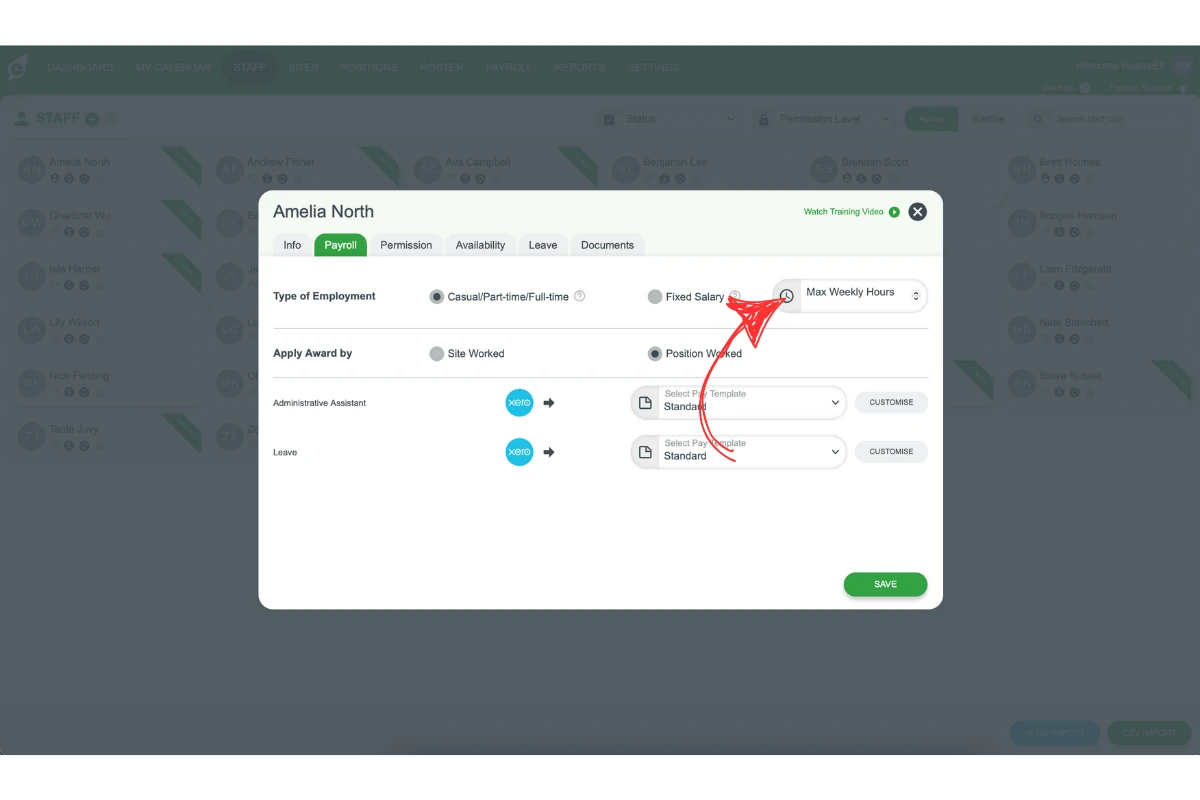
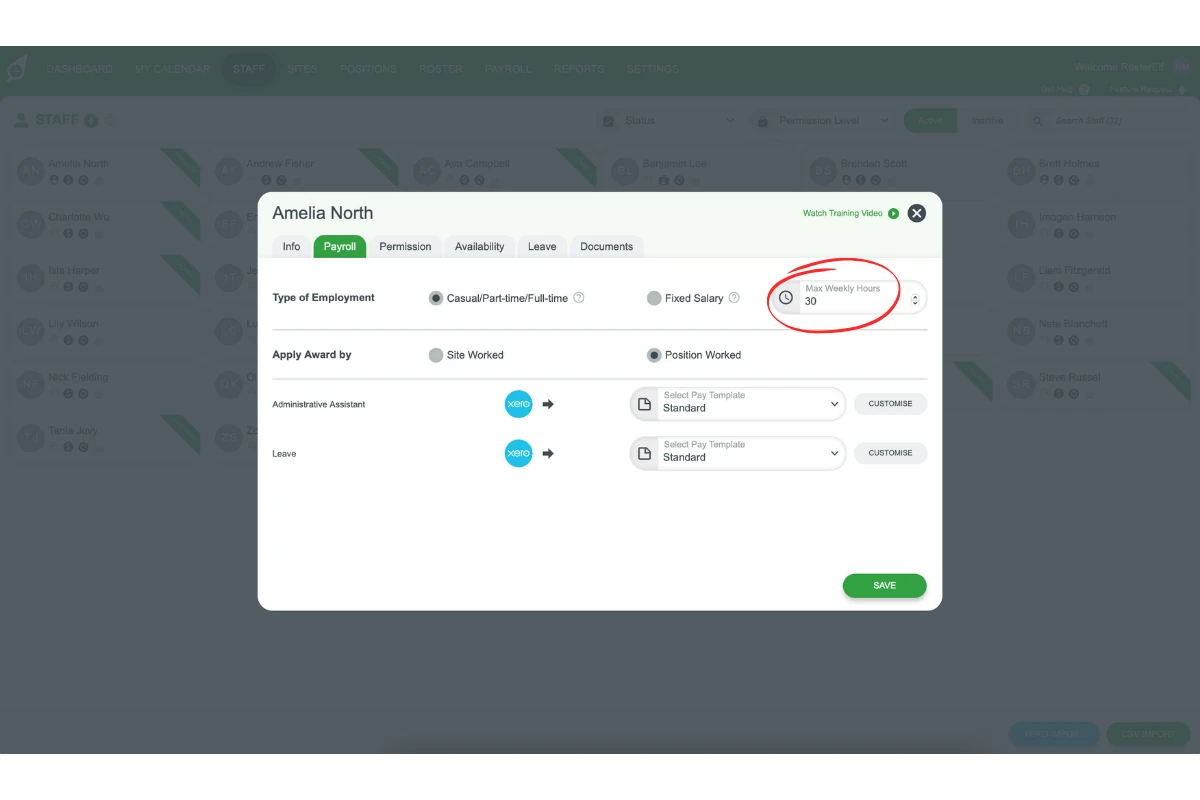
Enter the desired maximum hours.
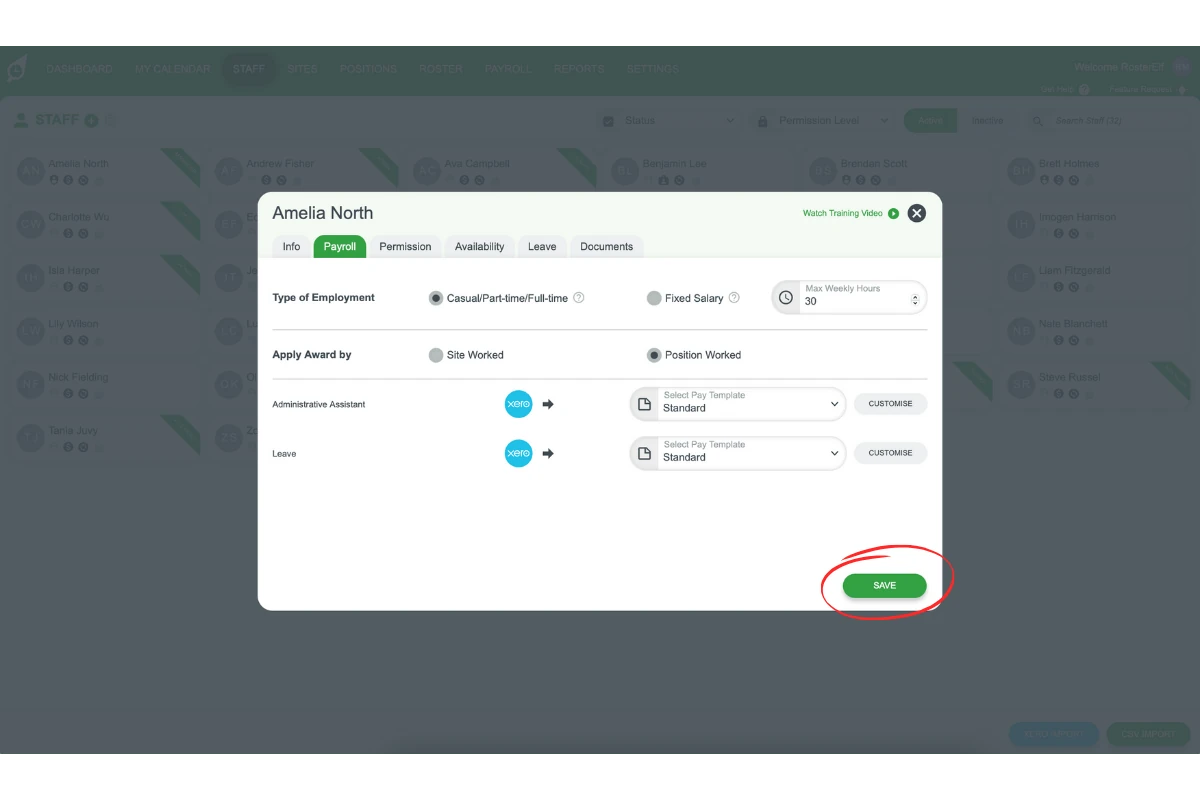
Click Save to update the record.
Frequently asked questions
1. Why is it important to set a staff member's maximum weekly hours?
Setting a staff member’s maximum weekly hours helps support compliance with work-hour restrictions. It also alerts you to potential scheduling issues in the roster screen.
2. How do I access the payroll tab to set max weekly hours?
Log in to your dashboard, go to the Staff tab in the main menu, and click the staff member’s card to open their window. Then click the Payroll tab.
3. Where can I find the max weekly hours field?
The Max Weekly Hours field is at the top right of the Payroll tab in the staff member’s window. You can update this field with the desired maximum hours.
4. What happens if a staff member's weekly hours exceed the set maximum?
The system will flag the staff member on the roster screen if their scheduled hours exceed the set maximum. This supports compliance and helps prevent over-scheduling.
5. Can I update the max weekly hours for multiple staff members at once?
No, the max weekly hours must be set individually in each staff member’s window under their Payroll tab. This ensures accurate and customised scheduling.