

Let staff view the whole team roster in RosterElf
Every employee can already see their own upcoming shifts in the RosterElf app by default, with nothing to configure. This guide covers a separate, optional setting: letting staff see the entire team roster — every employee’s shifts, not just their own — which is useful for coordinating swaps and cover without going through a manager.
Just need to see your own shifts?
No setting is required. Open the RosterElf app and tap the Shifts tab to see your own upcoming shifts straight away. See viewing my shifts on a smartphone for the full walkthrough. The steps below are only for admins who also want staff to see everyone’s shifts.
1. Access settings in RosterElf
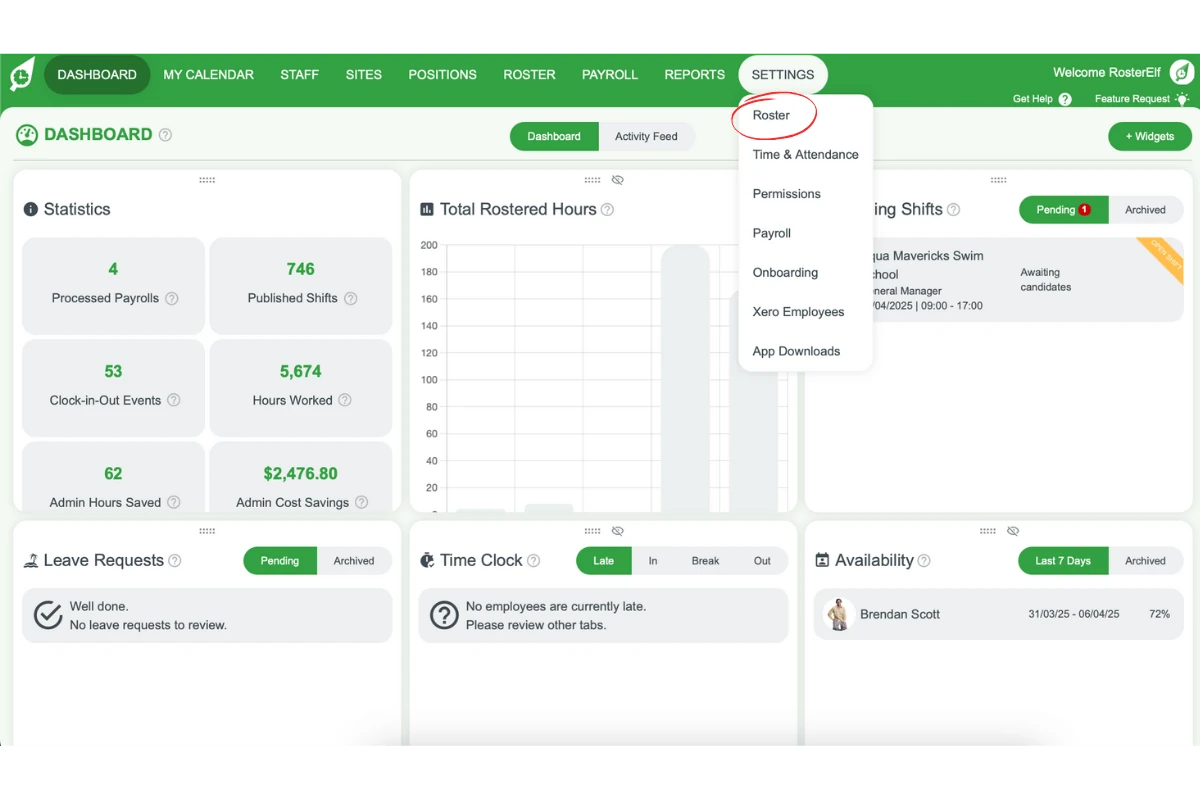
To begin, you’ll need to access the RosterElf settings. Adjusting settings allows you to customise how your team interacts with their schedule. Follow these steps to locate the Roster settings.
1.1 Open RosterElf and access settings
Open RosterElf on your browser.
Navigate to the Settings section.
Select the option labelled Roster.
2. Enable Employee View Roster
Next, you’ll activate the feature that lets employees view the whole team roster — not just their own shifts. This setting is optional; staff already see their own shifts without it.
2.1 Toggle employee view roster on
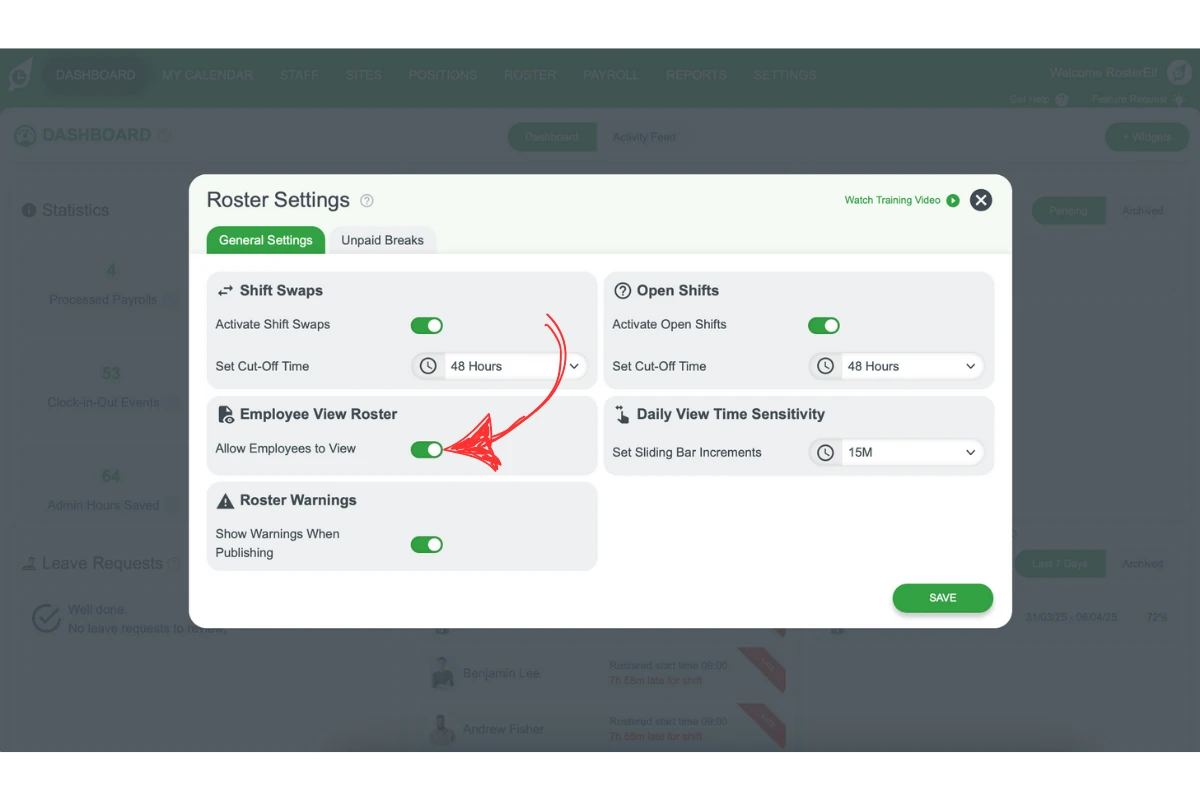
On the General Settings tab, find the Employee View Roster heading.
Turn on the Allow Employees to View switch beneath it. It turns green when it is on.
Click SAVE at the bottom right of the window to apply the change.
3. Staff accessing the whole roster
With Employee View Roster enabled, staff members can now see every employee’s shifts. Here’s how they access it via the RosterElf app.
3.1 Viewing the whole roster in the app
Instruct staff to open the RosterElf app.
Have them tap the Roster tab in the bottom navigation bar — this is different to the Shifts tab, which only ever shows their own shifts.
Frequently asked questions
1. Do employees need Employee View Roster turned on just to see their own shifts?
No. Every employee can already see their own upcoming shifts in the RosterElf app via the Shifts tab, with no setting to enable. Employee View Roster is a separate, optional setting for letting staff see the entire team roster — everyone’s shifts, not just their own. See viewing my shifts on a smartphone if a staff member just needs to check their own schedule.
2. How do I let staff see the whole team roster in RosterElf?
Navigate to RosterElf’s settings and select the Roster option. Under the Employee View Roster heading, turn on the Allow Employees to View switch (it turns green), then click SAVE. Staff will then be able to see every employee’s shifts, not just their own.
3. Where can I find the Employee View Roster setting in RosterElf?
You can find the Employee View Roster setting by opening RosterElf, going to Settings, and selecting the Roster section. It is the Allow Employees to View switch on the General Settings tab of the Roster Settings window. This is where you can activate the option to allow staff to view the complete team roster.
4. How do staff view the full roster after Employee View Roster is enabled?
Once you’ve enabled Employee View Roster, staff can see everyone’s shifts by opening the RosterElf app and tapping the Roster tab in the bottom navigation bar (this is a different tab to Shifts, which always shows their own shifts).
5. Why should I let employees see the whole roster, not just their own shifts?
Seeing who else is working helps staff coordinate shift swaps, arrange cover and plan around colleagues without contacting a manager for every question — useful for teams that self-organise, but entirely optional.
6. Can we let staff view the whole roster without seeing employee wage?
Yes. Enabling Employee View Roster never exposes wage costs — staff only ever see shift times, positions and locations, whether viewing their own shifts or the whole team roster.
7. Can staff see the roster on the web app?
No, currently staff can only view the roster in the smartphone app.