

View culture survey results in RosterElf
This article explains how to report on culture survey results in RosterElf. Culture survey reporting helps you understand how your staff feel about key areas of your workplace. Instead of reviewing individual responses, you can view structured data through dashboards and reports. This makes it easier to identify trends, strengths, and areas that need improvement.
Using reporting tools in RosterElf allows you to track survey completion and analyse results by dimension. You can quickly see who has completed the survey and measure performance across different categories such as communication, leadership, or engagement. This ensures your insights are clear and actionable. Before using these reports, you must first set up and run a culture survey — see use HR Hub culture surveys in RosterElf for instructions.
By following this guide, you will learn how to add the culture survey widget to your dashboard, view survey completion, and analyse results through reports. This will help you make informed decisions and improve your workplace culture with confidence.
1. Add culture survey results widget to your dashboard
This section explains how to add the culture survey results widget to your dashboard. The widget gives you a quick overview of survey data without needing to run reports. It allows you to monitor results in real time and keep key insights visible whenever you log in.
Adding the widget improves visibility and helps you stay on top of survey performance. You can position it anywhere on your dashboard to suit your workflow. This makes it easier to track engagement and results at a glance.
1.1 Add the culture survey widget to your dashboard
1.1.1 Open your RosterElf dashboard.
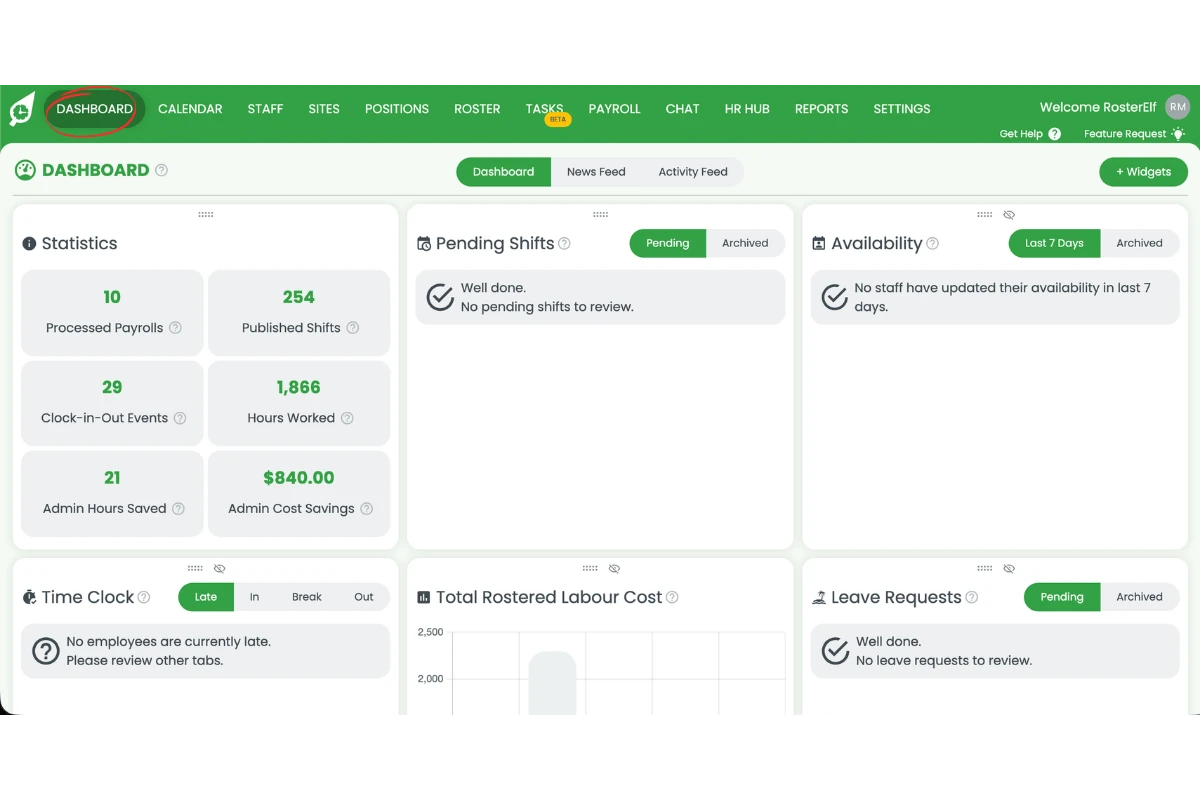
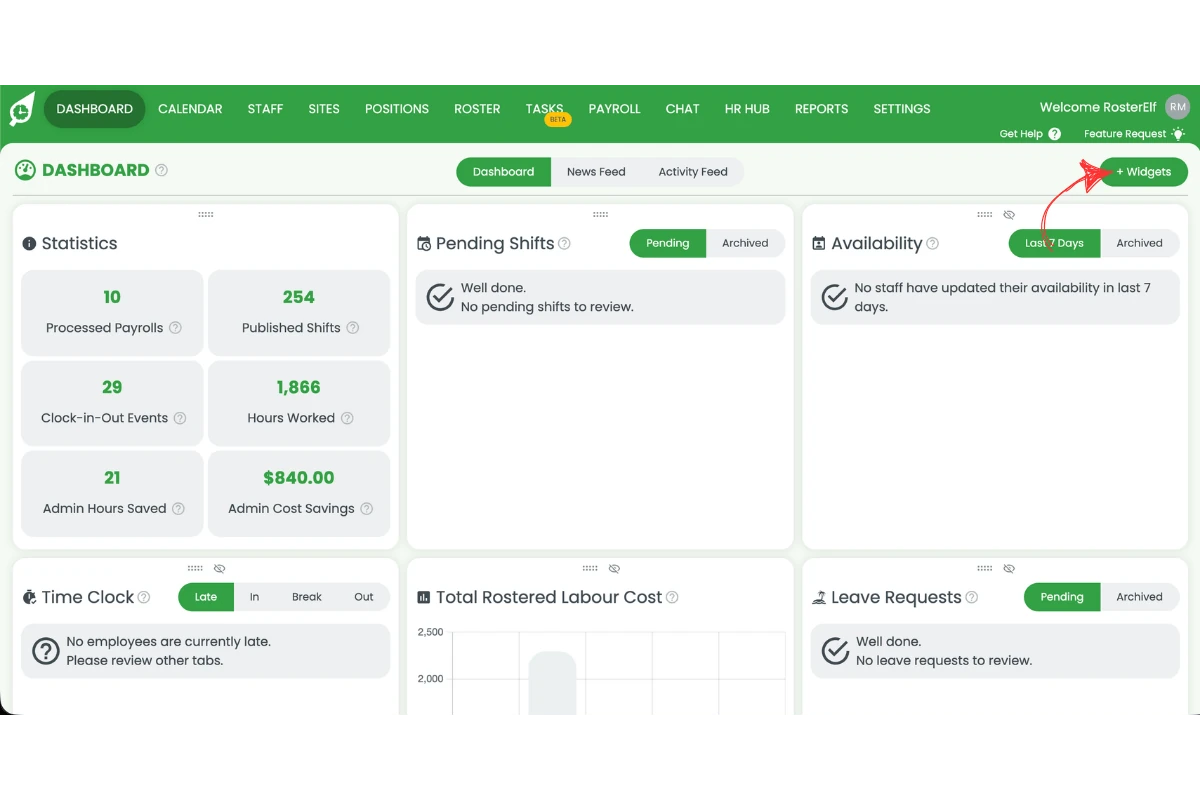
1.1.2 Click the + Widgets button in the top right corner.
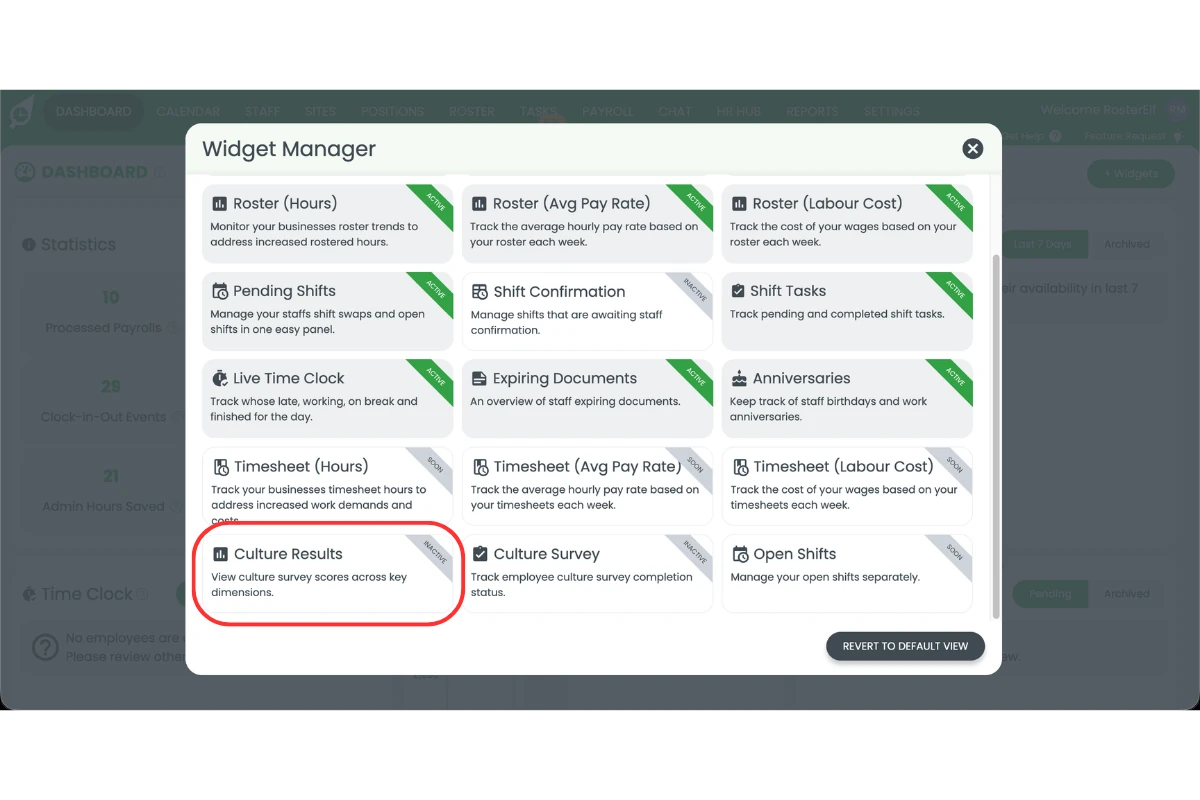
1.1.3 Select the Culture Results widget from the Widget Manager.
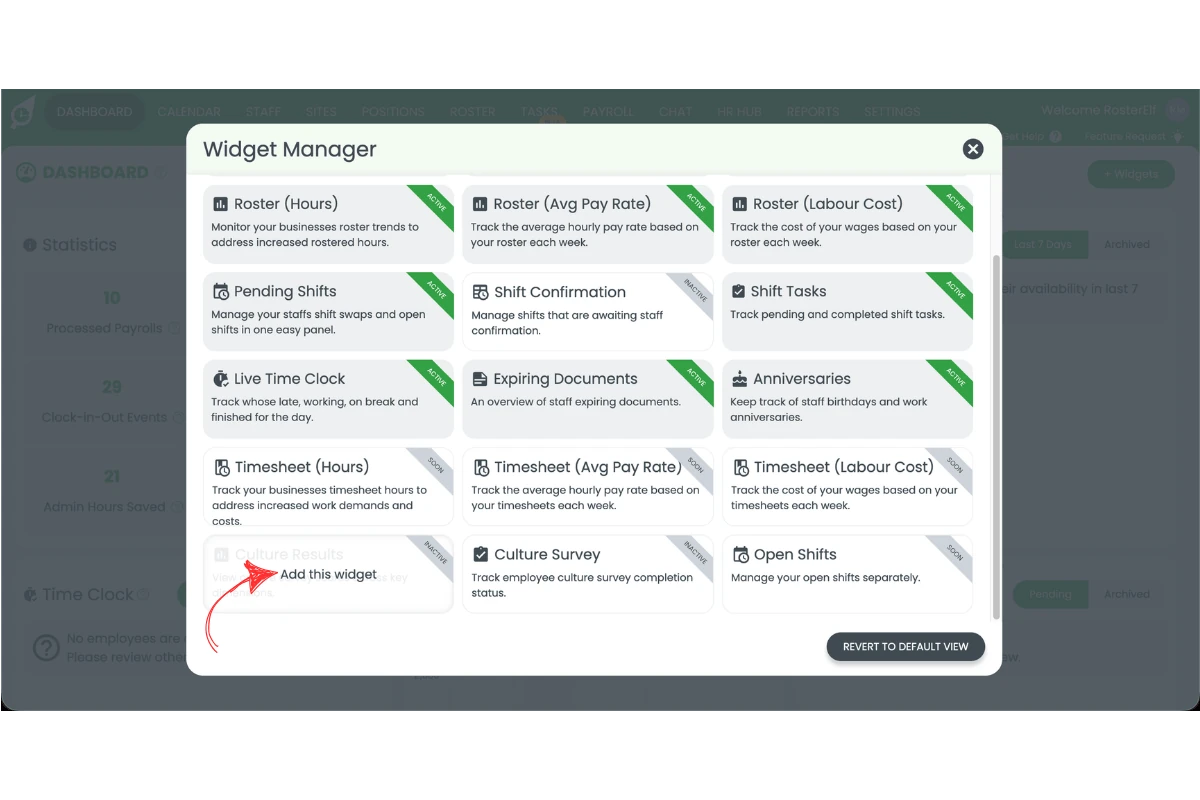
1.1.4 Click Add this widget to add it to your dashboard.
1.1.5 Drag the widget to position it as required on your dashboard.
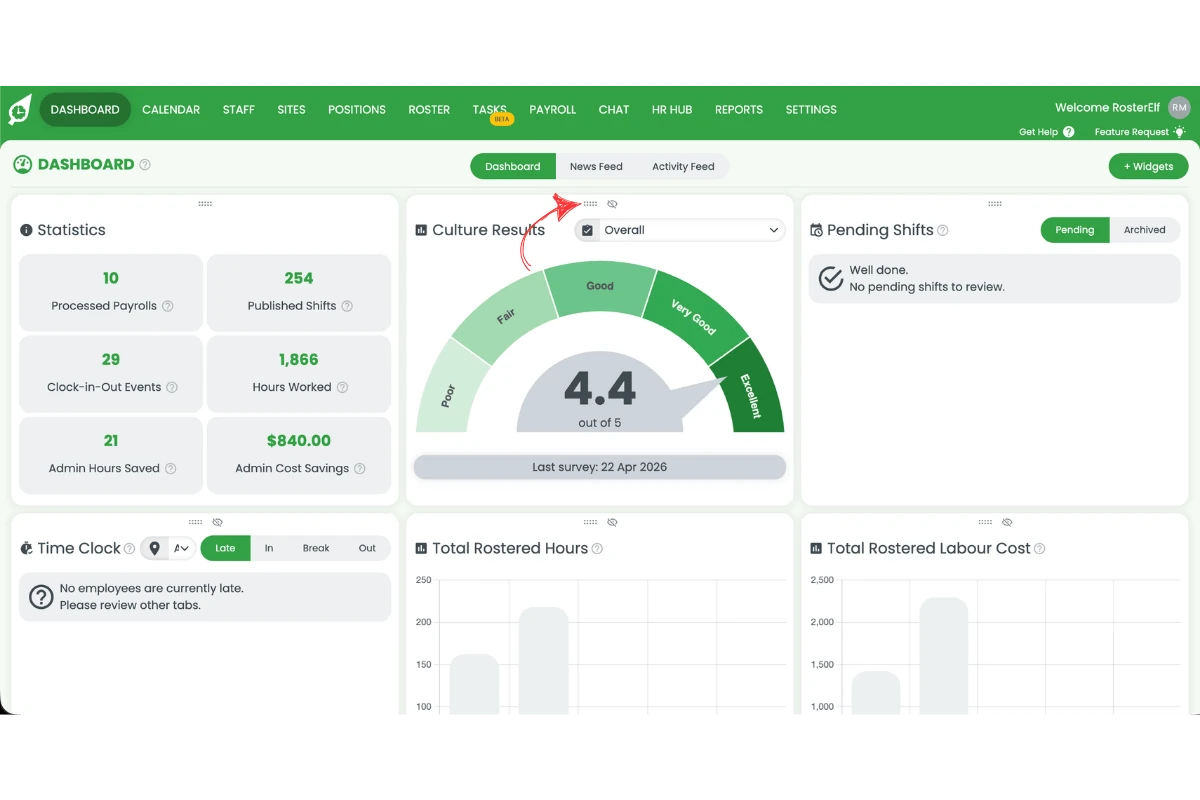
About the Culture Results widget
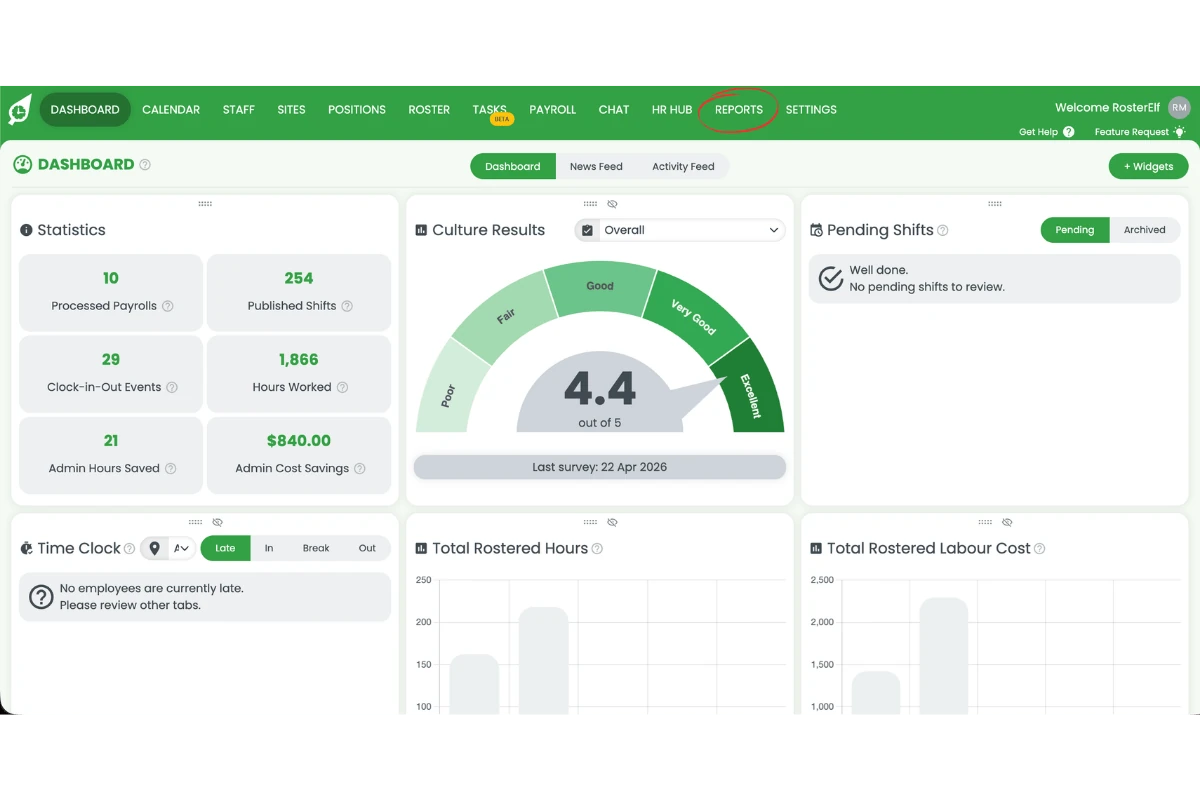
The Culture Results widget displays your most recent overall culture survey score on a gauge from Poor to Excellent. You can change the dimension shown using the dropdown at the top of the widget. The widget updates automatically each time a new survey run is completed.
2. View culture survey completion report
This section explains how to view culture survey completion in RosterElf. The completion report shows which staff have completed the survey and who is still pending. This helps you track participation and follow up with employees if needed.
Monitoring completion ensures you collect enough data for accurate insights. It also helps improve engagement by identifying gaps in responses. You can filter the report by staff, survey date, and status to get a clear view of participation.
2.1 Run the culture survey completion report
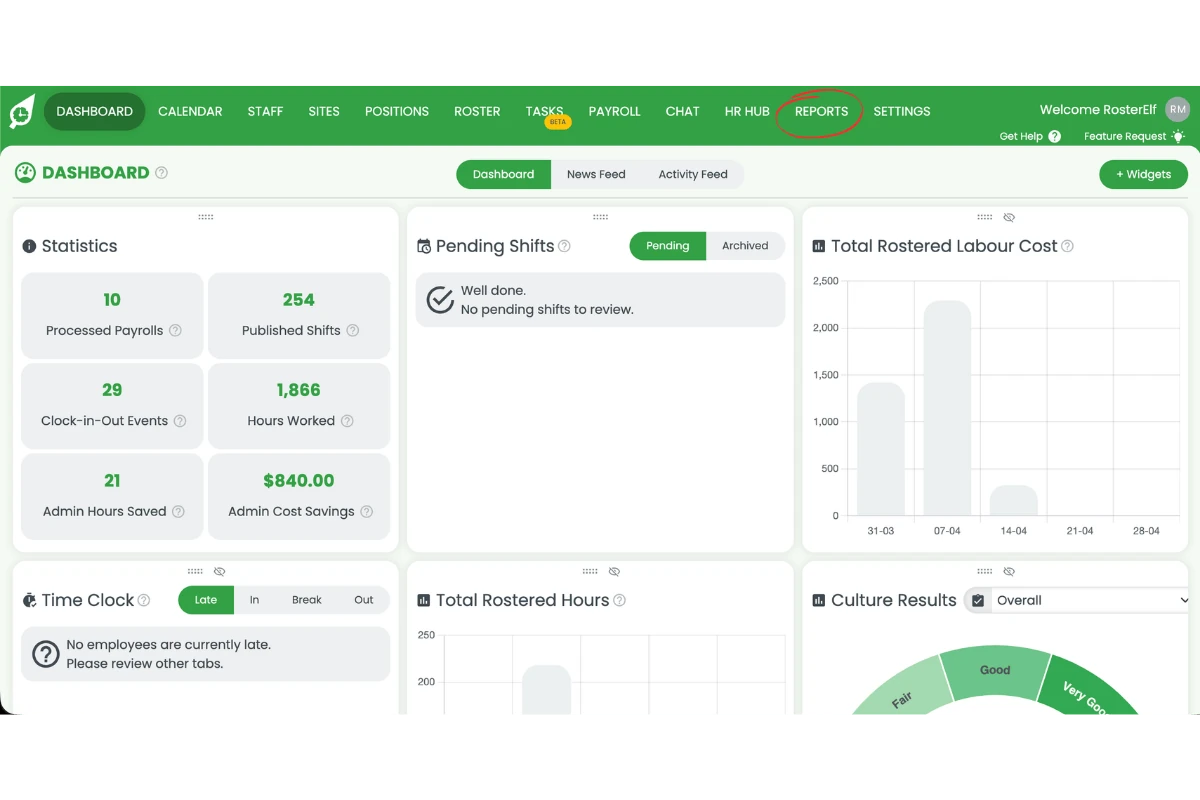
2.1.1 Click Reports in the top navigation.
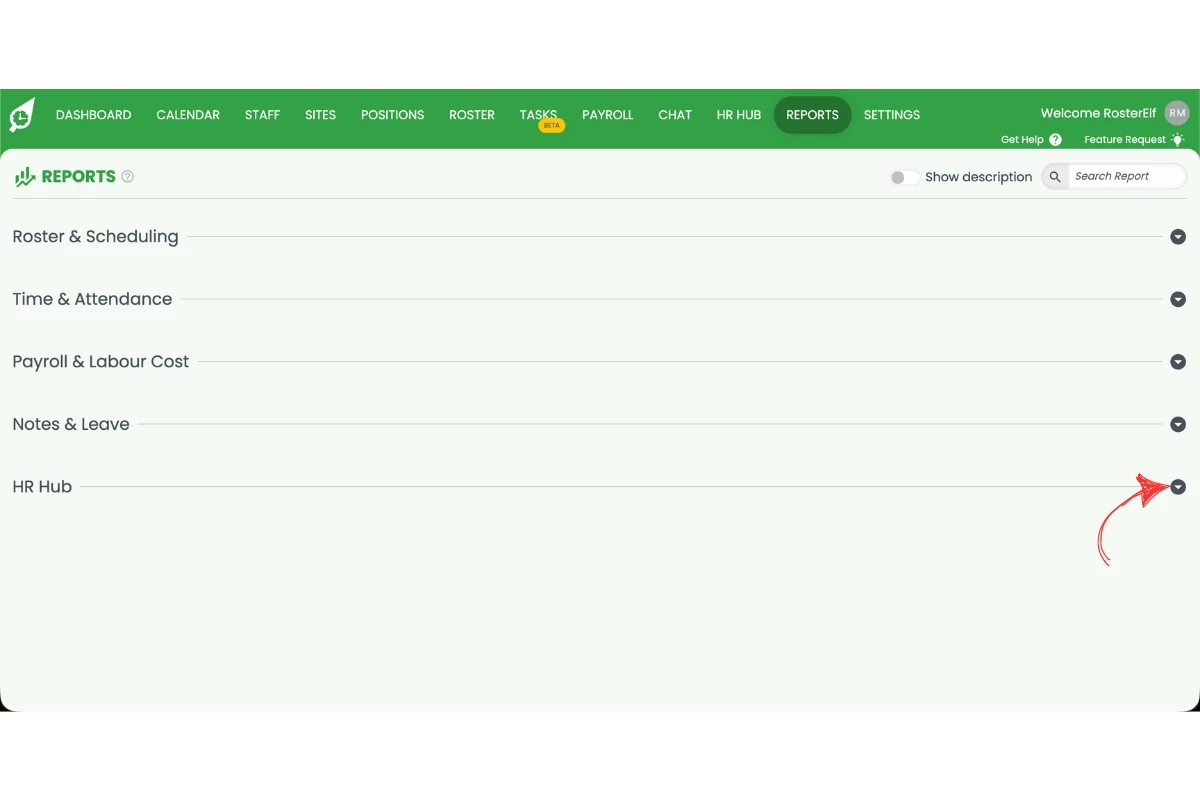
2.1.2 Open the HR Hub section.
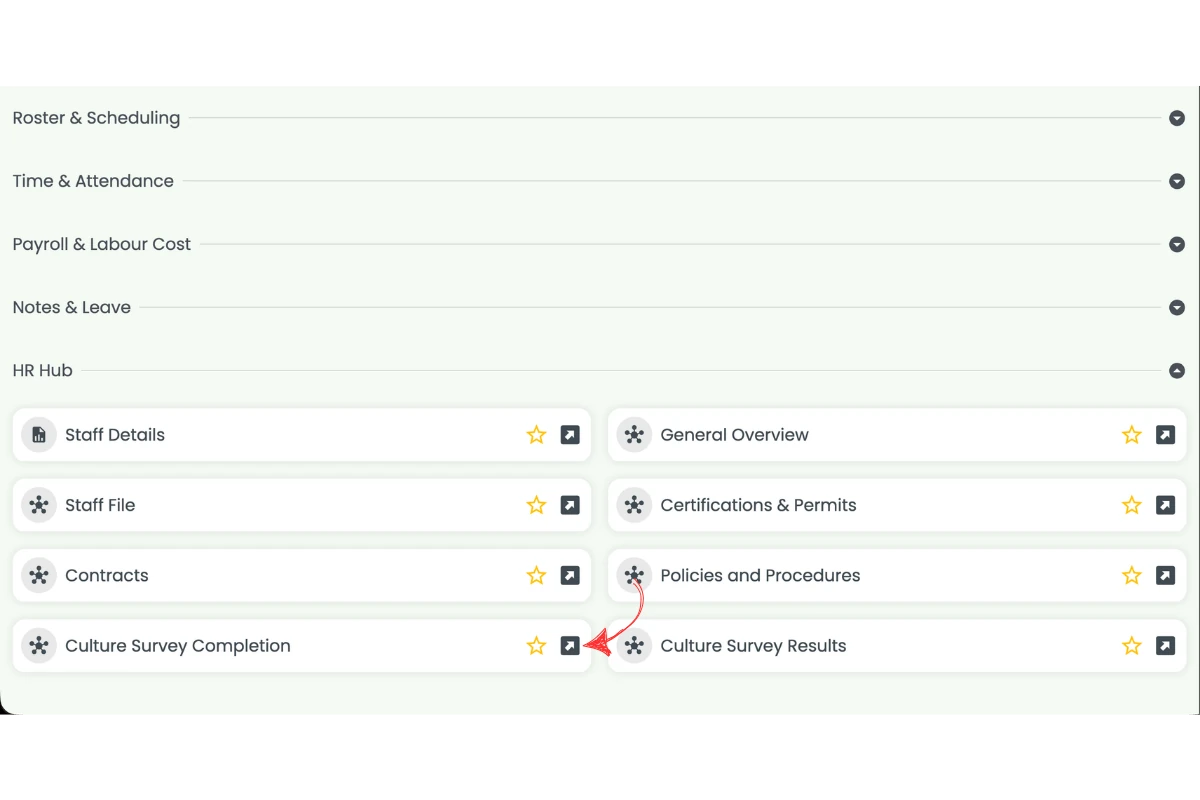
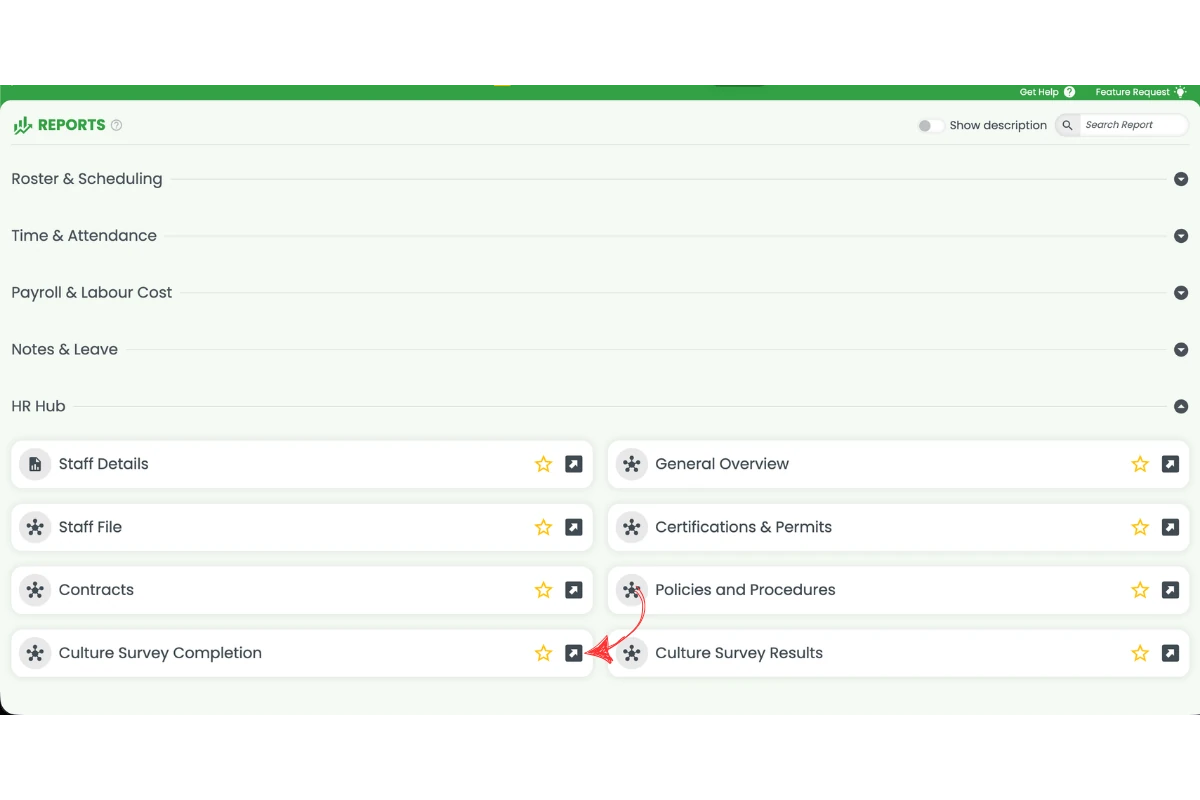
2.1.3 Select Culture Survey Completion.
2.1.4 Filter by employee if required using the Select Employee dropdown.
2.1.5 Select the survey date.
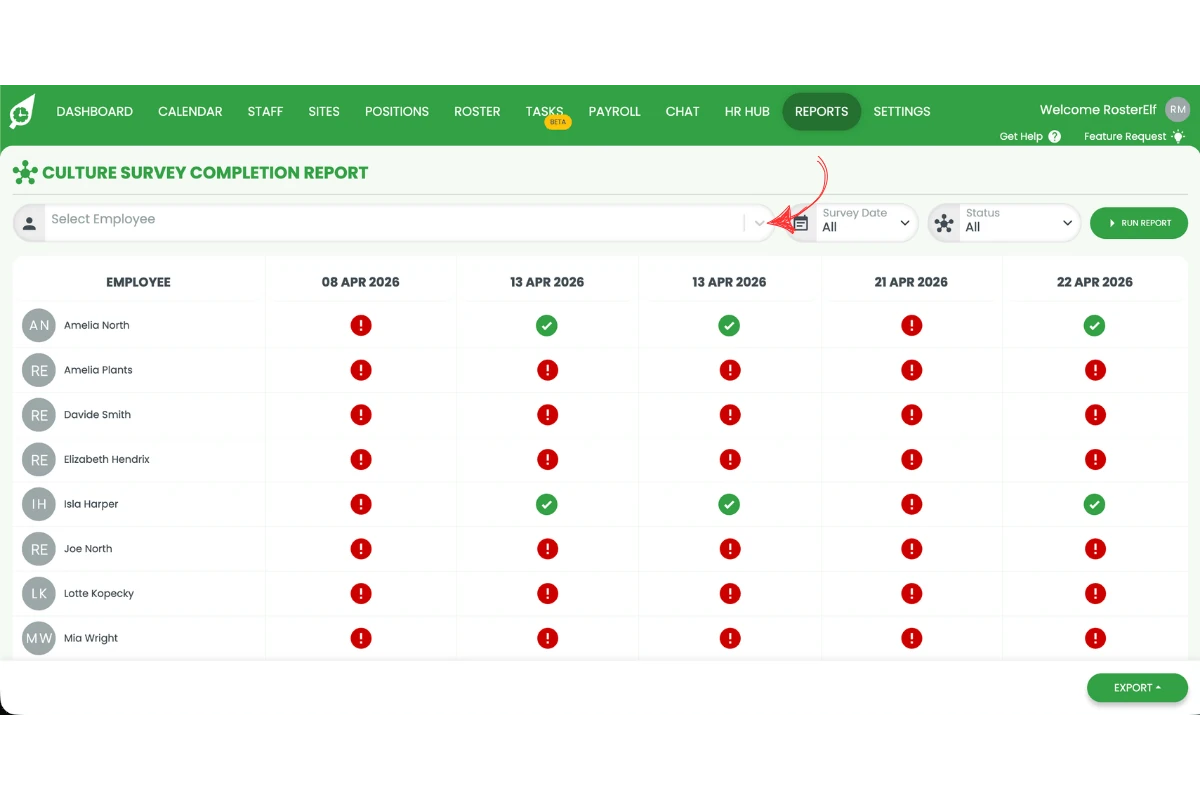
2.1.6 Select the status.
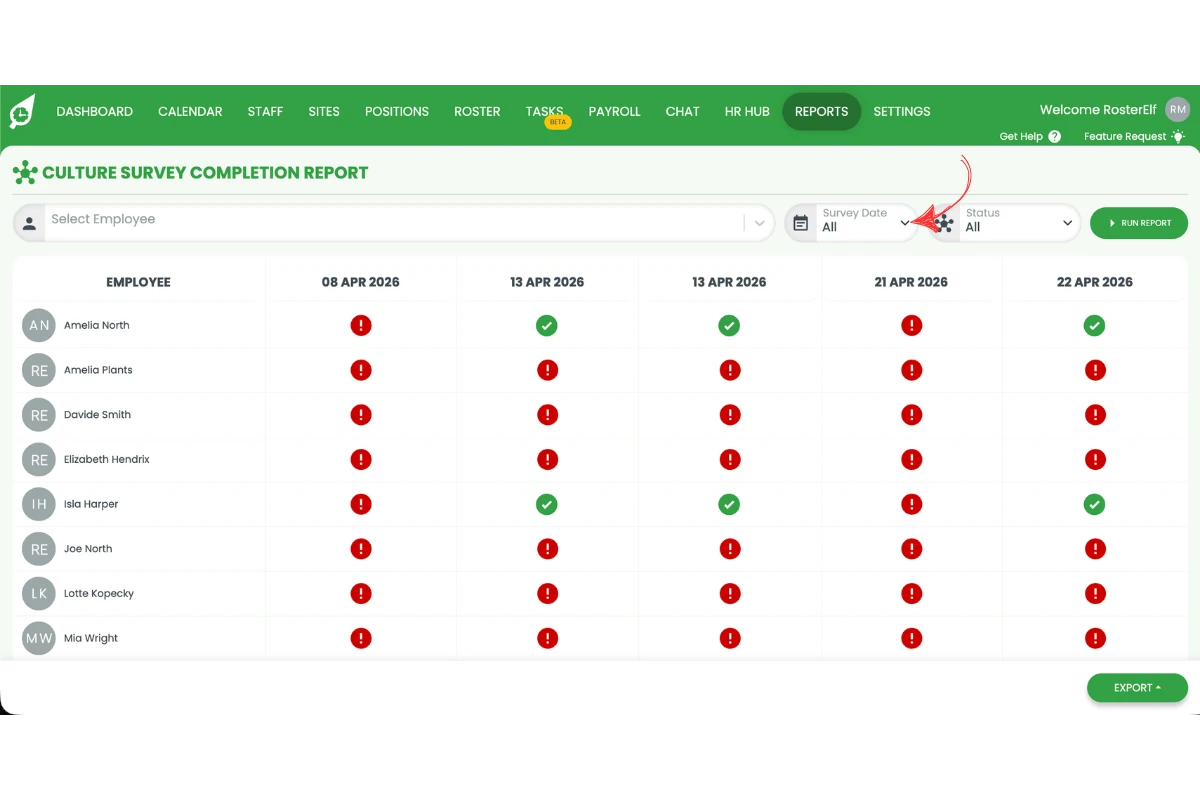
2.1.7 Click Run Report.
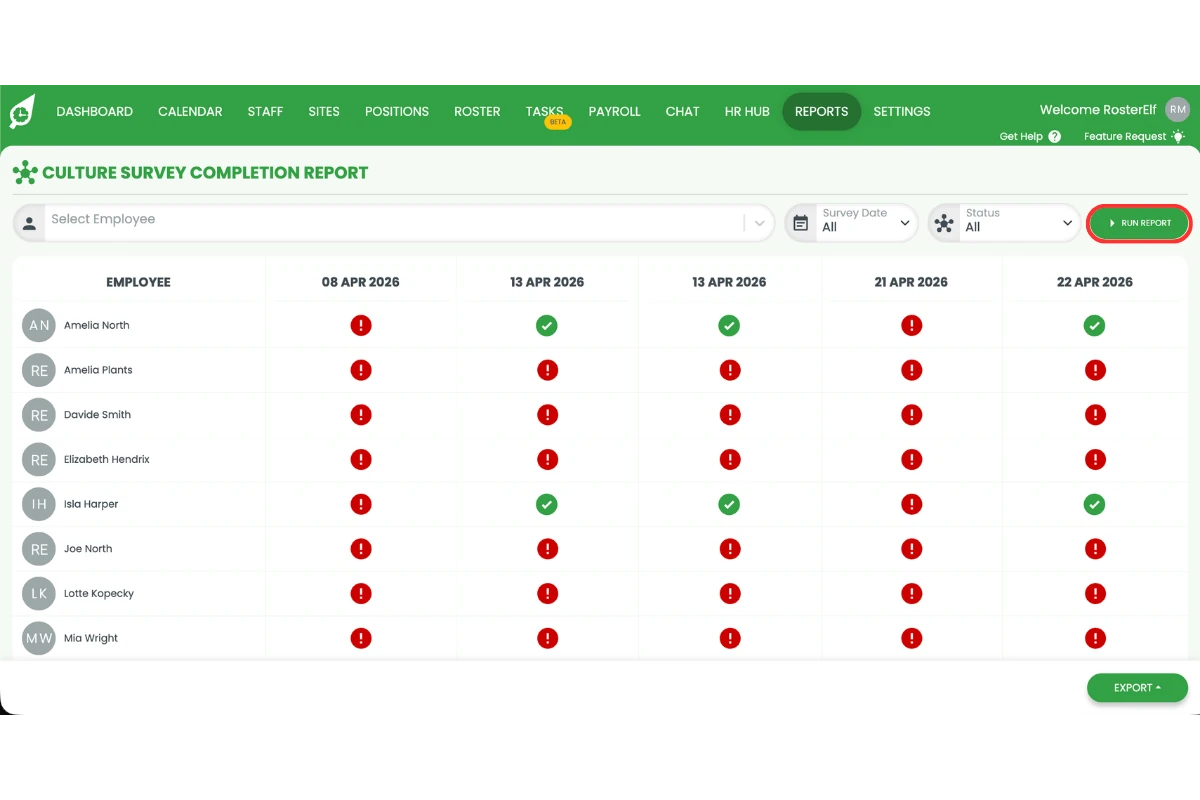
2.1.8 Click Export to download the report if required.
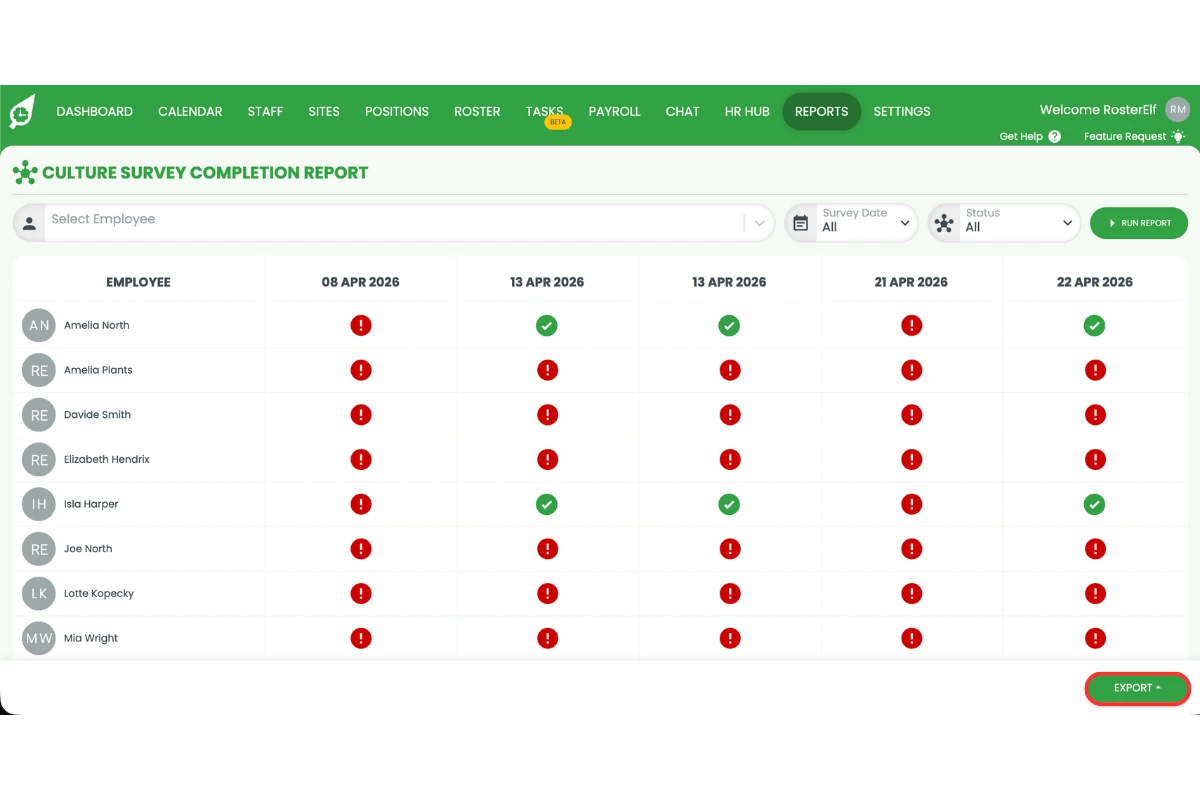
Understanding the completion report
The completion report displays each employee as a row and each survey run as a column. A green tick indicates the employee completed that survey. A red exclamation mark indicates the survey is pending or incomplete. You can filter by status to quickly identify who has not yet responded.
3. View culture survey results report
This section explains how to view culture survey results using reports. The results report allows you to analyse responses by dimension. This helps you understand how your team feels about specific areas of your workplace.
Viewing results by dimension makes it easier to identify patterns and trends. Instead of reviewing each response, you can focus on key insights across categories such as Career Growth, Inclusion, or Teamwork. This helps you take action based on real data and improve workplace culture more effectively.
3.1 Run the culture survey results report
3.1.1 Click Reports in the top navigation.
3.1.2 Open the HR Hub section.
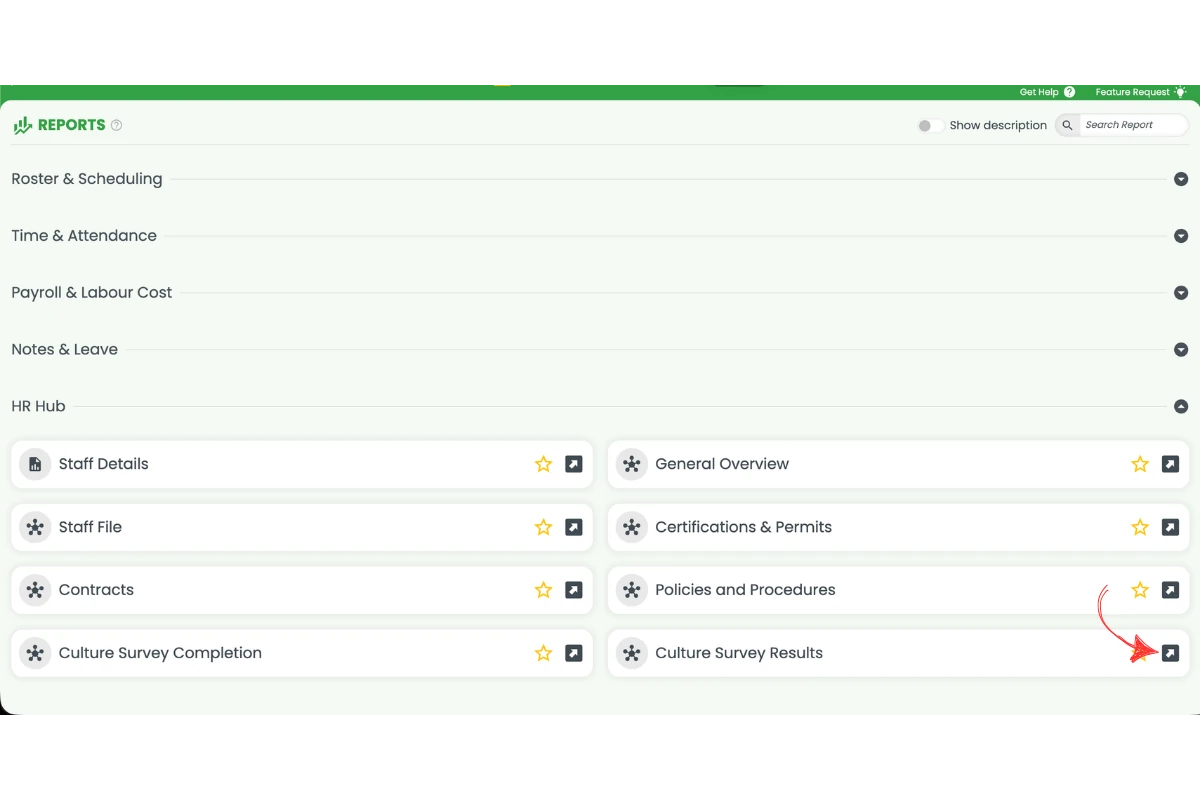
3.1.3 Select Culture Survey Results.
3.1.4 Select the survey date.
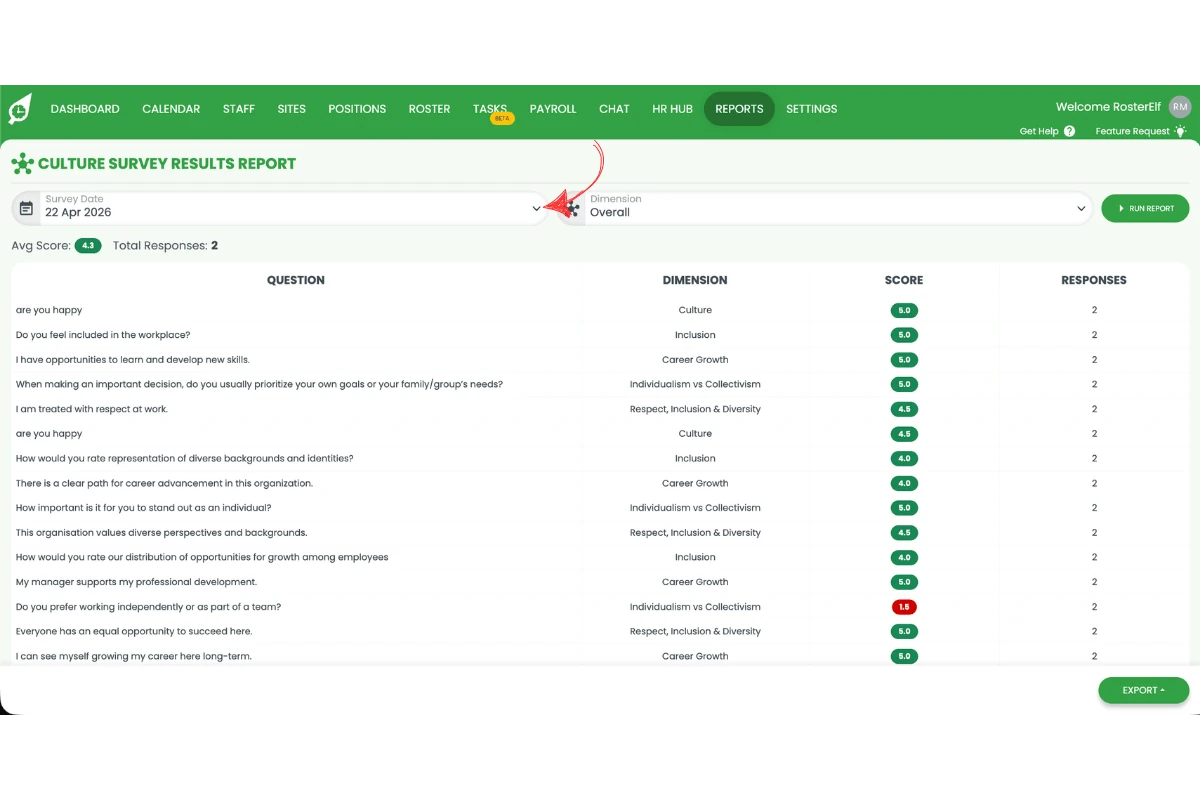
3.1.5 Select the dimension.
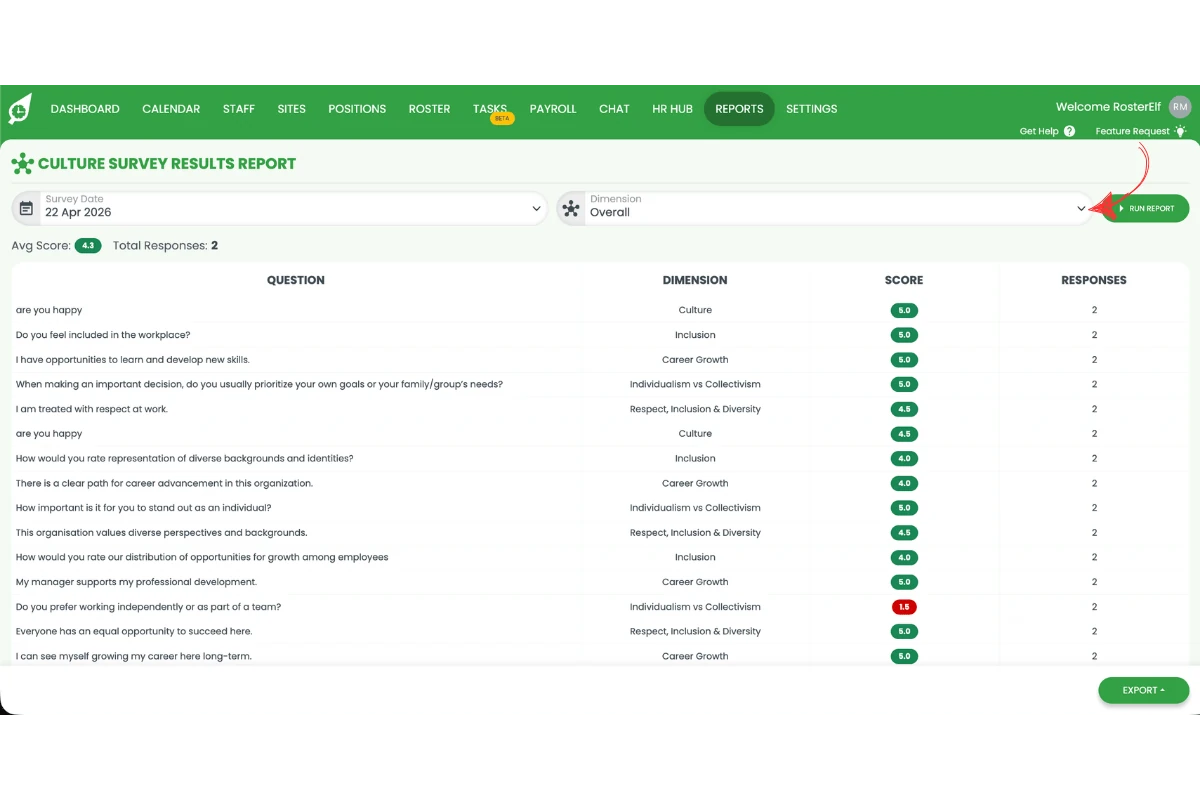
3.1.6 Click Run Report.
3.1.7 Click Export to download the report if required.
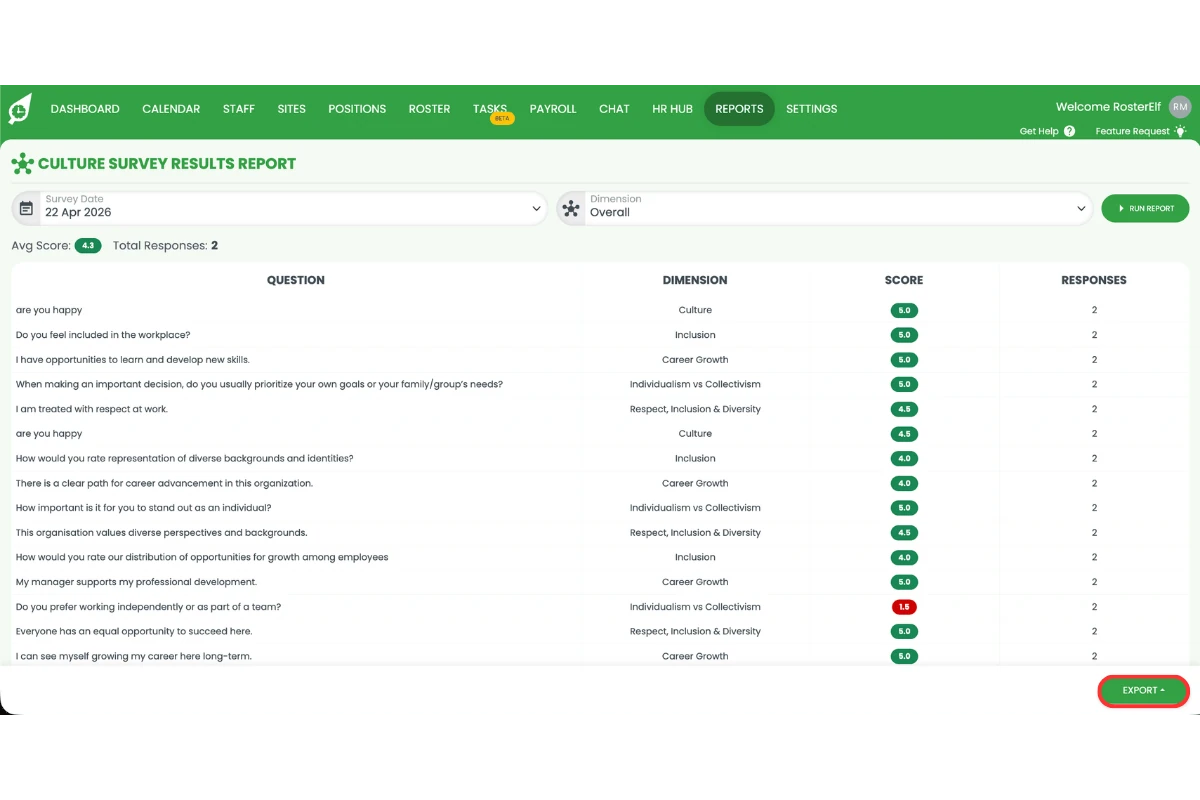
Understanding the results report
The results report shows each survey question alongside its dimension, average score, and number of responses. A score shown in red indicates a low result that may need attention. Use the Dimension filter to focus on a specific area, or select Overall to view all dimensions together. For help setting up dimensions, see use HR Hub culture surveys in RosterElf.
Frequently asked questions
1. How do I add the culture survey widget to my dashboard?
To add the culture survey widget, open your RosterElf dashboard and press the + Widgets button in the top right corner. Select the Culture Results widget from the Widget Manager and press Add this widget. The widget will appear on your dashboard and you can drag it to reposition it to suit your layout.
2. How do I view culture survey completion in RosterElf?
To view culture survey completion, go to Reports and open the HR Hub section. Select the Culture Survey Completion report. Apply filters such as employee, survey date, and status if needed. Press Run Report to generate the results and use the Export button to download the data if required.
3. How do I view culture survey results in reports?
To view culture survey results, go to Reports and open the HR Hub section. Select the Culture Survey Results report. Choose the survey date and select a dimension to analyse. Press Run Report to view the scores and responses, then use the Export button to download the data if needed.
4. What is a culture survey dimension in reports?
A culture survey dimension groups related questions into one category. This helps you analyse results more clearly. Instead of reviewing individual responses, you can view trends and average scores across key areas such as Career Growth, Inclusion, or Teamwork. For more information on creating dimensions, see use HR Hub culture surveys in RosterElf.
5. Can I export culture survey reports in RosterElf?
Yes, you can export culture survey reports. After running either the completion or results report, press the Export button at the bottom right of the report. This allows you to download the data and share insights or store records outside of RosterElf.