

Use HR Hub culture in RosterElf
HR Hub culture in RosterElf allows you to measure and track workplace culture through anonymous staff surveys. You create survey dimensions — each representing a specific area of culture you want to measure — and then run surveys to collect honest, anonymous feedback from your employees. Over time, culture surveys give you measurable data on how your team experiences your workplace.
RosterElf provides two ways to build your culture dimensions. You can create custom dimensions from scratch, writing your own questions and setting the scoring direction, or you can use the built-in template library which includes pre-built dimensions covering common workplace culture topics. Both approaches can be used together, giving you flexibility to tailor surveys to your organisation. Once your dimensions are set up, you can run surveys at any time and track results using HR Hub reports. For more on what HR Hub offers, visit the HR Hub knowledge base, or explore Workwise AI for AI-powered HR guidance.
This guide covers three workflows: enabling the HR Hub culture module, creating culture survey dimensions (custom and from the template library), and running a culture survey. Follow the sections in order when setting up for the first time, or jump directly to the section you need.
HR Hub add-on required
HR Hub culture is part of the HR Hub add-on. If you do not see the HR Hub option in your navigation, your account may not have HR Hub enabled. See manage and enable HR Hub access for instructions.
1. Enable HR Hub culture in RosterElf
This section explains how to enable the HR Hub culture module. The culture survey feature is disabled by default and must be turned on before you can create dimensions or run surveys.
Enabling culture takes just a few steps from your Settings. Once the toggle is on, the Culture option will appear in the HR Hub navigation menu and you can begin setting up your dimensions.
1.1 Enable HR Hub culture settings
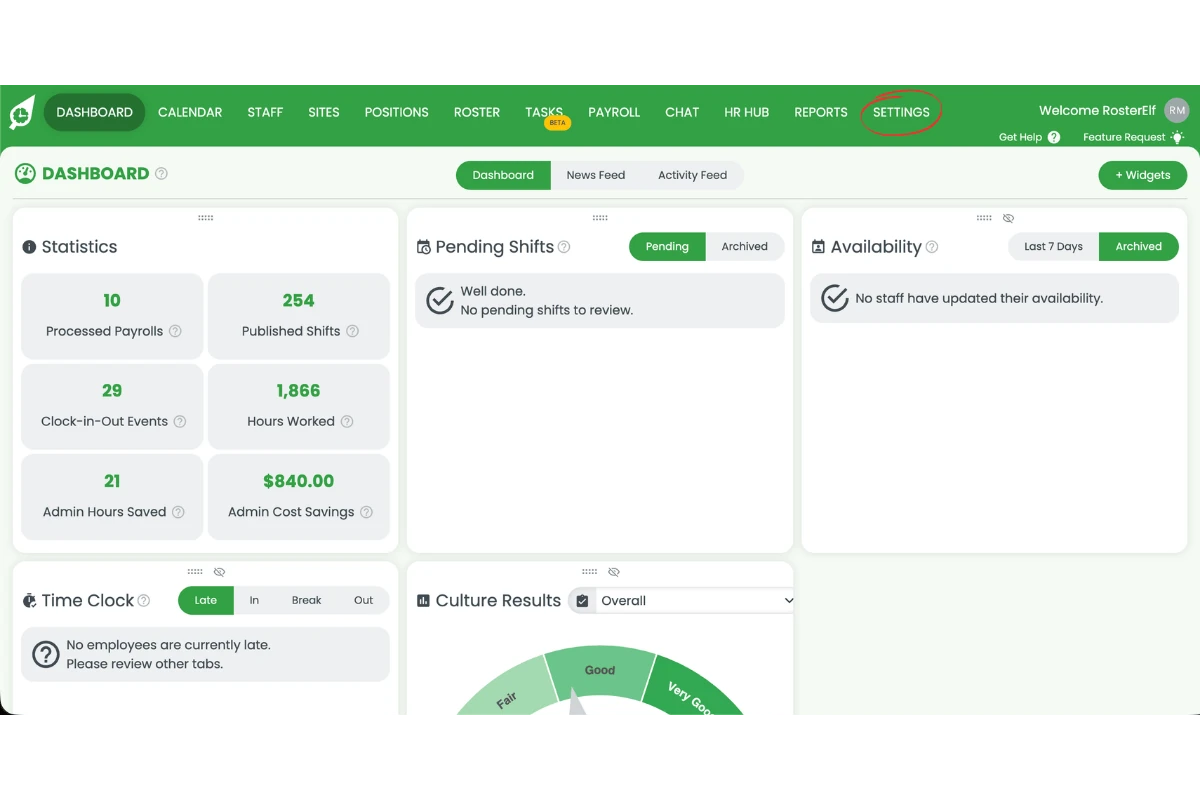
1.1.1 Click Settings in the top navigation bar.
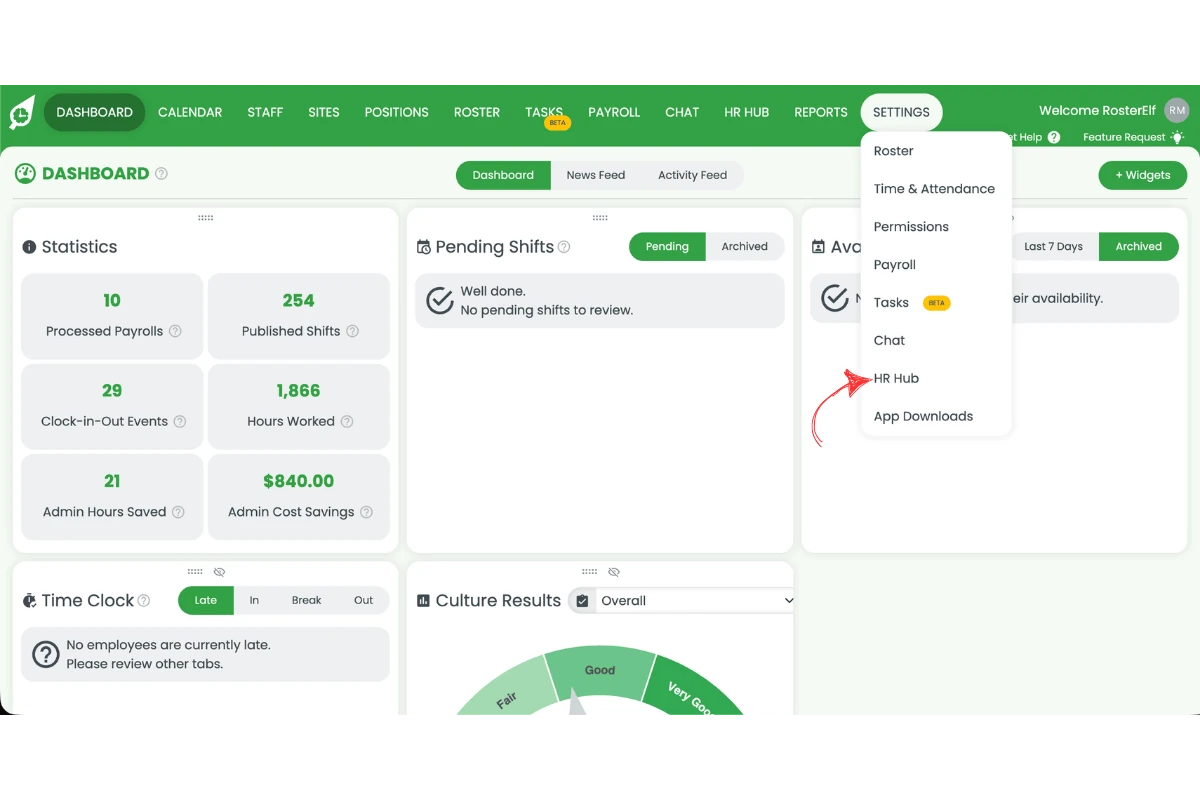
1.1.2 Click HR Hub from the Settings dropdown.
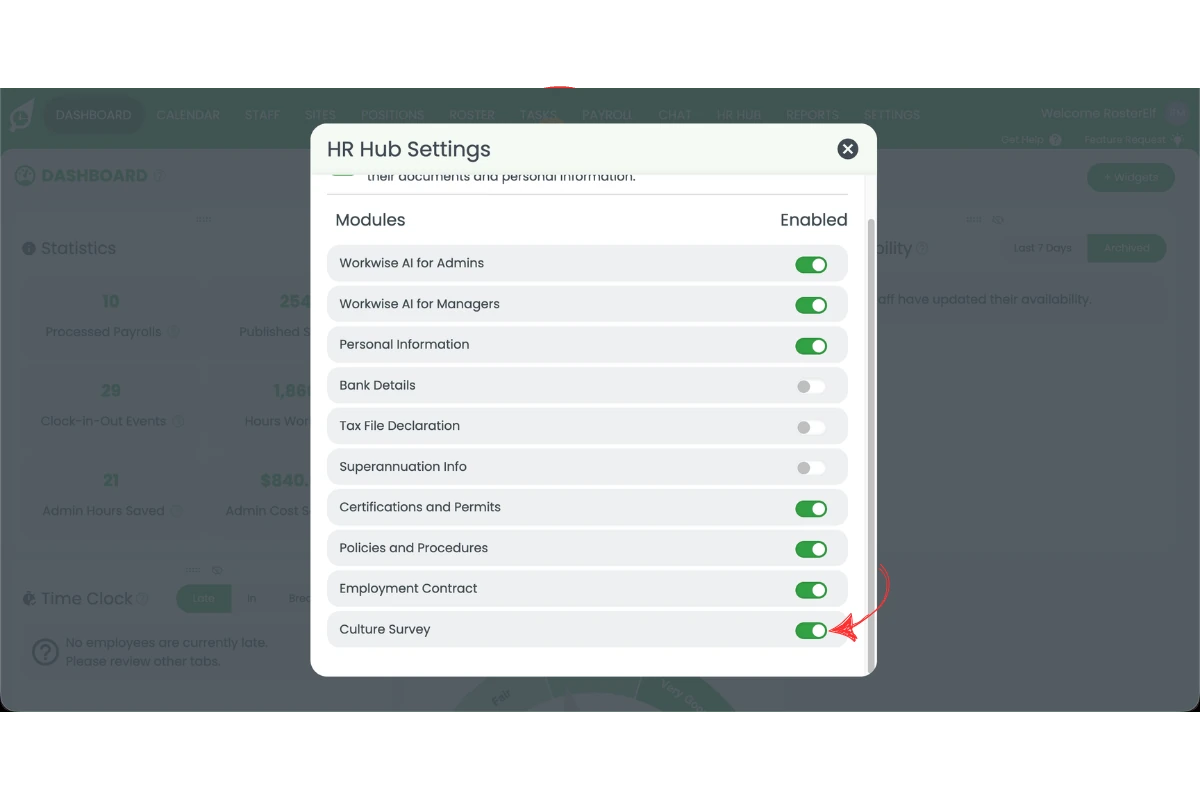
1.1.3 Enable the Culture Survey toggle.
2. Create a culture dimension in RosterElf
This section explains how to create culture survey dimensions. Dimensions are the building blocks of culture surveys — each dimension represents an area of workplace culture you want to measure, such as Inclusion, Career Growth, or Teamwork. You need at least one active dimension before you can run a culture survey.
RosterElf gives you two ways to create dimensions. You can build a custom dimension from scratch by writing your own questions, or you can use the template library to add pre-built dimensions with ready-made questions. Both custom and template dimensions appear in the same Active list and can be used in any survey.
What is a dimension?
A dimension is a specific aspect of workplace culture you want to measure — for example, Inclusion, Career Growth, or Teamwork. Each dimension contains a set of survey questions. When you run a culture survey, employees answer each question on a scale. You choose whether a high score or a low score represents a positive result for each question.
2.1 Create a custom HR Hub culture dimension
Follow the steps below to create a custom culture dimension from scratch. You will add a name, description, and questions, and set the scoring direction for each question.
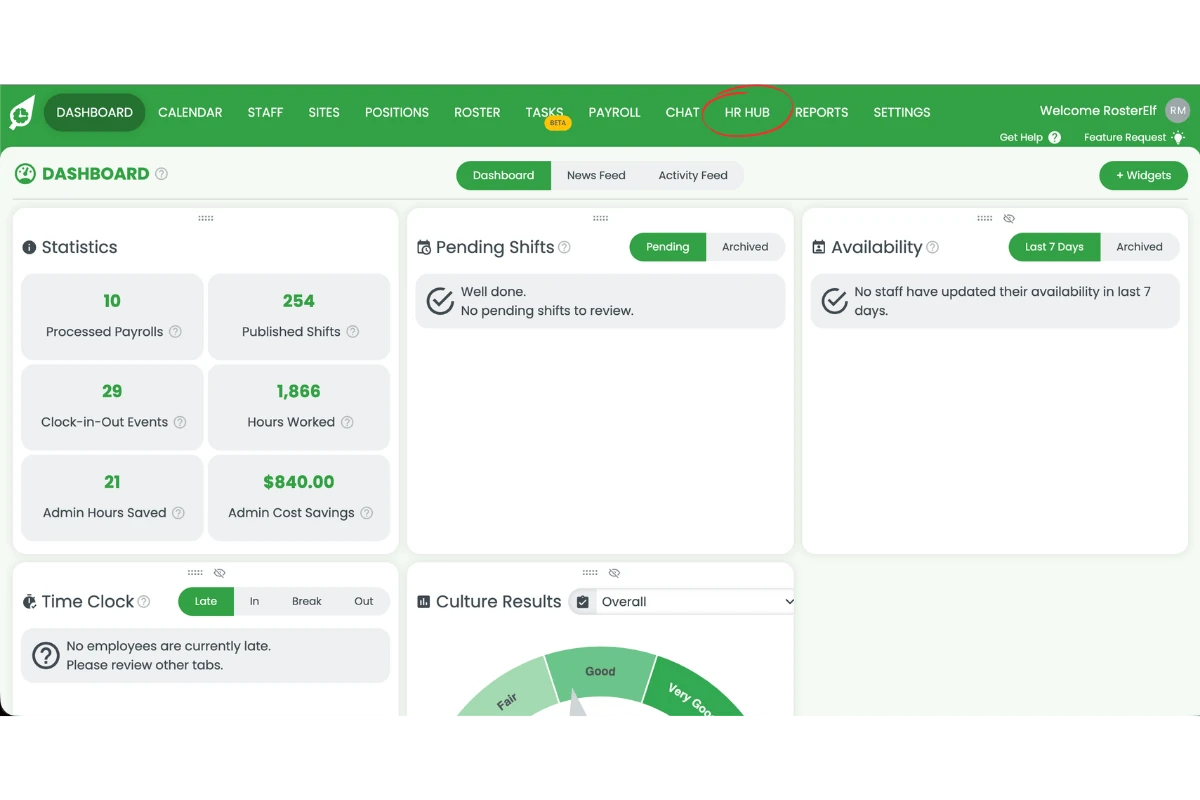
2.1.1 Click HR Hub in the top navigation.
2.1.2 Click Culture from the HR Hub menu.
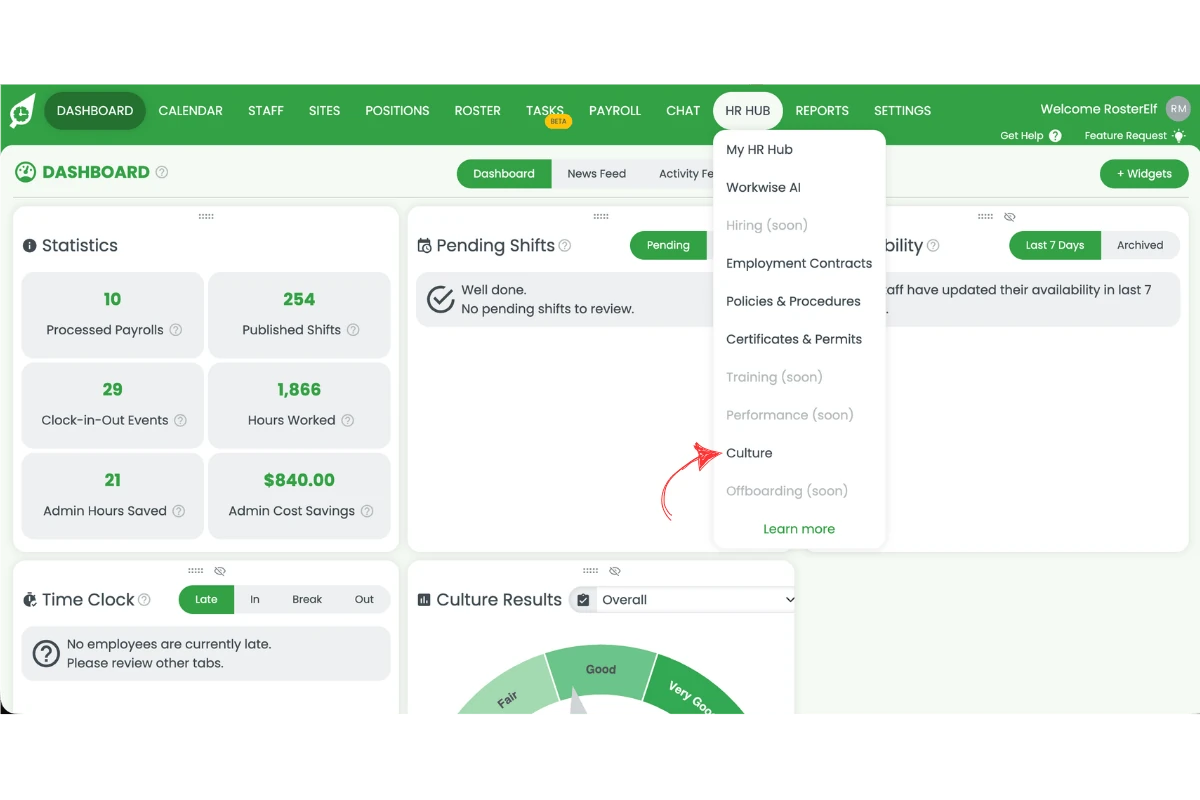
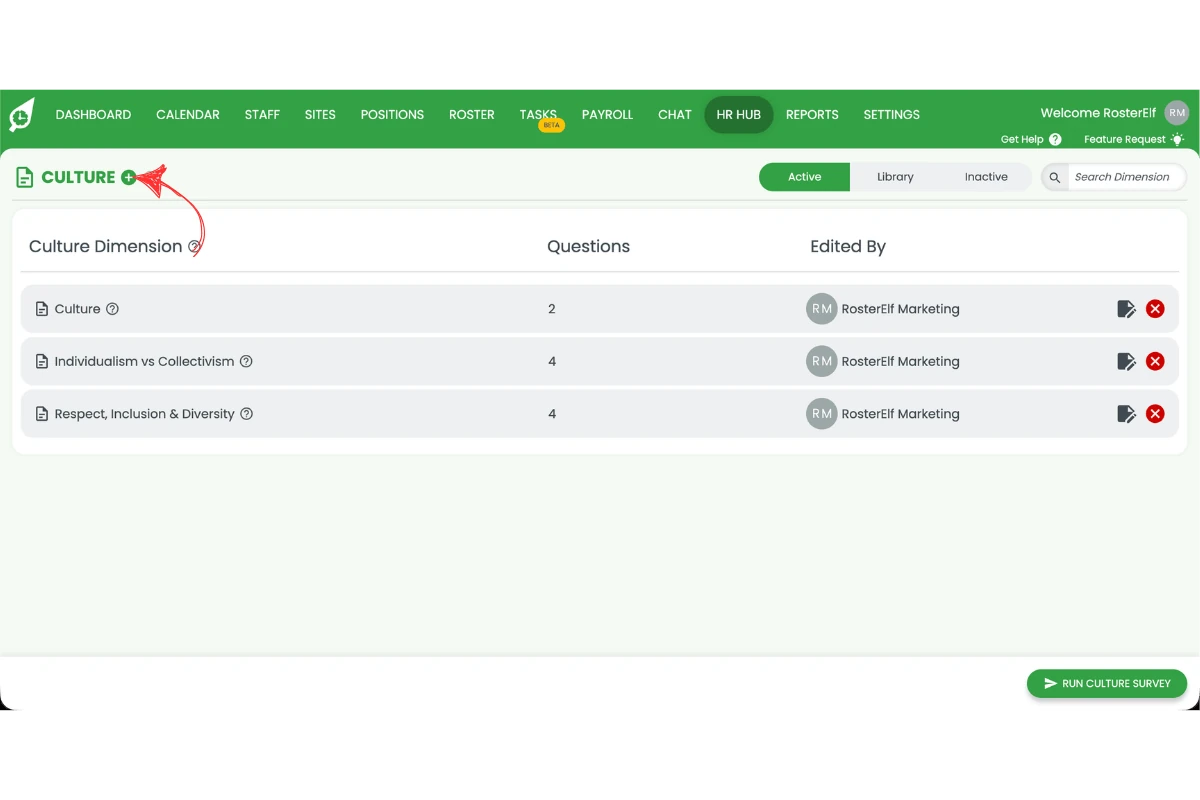
2.1.3 Click the plus symbol next to the Culture heading.
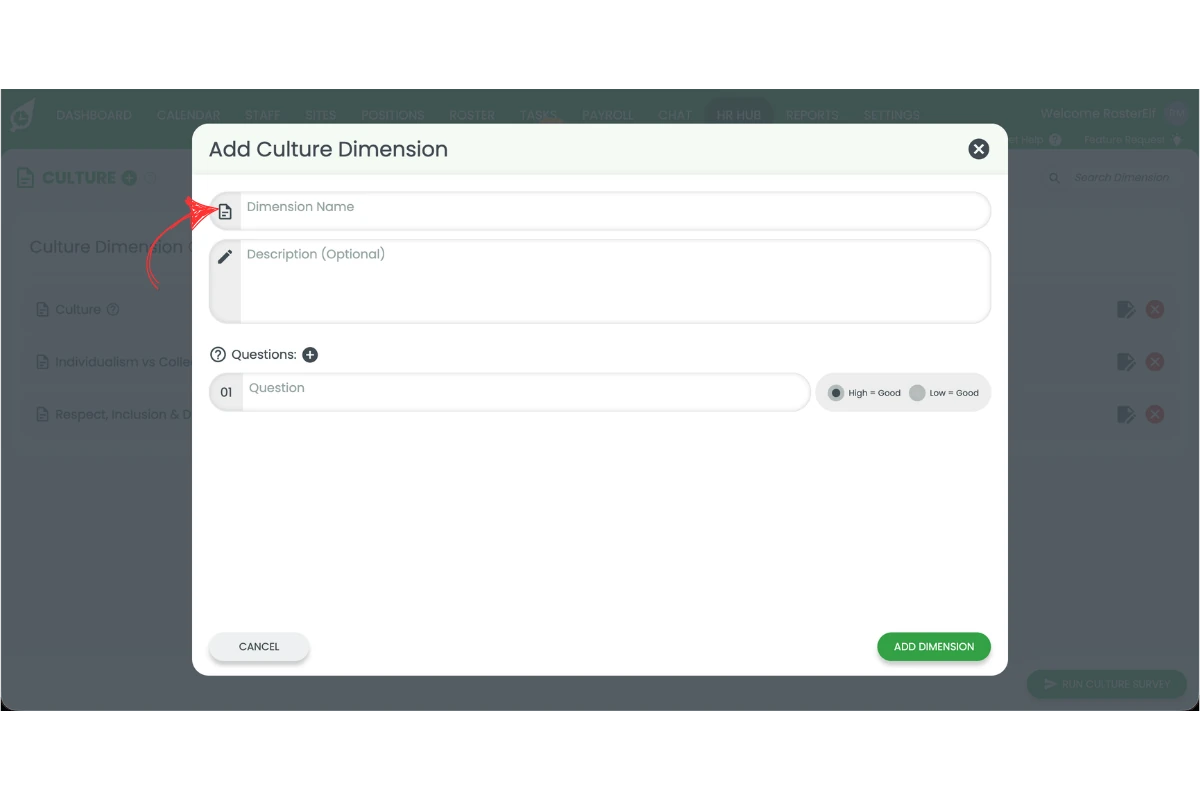
2.1.4 Add a dimension name.
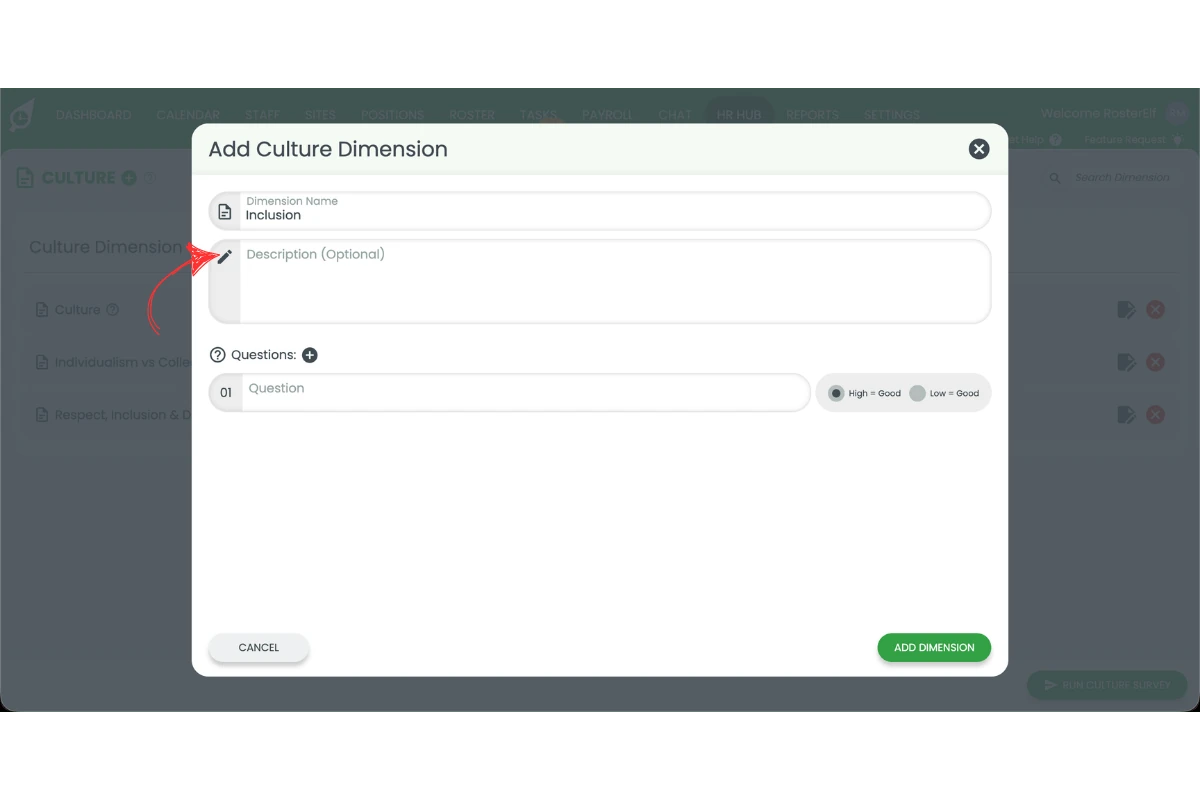
2.1.5 Add a description of the dimension.
2.1.6 Add your survey questions.
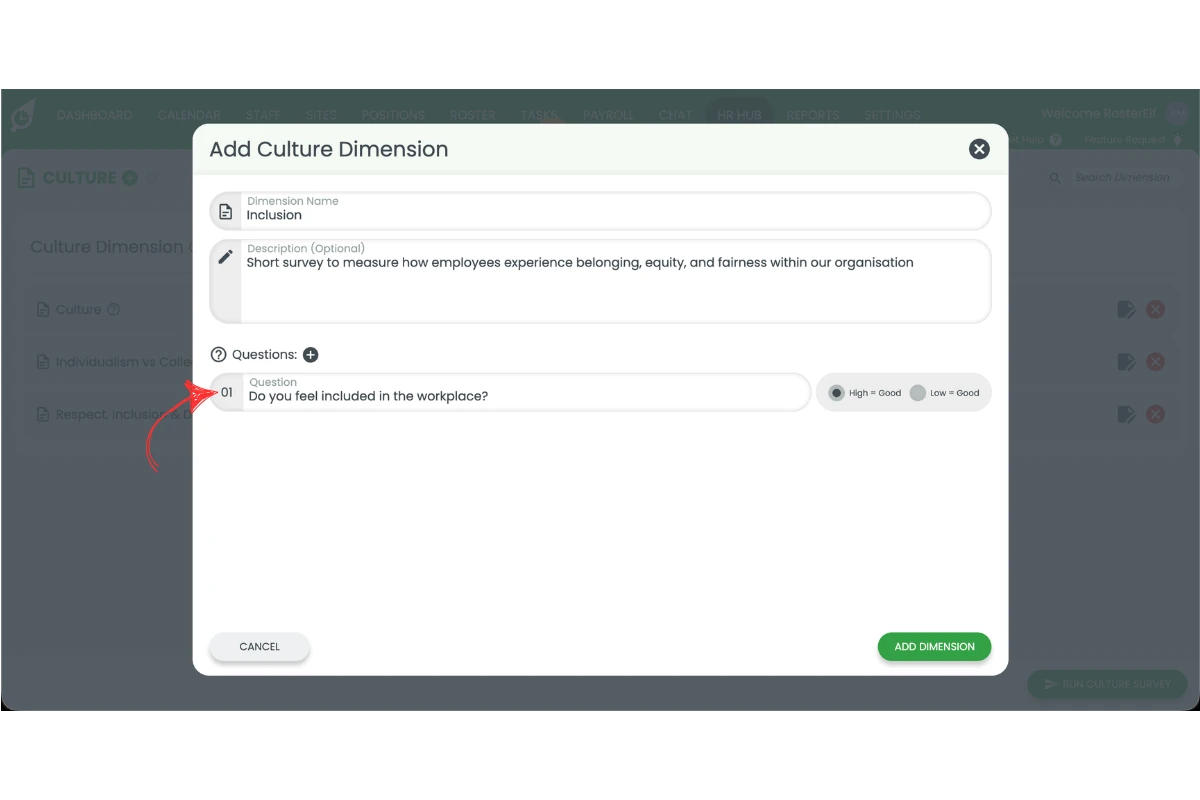
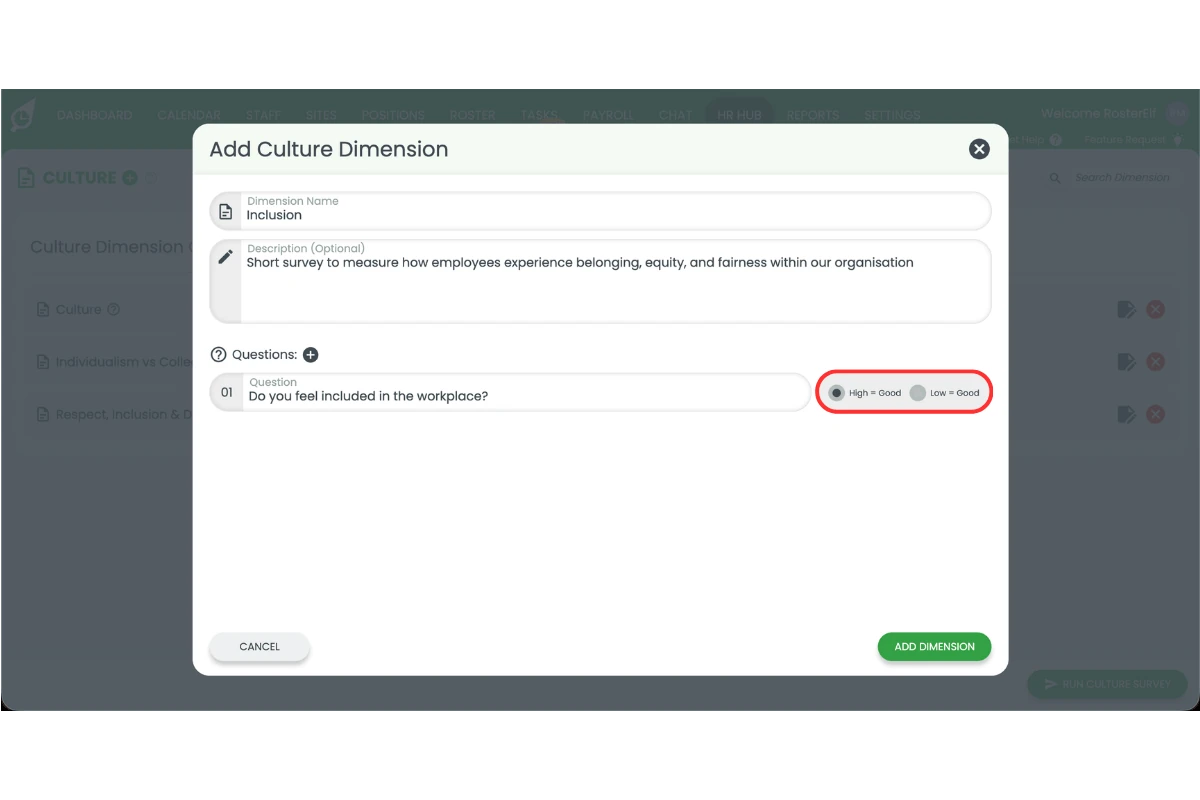
2.1.7 Select High = good or Low = good for each question.
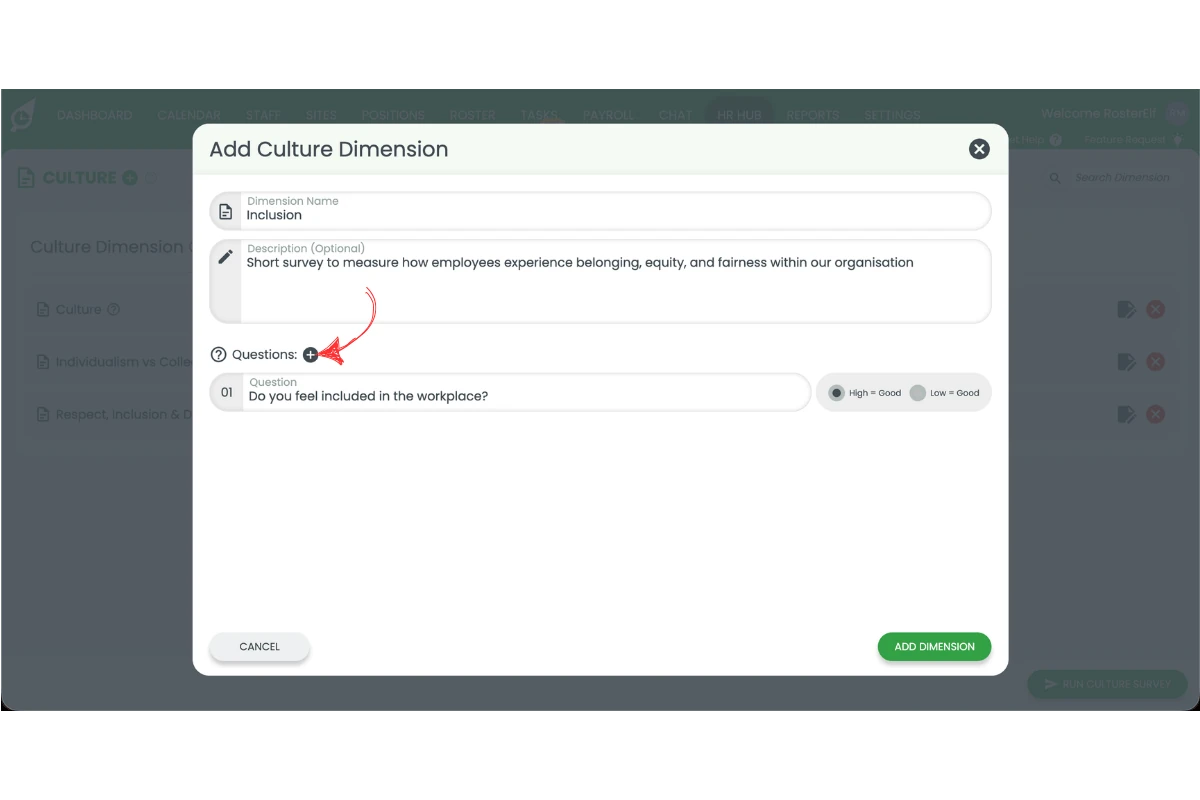
2.1.8 Click the plus symbol to add another question.
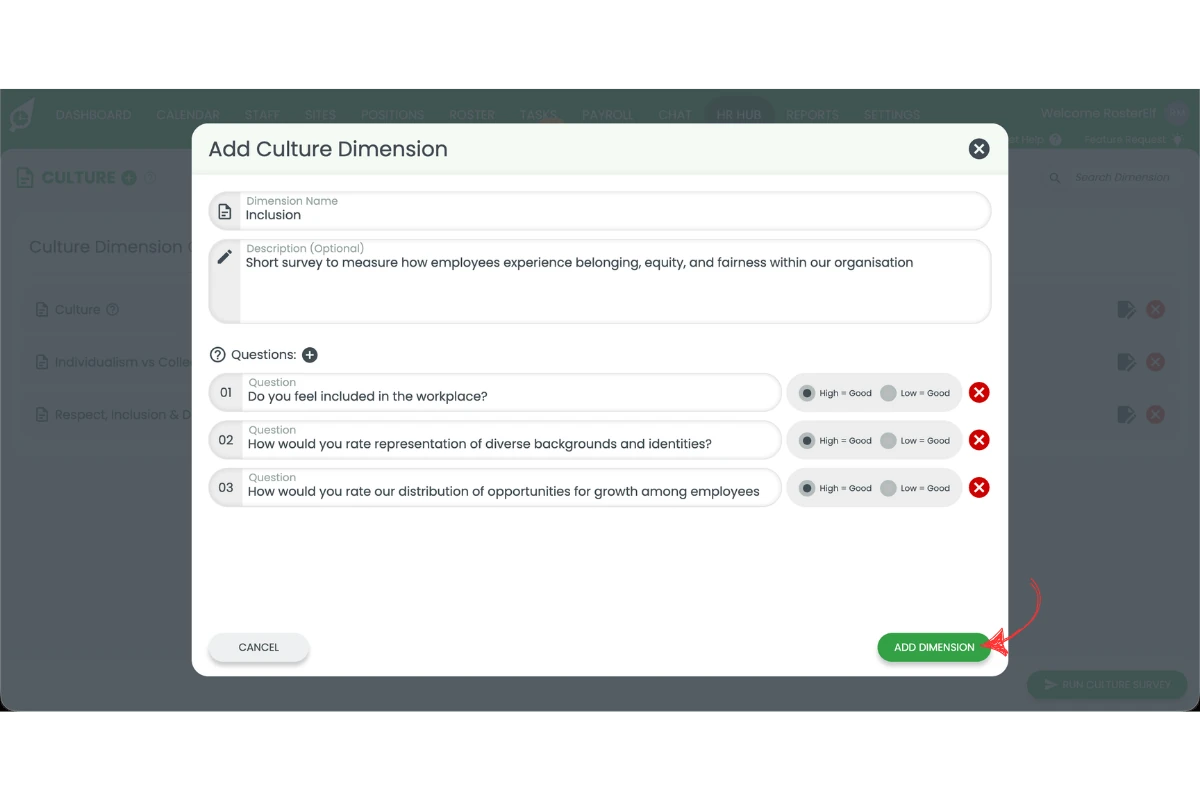
2.1.9 Click Add Dimension to save.
2.2 Use a RosterElf culture survey template
The RosterElf template library includes pre-built culture dimensions with ready-made questions. You can browse the library, preview the questions in a dimension, and enable the ones you want to use. Enabled template dimensions appear in your Active list alongside any custom dimensions you have created.
Template dimensions can be edited after enabling, allowing you to customise questions for your organisation. You can also remove a template dimension from your Active list at any time if you no longer want to include it in surveys.
2.2.1 Click Library to view the template library.
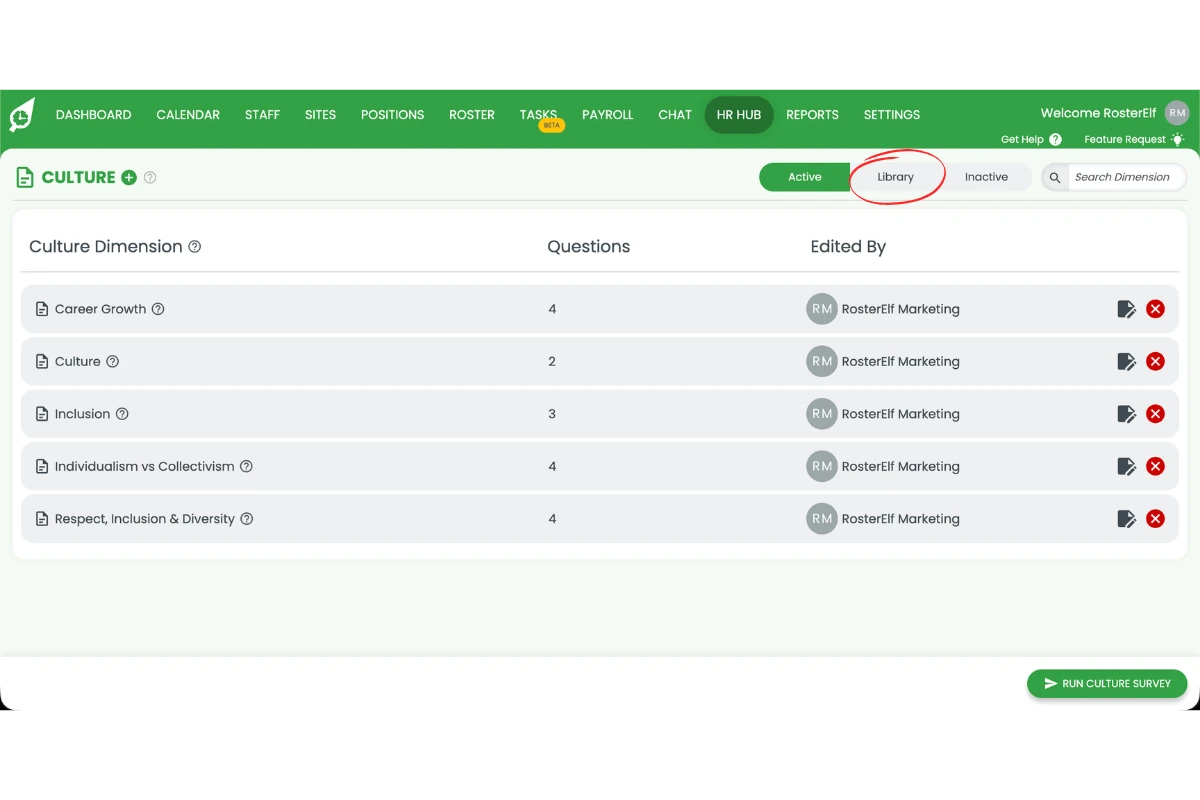
2.2.2 Click View to preview the questions in a dimension.
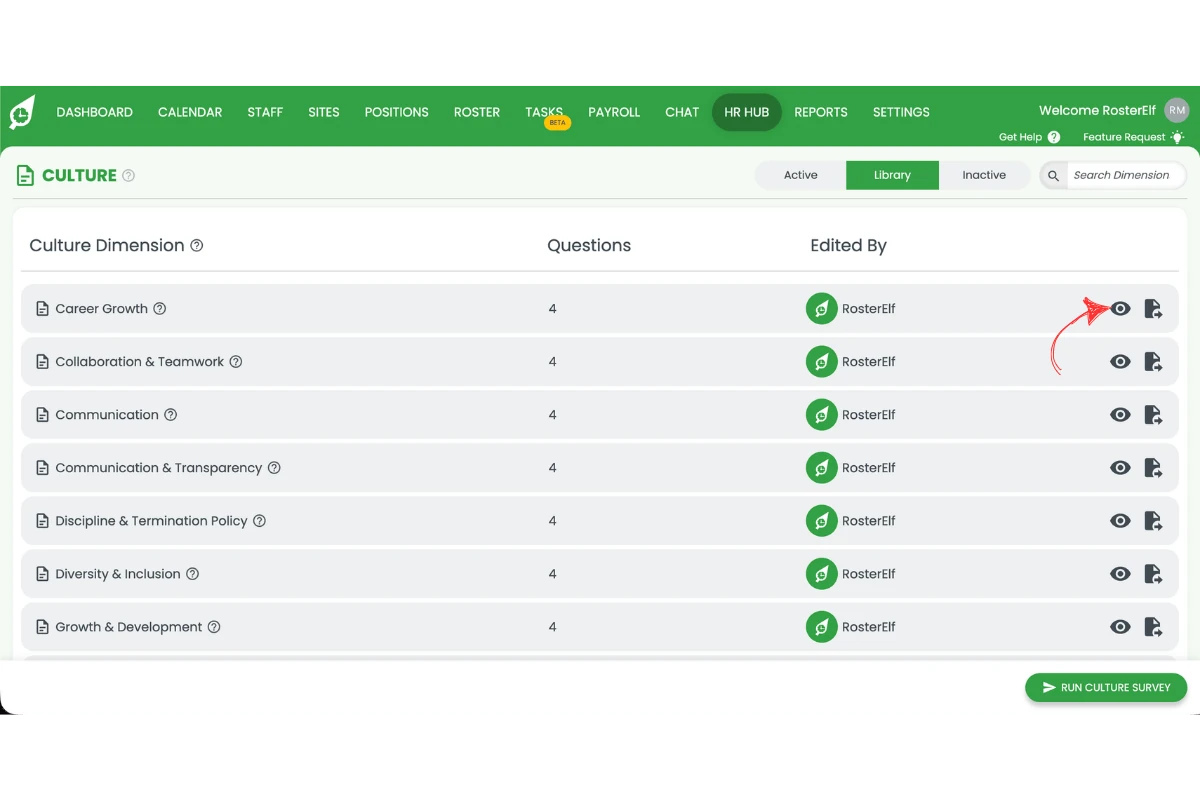
2.2.3 Click Enable this dimension to add it to your Active list.
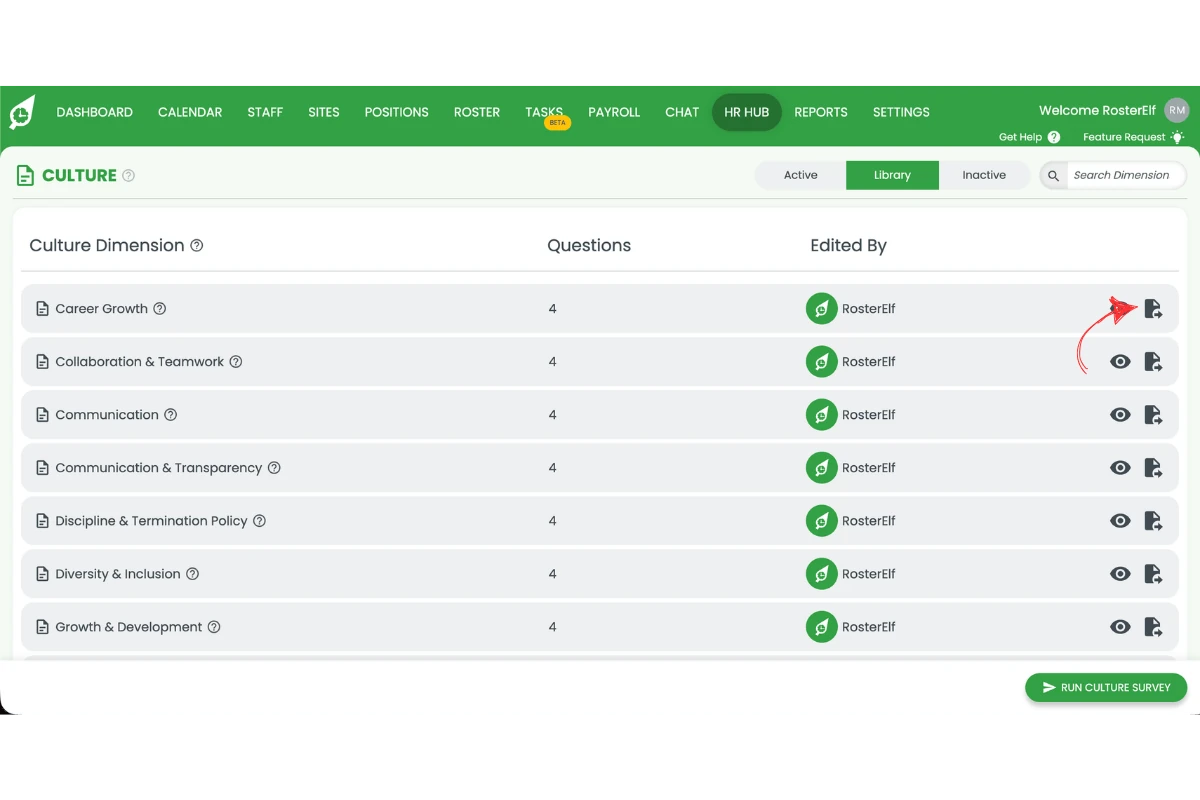
2.2.4 Click Active to view all enabled dimensions.
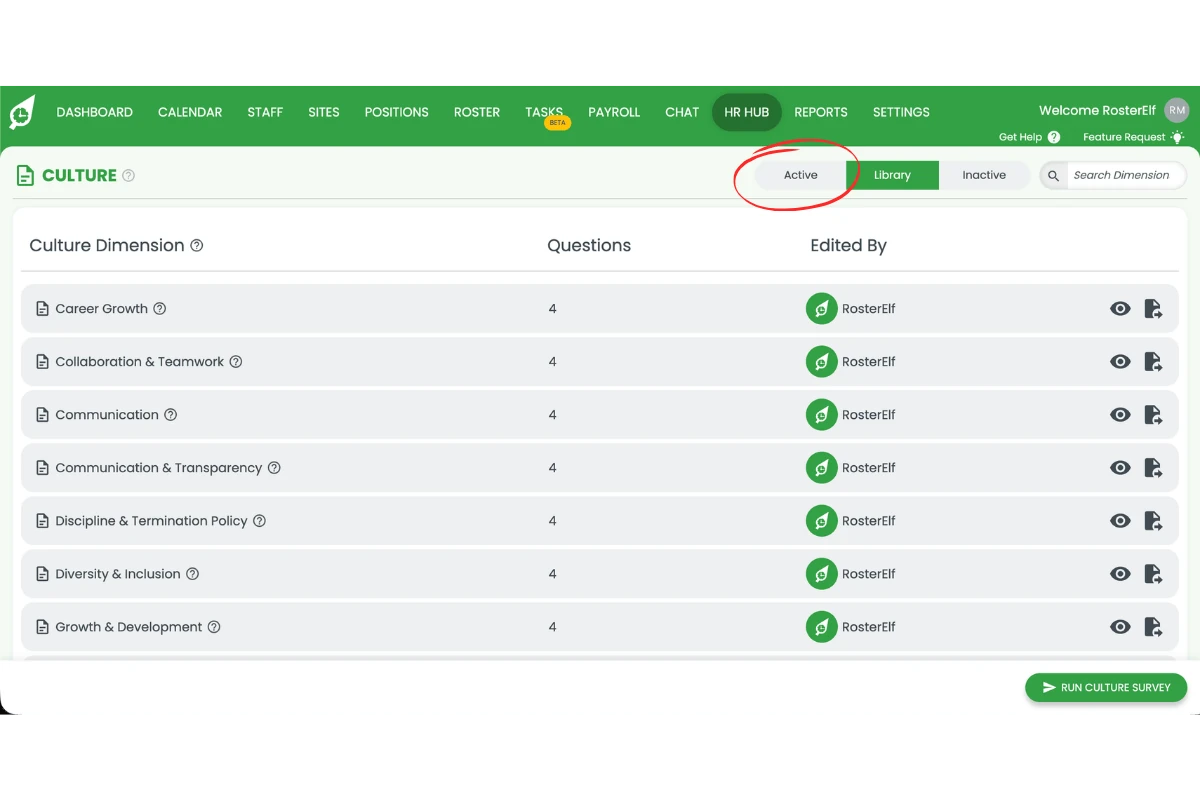
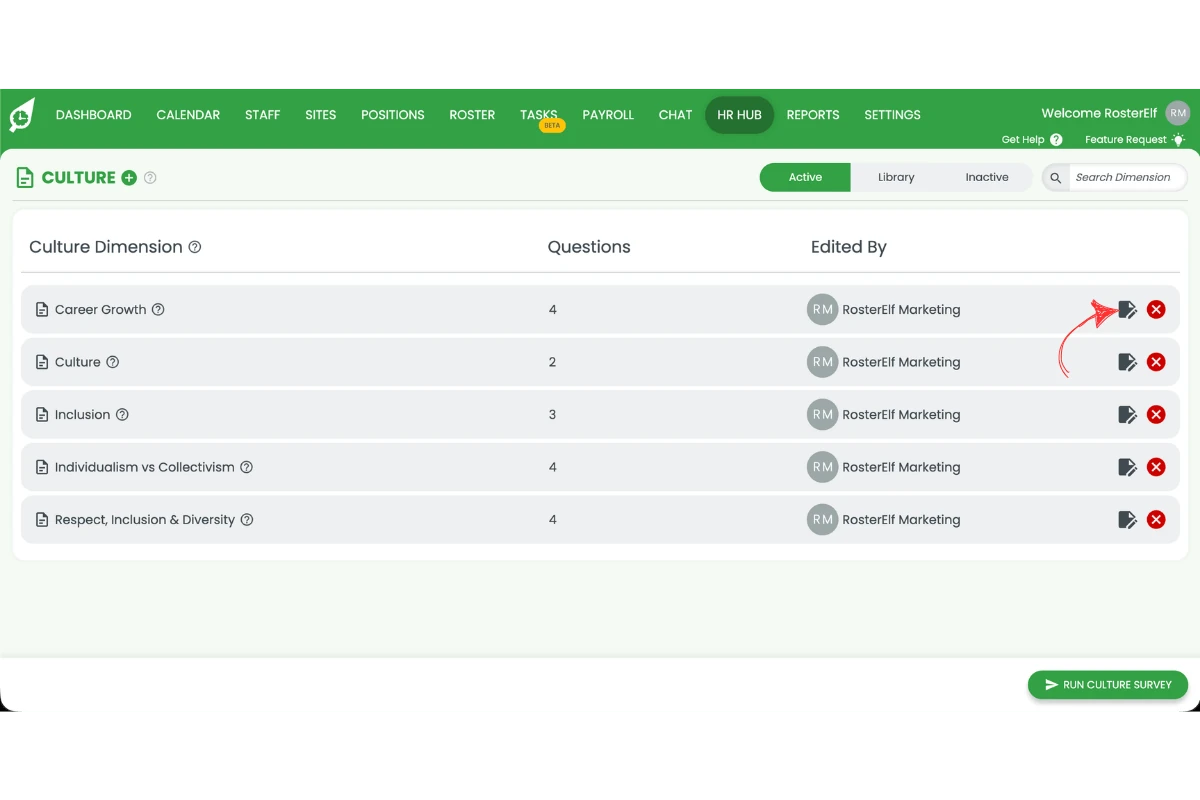
2.2.5 Click the edit icon to edit a template dimension.
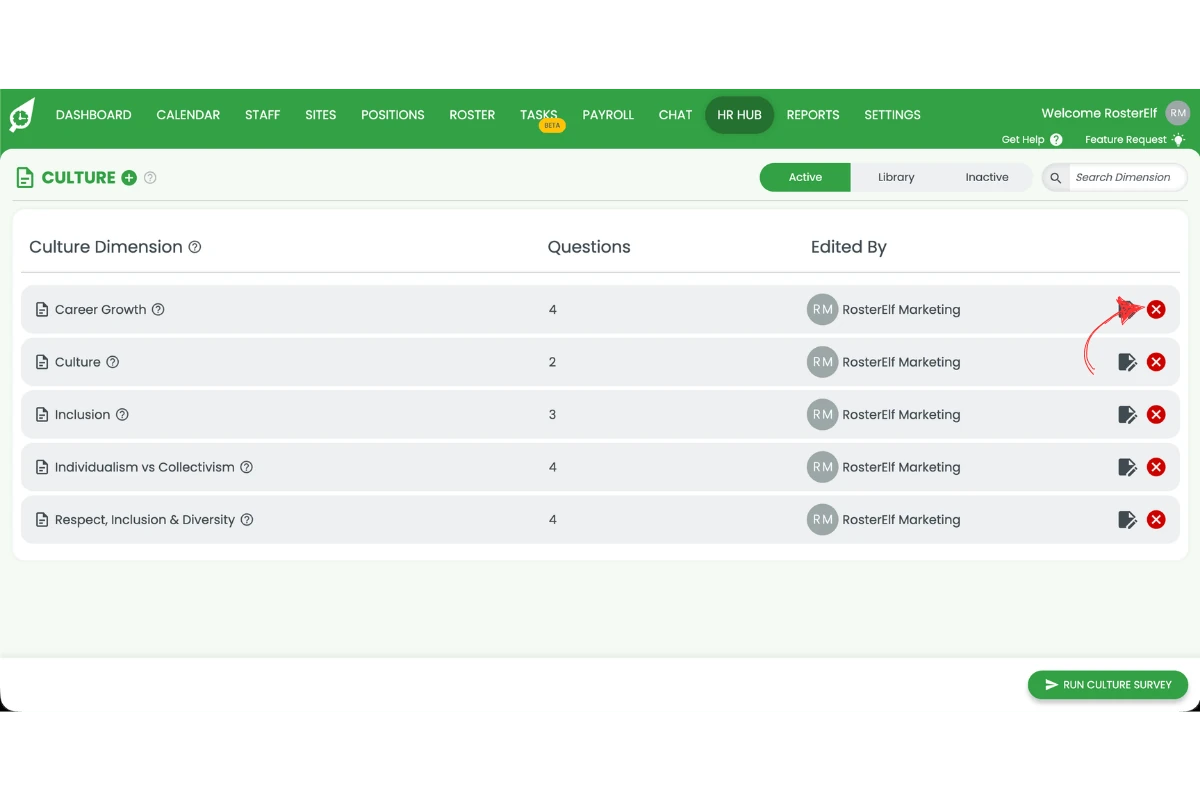
2.2.6 Click the X icon to remove a template dimension.
3. Run a HR Hub culture survey in RosterElf
This section explains how to run a culture survey. Running a survey sends anonymous survey invitations to the employees you select, asking them to rate each question across your chosen dimensions. You must have at least one active dimension before you can run a survey.
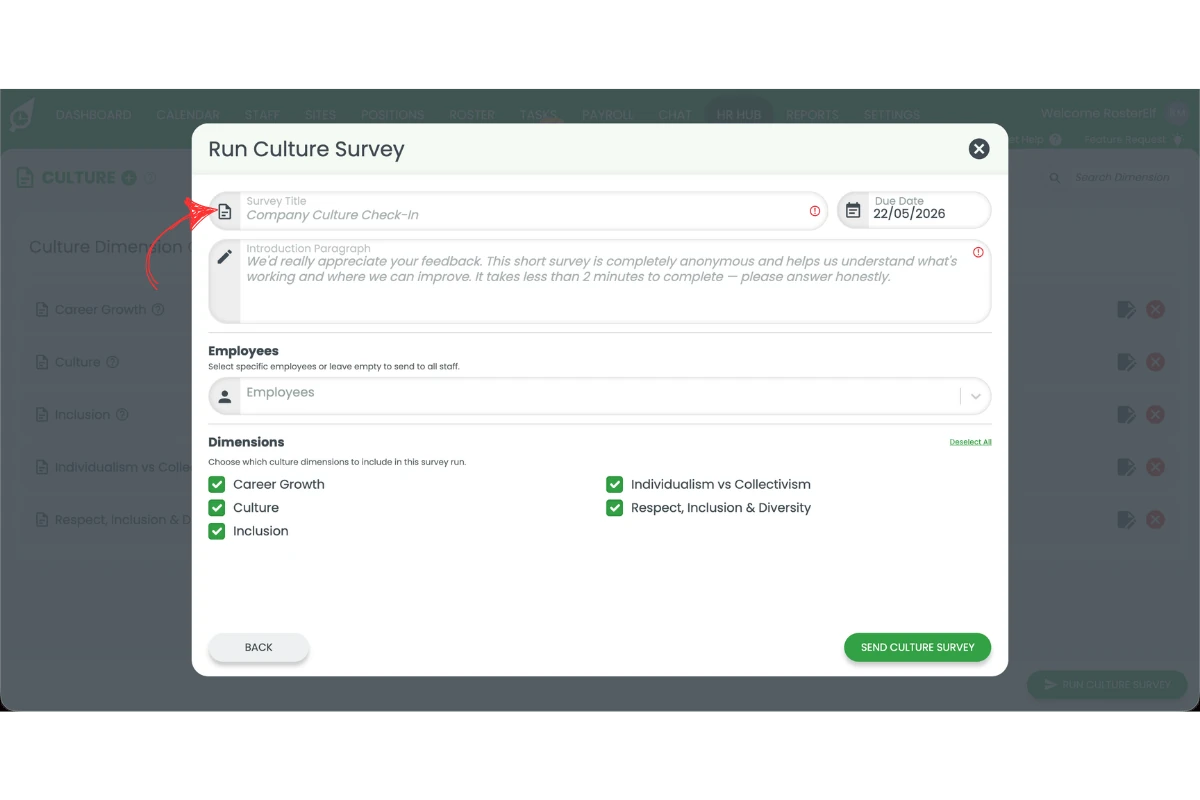
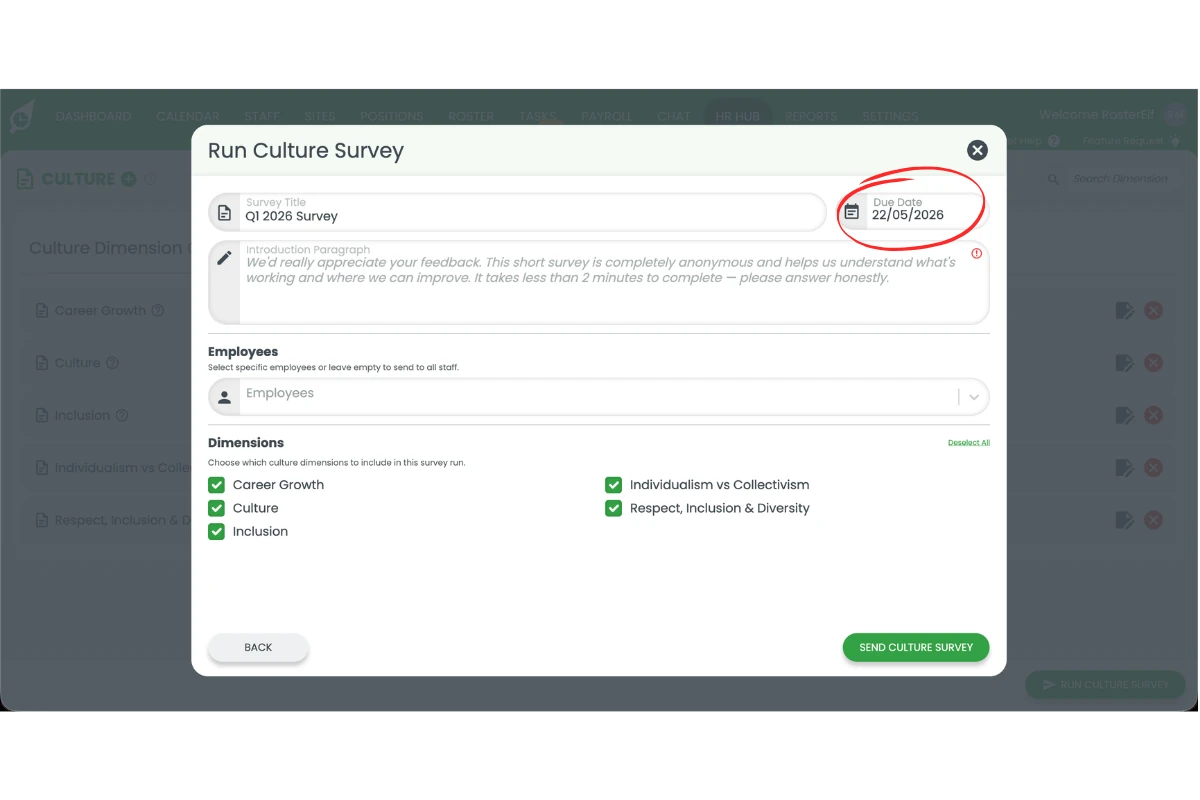
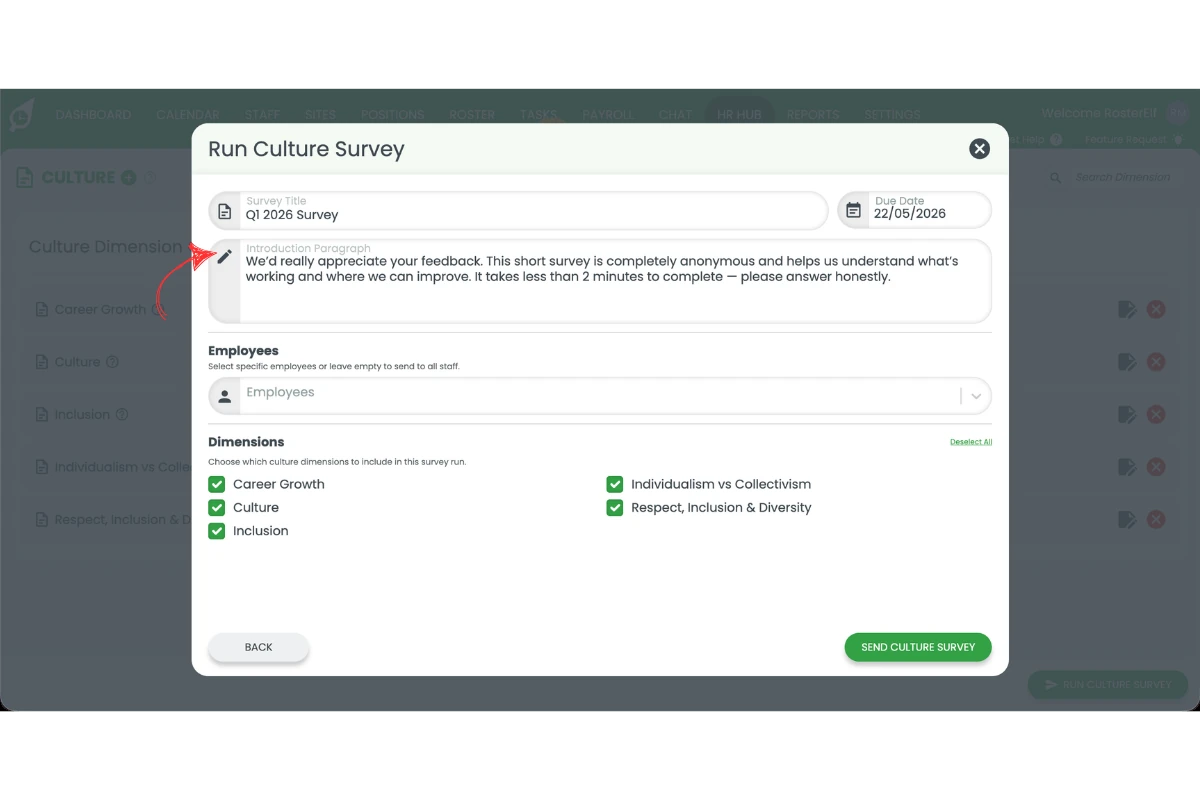
Each survey requires a title, a due date, and an optional introduction paragraph that your employees will see when they receive the survey. You can send the survey to all staff or select specific employees. After sending, RosterElf tracks response progress and you can resend reminders to employees who have not yet completed the survey.
3.1 Run a HR Hub culture survey
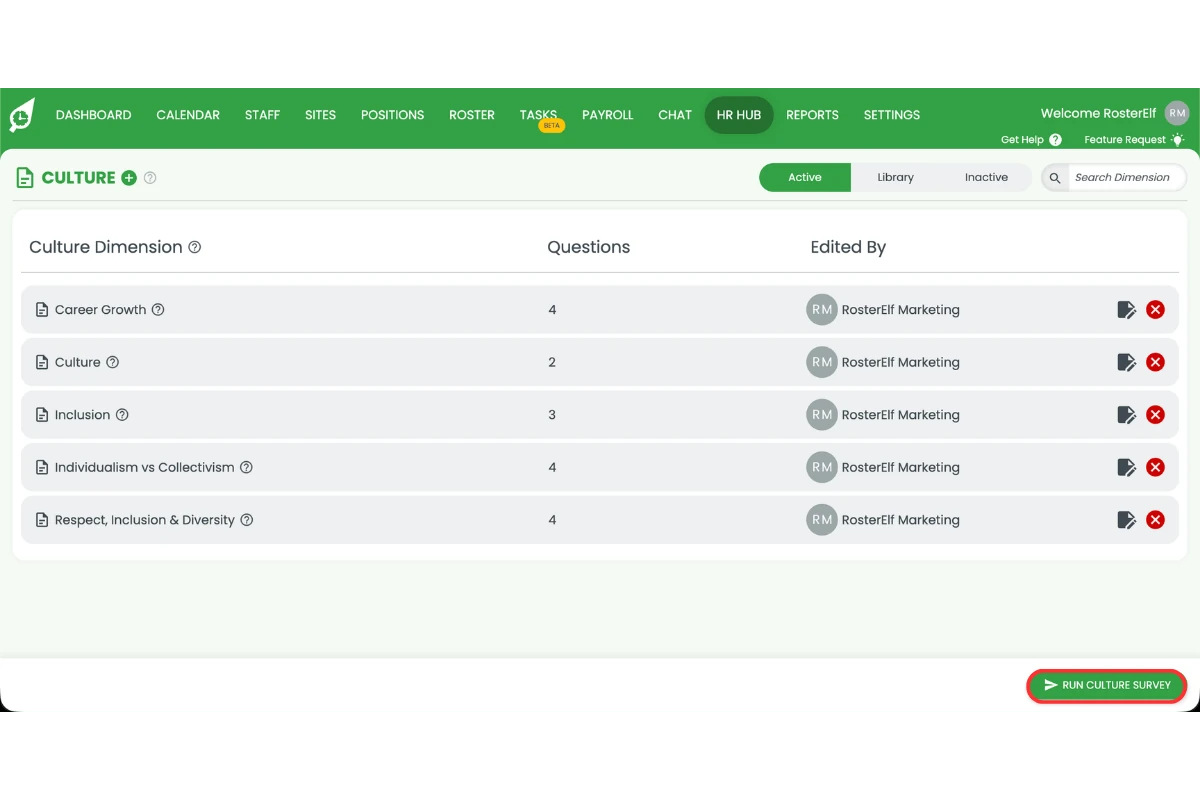
3.1.1 Click Run Culture Survey on the Culture page.
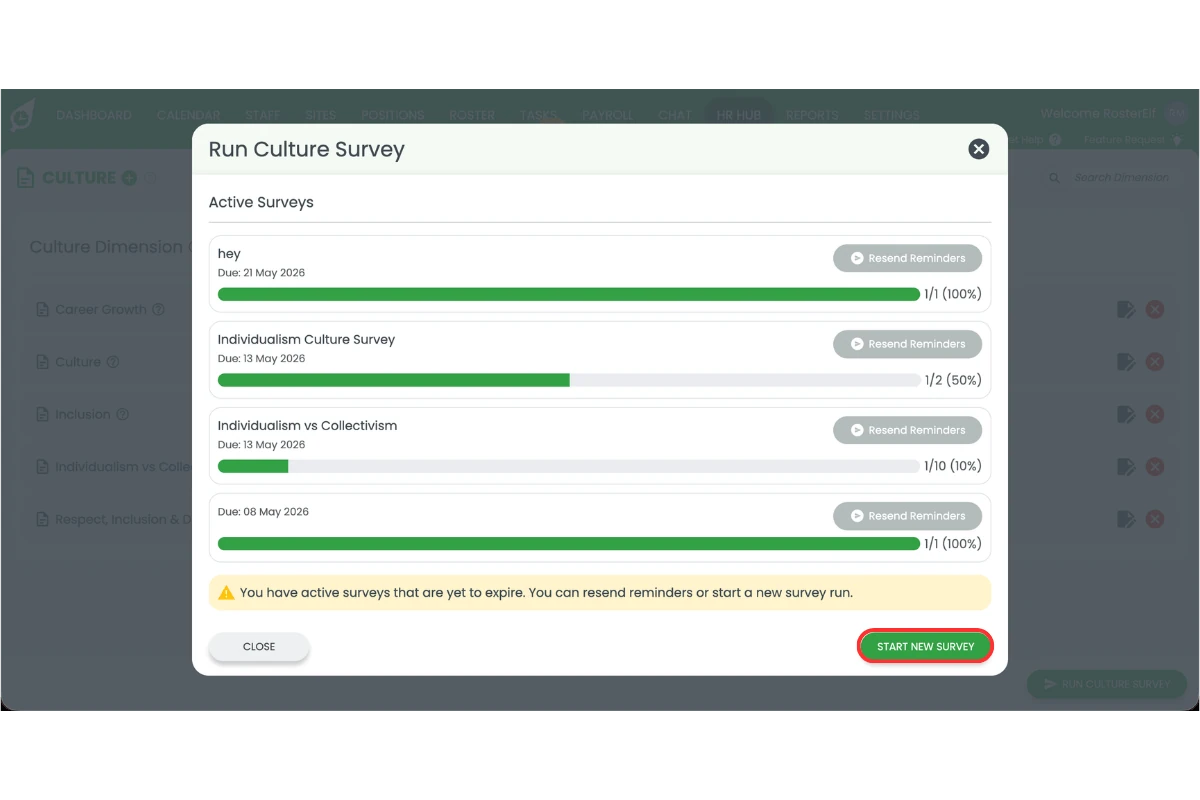
3.1.2 Click Start New Survey.
3.1.3 Add a survey title.
3.1.4 Add a due date.
3.1.5 Add an introduction paragraph for your staff.
3.1.6 Select the employees to include, or leave empty to send to all staff.
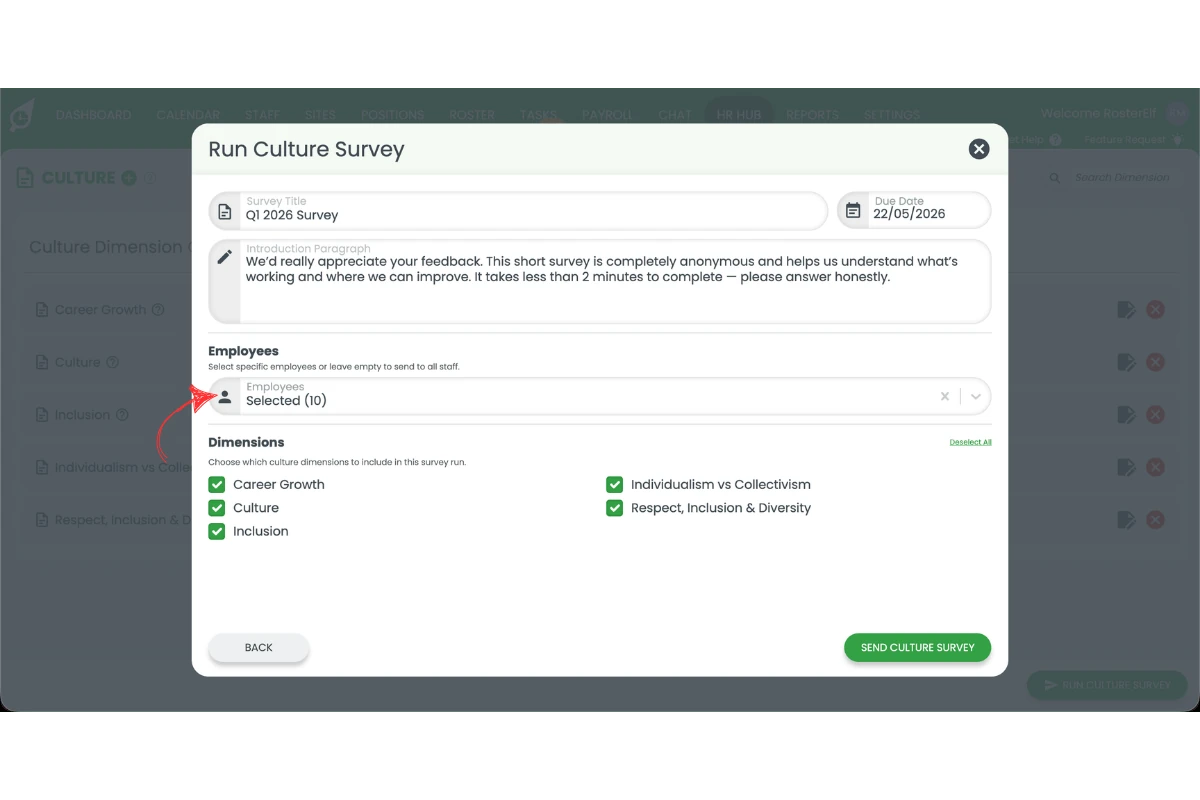
3.1.7 Select the dimensions to measure in this survey.
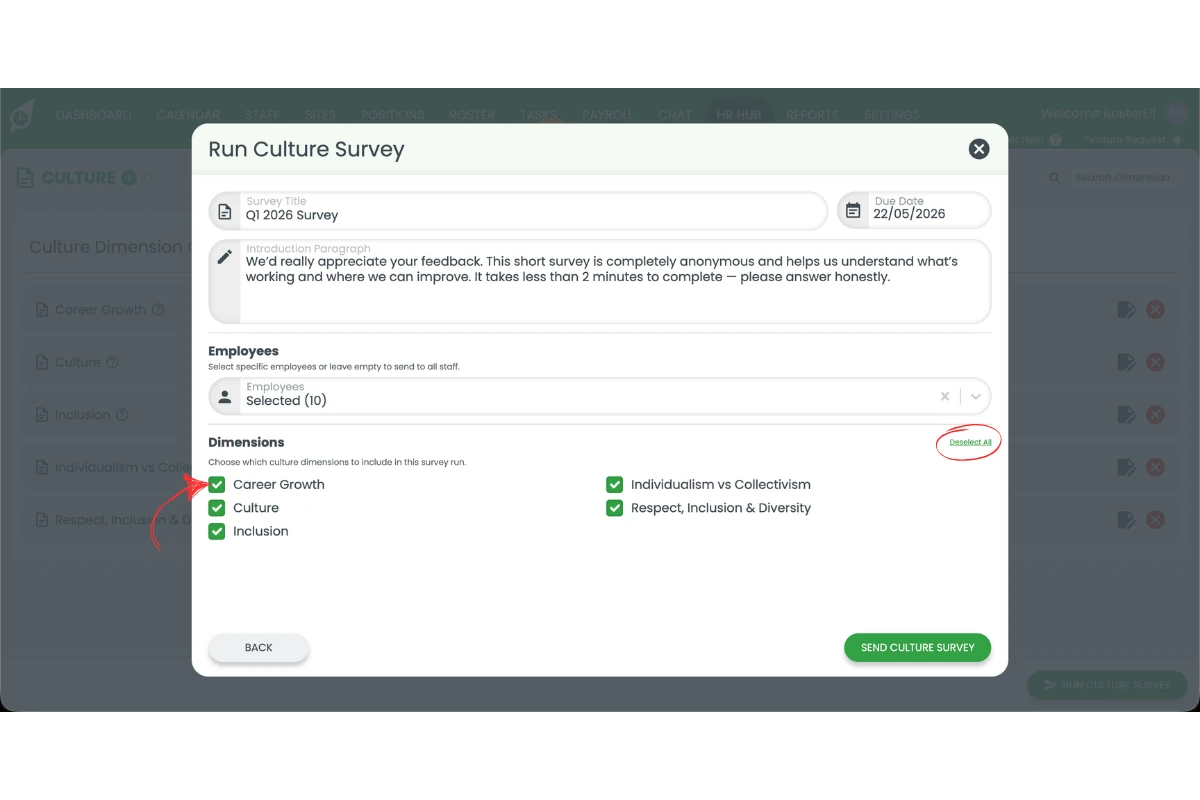
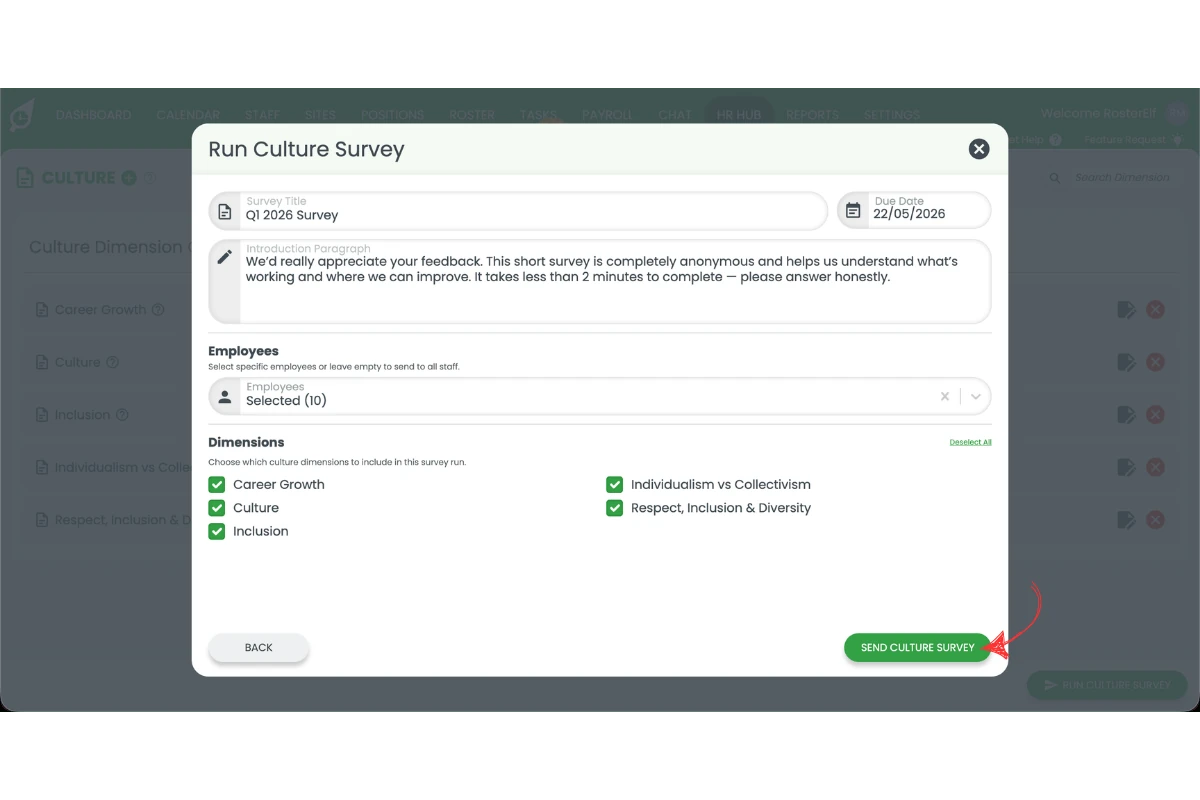
3.1.8 Click Send Culture Survey.
View your culture survey results
Once responses are collected, you can view the results by going to Reports and selecting HR Hub, then running a Culture Survey report. This report shows aggregated, anonymous results across all dimensions and survey runs.
Frequently asked questions
1. What is HR Hub culture in RosterElf?
HR Hub culture is a feature within RosterElf’s HR Hub add-on that allows you to measure workplace culture through anonymous staff surveys. You create survey dimensions — each representing a specific aspect of workplace culture — then run surveys to collect anonymous responses from your employees. The results help you understand how your team experiences your workplace and where improvements can be made.
2. How do I enable HR Hub culture in RosterElf?
To enable HR Hub culture, press Settings in the top navigation, select HR Hub from the dropdown, and enable the Culture Survey toggle in the HR Hub Settings modal. Once enabled, the Culture option will appear in the HR Hub navigation menu. For help with broader HR Hub access, see manage and enable HR Hub access.
3. What is a dimension in HR Hub culture surveys?
A dimension is a specific area of workplace culture you want to measure — for example, Career Growth, Inclusion, or Teamwork. Each dimension contains a set of questions that employees answer anonymously in a survey. You can create custom dimensions from scratch or use pre-built dimensions from the RosterElf template library.
4. How do I create HR Hub culture survey dimensions?
To create a custom dimension, press HR Hub in the top navigation, select Culture, then press the plus symbol next to the Culture heading. Add a dimension name, a description, and your survey questions. For each question, select whether a high score or a low score represents a positive result. Press Add Dimension to save. You can also use the Library tab to browse pre-built template dimensions and enable them directly.
5. How do I run a HR Hub culture survey in RosterElf?
To run a culture survey, go to HR Hub → Culture and press Run Culture Survey. Press Start New Survey, then add a survey title, due date, and an introduction paragraph for your staff. Select the employees to include (or leave empty to send to all staff) and choose the dimensions to measure. Press Send Culture Survey to distribute the survey.
6. How can I view the results of my culture survey?
You can view culture survey results by going to Reports and selecting HR Hub, then running a Culture Survey report. This report shows aggregated, anonymous results across all dimensions and survey runs. For more information on HR Hub features, see the HR Hub knowledge base.