

My profile settings in RosterElf
This article explains how to access and update your personal settings in RosterElf using the My Profile feature. You can change your profile picture, name, email, phone number, and password. Understanding how to manage these details ensures your account information stays up-to-date, making it easier to personalise and secure your RosterElf experience.
If you’d like to update your address, bank details, or superannuation, this is done via our HR Hub. Check out the guide here for more information: Set up your profile in My HR Hub.
1. Accessing My profile in RosterElf
This section outlines the steps to access the My Profile section in RosterElf. By following these steps, you can quickly navigate to your profile settings and make any necessary updates.
1.1 navigating to My profile
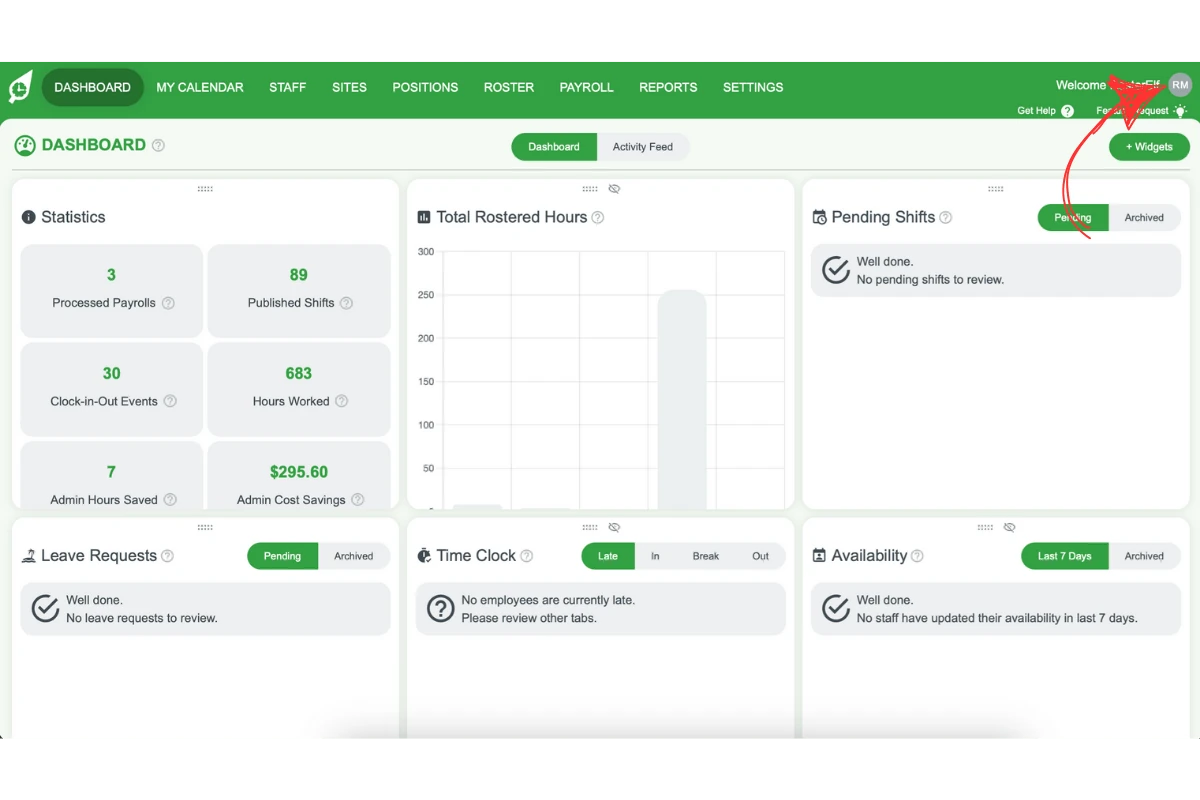
1.1.1 Click on your avatar in the top right corner of the RosterElf screen.
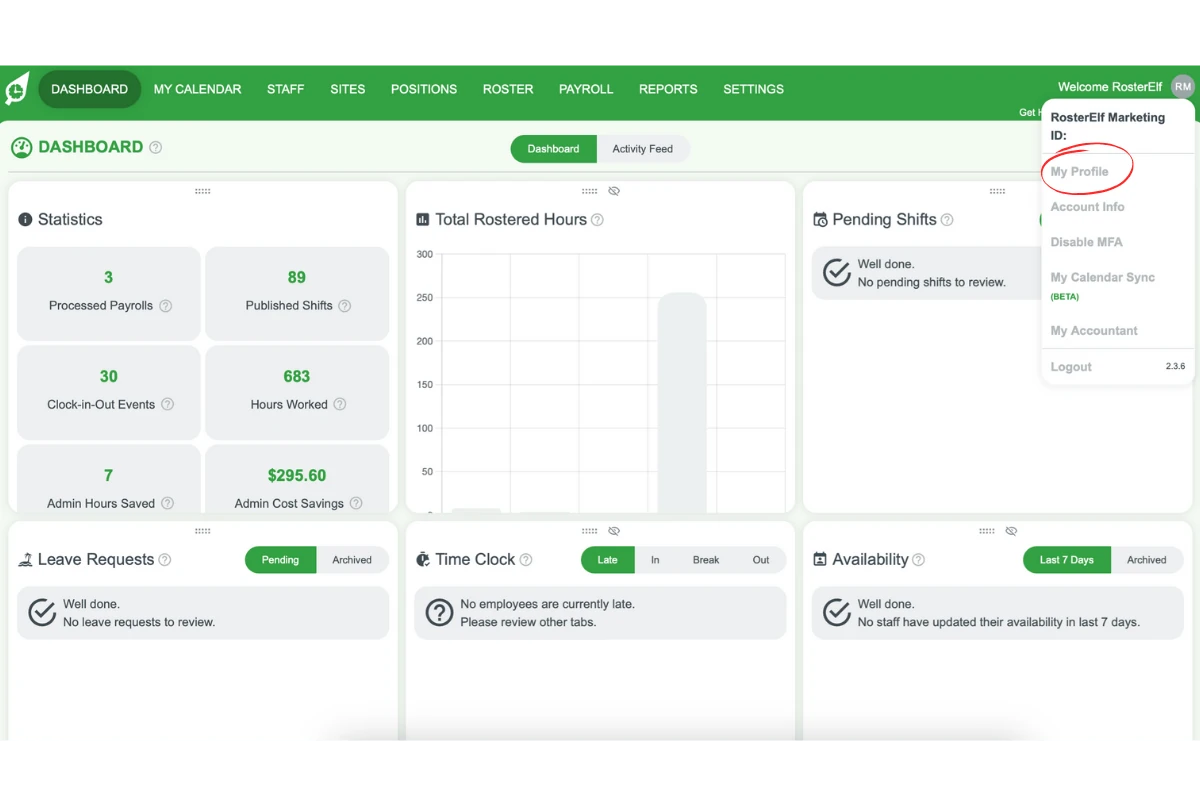
1.1.2 Select My Profile from the dropdown menu.
2. Updating profile details
This section provides instructions on how to update your personal information in the My Profile section. It covers how to change your profile picture, name, email, phone number, and password.
2.1 changing profile information
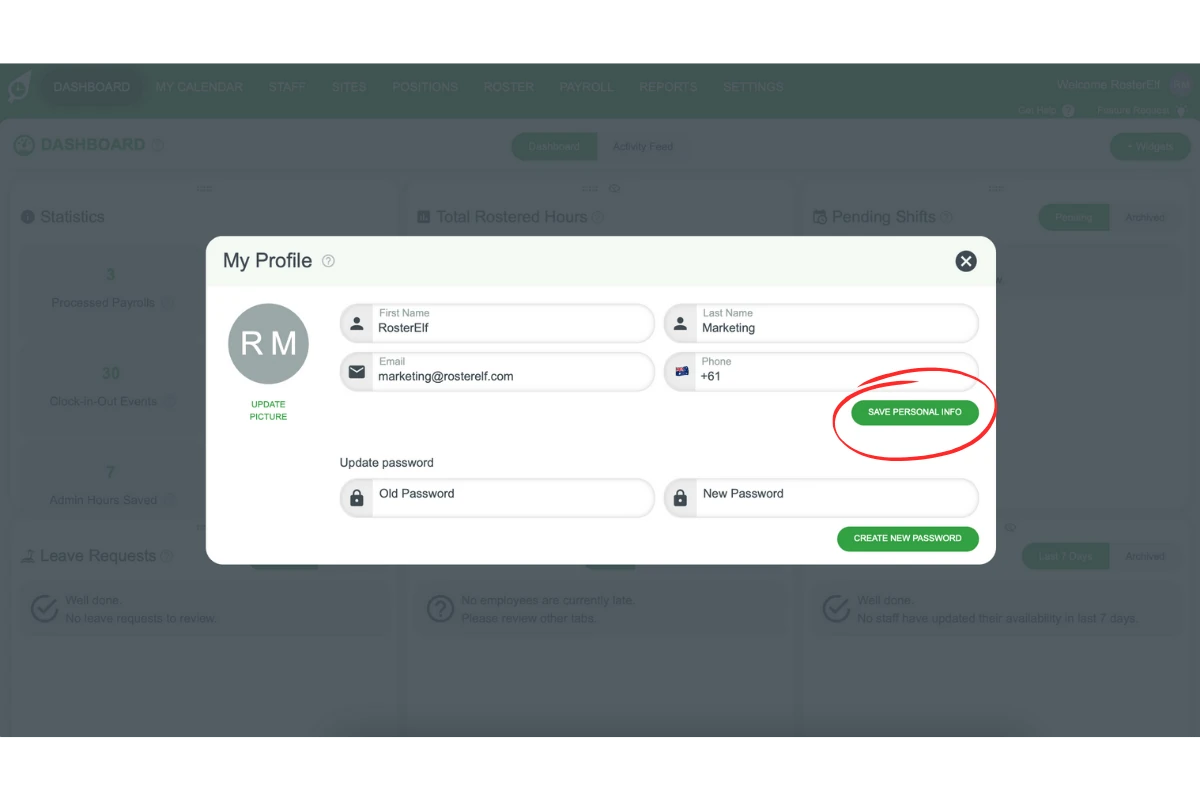
2.1.1 Locate the field you want to update, such as name, email, or phone.
2.1.2 Enter the new information into the relevant field.
2.1.3 Click Save my personal info to apply your changes.
Frequently asked questions
1. How do I access my profile settings in RosterElf?
Click on your avatar in the top right corner of the screen, then select My Profile from the dropdown menu to view and update your personal details.
2. How can I change my profile picture in RosterElf?
Go to the My Profile section, click on your current profile picture, upload a new image, and click Save to update it.
3. Can I update my email address in RosterElf?
Yes, go to My Profile, locate the email field, enter your new email address, and click Save to confirm the change.
4. What should I do if I need to change my password?
Go to the My Profile section, select the password field, enter your new password, and click Save to secure your account with the updated password.
5. Can I update my address via the My Profile section?
No, you will need to go to My HR Hub to update your personal information like address, bank details, tax details, and superannuation.