

Updating personal information in RosterElf
This guide shows employees how to keep their RosterElf profile current on iOS and Android. You will learn where to find the My Profile screen, how to edit key fields such as name, email, mobile and password, and why staying up to date matters. Accurate details mean you never miss roster notifications, shift changes or pay-related alerts. All changes sync instantly with the web platform, so managers always hold the right contact information. Follow the quick steps below and keep your account secure, professional and ready for work.
1. Access your profile screen
First, open the My Profile screen where every editable field sits. The path takes seconds and works the same on any modern phone.
1.1 Open the More menu
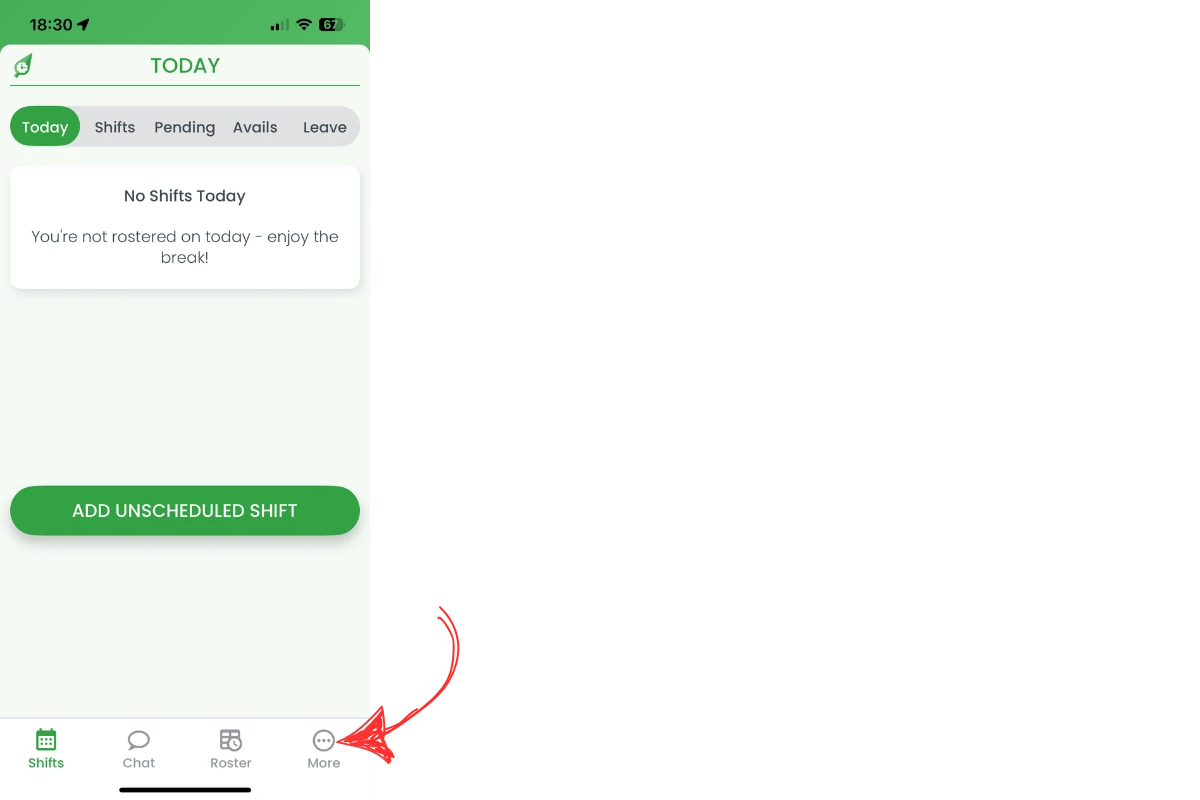
1.1.1 Tap the More icon at the far right of the bottom navigation bar.
1.2 Select My Profile
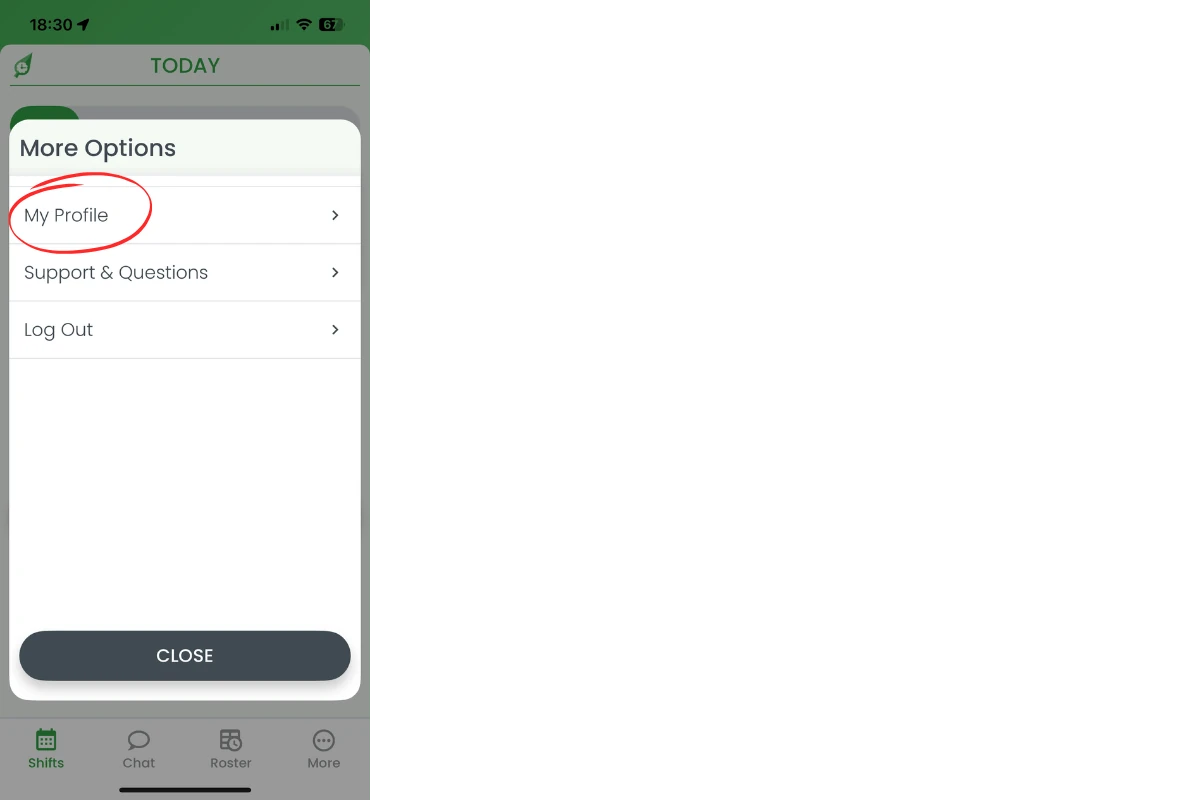
1.2.1 In the More Options modal, tap My Profile to load your personal details screen.
2. Edit personal details
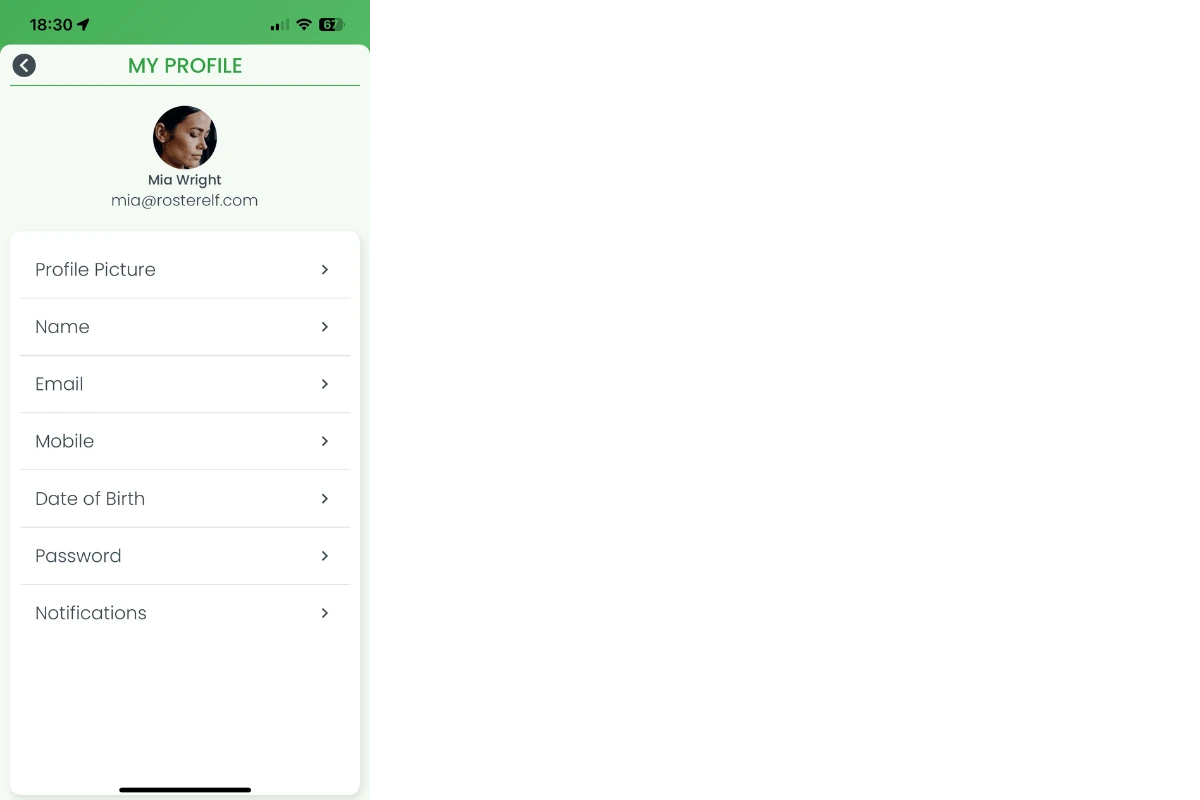
Inside My Profile, tap any field, make changes and save. Each update syncs to the cloud and notifies managers if required.
2.1 Available fields
2.1.1 Profile picture – upload or replace your photo. Only you can set it: your manager can’t add it for you.
2.1.2 Name – correct spelling or preferred name.
2.1.3 Email – ensure alerts reach the right inbox.
2.1.4 Mobile – keep SMS notifications working.
2.1.5 Date of birth – update if entered incorrectly.
2.1.6 Password – change for account security.
2.1.7 Notifications – toggle push and email alerts.
2.2 Save each change
2.2.1 Tap a field, enter new data and hit Save. A toast message confirms the update.
Frequently asked questions
1. Can my manager set my profile picture?
No. Only you can set your profile picture: tap More > My Profile > Profile Picture in the app, or use My Profile on the web. See change your profile picture.
2. Why can't I edit my email?
If your email is tied to payroll, only an administrator can update it. Contact your manager for help.
3. How often should I change my password?
RosterElf recommends every 90 days or immediately after any security concern.
4. Will managers see my new mobile number?
Yes. The system updates instantly and uses the new number for SMS alerts.
5. Can I hide my date of birth from colleagues?
Staff cannot view each other’s personal data; only managers and payroll have access.
6. Do edits sync to the web app?
All changes made on mobile reflect across the web platform and reports in real-time.