

Configure public holiday settings in RosterElf
This guide explains how to set and manage public holiday settings for your RosterElf site. You’ll learn how to navigate to the Public Holidays tab, add or import custom holidays, and remove ones that don’t apply. Keeping your public holiday settings accurate ensures your roster calendar reflects the correct schedule and that public holiday pay rates are applied properly.
This article covers accessing and customising your site’s public holiday list. For a fuller walkthrough that also covers deleting holidays and reverting to the standard list, see manage public holidays. Once your public holidays are configured, see our guide on how to pay staff for public holidays in RosterElf.
1. Access the public holiday settings
Follow the steps below to navigate to the public holiday settings for your site.
1.1 Navigate to the sites tab
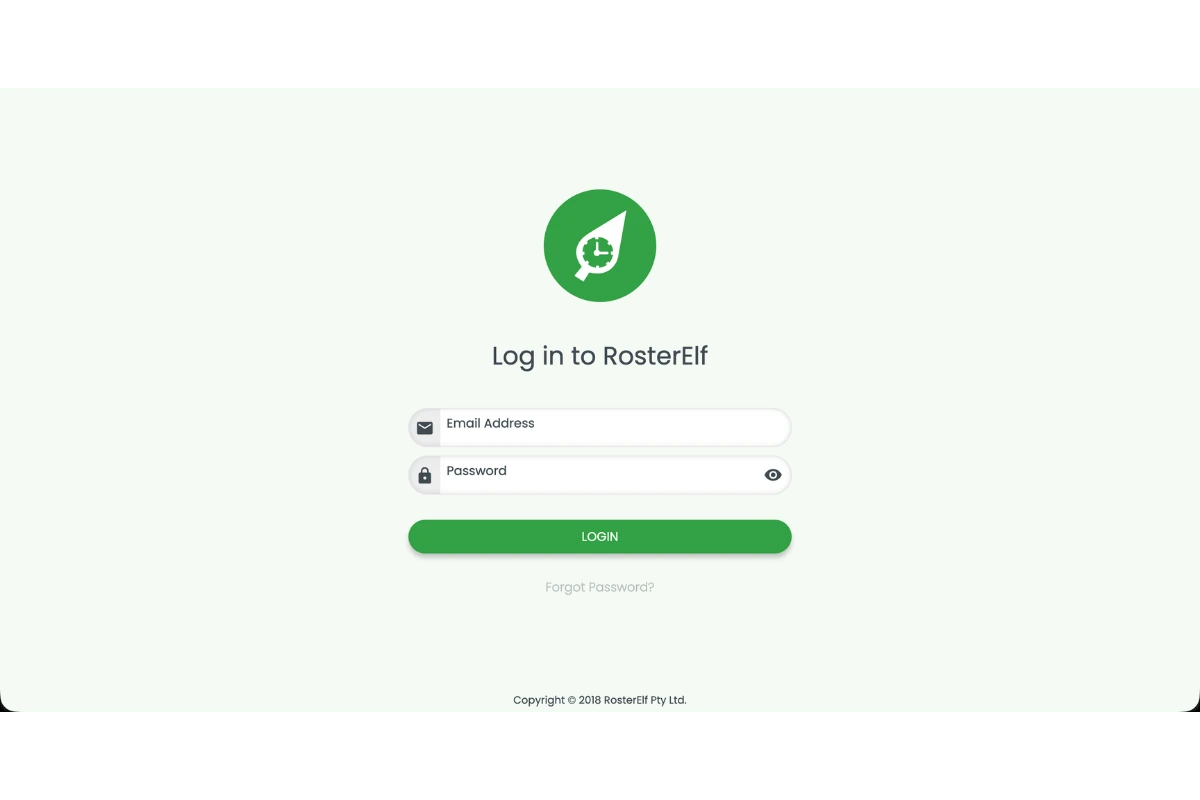
1.1.1 Log in to your RosterElf account.
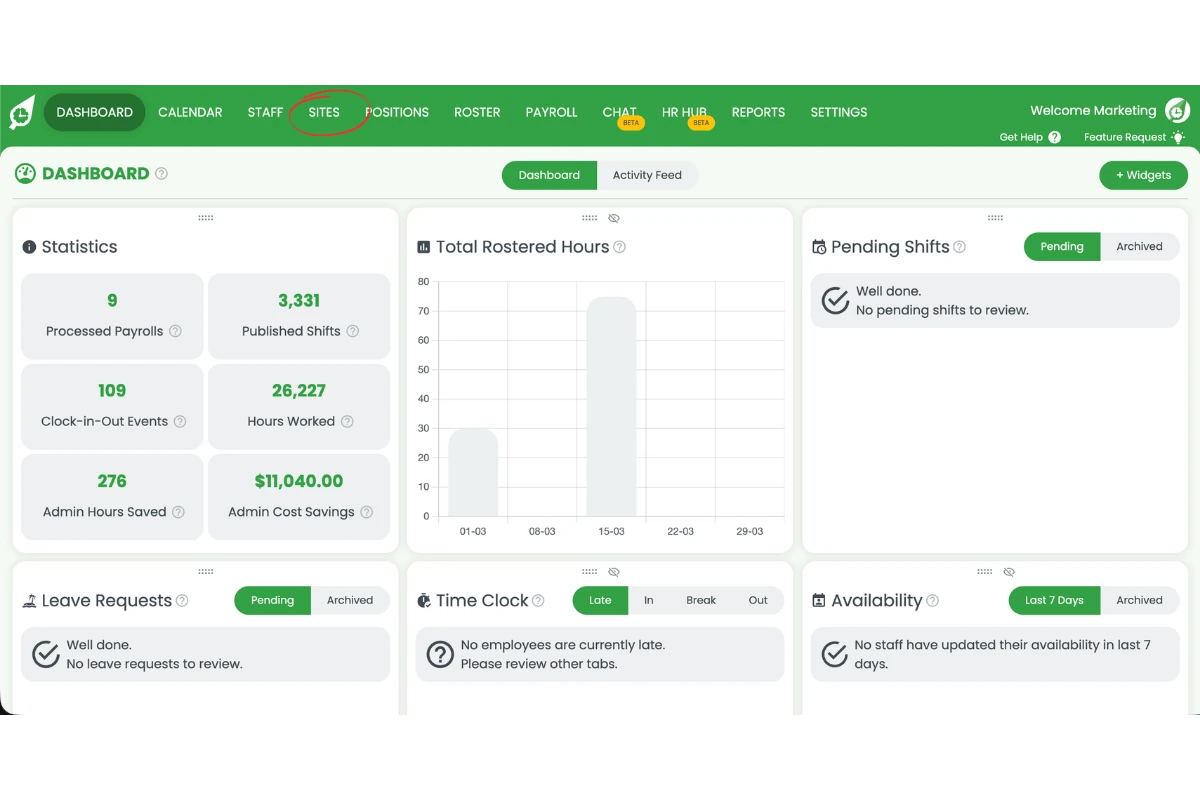
1.1.2 Click on the Sites tab in the main navigation menu.
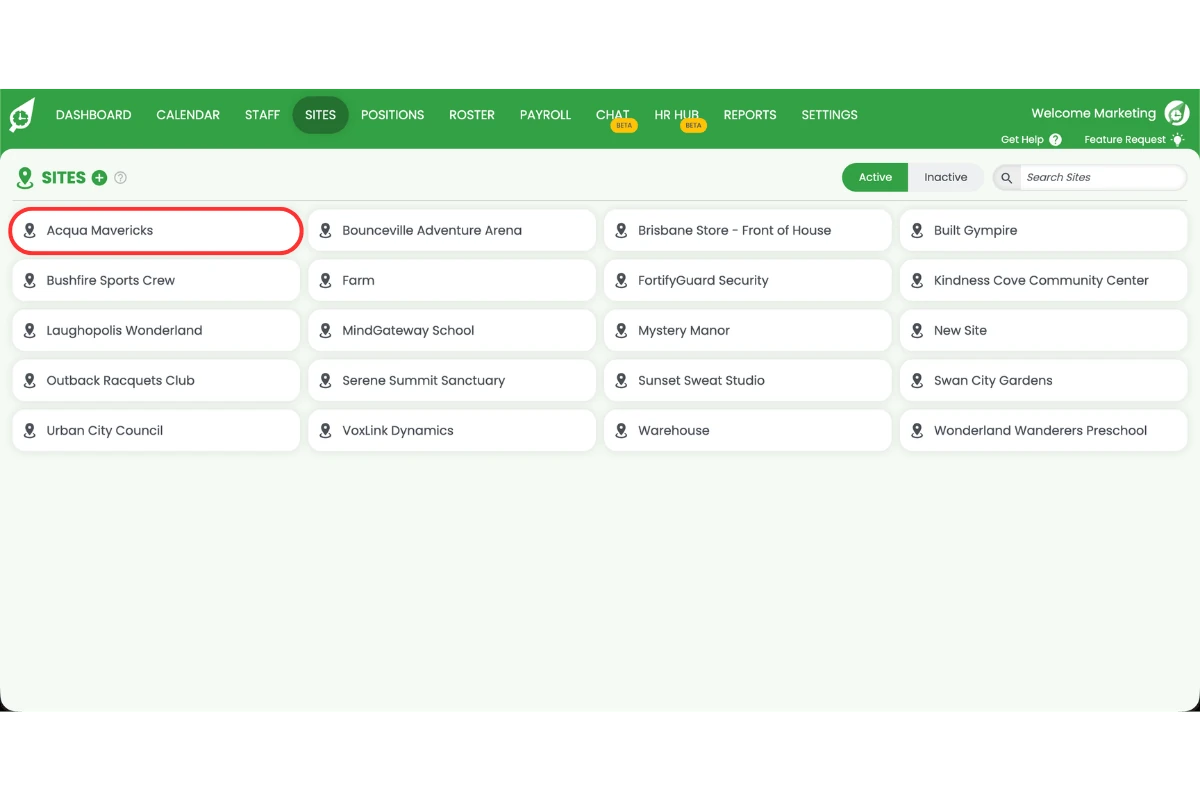
1.2 Select your site
1.2.1 Find the site you want to configure public holidays for.
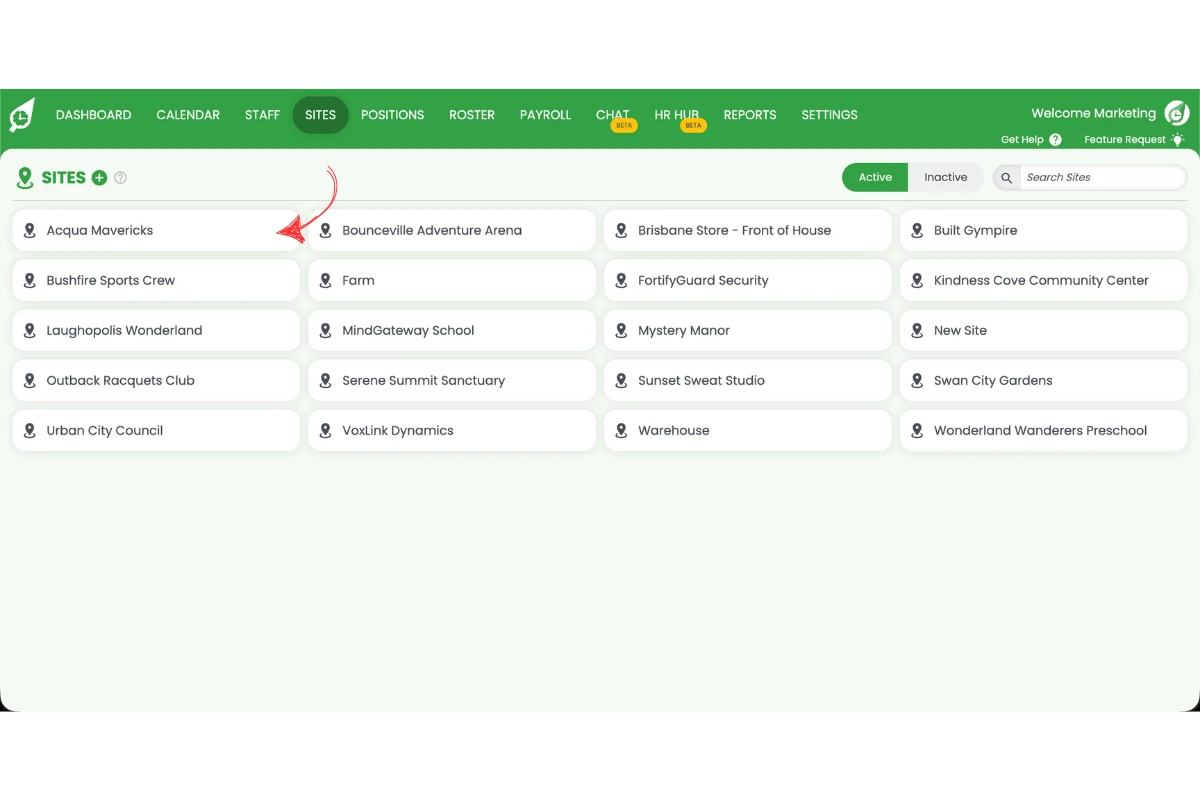
1.2.2 Click on the site name to open its settings.
1.3 Open the public holidays tab
1.3.1 Locate the Public Holidays tab in the site settings panel.
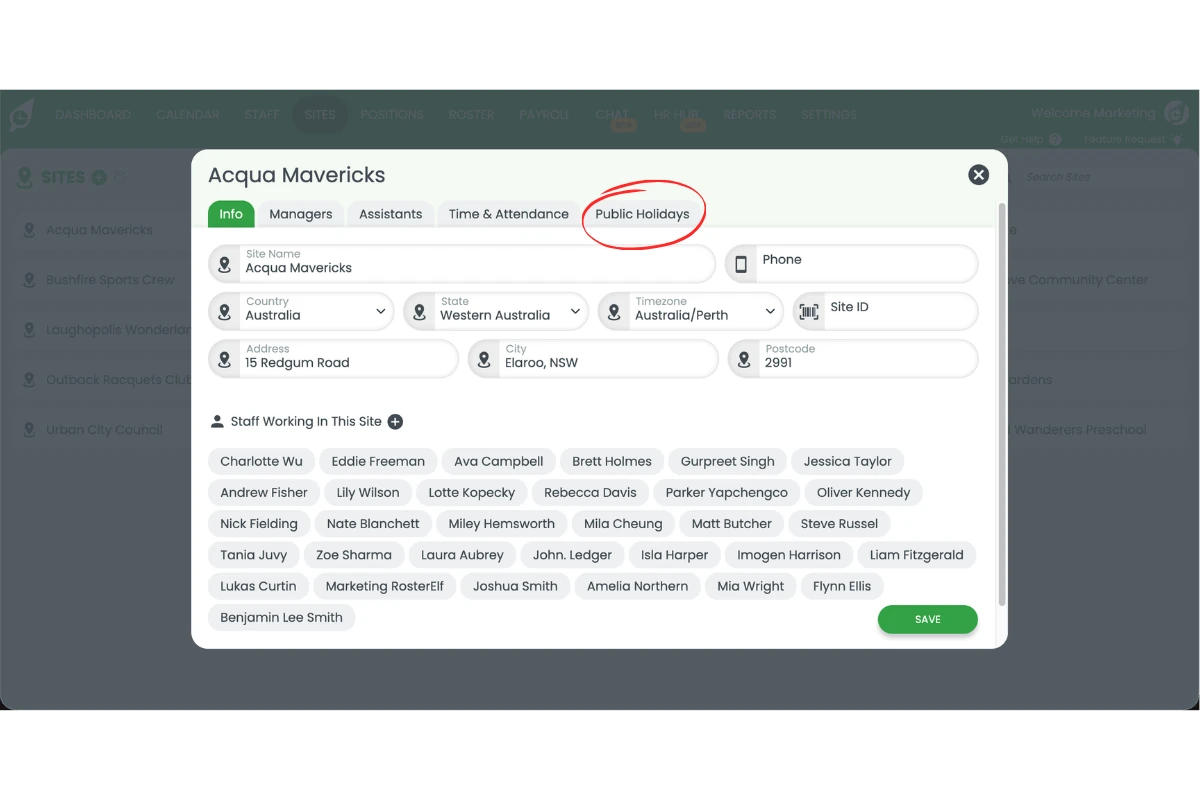
1.3.2 Click on the Public Holidays tab to open the holiday settings. While a site is using the standard list, this tab shows the default public holidays for the site’s country and state.
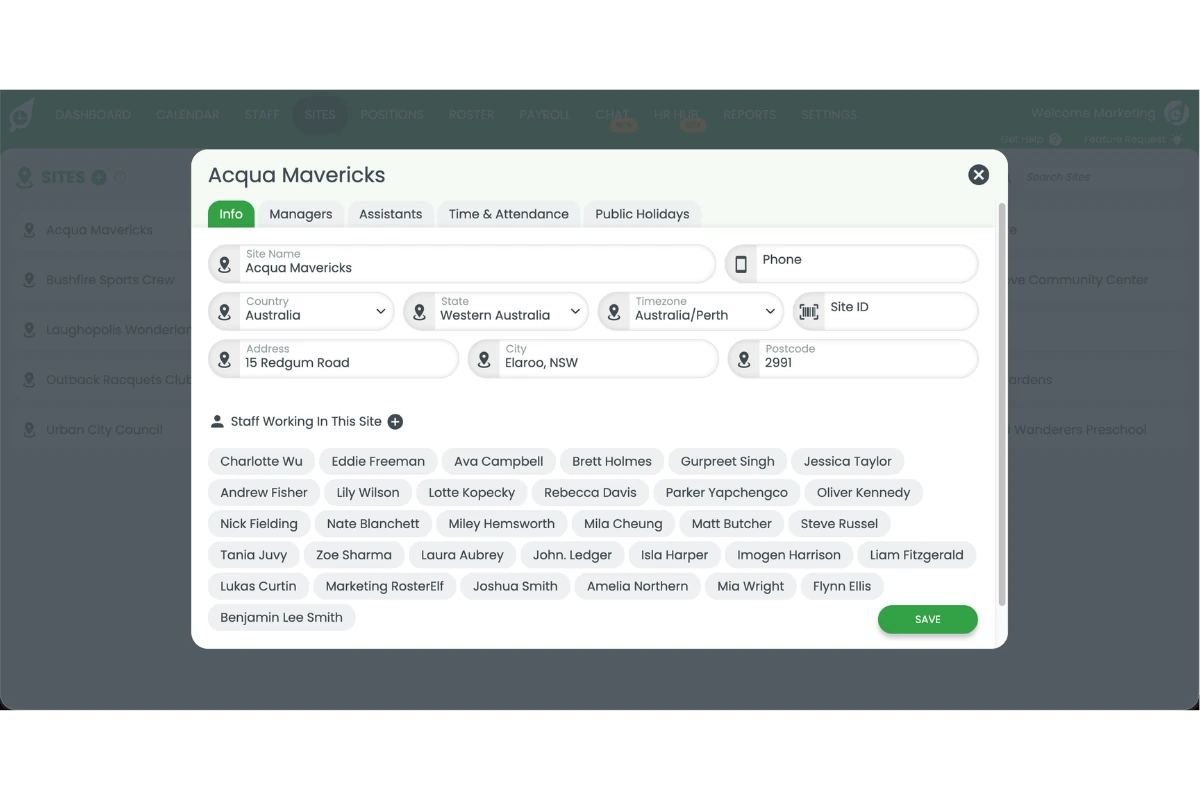
2. Manage public holidays
Once you’re in the Public Holidays tab, you can switch to a custom list to add or import holidays, remove ones that don’t apply to your site, and revert to the standard list at any time.
2.1 Switch to custom public holidays
2.1.1 Click the I want to customise my public holidays button below the default holiday list.
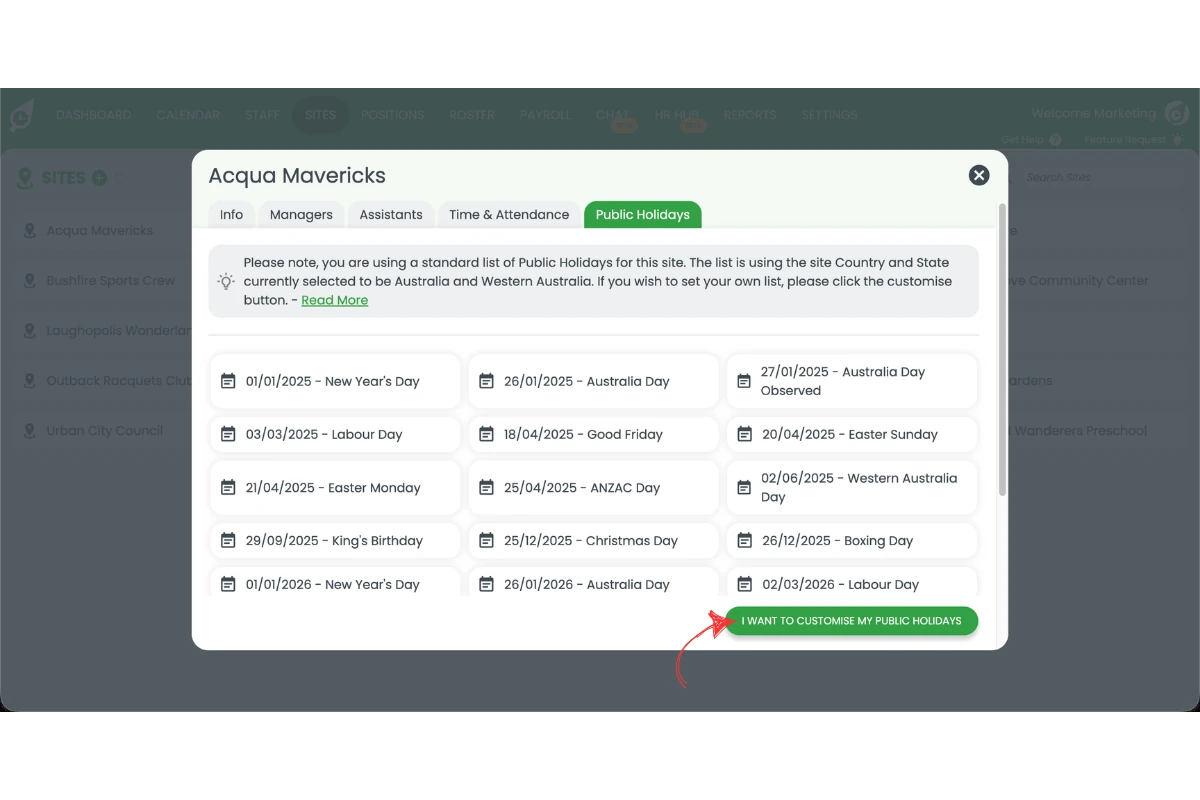
2.1.2 This opens the Custom Public Holidays view, with Import From a List and Add a Single Day buttons at the top right.
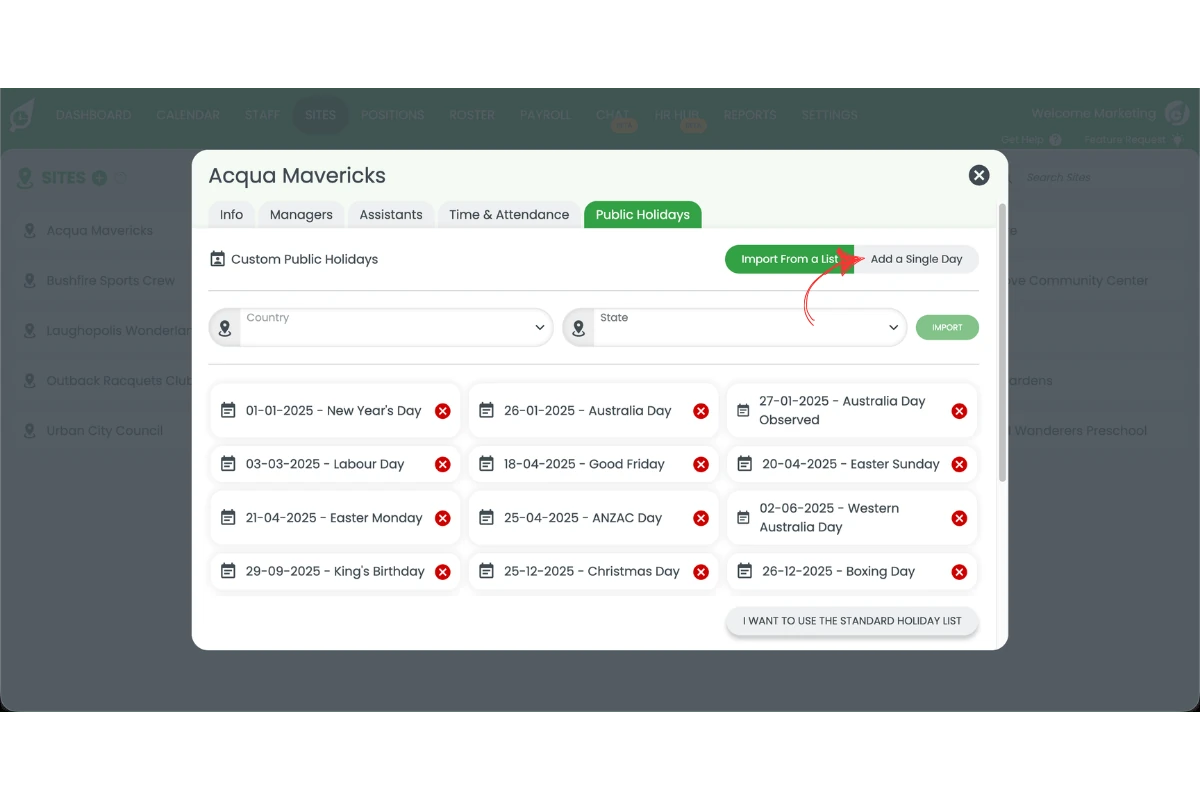
2.2 Add a single public holiday
2.2.1 Click Add a Single Day. Enter the holiday name and date in the fields provided.
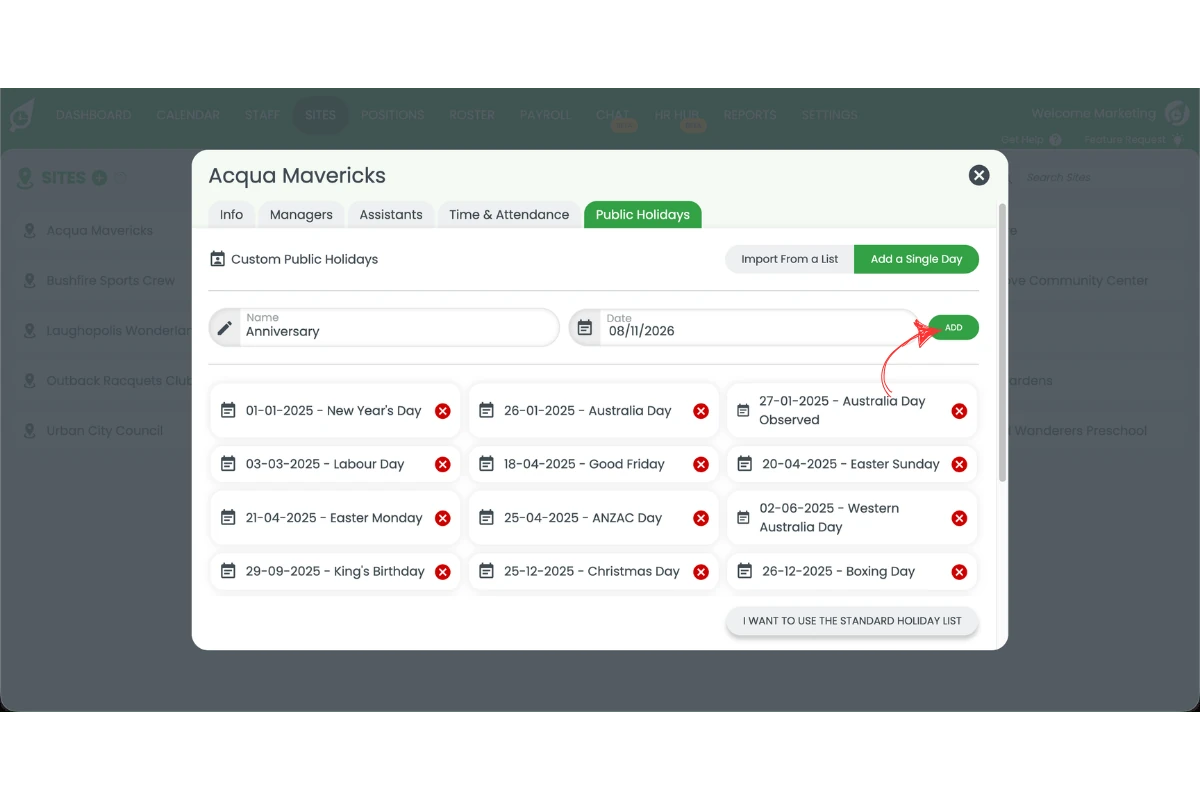
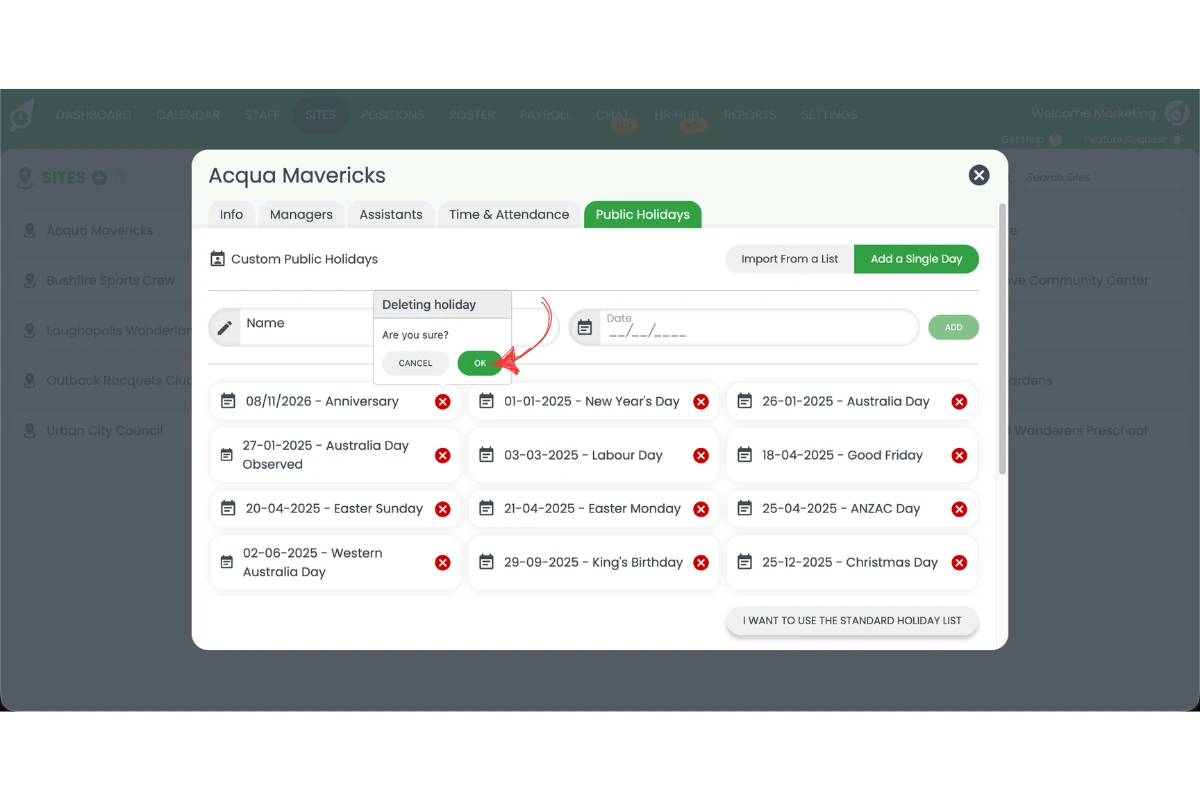
2.2.2 Click Add to save the new public holiday.
2.3 Import holidays for a different country or state
2.3.1 Click Import From a List, then select the Country and State from the drop-down lists.
2.3.2 Click Import to load the public holidays that apply.
2.4 Remove a public holiday
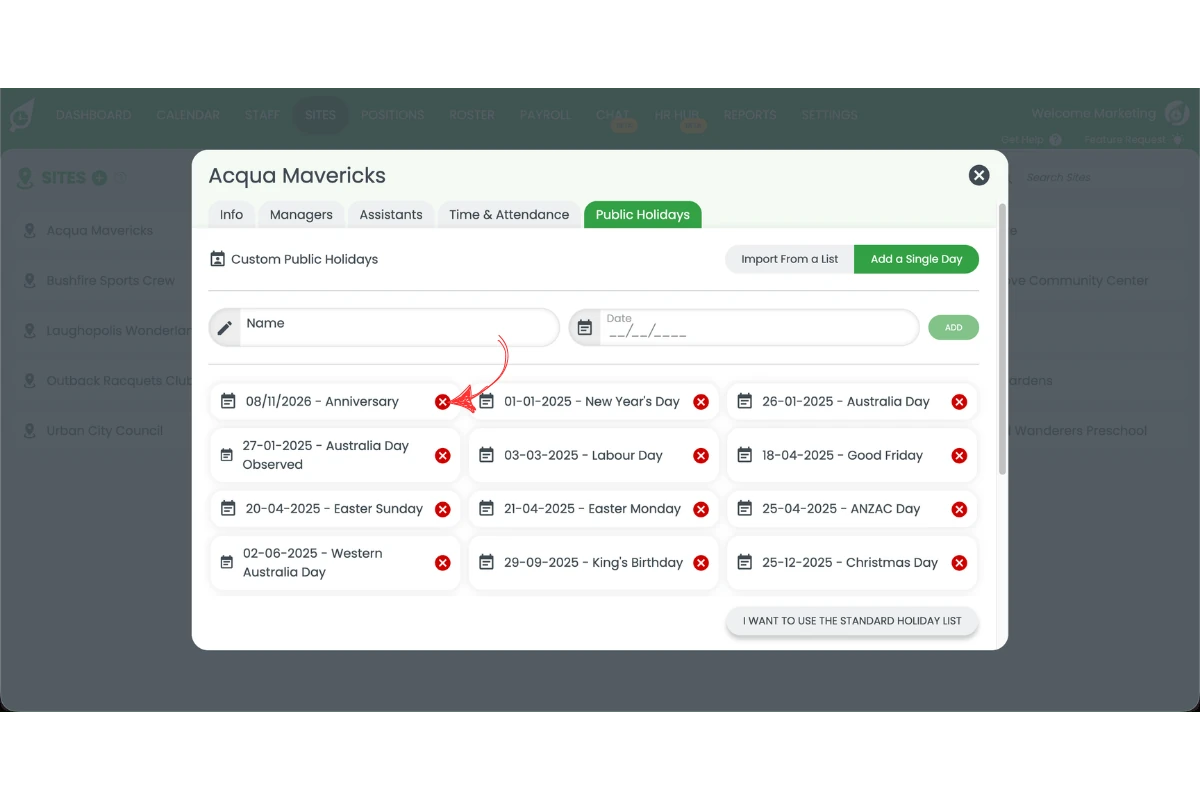
2.4.1 Find the holiday you want to remove in the Public Holidays list.
2.4.2 Click the red × icon next to the holiday.
2.5 Revert to the standard holiday list
2.5.1 Click I want to use the standard holiday list at the bottom of the Public Holidays tab.
2.5.2 This discards your customisations and restores the standard public holidays for your site’s country and state.
Frequently asked questions
1. How do I access the public holiday settings in RosterElf?
To access the public holiday settings, log in to your RosterElf account, navigate to the Sites tab in the main menu, select your site, and open the Public Holidays tab from the site settings panel.
2. How do I add a custom public holiday to my site?
Go to the Public Holidays tab and click “I want to customise my public holidays”. Then click “Add a Single Day”, enter the holiday name and date, and click Add to confirm.
3. How do I import the public holiday list for a different country or state?
After clicking “I want to customise my public holidays”, click “Import From a List”, select the Country and State from the drop-down lists, then click Import to load the public holidays that apply.
4. How do I remove a public holiday from my site settings?
To remove a public holiday, open the Public Holidays tab in your site settings, locate the holiday in the list, click the red × icon next to it, and confirm the removal when prompted.
5. Can I revert to the standard public holiday list for my site?
Yes. Click “I want to use the standard holiday list” at the bottom of the Public Holidays tab to discard any customisations and restore the standard public holidays for your site’s country and state.
6. Why should I configure public holiday settings in RosterElf?
Configuring public holiday settings ensures your roster calendar and payroll calculations are accurate, preventing scheduling errors and ensuring correct public holiday pay rates are applied automatically.
7. Can I edit an existing public holiday in my site settings?
Yes. To edit an existing public holiday, open the Public Holidays tab in your site settings, locate the holiday in the list, click on it to make changes, then save your updates.
8. Will a public holiday show up on my roster once it's added?
Yes. Once a public holiday is added or imported for your site, the date is highlighted on the roster calendar so you can see at a glance which days are public holidays.