

Resetting a staff member's password
This guide explains how to reset a staff member’s password in RosterElf, for when an employee forgets theirs or cannot get in. RosterElf emails the staff member a secure link and they choose their own password — no password is ever sent by email, and nobody else sees it. If an employee wants to reset their own password without asking you, they can follow the reset password in RosterElf guide.
1. How to reset a staff member's password
In this section you’ll reset a staff member’s password from the RosterElf dashboard. This emails them a link to set a new password themselves.
1.1 steps to reset the password
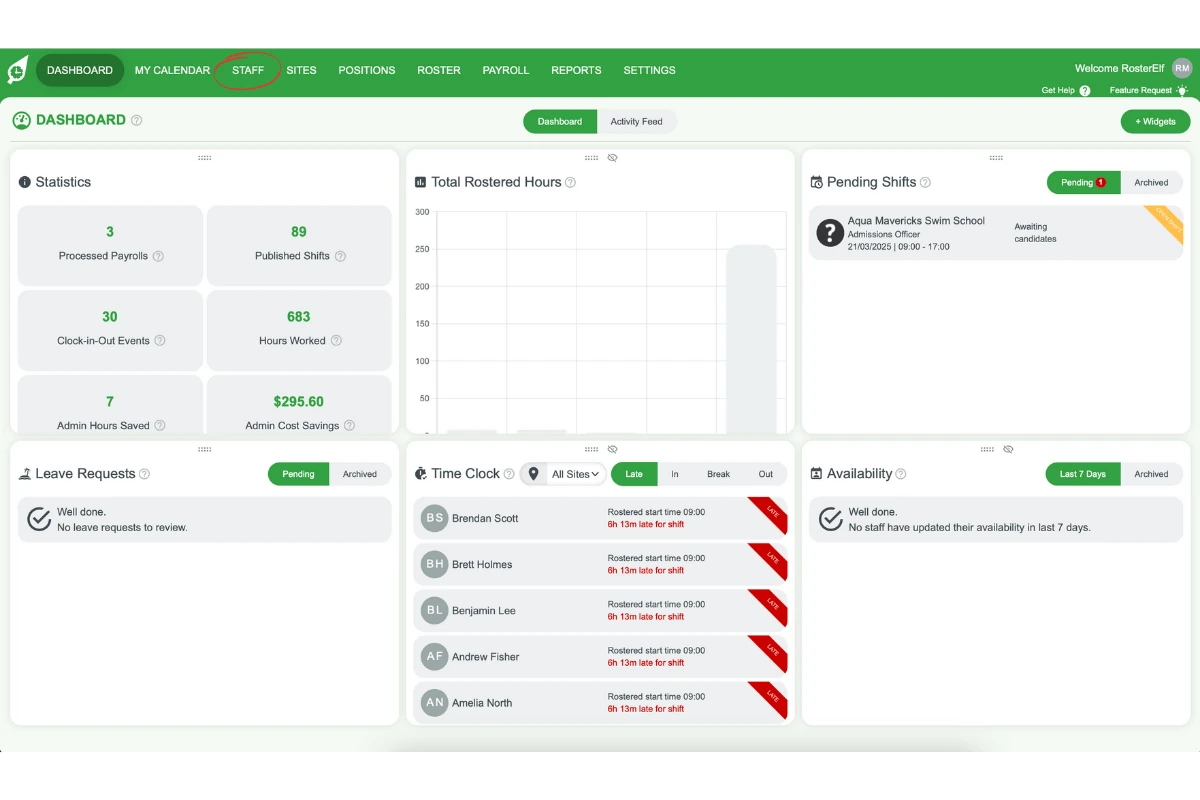
1.1.1 Click the Staff tab in the RosterElf dashboard.
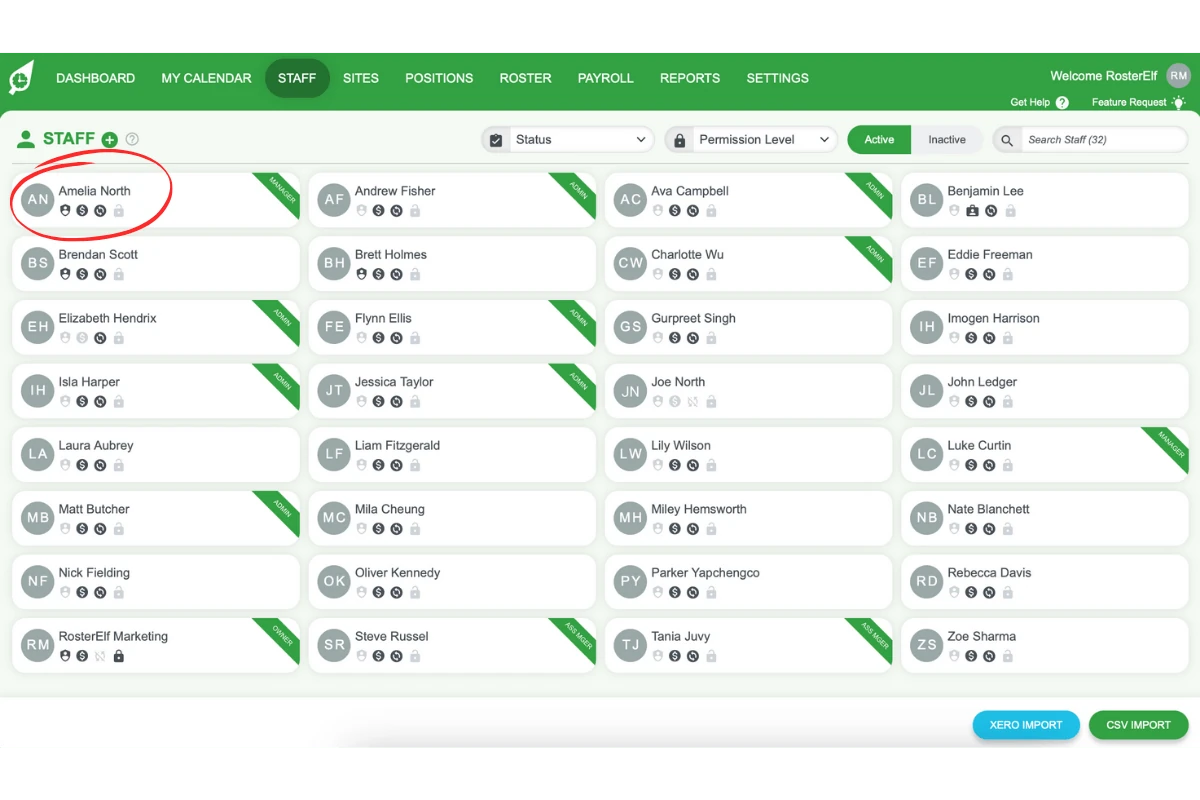
1.1.2 Select the employee whose password needs to be reset.
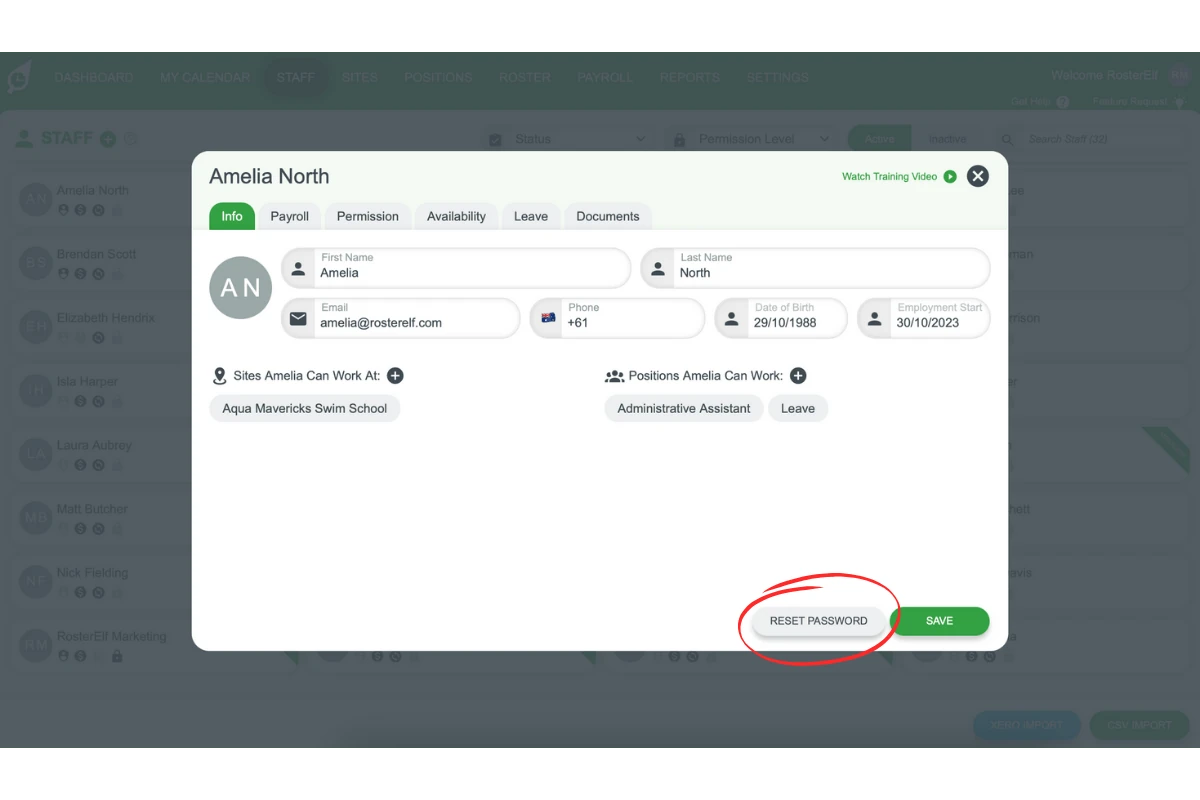
1.1.3 Click SEND NEW PASSWORD (the screenshot below shows its earlier label, RESET PASSWORD). RosterElf emails the staff member a link to set their own password.
2. Resending login information for new users
If the staff member has never logged into RosterElf, the option to reset the password will appear as SEND WELCOME EMAIL (earlier label: RESEND LOGIN INFO). This section explains how to resend the initial login email for such cases.
2.1 steps to resend login information
2.1.1 Click the Staff tab and select the employee who has never logged in.
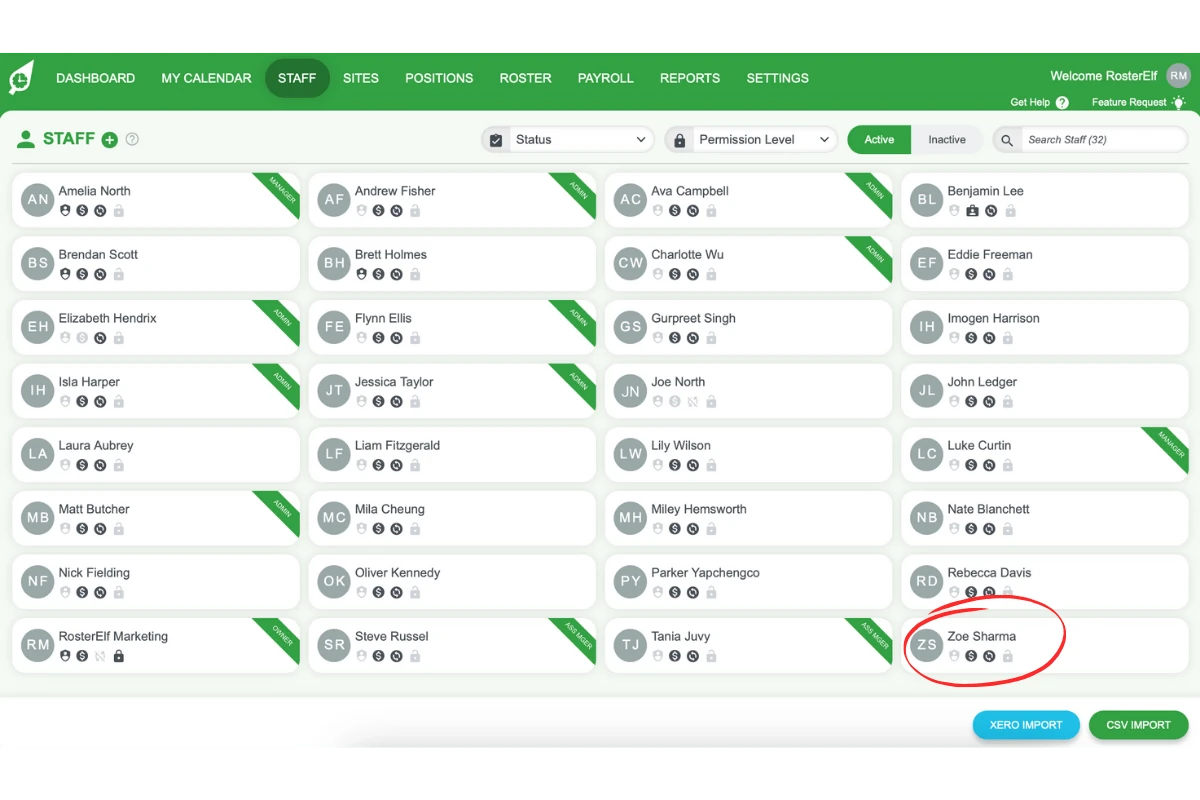
2.1.2 Click SEND WELCOME EMAIL.
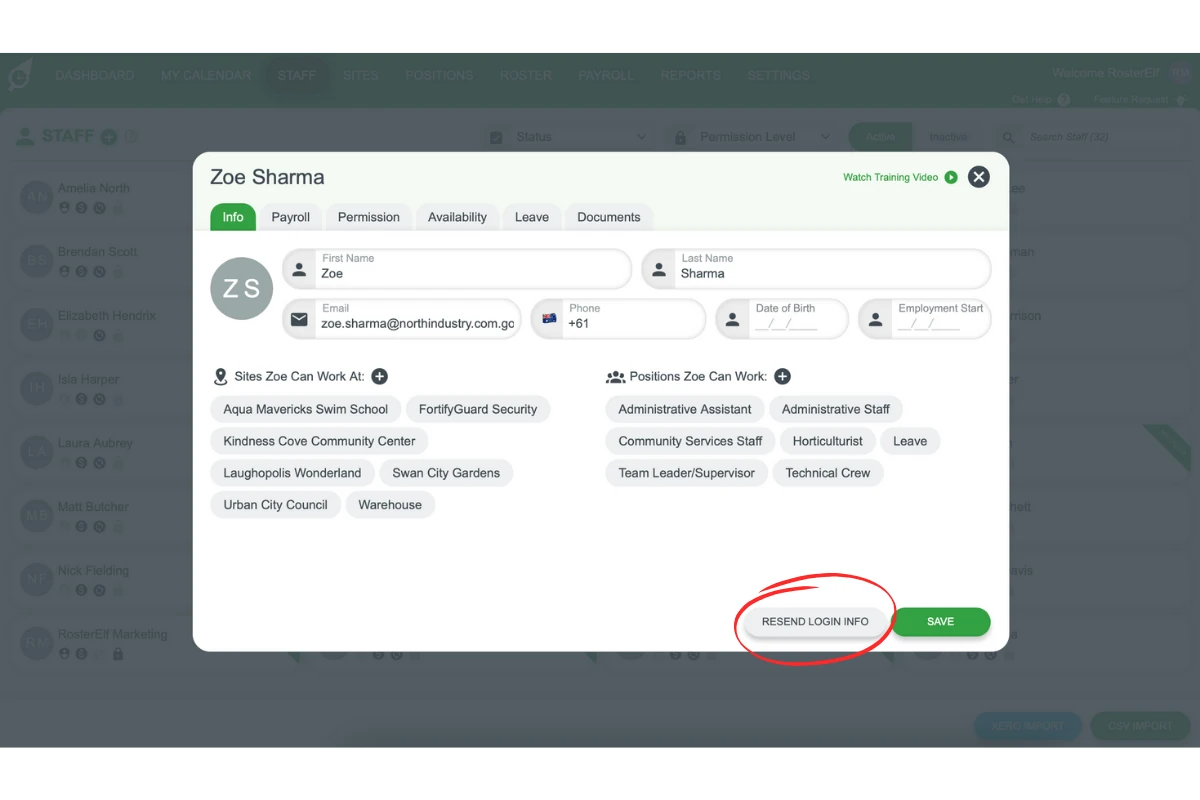
2.1.3 RosterElf resends the welcome email, which carries a Set your password link valid for 48 hours.
Note
RosterElf never emails a password — both options send a link the employee uses to choose their own. Changing a password also ends active sessions, so ask them to log out and back in on the Smartphone app and on the TimeClock app if they use a tablet.
If a staff member still can’t log in after a reset or resend, see why can’t I log in to RosterElf? for other causes like an inactive profile, MFA codes or the wrong app.
Frequently asked questions
1. How do I reset a staff member's password in RosterElf?
Click the Staff tab in the RosterElf dashboard, select the employee, and click SEND NEW PASSWORD (earlier label: RESET PASSWORD). RosterElf emails them a secure link to set a new password themselves.
2. Does the staff member receive a new password by email?
No. RosterElf no longer emails passwords. The employee receives a link, clicks Reset Your Password, and chooses their own password. Nobody — including you as their manager — ever sees it.
3. What should I do if an employee has never logged into RosterElf?
If the employee has never logged in, the option shows as SEND WELCOME EMAIL (earlier label: RESEND LOGIN INFO). Click it and RosterElf resends the welcome email, which carries a Set your password link. That link expires after 48 hours; if it has, click SEND WELCOME EMAIL again or ask them to use Forgot password on the login screen.
4. What is the difference between Send New Password and Send Welcome Email?
SEND NEW PASSWORD is for employees who have logged in before. SEND WELCOME EMAIL is for employees who have never logged in and need the welcome email again. Both email a link the employee uses to set their own password.
5. What permission level do I need to reset a staff member's password?
An Assistant Manager or higher can use SEND NEW PASSWORD or SEND WELCOME EMAIL for any active staff member.
6. The staff member says their link isn't working — what should I check?
Reset and welcome links expire, and requesting a new one invalidates the previous link. If they report an invalid or expired link, click SEND NEW PASSWORD or SEND WELCOME EMAIL once more and ask them to use the newest email, not an older one still sitting in their inbox.
7. Will the staff member have to log in again on their phone or tablet?
Yes. Changing a password ends active sessions, so they need to log out and back in on the Smartphone app and, for managers, on the TimeClock app on a tablet. See logging out of the smartphone app and logging out of the Time Clock app.