

How to view and manage rostered shifts
Need a quick way to stay on top of every rostered shift? This article shows you how the free RosterElf iOS and Android apps keep your work life organised. In less than five minutes you will learn to open the roster, see past and future shifts up to three months ahead, swap a shift you can’t work, launch turn-by-turn directions to the correct site and add each rostered shift straight to your personal calendar. Following these steps means fewer last-minute calls to managers, no more wrong-site mishaps and reliable reminders before every start. Screens are identical on iPhone and Android, and each task takes only a tap or two, so you can master the process even while you’re on the move.
1. View rostered shifts on mobile
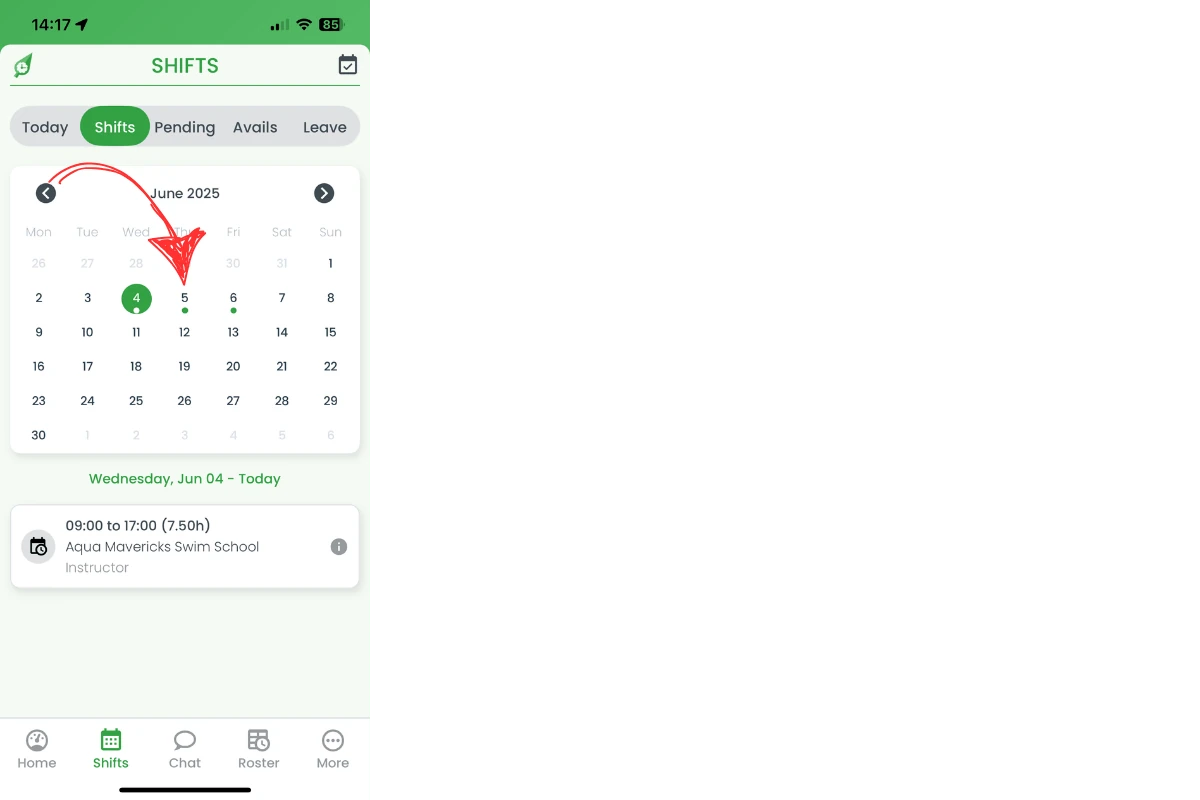
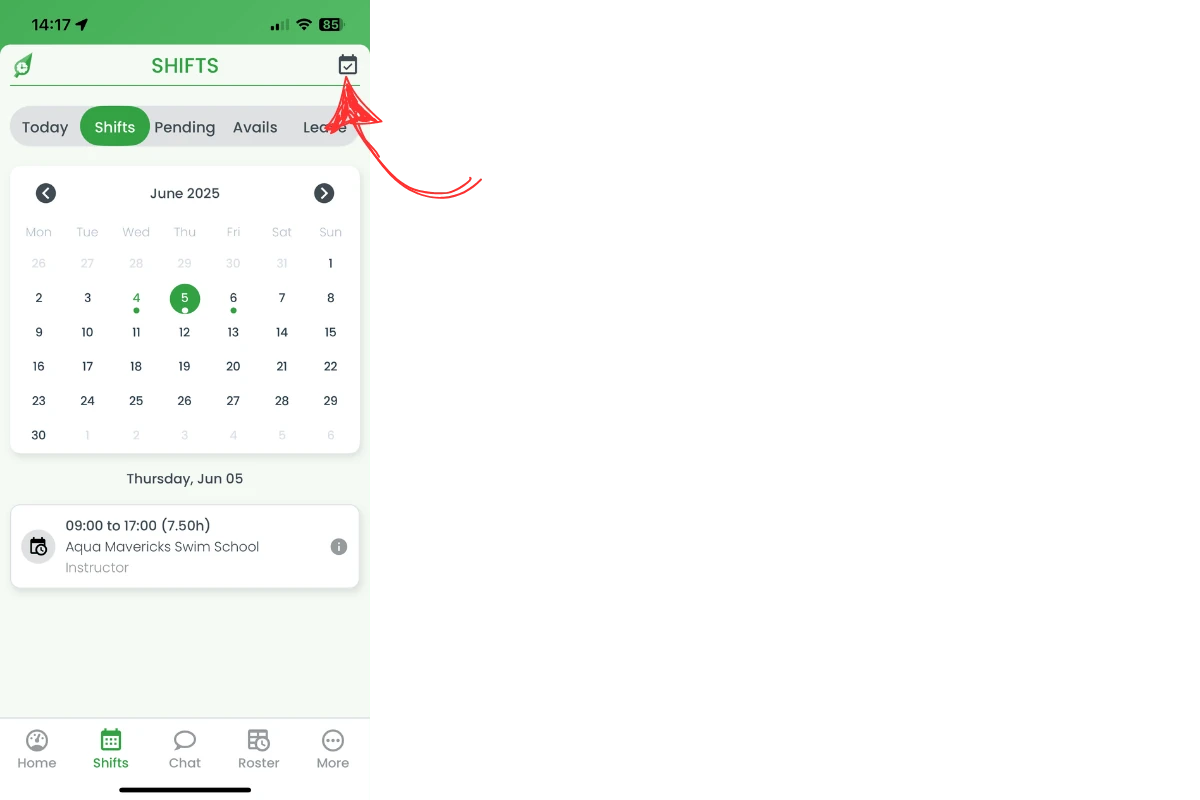
This section walks you through opening the roster in the app and reading the key details for any selected day. You’ll see how the calendar highlights dates containing rostered shifts and how to jump back to today with one tap. Keeping this view handy helps you plan transport, study or family time around your work commitments and eliminates roster surprises.
1.1 access rostered shifts screen
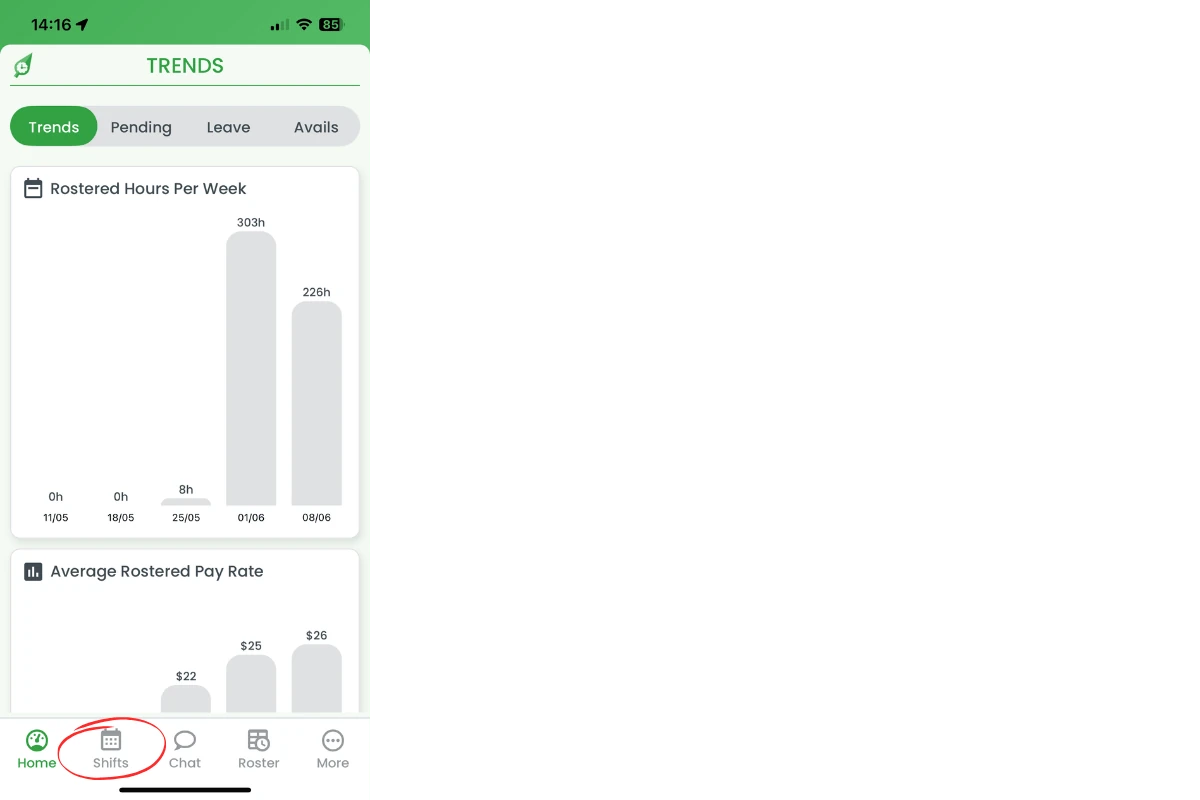
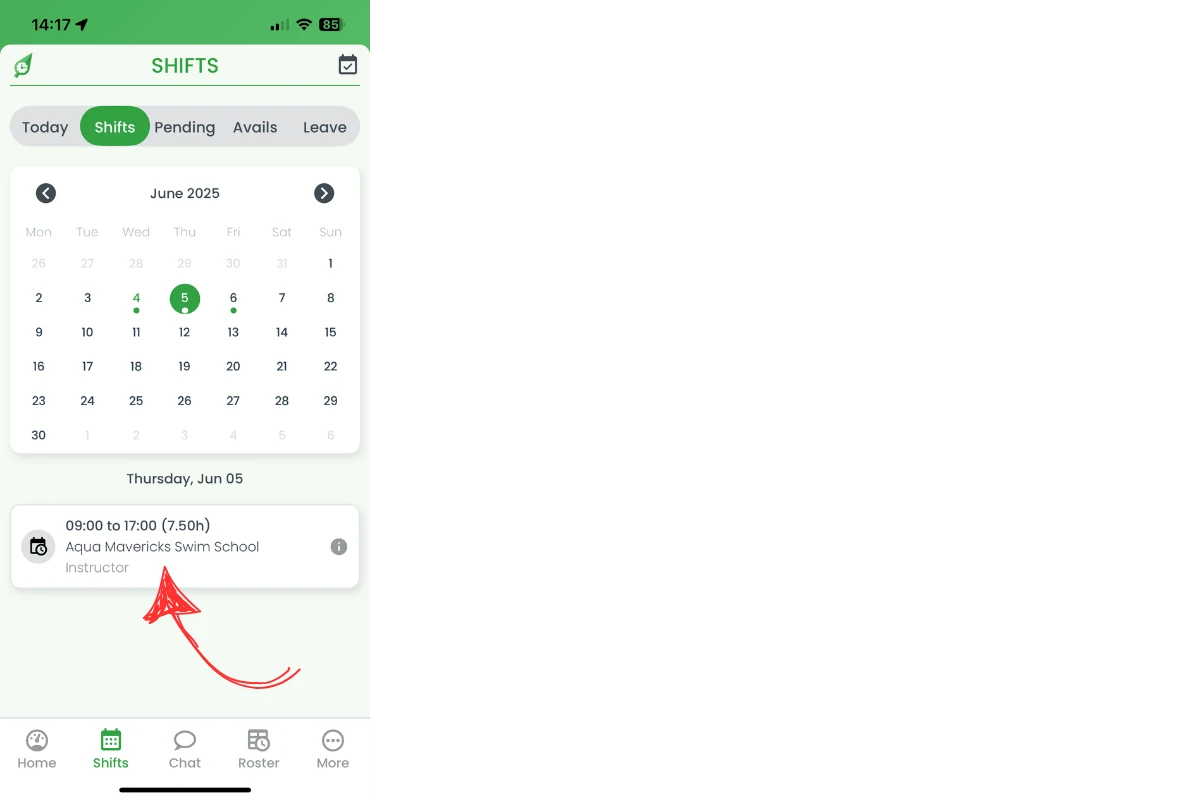
1.1.1 Open the RosterElf app and tap Shifts at the bottom of the screen.
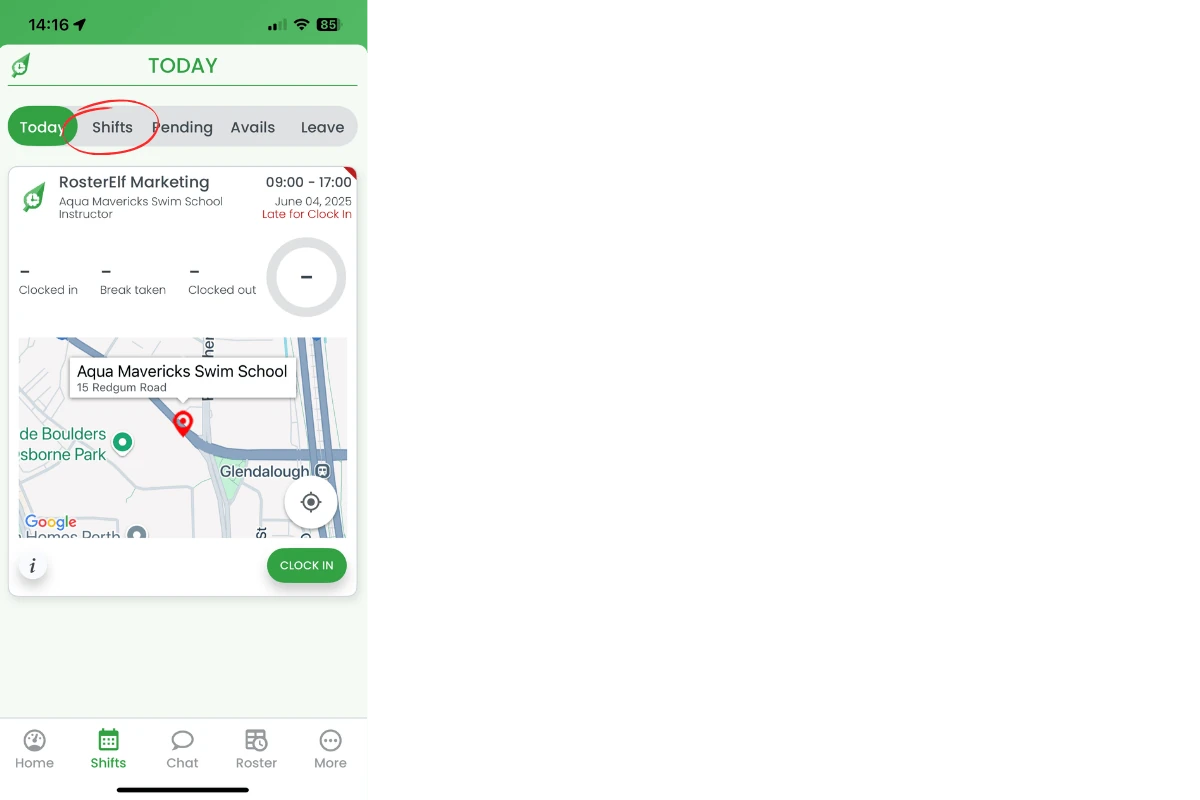
1.1.2 Select the Shifts tab at the top to view upcoming rosters.
2. Swap rostered shifts quickly
Sometimes life gets in the way of work. When that happens you can request a swap on any rostered shift up to forty-eight hours before the start time (subject to your workplace settings). The app notifies eligible teammates immediately, and managers stay informed, so the cover is sorted without messy group chats.
2.1 submit rostered shift swap
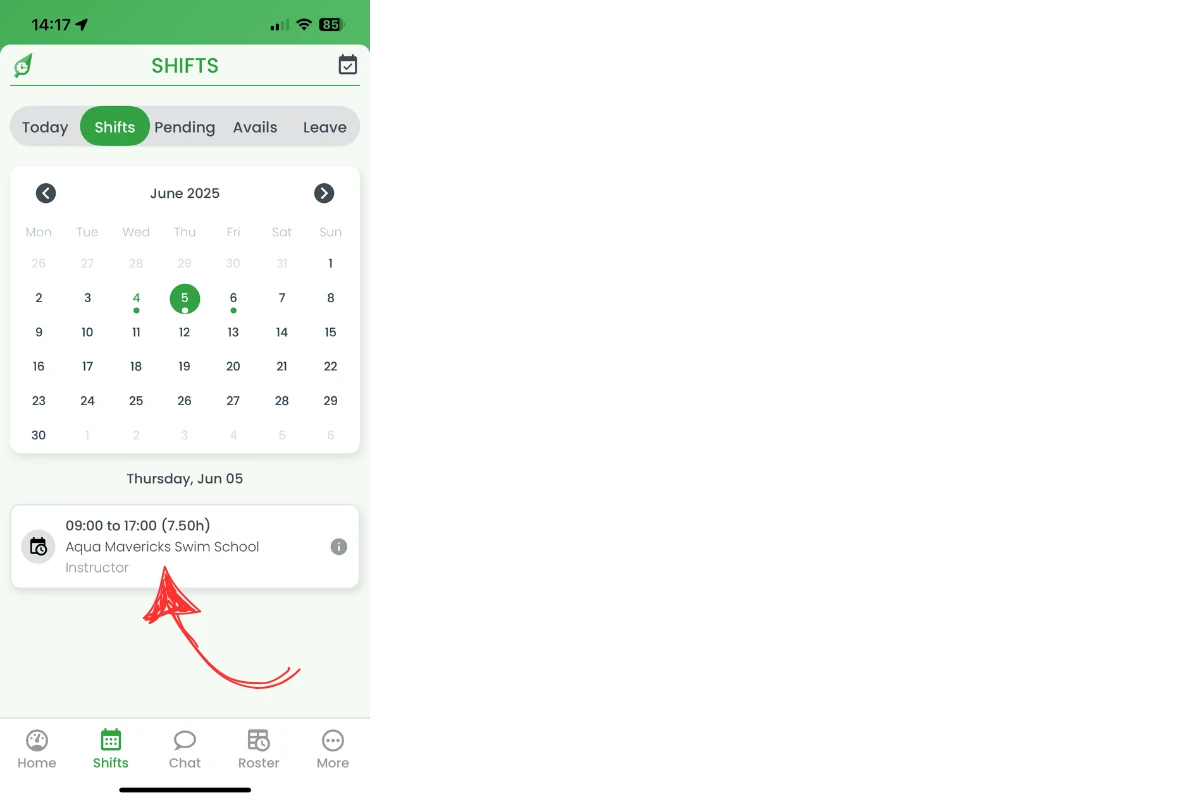
2.1.1 Check the calendar: days with a green dot contain rostered shifts.
2.1.2 Tap the today icon (top right) to jump back if needed.
2.1.3 Touch the shift card at the bottom to open details.
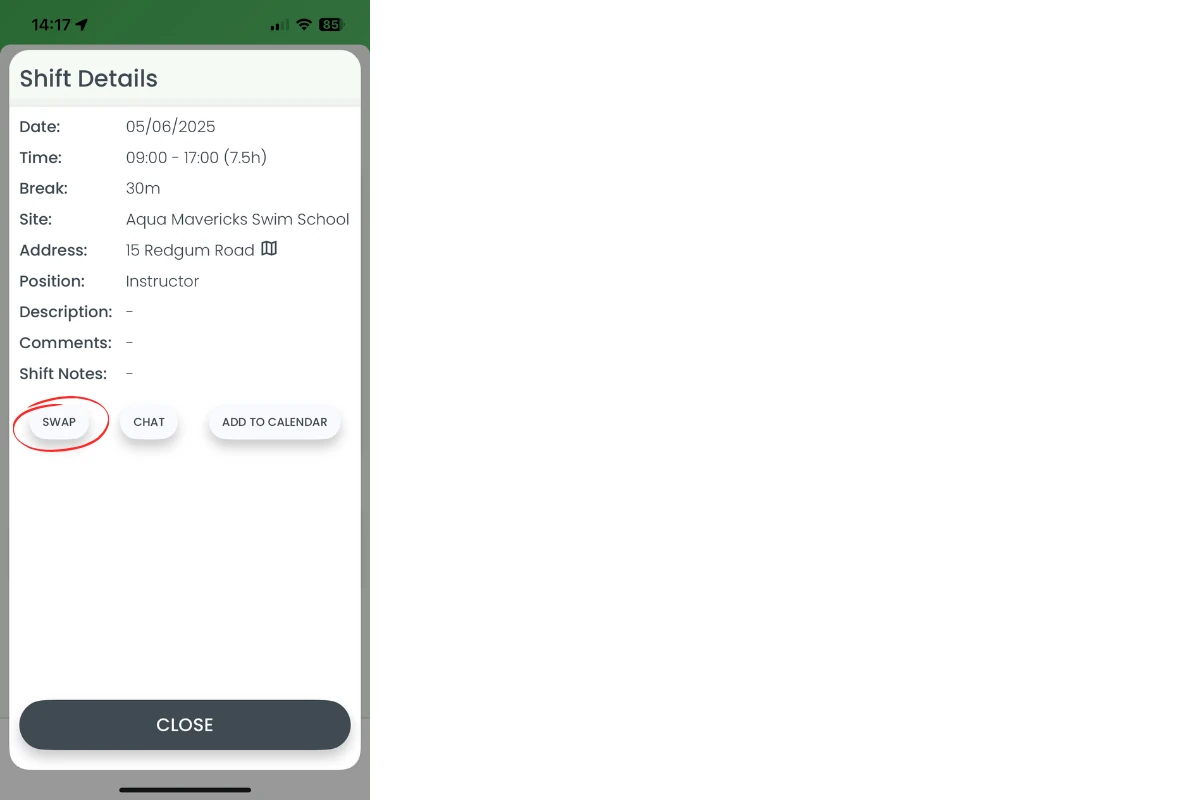
2.1.4 Press Swap.
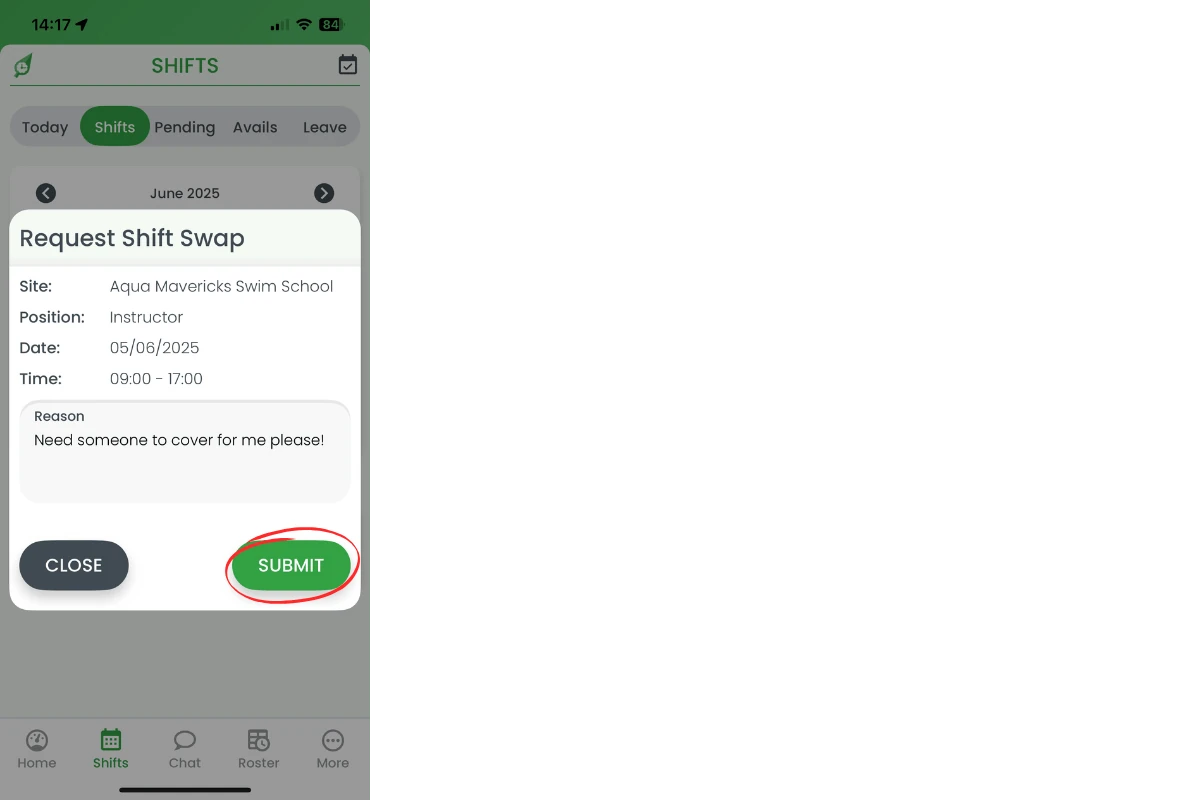
2.1.5 Add a brief reason and tap Submit.
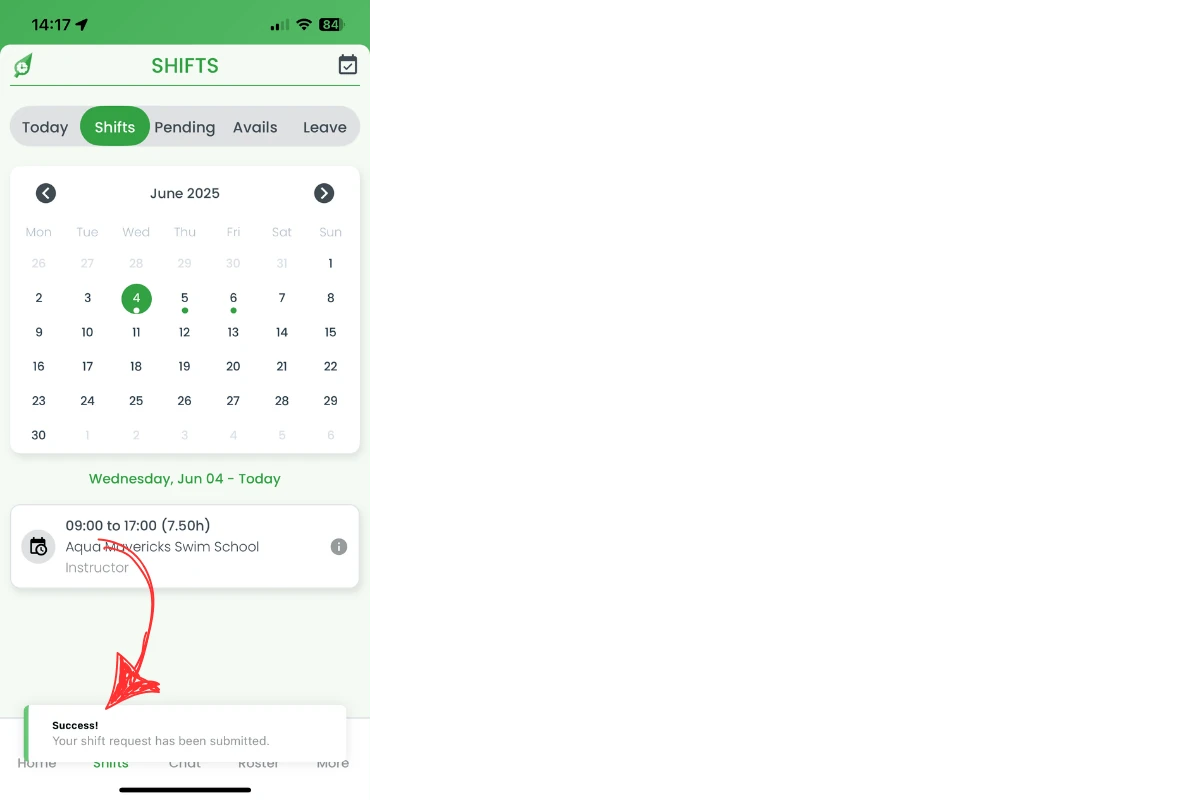
2.1.6 A confirmation banner appears to show the request is live.
3. Map rostered shift locations
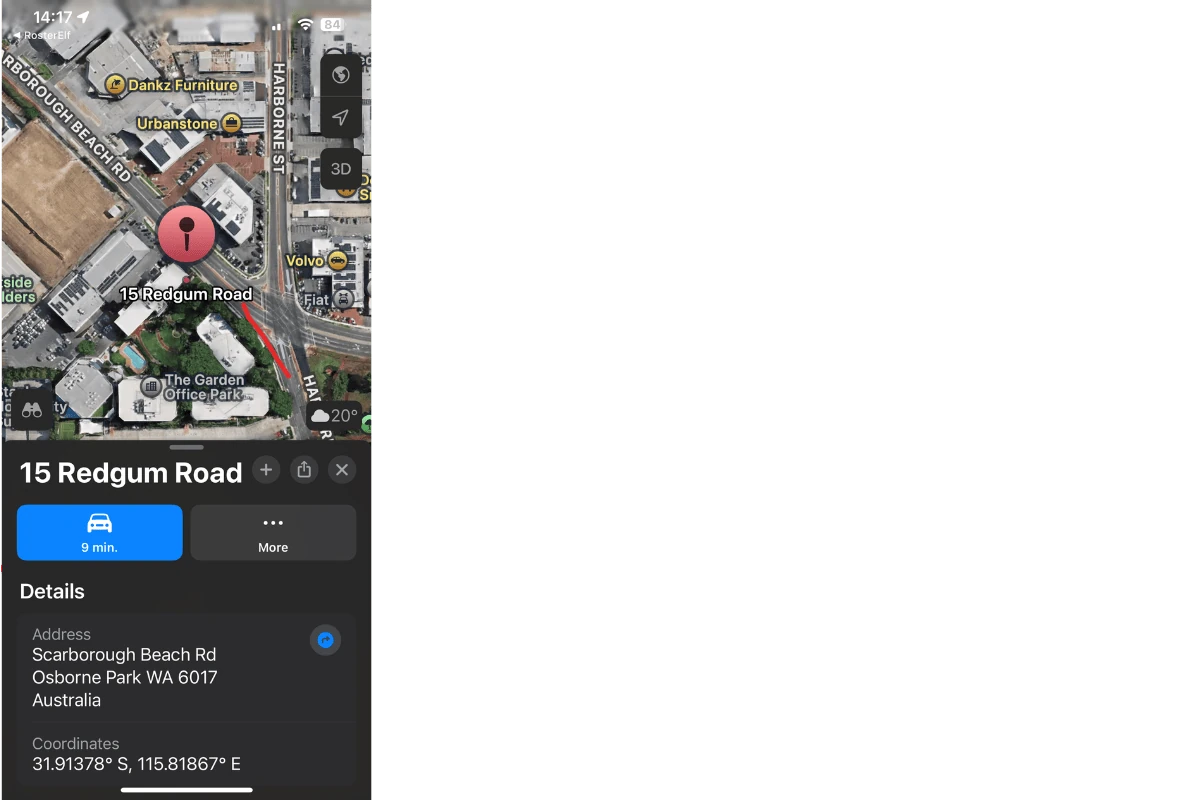
Unsure where your next rostered shift is? The built-in map link opens Apple Maps or Google Maps with the address pre-filled, so you arrive on time without copying and pasting postcodes. Perfect for casuals who jump between sites.
3.1 launch directions for rostered shift
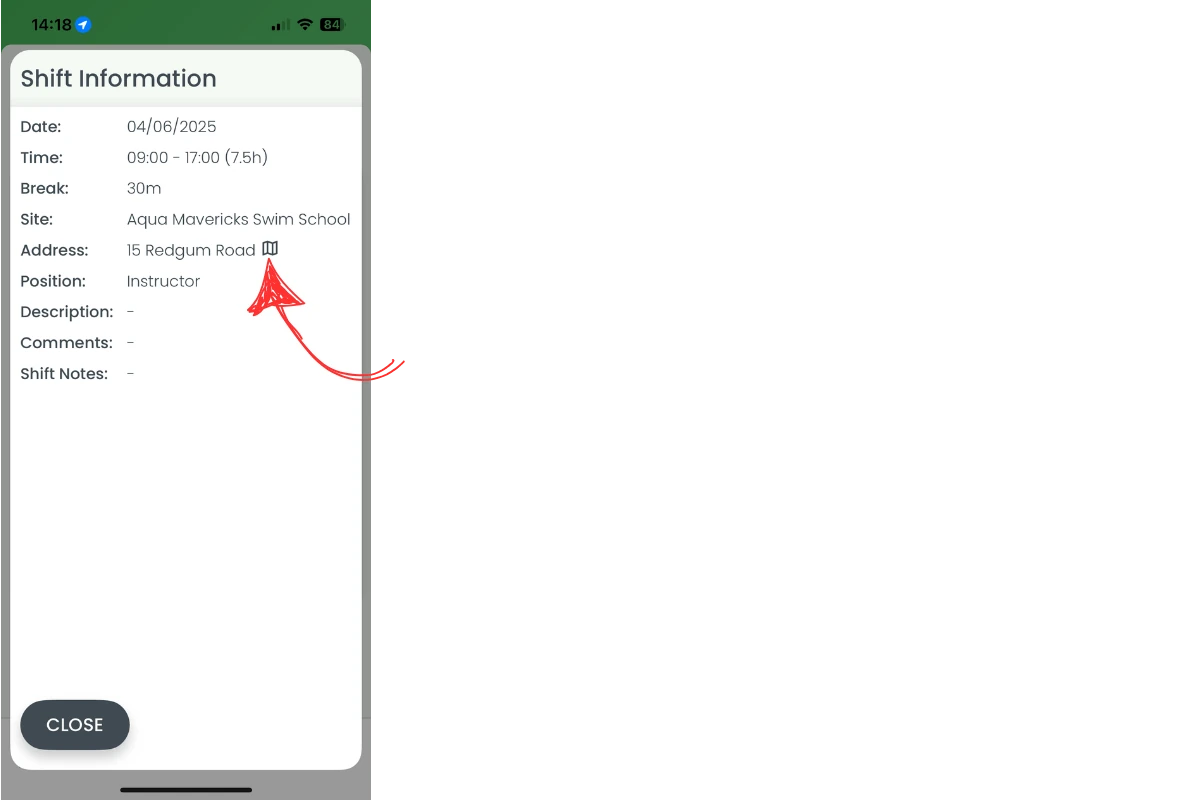
3.1.1 Tap the shift card for the day.
3.1.2 Press the map pin next to the site address.
3.1.3 Your phone’s map app opens with turn-by-turn guidance.
4. Add rostered shifts to calendar
Syncing rostered shifts to your personal calendar gives you automatic reminders alongside social and study events. The process takes seconds and updates if managers adjust start or finish times.
4.1 sync rostered shifts with phone
4.1.1 Open the shift card for the chosen day.
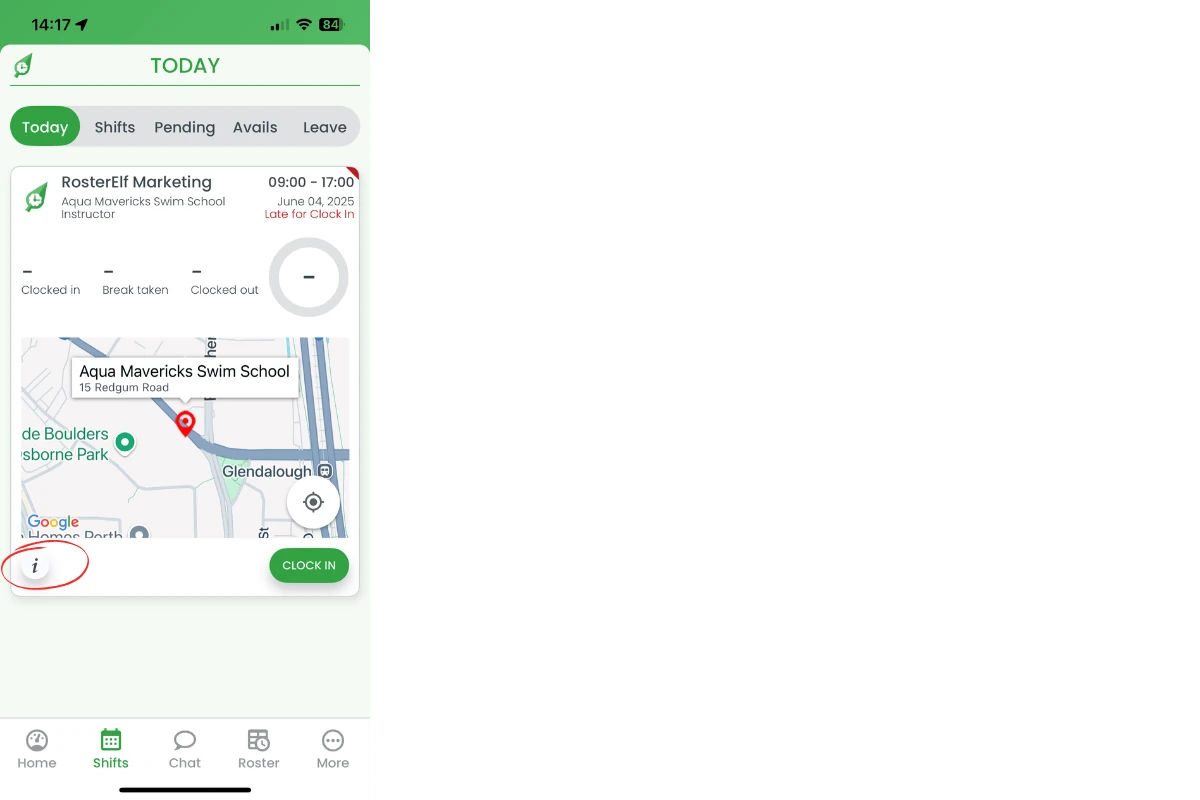
4.1.2 Tap Add to calendar in the details window.
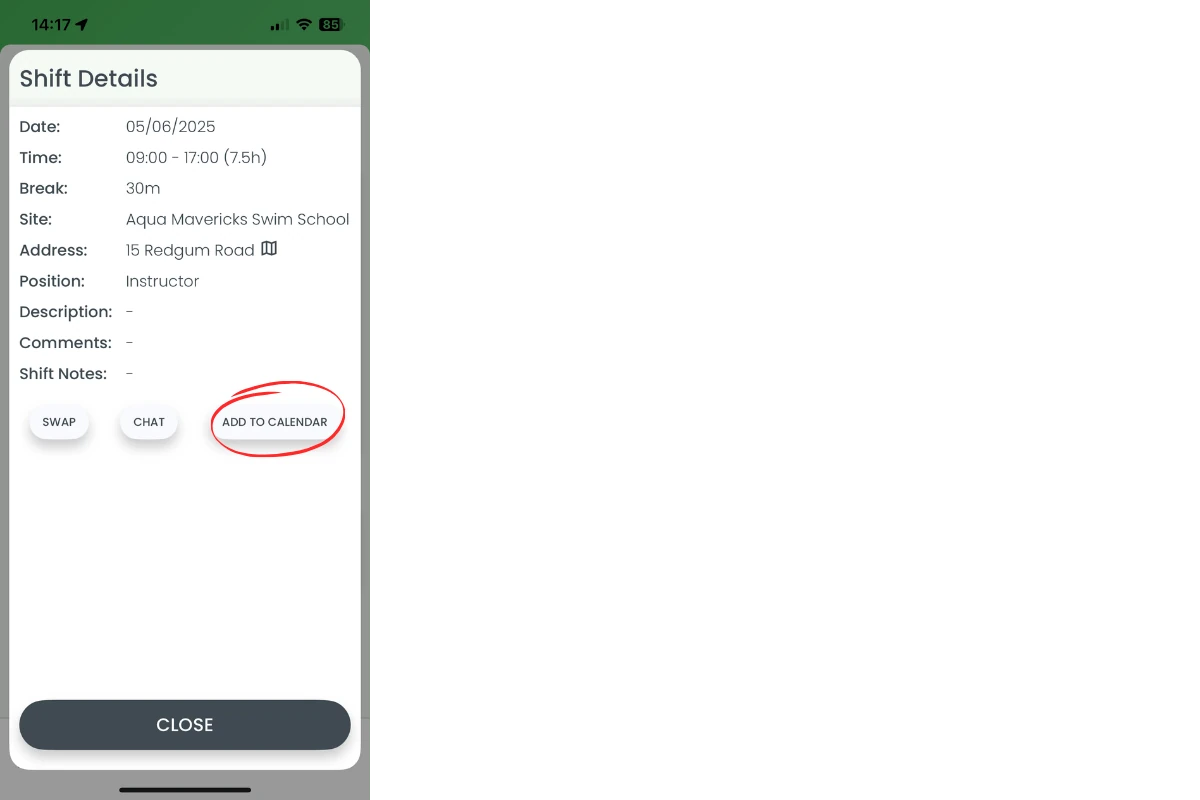
4.1.3 Select the relevant calendar and save. Your rostered shift now appears alongside your other commitments.
Frequently asked questions
1. How do I see my upcoming rostered shifts in the app?
Open RosterElf, tap Shifts, then choose the Shifts tab. A green dot under any date shows a rostered shift up to three months ahead.
2. Can I swap a rostered shift less than 48 hours before it starts?
No. The app blocks swap requests inside the 48-hour window unless your manager changes the setting. Contact them if an emergency arises.
3. Will my phone calendar update if a rostered shift is edited?
No, once you add a rostered shift to your calendar, any changes made by managers will not sync automatically. Always make sure to double-check within the RosterElf app.
4. How do I get directions to my rostered shift location?
Tap the shift card, then press the map pin next to the address. Your default maps app opens with turn-by-turn directions.
5. Why doesn't my rostered shift appear on the calendar?
The roster may not be published, you might be assigned to a different site, or the app needs to refresh. Pull down to reload or ask your manager.
6. Can I see other employees' shifts, not just my own?
Only if your workplace has turned that on. The Shifts tab always shows your own shifts. Seeing the whole team roster is a separate, optional setting called Employee View Roster — ask your admin, or see share rosters with employees for how it’s enabled.