

Install RosterElf PWA on iPhone
This guide provides a simple, step-by-step process for installing the RosterElf Progressive Web App (PWA) on your iPhone, allowing you to access scheduling tools conveniently from your home screen. By adding the RosterElf PWA, you can streamline daily management tasks and save time, enhancing your scheduling efficiency. This guide ensures a quick setup, making it easy for you to integrate RosterElf into your daily workflow. If you browse with Chrome rather than Safari, follow the guide to install the RosterElf PWA on iPhone with Chrome instead.
1. Access the RosterElf login page
In this section, you’ll learn how to access the RosterElf login page using Safari. This initial step is crucial to ensure you’re ready to add the PWA to your home screen.
1.1.1 Launch the Safari browser on your iPhone.
1.1.2 Type the URL www.rosterelf.net/login in the Safari address bar.
1.1.3 Press Go to access the RosterElf login page.
2. Log in to RosterElf
Once you’re on the login page, use your existing RosterElf credentials to log in. This step ensures you’re ready to add the app and access its features from your home screen.
2.1.1 Type in your RosterElf username and password.
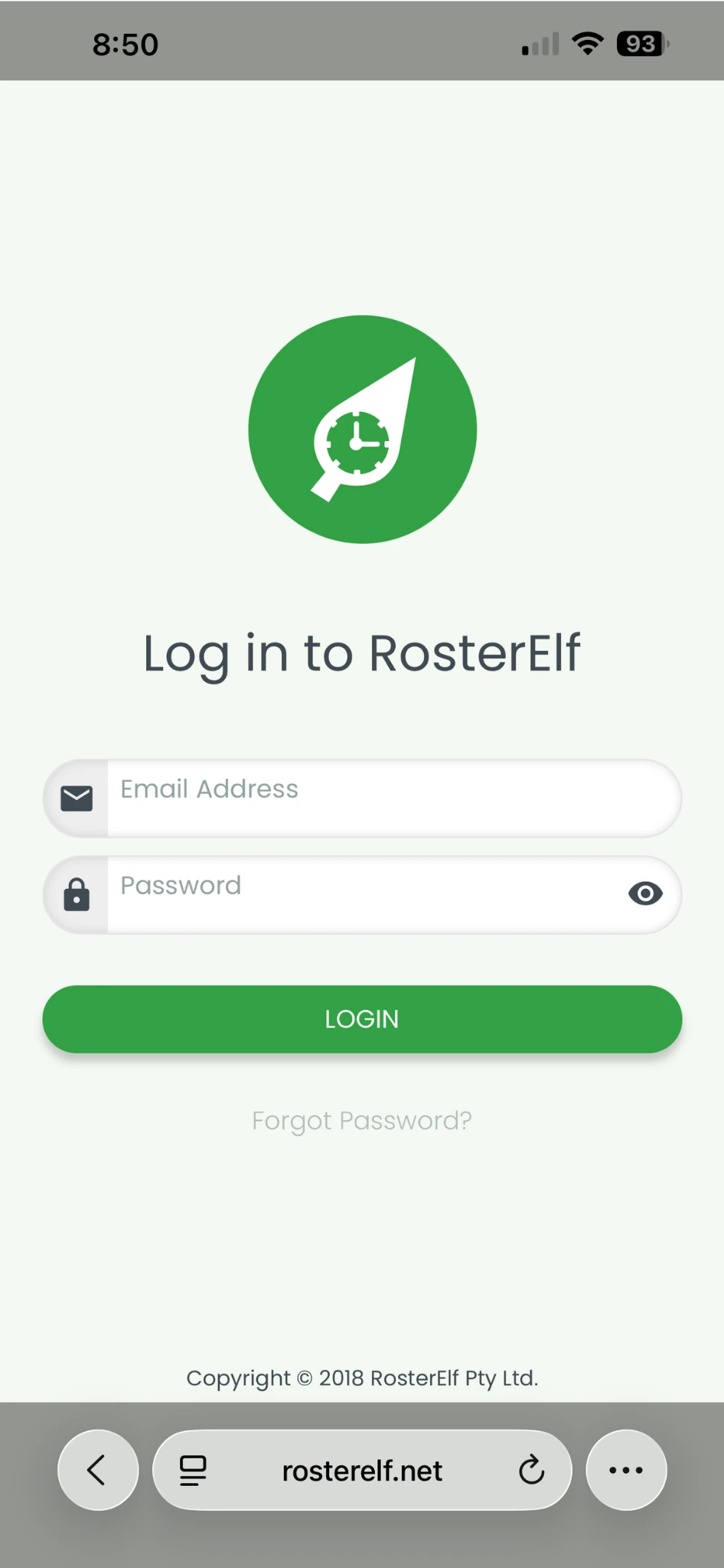
2.1.2 Complete any multi-factor authentication (MFA) required.
3. Add RosterElf to home screen
This section explains how to add the RosterElf app to your iPhone’s home screen, enabling easy access. Once completed, you’ll be able to open RosterElf directly from your home screen for faster management of your scheduling tasks.
3.1.1 Tap the share icon in the centre of Safari’s bottom menu bar.
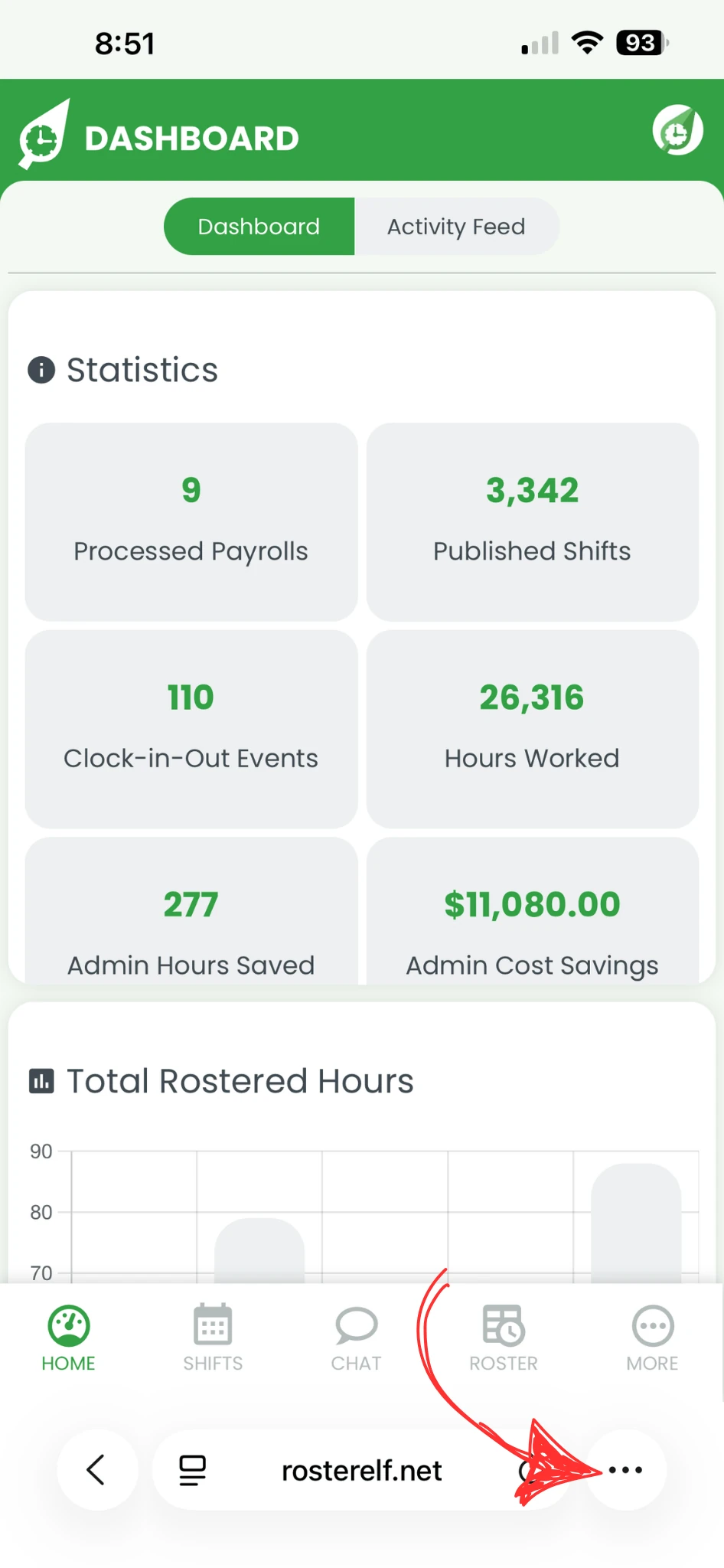
3.2.1 Press Share again.
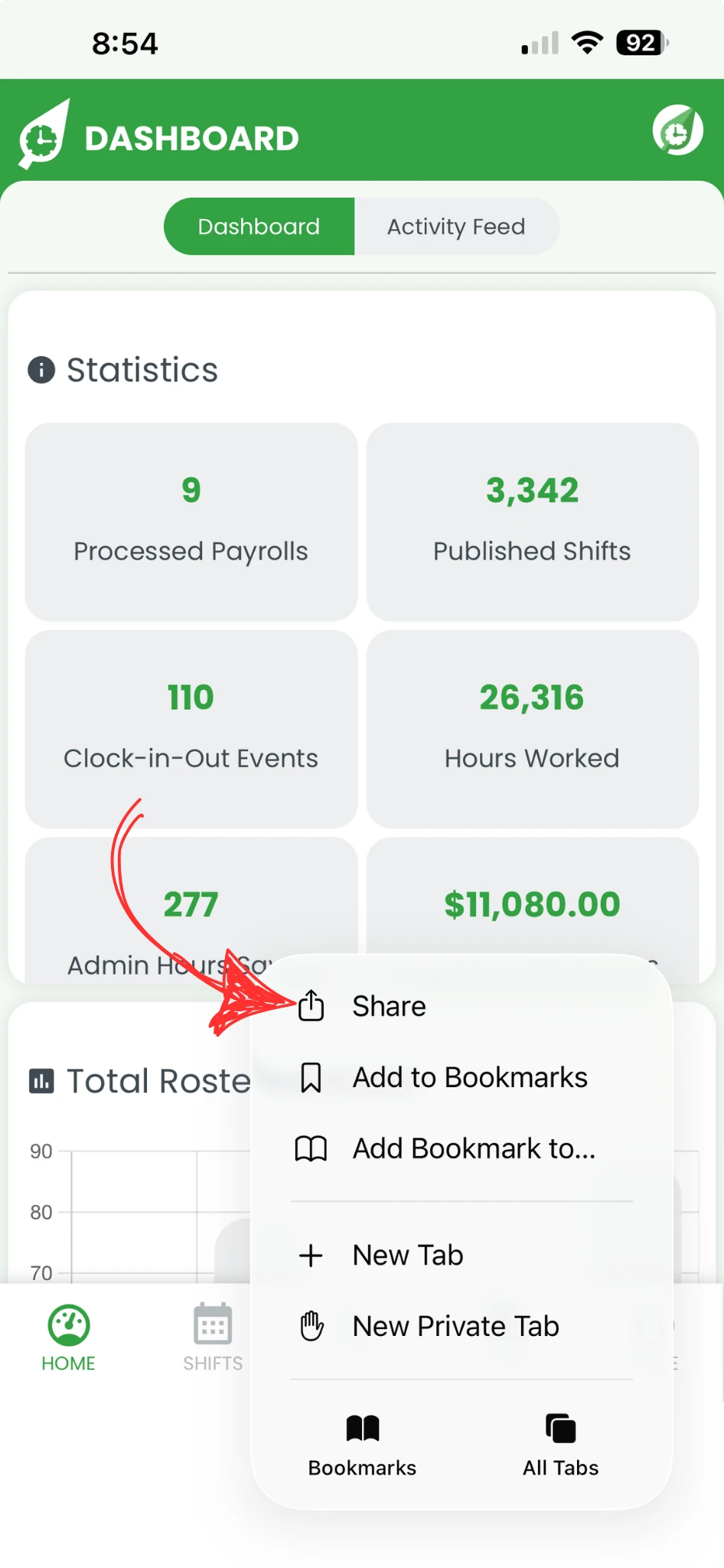
3.2.2 Tap Add to Home Screen.
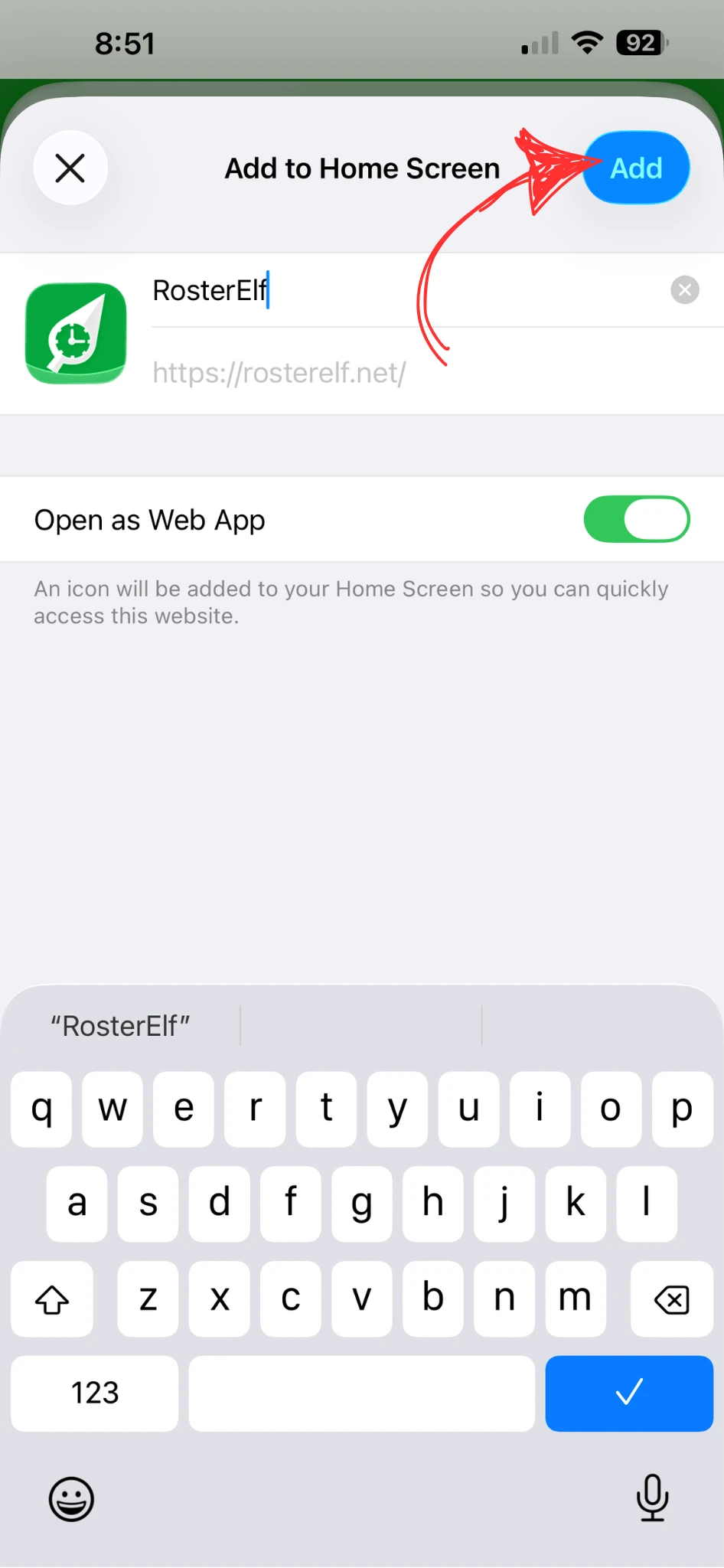
3.3.1 Rename the RosterElf shortcut if desired.
3.3.2 Tap Add to finalise the addition.
4. Access RosterElf from home screen
After adding the RosterElf PWA, you can now access it directly from your iPhone’s home screen, saving time and improving convenience in managing your scheduling needs.
4.1.1 Locate the new RosterElf icon on your home screen.
4.1.2 Tap the icon to open RosterElf and begin using it.
Frequently asked questions
1. How do I access the RosterElf login page on my iPhone?
To access the RosterElf login page, open Safari on your iPhone, type www.rosterelf.net/login in the address bar, and press Go. This step prepares you to add RosterElf as a shortcut on your home screen.
2. What login credentials do I need for the RosterElf PWA?
Use your existing RosterElf username and password to log in on the RosterElf login page. Ensure you complete any multi-factor authentication required to access the app.
3. How can I add RosterElf to my iPhone's home screen?
After logging into RosterElf in Safari, tap the share icon at the bottom of the screen, press Share again, and select Add to Home Screen. This will create a shortcut for easy access.
4. Can I customise the name of the RosterElf shortcut?
Yes, you can rename the RosterElf shortcut when you add it to your home screen. Simply enter the preferred name and tap Add to finalise the setup.
5. Where do I find the RosterElf icon after adding it?
Once added, the RosterElf icon will appear on your iPhone’s home screen. Tap it anytime to quickly access your RosterElf scheduling tools and manage tasks more efficiently.