

Install RosterElf PWA on your iPhone in easy steps
This article guides you through the process of installing the RosterElf Progressive Web App (PWA) on your iPhone using Google Chrome. By following these steps, you’ll be able to access RosterElf directly from your home screen, just like a regular app. This method allows you to streamline login access, ensuring a convenient and integrated experience on your iOS device.
1. Open Chrome
Start by launching the Google Chrome browser on your iPhone. This is the recommended browser for installing the RosterElf PWA, and it will help ensure compatibility with your home screen setup.
1.1.1 Open the Google Chrome browser on your iPhone.
2. Access the RosterElf login page
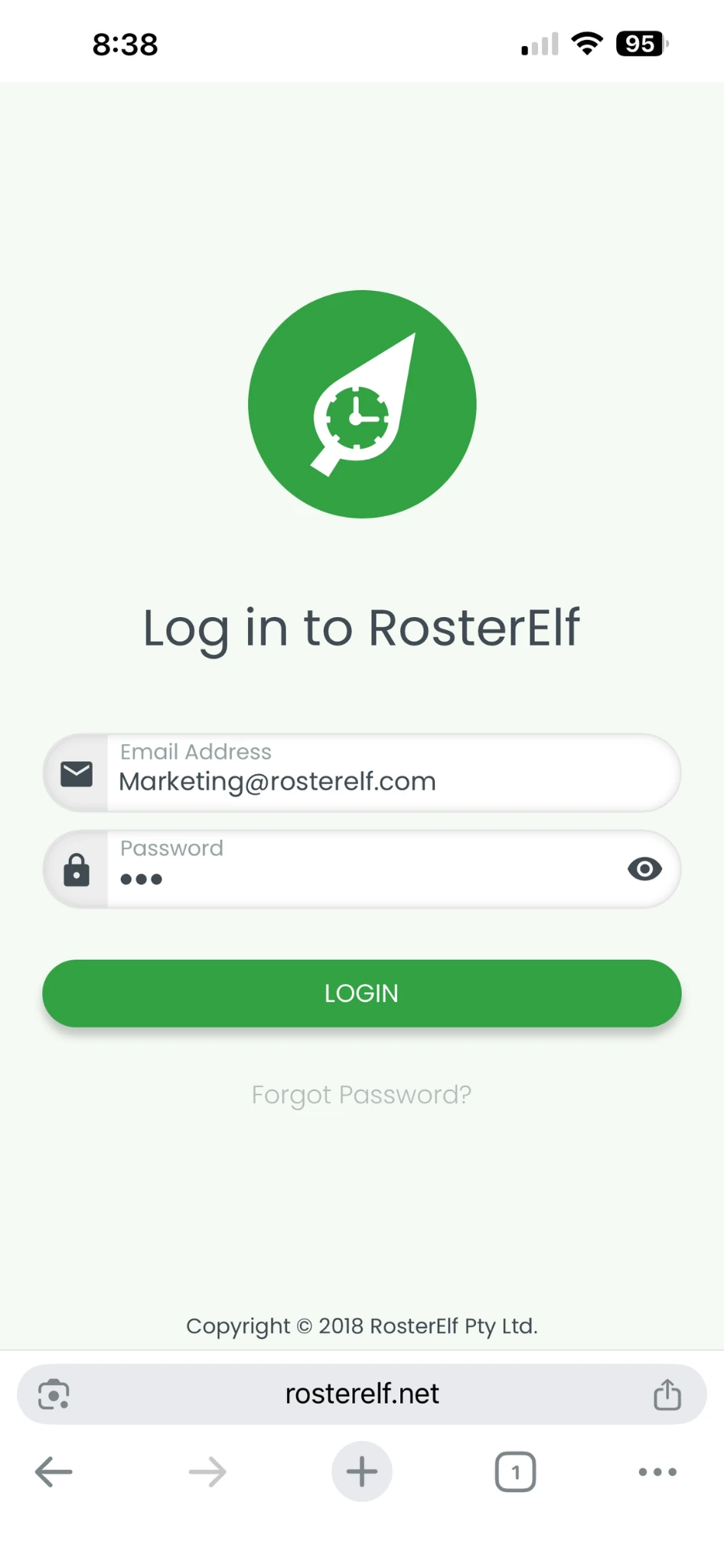
To begin the setup, navigate to the RosterElf login page. This is where you’ll log in and set up the PWA for easy access from your home screen.
2.1.1 Enter www.rosterelf.net/login into the browser’s address bar.
3. Log in to RosterElf
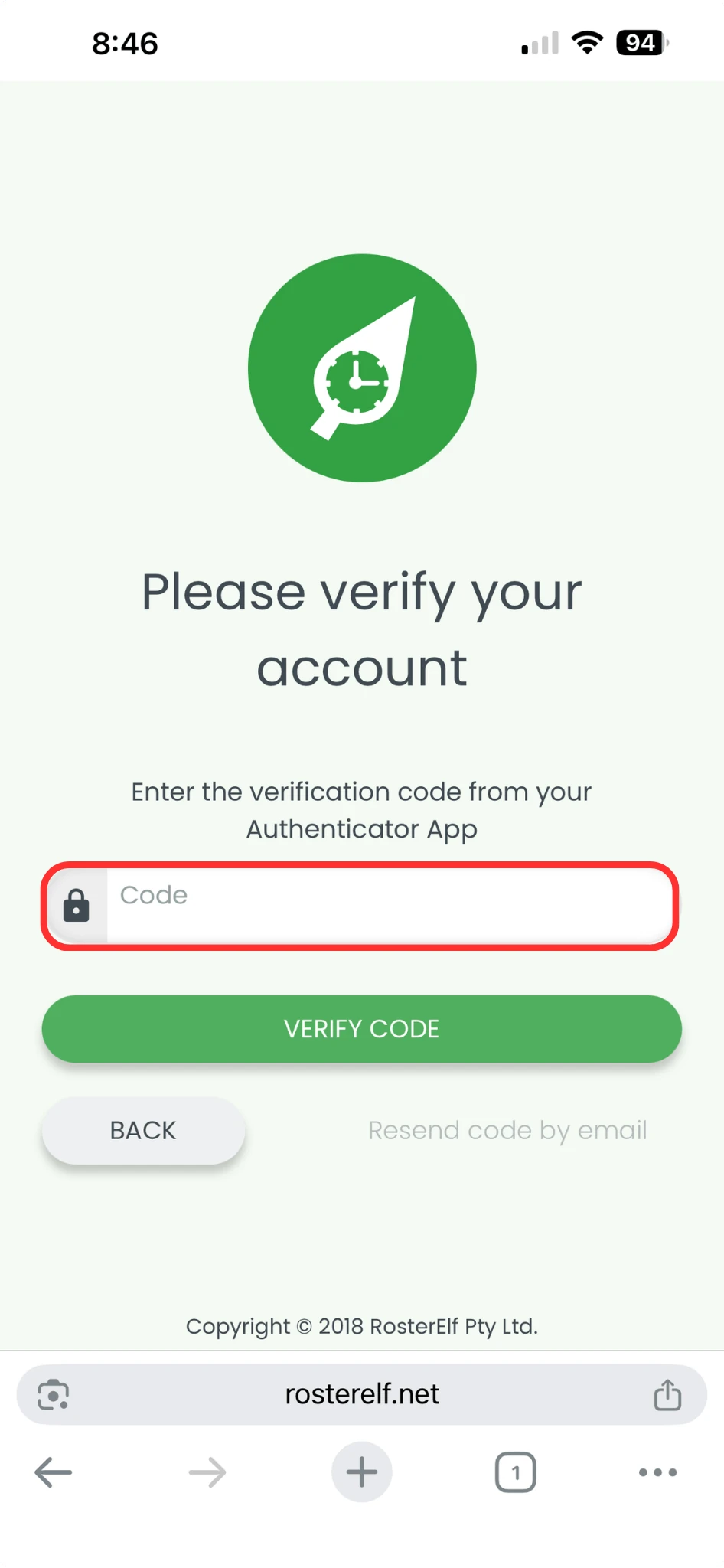
Use your existing RosterElf credentials to log in, and complete any necessary multi-factor authentication (MFA). This step ensures that your account is accessible when launching from the home screen.
3.1.1 Type in your RosterElf username and password, then complete MFA if prompted.
4. Open the share menu
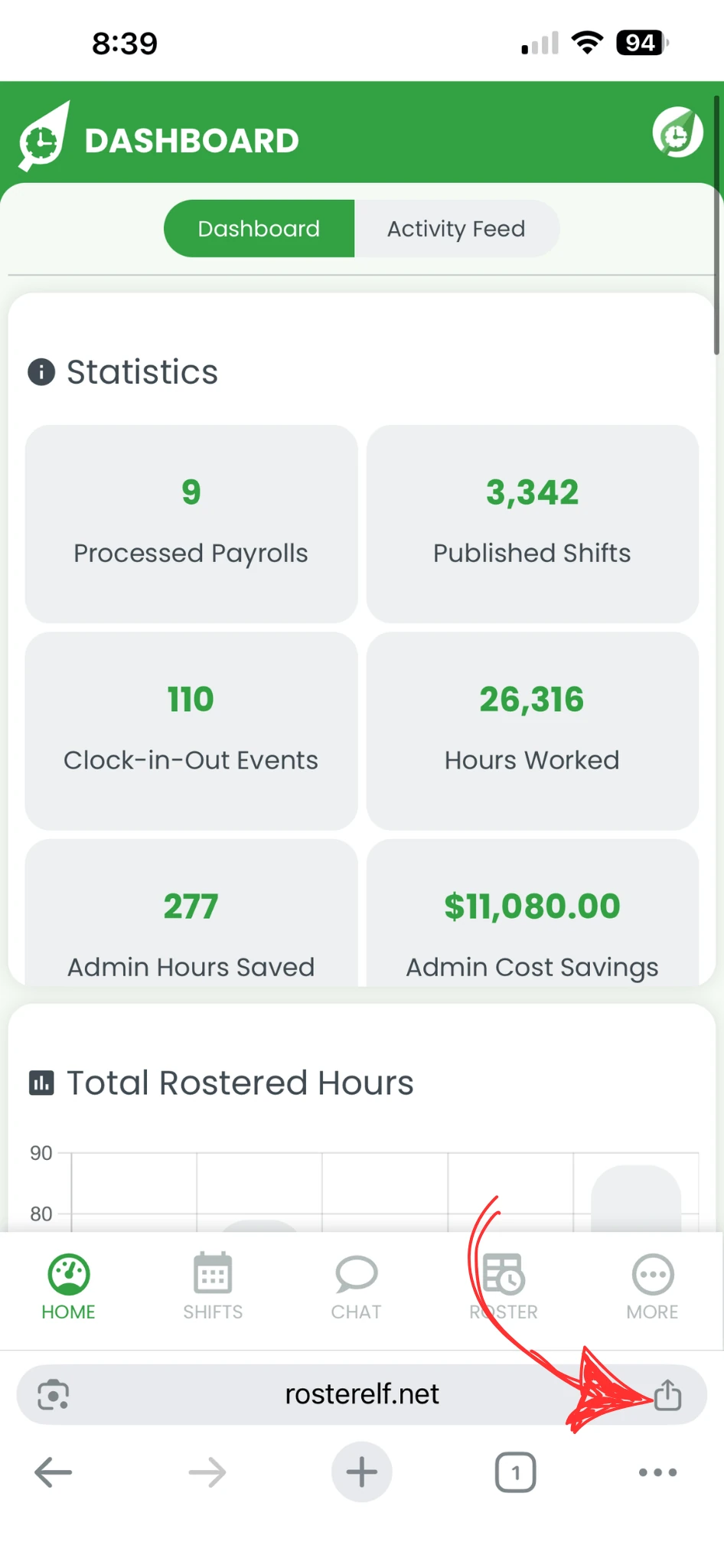
To add the RosterElf PWA to your home screen, locate and tap the share icon within Google Chrome.
4.1.1 Tap the share icon in the top-right corner of Chrome’s interface.
5. Add RosterElf to home screen
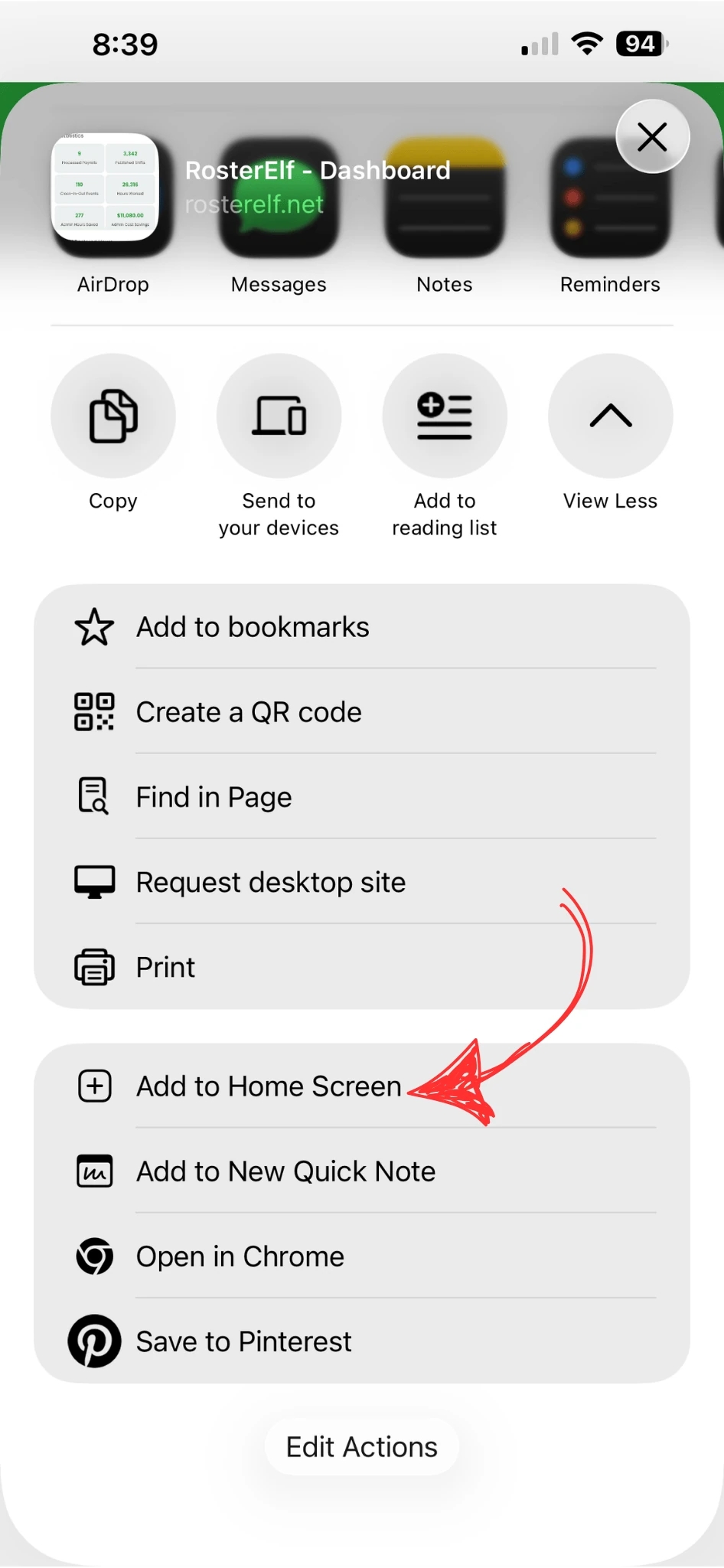
From the share menu options, select Add to Home Screen to create a direct shortcut for the RosterElf PWA on your iPhone.
5.1.1 Choose the Add to Home Screen option from the menu.
6. Customise shortcut name (Optional)
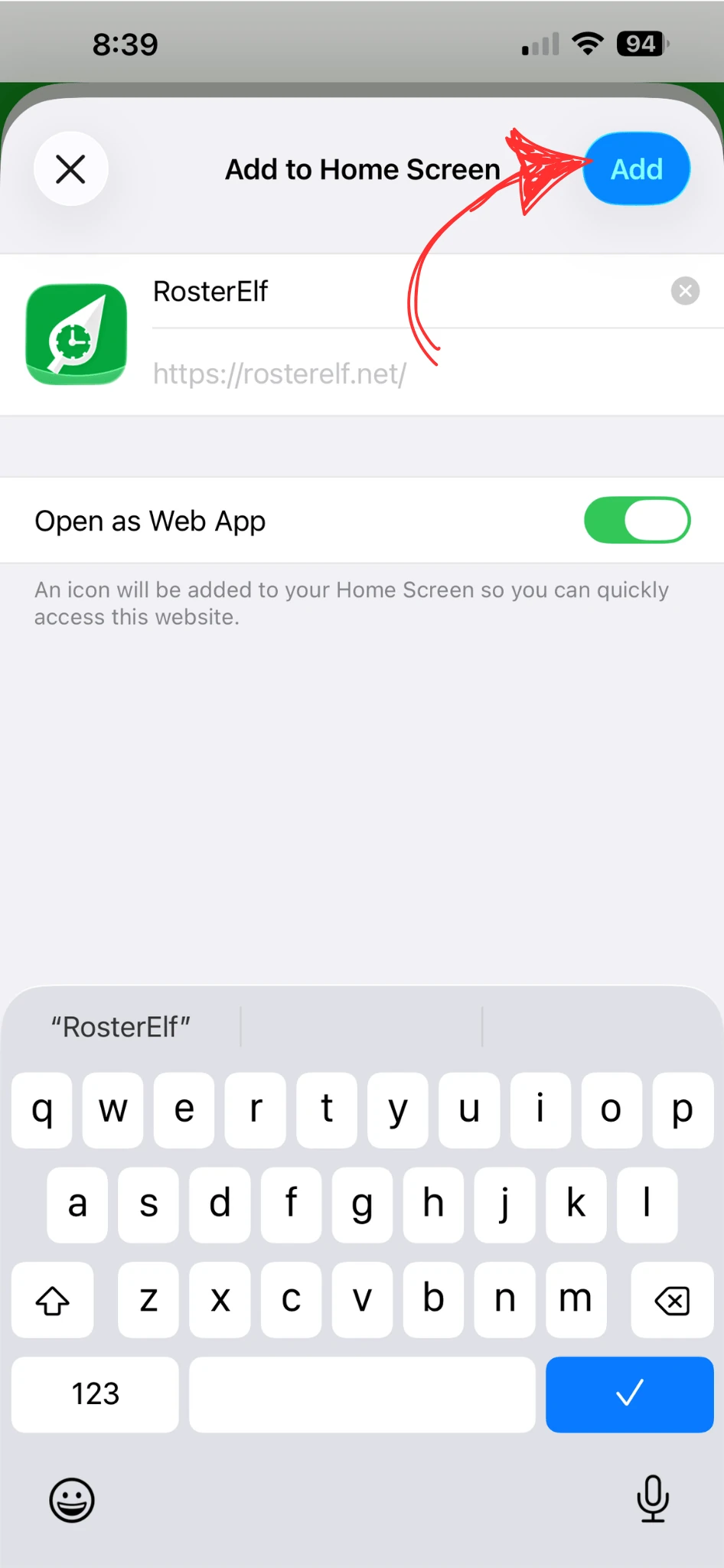
You have the option to personalise the app’s name as it will appear on your home screen. This step is optional but can help with easy recognition.
6.1.1 Edit the name if you’d like a customised label and click on Add.
7. Launch RosterElf from home screen
Once added, you can now access RosterElf directly from your iPhone’s home screen, just like a traditional app, providing quick and easy access.
7.1.1 Tap the RosterElf icon on your home screen to launch the app.
Frequently asked questions
1. How do I install the RosterElf PWA on my iPhone?
To install the RosterElf PWA on your iPhone, open Google Chrome, go to www.rosterelf.net/login, log in, tap the share icon, and select Add to Home Screen.
2. Can I use Safari to install the RosterElf PWA on my iPhone?
For the best compatibility, it’s recommended to use Google Chrome. However, RosterElf PWA can also be installed using Safari, with similar steps.
3. What is a PWA, and why should I install RosterElf as one?
A Progressive Web App (PWA) is a web-based application that behaves like a mobile app. Installing RosterElf as a PWA lets you access it directly from your home screen for quicker, easier access.
4. Do I need to log in every time I open RosterElf from the home screen?
Once you install and log into the RosterElf PWA, it typically remembers your session, offering faster access. You may need to log in again periodically for security.
5. Can I rename the RosterElf icon on my iPhone's home screen?
Yes, during installation, you can choose to rename the app shortcut to something more personalised, making it easy to recognise on your home screen.