

How to install RosterElf PWA on Android with chrome
Learn how to install the RosterElf Progressive Web App (PWA) on your Android smartphone using Google Chrome. Installing the PWA provides quick access to RosterElf, enabling you to view rosters, track hours, and manage shifts directly from your home screen. This guide will take you through each step, from opening Chrome to adding the PWA icon to your home screen, so you can access RosterElf efficiently and with ease.
1. Open chrome browser
To start, launch the Google Chrome browser on your Android device. This is the recommended browser for installing the RosterElf PWA.
1.1.1. Tap the Chrome icon on your Android home screen or app drawer to open the browser.
2. Access the RosterElf login page
Navigate to the RosterElf website to begin the installation process.
2.1.1. In Chrome’s address bar, type www.rosterelf.net/login and press enter.
3. Log in to RosterElf
Log in to your RosterElf account to gain access to the PWA installation option.
3.1.1. Type in your RosterElf username and password.
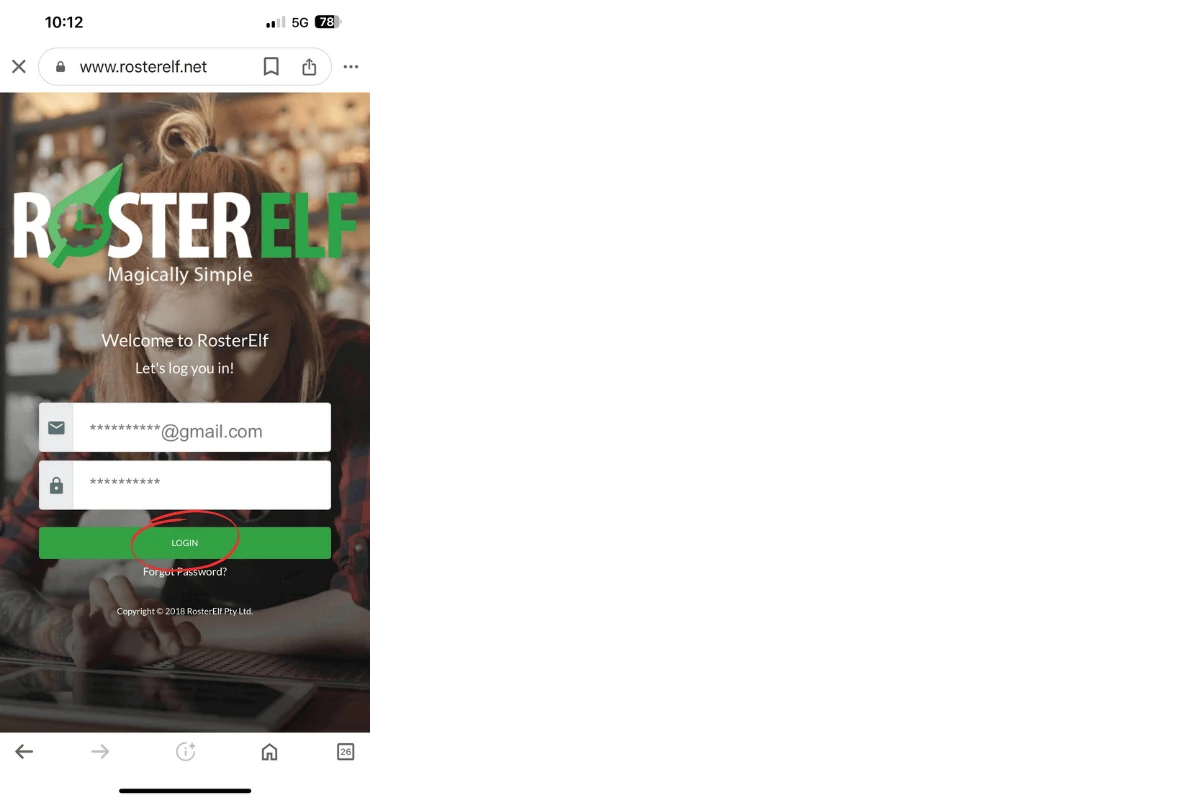
3.1.2. Complete any Multi-Factor Authentication (MFA) if required.
4. Open Chrome's menu
To add the RosterElf PWA to your home screen, access Chrome’s menu options.
4.1.1. Tap the three-dot menu icon in the upper right corner of the Chrome window.
5. Add RosterElf to home screen
From Chrome’s menu, you can directly install the RosterElf PWA to your device’s home screen.
5.1.1. Scroll through the menu and tap Add to Home Screen.
6. Customise the App name (Optional)
If desired, you can customise the name of the RosterElf PWA shortcut on your home screen.
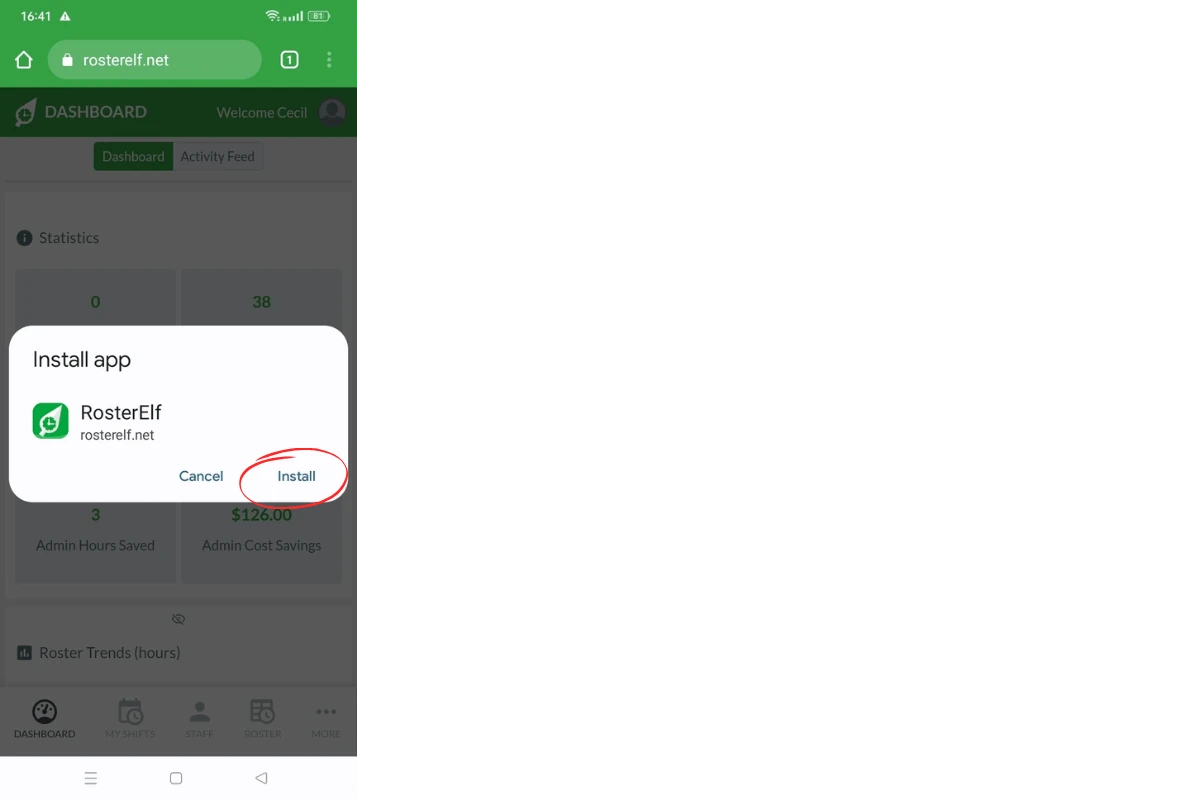
6.1.1. When prompted, type in a new name for the RosterElf PWA shortcut if desired.
6.1.2. Tap Install to confirm.
7. Access RosterElf from home screen
The RosterElf icon is now added to your home screen, providing easy access to the PWA.
7.1.1. Tap the RosterElf icon on your home screen to launch the app and begin using RosterElf directly.
Frequently asked questions
1. How do I install the RosterElf PWA on my Android phone?
To install the RosterElf PWA on your Android device, open Google Chrome, go to the RosterElf login page, log in, and use Chrome’s menu to add the app to your home screen. This process gives you quick access to manage rosters and shifts directly from your phone’s home screen.
2. Can I customise the RosterElf app name on my home screen?
Yes, when you add RosterElf to your home screen, you’ll be prompted to customise the app’s name if desired. Enter your preferred name, then tap “Add” to confirm the shortcut.
3. Do I need Google Chrome to install the RosterElf PWA?
Yes, Google Chrome is the recommended browser for installing the RosterElf PWA on Android. Using Chrome ensures a smooth installation and access to all PWA features.
4. Why can't I see the Add to Home Screen option in Chrome?
If you don’t see the Add to Home Screen option, ensure you’re on the RosterElf login page and that you’re logged in. Check that your Chrome app is updated to the latest version, as older versions may lack PWA support.
5. How do I access RosterElf once it's installed on my home screen?
After adding RosterElf to your home screen, simply tap the RosterElf icon to launch the app. This shortcut allows you to view rosters, track hours, and manage shifts quickly from your Android device.