

Install a PWA using Google chrome on mac
Learn how to install RosterElf’s Progressive Web App (PWA) on your Mac using Google Chrome for a seamless, app-like experience. This guide walks you through each step, ensuring you can access your RosterElf account easily and efficiently from your desktop.
Installing a PWA makes accessing your account faster and more convenient. Once installed, the PWA operates like a native application, allowing quick access directly from your dock or Applications folder. Follow these instructions to enhance your productivity with RosterElf.
1. Open Google chrome
To begin the installation process, ensure Google Chrome is installed and up-to-date on your Mac device. You’ll use this browser to install the RosterElf PWA.
1.1. Launch Google Chrome on your Mac.
2. Enter the RosterElf URL
2.1.1. Open Chrome and enter the URL: rosterelf.net/login.
2.1.2. Press Enter to load the page.
3. Log in to your account
3.1.1. Enter your RosterElf login credentials.
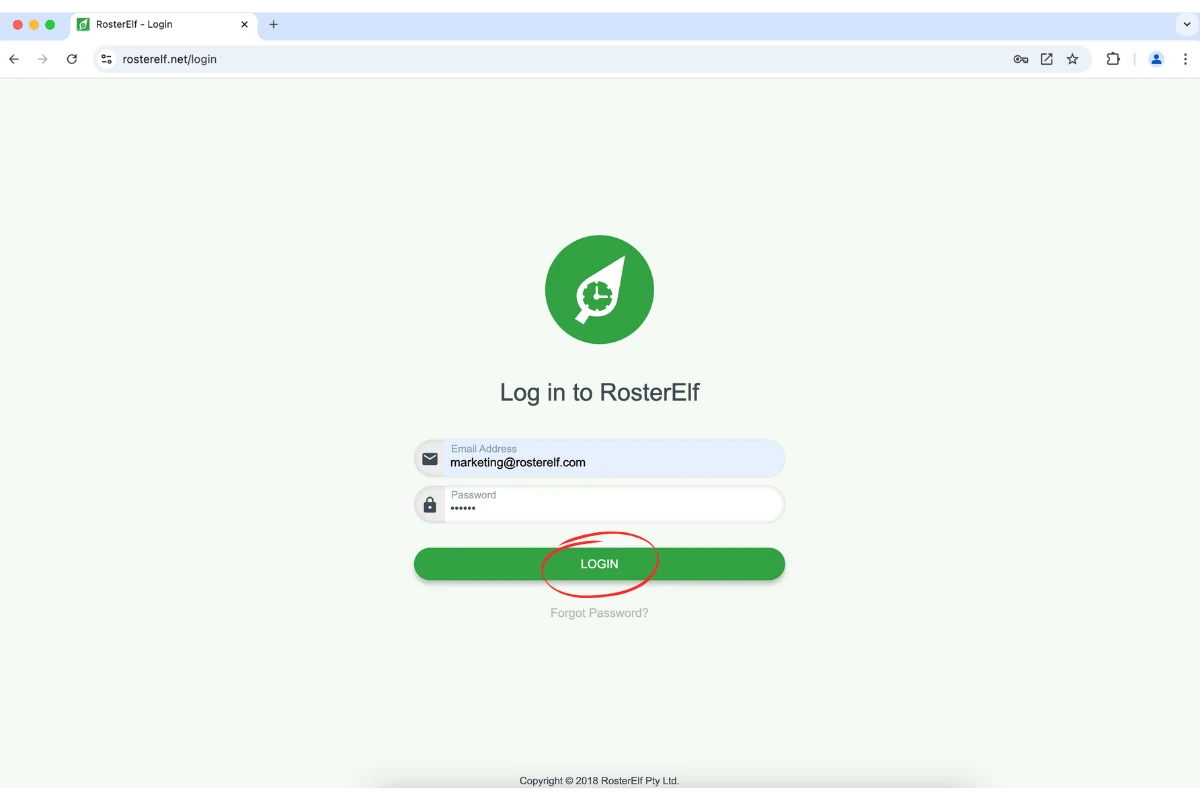
3.1.2. Complete any required multi-factor authentication (MFA) to ensure secure access.
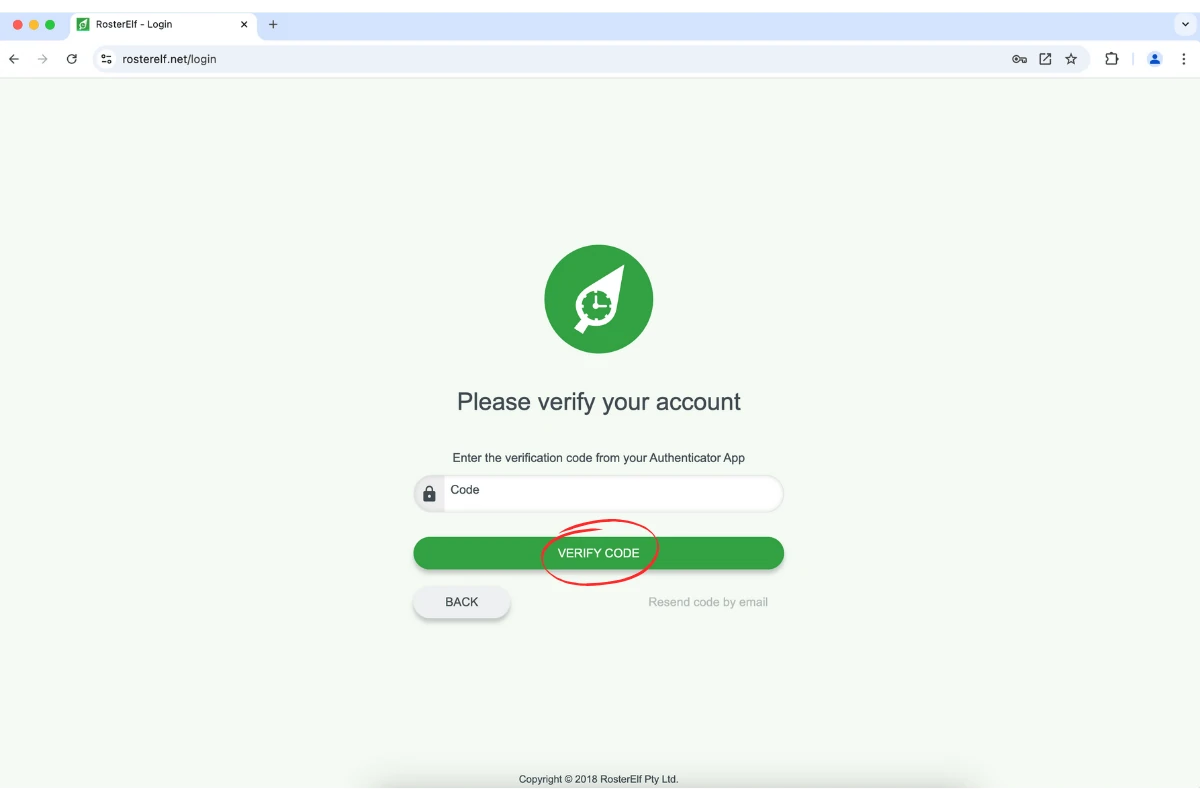
3.1.3. Logging in ensures you can access all RosterElf features after installation.
4. Install the PWA
4.1.1. Look for the open in app icon in the browser’s address bar. It may also appear as a plus sign inside a circle or as a computer icon.
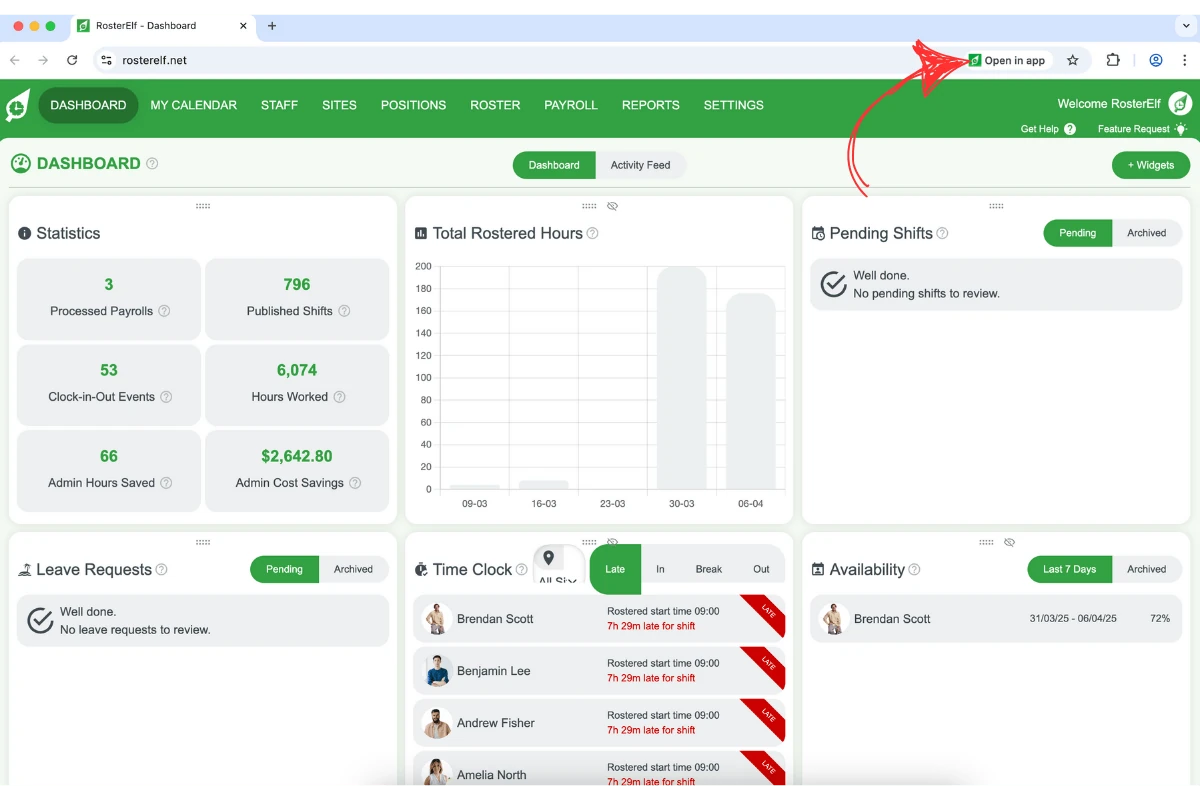
4.1.2. If the icon isn’t visible, click the three dots at the top-right corner of Chrome to open the menu, then select Install from the dropdown options.
5. Confirm the installation
5.1.1. Follow any additional prompts to finalise the installation.
5.1.2. Choose where to place the shortcut (e.g., dock or Applications folder).
5.1.3. Click Done to confirm.
6. Access the installed PWA
6.1.1. Find the RosterElf icon in your Applications folder or dock.
6.1.2. Click the icon to open the PWA and access your account with an app-like experience.
6.1.3. Installing the RosterElf PWA makes managing your account faster and easier, boosting accessibility and productivity directly from your Mac desktop.
Frequently asked questions
1. What is a PWA, and why should I install it on my Mac?
A PWA (Progressive Web App) combines the convenience of a website with the functionality of a native app. Installing the RosterElf PWA on your Mac provides faster access, an app-like experience, and seamless functionality directly from your dock or Applications folder.
2. How do I install the RosterElf PWA if the install icon isn't visible?
If the install icon isn’t visible in the address bar, click the three-dot menu in the top-right corner of Chrome, then select Open in app / Install from the dropdown options. Follow the prompts to complete the setup.
3. Where can I find the RosterElf PWA after installation?
Once installed, you can find the RosterElf PWA in your Mac’s Applications folder or dock. Simply click the icon to open the app-like interface and access your account.
4. Do I need an internet connection to use the RosterElf PWA?
Yes, the RosterElf PWA requires an internet connection to access your account and update information in real-time. Ensure you’re connected to the internet for full functionality.
5. Can I uninstall the RosterElf PWA if needed?
Yes, you can uninstall the RosterElf PWA by removing the app from your Applications folder. This will delete the PWA and its shortcut without affecting your RosterElf account or data.