

Install RosterElf PWA on mac using safari
Learn how to install RosterElf’s Progressive Web App (PWA) on your Mac using Safari. This guide will help you add the PWA to your Applications folder or dock, offering a seamless app-like experience to access your RosterElf account directly from your Mac desktop.
1. Install RosterElf PWA using safari
This section provides a step-by-step guide to installing the RosterElf PWA on your Mac using Safari. It ensures you have quick access to RosterElf features directly from your desktop.
1.1. access the RosterElf website
1.1.1. Open Safari on your Mac.
1.1.2. Navigate to the RosterElf login page.
1.1.3. Log in using your RosterElf credentials.
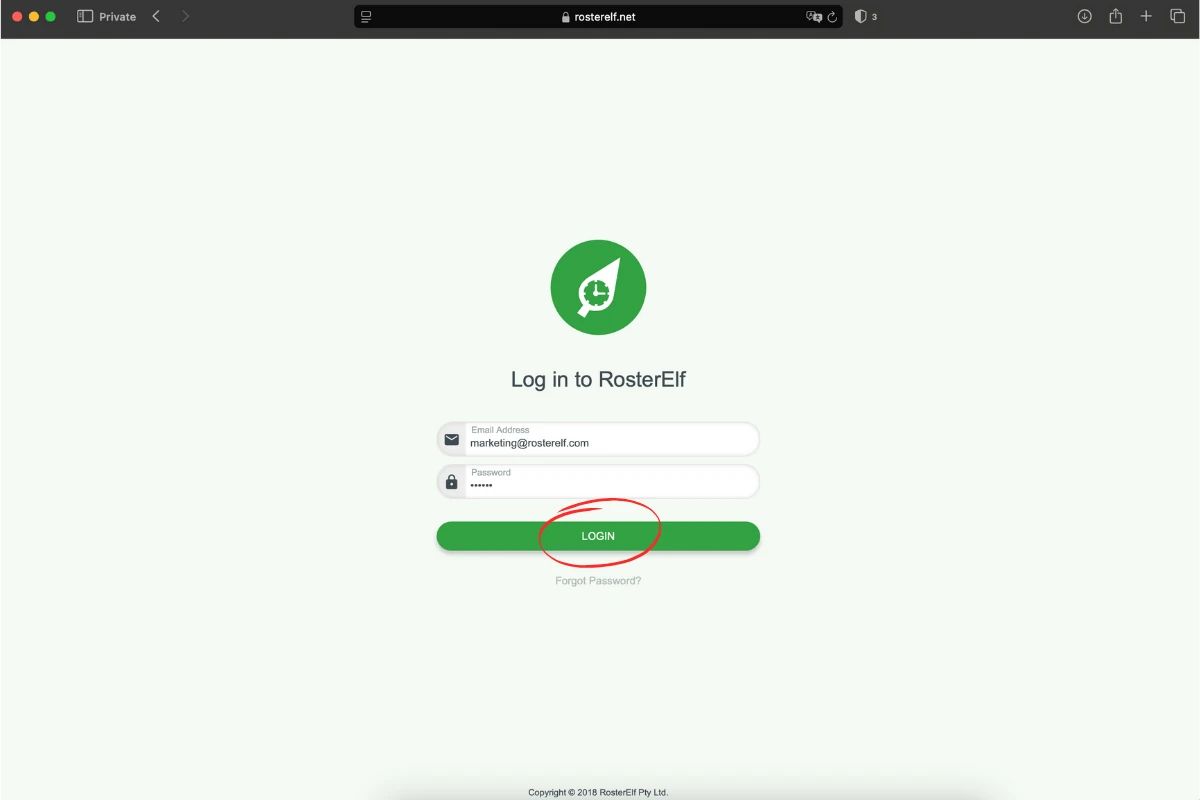
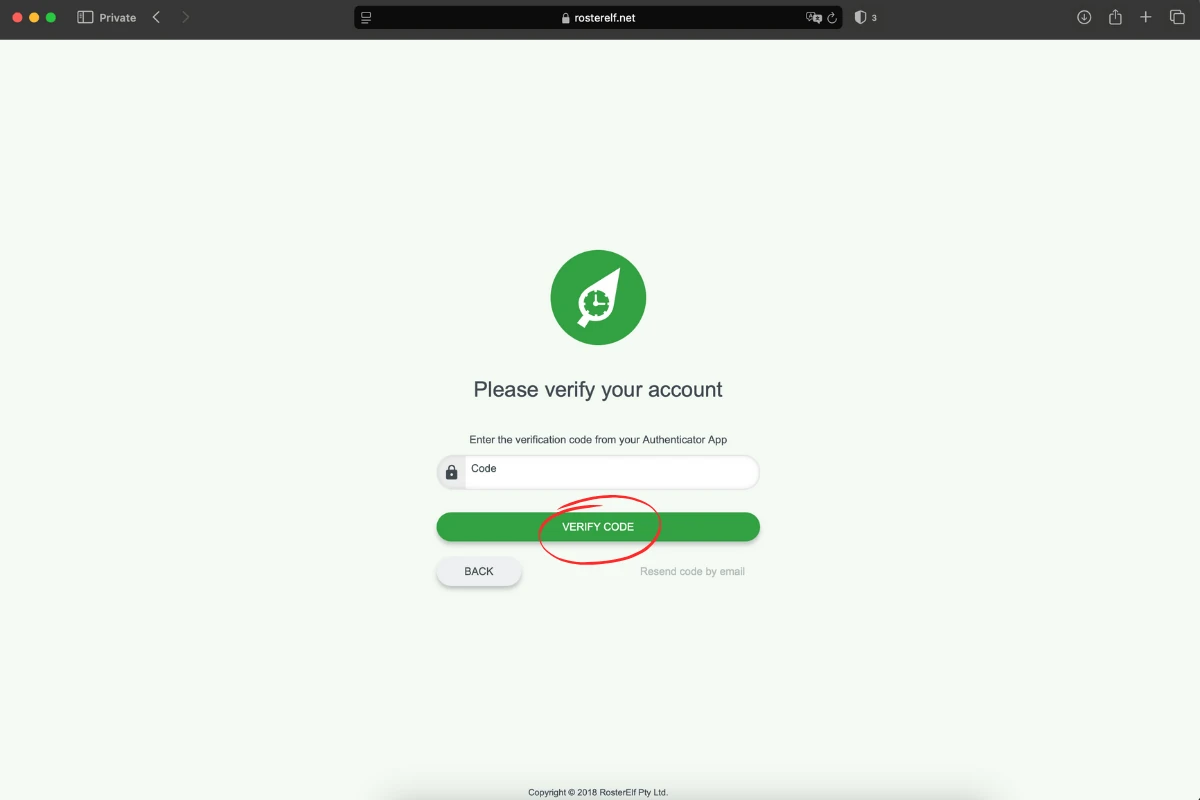
1.1.4. Complete any required multi-factor authentication (MFA).
1.2. install the RosterElf PWA
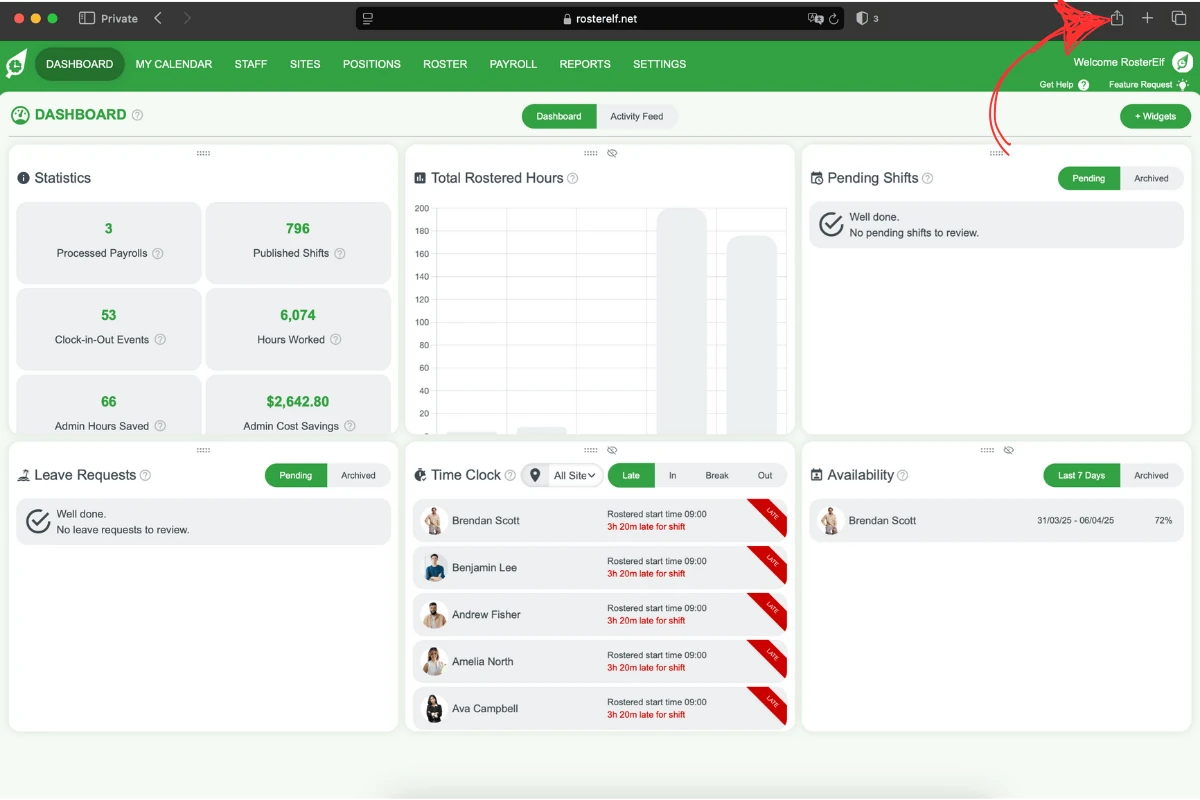
1.2.1. Look for the Install icon in the address bar.
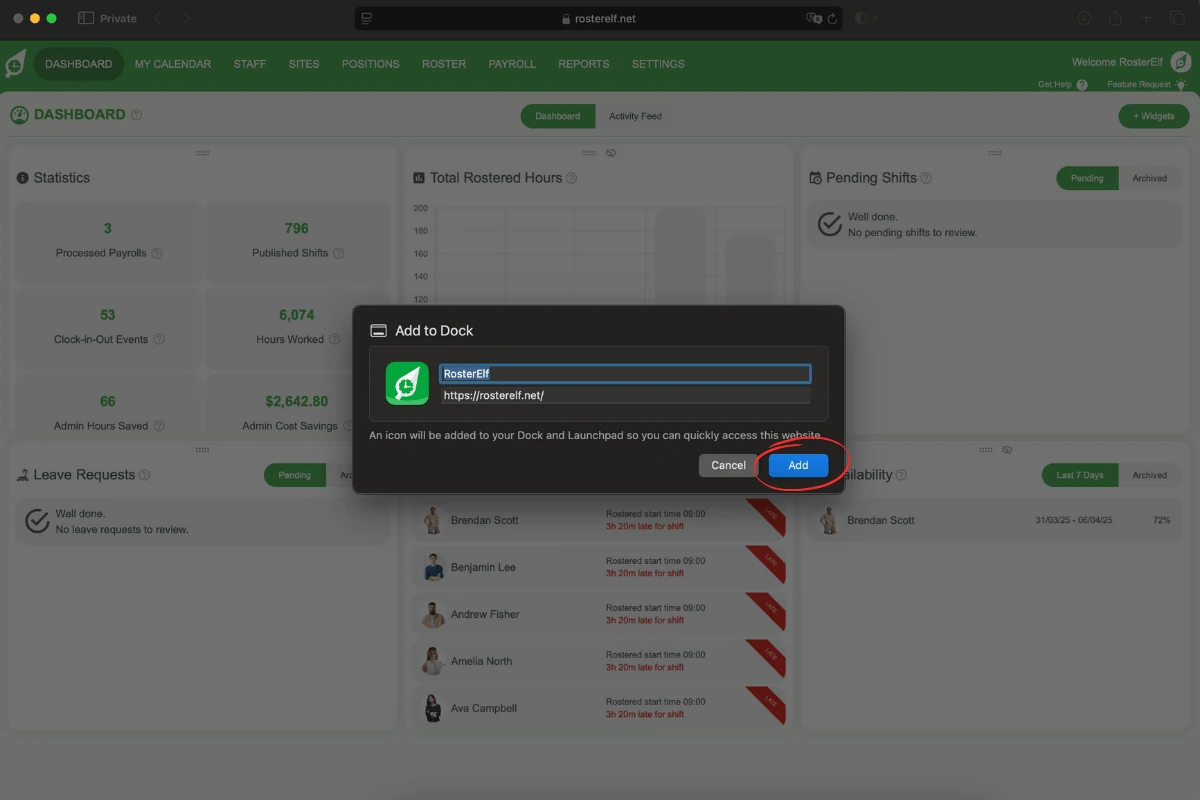
1.2.2. Click the Add to Dock option.
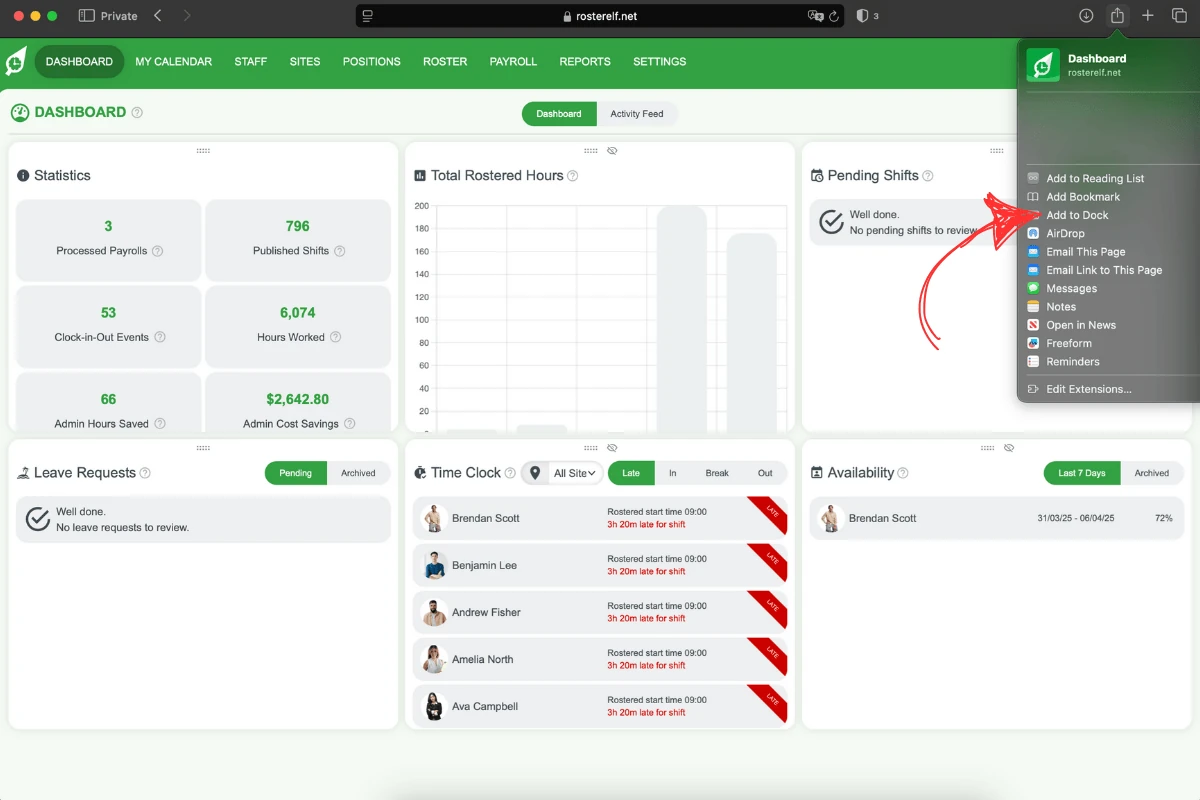
1.2.3. Choose a name for the app to personalise it.
1.2.4. Select Add from the pop-up options.
1.3. add to applications or dock
1.3.1. Once installed, locate the PWA in your Applications folder.
1.3.2. Drag the app to your dock for quicker access, if preferred.
1.3.3. Click the PWA icon to launch the app.
Frequently asked questions
1. How do I access the RosterElf website to install the PWA?
To access the RosterElf website, open Safari on your Mac and navigate to the RosterElf login page. Log in with your RosterElf credentials and complete any required multi-factor authentication (MFA).
2. What is the install icon, and where do I find it in Safari?
The install icon in Safari appears on the top right of the screen. You’ll find it in the address bar when visiting the RosterElf website. Clicking it will begin the installation process for the PWA.
3. Can I customise the name of the RosterElf PWA during installation?
Yes, during the installation process, you can personalise the app by choosing a custom name for it in the pop-up options. This name will appear in your Applications folder and dock.
4. How do I add the RosterElf PWA to my dock for easy access?
After installation, locate the RosterElf PWA in your Applications folder. Drag the app icon to your dock, allowing you to launch it quickly from your Mac desktop.
5. What benefits does installing the RosterElf PWA provide?
Installing the RosterElf PWA creates an app-like experience on your Mac. It allows you to access your RosterElf account directly from your desktop, enhancing productivity and convenience by eliminating the need to open a browser each time.