

Manage half day sick leave in RosterElf
This article explains how to manage half day sick leave in RosterElf. This process allows you to record when an employee takes part of a day as sick leave or annual leave while still working some hours.
Managing half day sick leave ensures your payroll remains accurate. It allows you to correctly record both worked hours and leave hours for the same shift. This helps prevent payroll errors and ensures employees are paid correctly for the time they worked and the leave they used.
Using RosterElf’s leave management software, you can mark a shift as sick, adjust worked hours, and send leave hours to payroll. This process keeps your records clear and ensures your payroll system reflects the correct breakdown of hours. Following this guide will help you manage half day sick leave efficiently and maintain accurate employee records.
1. Mark half day sick leave in roster
This section explains how to manage half day sick leave in RosterElf by marking a shift as sick. You will learn how to open the roster, select the correct shift, and apply a sick leave status. This step ensures the system recognises that part of the shift is allocated to sick leave.
Marking a shift as sick is important for tracking leave usage and maintaining accurate records. It ensures visibility across your team and provides a clear indication that the employee did not complete the full shift due to illness. Completing this step correctly prepares the shift for payroll adjustments. For a more detailed look at marking full shifts as sick, see the guide on how to mark a shift as sick in RosterElf.
1.1 Mark shift as sick leave
1.1.1 Open RosterElf.
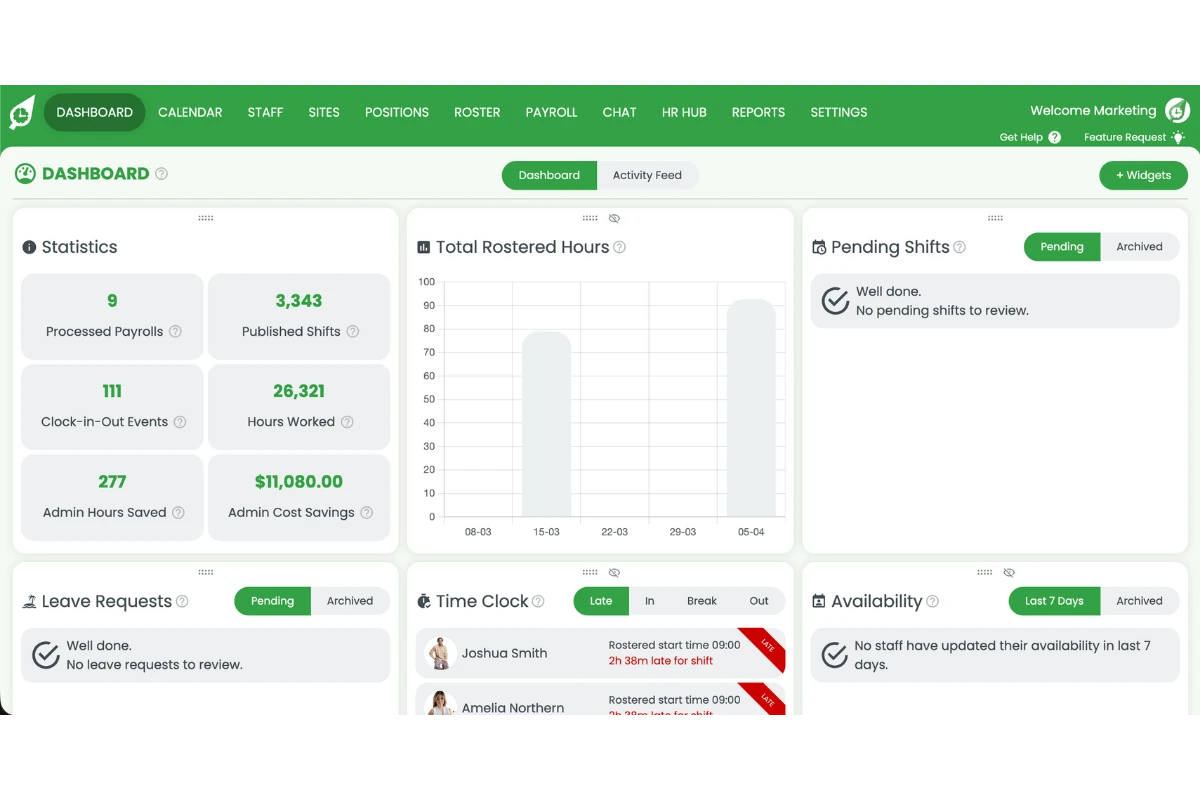
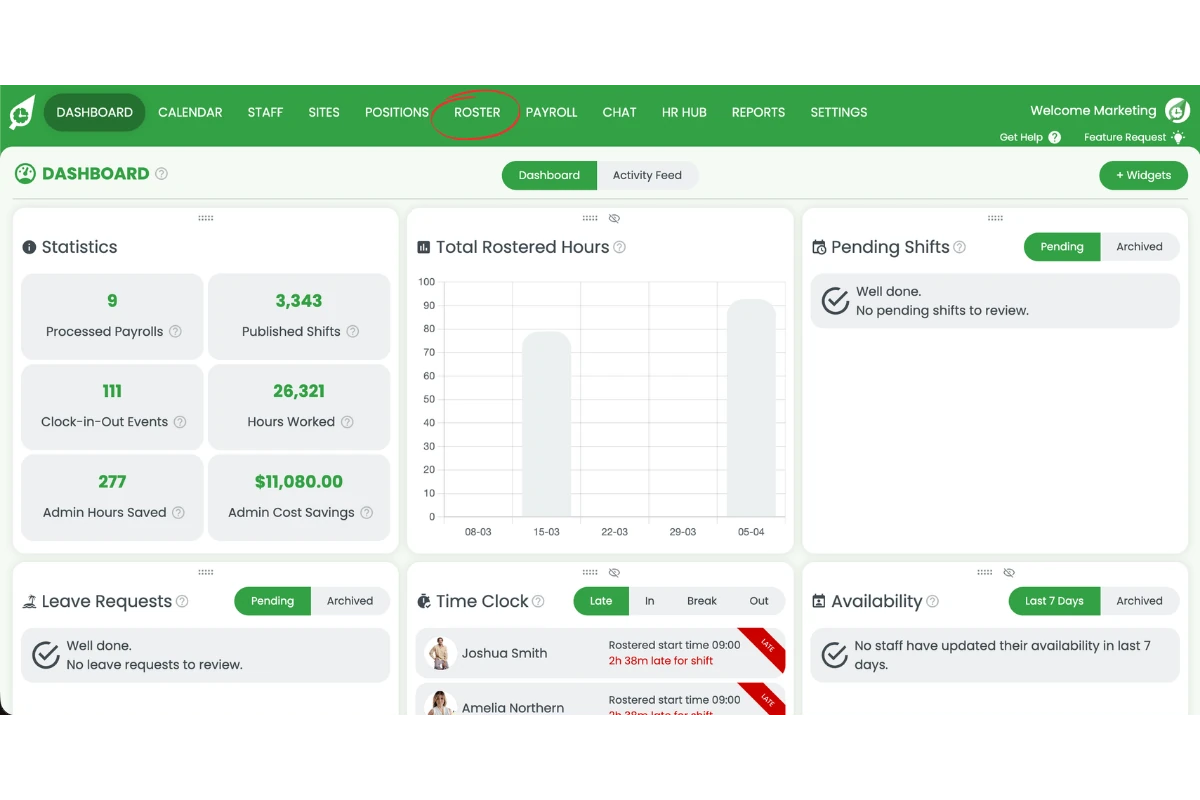
1.1.2 Click the roster tab.
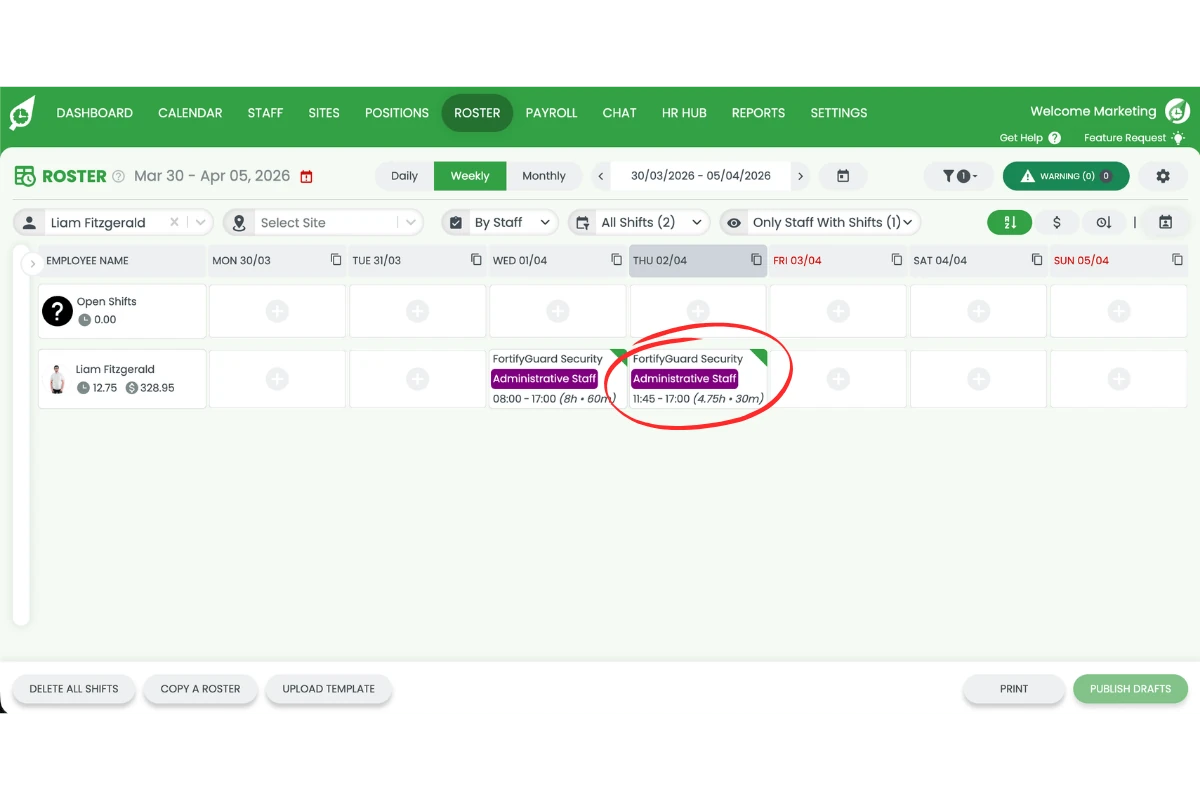
1.1.3 Select the employee’s shift.
1.1.4 Click Mark as sick.
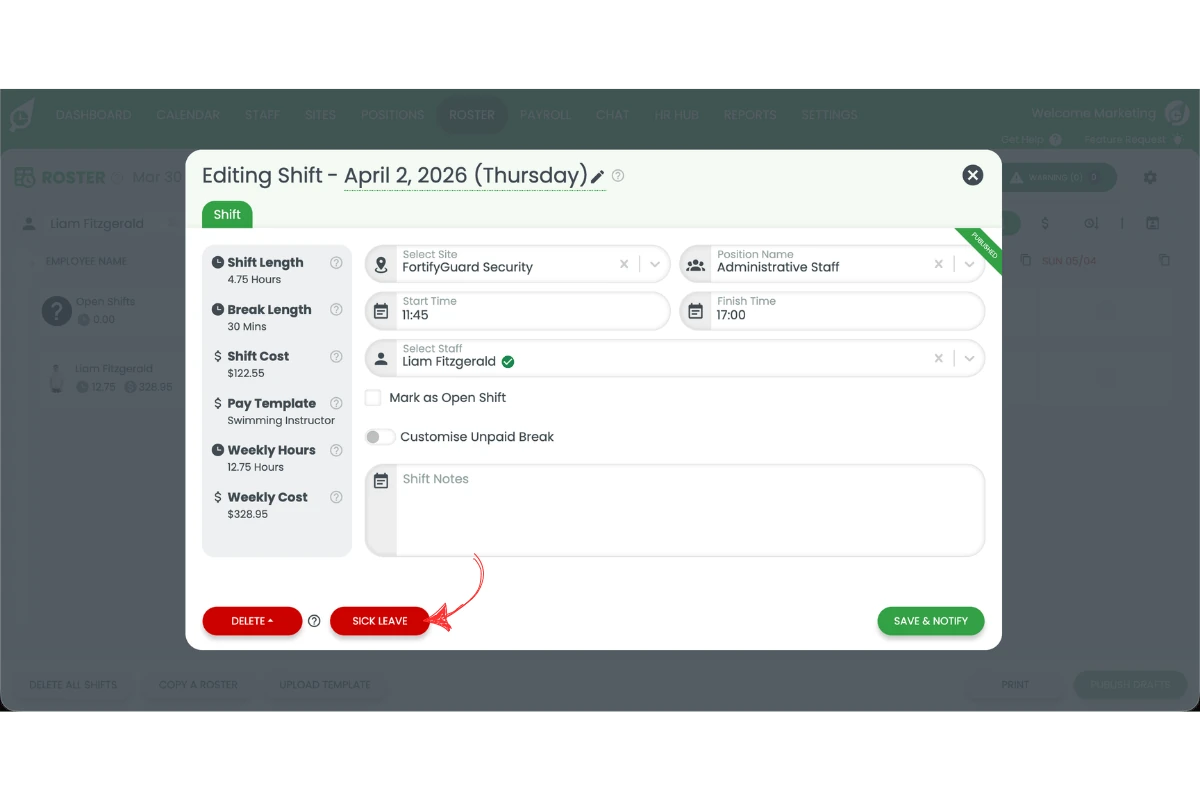
1.1.5 Add a reason for the sick leave.
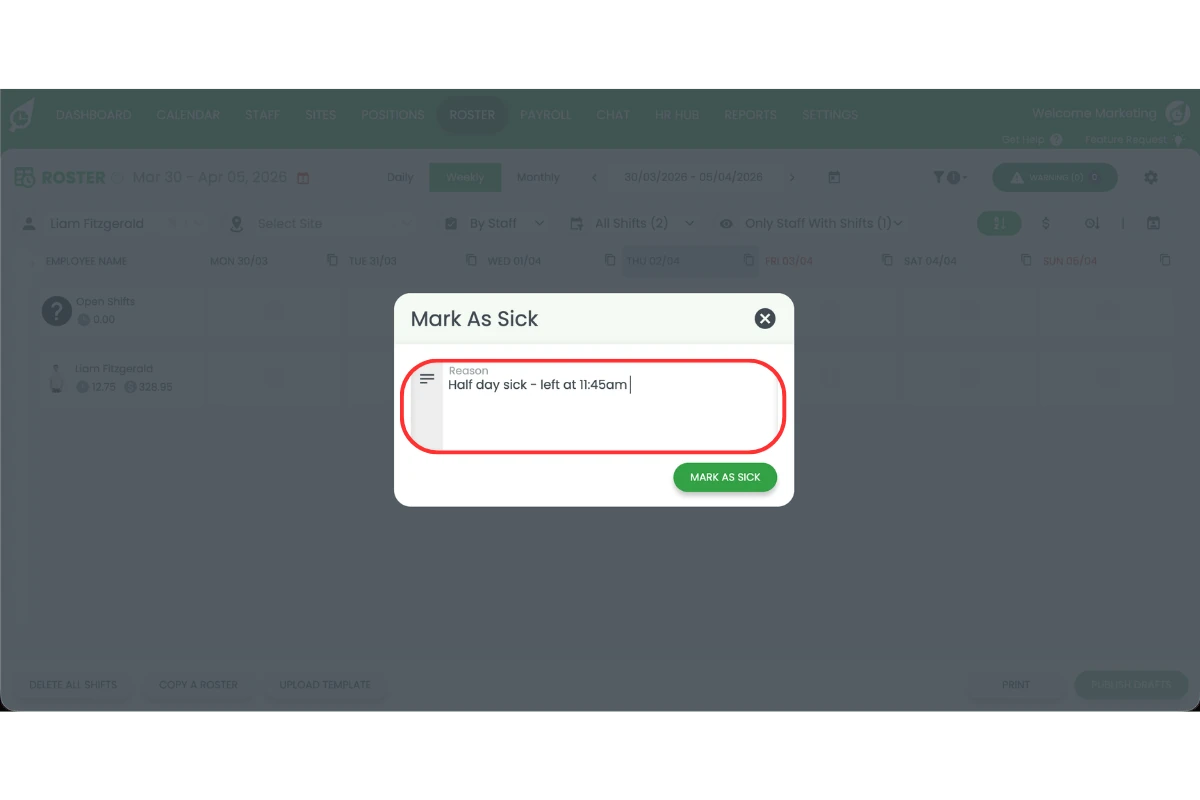
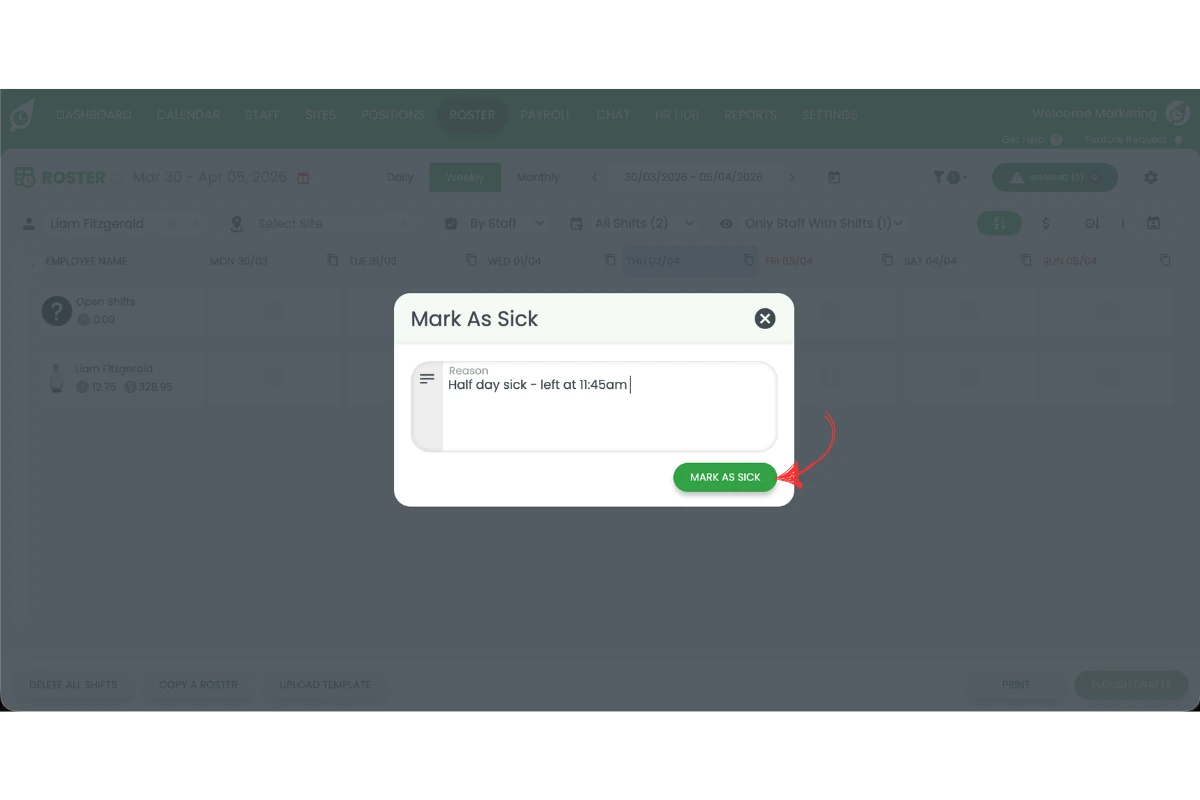
1.1.6 Click Mark as sick to confirm.
2. Adjust worked hours in payroll
This section explains how to manage half day sick leave in RosterElf by adjusting worked hours in payroll. You will learn how to locate the affected shift and update the hours to reflect the actual time worked. This ensures payroll calculations are accurate.
Adjusting worked hours is essential when an employee works part of a shift before taking sick leave. It ensures they are paid correctly for hours worked while separating leave hours. This step helps maintain accurate payroll data and avoids discrepancies in employee payments. For more detail on the full sick leave payroll process, see processing sick leave in payroll.
2.1 Update worked hours for sick leave shift
2.1.1 Open the payroll tab.
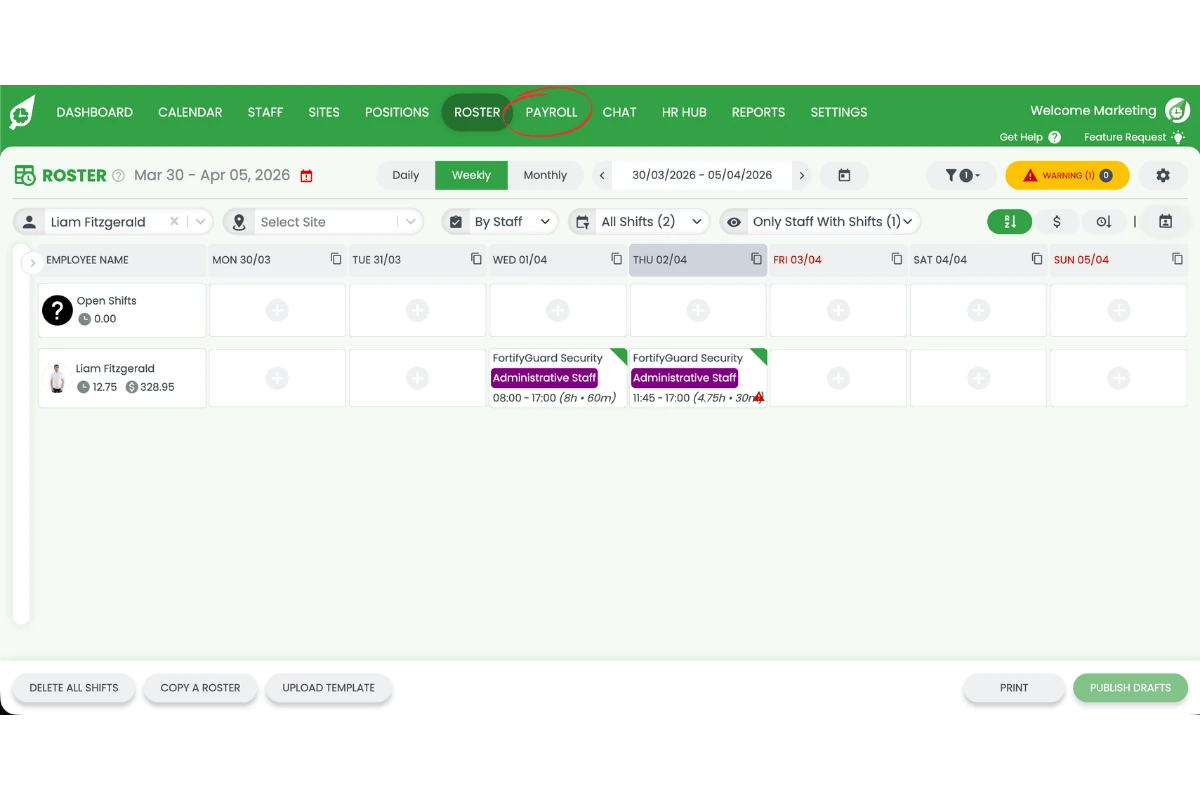
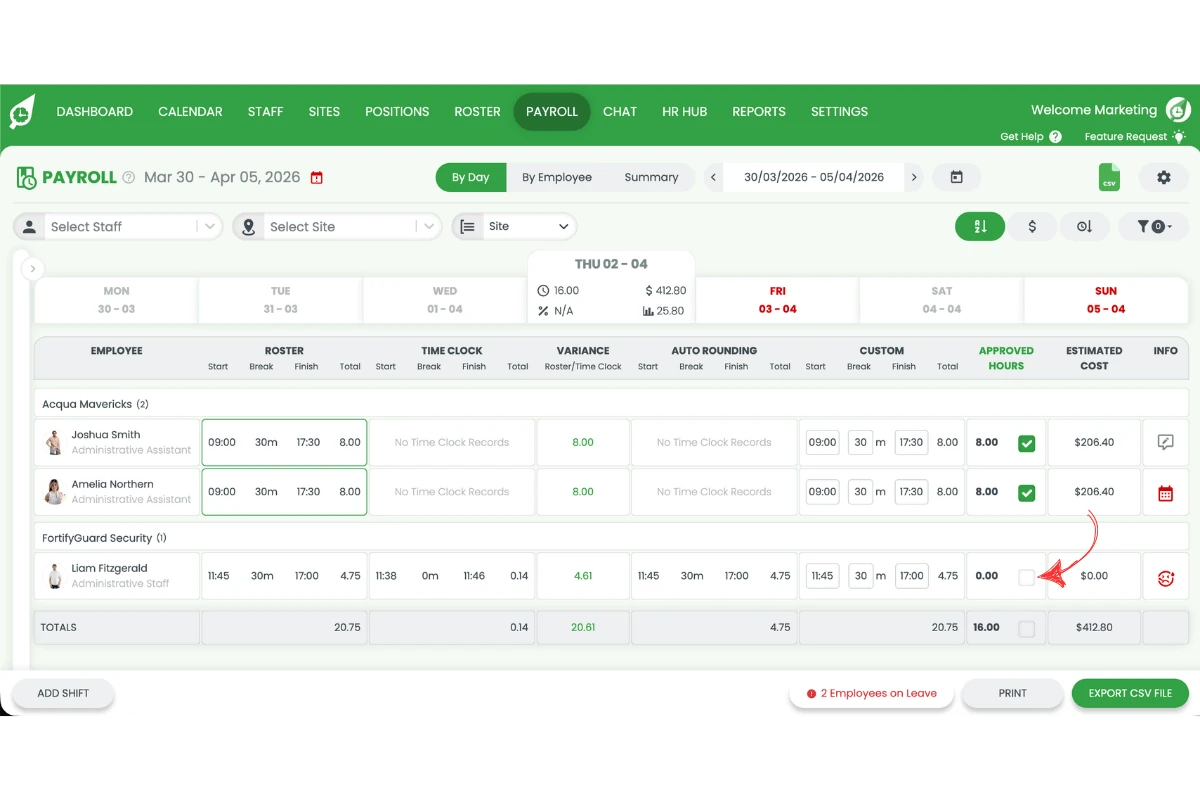
2.1.2 Find the shift you marked as sick.
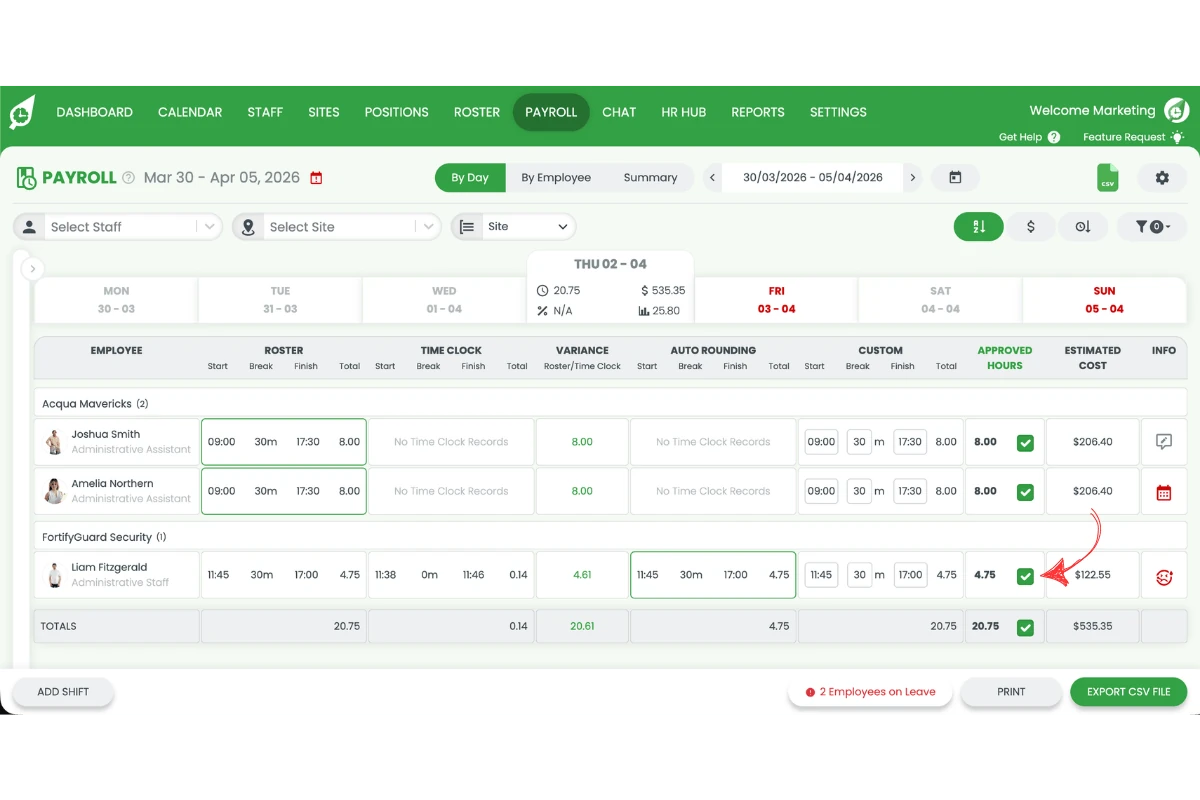
2.1.3 Approve the shift.
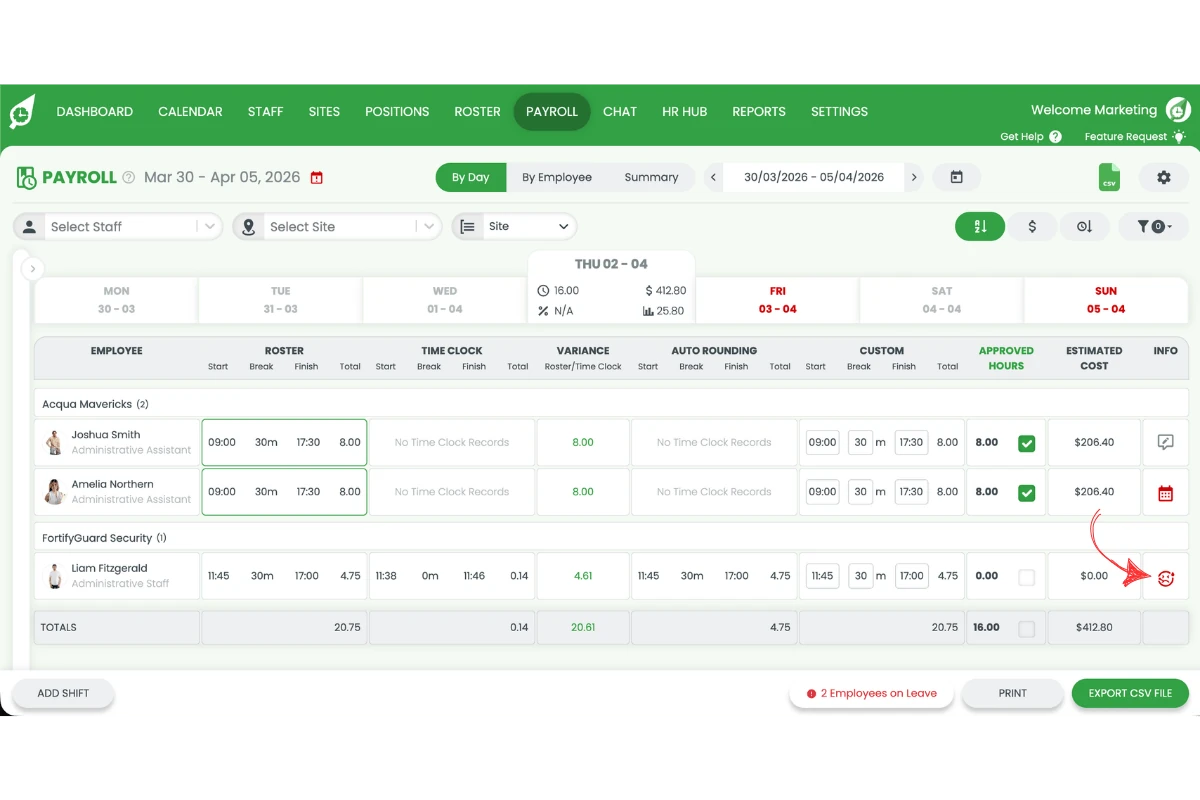
2.1.4 Adjust the hours if required to reflect the worked hours.
3. Send sick leave hours to payroll
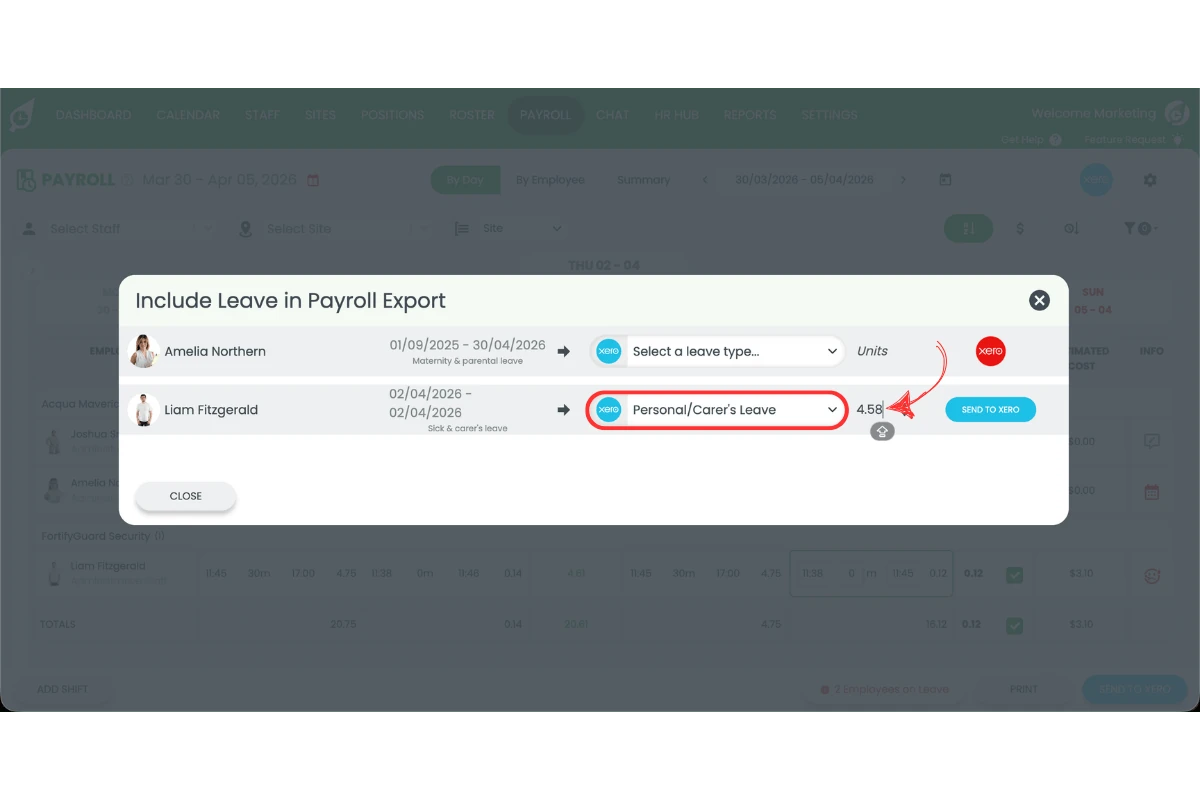
This section explains how to manage half day sick leave in RosterElf by sending sick leave hours to payroll. You will learn how to enter leave hours and export them to your payroll system. This ensures leave is processed correctly.
Sending sick leave hours ensures your payroll system, such as Xero, reflects accurate leave balances and payments. This step finalises the process and ensures both worked and leave hours are correctly recorded for the employee. For full details on exporting leave to Xero, see the guide on exporting leave to Xero.
3.1 Export sick leave hours to payroll
3.1.1 Click Employees on leave in payroll.
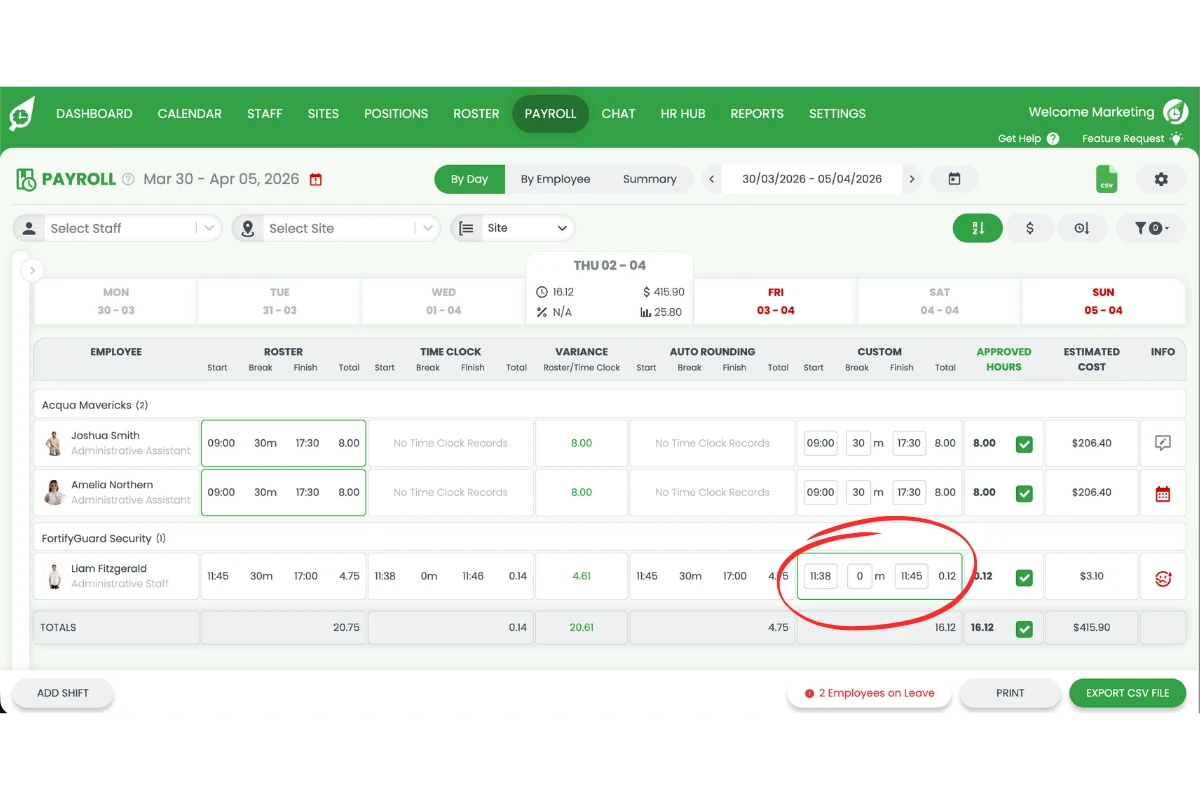
3.1.2 Set the sick leave hours.
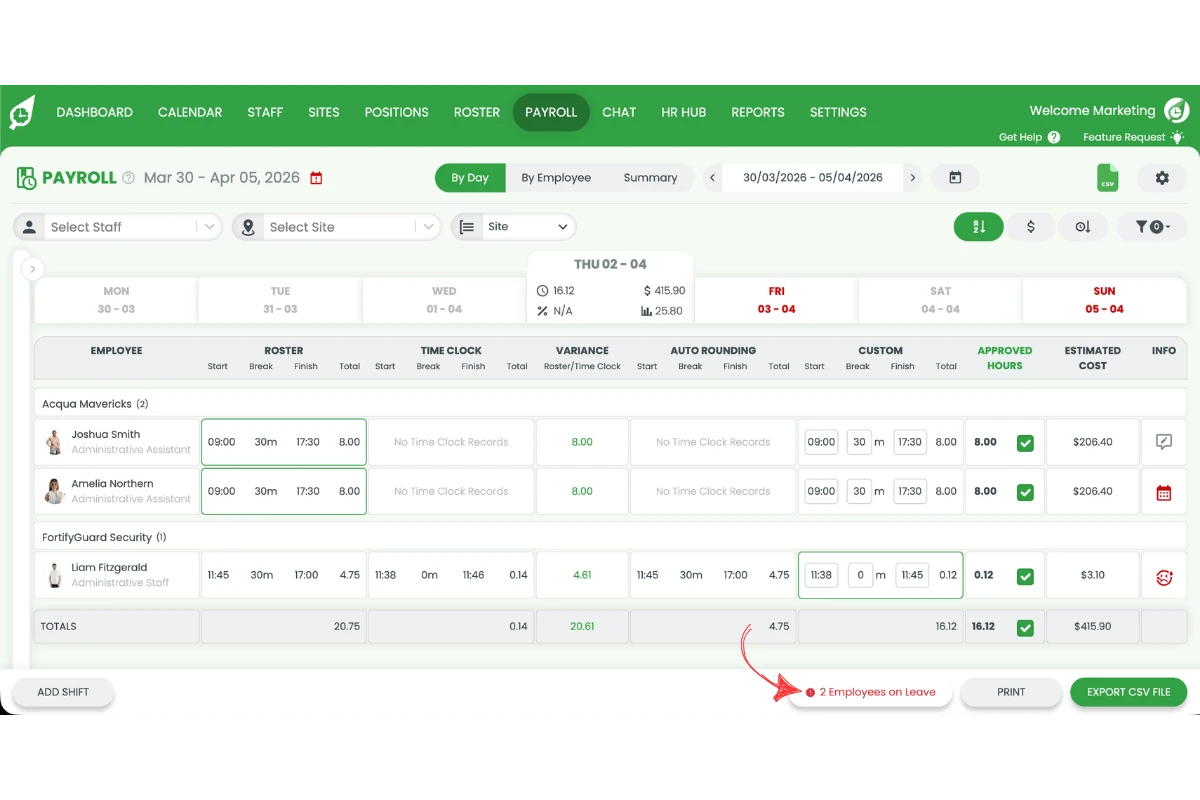
3.1.3 Click Export to Xero.
Frequently asked questions
1. How do I manage half day sick leave in RosterElf?
To manage half day sick leave in RosterElf, you need to complete three steps. First, mark the employee’s shift as sick in the roster. Next, adjust the worked hours in payroll to reflect the actual time worked. Finally, enter and export the sick leave hours to your payroll system. This ensures both worked and leave hours are recorded correctly.
2. Can an employee have both worked hours and sick leave in one shift?
Yes, RosterElf allows you to record both worked hours and sick leave within the same shift. This is useful when an employee works part of a shift before going home sick. You can adjust the worked hours in payroll and then allocate the remaining time as sick leave.
3. Why do I need to adjust worked hours for half day sick leave?
You need to adjust worked hours to ensure payroll accuracy. If you do not update the worked hours, the system may assume the employee worked the full shift. Adjusting the hours ensures the employee is paid correctly for time worked and that sick leave is recorded separately. See our guide on processing sick leave in payroll for more detail.
4. How do I send half day sick leave hours to payroll?
To send sick leave hours to payroll, go to the payroll section and select Employees on leave. Enter the correct number of sick leave hours, then export the data to your payroll system. For Xero users, see our guide on exporting leave to Xero to ensure leave balances and payments are updated correctly.
5. What happens if I do not record half day sick leave correctly?
If half day sick leave is not recorded correctly, it can cause payroll errors. Employees may be overpaid or underpaid, and leave balances may become inaccurate. Following the correct process ensures your records stay accurate and compliant. RosterElf’s leave management software is designed to make this process straightforward.