

Use WorkWise AI on the smartphone app
This article explains how to use WorkWise AI in the RosterElf smartphone app. WorkWise AI helps you make smarter business decisions by using Fair Work Australia’s resources. Using this feature on your phone gives you quick access to AI-powered recommendations while you’re on the go. This makes compliance checking faster, more accurate, and easier to manage.
With this guide, you will learn how to open the app, access WorkWise AI, and accept the terms to get started. Following these steps ensures you can take advantage of WorkWise AI directly from your smartphone. Once enabled, you’ll save time searching for answers.
1. Opening WorkWise AI in the smartphone app
In this section, you will learn how to access WorkWise AI from the RosterElf smartphone app. You need to reach this area before you can enable and start using the feature. By following these steps, you’ll quickly locate WorkWise AI and activate it so it’s ready for use.
1.1 access the smartphone App menu
1.1.1 Open the RosterElf smartphone app.
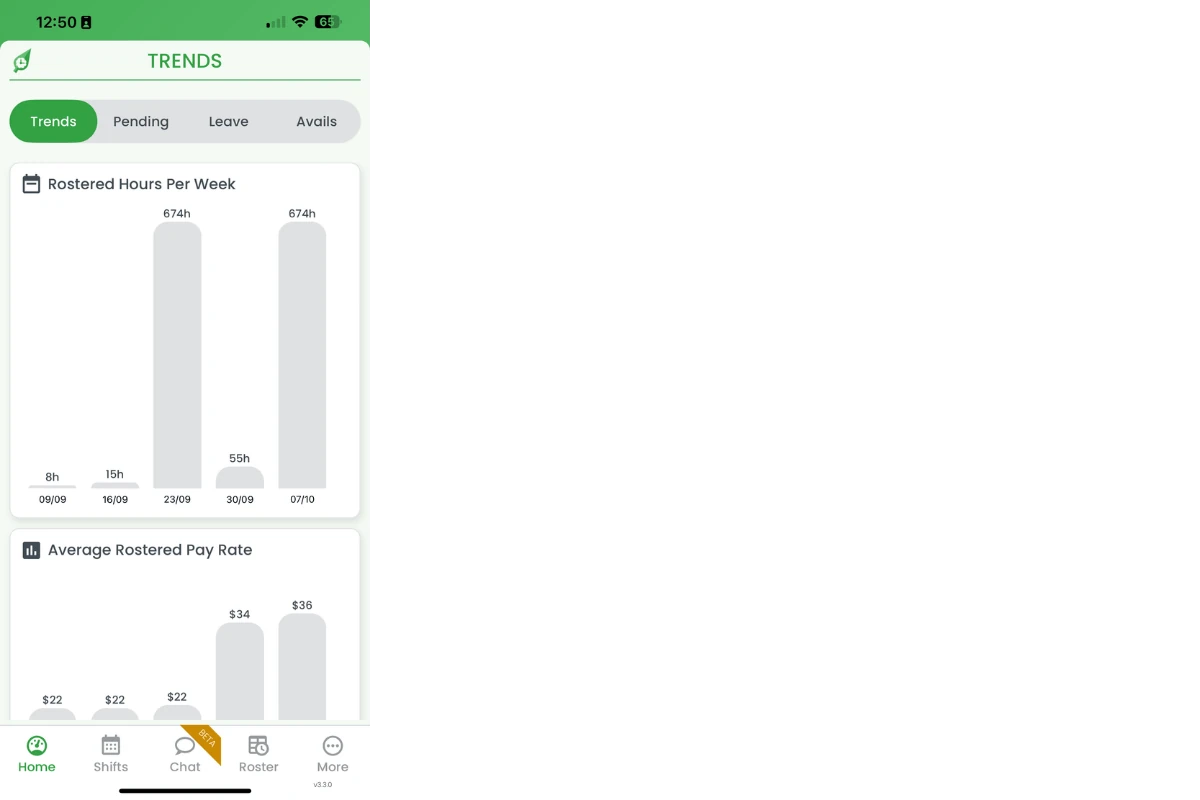
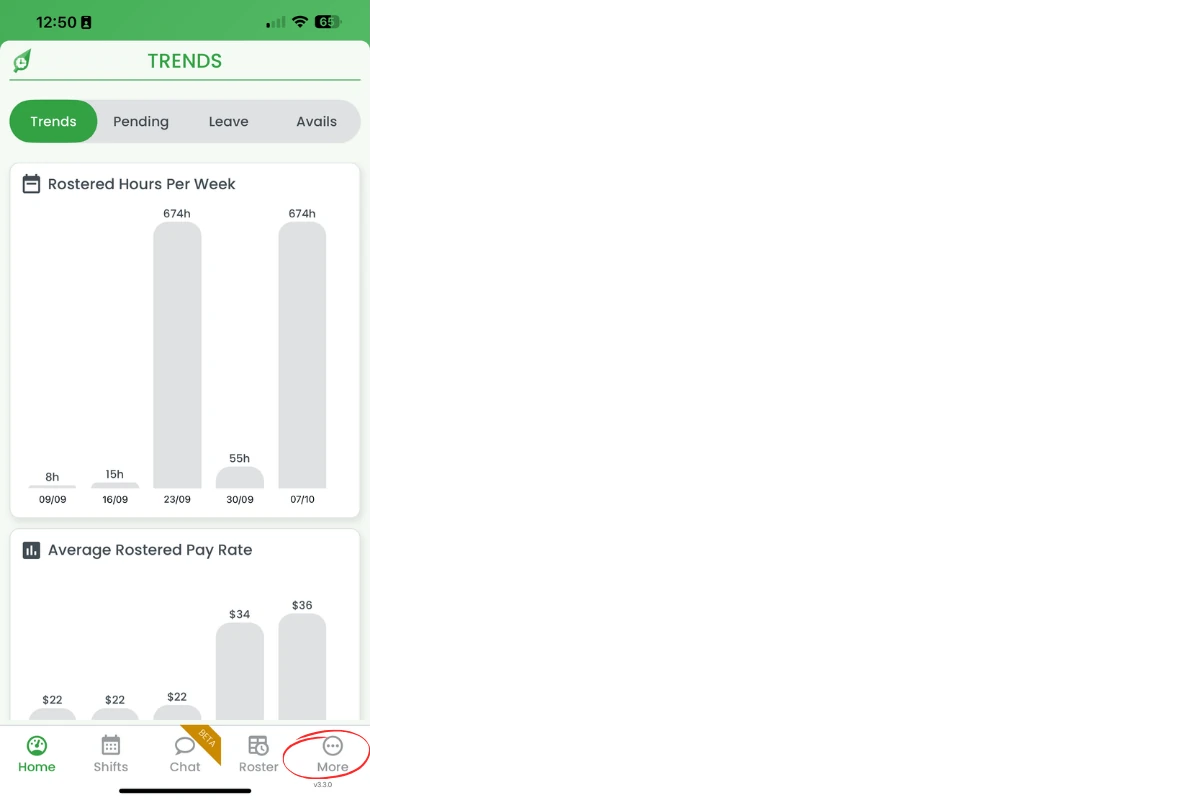
1.1.2 Press More to open additional options.
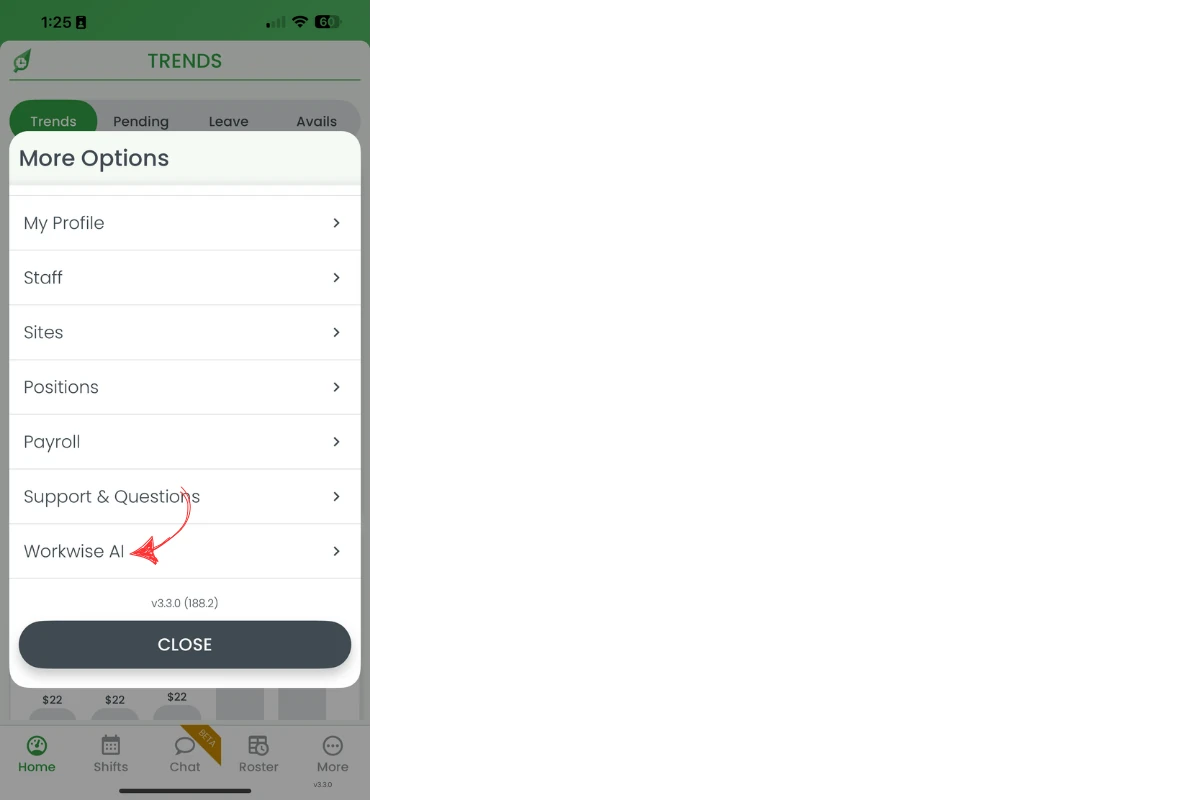
1.2 access WorkWise AI
1.2.1 Press WorkWise AI.
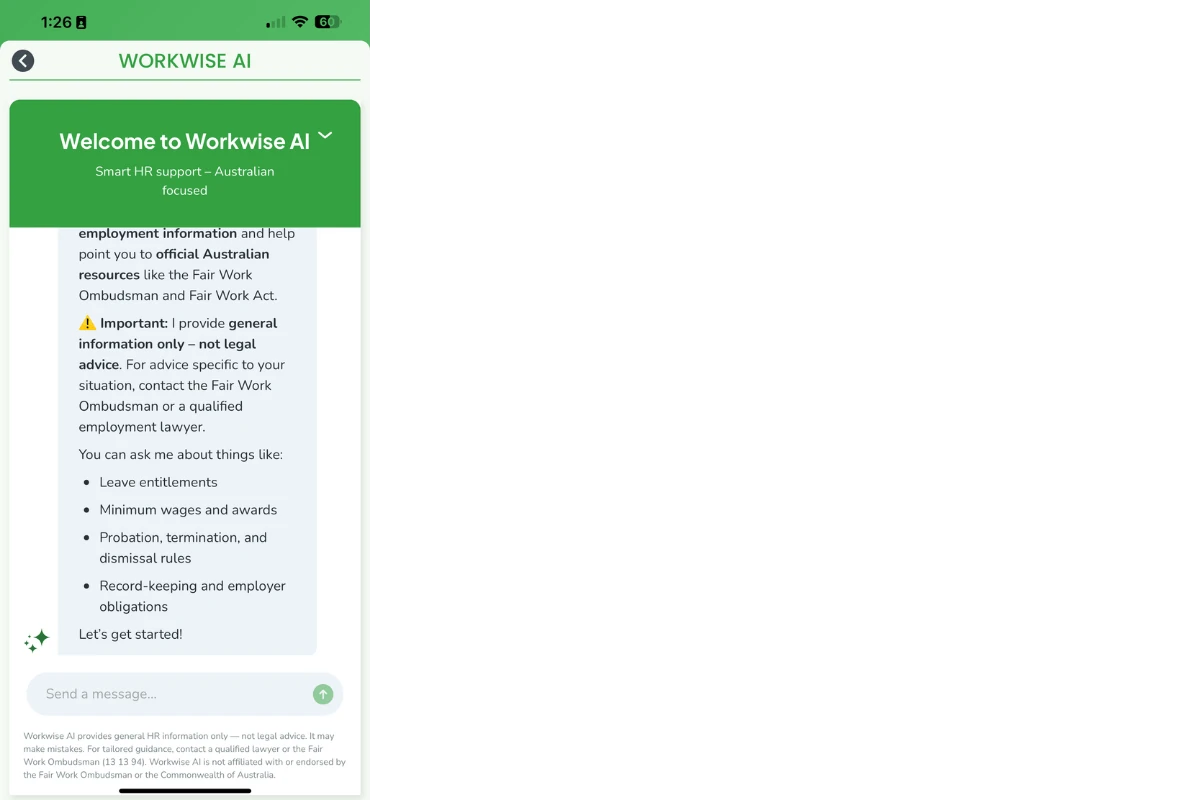
1.2.2 Review the terms.
1.2.3 Press Agree and Continue.
Note
The feature must be enabled by the account owner first. If managers can’t see WorkWise AI, check out the Manage WorkWise AI access settings guide.
Frequently asked questions
1. What is WorkWise AI in the RosterElf smartphone app?
WorkWise AI is a feature in the RosterElf app that helps with general information from Fair Work Australia.
2. How do I enable WorkWise AI on the smartphone app?
Open the RosterElf app, press More, select WorkWise AI, review the terms, and press Agree and Continue to activate the feature.
3. Why should I use WorkWise AI for rostering?
Using WorkWise AI makes compliance checks faster and more accurate.
4. Can I access WorkWise AI on the go?
Yes. WorkWise AI is built into the RosterElf smartphone app, so you can use it anywhere to check Fair Work related questions.
5. Do I need to accept terms before using WorkWise AI?
Yes. You must review and accept the terms in the RosterElf smartphone app before you can use WorkWise AI for rostering.