

Control workwise AI access for admins and managers
Workwise AI is powerful, but not every staff member needs it. As account owner, you can decide who sees the assistant. This guide shows how to open the HR Hub settings, find the Workwise AI tab, and switch access on or off for admins and managers. You will learn four simple options: disable Workwise AI for everyone, allow only admins, allow only managers, or limit access to yourself.
Each option uses a toggle—green means on, grey means off—so you can change permissions in seconds without technical help. Follow the steps to keep sensitive HR answers in the right hands and stay compliant.
1. Opening workwise AI access settings
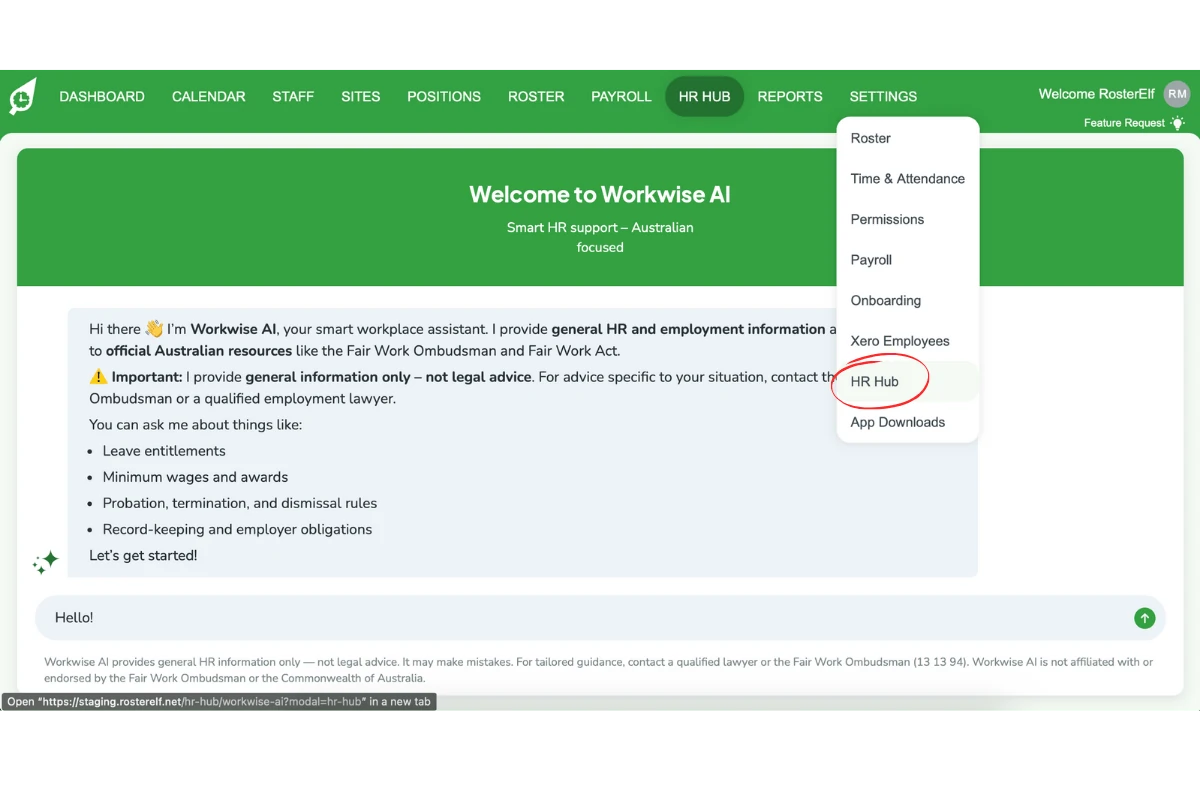
First, reach the settings panel that controls Workwise AI. The path is the same on desktop and mobile browsers. Once open, you will see the Activate toggle and two permission toggles.
1.1 navigate to the workwise AI tab
1.1.1 Click Settings in the top menu.
1.1.2 Click HR Hub in the dropdown.
2. Choosing who can use workwise AI
The modal shows three green toggles. One controls whether Workwise AI is active at all, and two control access for admins and managers. Use the combinations below to match your policy.
2.1 turn off workwise AI for everyone
2.1.1 Switch Activate Workwise AI to grey.
2.1.2 Click Save. No one, including you, can open the assistant.
2.2 give access only to admins
2.2.1 Switch Activate Workwise AI to green.
2.2.2 Switch Admins to green and Managers to grey.
2.2.3 Click Save. Admins now see Workwise AI; managers do not.
2.3 give access only to managers
2.3.1 Switch Activate Workwise AI to green.
2.3.2 Switch Managers to green and Admins to grey.
2.3.3 Click Save. Managers now see Workwise AI; admins do not.
2.4 limit access to the account owner
2.4.1 Switch Activate Workwise AI to green.
2.4.2 Switch Admins and Managers to grey.
2.4.3 Click Save. Only the account owner can use Workwise AI.
3. Default workwise AI permissions
When you first open HR Hub, Workwise AI is active for the account owner only. Admin and manager toggles start off. Review the settings after onboarding new staff to ensure the right people keep access.
3.1 identify the default state
3.1.1 Confirm Activate Workwise AI is green.
3.1.2 Confirm both Admins and Managers toggles are grey.
3.1.3 Decide whether to change access using Section 2 steps.
Frequently asked questions
1. How do I open Workwise AI access settings?
Click Settings in the top menu, choose HR Hub, then select the Workwise AI tab in the modal.
2. How do I disable Workwise AI for everyone?
Switch the Activate Workwise AI toggle to grey.
3. How do I give Workwise AI access only to admins?
Turn on Activate Workwise AI, set the Admins toggle to green, leave Managers grey.
4. How do I restrict Workwise AI to managers only?
Turn on Activate Workwise AI, set the Managers toggle to green, leave Admins grey, and click Save.
5. What is the default Workwise AI permission setting?
Workwise AI starts active for the account owner only; admin and manager toggles are off by default.