

How to enable push notifications for RosterElf on mobile
This article guides you on setting up push notifications for the RosterElf smartphone app, helping ensure you never miss important updates like shift reminders, clock-in alerts, shift swaps, and leave request notifications. With these steps, you’ll learn how to enable notifications on both iOS and Android devices, ensuring your settings allow for seamless communication.
1. Enabling push notifications on iOS
In this section, you’ll find step-by-step instructions to enable RosterElf notifications on iOS, ensuring you receive all reminders and alerts directly to your device. Follow these steps if you’re having trouble seeing notifications.
1.1 checking notification settings in iOS
1.1.1 Open the Settings app on your iPhone.
1.1.2 Scroll down to find RosterElf in the app list and tap on it.
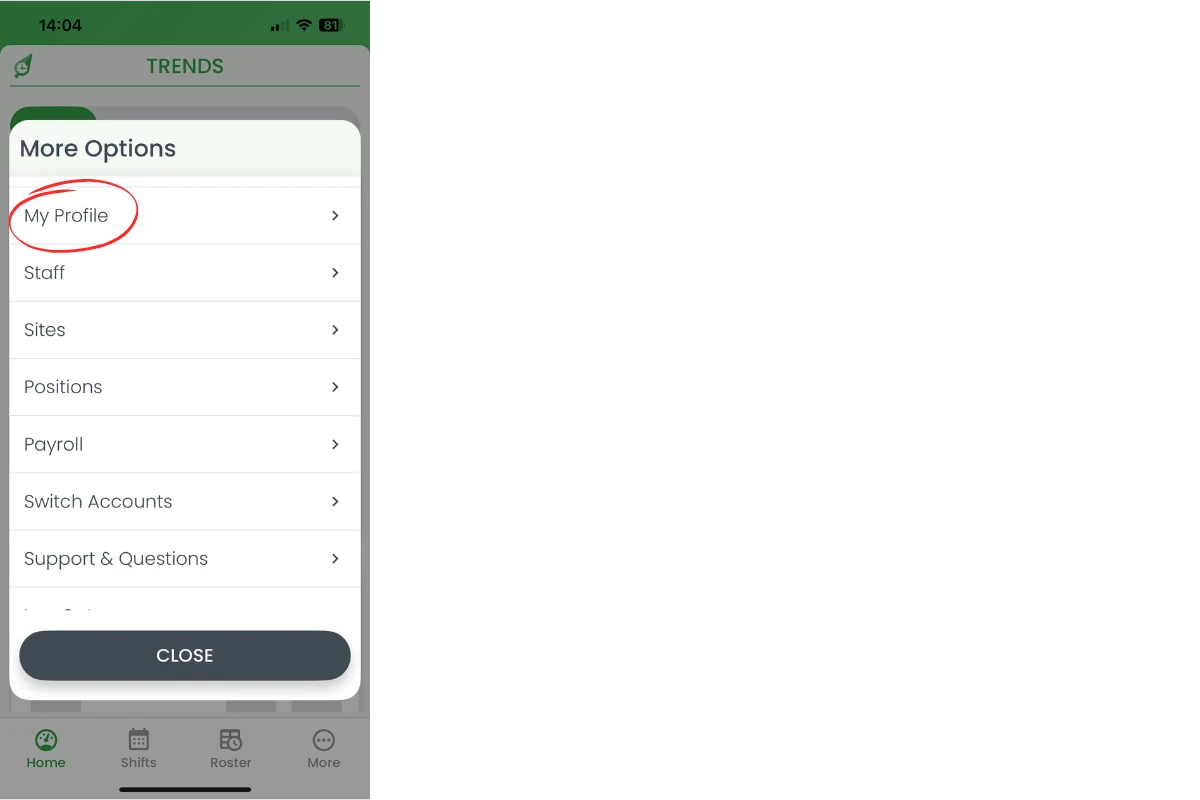
1.1.3 Tap Notifications.
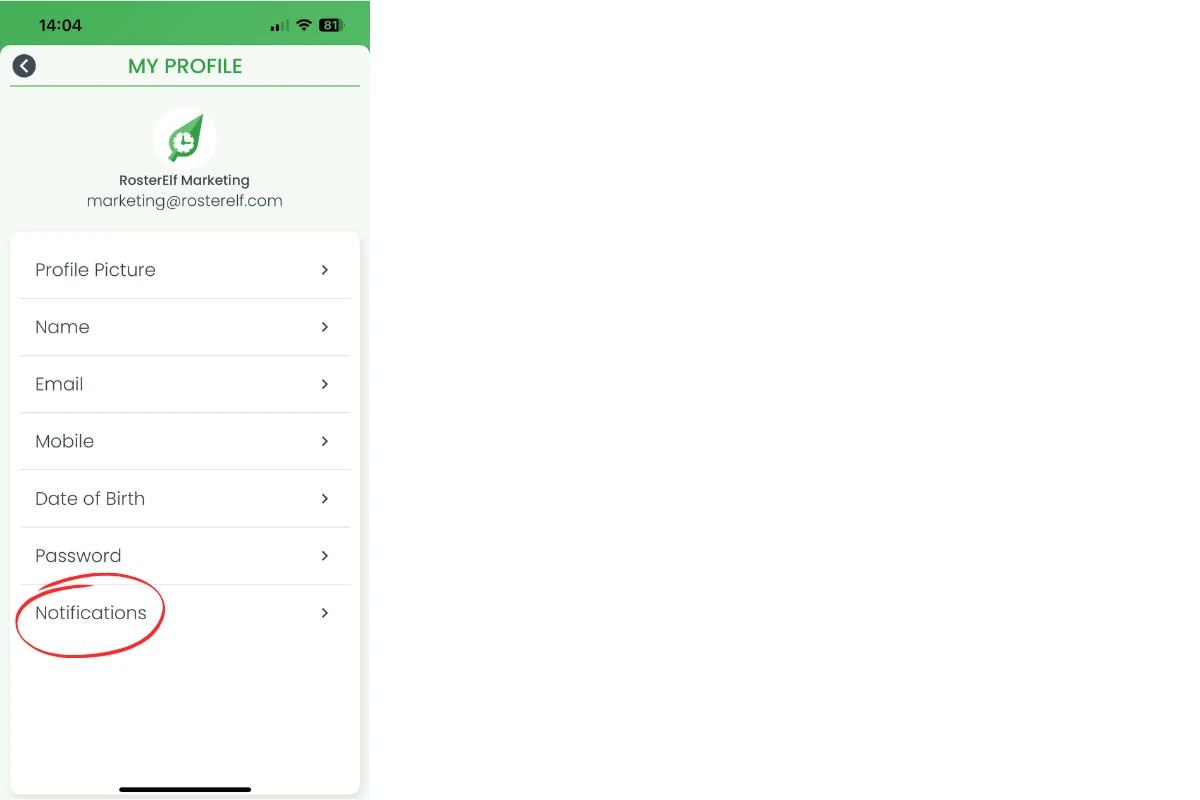
1.1.4 Toggle Allow Notifications to the on position (green). This enables RosterElf to send you push notifications.
2. Enabling push notifications on Android
Android devices require notification permissions to be set within the system settings. This section walks you through locating and enabling RosterElf notifications on Android phones.
2.1 checking notification settings in Android
2.1.1 Open the Settings app on your Android device.
2.1.2 Tap Apps & notifications (or Apps depending on your Android version).
2.1.3 Find and tap RosterElf in the app list.
2.1.4 Tap Notifications.
2.1.5 Toggle notifications to the on position. This allows RosterElf to send push notifications to your device.
3. Checking RosterElf profile settings
In addition to device settings, RosterElf has its own notification settings within the app. Ensure these are enabled to receive all updates directly through the app.
3.1 enabling notifications in RosterElf profile
3.1.1 Open the RosterElf app on your smartphone.
3.1.2 Tap the profile icon in the top right corner.
3.1.3 Scroll to the Notification Settings section.
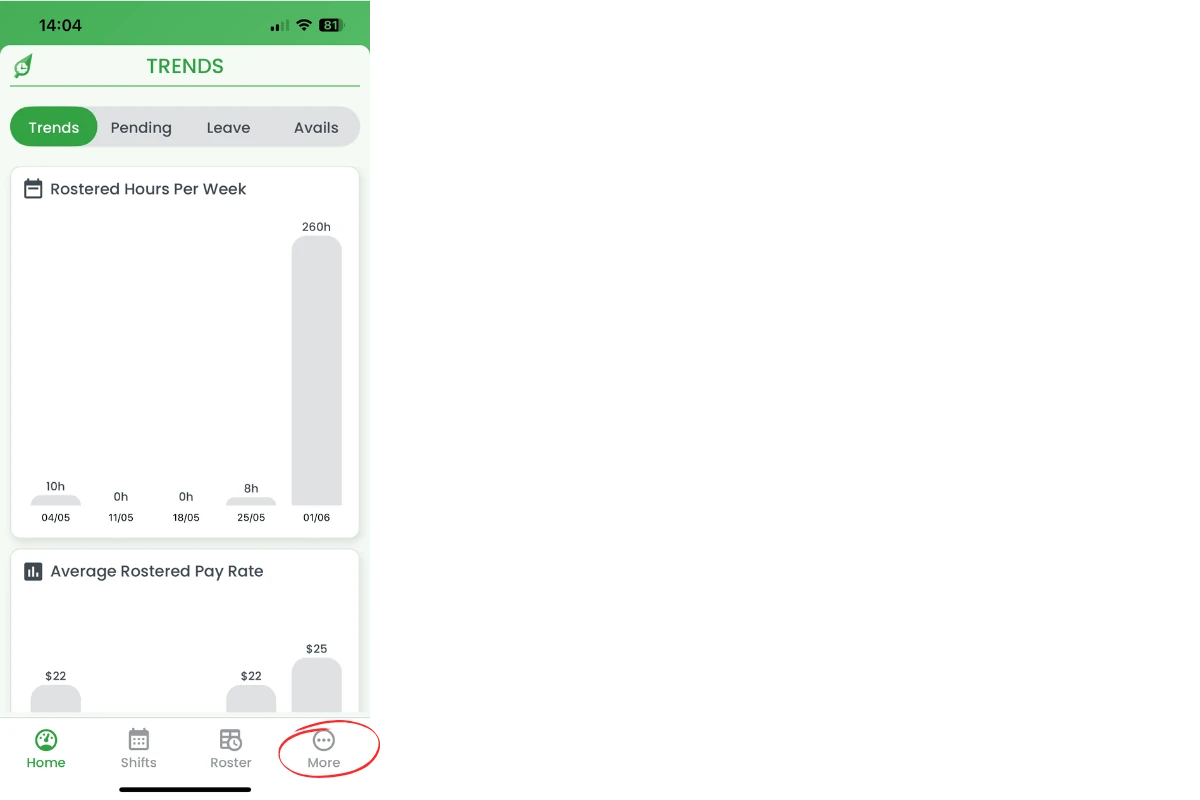
3.1.4 Toggle the notification options you want to receive, such as shift reminders, clock-in alerts, and leave requests. Ensure all relevant notifications are enabled to stay informed.
Note: Clock-in and clock-out alerts fire automatically — you will receive a push notification 2 minutes before your shift starts (clock-in reminder) and 2 minutes before your shift ends (clock-out reminder).
By following these steps, you’ll ensure that push notifications are fully enabled for RosterElf on your mobile device, keeping you updated on all important shift information and changes.
Frequently asked questions
1. How do I enable push notifications for RosterElf on my iPhone?
Open Settings > scroll to RosterElf > tap Notifications > toggle Allow Notifications on. Then ensure notification settings in your RosterElf profile are enabled.
2. How do I enable push notifications for RosterElf on Android?
Open Settings > tap Apps & notifications > find RosterElf > tap Notifications > toggle notifications on. Also check your RosterElf profile settings.
3. Why am I not receiving push notifications from RosterElf?
Ensure notifications are enabled both in your phone’s system settings and within the RosterElf app profile. Check that Do Not Disturb mode is not blocking notifications.
4. Can I customize which RosterElf notifications I receive?
Yes, in the RosterElf app, go to your profile settings and toggle specific notification types on or off, such as shift reminders, clock-in alerts, and leave requests.
5. What types of notifications does RosterElf send?
RosterElf sends shift reminders, clock-in and clock-out alerts (push notifications sent 2 minutes before your shift starts and 2 minutes before it ends), shift swap notifications, leave request updates, and roster change notifications. You can manage these in your profile settings.