

Not receiving SMS messages from RosterElf
Understand why SMS messages might not be reaching all or specific employees and learn how to resolve common issues with SMS notifications in RosterElf. This article addresses common reasons why SMS messages might not reach employees when publishing rosters using RosterElf. It covers how to ensure that the SMS option is selected during roster creation and how to troubleshoot issues when only one employee fails to receive SMS notifications. By following these steps, you can ensure smooth communication with your team through SMS notifications.
1. Resolving SMS issues for all employees
Learn how to check the SMS notification setting if no employees receive SMS notifications when a roster is published. If none of your employees receive the SMS notification when a roster is published, it is often due to a missed SMS checkbox setting. This section will guide you through the steps to ensure that SMS notifications are enabled for roster publishing.
1.1 check SMS settings during roster publishing
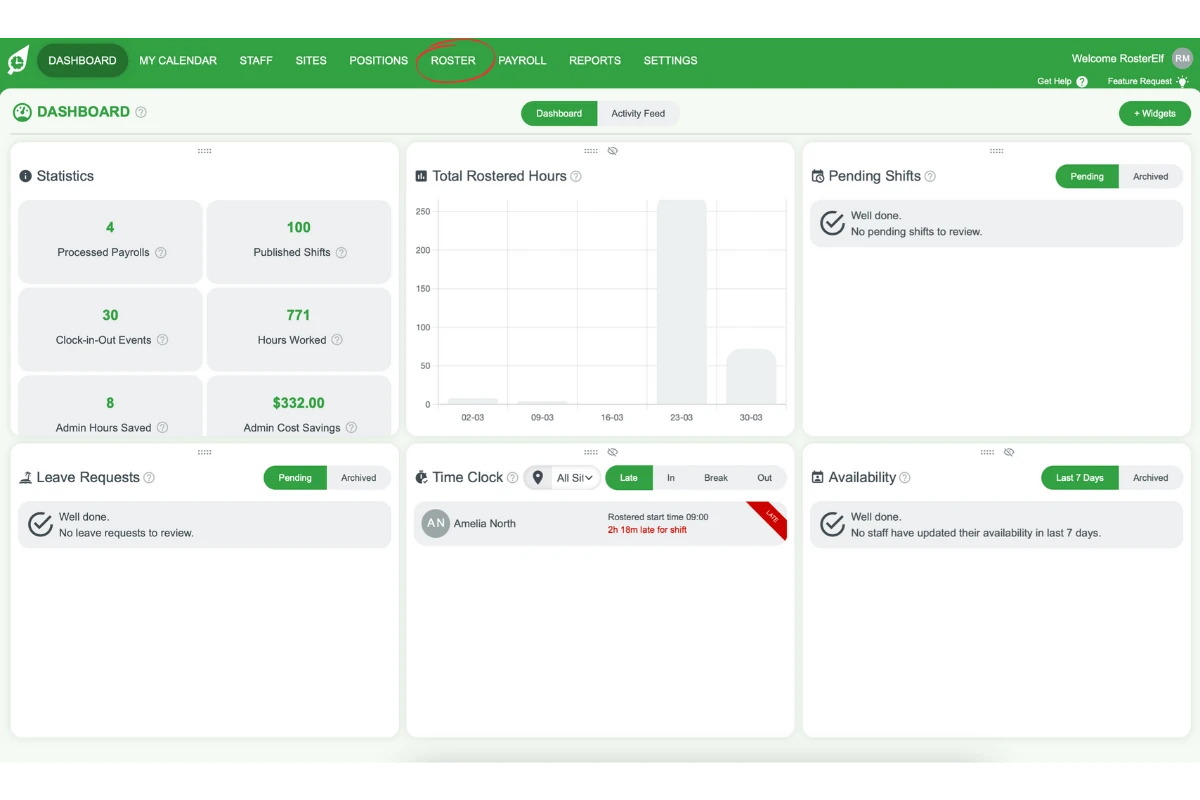
1.1.1 Go to the Roster tab located on the top menu of your page.
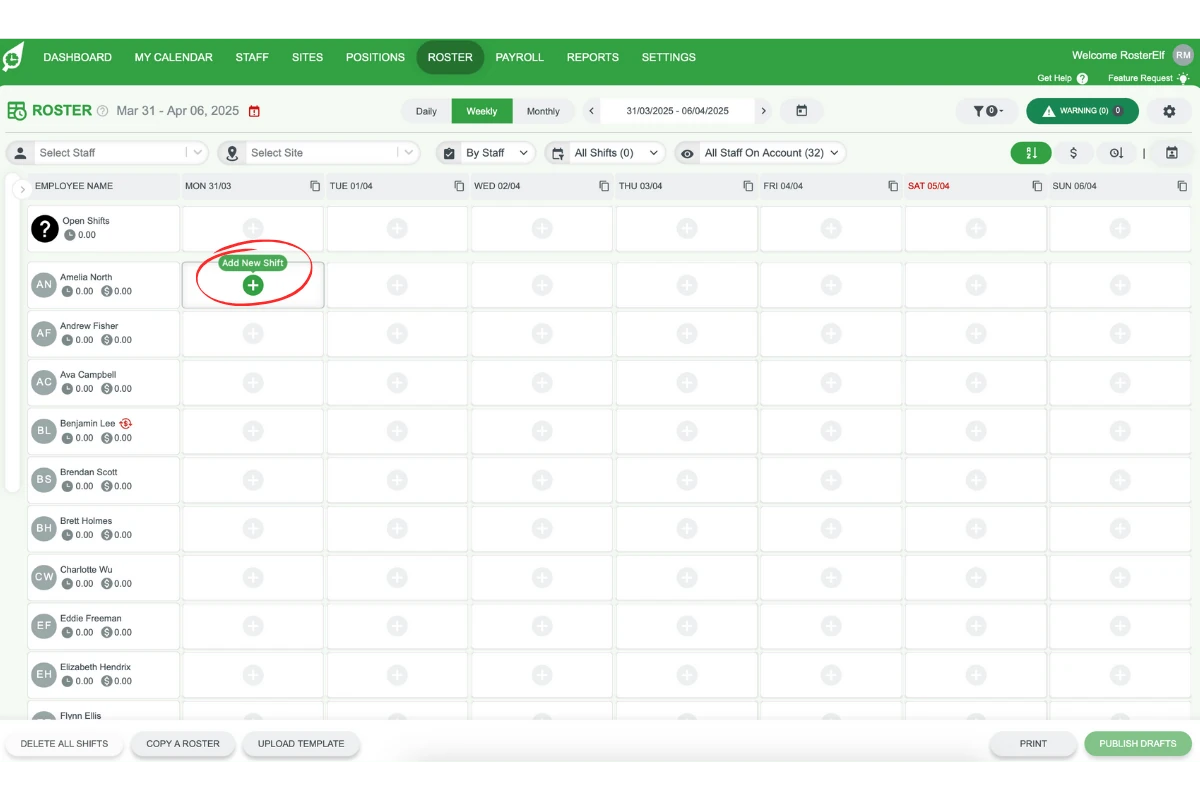
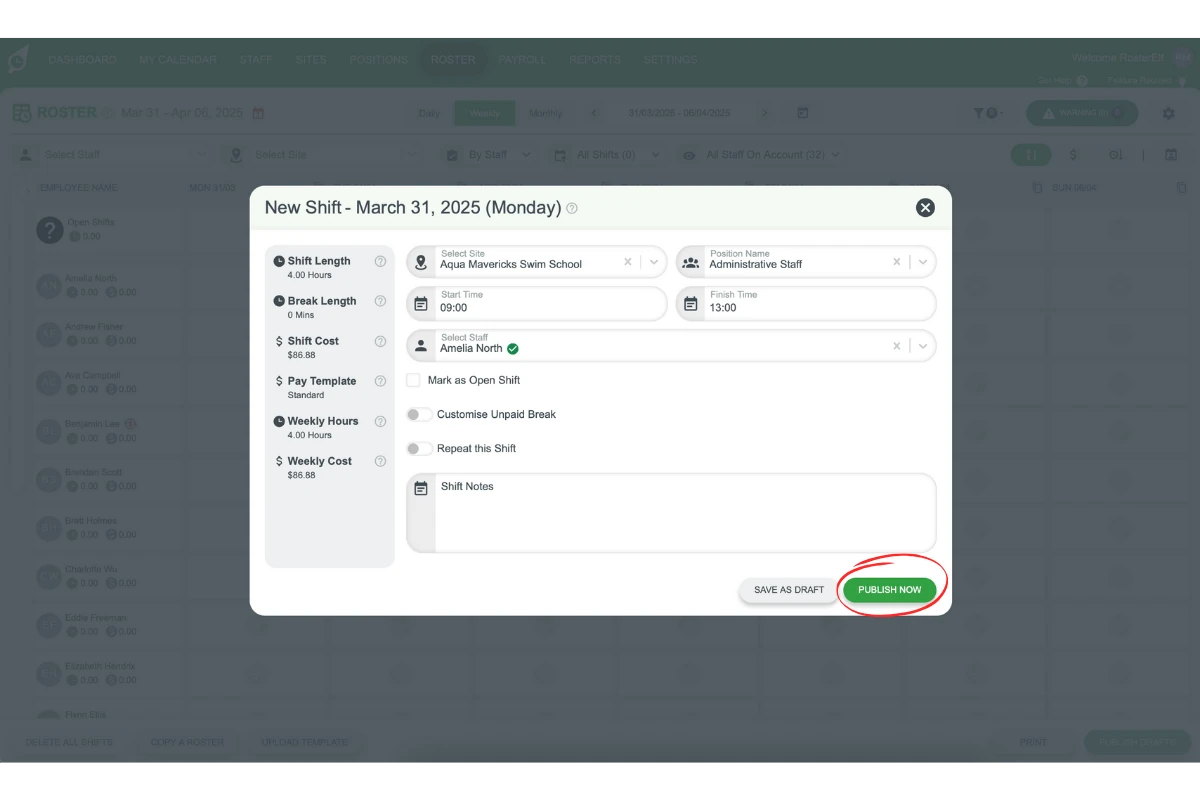
1.1.2 Add a shift for a staff member.
1.1.3 Ensure the SMS option is turned on under How to Notify Employees.
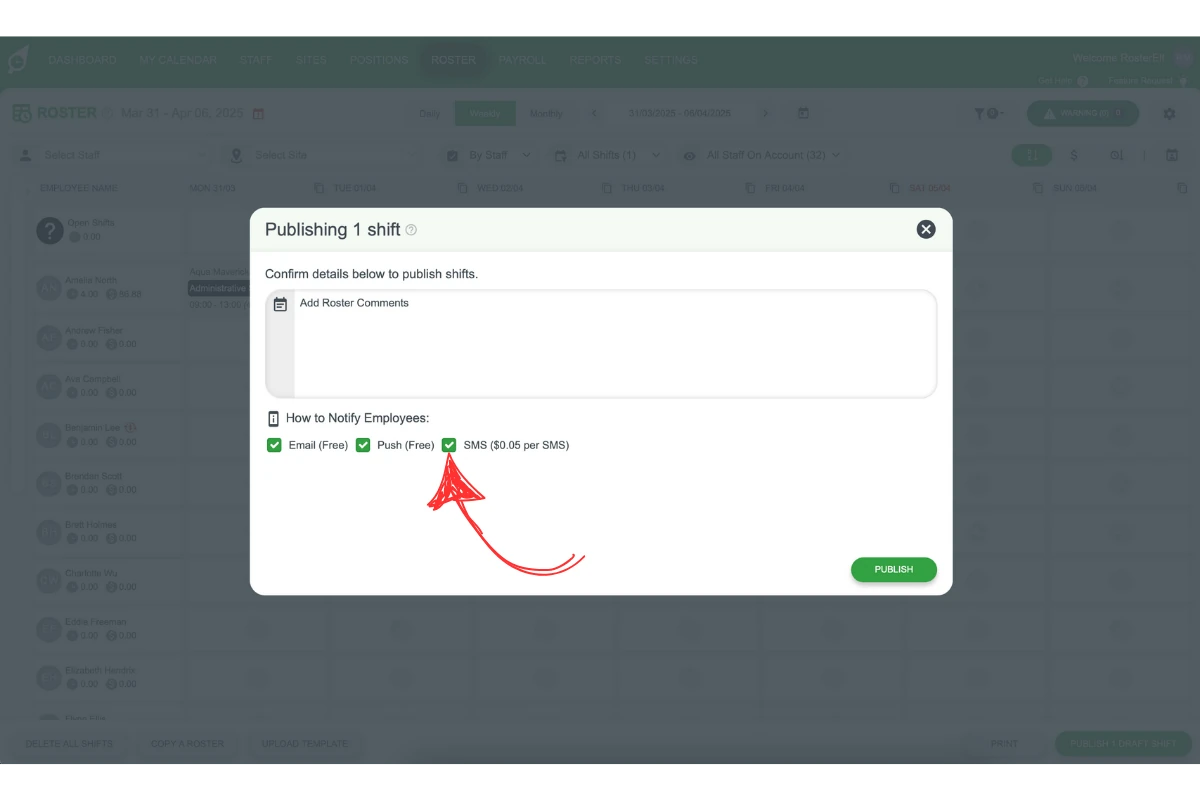
1.1.4 Publish the roster with the SMS option enabled.

2. Resolving SMS issues for one employee
Find out how to troubleshoot when only one employee fails to receive SMS notifications. If only one employee is not receiving SMS notifications, the issue is usually due to an incorrect mobile number in their RosterElf profile. This section guides you through checking and updating the employee’s contact information.
2.1 verify the Employee's mobile number
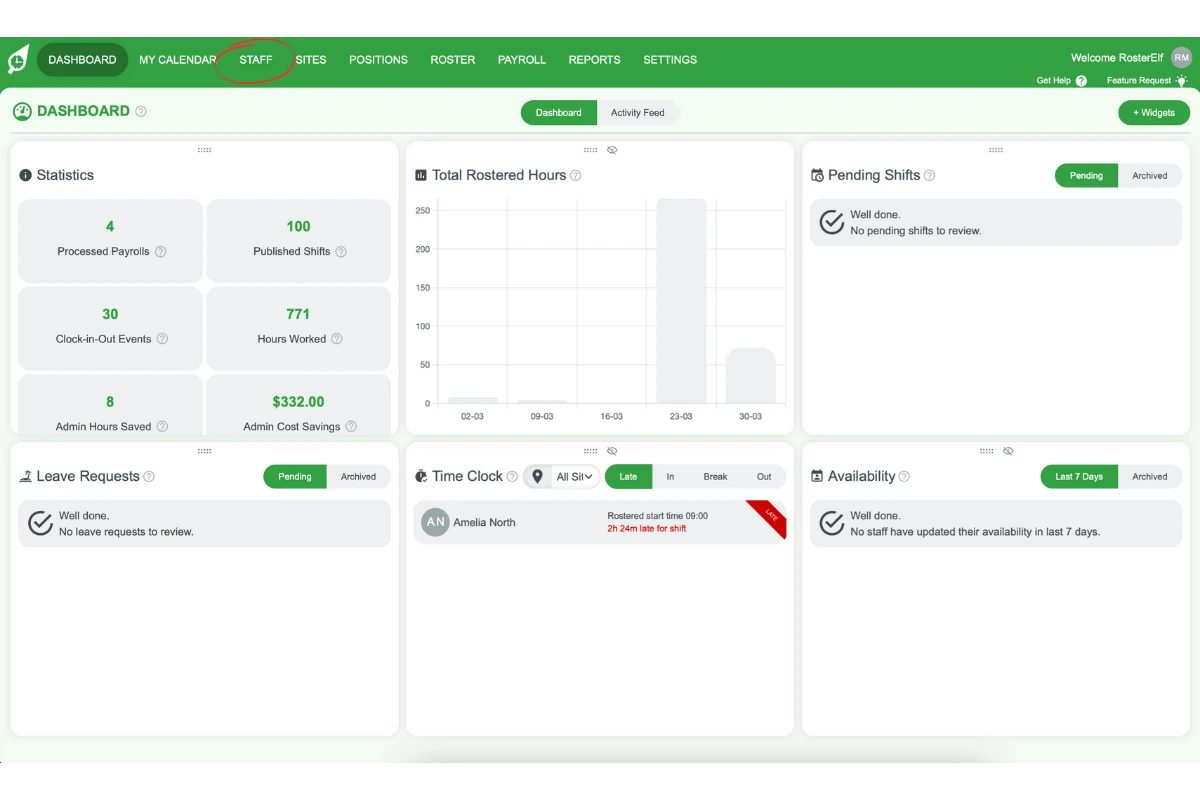
2.1.1 Go to the Staff tab located in the top menu.
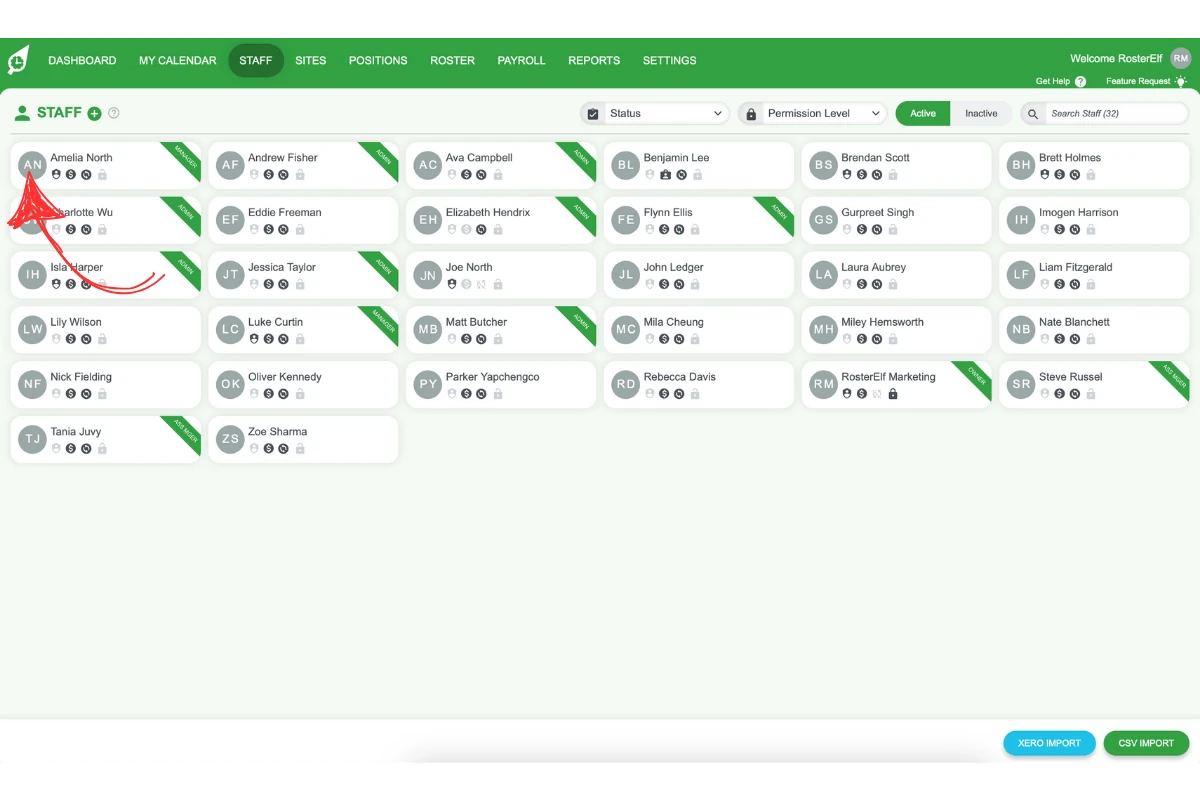
2.1.2 Locate the staff member whose SMS is not received.
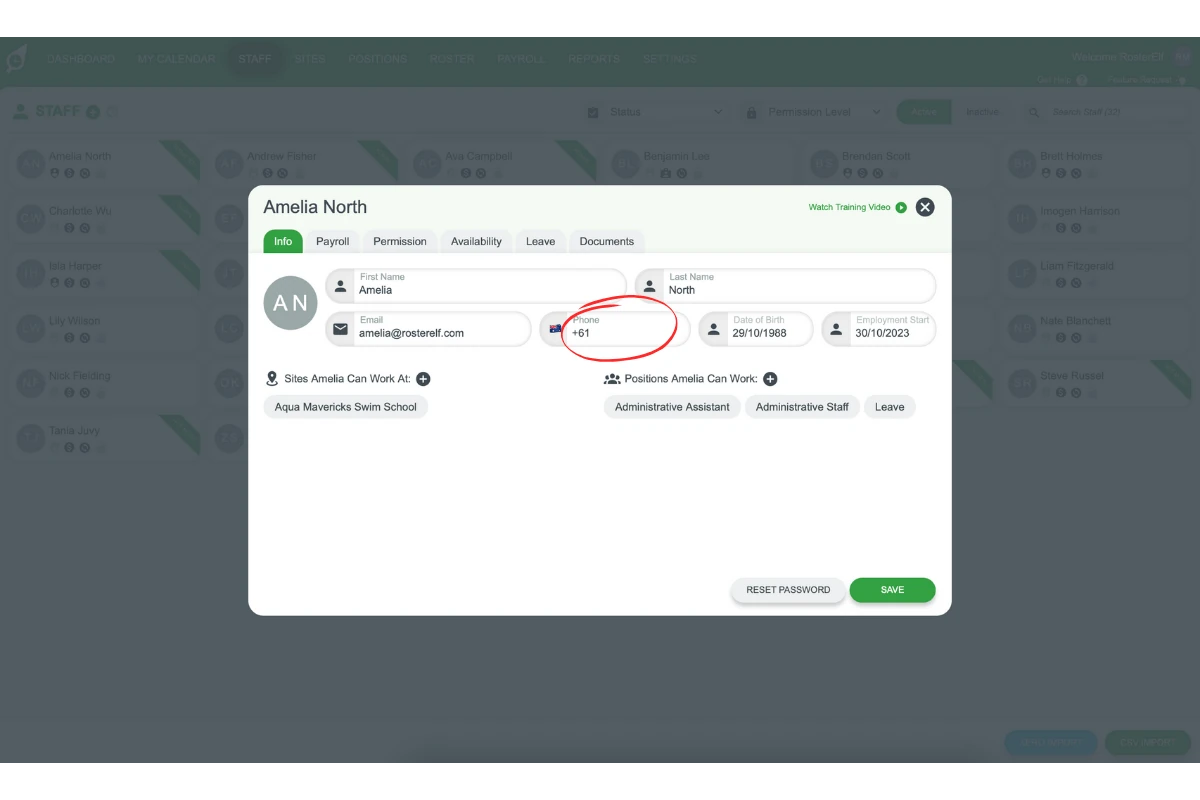
2.1.3 Open the Profile tab, and check that the mobile number is correct, including the country code.
Frequently asked questions
1. Why are my employees not receiving SMS notifications from RosterElf?
If no employees are receiving SMS notifications, it may be because the SMS option was not selected during roster publishing. Ensure that the SMS checkbox is enabled under How to Notify Employees when publishing rosters.
2. How do I enable SMS notifications in RosterElf?
To enable SMS notifications, go to the Roster tab, add shifts for staff, and make sure the SMS option is turned on under How to Notify Employees before publishing the roster.
3. What should I do if one employee isn't getting SMS notifications?
If a single employee isn’t receiving SMS notifications, check their mobile number in their RosterElf profile. Make sure the number is accurate and includes the correct country code (e.g., +61 for Australia).
4. How can I verify an employee's mobile number in RosterElf?
To verify a mobile number, navigate to the Staff tab, find the employee, open their Profile tab, and ensure the mobile number, including the country code, is correct and formatted properly.
5. What happens if I forget to enable the SMS option in RosterElf?
If you forget to enable the SMS option when publishing a roster, employees will not receive SMS notifications. Double-check that the SMS checkbox is selected before publishing to ensure notifications are sent.