

Shift notification options in RosterElf
This article outlines the three ways RosterElf notifies staff of newly published shifts: email, SMS, and push notifications. With these options, you can ensure each staff member receives shift details directly. This feature allows employees to stay informed and keep track of their shifts with ease. By using notifications, RosterElf streamlines communication and reduces the risk of shift miscommunications.
1. Email notifications
RosterElf sends shift notifications via email, detailing specific shift information to staff members. Email notifications provide clear shift details, ensuring staff know their assigned shifts without logging into the RosterElf app.
1.1 How email notifications work
1.1.1 Staff receive an email outlining the following shift details:
- Date, start, and end time
- Assigned site and position
1.1.2 Emails ensure that staff have quick access to their schedules.
2. SMS notifications
RosterElf sends SMS notifications to inform staff of new rosters, prompting them to log into the RosterElf app for more information. This option adds flexibility and ensures timely communication, though SMS charges apply.
2.1 SMS notification details
2.1.1 Staff receive an SMS when a new roster is published.
2.1.2 The SMS prompts staff to view their shifts in the RosterElf app.
2.1.3 Note: SMS charges apply. The option is labelled SMS ($0.05 per SMS) when you publish, and it is unticked by default.
3. Push notifications
Push notifications allow RosterElf to communicate shift updates directly to employees’ mobile devices. These notifications make it easy for staff to check new or changed shifts.
3.1 How push notifications work
3.1.1 The RosterElf app sends a push notification when a shift is published or updated.
3.1.2 Staff can access their shift details directly within the app.
3.2 Clock-in and clock-out reminder notifications
3.2.1 In addition to shift notifications, RosterElf automatically sends push reminder notifications to help staff clock in and out on time.
3.2.2 Staff receive a push notification 2 minutes before their shift starts as a clock-in reminder.
3.2.3 Staff receive a push notification 2 minutes before their shift ends as a clock-out reminder.
3.2.4 These reminders are sent automatically — no manager action is required.
4. Publishing shifts with notifications
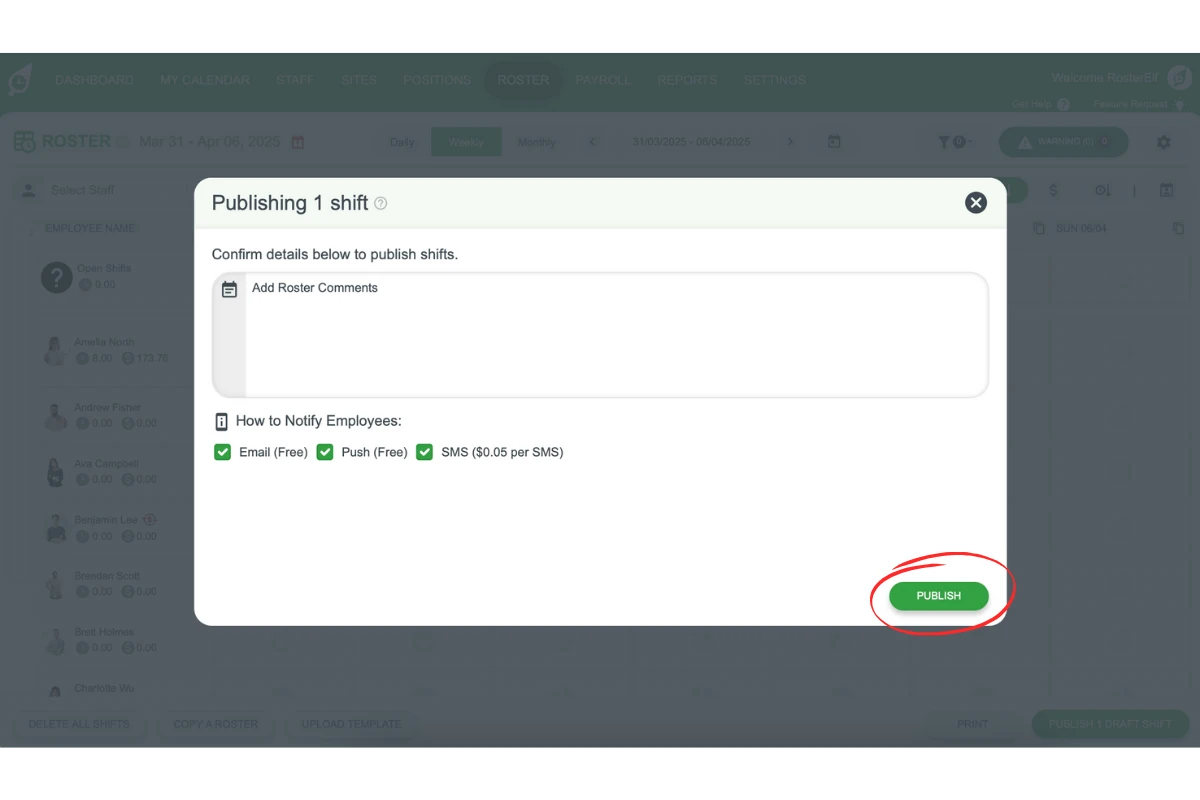
To ensure staff receive shift notifications, tick the Email, Push and SMS options when publishing shifts. Following these steps will ensure all relevant notifications are sent with each published roster.
4.1 Enabling notifications during shift publishing
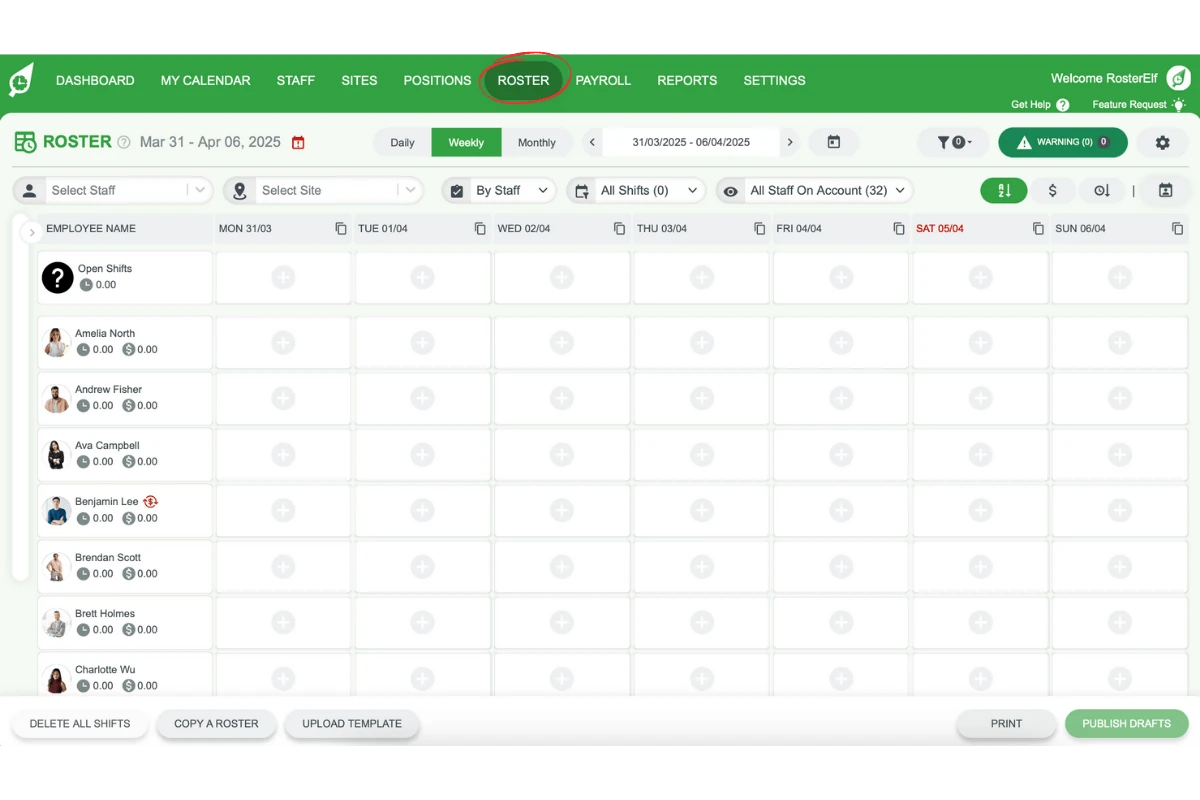
4.1.1 Go to the Roster tab on the top menu.
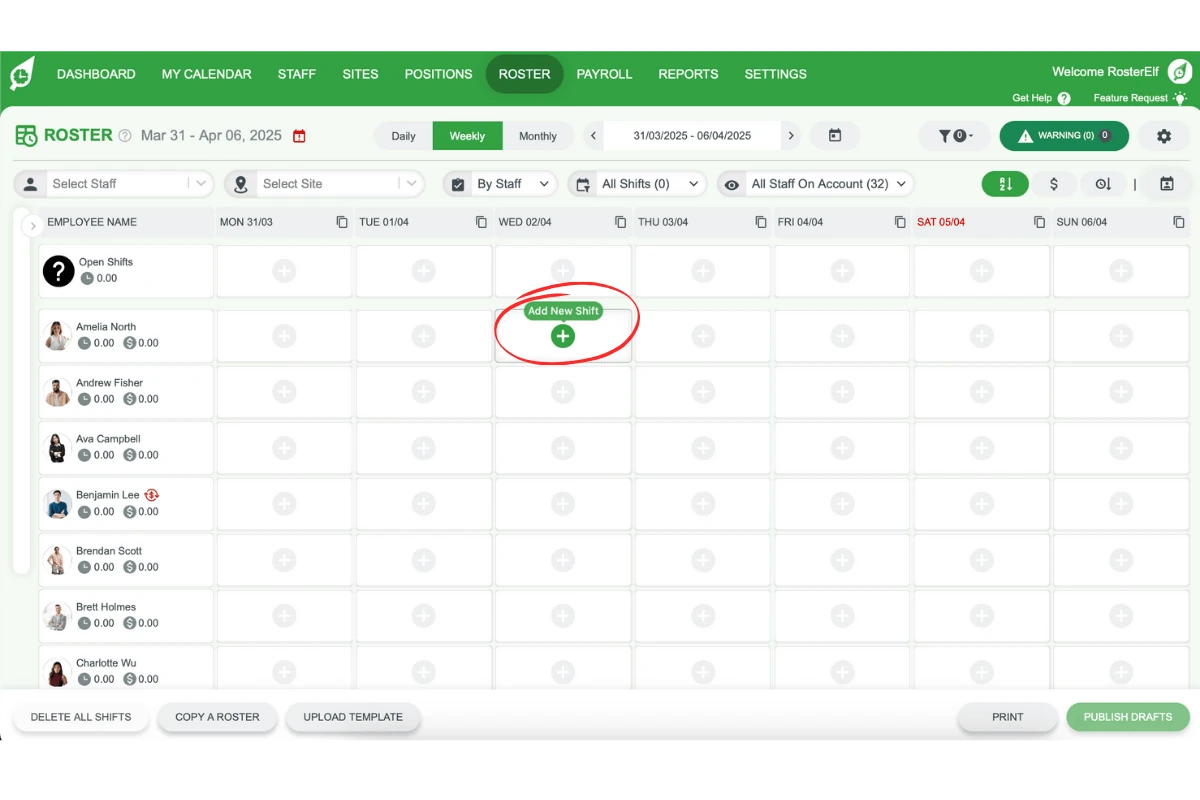
4.1.2 Add shifts for one or multiple staff members.
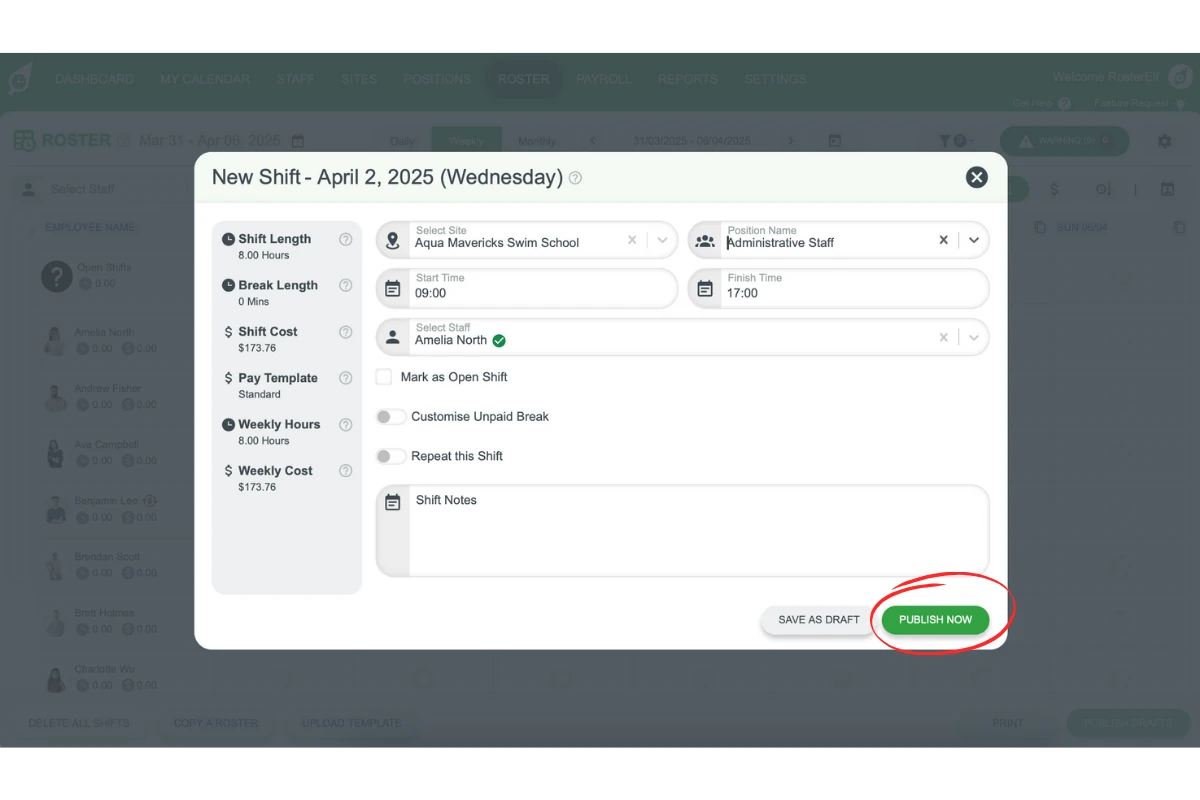
4.1.3 Click PUBLISH NOW in the shift window, or the publish button in the footer to publish drafts (it reads, for example, PUBLISH ALL 3 DRAFT SHIFTS). In the Publishing window, under How to Notify Employees, tick Email (Free), Push (Free) and, if you want text messages, SMS ($0.05 per SMS) — SMS is unticked by default.
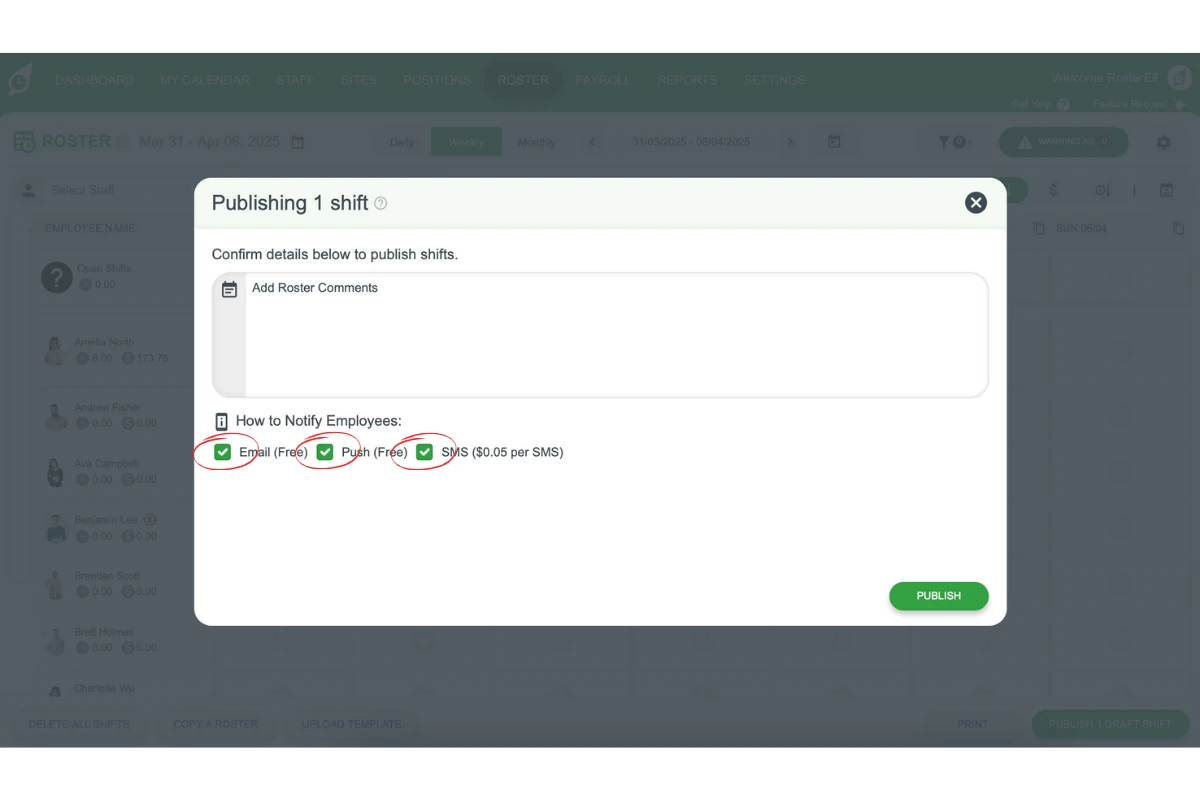
4.1.4 Click PUBLISH to publish the shifts with the selected notification options.
Frequently asked questions
1. How does RosterElf notify staff of new shifts?
RosterElf notifies staff through email, SMS, and push notifications, providing shift details to ensure employees know their schedules. You can select which notification methods to enable when publishing rosters.
2. What details are included in email shift notifications?
Email notifications include the date, start and end times, assigned site, and position, giving staff clear shift information without needing to log in to RosterElf.
3. Does RosterElf charge for SMS notifications?
Yes. When you publish, the option is labelled SMS ($0.05 per SMS) and is unticked by default, while Email (Free) and Push (Free) cost nothing.
4. How do push notifications work in the RosterElf app?
Push notifications appear on staff mobile devices when a shift is published or updated, allowing employees to view details directly in the RosterElf app without checking email or SMS.
5. Does RosterElf send push notifications to remind staff to clock in and out?
Yes. Staff receive a push notification 1 hour before their shift starts as an advance reminder. They also receive a push notification 2 minutes before their shift starts as a clock-in reminder, and another 2 minutes before their shift ends as a clock-out reminder. These automatic reminders help staff clock in and out on time.