

Switch camera for selfie clock in and out
This article explains how to switch the camera when using selfie clock in and out in RosterElf. The selfie feature is used to confirm the correct staff member is clocking in or out. Sometimes, the wrong camera opens by default, such as the back camera instead of the front. Switching the camera ensures you can take the right selfie quickly.
With this guide, you will learn how to open the clock in screen, access the camera, and change it to the front or back view. Following these steps makes it simple to capture the correct image and avoid issues with timesheet verification.
1. Open the clock in screen
This section explains how to open the selfie clock in and out screen. You need to start here before you can access and switch the camera. By following these steps, you will be in the correct area of the app to capture your selfie for clocking in or out.
1.1 Access shifts
1.1.1 Press Shifts from the app menu.

1.2 Open clock in
1.2.1 Press Clock in on your shift.

2. Switch the camera
This section explains how to change between the front and back cameras. Switching ensures you use the correct camera to take your selfie when clocking in or out.
2.1 Access camera options
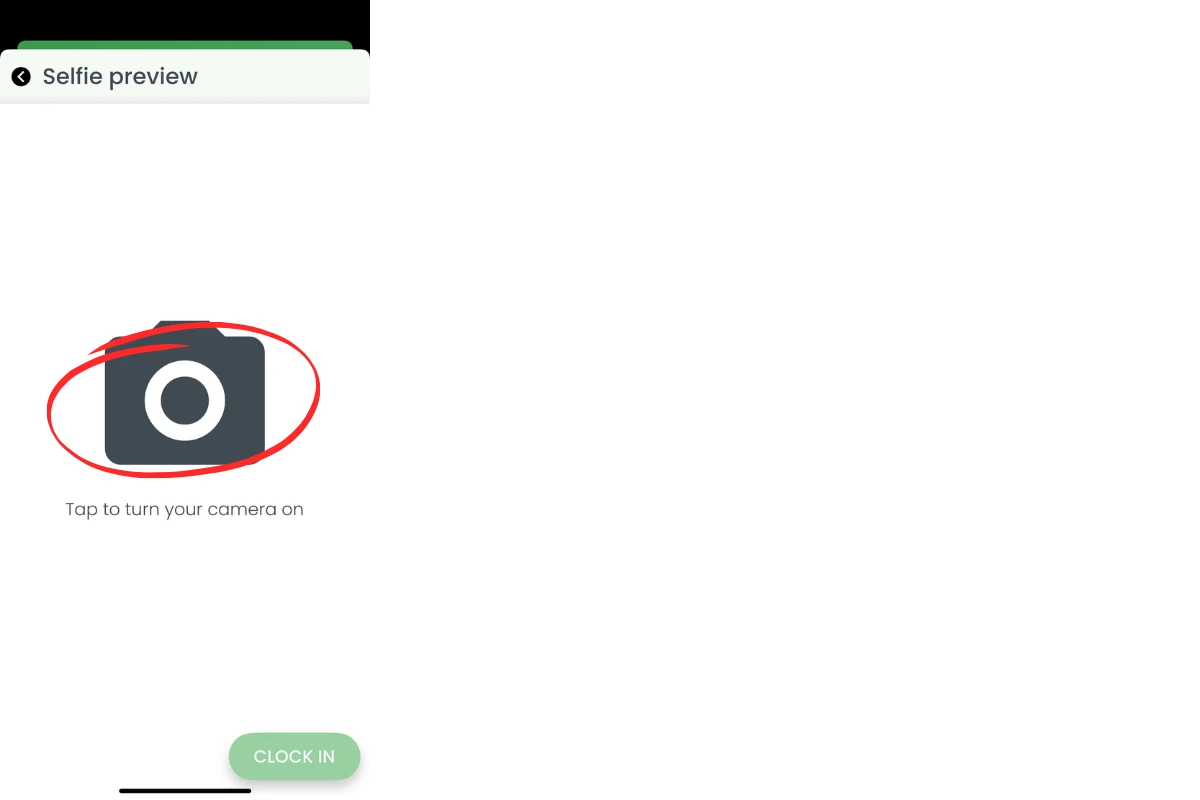
2.1.1 Tap the screen to access the camera controls.
2.2 Change to back camera
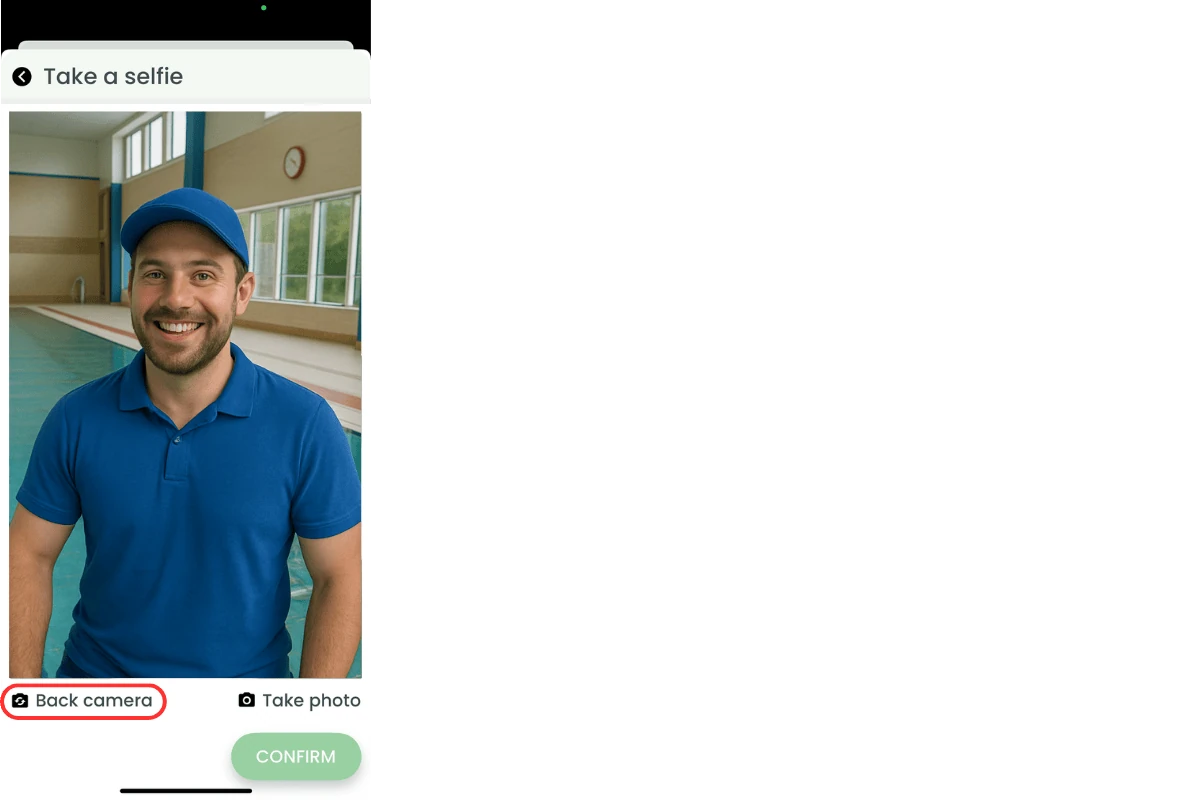
2.2.1 Press Back camera to switch.
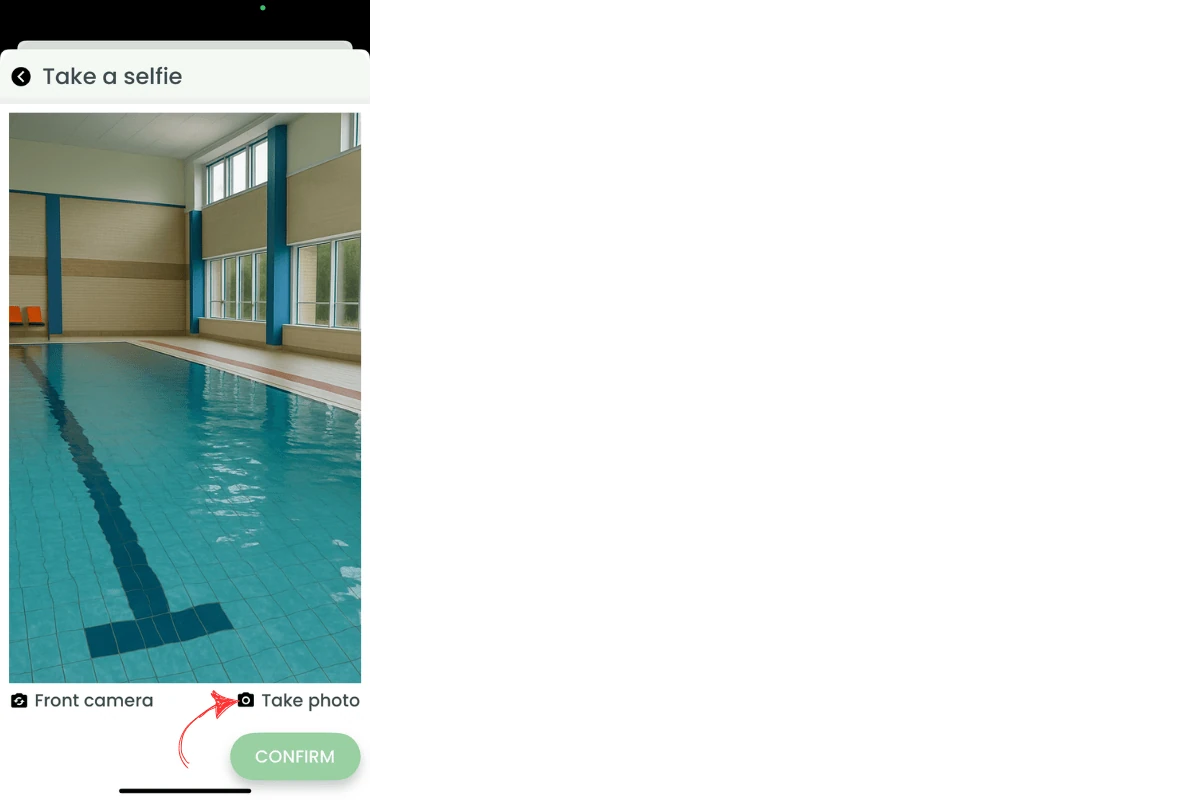
2.3 Press take photo
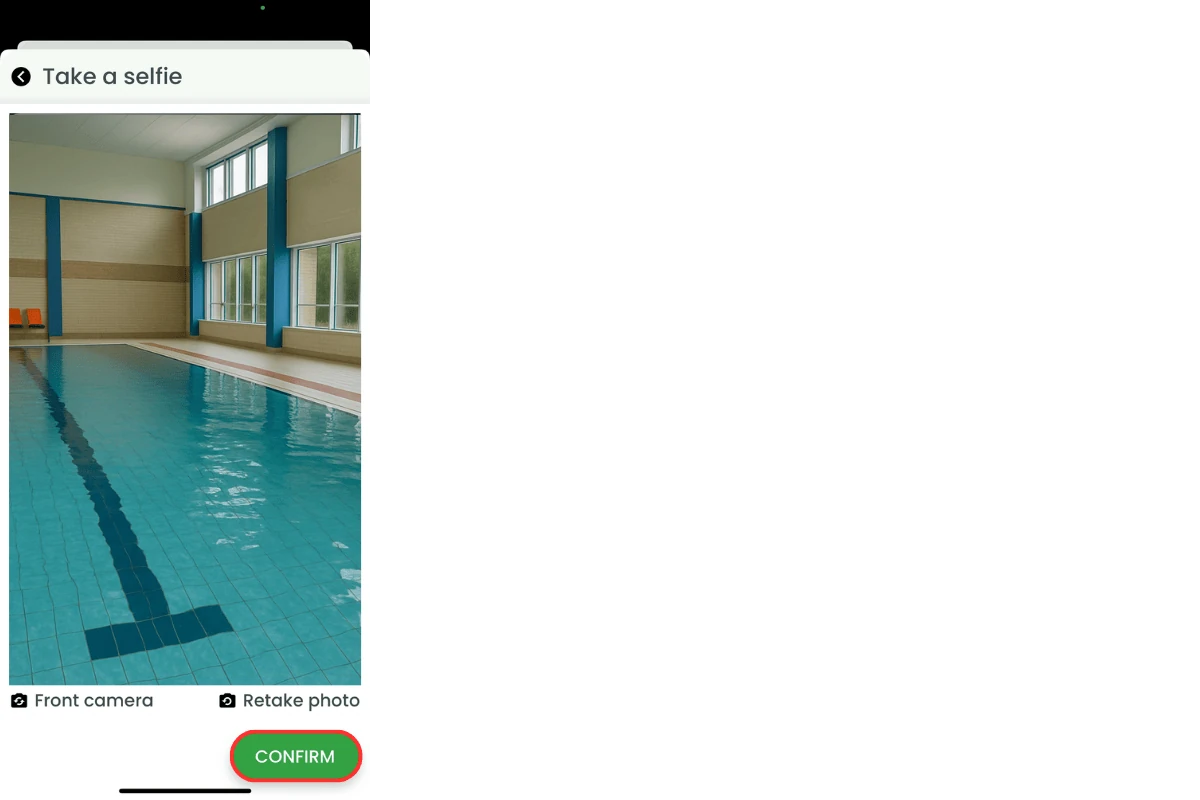
2.3.1 Press Confirm to clock in.
Frequently asked questions
1. How do I switch from the back camera to the front camera when clocking in?
To switch to the front camera, tap the screen to open camera controls, press Back camera, and then press Confirm. This ensures the selfie uses the correct camera.
2. Why does the wrong camera open during selfie clock in?
Sometimes the app defaults to the back camera instead of the front. If this happens, you can quickly switch to the correct camera using the steps in the guide.
3. Can I change the camera before clocking out as well as clocking in?
Yes. You can switch the camera for both clock in and clock out selfies. The option works the same way in both cases.
4. What happens if I don't switch to the correct camera for my selfie?
If the wrong camera is used, your selfie may not clearly identify you. This can cause issues with timesheet verification and delay payroll approval.
5. Do my camera settings save for future clock ins?
No. The app doesn’t save your chosen camera setting for future clock ins and outs. You will need to switch cameras each time if needed.