

Fix tracking item ID required for timesheet line error
Encountering the error TrackingItemID is Required for each Timesheet Line when sending timesheets to Xero? This happens when Xero’s payroll tracking is switched on but a Site or Position used on the timesheet has no Xero Tracking Category assigned in RosterElf. There are two ways to fix it: assign a tracking category to the Site or Position in RosterElf, or turn timesheet tracking off in Xero.
1. Assign a tracking category in RosterElf
Use this option to keep Xero’s tracking switched on. Every Site and Position used on a timesheet needs its own Xero Tracking Category assigned in RosterElf — leaving it unassigned is what causes this error.
1.1 Assign a tracking category to a Site
1.1.1. Click Sites.
1.1.2. Click the Site you want to assign.
1.1.3. Under the Xero Tracking Category dropdown, select a tracking category — not None.
1.2 Assign a tracking category to a Position
1.2.1. Click Positions.
1.2.2. Click the Position you want to assign.
1.2.3. Under the Xero Tracking Category dropdown, select a tracking category — not None.
2. Turn tracking off in Xero instead
Use this option if you don’t need to track payroll by timesheet category — it avoids having to assign a category to every Site and Position in RosterElf.
2.1 Open Xero payroll settings
2.1.1. Open Xero and go to Accounting.
2.1.2. Click Payroll, then Payroll Settings.
2.2 Set Timesheet Categories to None
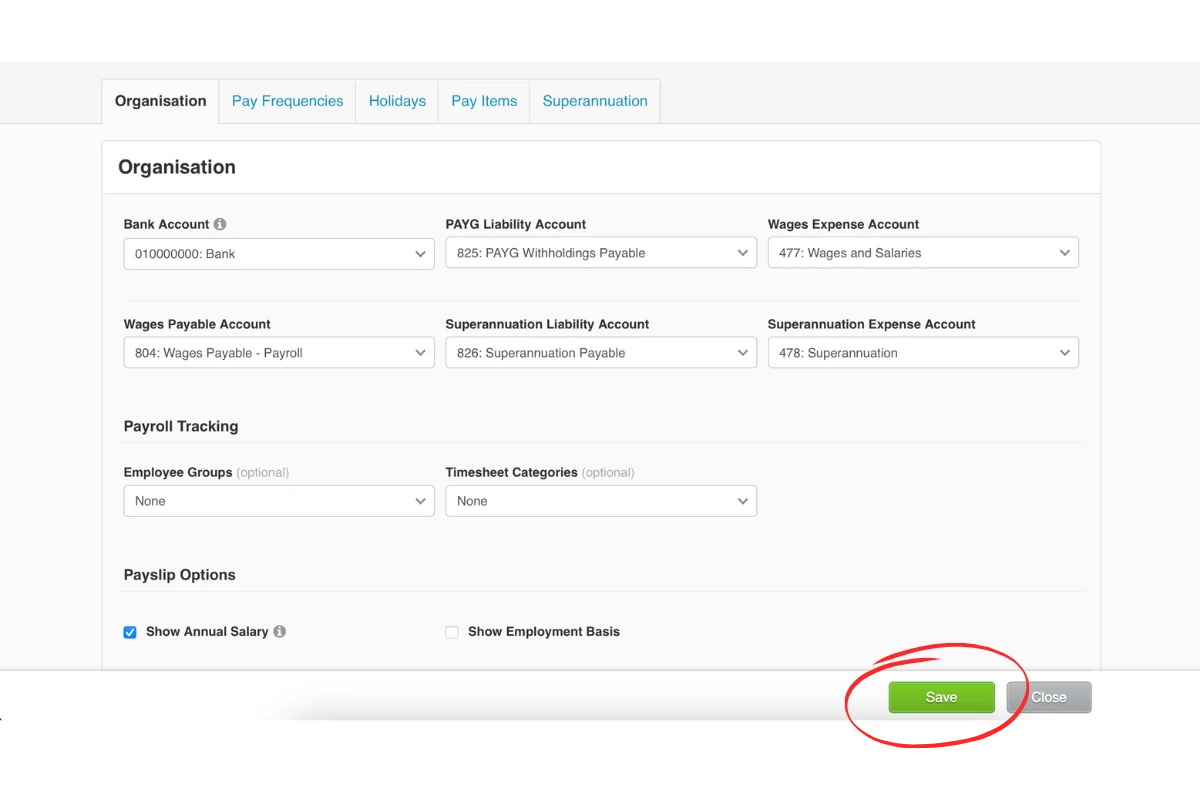
2.2.1. Under Payroll Tracking, find Timesheet Categories.
2.2.2. Set it to None.
2.2.3. Click Save.
Timesheet Categories only
This fix applies to the Timesheet Categories field under Payroll Tracking. The screenshot below also shows Employee Groups set to None — that is a separate Xero setting, and you don’t need to change it for this fix.
3. Important note on multiple entities
If you manage multiple entities within Xero, remember to repeat the above steps for each entity. Ensuring consistent settings across all entities will prevent integration errors.
3.1 Apply settings to each entity
3.1.1. For the RosterElf-side fix, repeat Assign a tracking category in RosterElf for every Site and Position that uses a different Xero entity.
3.1.2. For the Xero-side fix, navigate to each entity’s Payroll Settings in Xero and repeat Turn tracking off in Xero instead.
Frequently asked questions
1. What does the TrackingItemID is Required error mean in Xero?
It means Xero’s payroll tracking is switched on, but a Site or Position used on the timesheet has no Xero Tracking Category assigned in RosterElf. Xero needs a TrackingItemID on every line once tracking is on, and none was sent for that line.
2. How do I fix the TrackingItemID is Required error?
Either assign a Xero Tracking Category to the Site or Position in RosterElf — open Sites or Positions, select the one you need, and use the Xero Tracking Category dropdown — or turn timesheet tracking off in Xero: Accounting > Payroll > Payroll Settings > Payroll Tracking, then set Timesheet Categories to None.
3. Where do I assign a tracking category to a Site or Position in RosterElf?
Open Sites or Positions in RosterElf, select the one you want, and assign it under the Xero Tracking Category dropdown.
4. What does setting Timesheet Categories to None in Xero do?
It turns timesheet tracking off in Xero, so Xero no longer requires a TrackingItemID on every line — a valid fix if you don’t need to track payroll by timesheet category. It only applies to the Timesheet Categories field; Employee Groups is a separate setting.
5. Do I need to fix this for multiple entities in Xero?
Yes. Repeat whichever fix you use for every entity you manage in Xero. An entity left unfixed will still throw this error for its own timesheets.