

This article explains how to view staff availability updates from your smartphone using RosterElf. Employees keep their availability up-to-date through RosterElf’s web or mobile app, helping managers access the latest information for rostering. You can check staff availability quickly with the RosterElf Perfect Match® system, which uses availability details to suggest shift matches. By following this guide, you’ll be able to see which employees are available for specific shifts, enhancing scheduling accuracy without needing extra steps.
For more on updating availability, refer to:
- Updating your availability from a browser
- Updating your availability from a smartphone
1. How to view staff availability updates
This section guides you through viewing staff availability updates on the RosterElf dashboard. Managers can access availability directly on the dashboard, ensuring shifts are filled accurately based on current availability. This helps in planning rosters more effectively.
For detailed information, see:
- Viewing or updating a staff member’s availability
- Staff availability updates on smartphone
1.1 view availability on the dashboard
1.1.1 Go to the availability widget on your RosterElf dashboard.
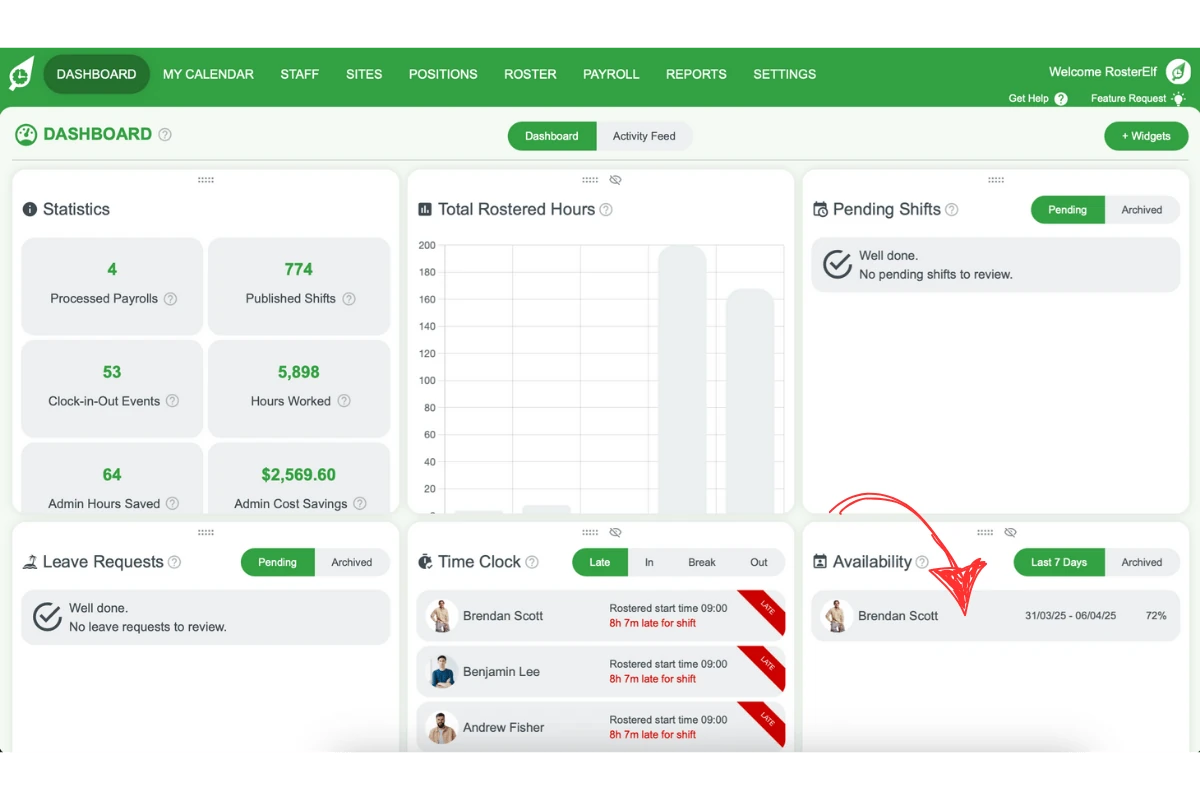
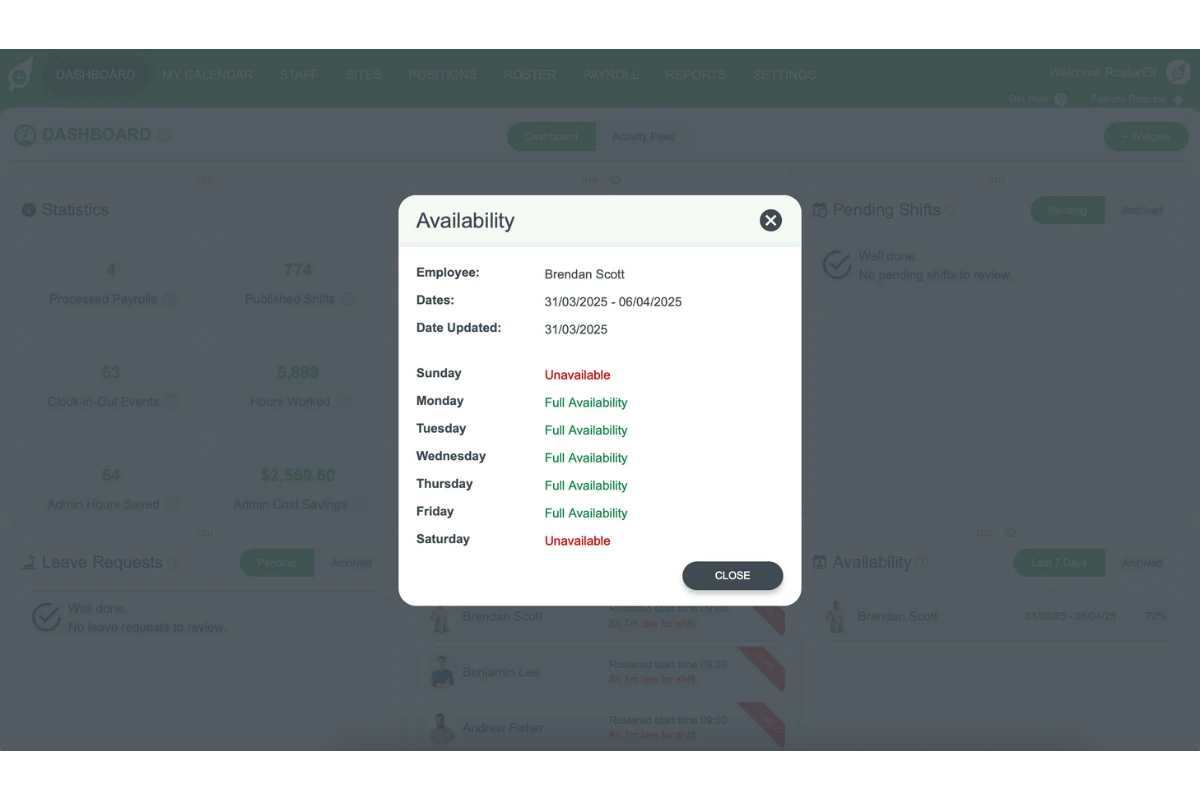
1.1.2 Click on any availability record to view detailed information on days and times when employees are available.
Additional resources:
- View staff availability and leave on roster
- Finding available staff for a pending shift on the dashboard
Frequently asked questions on viewing staff availability on a smartphone
1. How do I check staff availability updates on my smartphone with RosterElf?
Open the RosterElf app and go to the dashboard. You’ll see availability updates on the availability widget, showing which employees are available for specific shifts.
2. Can I view detailed availability information for each employee?
Yes, click on any availability record in the app to view specific details of each employee’s availability, including their available days and times.
3. How does the RosterElf Perfect Match® system work?
The Perfect Match® system in RosterElf uses staff availability data to suggest the best-fit employees for open shifts, ensuring you schedule the right person based on their latest availability.
4. Do I need a web browser to check staff availability on RosterElf?
No, you can view all availability updates directly through the RosterElf app on your smartphone, making it convenient to check on-the-go.
5. Where can I find more information on updating availability in RosterElf?
For more on updating availability, refer to our guides for both browser and smartphone updates, linked directly in the article above.
Frequently asked questions
1. How do I check staff availability updates on my smartphone with RosterElf?
Open the RosterElf app and go to the dashboard. You’ll see availability updates on the availability widget, showing which employees are available for specific shifts.
2. Can I view detailed availability information for each employee?
Yes, click on any availability record in the app to view specific details of each employee’s availability, including their available days and times.
3. How does the RosterElf Perfect Match® system work?
The Perfect Match® system in RosterElf uses staff availability data to suggest the best-fit employees for open shifts, ensuring you schedule the right person based on their latest availability.
4. Do I need a web browser to check staff availability on RosterElf?
No, you can view all availability updates directly through the RosterElf app on your smartphone, making it convenient to check on-the-go.
5. Where can I find more information on updating availability in RosterElf?
For more on updating availability, refer to our guides for both browser and smartphone updates, linked directly in the article above.