

Importing payroll data from RosterElf to MYOB
Learn how to transfer payroll data from RosterElf to MYOB My Business. This guide simplifies the process, covering how to download the payroll file from RosterElf and import it into MYOB. Following these steps ensures accurate and up-to-date payroll records in your system.
1. Process payroll in RosterElf
Start by processing your payroll in RosterElf to generate the file needed for MYOB.
1.1 download the payroll file
1.1.1 Process payroll in RosterElf as usual.
1.1.2 Download the resulting .txt file to your computer.
1.1.3 For more details, refer to Process payroll to CSV.
2. Access import settings in MYOB My business
Set up MYOB to receive the payroll data file from RosterElf.
2.1 navigate to settings
2.1.1 Open MYOB My Business.
2.1.2 Click on Settings in the main menu.
2.1.3 Select Import from the dropdown menu.
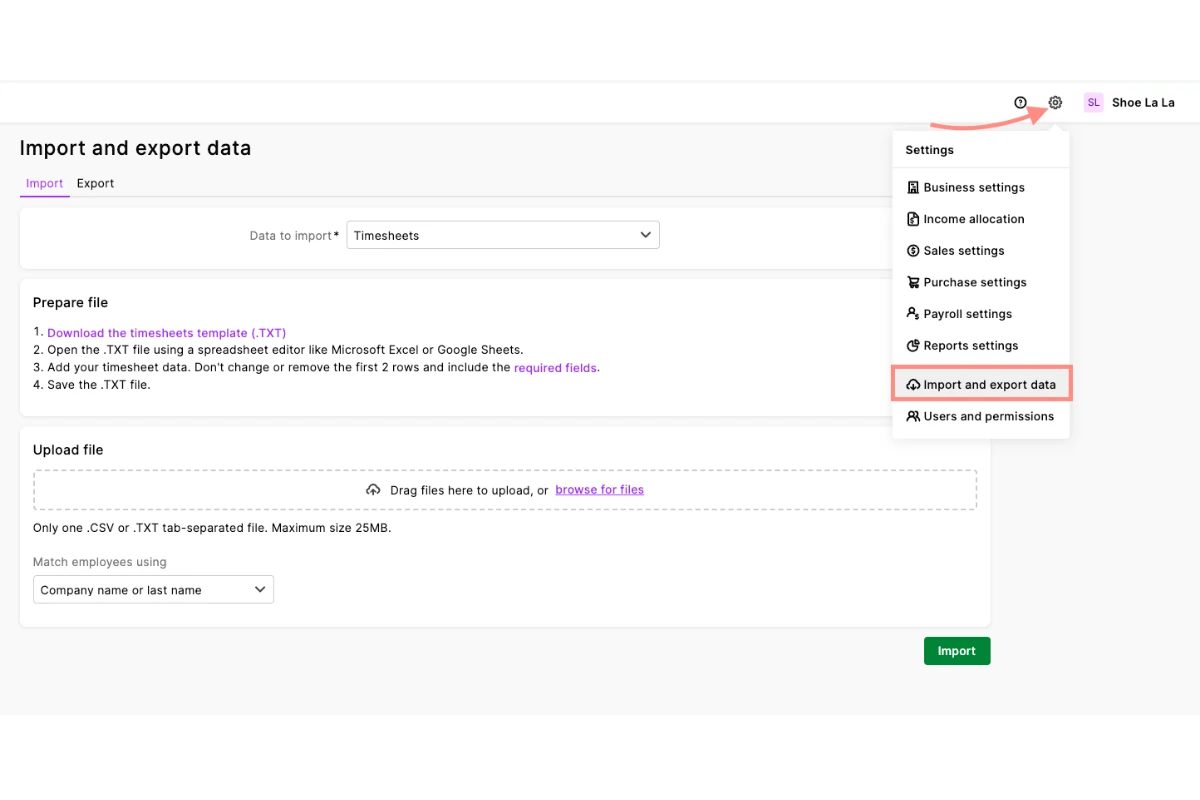
3. Import timesheets into MYOB My business
Upload the payroll file from RosterElf into MYOB My Business.
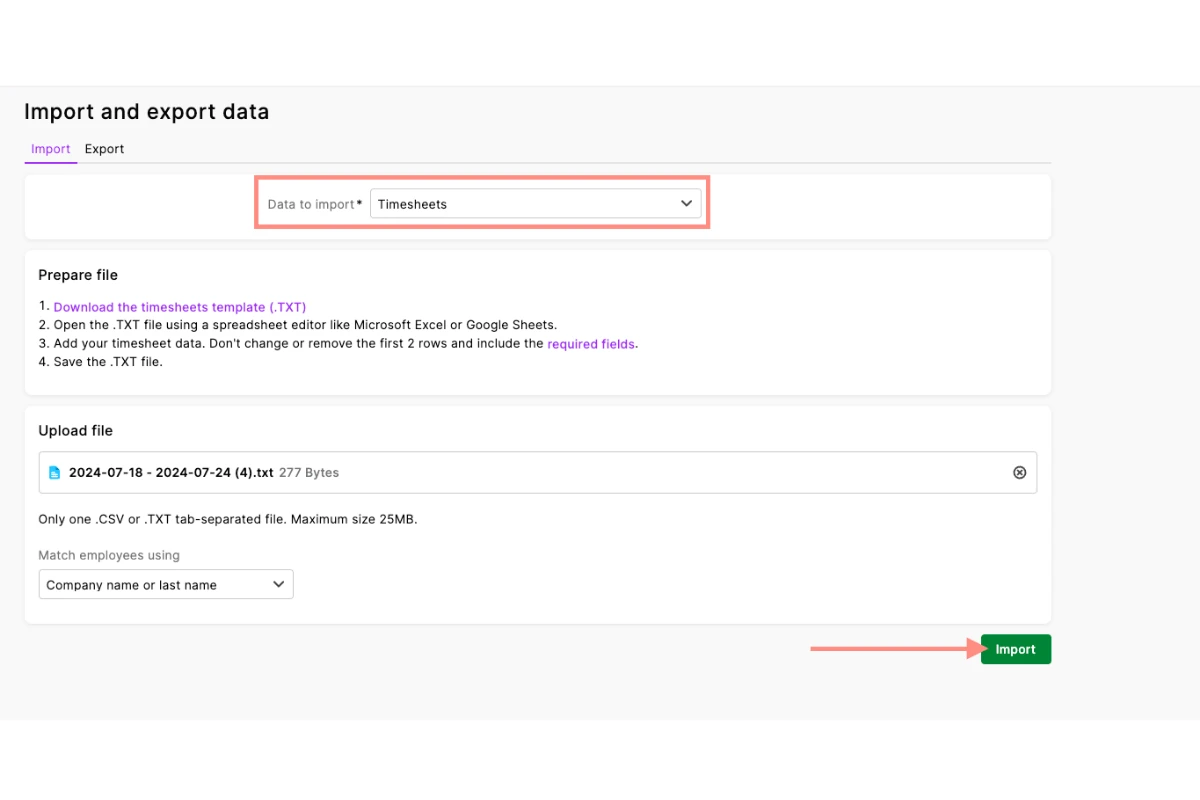
3.1 complete the import process
3.1.1 Open the import screen in MYOB My Business.
3.1.2 Select Timesheets as the import type.
3.1.3 Choose the .txt file you downloaded from RosterElf.
3.1.4 Click Import to upload the file.
Frequently asked questions
1. How do I download a payroll file from RosterElf?
To download a payroll file from RosterElf, first process payroll in RosterElf as usual. Once complete, download the .txt payroll file to your computer. This file will be used for importing into MYOB.
2. Where can I find the import settings in MYOB My Business?
In MYOB My Business, navigate to Settings in the main menu, then select Import from the dropdown menu. This is where you configure your import preferences.
3. What file type is required to import payroll data into MYOB?
MYOB My Business requires a .txt file format for importing payroll data. Ensure you download the correct file type from RosterElf.
4. How do I import timesheets into MYOB My Business?
To import timesheets, go to the import screen in MYOB My Business, select Timesheets as the import type, upload the .txt file from RosterElf, and click Import to complete the process.
5. Can I troubleshoot errors during the payroll import?
Yes, if you encounter errors, double-check that the file format is .txt and that the data matches the import settings in MYOB. If issues persist, consult MYOB or RosterElf support for assistance.