

Integrating RosterElf with MYOB
Integrating RosterElf with MYOB streamlines payroll processing. This guide explains how to export payroll data from RosterElf and import it into MYOB efficiently. By following these steps, you can save time and reduce errors in payroll management.
Before you begin, ensure payroll is set up correctly in RosterElf.
Refer to these helpful guides:
1. Exporting payroll data from RosterElf
This section outlines how to export approved payroll data from RosterElf for MYOB. Exporting payroll data ensures accuracy and prepares the file for seamless import into MYOB.
1.1 selecting the payroll tab
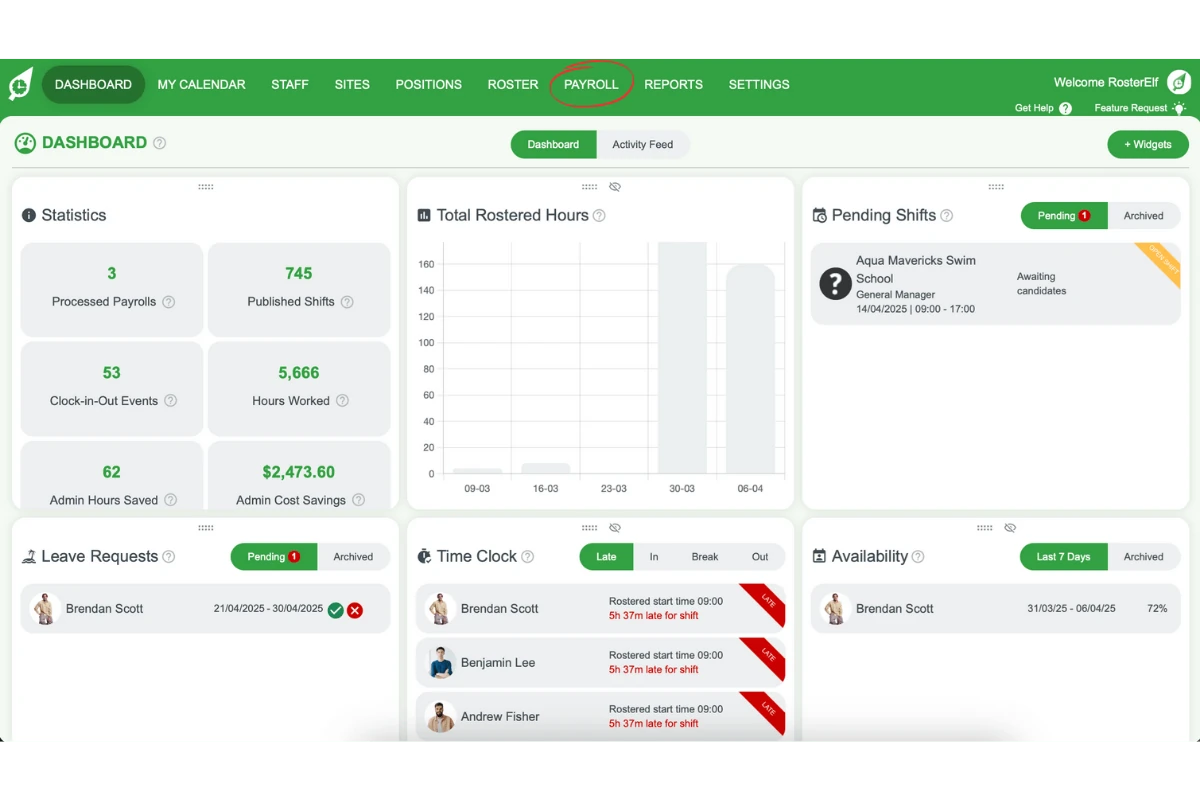
Navigate to the Payroll tab in the top menu of your RosterElf account.
1.1.1. Log in to your RosterElf account.
1.1.2. Click on the Payroll tab in the top menu.
1.2 processing payroll
Prepare to export payroll data for your MYOB pay run.
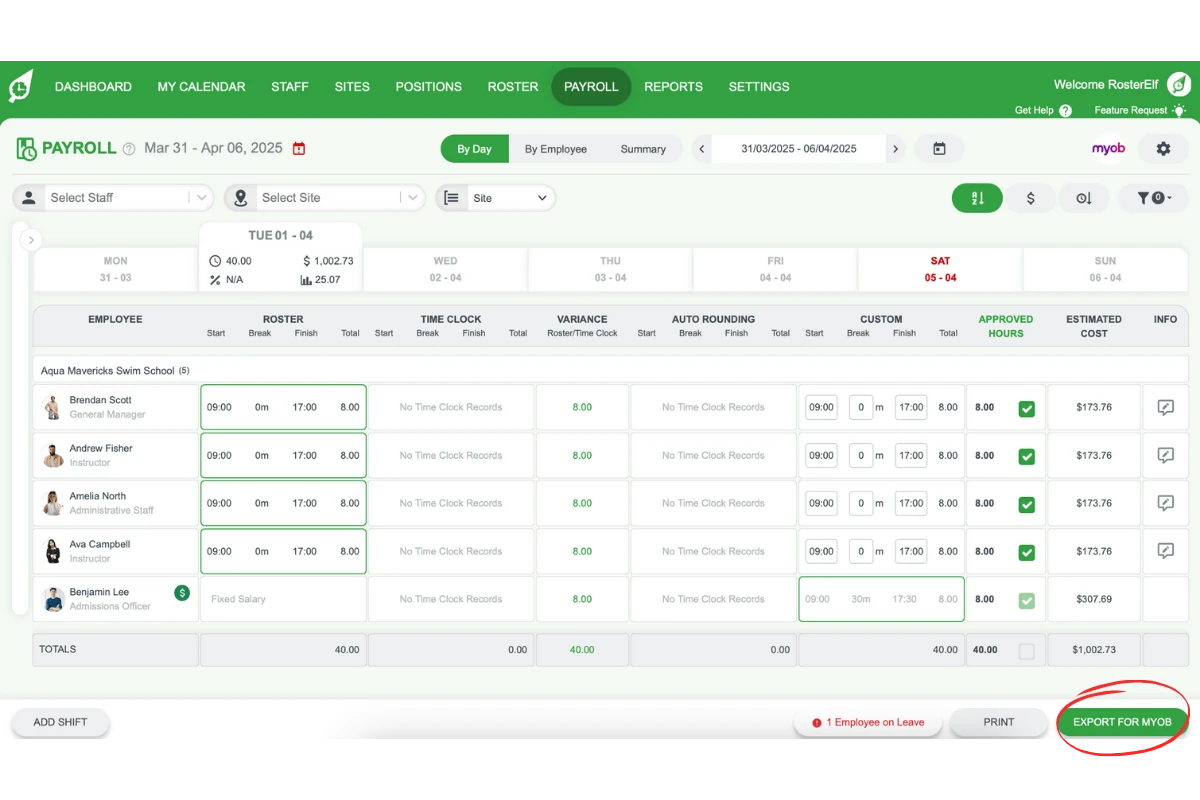
1.2.1. In the Payroll tab, click Export for MYOB at the bottom right of your screen.
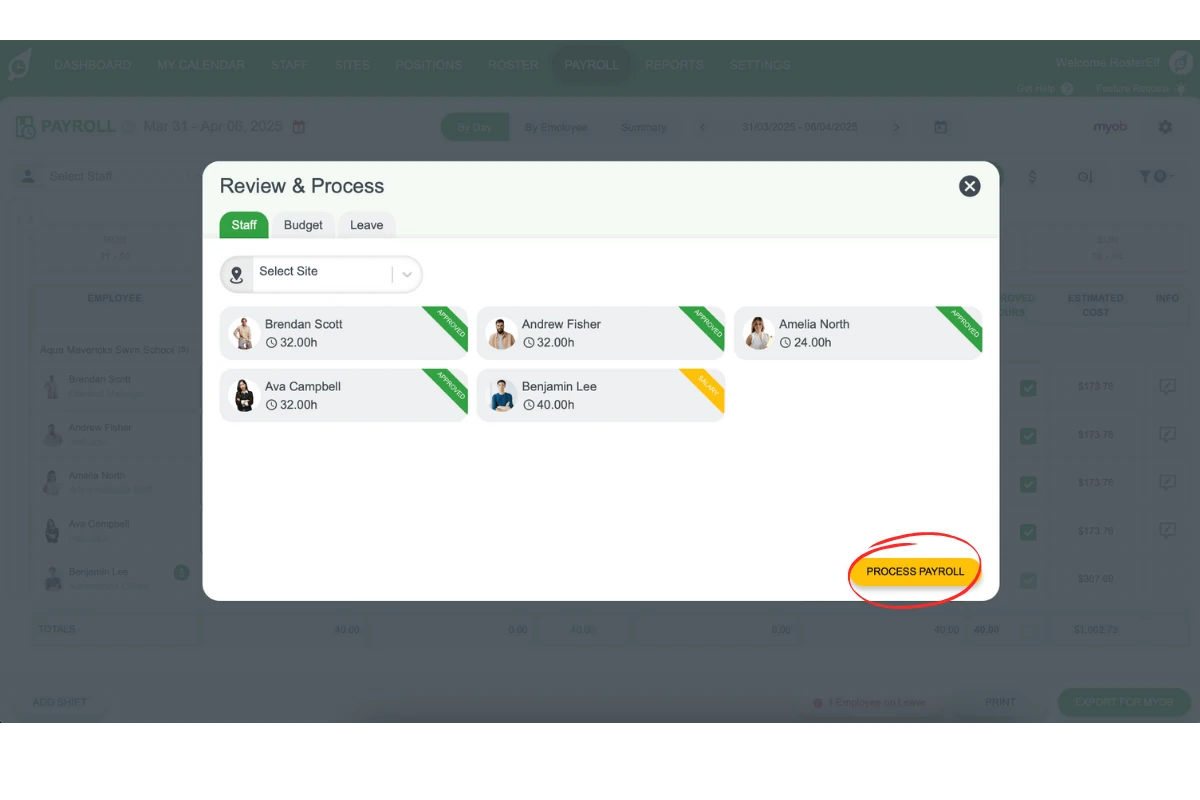
1.2.2. Review the data displayed in the pop-up window.
1.2.3. Click Process Payroll at the bottom right.
1.3 downloading the payroll file
Download the file ready for MYOB import.
1.3.1. After processing payroll, a new pop-up will confirm the data is ready.
1.3.2. Click Download File at the bottom right.
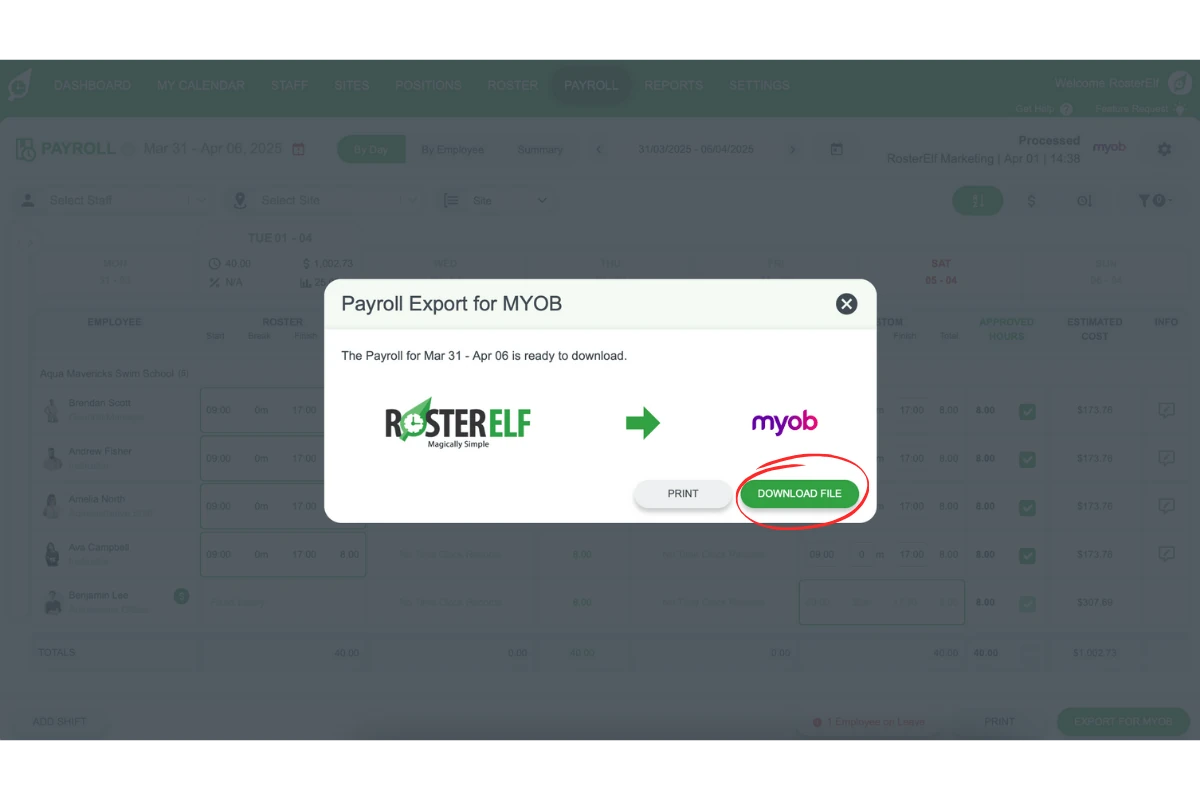
1.3.3. The file will be saved in .txt format.
2. Importing payroll data into MYOB
This section explains how to import payroll data from RosterElf into MYOB. Importing data ensures timesheets are uploaded to MYOB for payroll processing.
2.1 starting the import assistant
Access the Import Assistant in MYOB to begin the data import.
2.1.1. Open MYOB.
2.1.2. Open the MYOB company file where you want to import timesheets.
2.1.3. Go to the File menu and select Import Timesheets.
2.2 selecting the file
Choose the payroll file exported from RosterElf.
2.2.1. Browse your computer for the .txt file you downloaded.
2.2.2. Select the file and click Next.
2.3 setting file format options
Match file settings for accurate import.
2.3.1. Ensure the file format is Tab-delimited.
2.3.2. Confirm the first line is a Header Record.
2.3.3. Set the matching option to Emp. Co./Last Name.
2.4 matching columns and completing the import
Match and finalise data columns for timesheet import.
2.4.1. Click Auto Match to match column headings automatically.
2.4.2. Follow the prompts to complete the import process.
Frequently asked questions
1. How do I export payroll data from RosterElf for MYOB?
To export payroll data, log in to your RosterElf account, navigate to the Payroll tab, and select Export for MYOB. Review the displayed data, click Process Payroll, and download the .txt file ready for import into MYOB.
2. What file format is required for importing payroll data into MYOB?
The payroll file exported from RosterElf must be in .txt format. Ensure the file is Tab-delimited, includes a Header Record, and uses Emp. Co./Last Name as the matching option during import.
3. How do I import timesheets into MYOB?
Open the MYOB company file, go to the File menu, and select Import Timesheets. Choose the .txt file exported from RosterElf, confirm file format options, match column headings, and complete the import process.
4. What should I do if my payroll data doesn't import correctly into MYOB?
If the import fails, check that the file format is Tab-delimited and the first line is set as a Header Record. Ensure columns are matched accurately. If issues persist, contact MYOB Support for assistance.
5. Can I edit payroll data in MYOB after importing it from RosterElf?
Yes, you can edit timesheets or payroll data in MYOB after importing. Access the imported data within MYOB, make the necessary changes, and proceed with payroll processing as usual.