

Set a rate for a staff member in MYOB My business
Disclaimer
This guide provides general information only and should not be relied upon as professional advice. Payroll and accounting requirements can vary depending on your business circumstances. Always check with your accountant or contact MYOB directly to confirm the best approach for your situation.
This article explains how to set a pay rate and standard working hours for a staff member in MYOB My Business. Pay rates determine how much an employee is paid during payroll. The standard working hours set the hours added to their timesheet. Setting the correct rate and standard working hours ensures staff are paid accurately and payroll runs smoothly.
By following this guide, you will learn how to update an employee’s pay details and save them in their record. This process helps you remove default hours, adjust pay categories, and apply a customised rate. Keeping pay details up to date reduces errors, improves compliance, and ensures employees receive the correct wages.
1. Open payroll in MYOB My business
To begin setting a rate, you first need to open payroll and access the employee list. This ensures you can select the correct staff member and make changes directly to their pay details.
1.1 access employee records
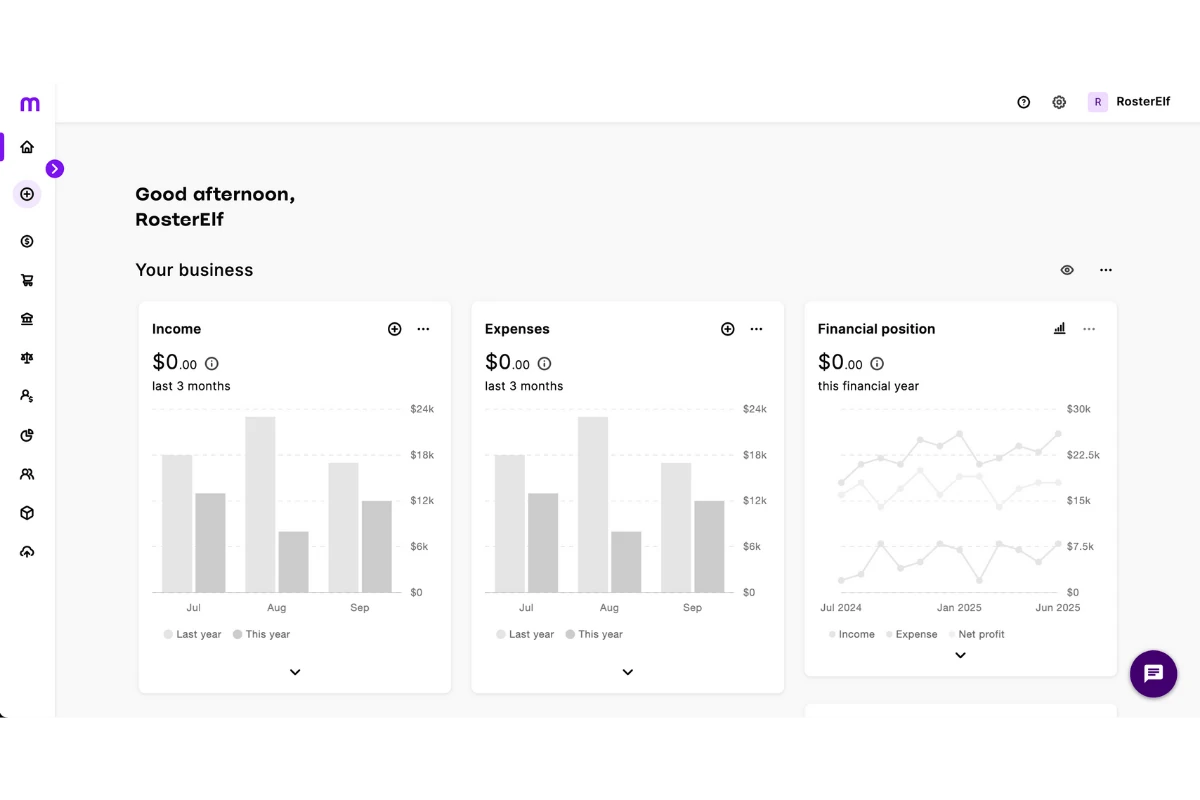
1.1.1 Log in to MYOB My Business.
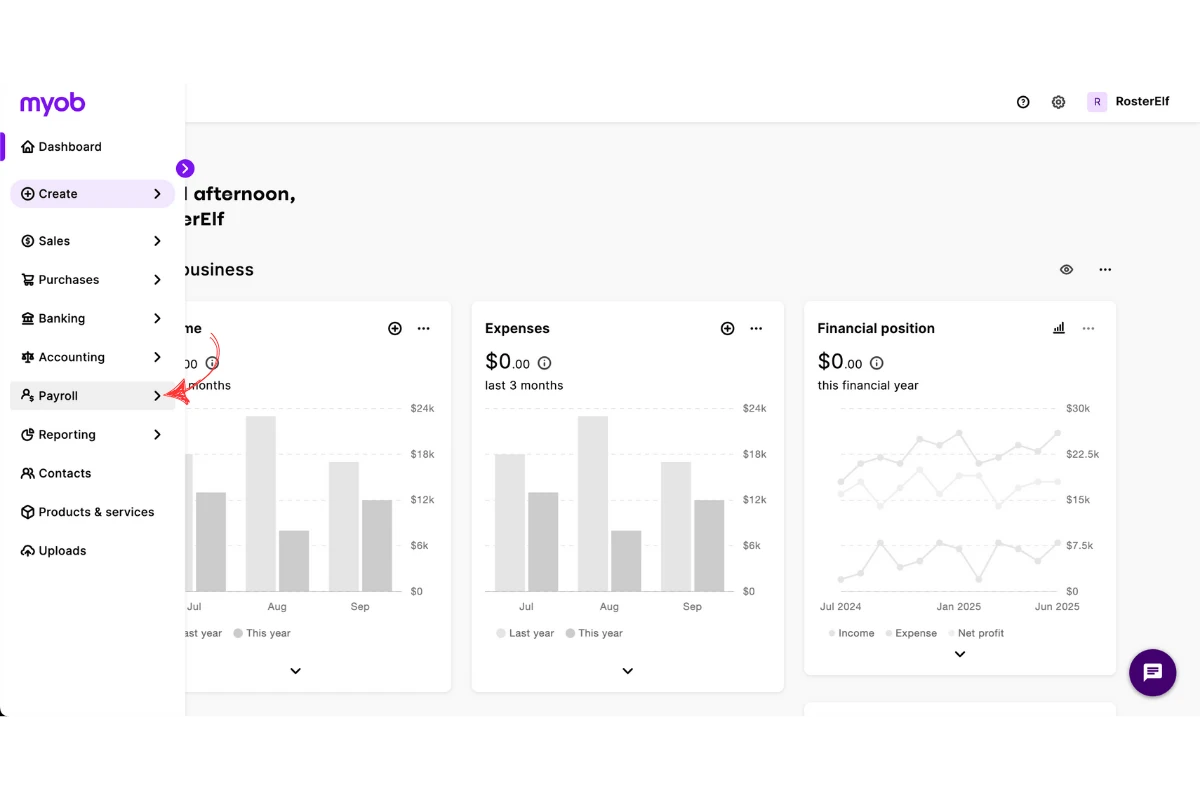
1.1.2 Press Payroll.
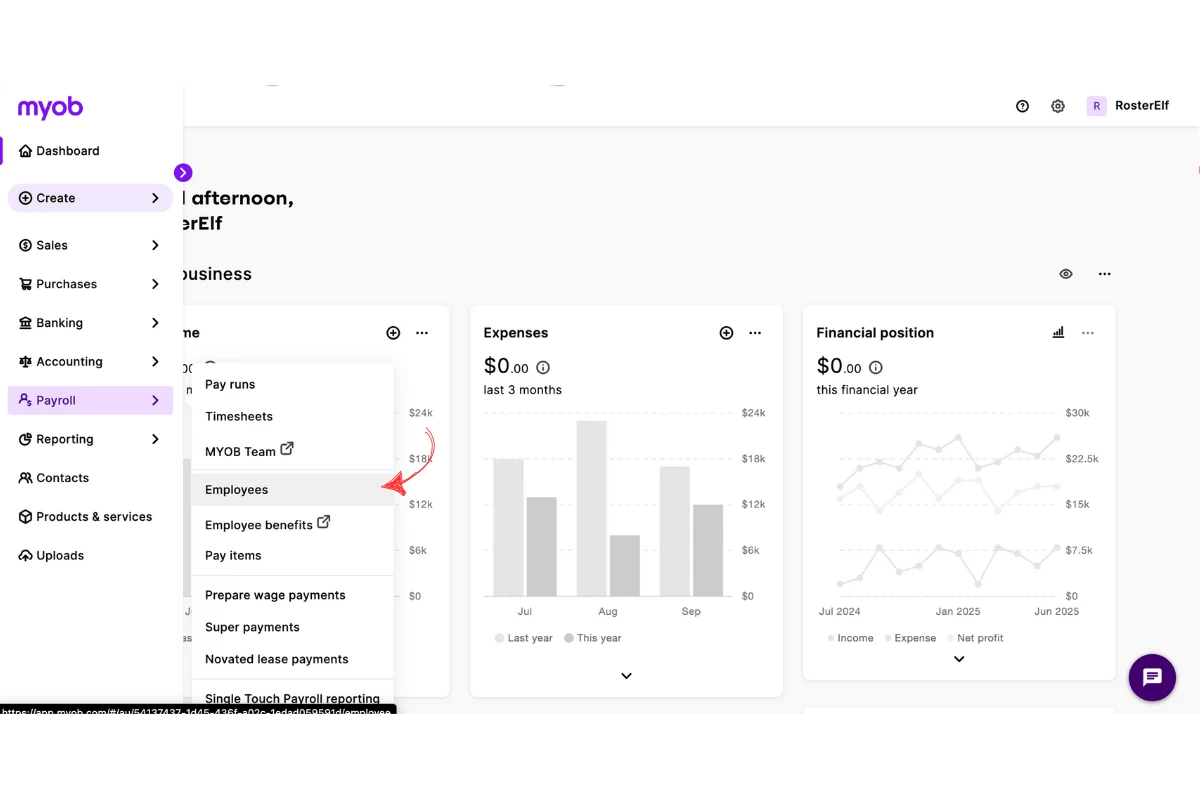
1.1.3 Select Employees.
2. Update employee payroll details
Once you’ve selected the employee, you can edit their payroll details. This includes adjusting their standard pay settings so the correct rate applies each pay run.
2.1 edit standard pay details
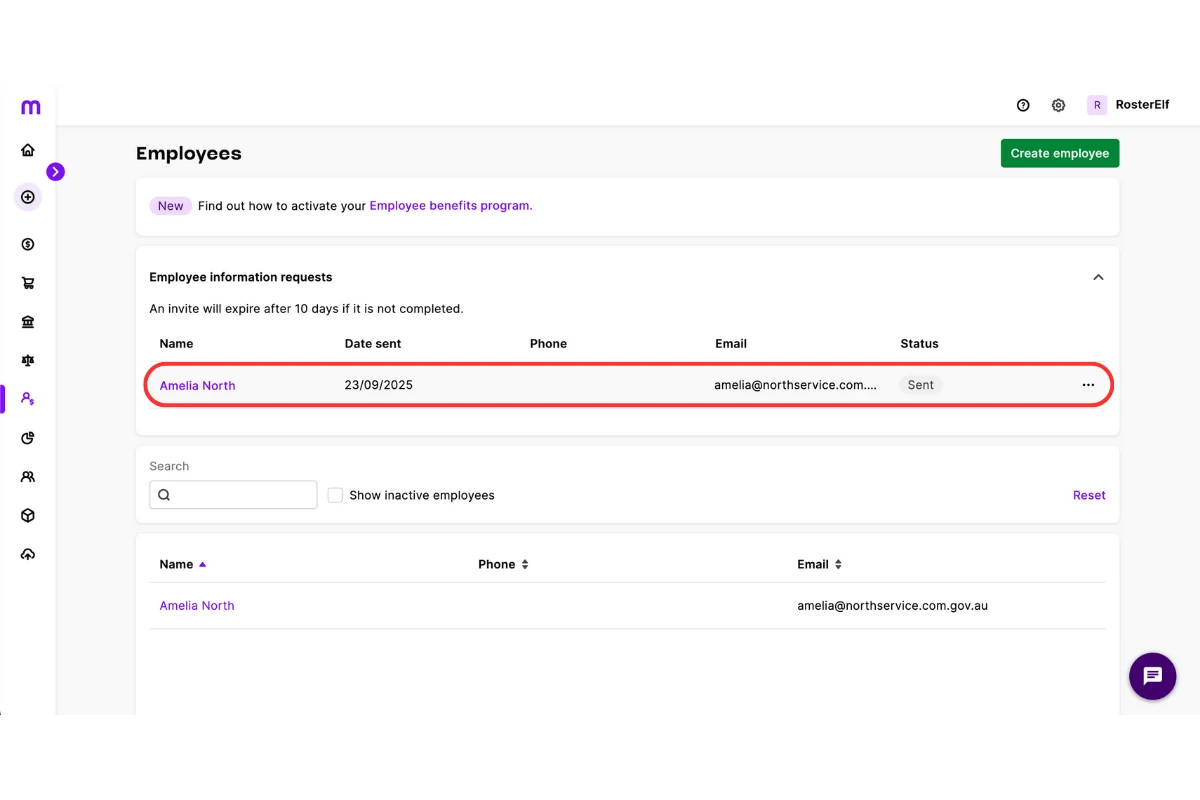
2.1.1 Select the employee.
2.1.2 Open Payroll details.
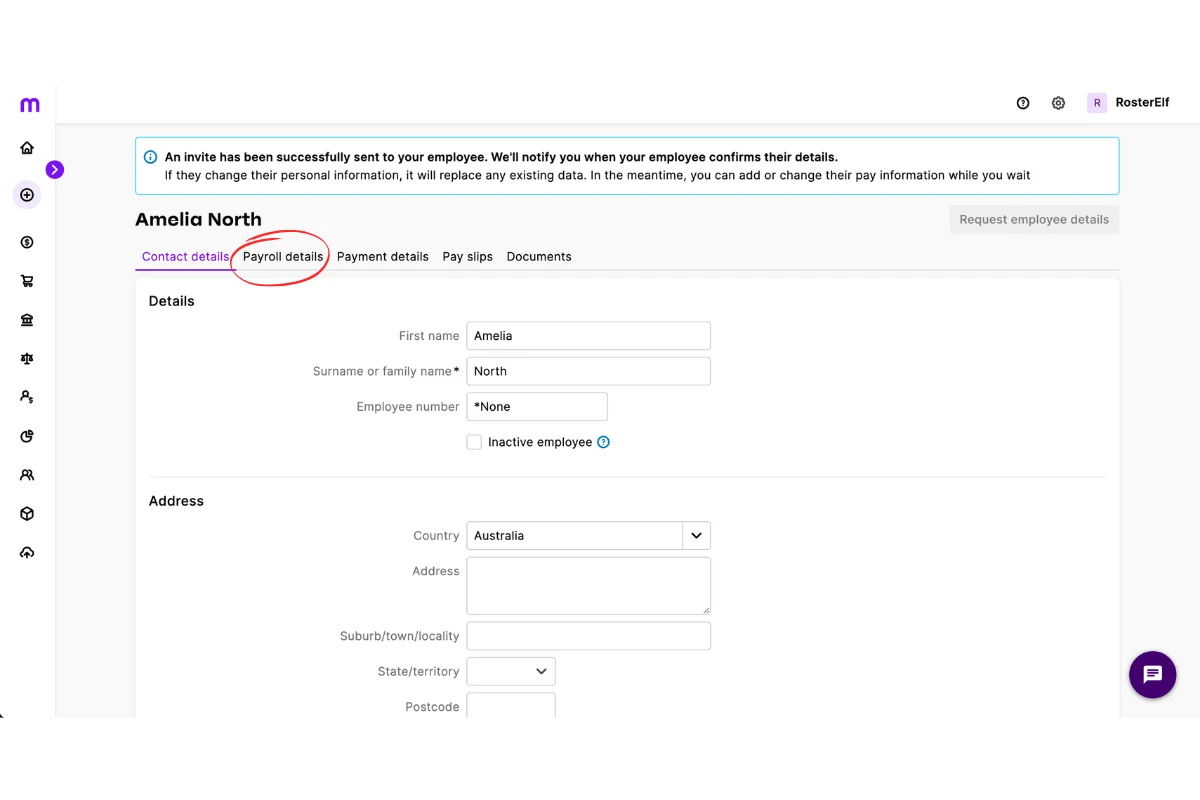
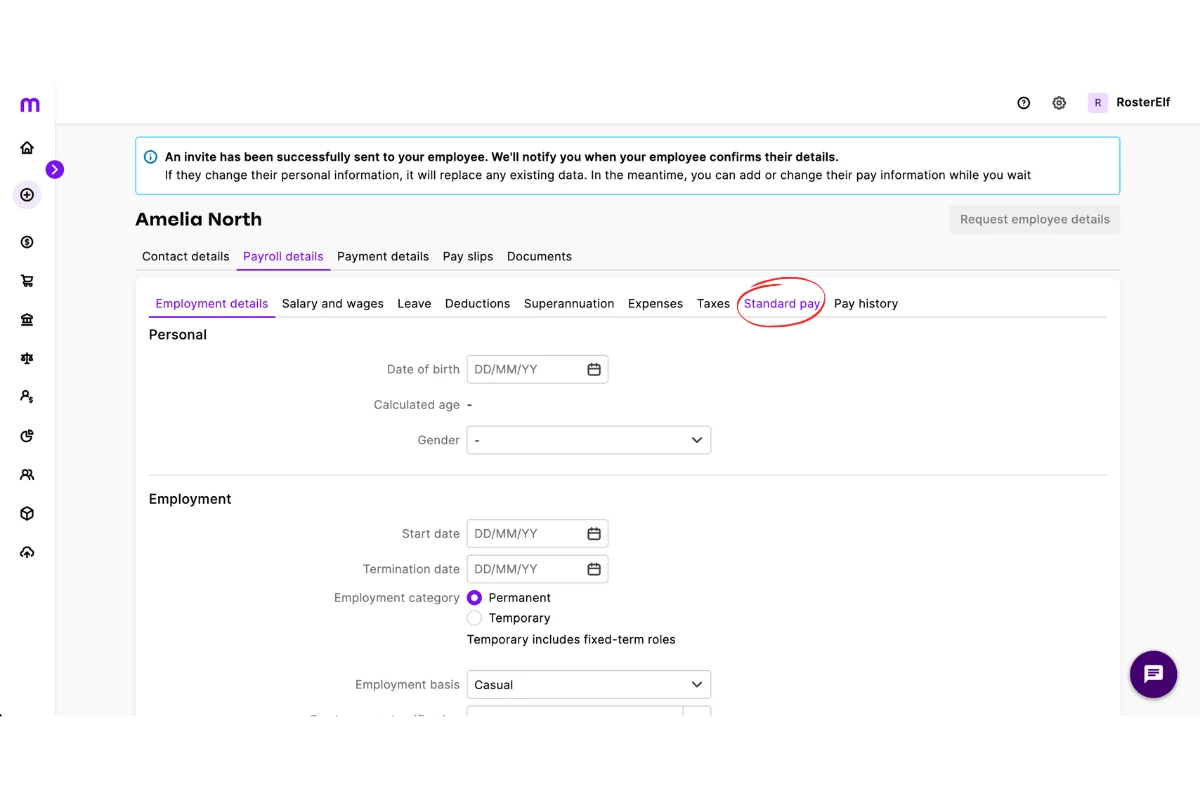
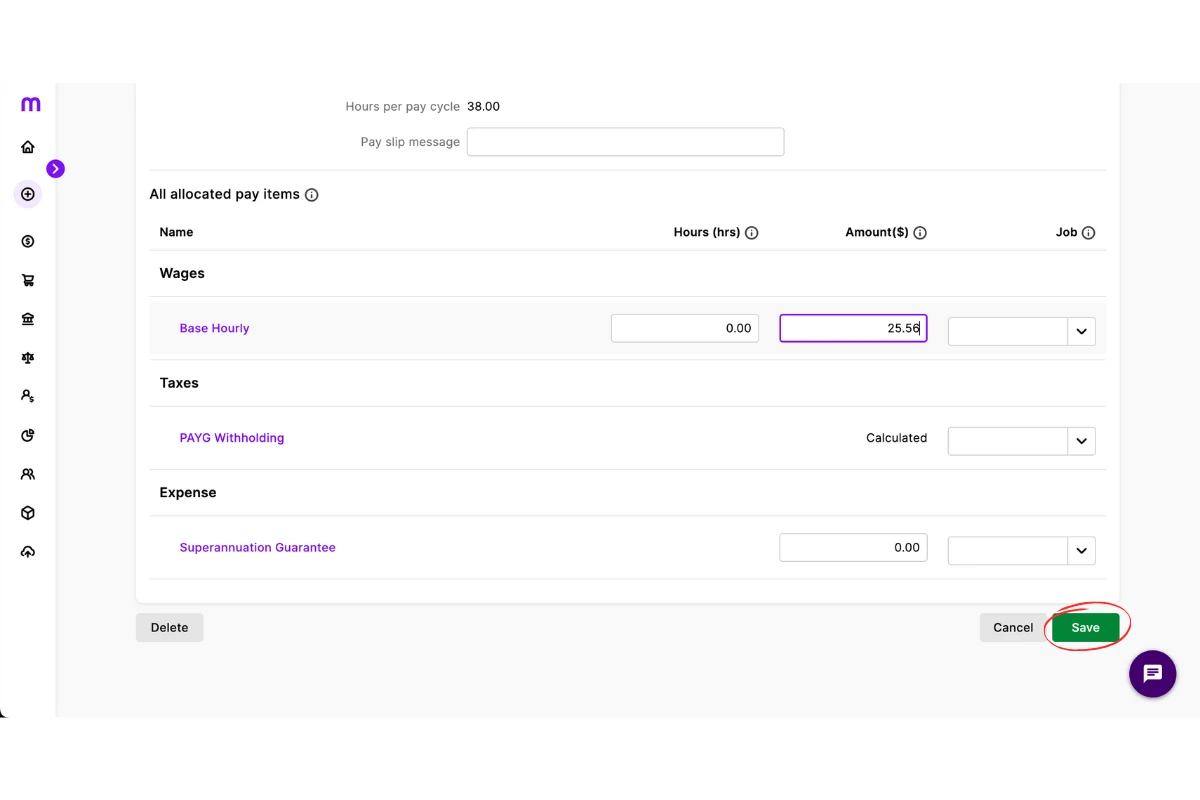
2.1.3 Click Standard pay.
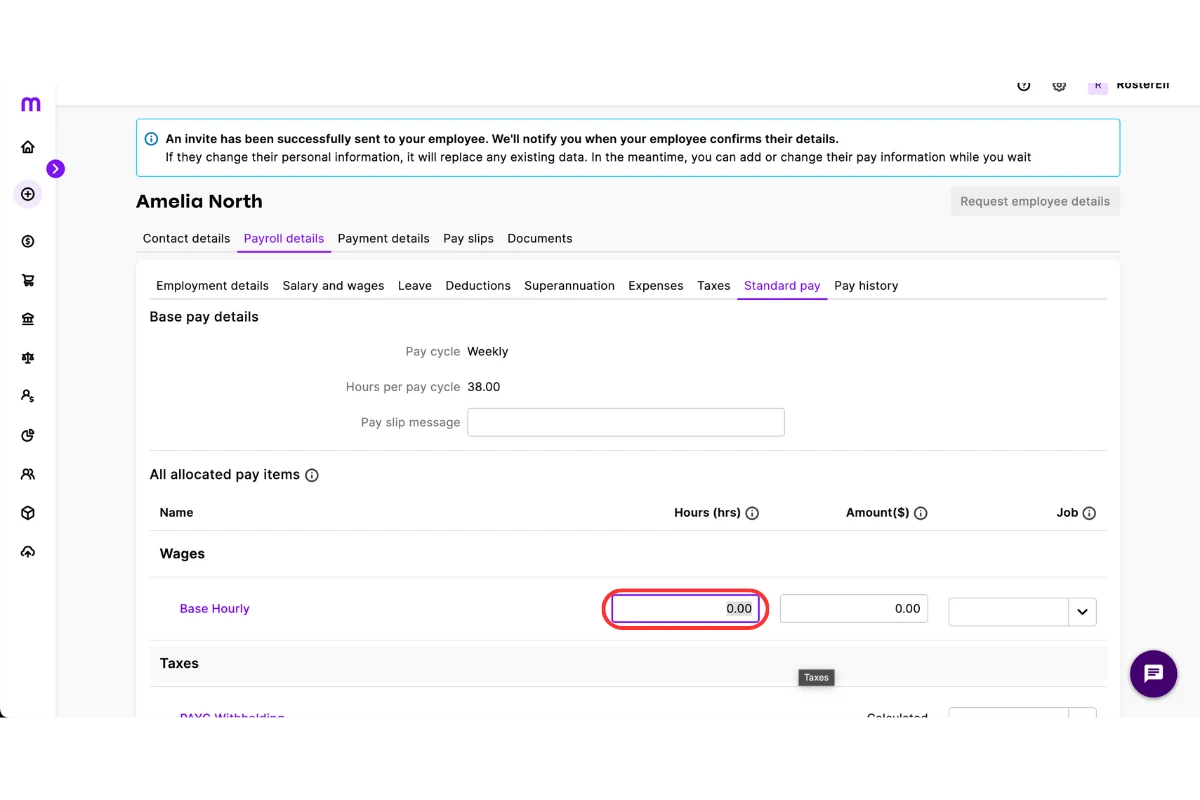
2.1.4 Enter 0 in Base hourly.
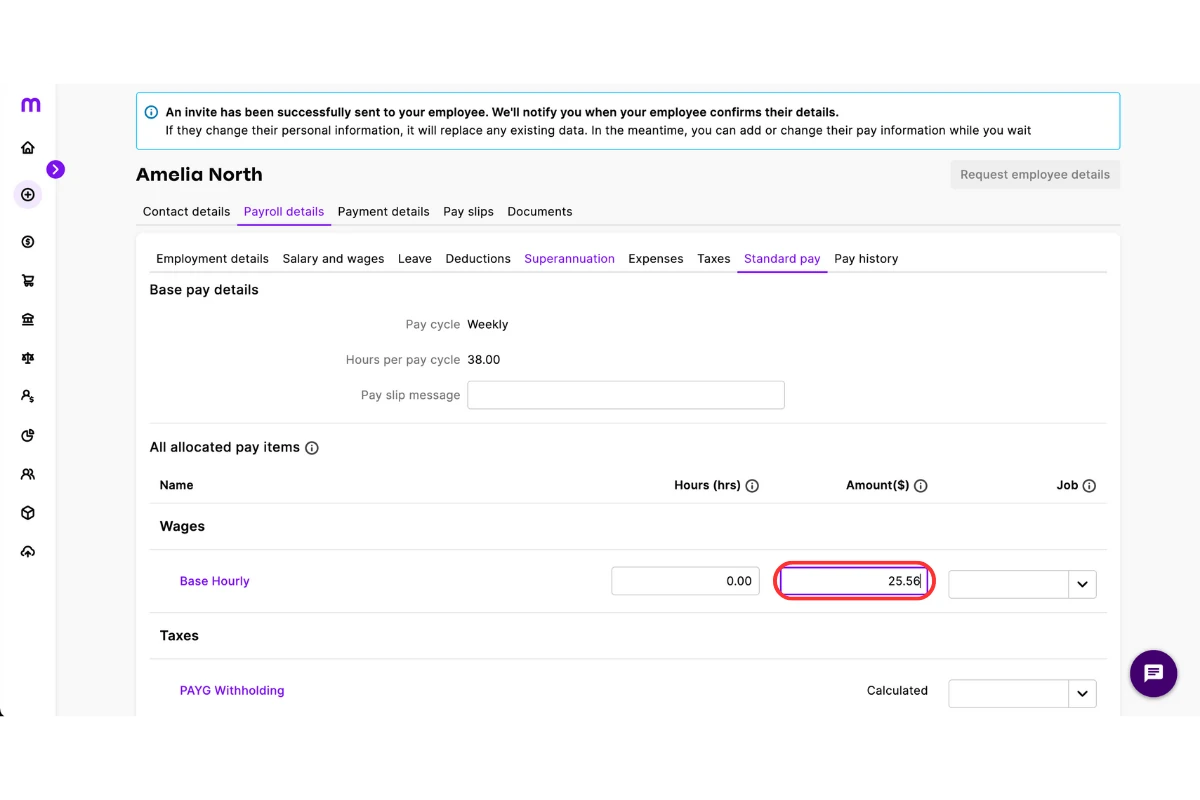
2.1.5 Enter the staff member’s pay rate.
2.1.6 Press Save.
Frequently asked questions
1. How do I set a pay rate for a staff member in MYOB My Business?
To set a pay rate, log in to MYOB My Business, go to Payroll, select Employees, open the staff member’s Payroll details, choose Standard pay, remove hours from Base hourly, enter the new rate, and press Save.
2. Why is it important to set the correct pay rate in MYOB My Business?
Setting the correct pay rate ensures employees are paid accurately, payroll runs smoothly, and your business stays compliant with workplace laws.
3. Can I update an employee's pay rate at any time in MYOB My Business?
Yes. You can update a staff member’s pay rate at any time by editing their Payroll details and saving the new rate. The change will apply in the next pay run.
4. What happens if I don't remove hours from Base hourly when setting a pay rate?
If you don’t remove hours from Base hourly, the system may calculate wages incorrectly by adding default hours to the employee’s pay, which can cause payroll errors.
5. Where do I find the Standard pay settings in MYOB My Business?
You can find Standard pay settings by selecting the employee in Payroll, opening Payroll details, and clicking Standard pay to adjust rates and hours.