

Disclaimer
This guide provides general information only and should not be relied upon as professional advice. Payroll and accounting requirements can vary depending on your business circumstances. Always check with your accountant or contact MYOB directly to confirm the best approach for your situation.
This guide will walk you through setting up RosterElf and MYOB for seamless timesheet exports and payroll processing. By following these steps, you’ll save time and avoid errors during payroll.
1. Prepare your MYOB account
Before exporting timesheets from RosterElf, ensure MYOB is set up correctly. For a detailed setup guide, visit our article on Set up MYOB for integration.
1.1 set Up payroll categories
Payroll categories in MYOB define how wages are processed. Learn more about creating pay templates for MYOB in this help article.
1.1.1 Log in to MYOB and navigate to the Payroll tab.
1.1.2 Click Payroll Categories to view the list of existing categories.
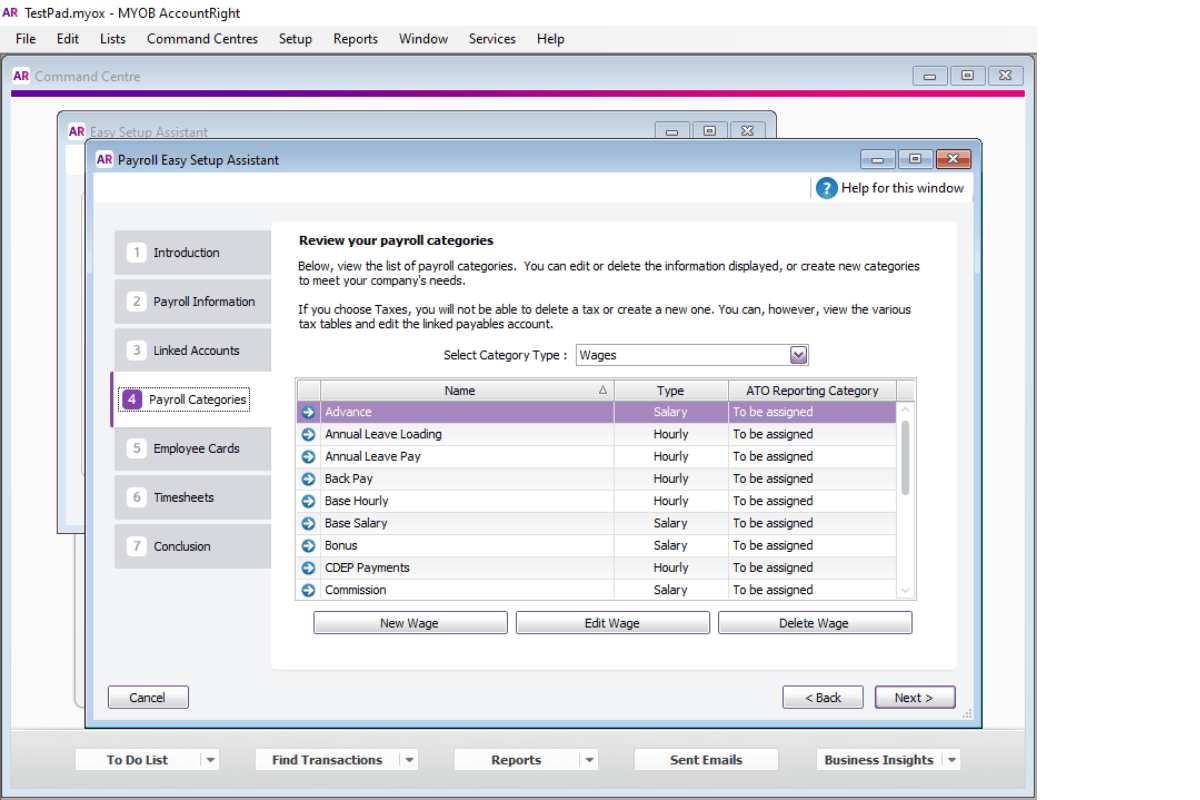
1.1.3 Ensure all required categories are listed (e.g., Base Hourly, Overtime, Weekend Rates).
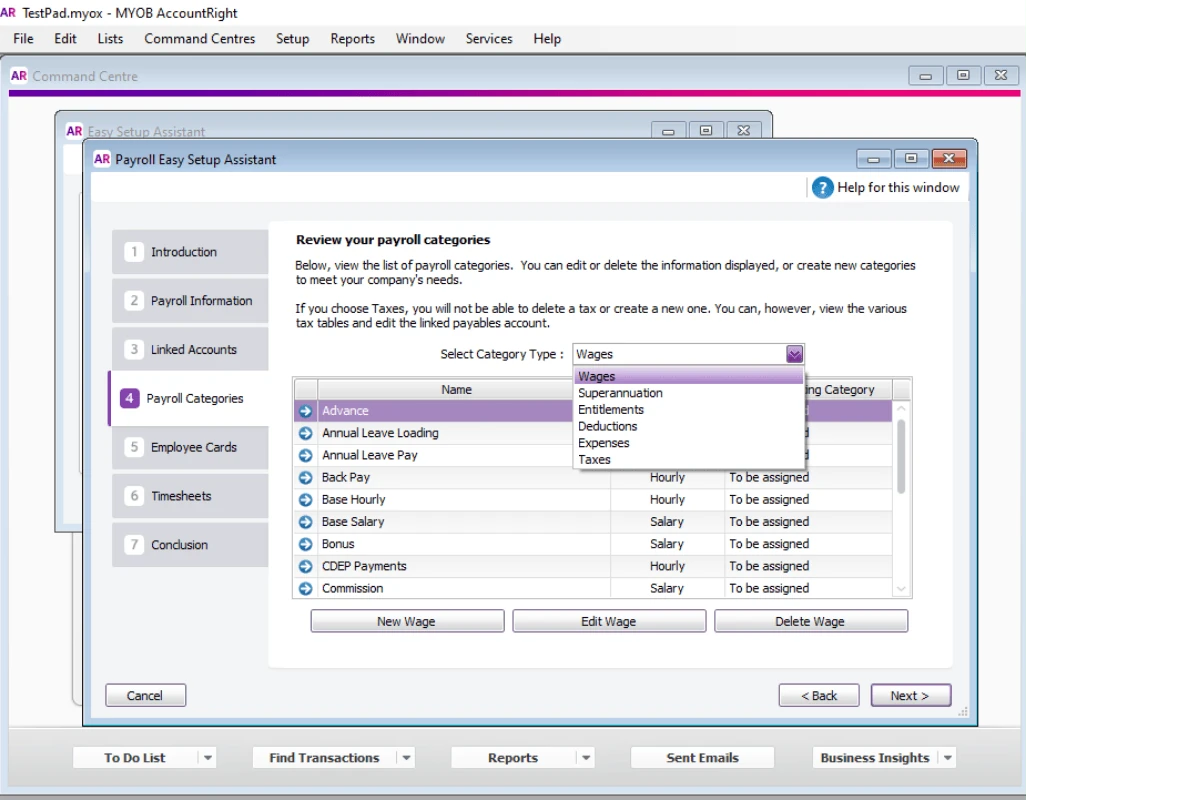
1.1.4 Add any missing categories by clicking New Category and assigning them as needed.
1.2 match staff names
Staff names in RosterElf and MYOB must match exactly for smooth data import.
1.2.1 In MYOB, navigate to the Card File tab and click Card List.
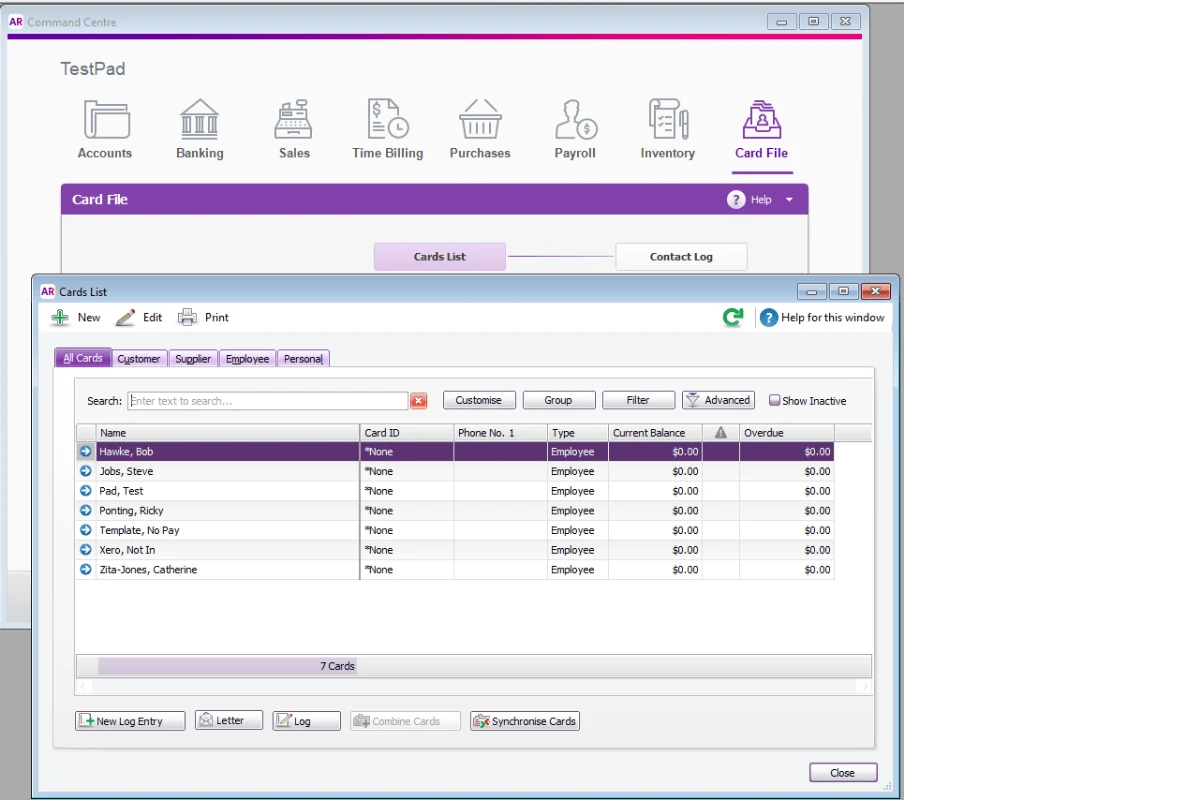
1.2.2 Select the Employee tab to view employee records.
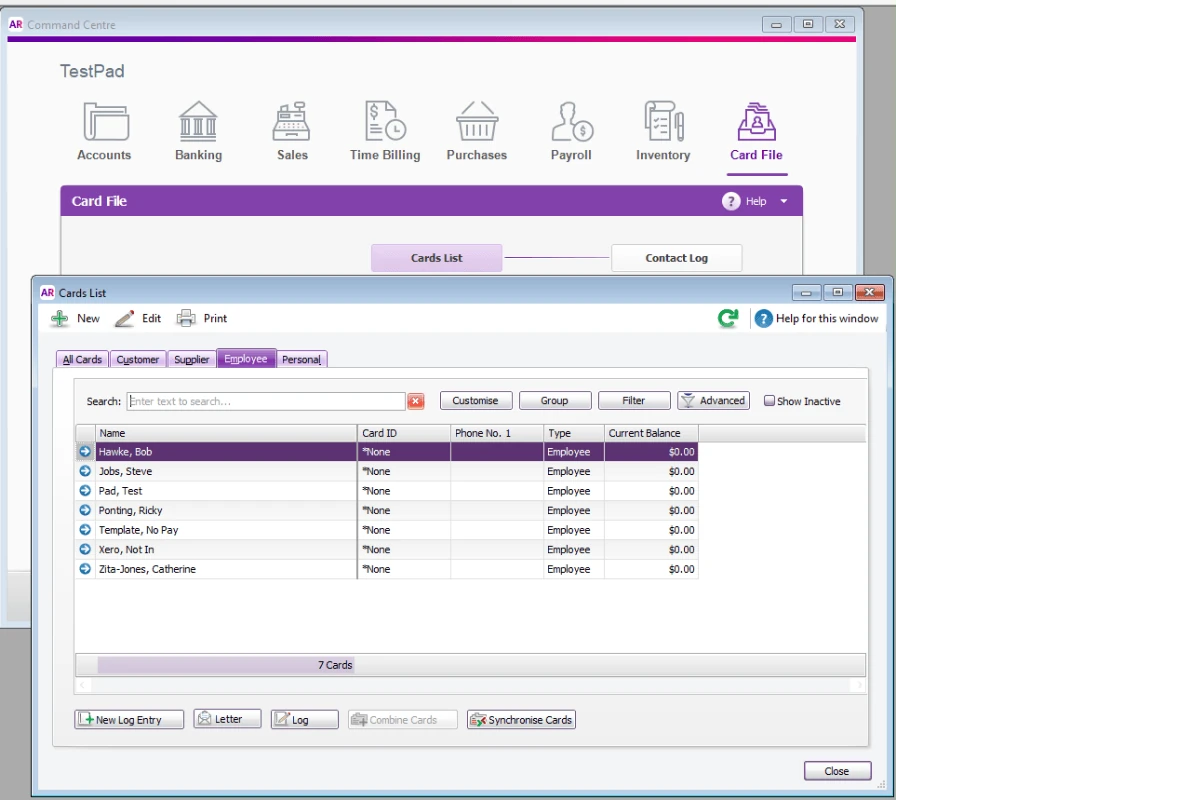
1.2.3 Ensure names in MYOB match those in RosterElf. Pay attention to formatting:
- RosterElf: First Name Last Name
- MYOB: Last Name, First Name
Avoid extra spaces or special characters.
2. Set Up RosterElf for MYOB exports
Learn how to create and customise pay templates in RosterElf with this detailed guide: Pay templates introduction.
3. Import timesheets into MYOB
Import the exported timesheet file into MYOB for payroll processing. See our article: Export timesheets to MYOB.
3.1 start the import process
3.1.1 Open MYOB and navigate to File Import Timesheets.
If you encounter errors during the import process, see the guide on how to fix common MYOB AccountRight payroll export errors.
Frequently asked questions
1. Why do staff names and wage rules need to match?
Matching ensures MYOB recognises and processes the data correctly. Misalignments can cause errors.
2. What should I do if an import error occurs?
Check file format, matching options, and ensure names and wage rules are consistent between RosterElf and MYOB.
3. How do I customise pay templates?
Use the Create pay templates for MYOB guide for step-by-step instructions.
4. What format does the export file need to be?
Ensure the exported file is a .txt file with tab-delimited formatting.
5. Can I use MYOB Business?
Yes, learn more in the guide: Export timesheets for MYOB Business.