

Disclaimer
This guide provides general information only and should not be relied upon as professional advice. Payroll and accounting requirements can vary depending on your business circumstances. Always check with your accountant or contact MYOB directly to confirm the best approach for your situation.
This article explains how to solve common MYOB My Business import errors when using RosterElf. Import issues often occur due to mismatched staff names or missing pay items. These problems stop timesheets from flowing through correctly, which can delay payroll and create frustration.
By following this guide, you will learn how to identify the cause of errors and apply the right fix. The steps are simple and focus on checking formatting, correcting names, and ensuring pay items are assigned correctly. Taking these actions will reduce errors, improve payroll accuracy, and save time when processing staff pay. If you are using MYOB AccountRight, see the dedicated guide on fixing MYOB AccountRight payroll export errors.
1. Fix staff name mismatch in MYOB My business
This section explains how to correct error employee not found error. This is where staff names do not match between RosterElf and MYOB My Business. If a name is misspelt, contains formatting issues, or includes special characters, the system will not link the record. Fixing the name ensures that timesheets import smoothly and payroll data stays accurate.
1.1 Correct staff name in RosterElf
1.1.1 Open RosterElf.
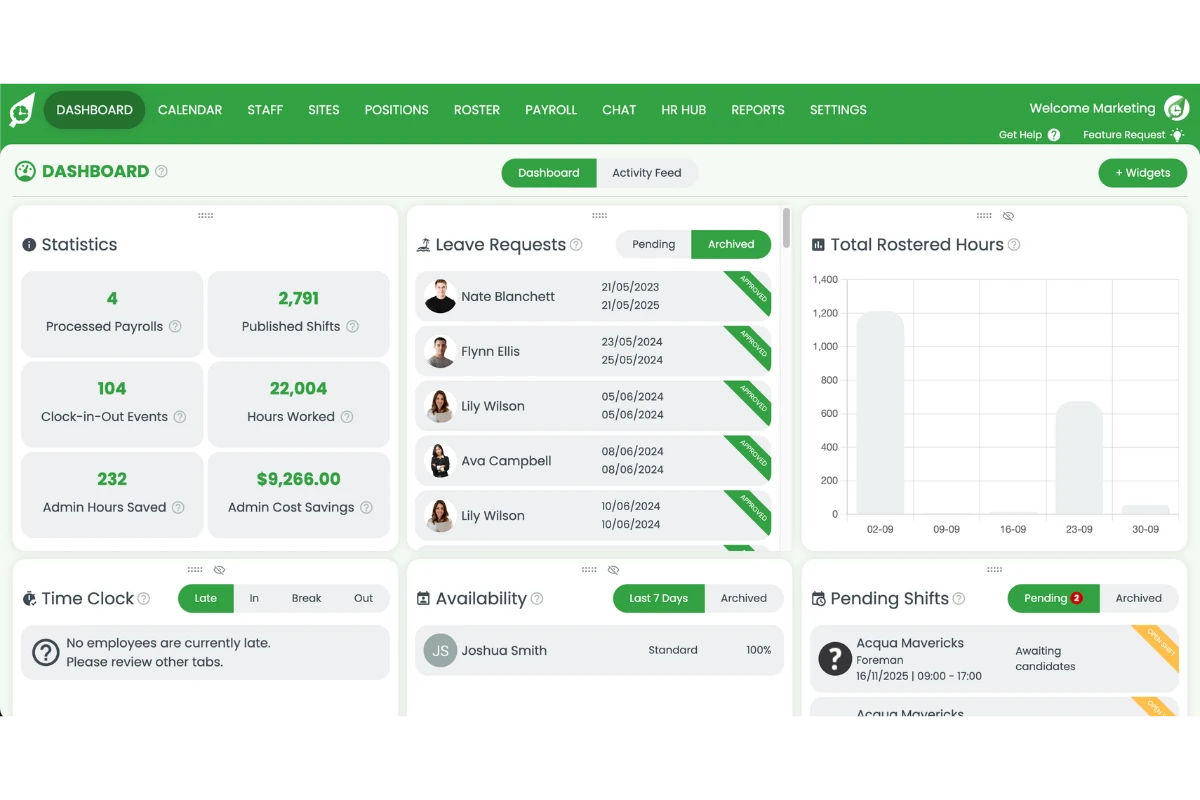
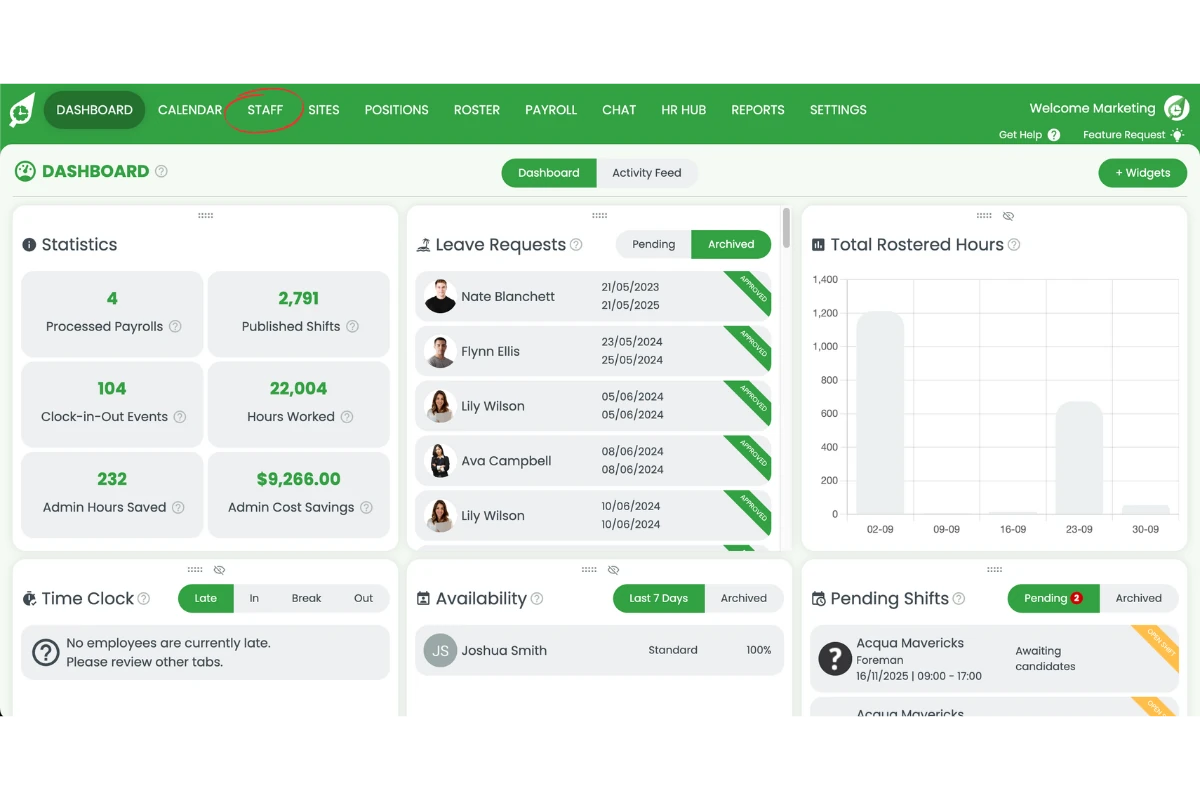
1.1.2 Go to the Staff tab.
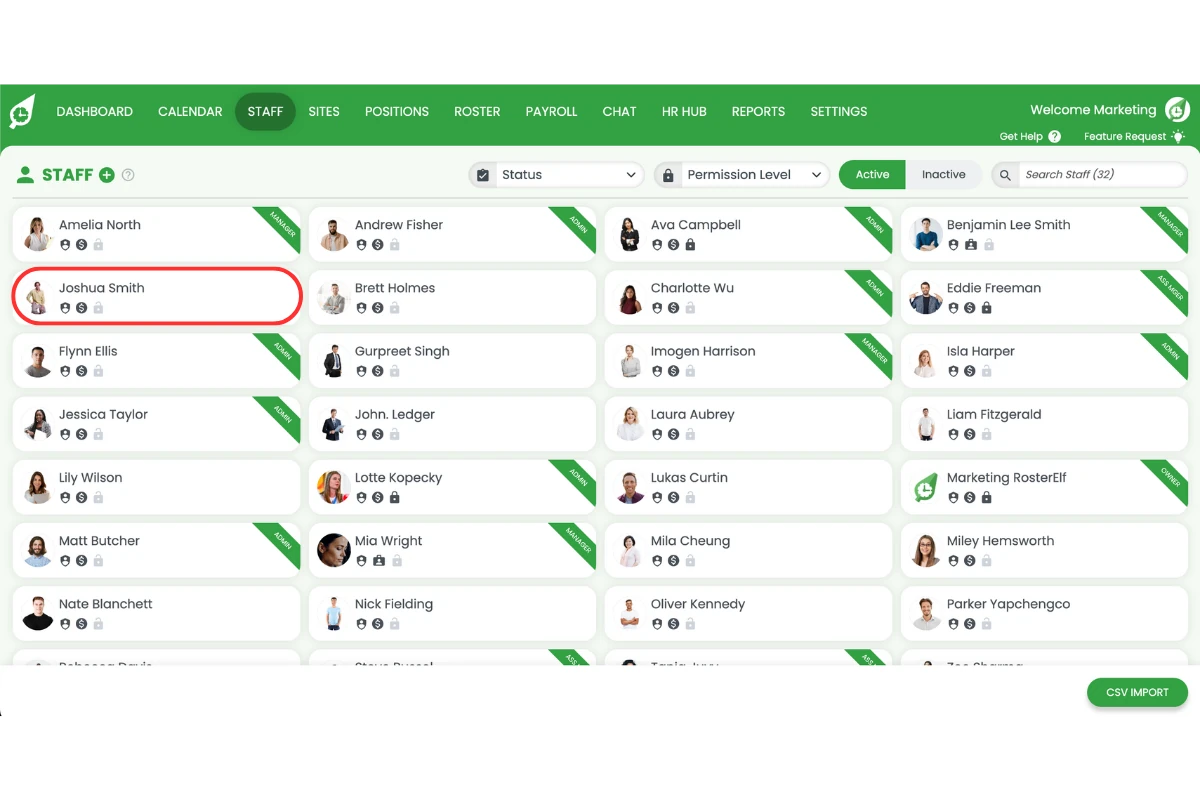
1.1.3 Select the staff member with the issue.
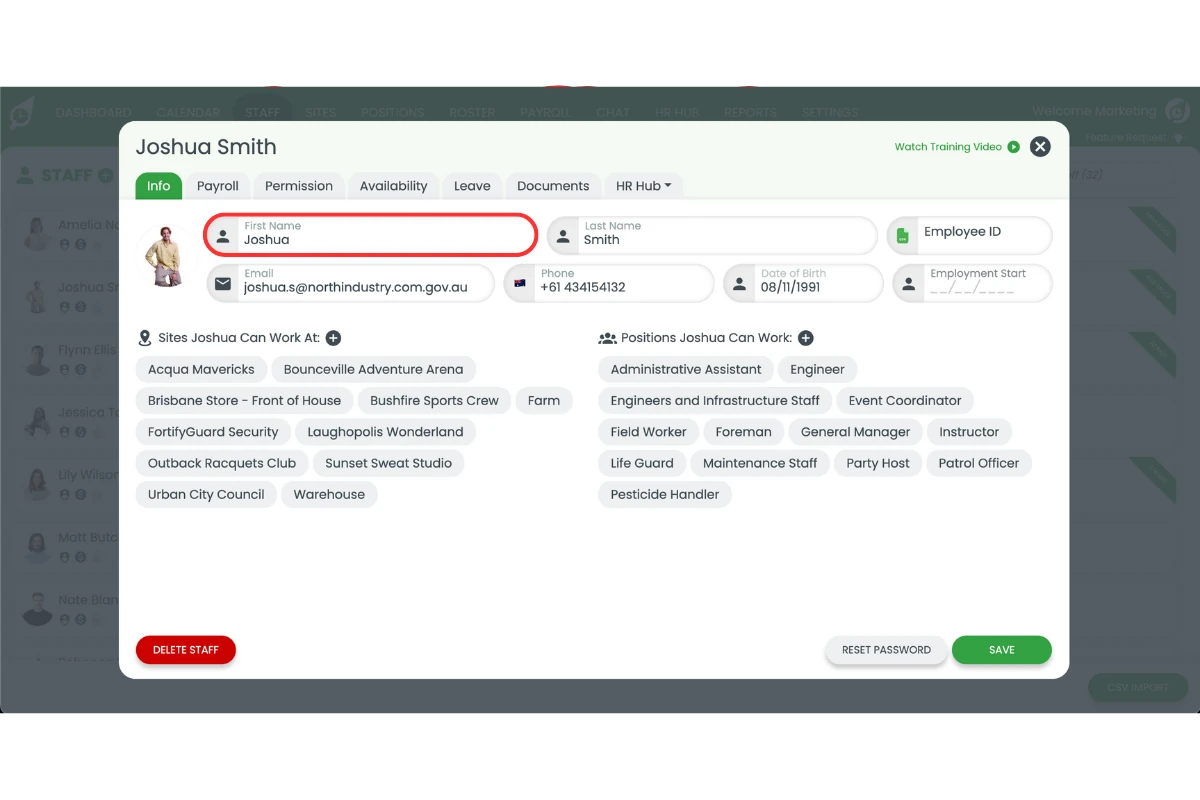
1.1.4 Copy the name from MYOB My Business.
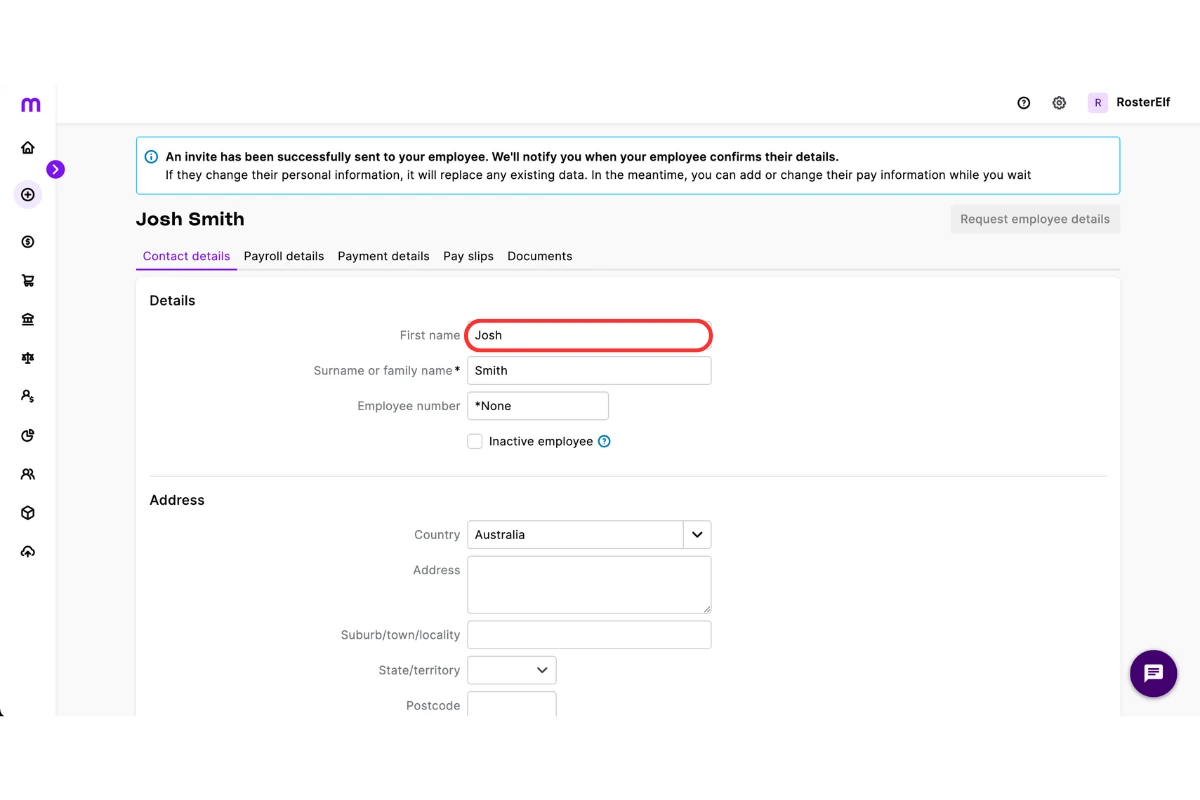
1.1.5 Update the name to match MYOB formatting exactly.
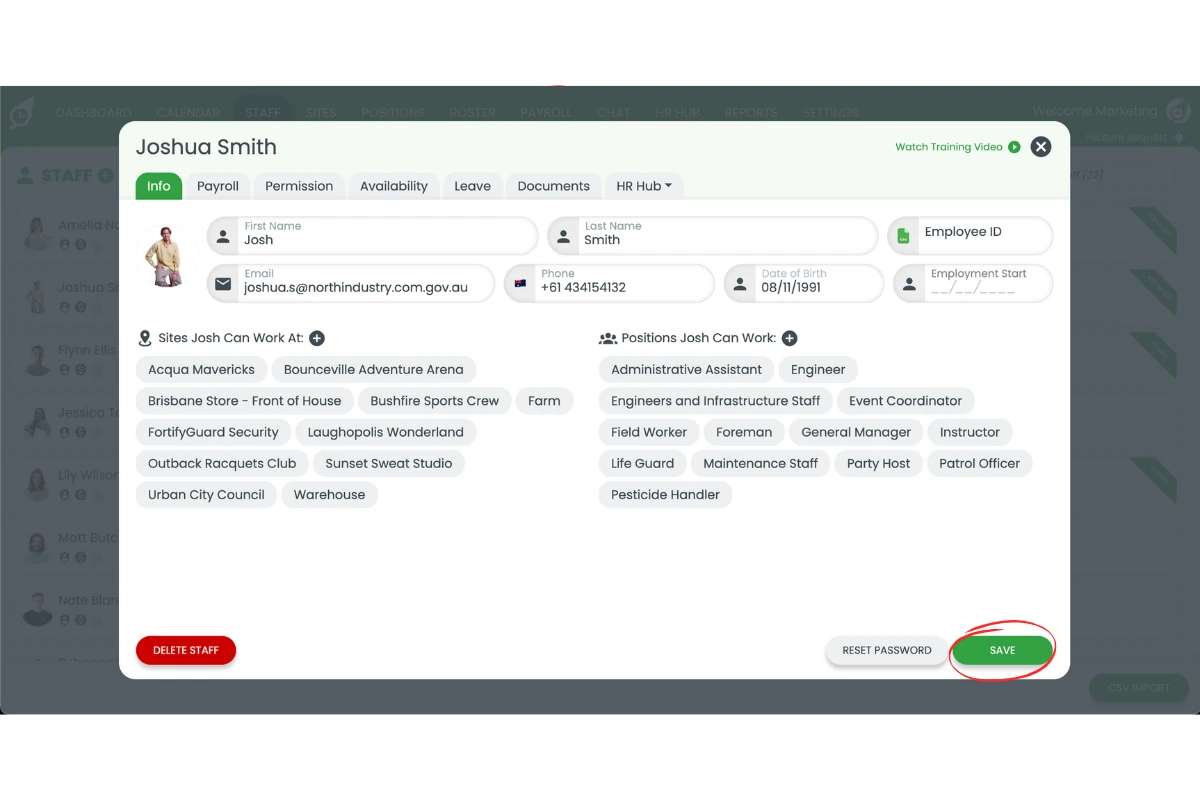
1.1.6 Click Save.
2. Fix missing payroll category in MYOB My business
This section explains how to resolve error payroll category not found. This is caused by missing payroll categories. If a pay item is not linked to an employee in MYOB My Business, the import will fail. Adding the correct pay item ensures staff wages process without errors.
2.1 Assign missing pay item in MYOB
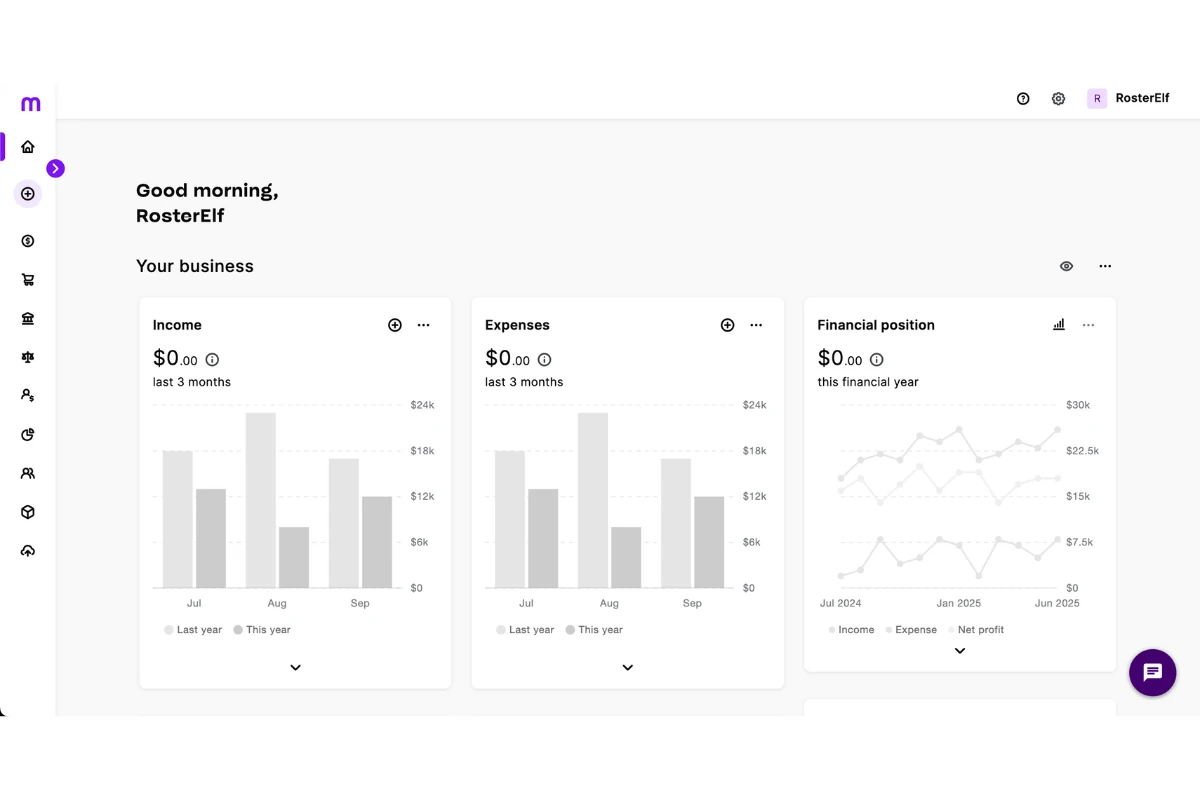
2.1.1 Open MYOB.
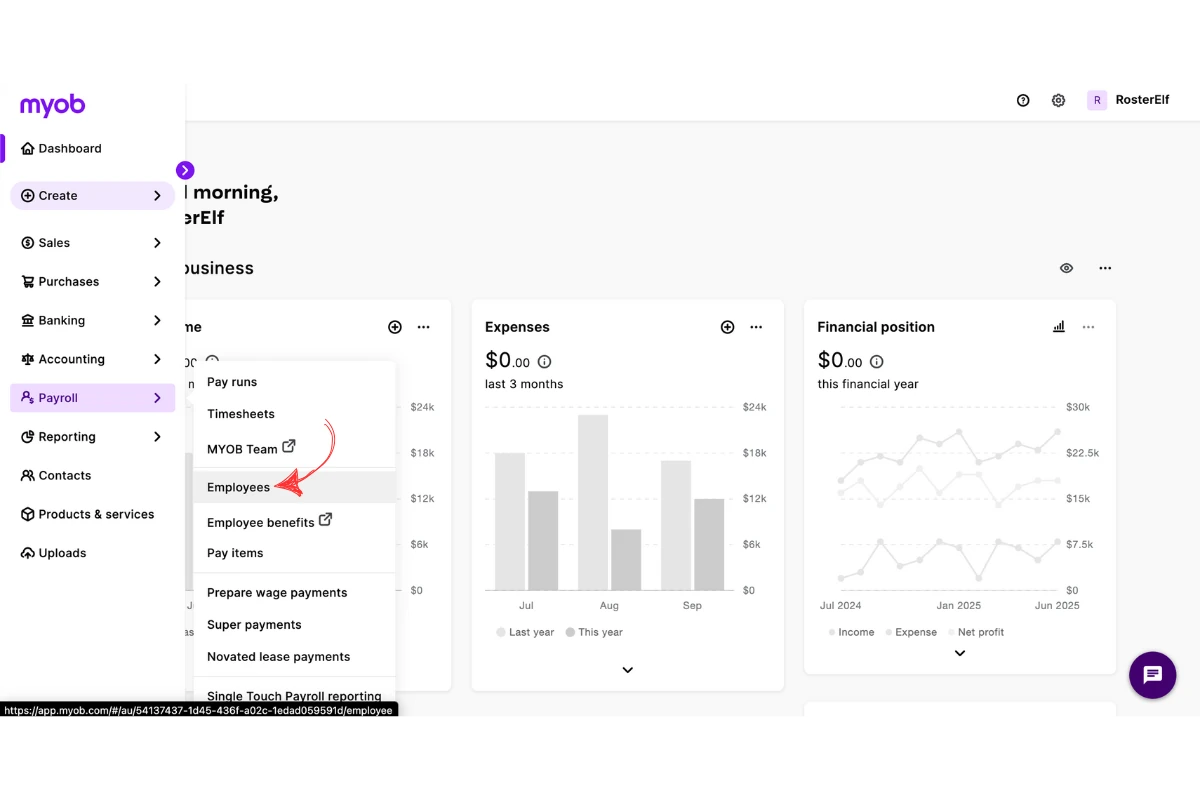
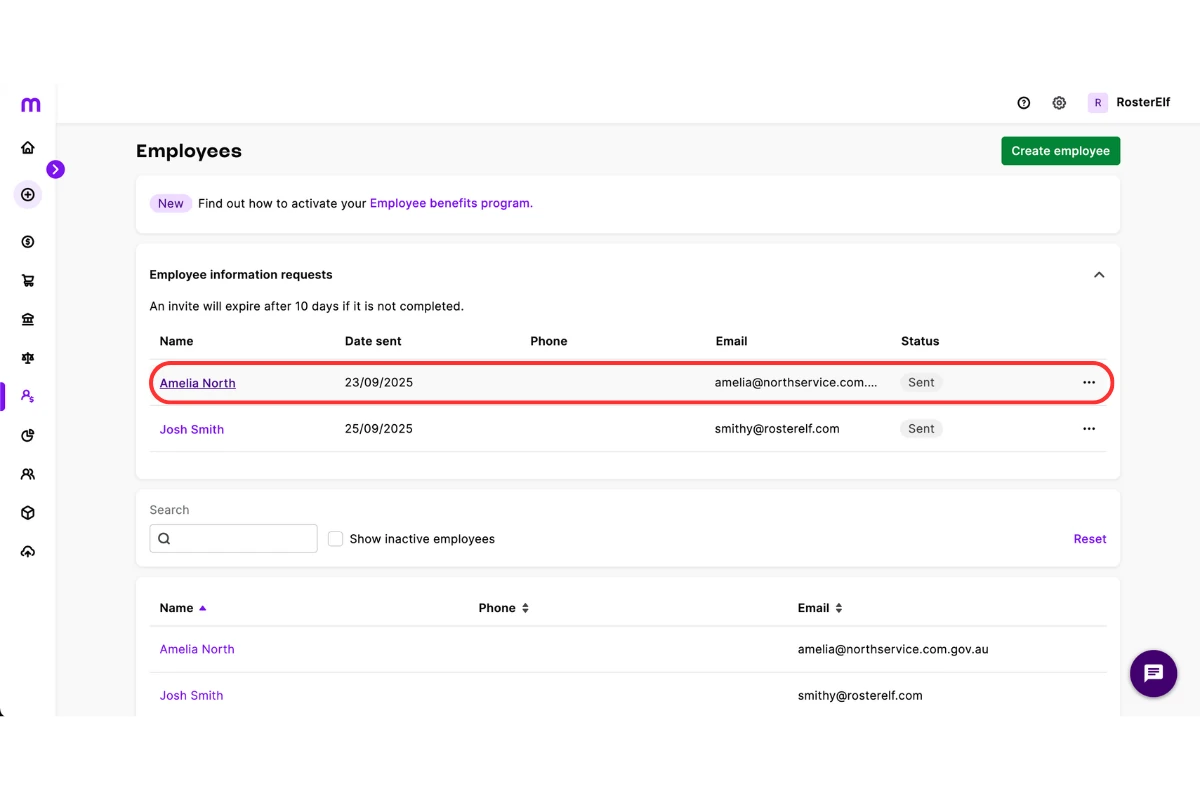
2.1.2 Go to Payroll > Employees.
2.1.3 Select the employee.
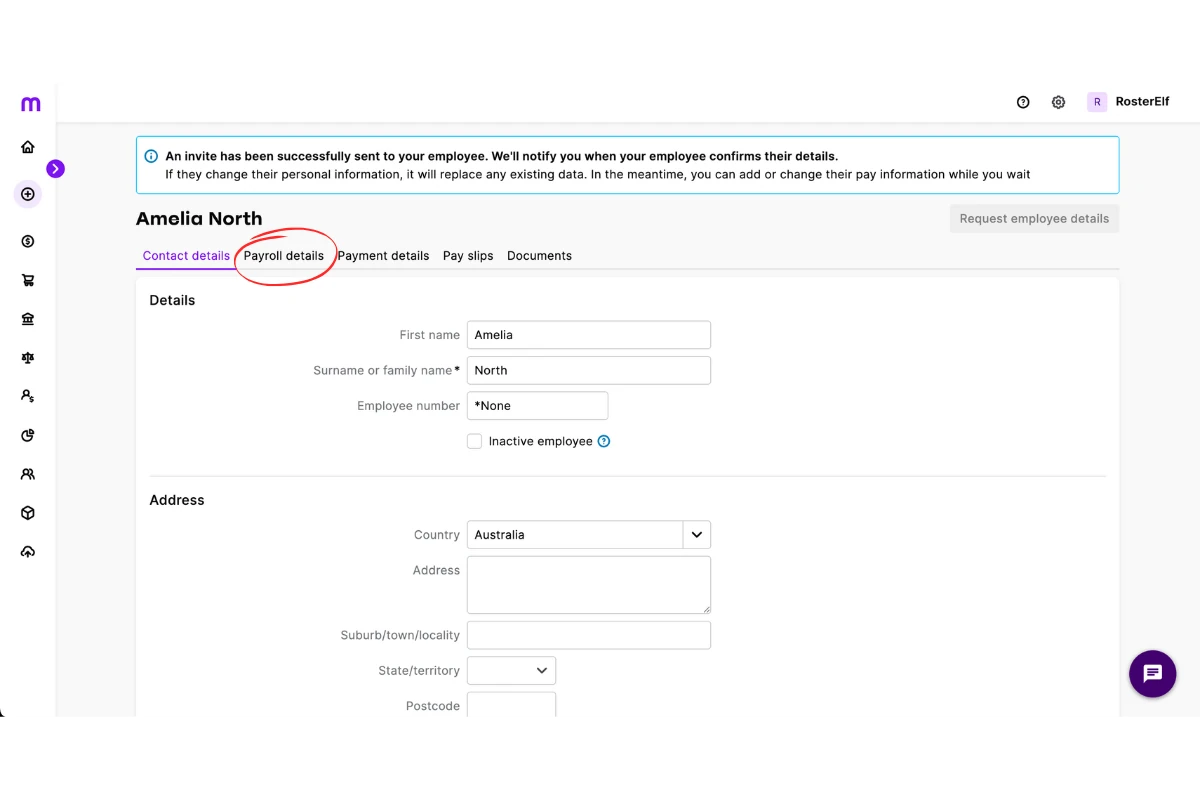
2.1.4 Open Payroll details.
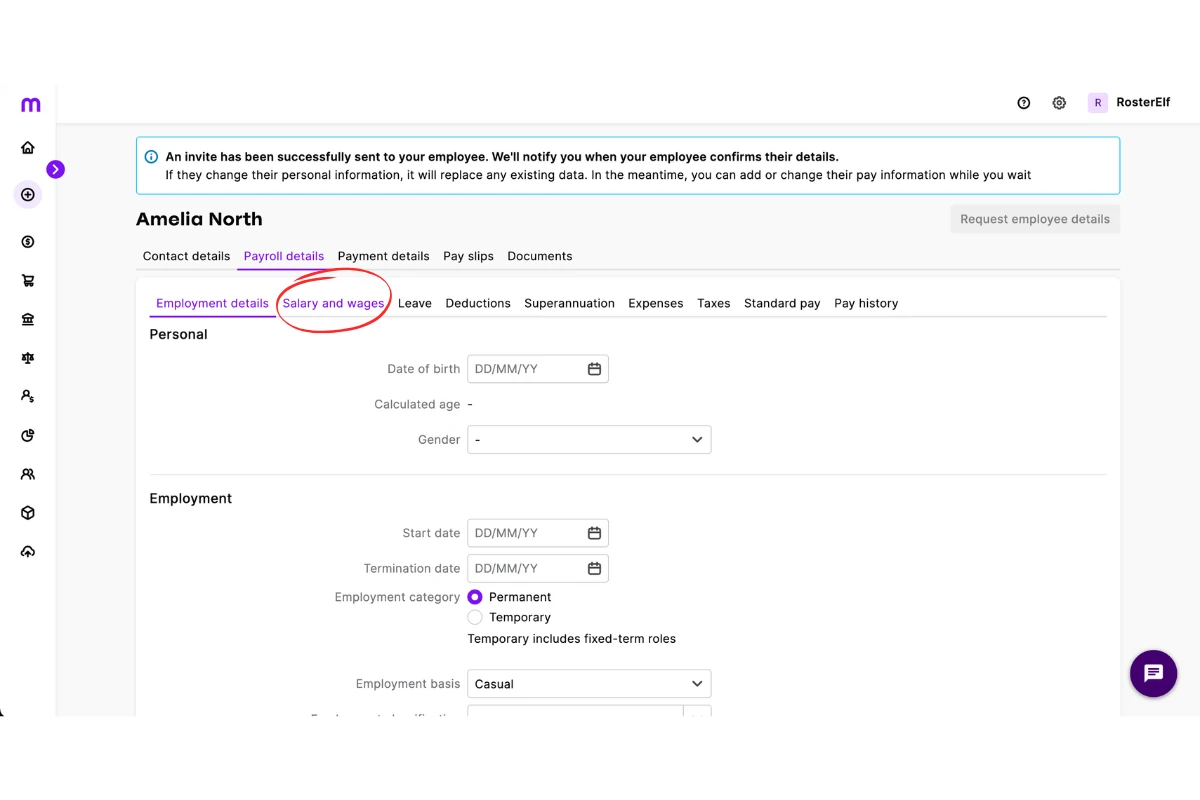
2.1.5 Click Salary and wages.
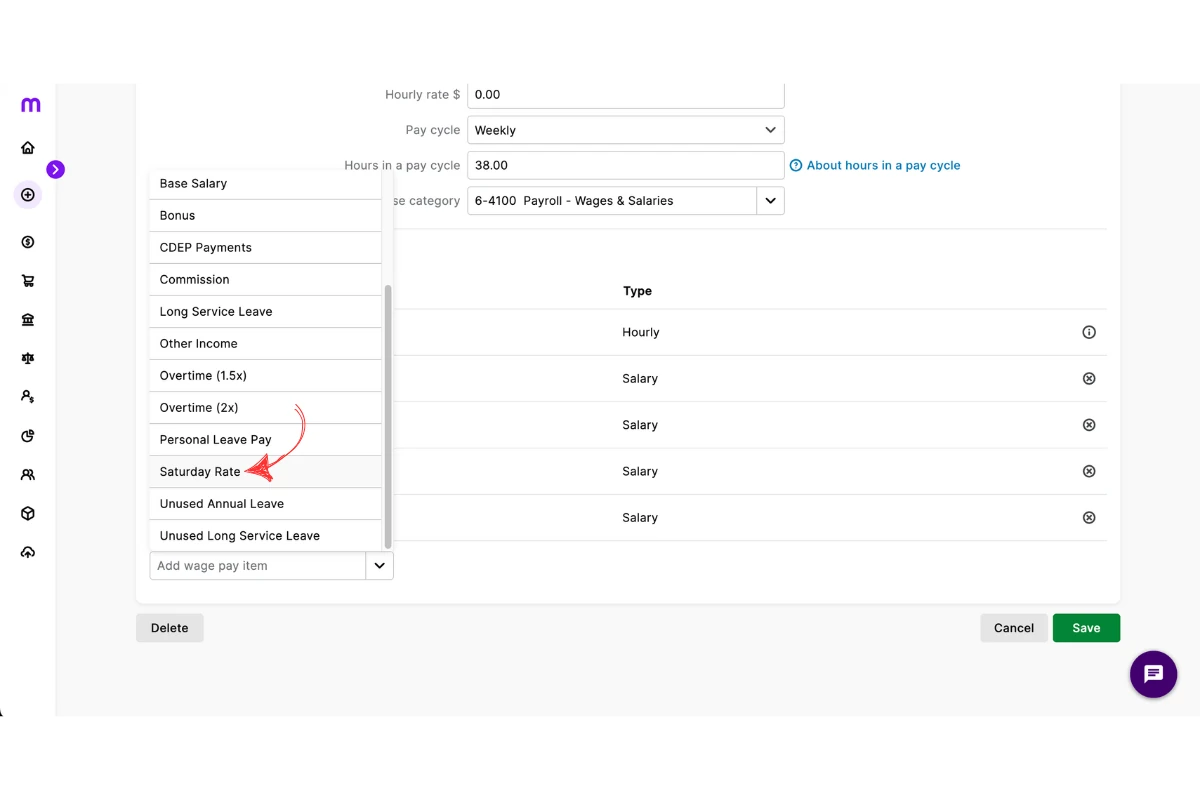
2.1.6 Select Add a wage pay item.
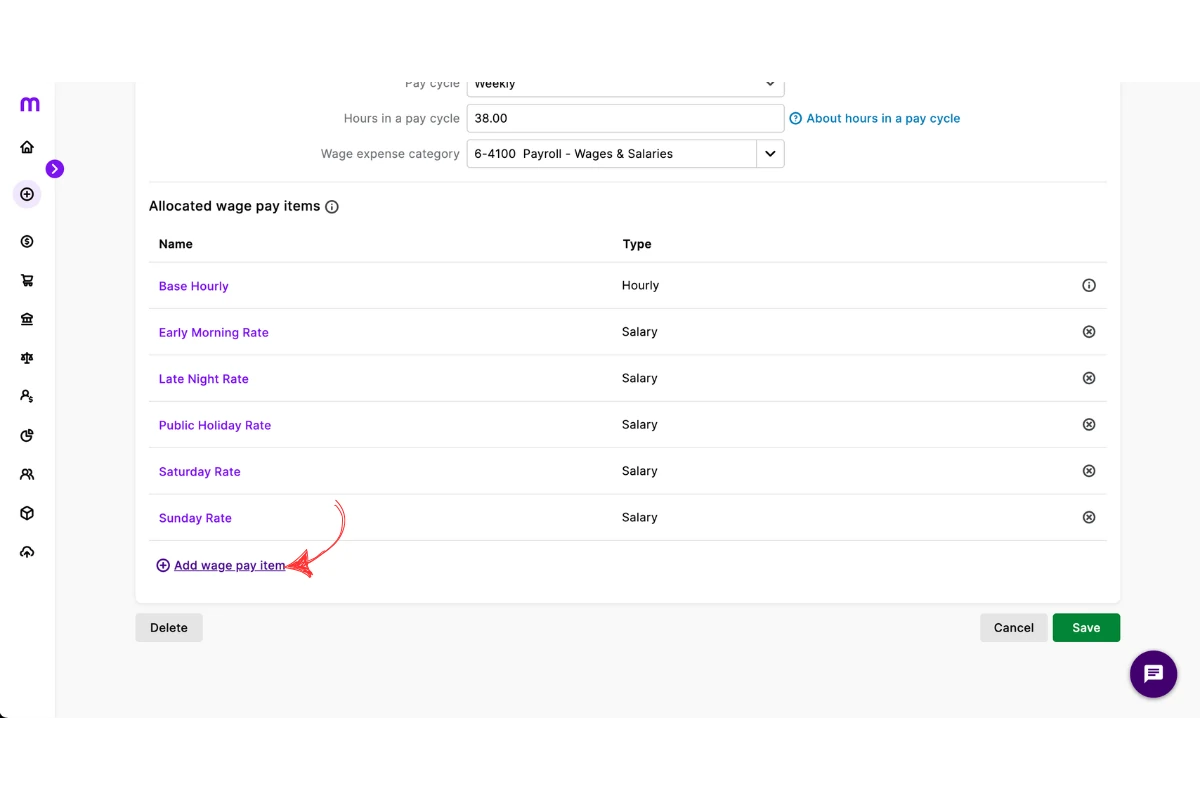
2.1.7 Assign the missing pay item.
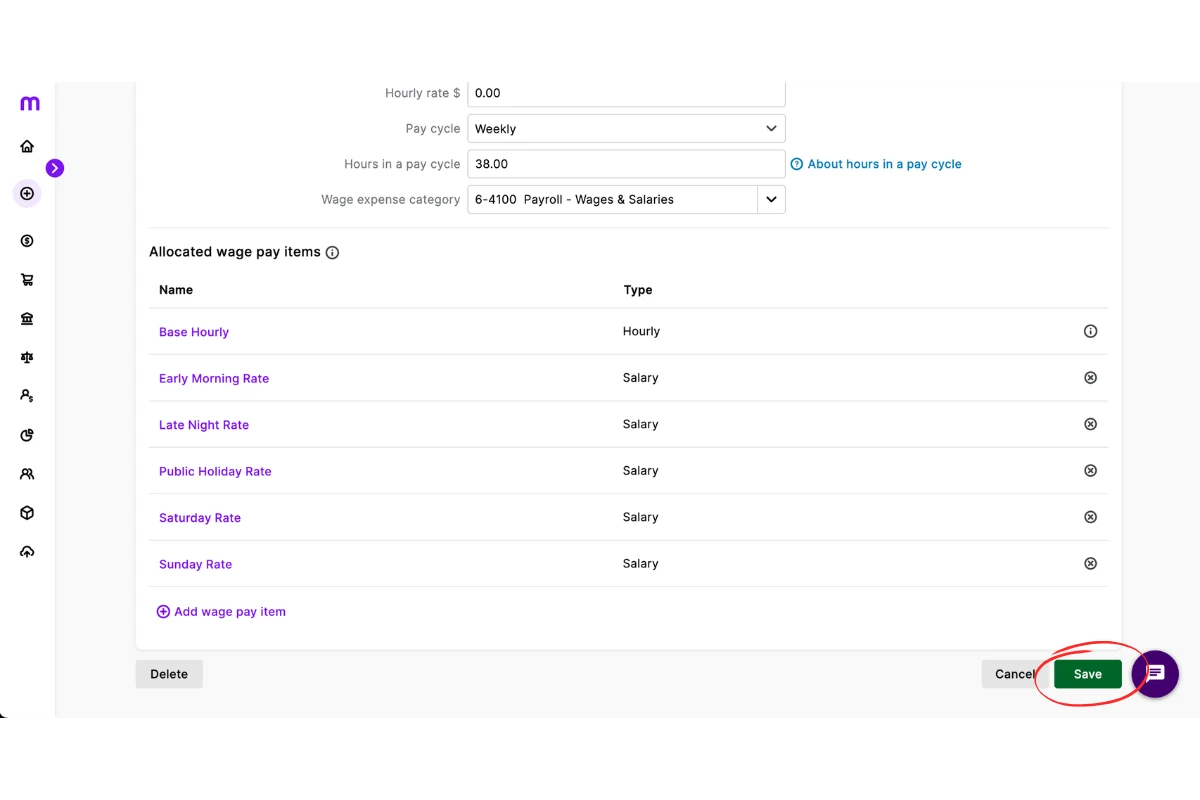
2.1.8 Click Save.
3. Fix pay template formatting in RosterElf
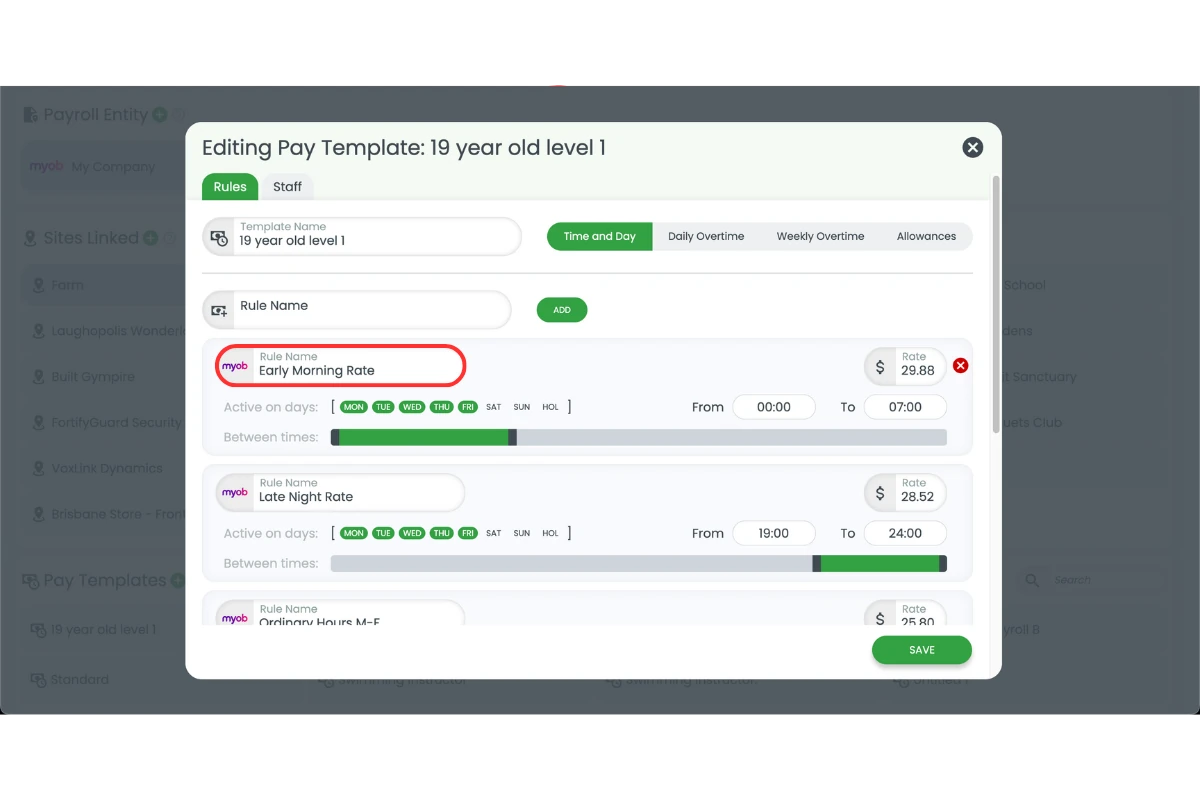
This section explains how to correct payroll category not found error. This is when there is a pay template formatting issues in RosterElf. If the rule name in RosterElf does not match MYOB exactly, the system will not link the pay item. Making sure the name matches without extra spaces or special characters ensures a smooth import.
3.1 Adjust pay template rule name
3.1.1 Open RosterElf.
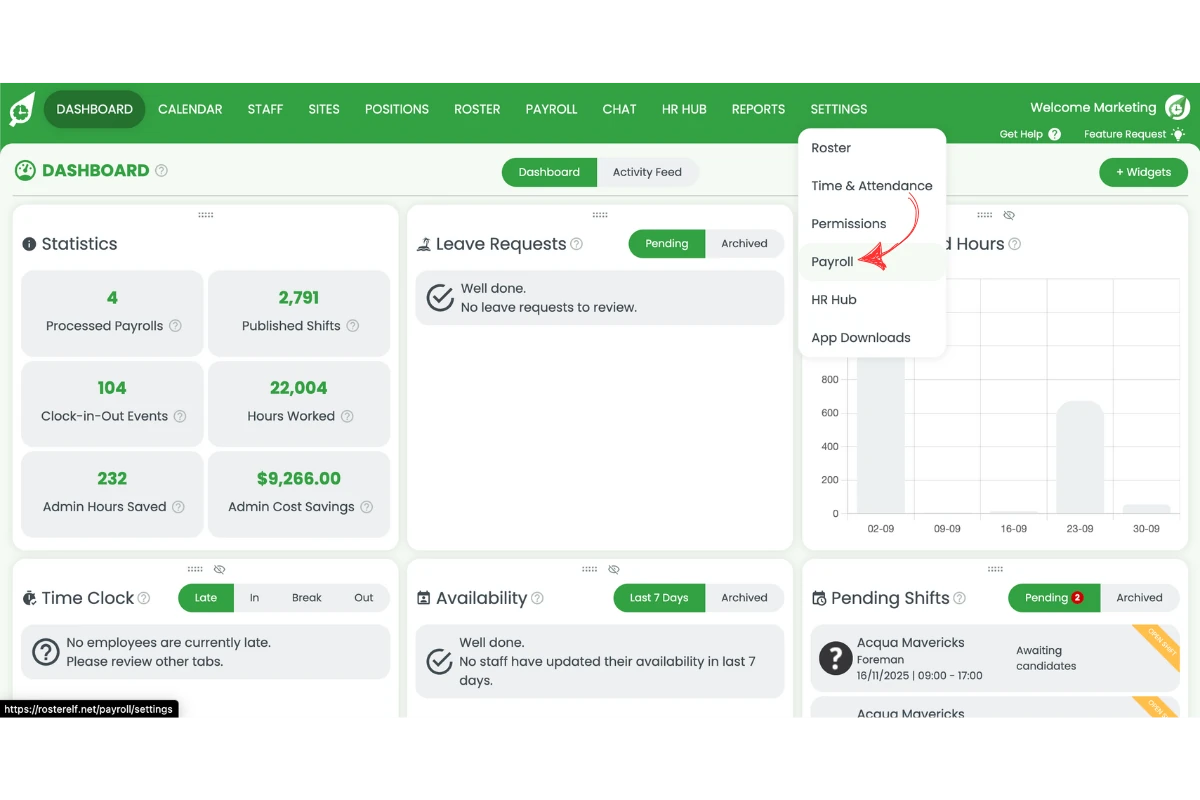
3.1.2 Go to Settings > Payroll.
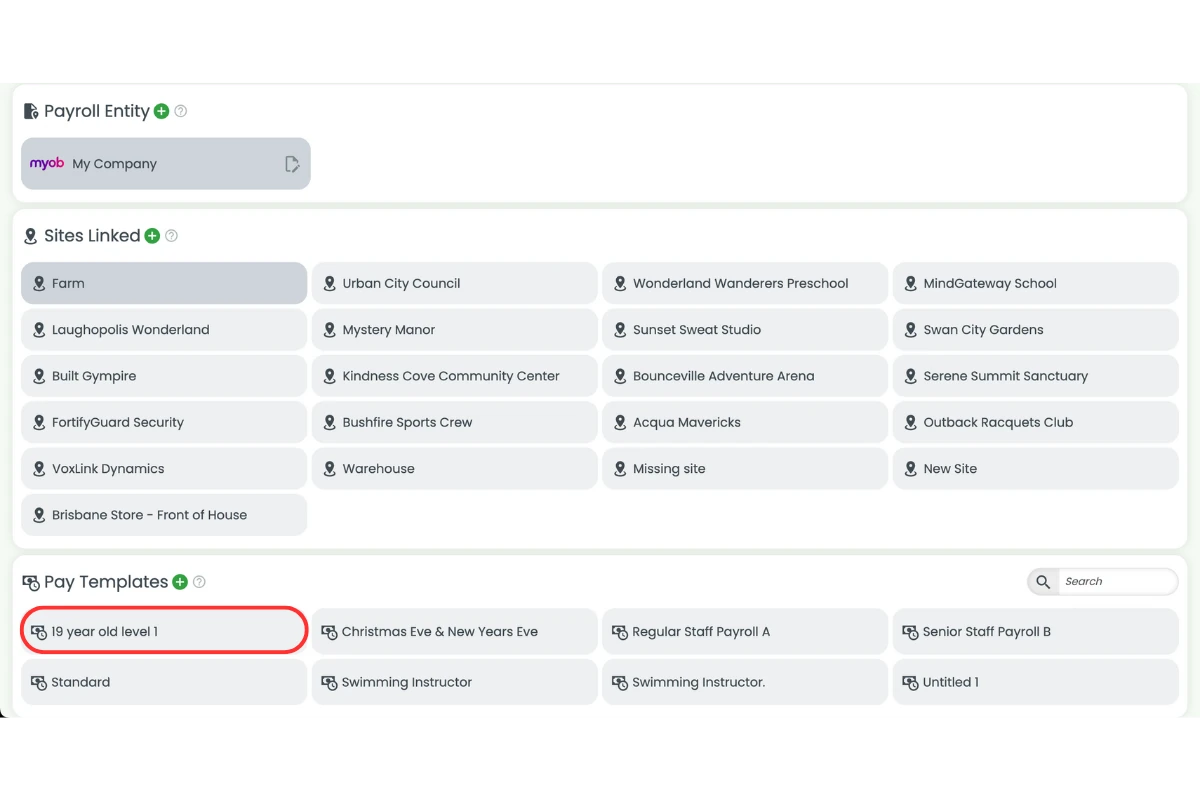
3.1.3 Click on the pay template.
3.1.4 Copy the name from MYOB into the rule name field.
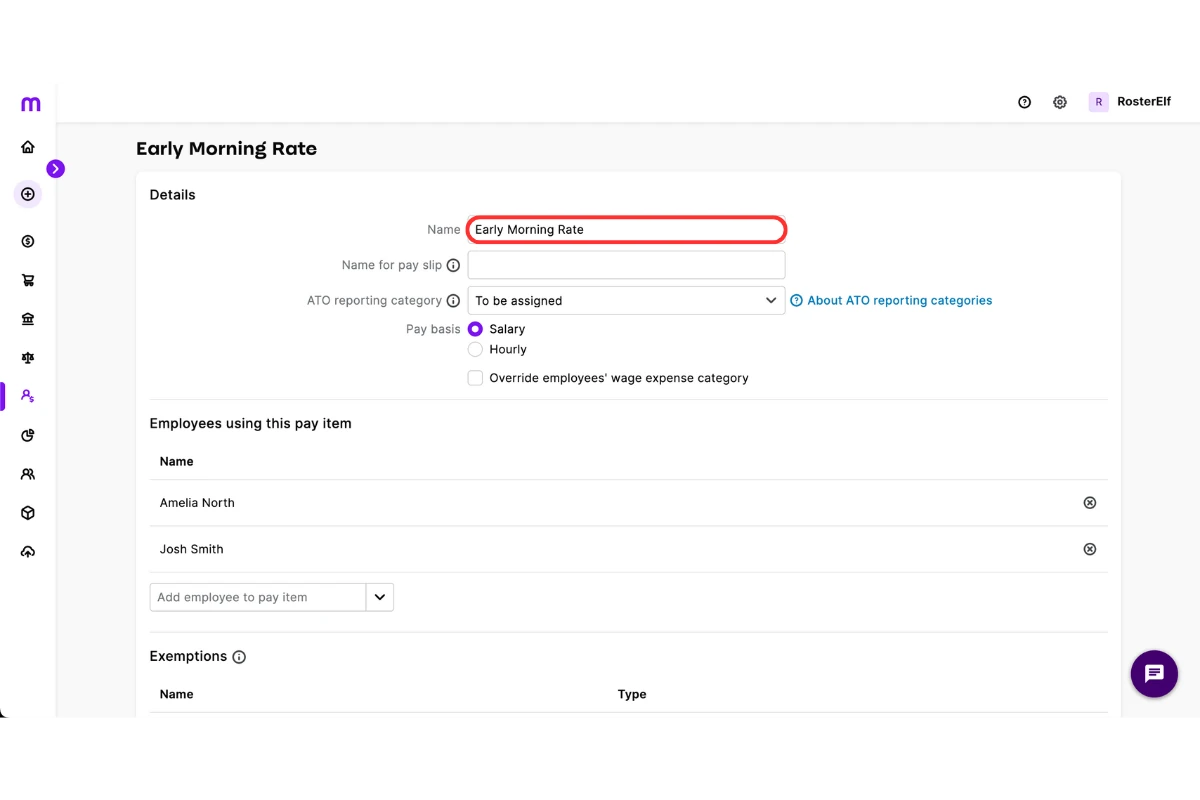
3.1.5 Update the rule name to match MYOB exactly.
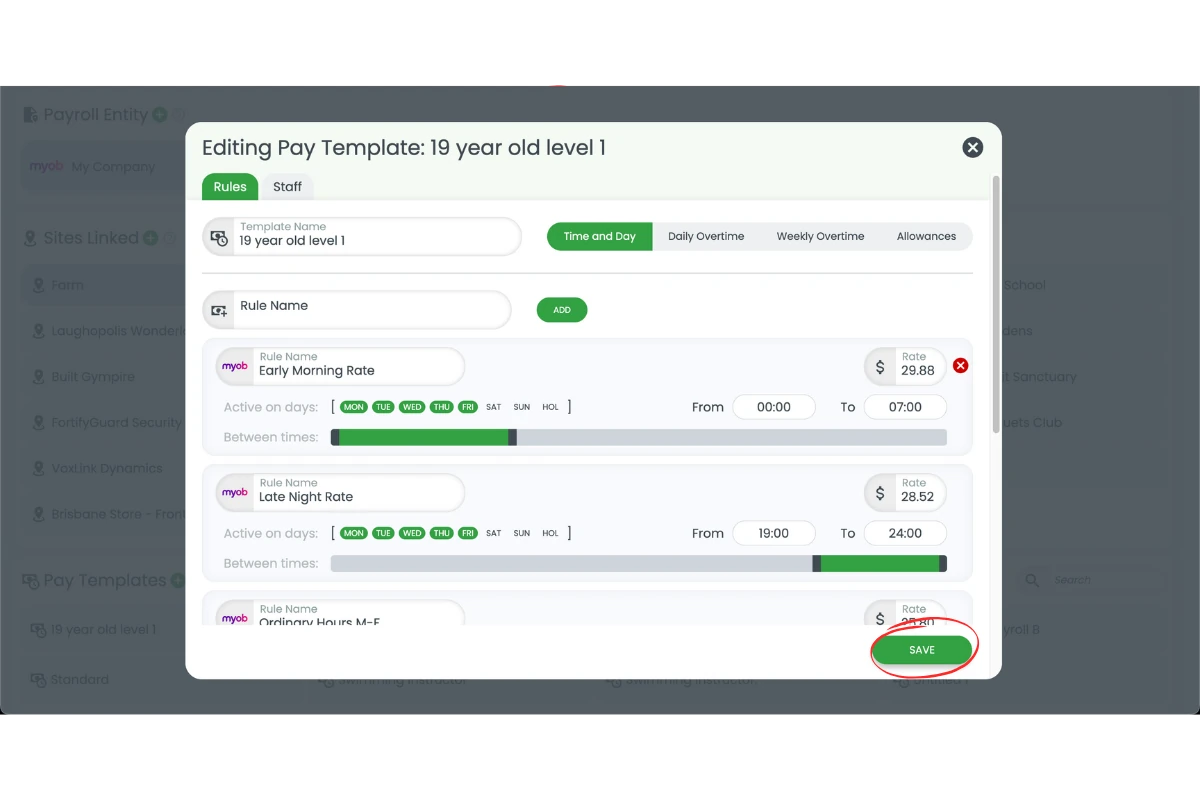
3.1.6 Click Save.
Frequently asked questions
1. Why won't my staff timesheets import into MYOB My Business?
Timesheets often fail to import because of mismatched staff names, missing pay items, or incorrect pay template formatting. Checking that names and pay categories match exactly between RosterElf and MYOB fixes most errors.
2. How do I fix a staff name mismatch error in MYOB My Business?
Open RosterElf, go to the Staff tab, select the employee, and update their name to match MYOB exactly. Make sure there are no misspellings, capitalisation errors, or special characters before saving.
3. What should I do if a payroll category is not linked to an employee in MYOB My Business?
Go to Payroll > Employees in MYOB, select the employee, open Payroll details, and add the missing wage pay item. Once saved, the payroll category will be linked correctly, and imports will process.
4. Why is my pay template not being picked up by MYOB My Business?
If the pay template rule name in RosterElf has extra spaces, special characters, or formatting differences, MYOB cannot match it. Update the rule name in RosterElf to match MYOB exactly, then save the changes.
5. How can I prevent common MYOB My Business import errors in future?
You can prevent errors by keeping staff names consistent, ensuring pay items are always linked to employees in MYOB, and double-checking that pay template names in RosterElf match MYOB. Regular reviews before payroll reduce issues and save time.