
Xero payroll training: setup, timesheets, and the workflow Xero doesn't cover
Xero's free Payroll Specialist course covers the basics. This guide covers what comes next — connecting award-compliant rostering timesheets to Xero payroll so every pay run is accurate, automated, and ready for Payday Super.

Written by
Georgia Morgan
This guide provides general information about Xero payroll configuration and rostering integration. Payroll obligations vary by award, employment type, and individual circumstances. Always verify your specific requirements with the ATO and Fair Work Ombudsman. It does not constitute legal, HR, or professional advice and should not be relied on as a substitute for advice specific to your business, workforce, or circumstances.
Summarise with AI
Key takeaways
- Xero's free Payroll Specialist course covers the basics, but not the rostering-to-payroll workflow
- Align RosterElf and Xero pay calendars exactly — mismatches are the top cause of export errors
- Only approved timesheets export to Xero, carrying pre-calculated award rates and penalties
- Since 1 July 2026, Payday Super requires super to reach the fund within 7 business days of payday
Free payroll templates
Run the pay cycle the same way every time.
Xero payroll training is the process of configuring Xero's payroll module for an Australian business — covering pay calendars, pay items, award-compliant templates, timesheet exports, superannuation, and Payday Super. This guide covers the rostering-to-payroll integration workflow that Xero's own training course does not include.
What Xero's payroll training leaves out
Xero's Payroll Specialist course (free, 4 hours, digital badge) covers payroll setup, pay runs, STP, leave, and EOFY. It's a solid foundation — but it stops before the rostering and timesheet-to-payroll workflow, which is where most Australian shift-based businesses run into problems.
Award-rate penalty calculations
Xero's training covers how to create pay items — not how to configure them for Australian award penalty rates across different shift times and days.
Shift-based timesheet workflows
Xero teaches timesheet creation in-app. It does not cover how to receive approved timesheet data from a rostering system, or why the approval step matters.
Payday super readiness
Xero's course material pre-dates the 2026 Payday Super obligation. It doesn't explain how payroll timing must change since 1 July 2026 to meet the 7-business-day super deadline.
How this guide complements Xero's training
Complete Xero's free Payroll Specialist course first to understand pay runs, STP, and Xero's interface. Then use this guide to configure the integration with your rostering system — the part Xero's course assumes you've already solved.
Xero's free Payroll Specialist courseBefore you start
Xero subscription with payroll enabled
A Xero plan with payroll enabled — Grow, Comprehensive, or Ultimate. Ignite does not include payroll. Verify under Xero Settings → General Settings → Payroll.
Employees in both systems
Employee records in RosterElf and Xero must share a common identifier (usually email address) so the integration can match them on export.
Award or pay schedule confirmed
Know which modern award applies to each employee — this determines penalty rate percentages and what pay items to create in Xero.
Find which award appliesConnect RosterElf to Xero
Establish the API connection between RosterElf and Xero so timesheet data can flow directly into your payroll. This takes around 5 minutes and requires a Xero plan with payroll enabled (Grow, Comprehensive, or Ultimate).
How to do it:
- In RosterElf, go to Settings → Integrations → Xero and click Connect to Xero
- You will be redirected to Xero to authorise the connection — log in with your Xero credentials
- Select the Xero organisation you want to connect and confirm access
- Return to RosterElf — a green confirmation message confirms the connection is live
- You need Payroll Admin permission in Xero for the integration to work fully
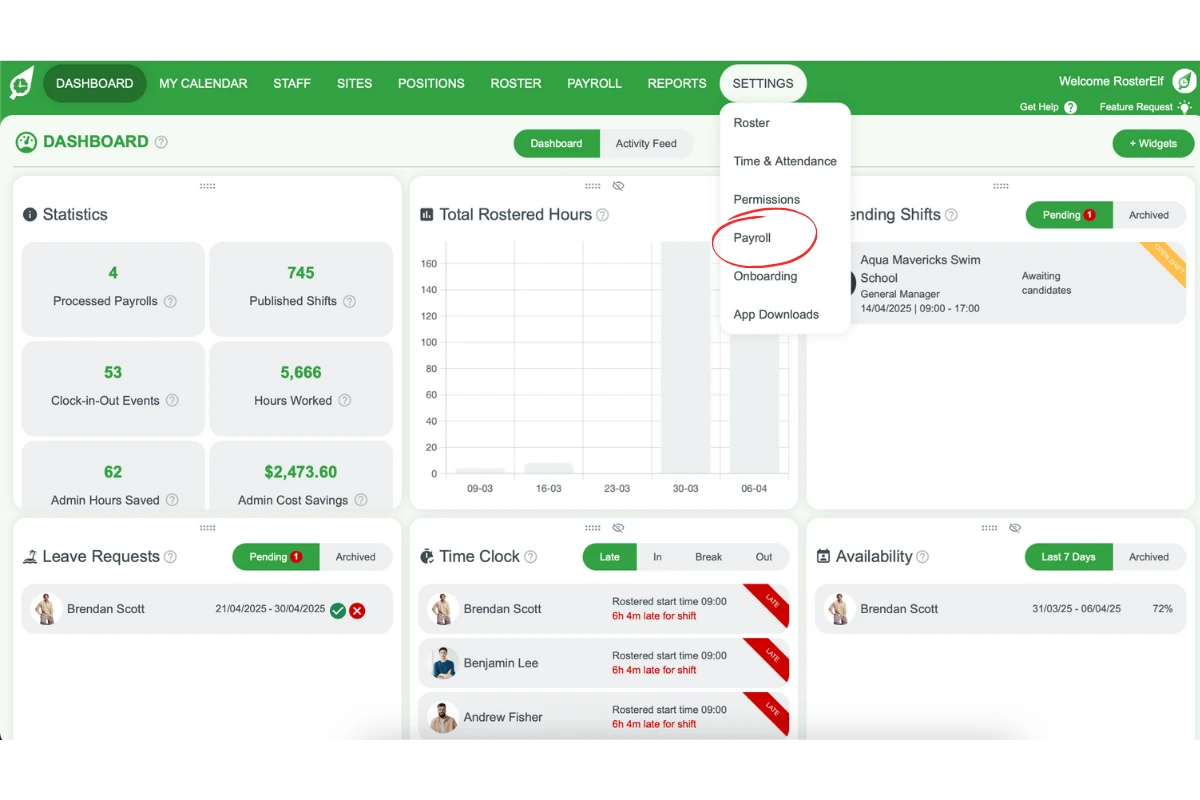
RosterElf Settings menu open showing Payroll option to navigate to integration settings
Align pay calendars between systems
Your pay cycle in RosterElf must match your payroll calendar in Xero exactly. Mismatched calendars are the most common cause of timesheet export errors and the reason most Xero payroll setups fail on first use.
How to do it:
- In Xero, go to Payroll → Pay Calendars and note the pay frequency and start date
- In RosterElf, go to Settings → Payroll → Pay Cycle and set it to match Xero exactly
- If you are a new Xero customer, create the pay calendar in Xero first, then align RosterElf to it
- If you have an existing RosterElf schedule, create a matching Xero pay calendar — then link it to each employee
- Run a test export for a single employee before processing a full pay run to confirm calendars are aligned
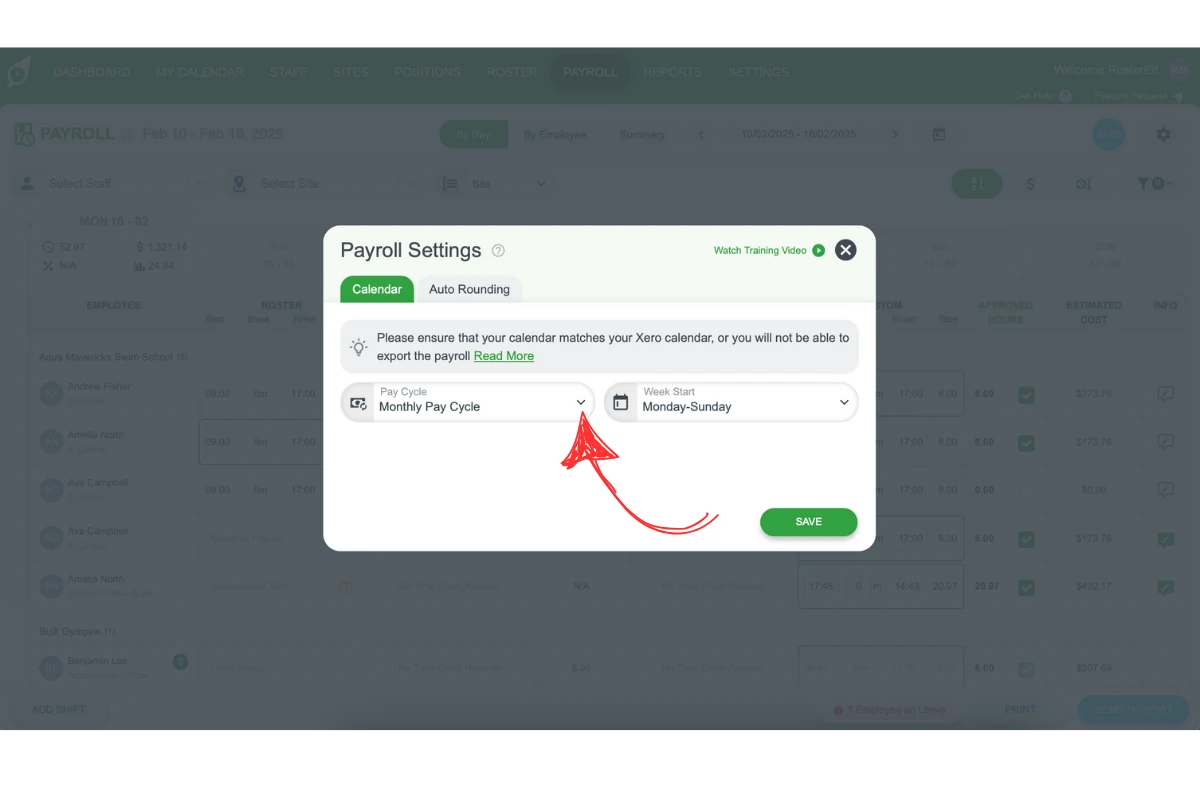
RosterElf Payroll Settings dialog showing Pay Cycle must match Xero calendar warning
Configure pay items and employee rates
Pay items in Xero are the earnings lines that map to your shift types — ordinary hours, overtime, weekend penalty rates, allowances, and casual loading. This is where Xero's training stops short: it covers pay items at a basic level but not how they connect to award-classified shift data from a rostering system.
How to do it:
- In Xero, go to Payroll → Employees → [Employee] → Pay Template and add earnings lines for each pay type
- Create separate pay items for: ordinary hours, casual loading (25%), overtime (150%), and each penalty rate type
- Use Fixed Rate for salaried employees and Multiple of Ordinary Rate for penalty rate calculations
- RosterElf exports shift data with pay codes — each code must match a pay item name in Xero exactly
- Check which modern award applies to each employee before configuring rates
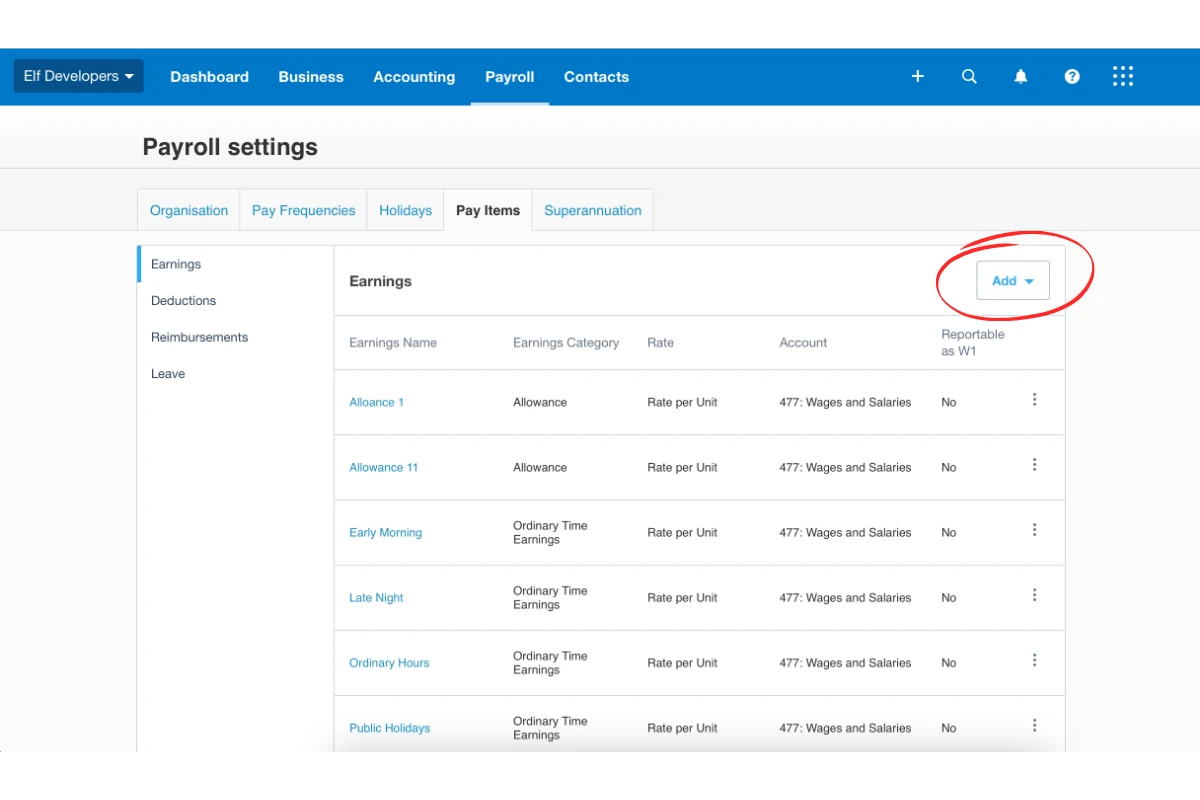
Xero Payroll Settings Pay Items tab listing earnings categories including Ordinary Hours, Early Morning, and Public Holidays
Set up award-compliant pay templates
Pay templates in Xero store the earnings rules for each employee. A well-configured template means every pay run automatically applies the right rate for each shift type — no manual calculation.
How to do it:
- For each employee, open their Pay Template in Xero and add all applicable earnings lines — do not just add base rate
- Configure penalty rate rules by day and time: Saturday rates, Sunday rates, public holiday rates, and evening shift loadings
- Add superannuation as a separate line — at 12% of ordinary time earnings (in effect since 1 July 2025)
- Map RosterElf's shift classifications to the matching Xero pay item names
- Save the template — Xero applies it automatically to every future pay run for that employee
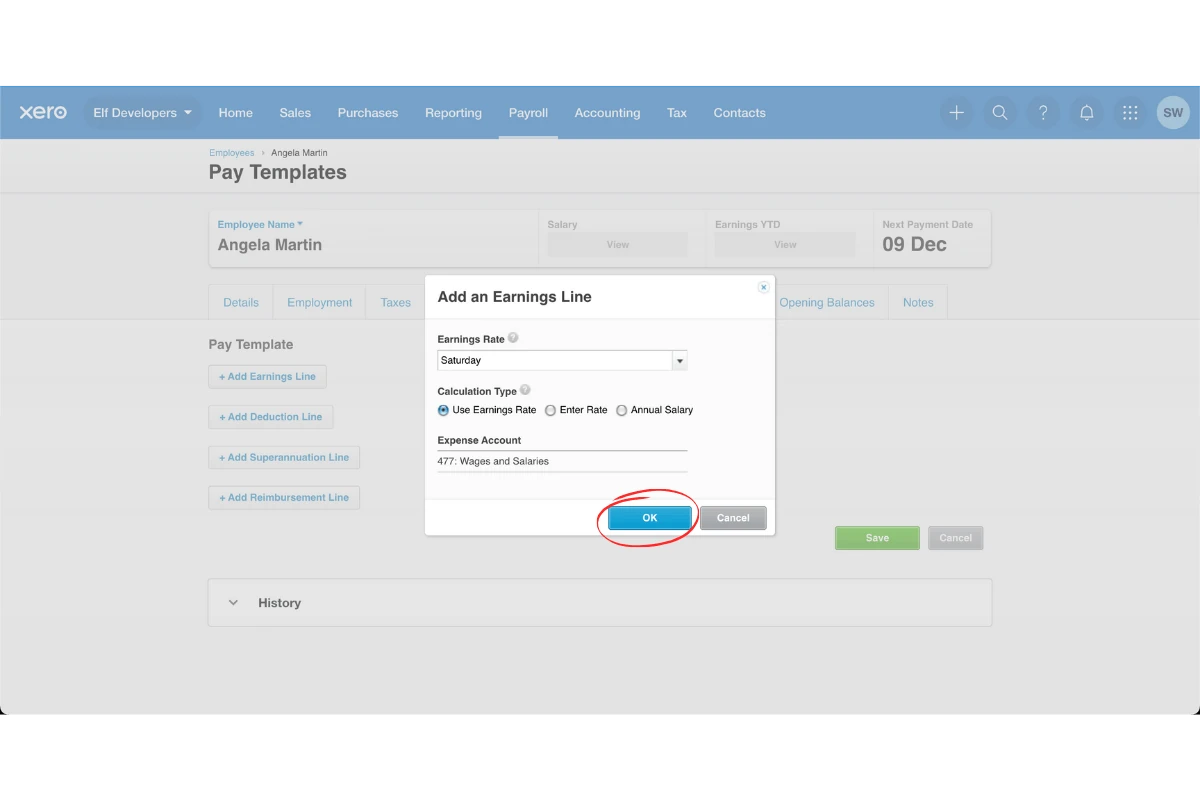
Xero Pay Templates showing Add an Earnings Line dialog with Saturday penalty rate selected
Approve timesheets and send to Xero
The step Xero's own payroll training acknowledges but doesn't explain end-to-end: how approved timesheet data leaves a rostering system and arrives in Xero as a draft pay run. Only approved timesheets export — unapproved hours cannot reach payroll.
How to do it:
- In RosterElf, managers approve timesheets first — go to Time & Attendance → Timesheets
- Once approved, go to Payroll in RosterElf and select the pay period
- Click Send to Xero — RosterElf exports approved hours, penalty rates, and allowances as a draft timesheet in Xero
- In Xero, go to Payroll → Timesheets to review the draft before posting
- For large teams, use Process by Employee to send and review individual timesheets one at a time
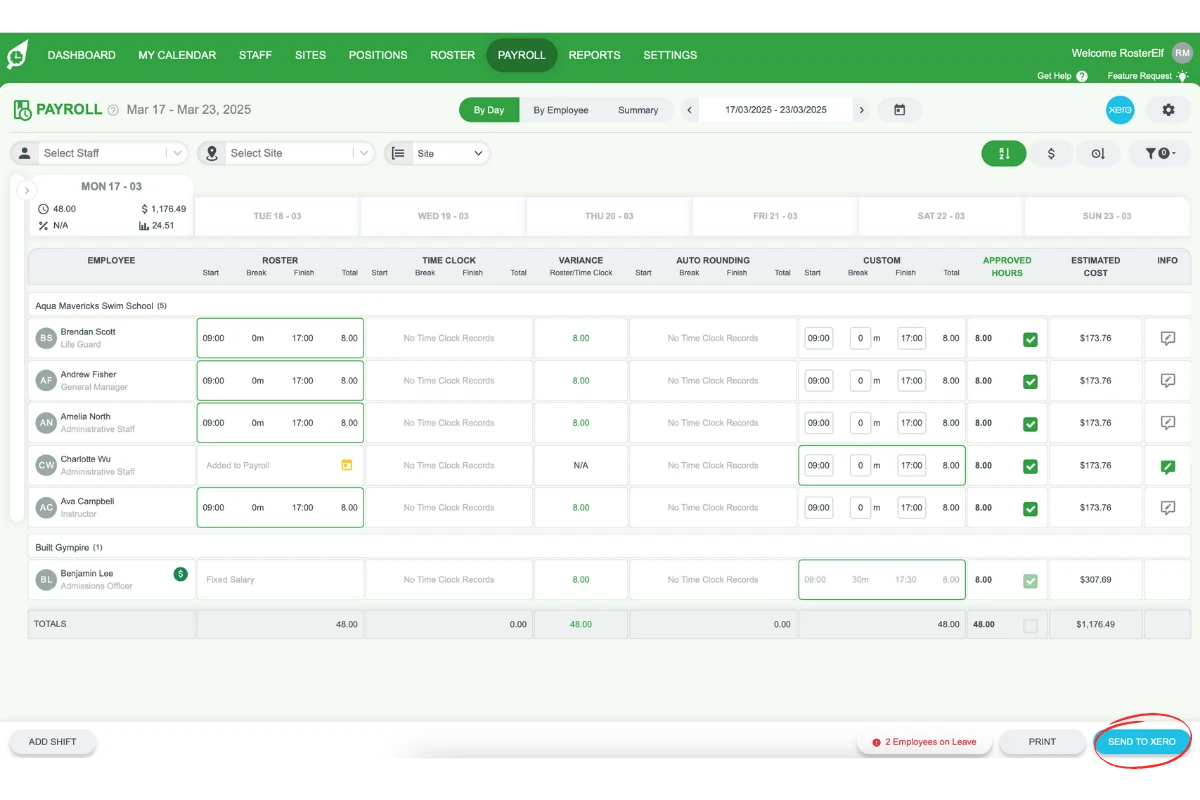
RosterElf Payroll tab showing approved employee timesheets with Send to Xero button highlighted
Run payroll, manage leave, and configure Payday Super
With timesheets in Xero, finalise the pay run. This step also covers leave exports and the Payday Super obligation effective since 1 July 2026 — requiring super to be paid with every pay run rather than quarterly.
How to do it:
- In Xero, open the draft pay run from Payroll → Pay Runs, review calculated amounts, and click Post
- To export leave: in RosterElf go to Payroll → Leave, select approved leave, and click Send to Xero — see the export leave guide
- For Payday Super (mandatory since 1 July 2026): super must reach the fund within 7 business days of payday
- Check every employee's pay template includes a superannuation line at 12% of qualifying earnings (the Payday Super earnings base since 1 July 2026)
- After the pay run, reconcile your payroll by comparing RosterElf reports to Xero's pay run summary
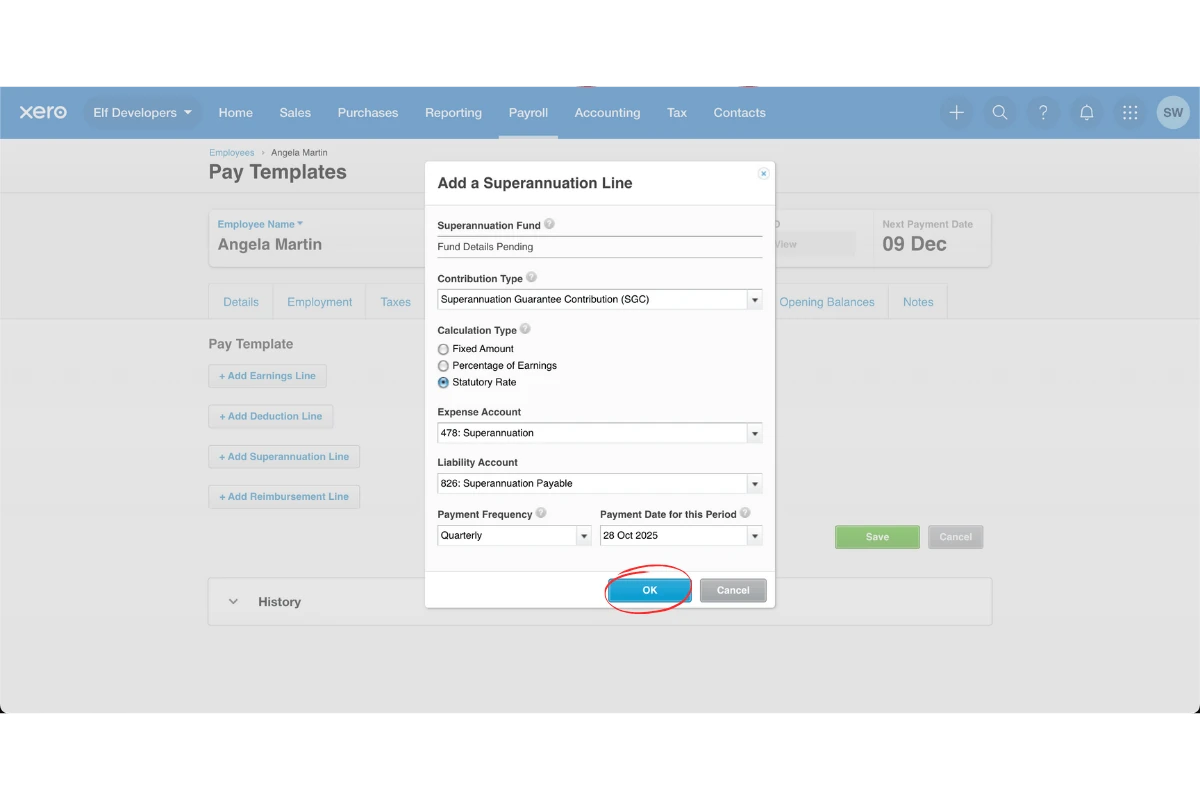
Xero Add a Superannuation Line dialog showing SGC contribution type and Statutory Rate calculation
The timesheet workflow Xero's training leaves out
Xero's course includes a timesheets module — but it covers manual entry inside Xero. It does not explain how timesheets arrive from a rostering system, or why that matters for accuracy and Payday Super compliance.
How rosters become payroll data
In a shift-based business, the roster is the source of truth for hours worked. When a staff member clocks in and out against their rostered shift in RosterElf, actual hours are captured as a timesheet. The timesheet inherits the shift's classification — weekday, Saturday, Sunday, public holiday — and RosterElf applies the correct penalty rates automatically. This pre-calculated data exports to Xero rather than raw hours needing manual rate application.
Why the approval step is the payroll gatekeeper
RosterElf only exports approved timesheets to Xero. Until a manager approves a timesheet, those hours do not exist in Xero. This prevents unverified hours from accidentally reaching payroll. See the timesheet approval guide. Setting a clear approval deadline (e.g. end of business Monday for the previous week) is the single most important process change for teams moving from manual to integrated payroll.
Payday super and the 7-business-day deadline
Since 1 July 2026, Payday Super requires superannuation to reach the employee's fund within 7 business days of payday. The timesheet approval → Xero export → pay run processing chain must complete in time for super to be submitted and cleared. Businesses that previously approved timesheets on payday will need to move their deadline earlier. The RosterElf–Xero payroll integration is designed to make this pipeline as fast as possible.
Common Xero payroll issues and fixes
Most Xero payroll setup problems fall into one of six categories. If your timesheet export fails or pay runs produce wrong amounts, check here first before contacting support.
| Issue | Most likely cause | Fix |
|---|---|---|
| Pay calendar mismatch | RosterElf and Xero pay cycles don't align (different start dates or frequencies) | Check both systems match exactly. Re-align in RosterElf under Settings → Payroll → Pay Cycle. |
| Missing pay items in Xero | RosterElf exports a pay code that doesn't exist as a pay item in Xero | In Xero, go to Payroll → Pay Items and create the missing item. The name must match the RosterElf export code exactly. |
| Employee not found on export | Employee email or ID differs between RosterElf and Xero | In RosterElf go to Settings → Integrations → Xero → Sync Staff. Confirm emails match in both systems. |
| Timesheet not in Xero | Timesheets were not approved in RosterElf before export | Only approved timesheets export. Go to Time & Attendance → Timesheets in RosterElf and approve first. |
| Super not calculating | Superannuation line missing from pay template, or set to wrong rate | Open the employee Pay Template in Xero. Add a super line at 12% (mandatory since 1 July 2025). Save. |
| Leave not exporting | Leave not approved in RosterElf, or leave type not mapped to Xero | Approve the leave request first. Then confirm the leave type is mapped in Settings → Integrations → Xero → Leave Mapping. |
For Xero-specific error messages, see common Xero errors on RosterElf and how to solve them.
Let RosterElf handle the rostering side
RosterElf connects directly to Xero payroll — approved timesheets export automatically, award rates are pre-calculated, and Payday Super compliance is built into the workflow.
See the Xero integrationHow RosterElf helps with Xero payroll
Purpose-built tools to make Xero payroll faster, easier, and compliant for Australian businesses.
Related guides
More resources for Xero payroll and timesheet management.
Xero payroll integration
How RosterElf connects to Xero — features, setup, and what data flows between the systems.
See integrationHow to approve timesheets
The full timesheet approval process — the critical step before any export to Xero.
Read guideEOFY payroll checklist
Year-end payroll tasks in Xero including STP finalisation, super reconciliation, and payment summaries.
Read guideHow to reconcile payroll
Reconcile RosterElf export reports against Xero pay run summaries to catch discrepancies early.
Read guide



Start your Xero payroll integration
Join thousands of Australian businesses using RosterElf to connect shift-based timesheets to Xero payroll — accurate, automated, and award-compliant.
Frequently asked questions
- Yes. Xero offers a free self-paced Payroll Specialist course through Xero Central. It covers payroll setup, pay runs, leave, and STP in approximately 4 hours, with a 30-question assessment for a digital badge. This guide complements that course by covering the rostering and timesheet integration workflow that Xero's training does not include.
- Basic payroll setup in Xero — creating employees, pay calendars, and running a simple pay run — is straightforward. Complexity increases when you have award-covered employees on shift rosters, because you need to configure separate pay items for each penalty rate type and ensure they match what your rostering system exports. This guide covers the parts most users find harder.
- Yes. Xero's free Payroll Specialist course is well-structured for self-paced learning. This guide covers the practical integration workflow — connecting RosterElf timesheets to Xero payroll — that you won't find in Xero's own training. Between the two, you can configure a complete, award-compliant payroll setup without external training. If you'd rather hand it over, you can find a RosterElf-partner accountant to run Xero payroll for you.
- Xero's own Payroll Specialist course is free. Third-party training providers offer structured one-day courses ranging from approximately $396 AUD (incl. GST) for online instructor-led training up to $4,395 AUD for premium formats. This guide is free and covers the integration workflow third-party courses typically do not include.
- Basic setup — creating a pay calendar, adding employees, and running a test pay run — takes 30 to 60 minutes. Configuring award-compliant pay items and templates for a shift-based workforce takes 2 to 3 hours depending on the number of awards and employee types. The RosterElf connection (Step 1 above) takes about 5 minutes once you have Xero payroll active.