

Fix payroll cycle mismatch between RosterElf and Xero
This guide explains how to align payroll cycles on an employee’s card in Xero to ensure they match with your RosterElf payroll settings. Following these steps will prevent payroll processing errors, like mismatched payroll cycle alerts, which can disrupt your workflow. This article will help you review and adjust payroll cycles for smooth integration between RosterElf and Xero.
1. Why does this error occur?
Understanding the cause of the payroll cycle mismatch error will allow you to correct it efficiently. The error typically appears when RosterElf and Xero payroll cycles (weekly vs. fortnightly) do not align, causing processing conflicts.
1.1 identifying the payroll cycle mismatch error
1.1.1 The error indicates a payroll cycle mismatch between Xero and RosterElf.
1.1.2 Check if RosterElf’s payroll cycle is set to weekly while an employee’s Xero card is set to fortnightly, or vice versa.
1.1.3 If so, an alert similar to the displayed example will appear, pointing to the discrepancy.
2. How to fix the payroll cycle mismatch
Follow these steps to resolve payroll cycle alignment issues between RosterElf and Xero. You can either update the employee’s payroll cycle in Xero or adjust RosterElf settings to match your Xero configuration.
2.1 updating payroll cycles in Xero
2.1.1 Log into your Xero account.
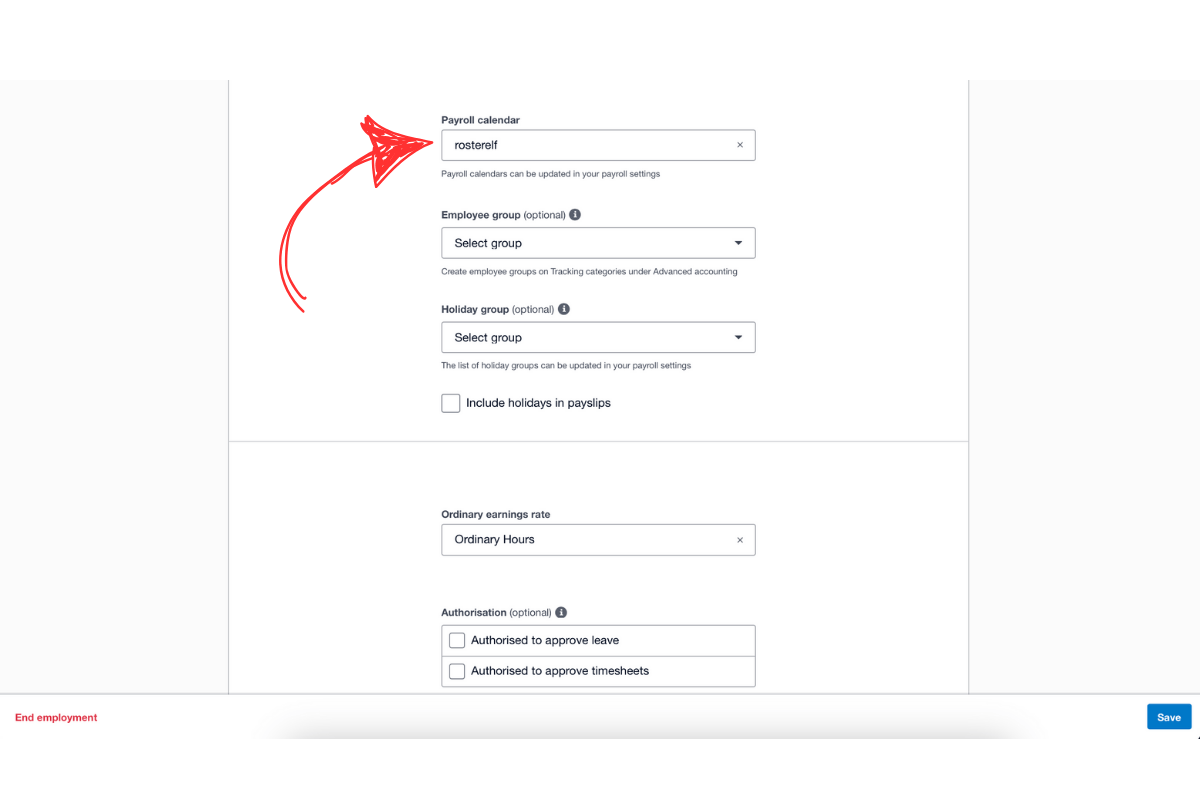
2.1.2 Go to each employee’s file and select the Employment tab.
2.1.3 Confirm that each employee’s Payroll Cycle matches the RosterElf setting (weekly or fortnightly).
2.2 updating payroll cycles in RosterElf
2.2.1 If you prefer to use a fortnightly payroll cycle, log into RosterElf.
Frequently asked questions
1. Why does a payroll cycle mismatch error occur?
This error occurs when the payroll cycle set in RosterElf does not align with the one in Xero. For example, if RosterElf is set to weekly and Xero is set to fortnightly, a mismatch error will appear, disrupting payroll processing. Learn more about Xero payroll integration.
2. How do I check an employee's payroll cycle in Xero?
To check an employee’s payroll cycle in Xero, log in and open the employee’s file. Go to the Employment tab and review the payroll cycle setting. Ensure it matches the cycle set in RosterElf to avoid mismatches.
3. How can I fix the payroll cycle mismatch error in Xero?
To fix this error, you can either update the payroll cycle in Xero under the employee’s Employment tab or change RosterElf’s payroll cycle setting to match the cycle in Xero, ensuring compatibility.
4. Can I switch between weekly and fortnightly payroll cycles in RosterElf?
Yes, you can switch payroll cycles in RosterElf. Go to Payroll - Settings in RosterElf, and select your preferred cycle under Payroll Calendar. Ensure this cycle matches Xero to avoid errors.
5. What are the benefits of matching payroll cycles in Xero and RosterElf?
Matching payroll cycles between Xero and RosterElf prevents payroll errors, streamlines the payroll process, and ensures accurate payroll calculations, improving overall workflow efficiency.