

This article explains how to pay staff for a public holiday in RosterElf. You may need to pay employees differently depending on whether they worked or did not work on a public holiday. This includes paying regular hours for time not worked or applying public holiday penalty rates when they do work. Understanding how award interpretation works in RosterElf can help you configure these settings correctly.
Managing public holiday pay correctly ensures your payroll is accurate and compliant. It helps you avoid underpaying or overpaying staff while keeping clear records of how each shift was processed. This is especially important for managers or salaried staff who may not work on the day but are still entitled to payment. Before setting this up, make sure you have configured your public holidays in RosterElf for your site.
RosterElf allows you to manage both scenarios using positions, pay templates, and payroll settings. You can create a dedicated position for public holidays not worked or apply public holiday rules for worked shifts. Following this guide will help you set up both scenarios and process payroll with confidence.
1. Pay staff for public holiday not worked
This section explains how to pay staff for public holidays when they do not work but still need to be paid their regular hours. You will create a new position, update the pay template, assign it to the staff profile, and roster the shift correctly.
This process ensures the system treats the shift as ordinary hours instead of applying public holiday penalties. It keeps payroll accurate and allows you to clearly track paid public holiday hours. Following these steps will help you pay staff correctly without affecting other payroll rules.
1.1 Create public holiday position
1.1.1 Open RosterElf.
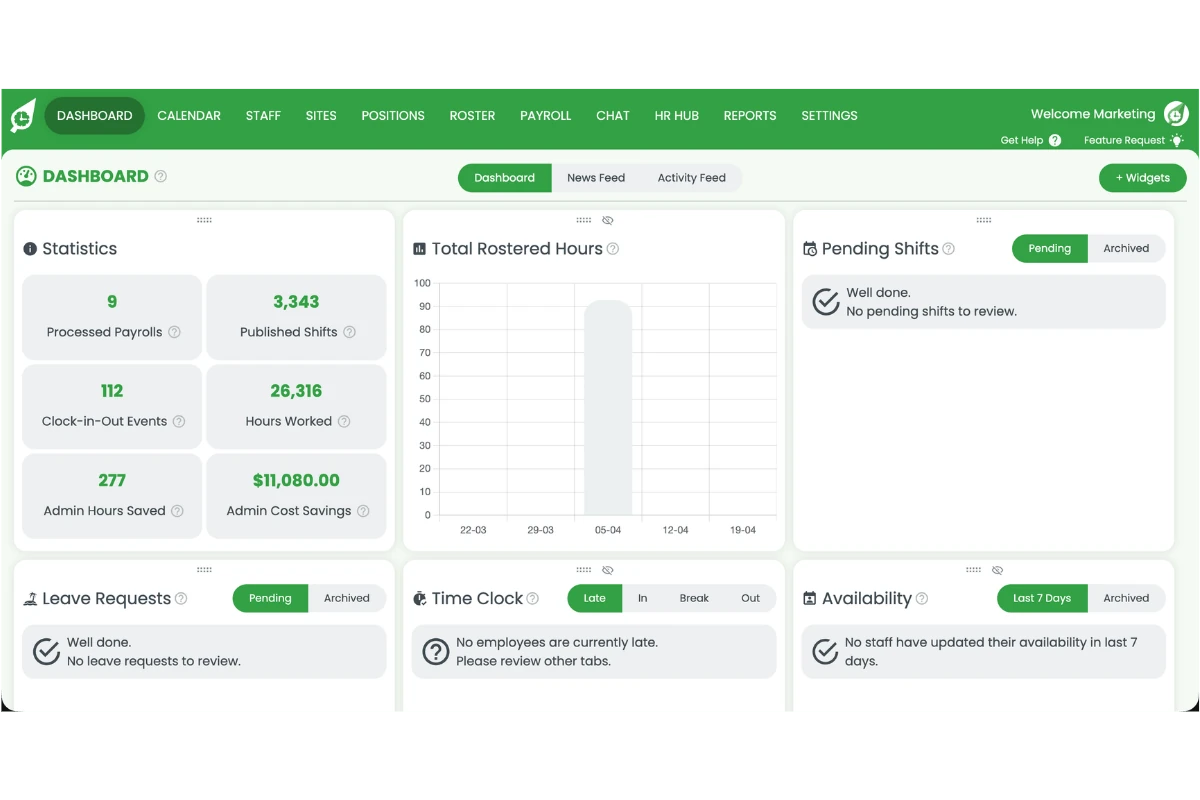
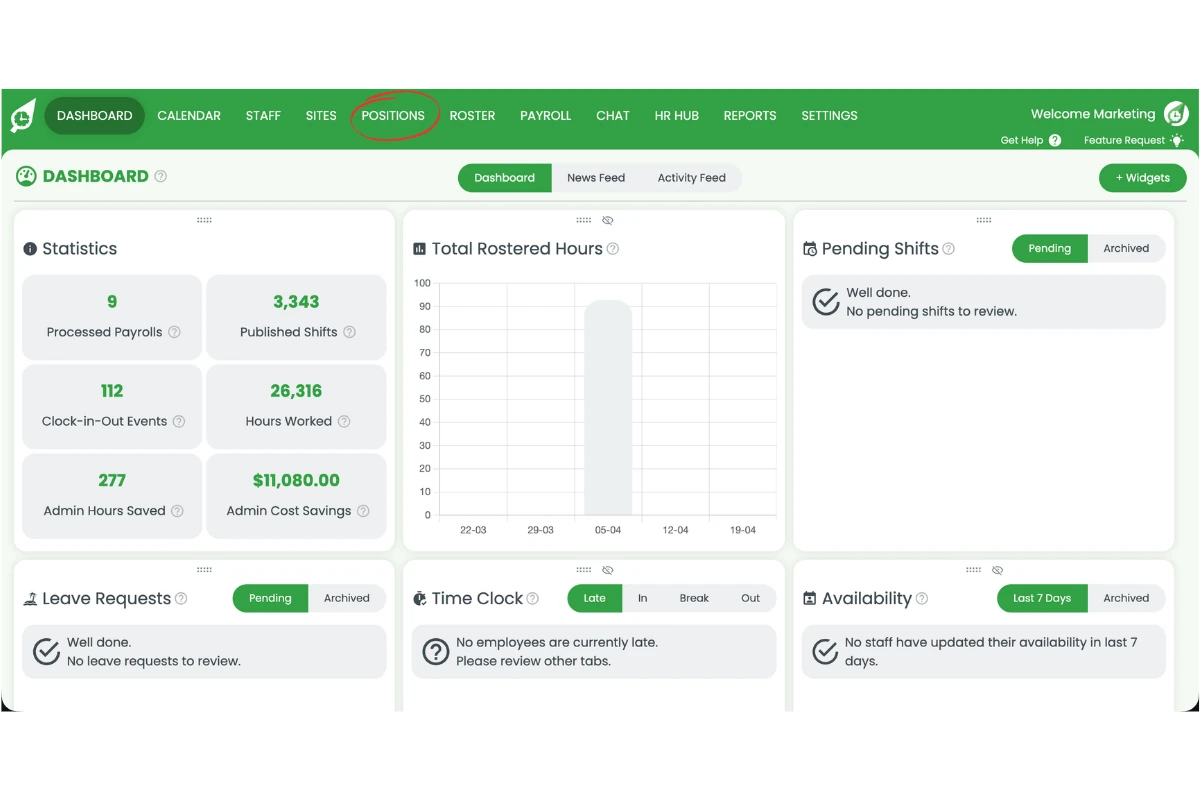
1.1.2 Select the Positions tab.
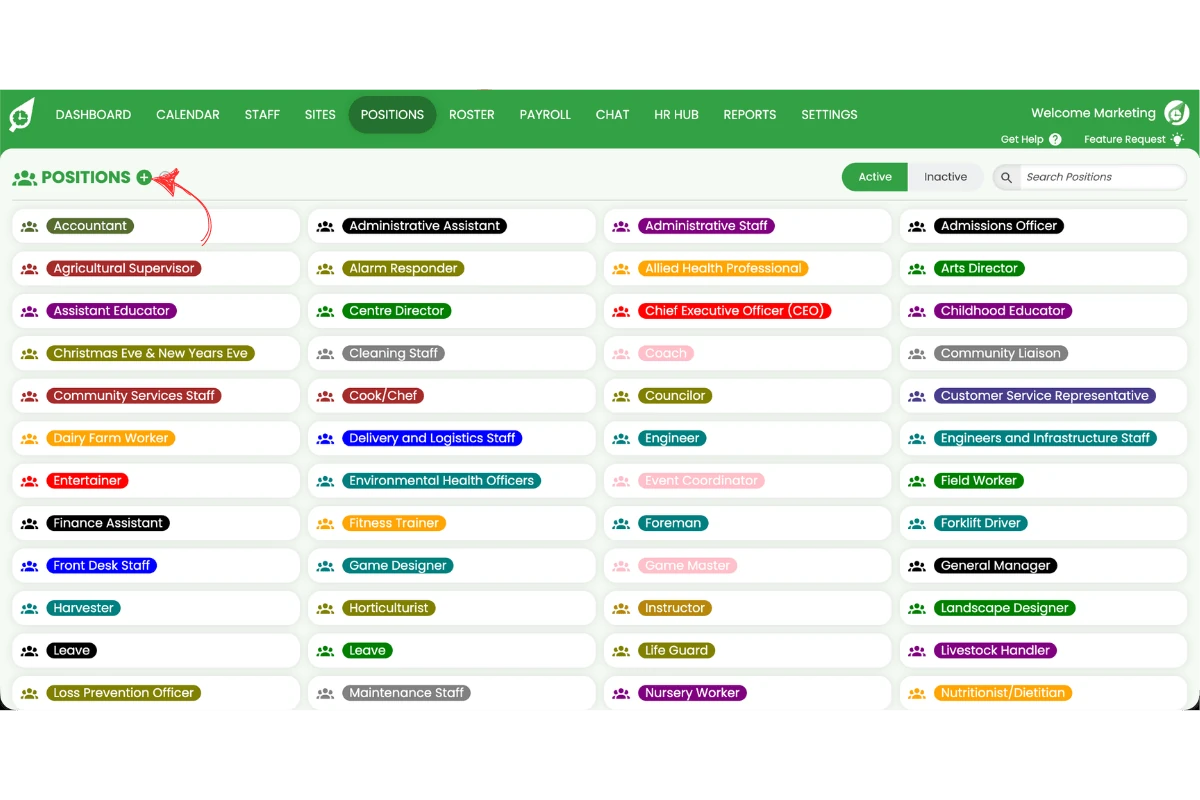
1.1.3 Click the plus (+) icon.
1.1.4 Enter the name Public Holiday Not Worked.
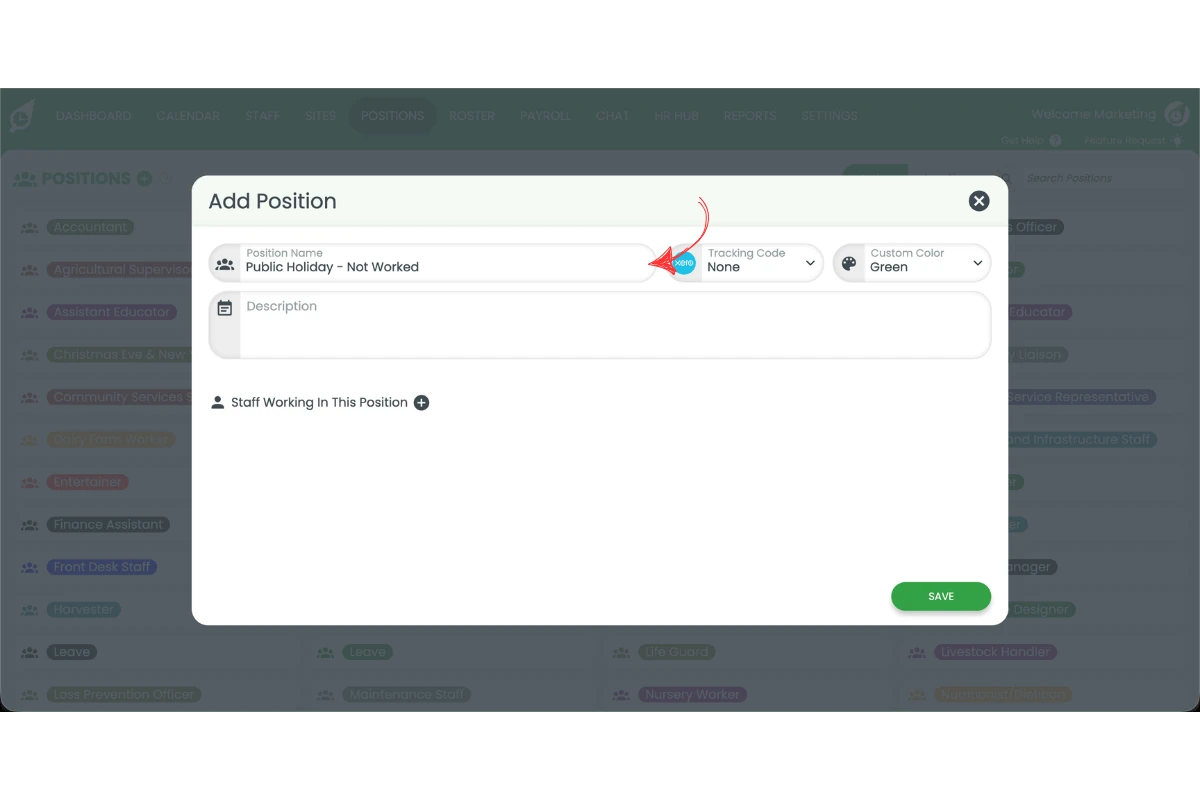
1.1.5 Set a colour for the position.
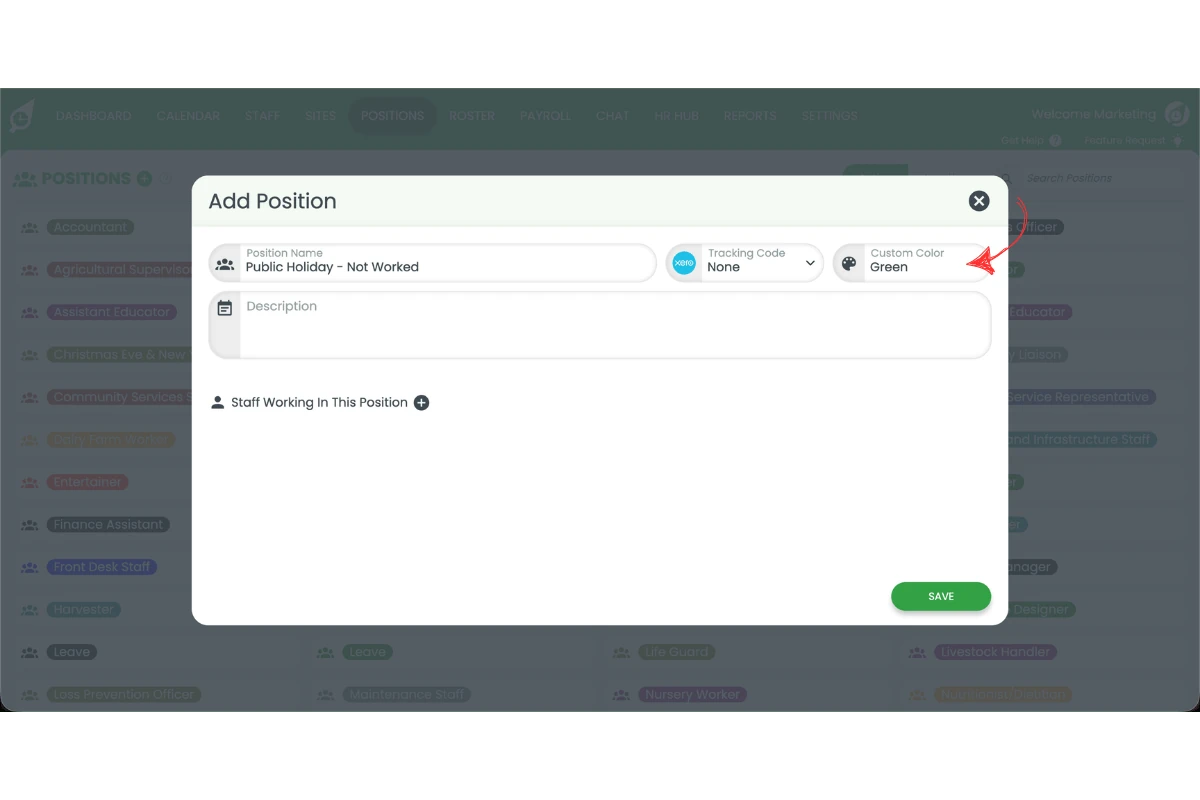
1.1.6 Assign all relevant staff.
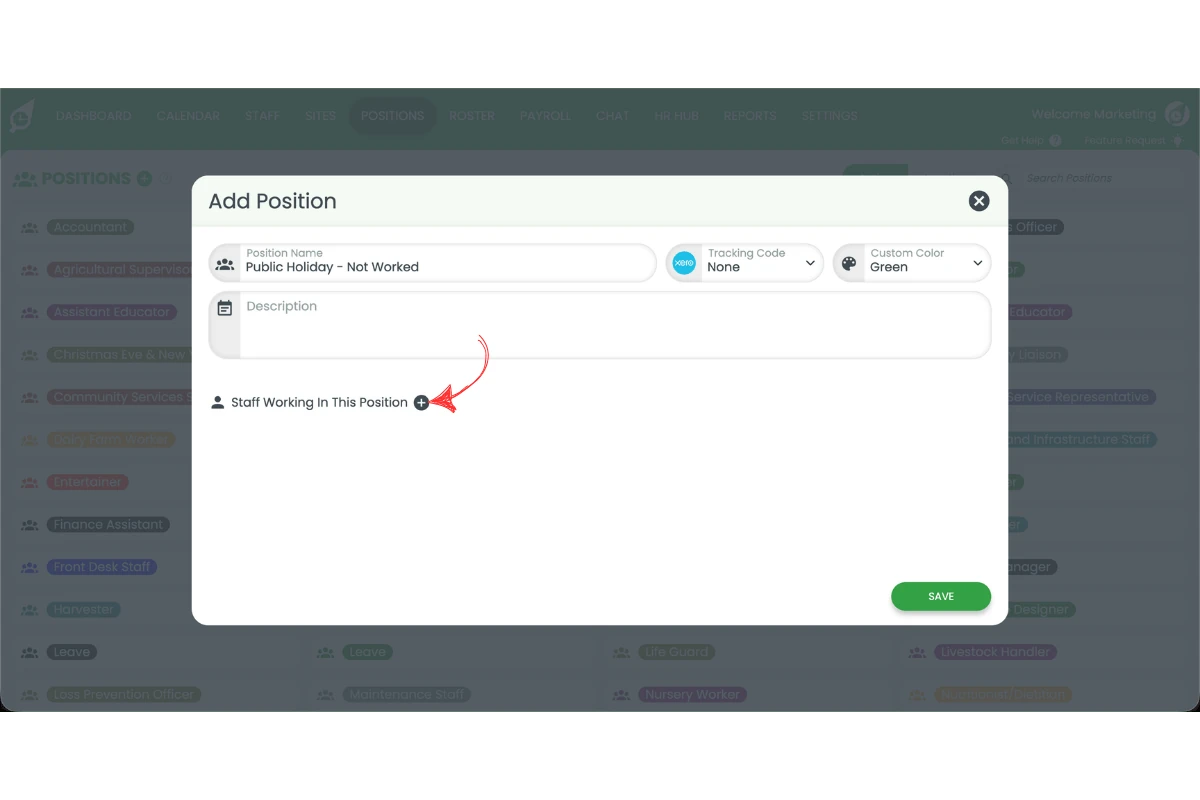
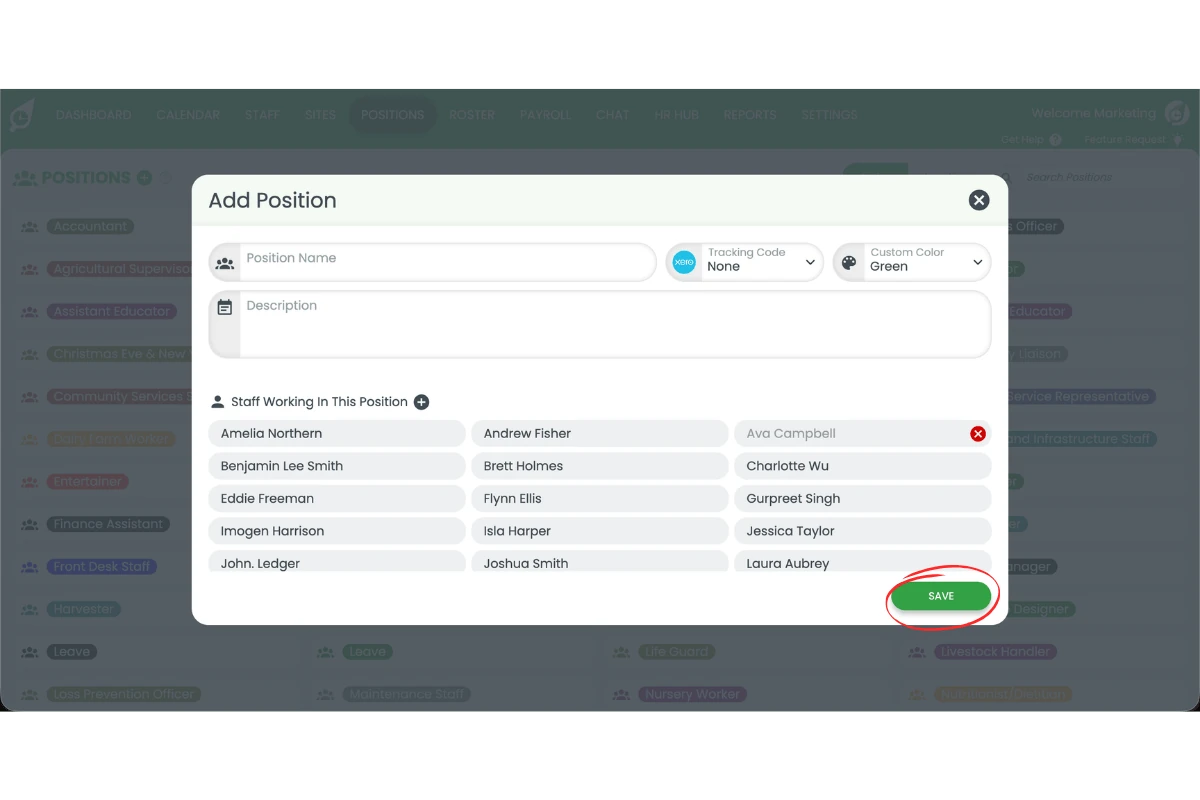
1.1.7 Click Save.
1.2 Update pay template for public holiday
1.2.1 Open Settings.
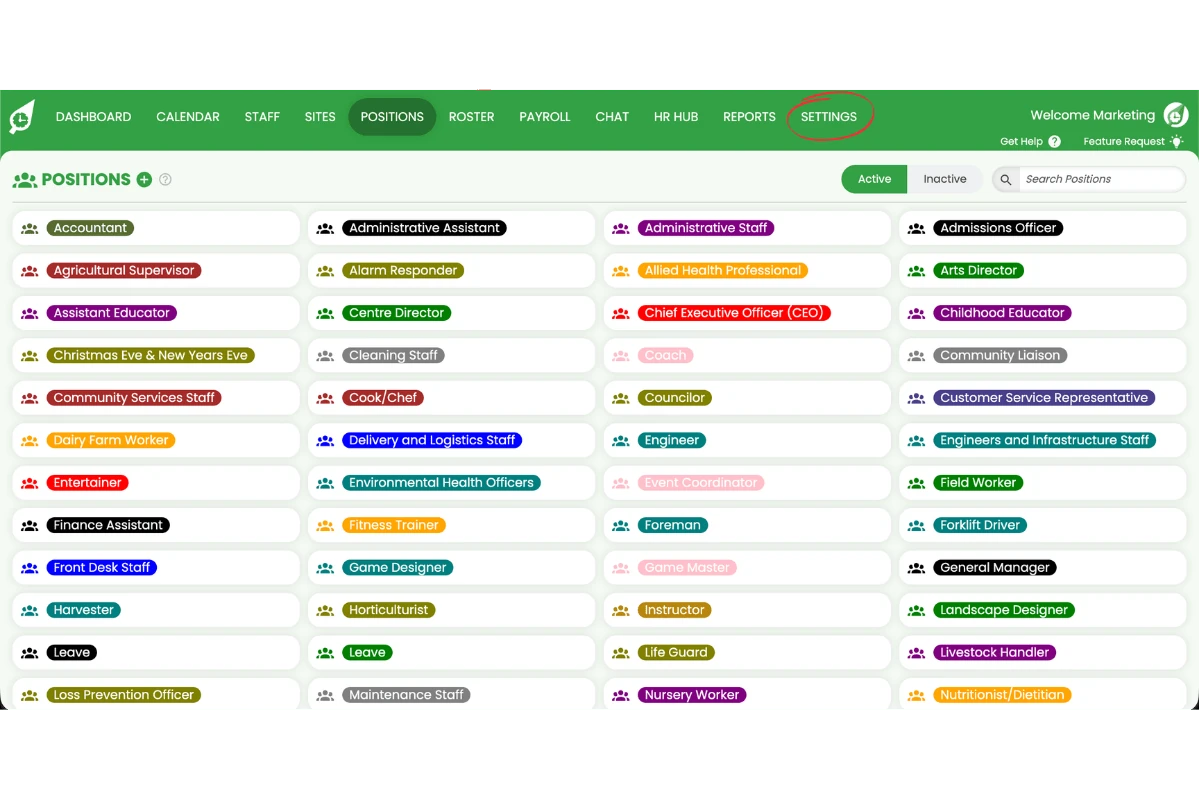
1.2.2 Select Payroll.
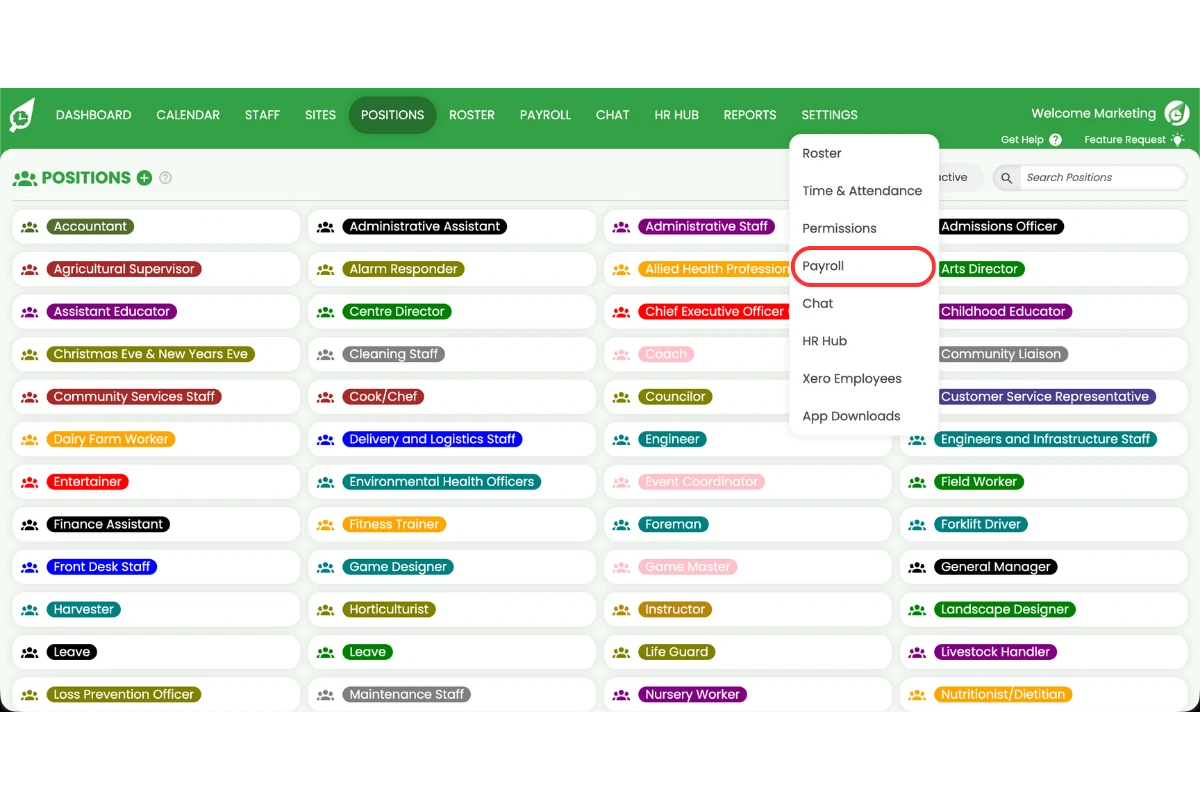
1.2.3 Find the staff member’s pay template.
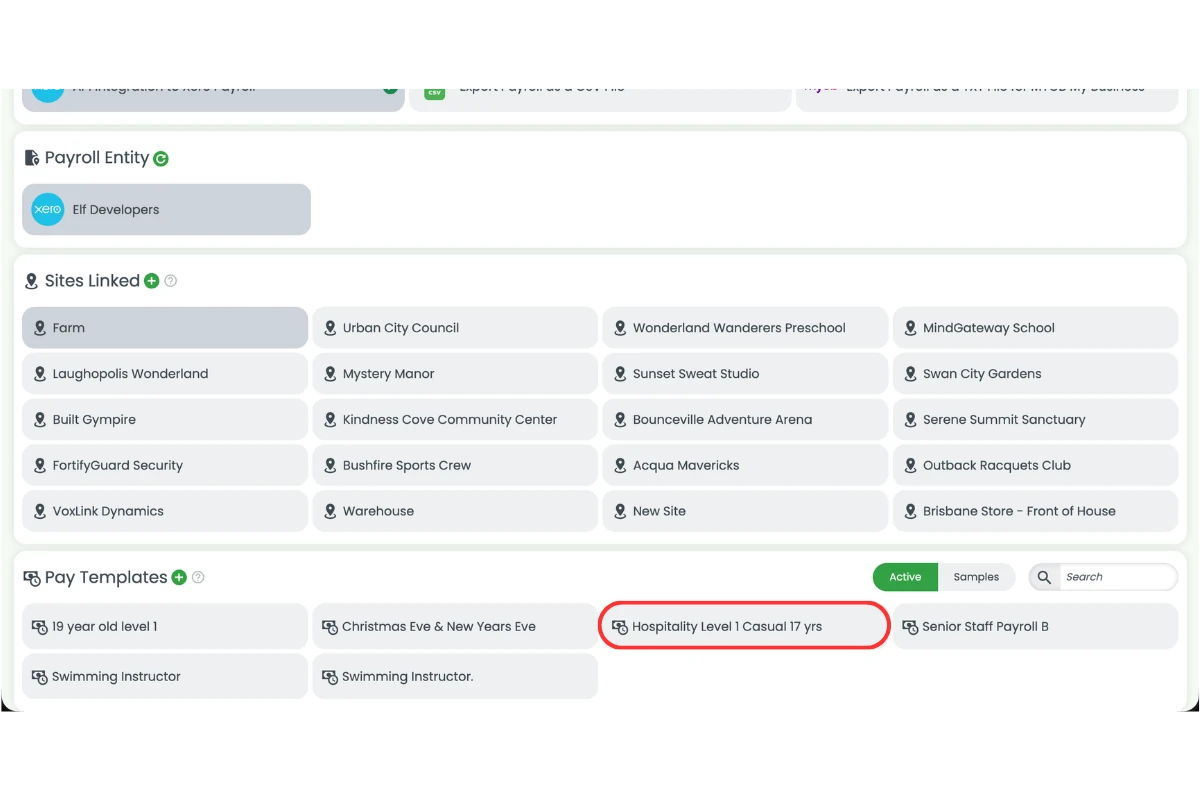
1.2.4 Click Duplicate.
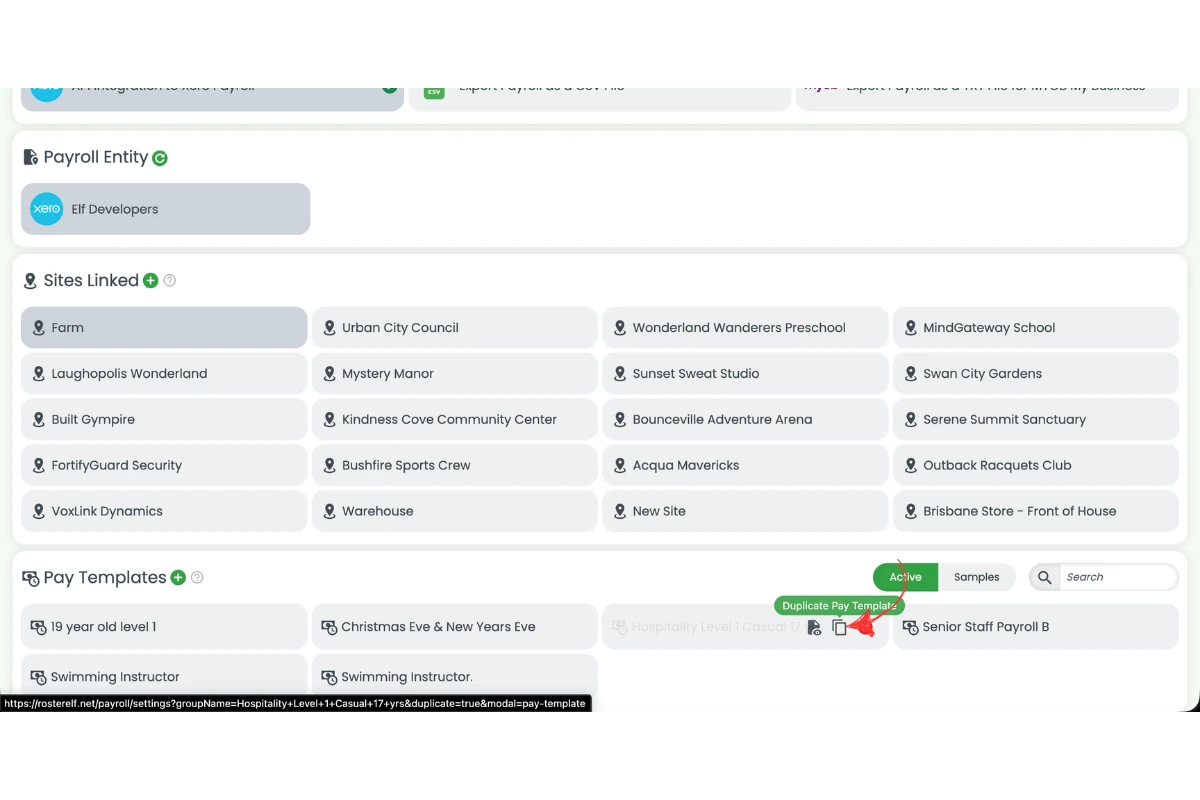
1.2.5 Rename the template.
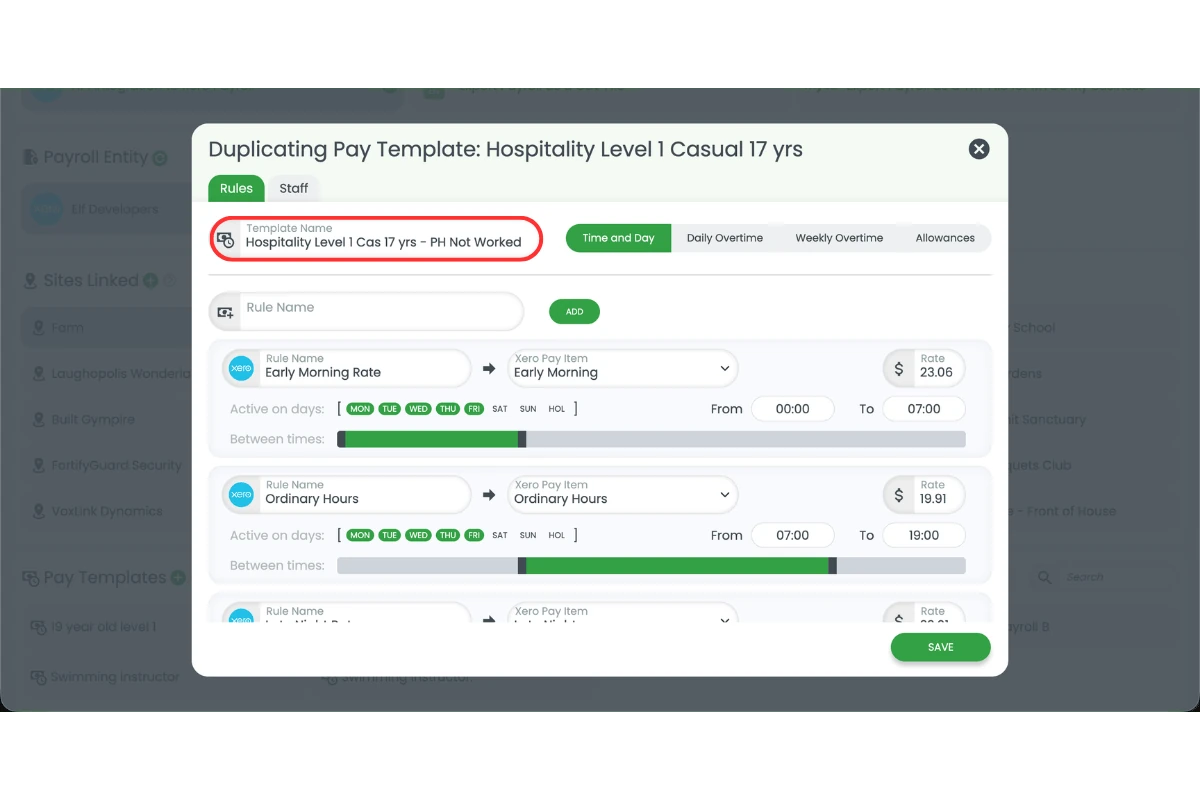
1.2.6 Set the public holiday item to Ordinary Hours.
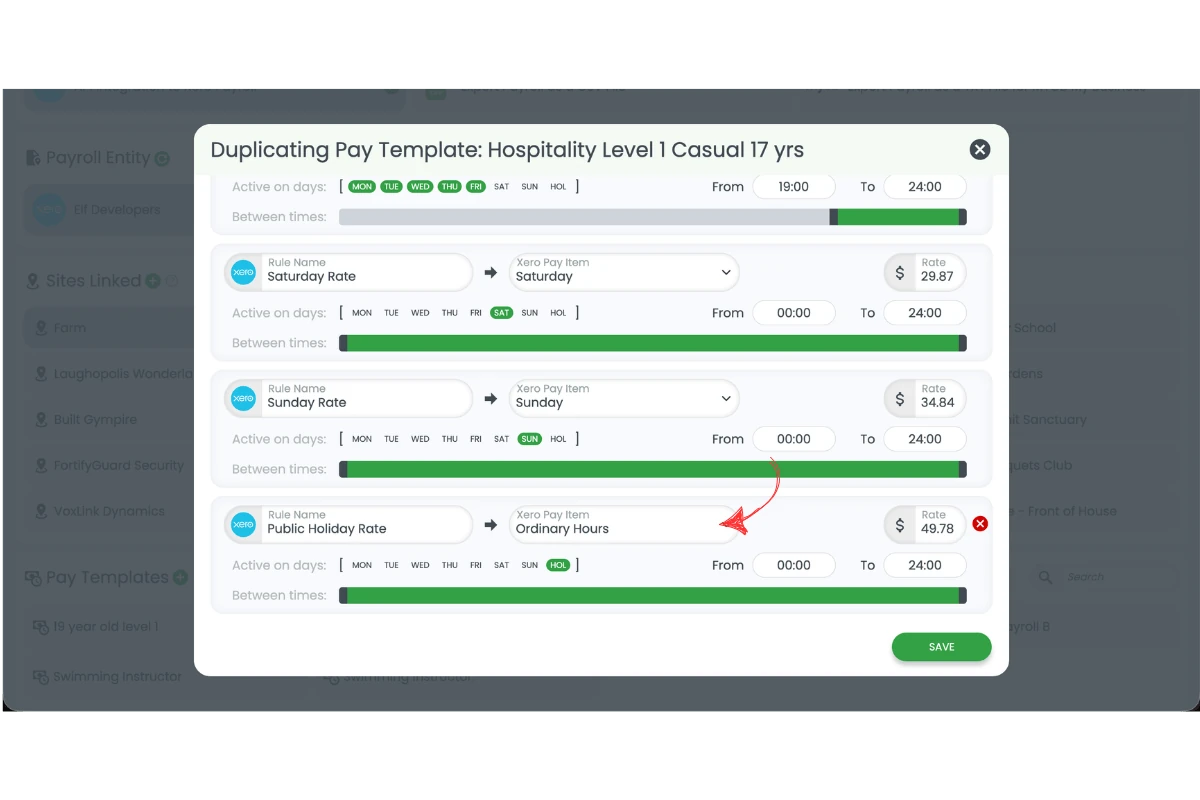
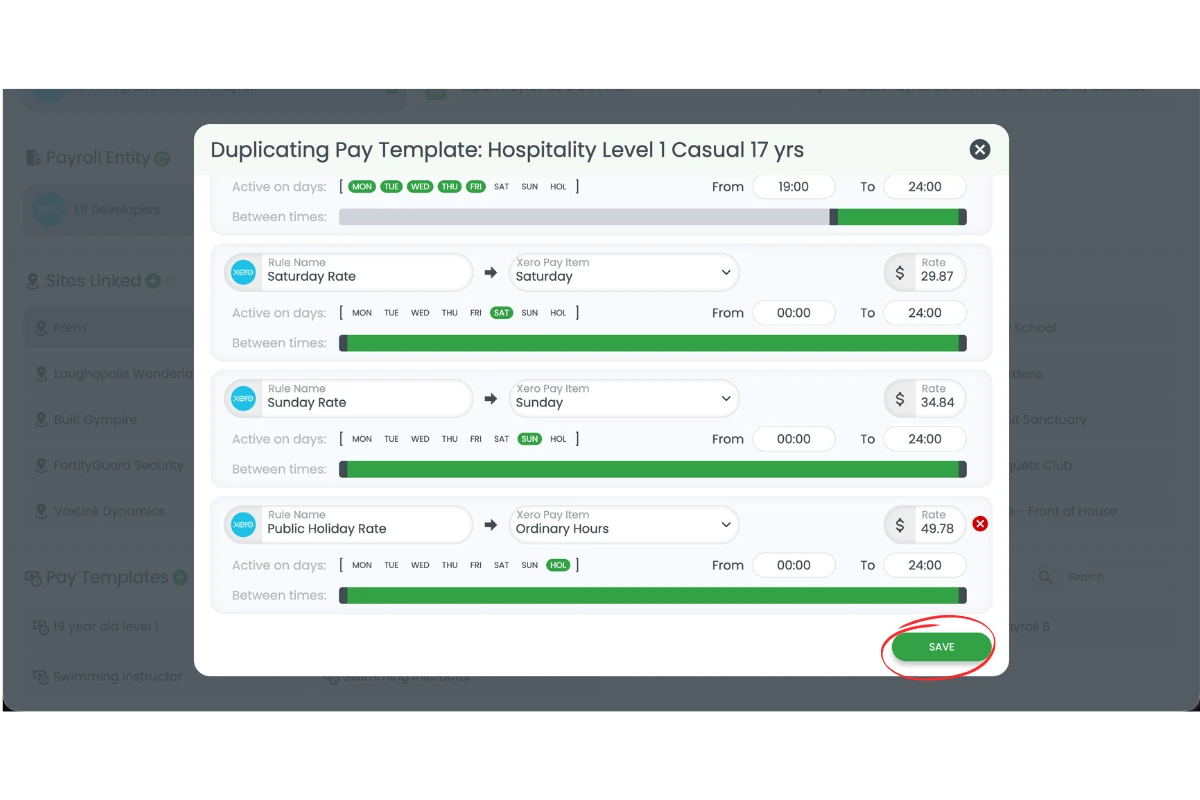
1.2.7 Save the template.
1.3 Assign pay template to staff
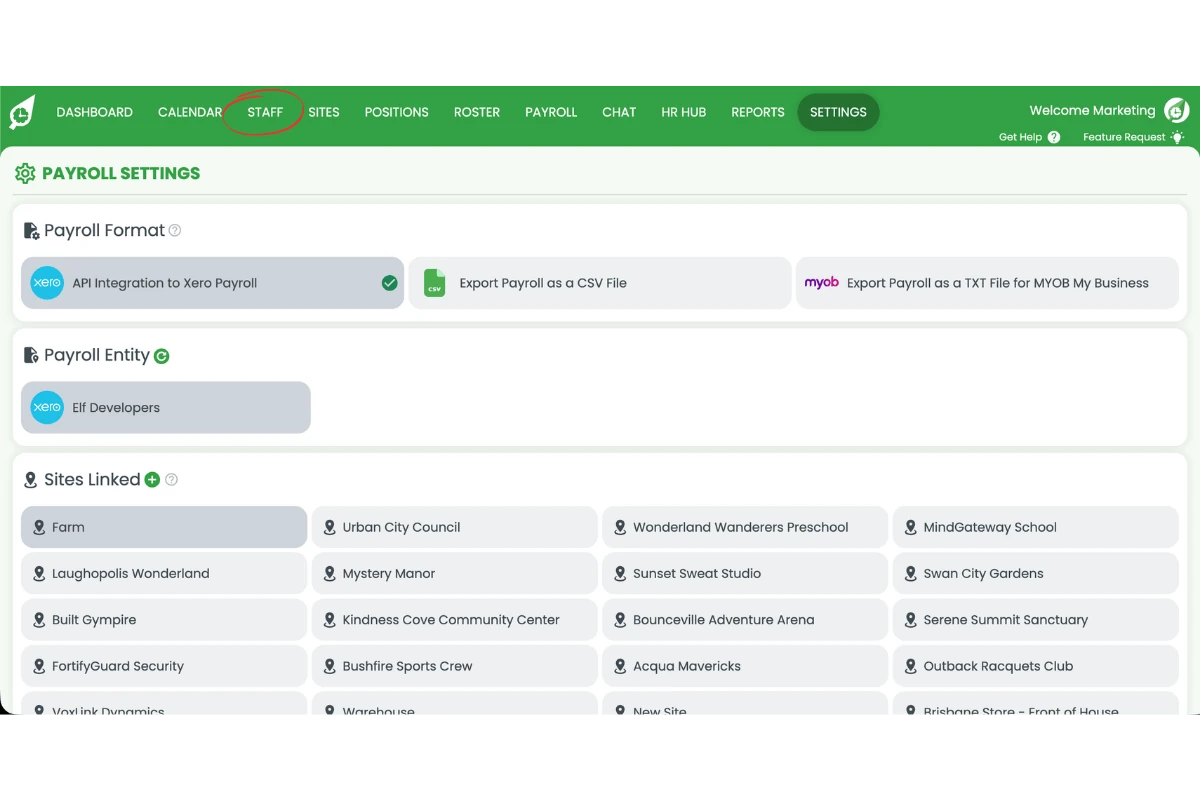
1.3.1 Open the Staff tab.
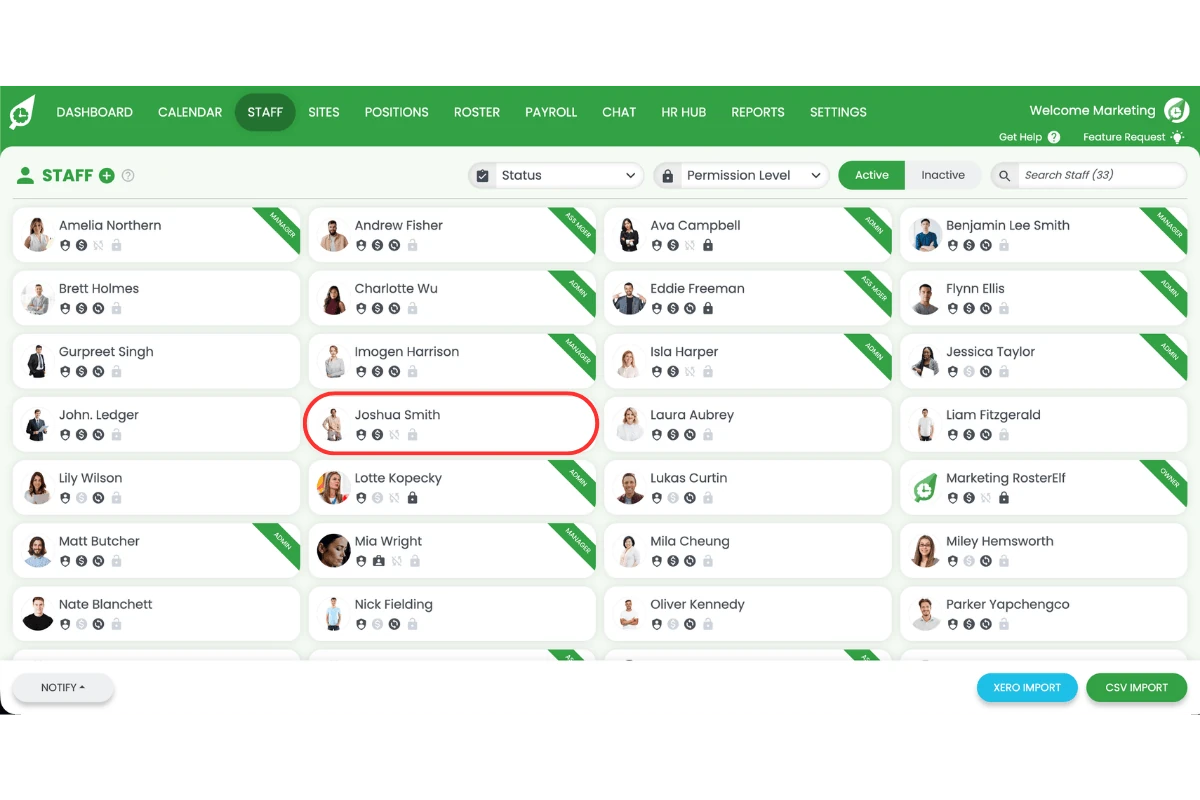
1.3.2 Select the staff member.
1.3.3 Click Payroll.
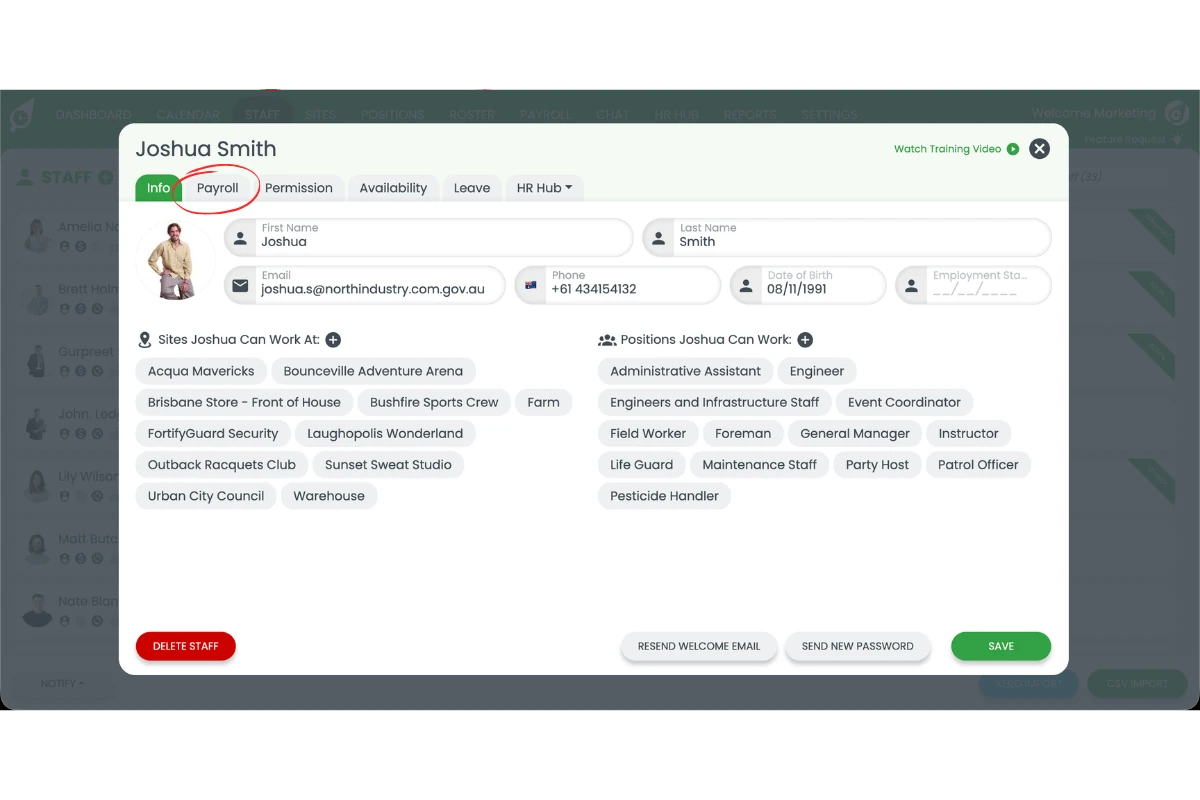
1.3.4 Enable Apply award by position worked.
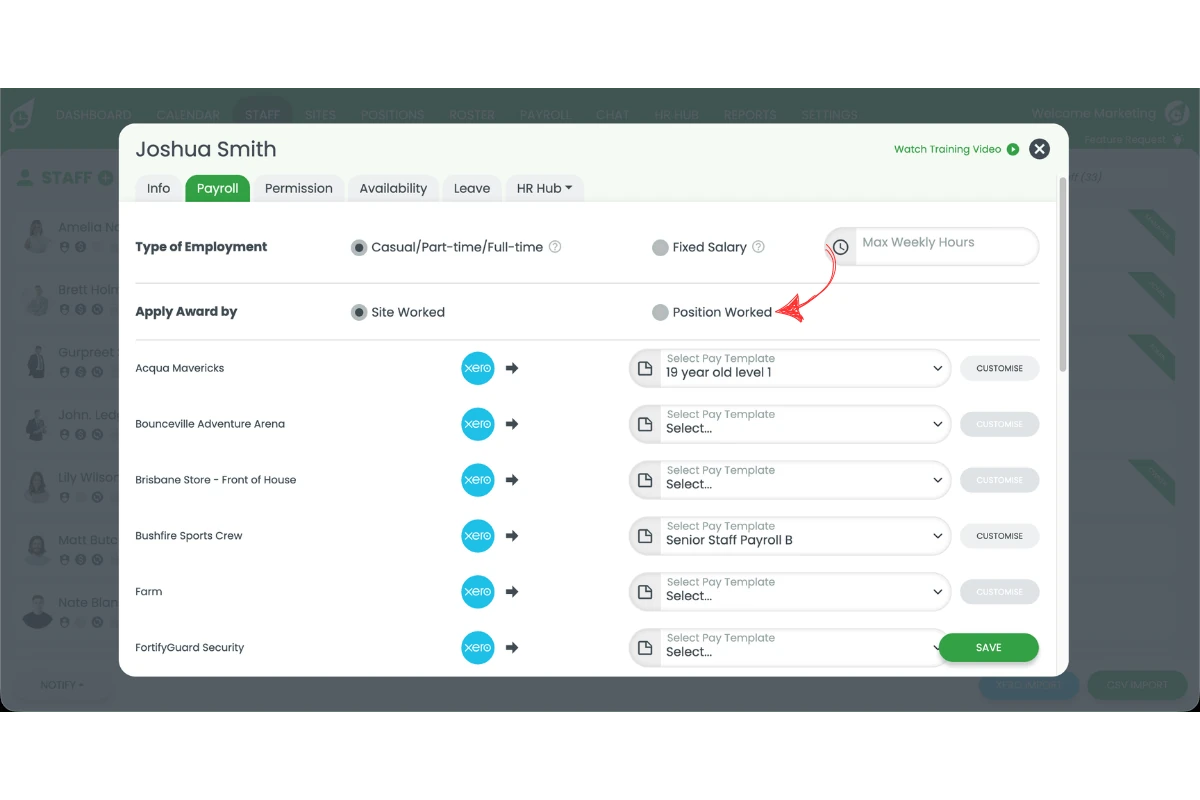
1.3.5 Assign the new template to Public Holiday Not Worked.
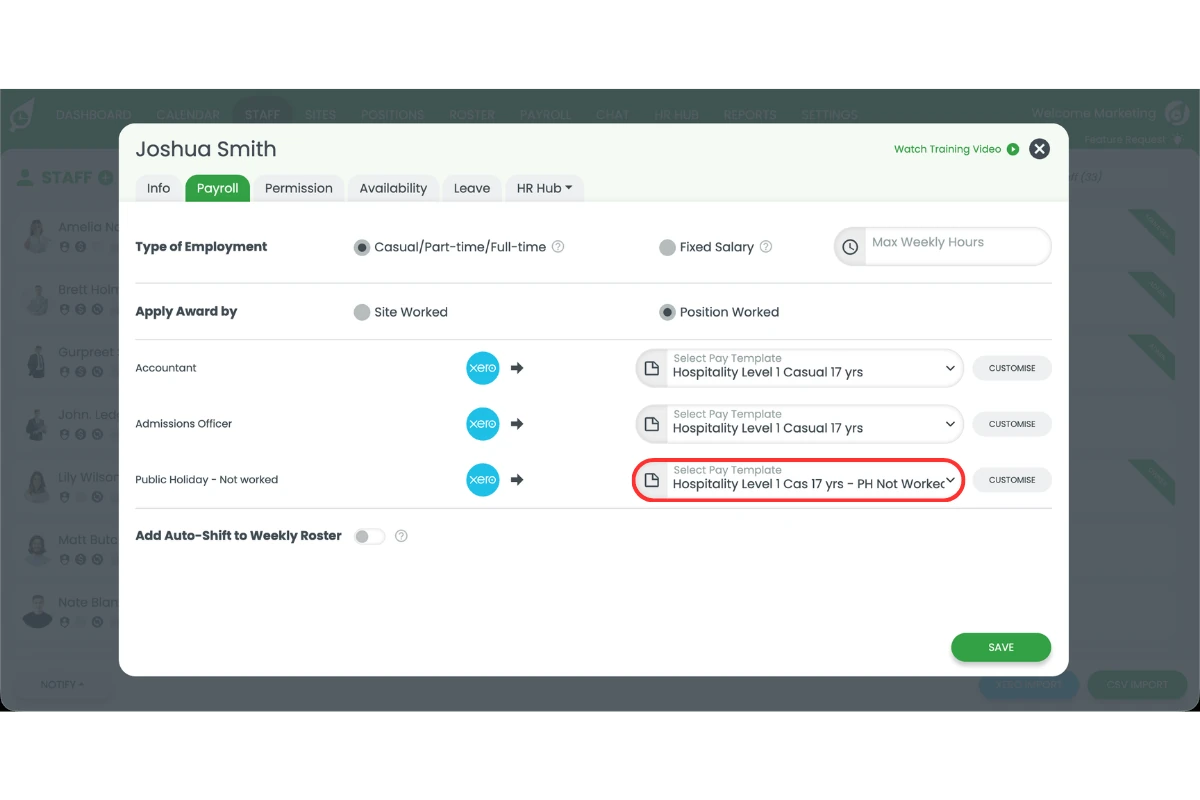
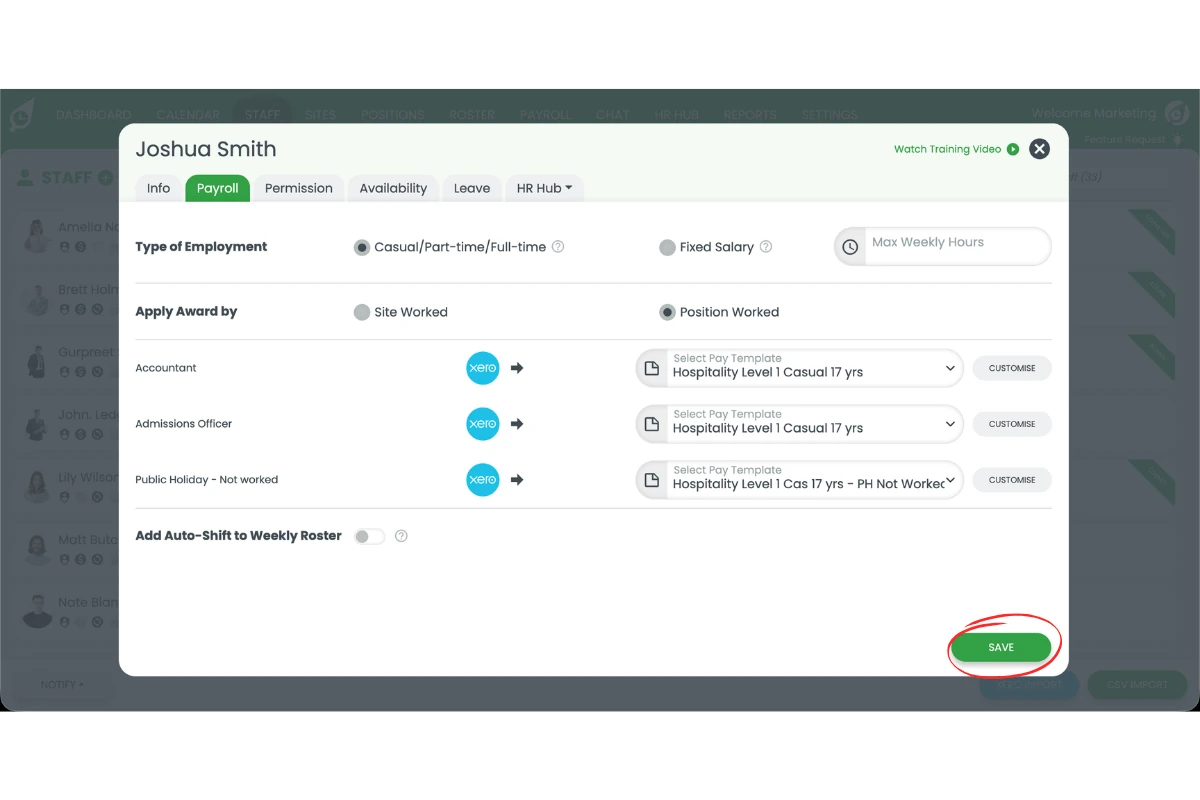
1.3.6 Save changes.
1.4 Roster public holiday shift
1.4.1 Open the Roster.
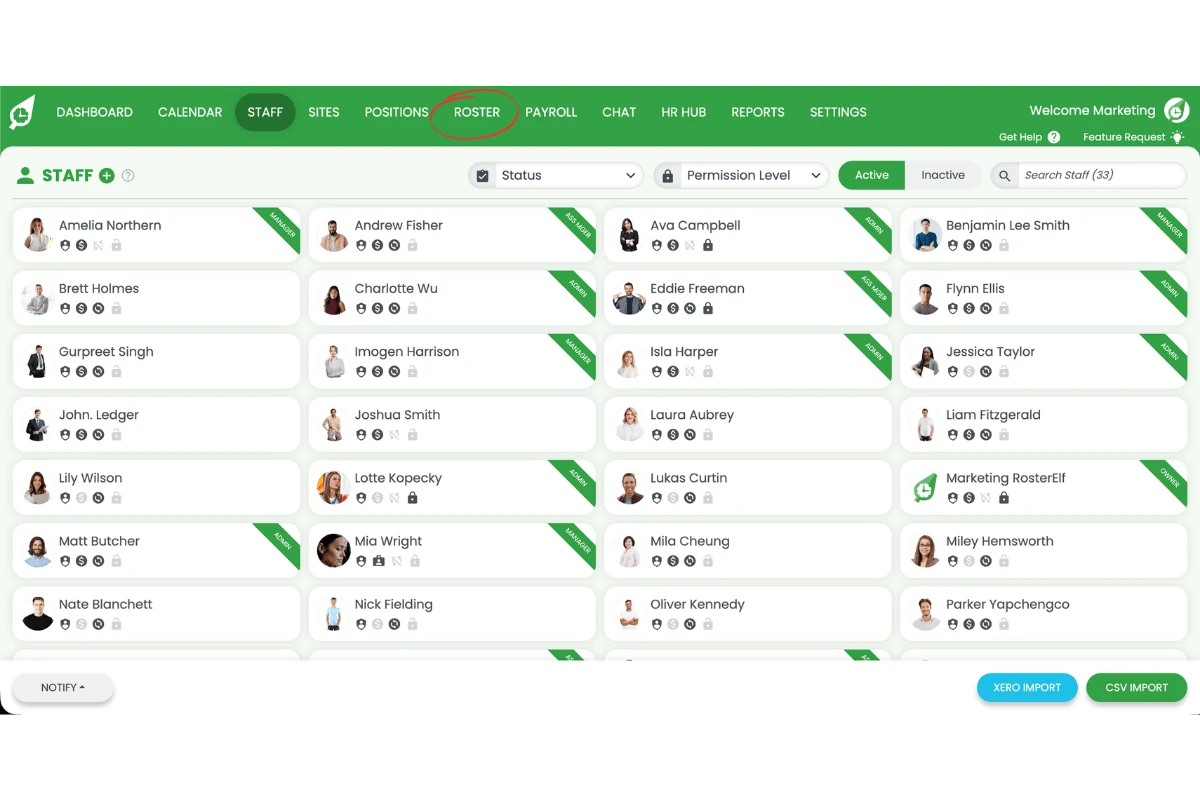
1.4.2 Select the public holiday date.
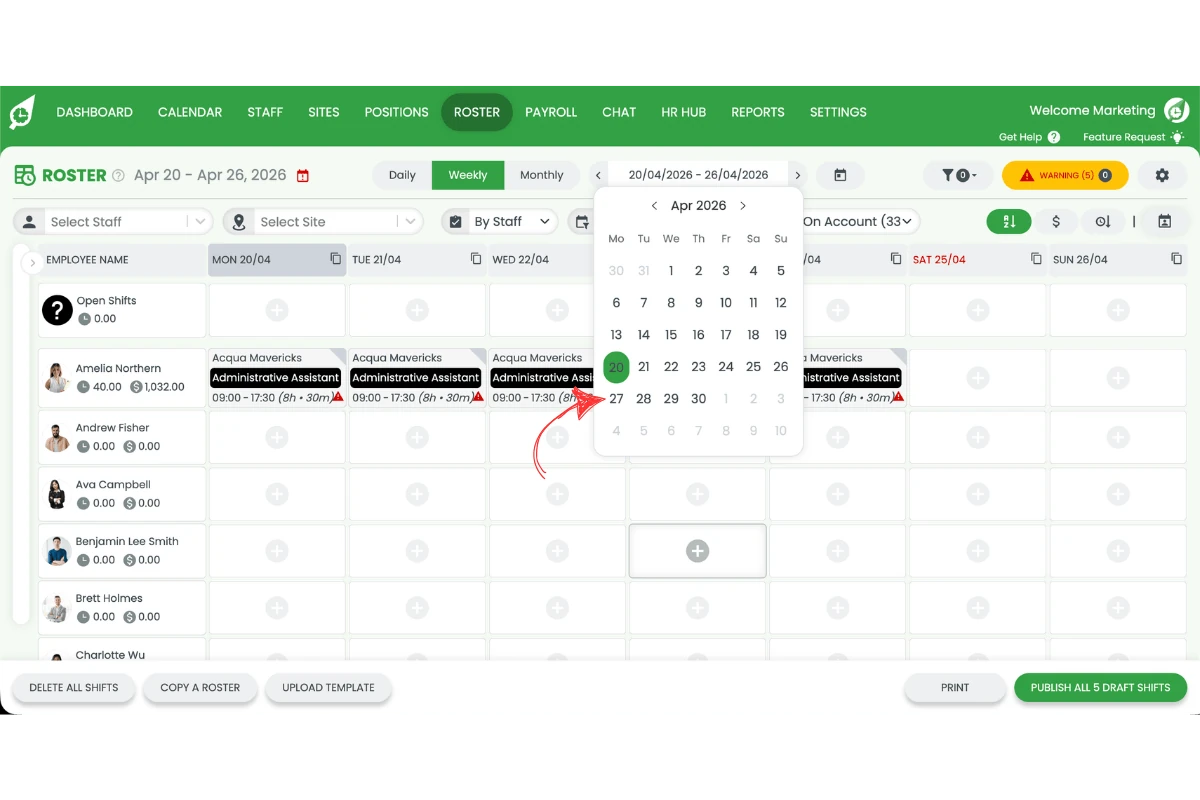
1.4.3 Add a shift under Public Holiday Not Worked.
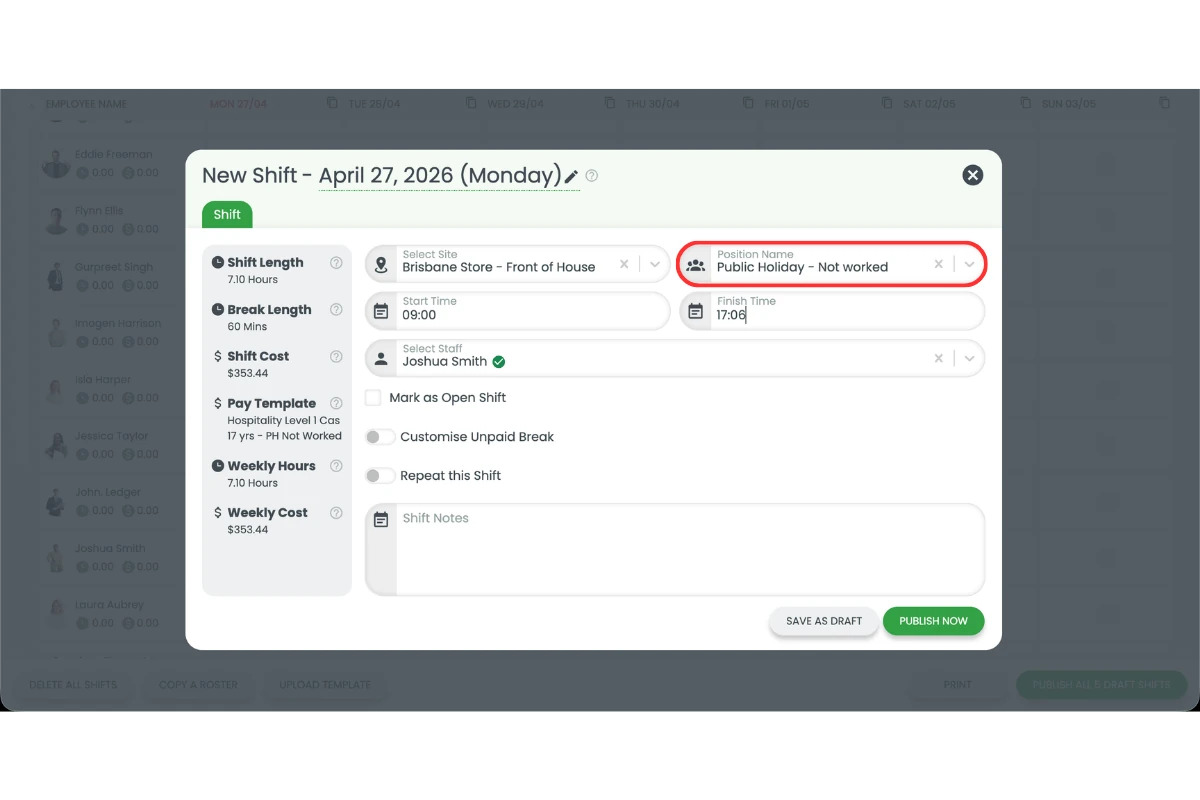
1.4.4 Enter the regular hours.
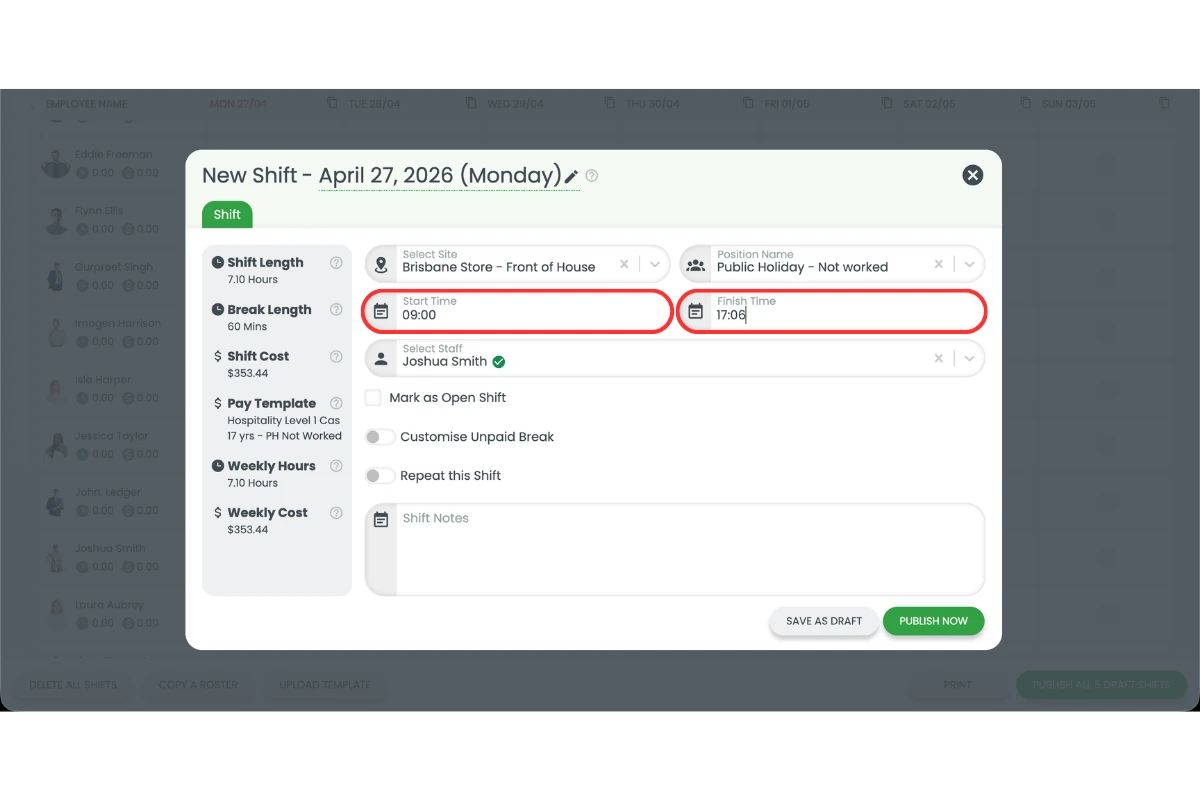
1.4.5 Click Publish.
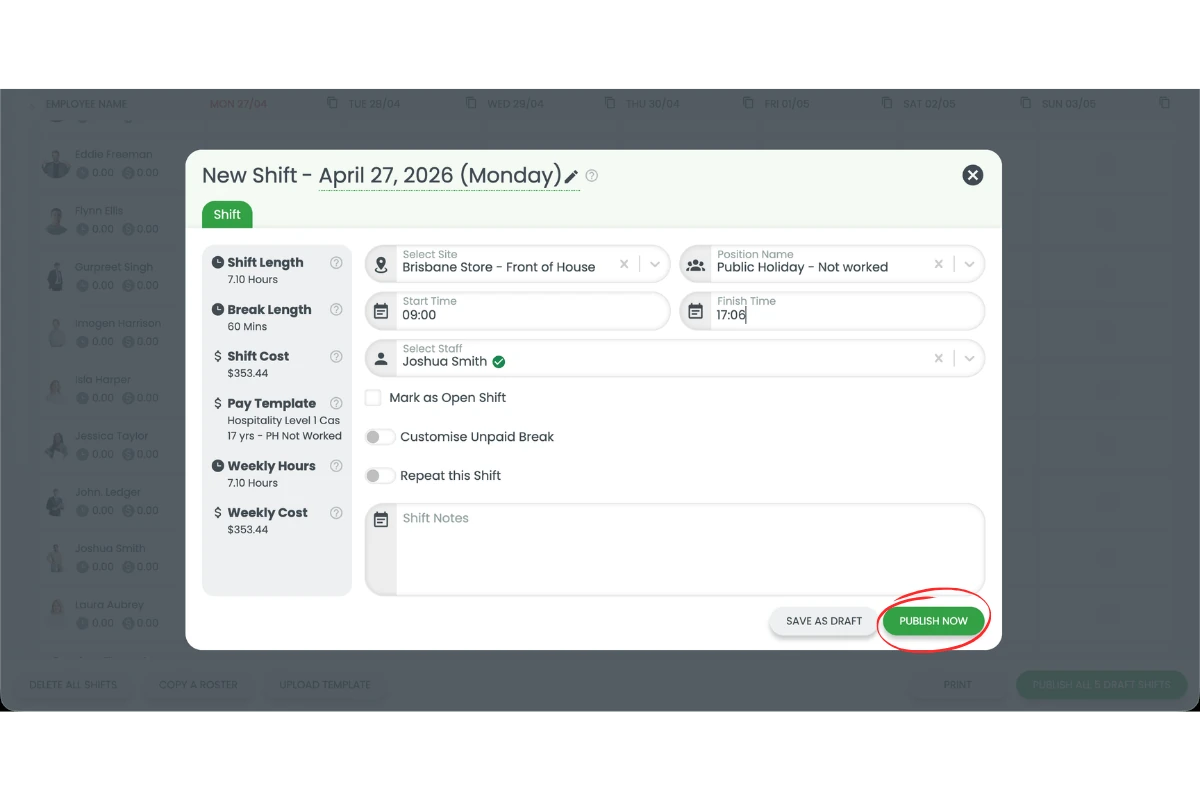
1.5 Process payroll for public holiday
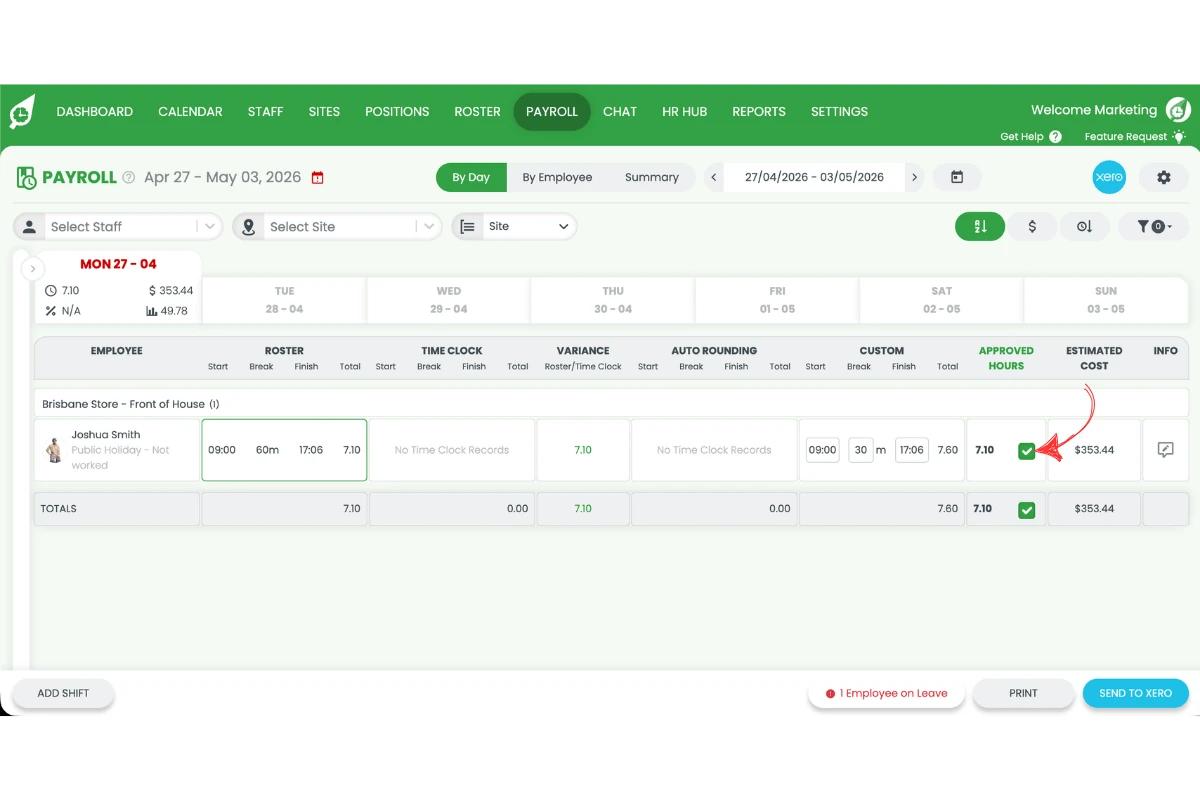
1.5.1 Open Payroll.
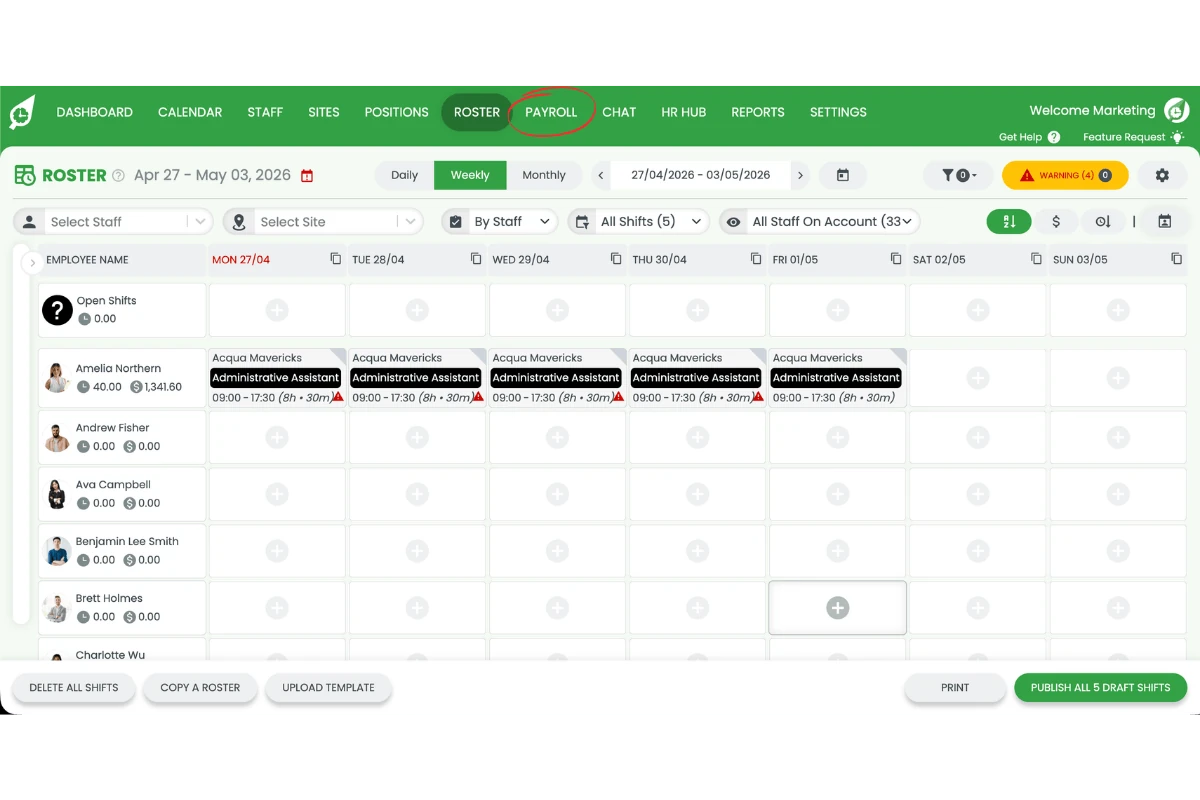
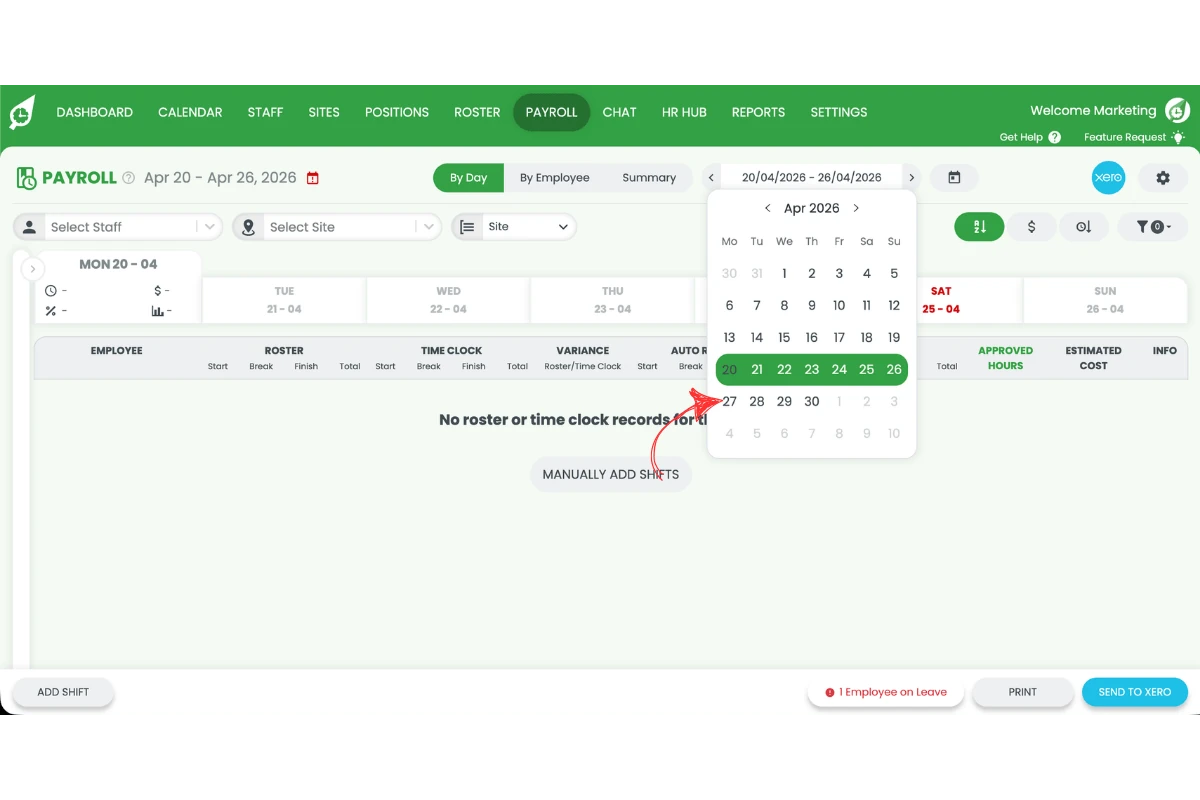
1.5.2 Select the public holiday date.
1.5.3 Locate the rostered shift.
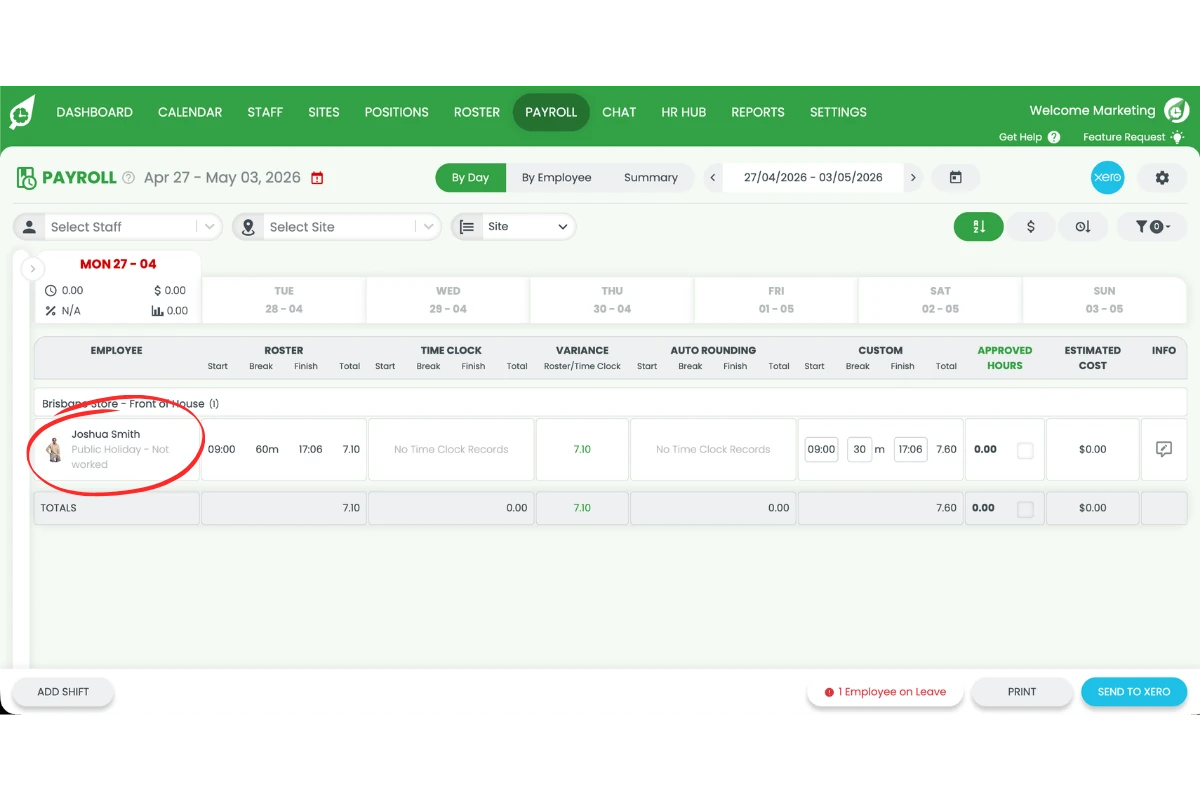
1.5.4 Approve the shift under rostered hours.
2. Pay staff for public holiday worked
This section explains how to pay staff for a public holiday when they work and should receive public holiday rates. You will check the pay template to ensure the correct rule is applied and roster the shift as normal.
This process ensures staff are paid the correct penalty rates for working on a public holiday. It also keeps payroll consistent and aligned with your award or agreement. Following these steps will help you confirm the correct settings and process payroll without errors.
2.1 Apply public holiday rule to template
2.1.1 Open Settings.
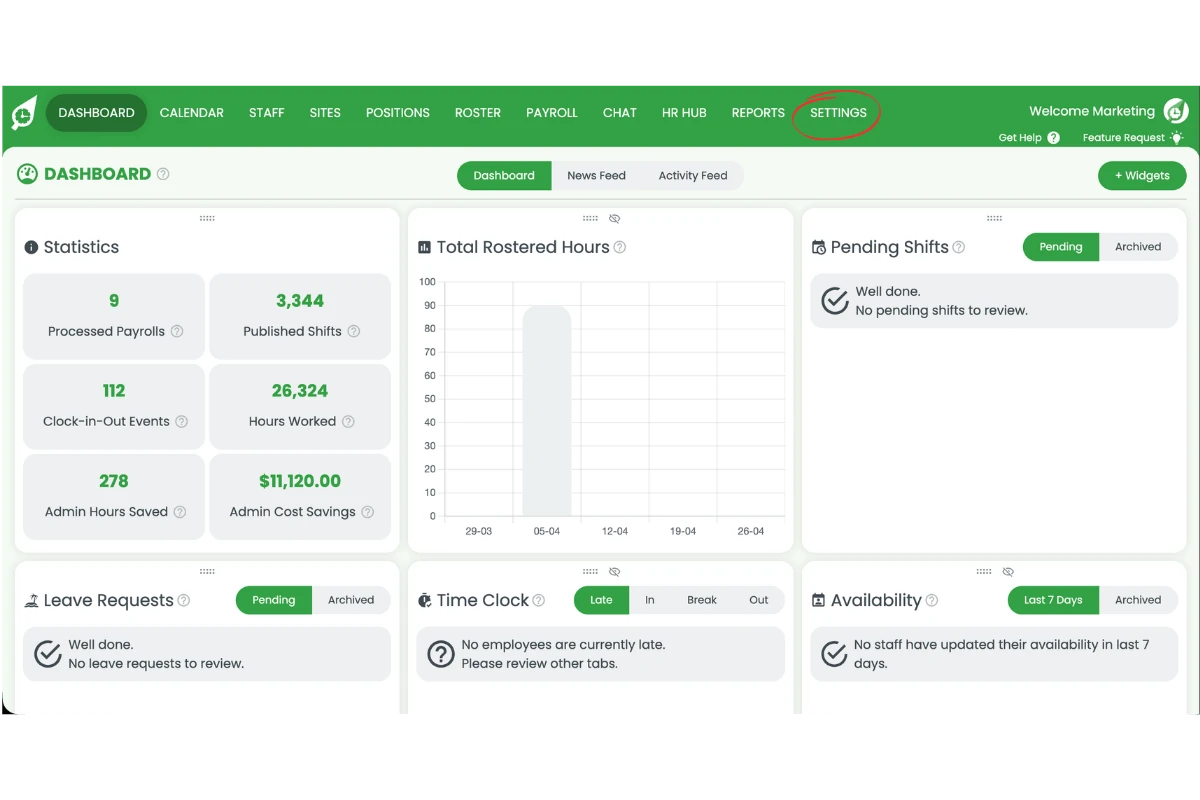
2.1.2 Select Payroll.
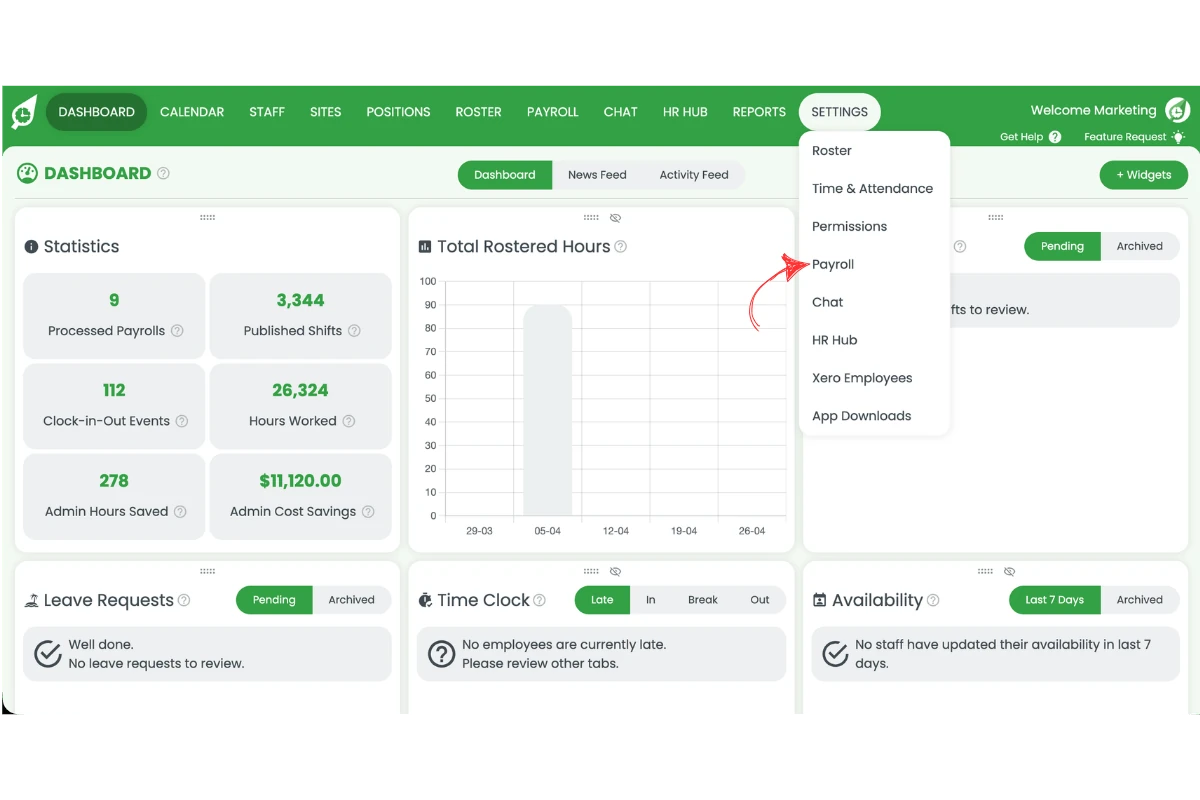
2.1.3 Open the staff pay template.
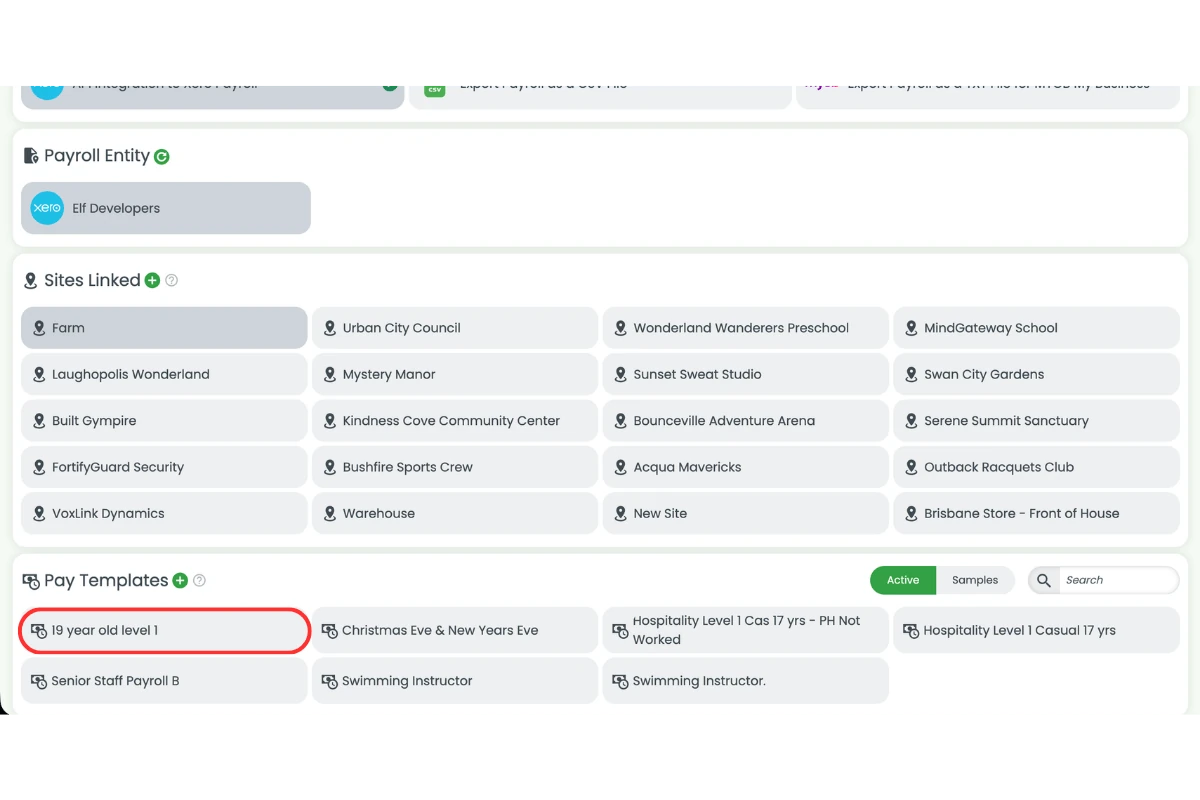
2.1.4 Confirm a public holiday rule is applied.
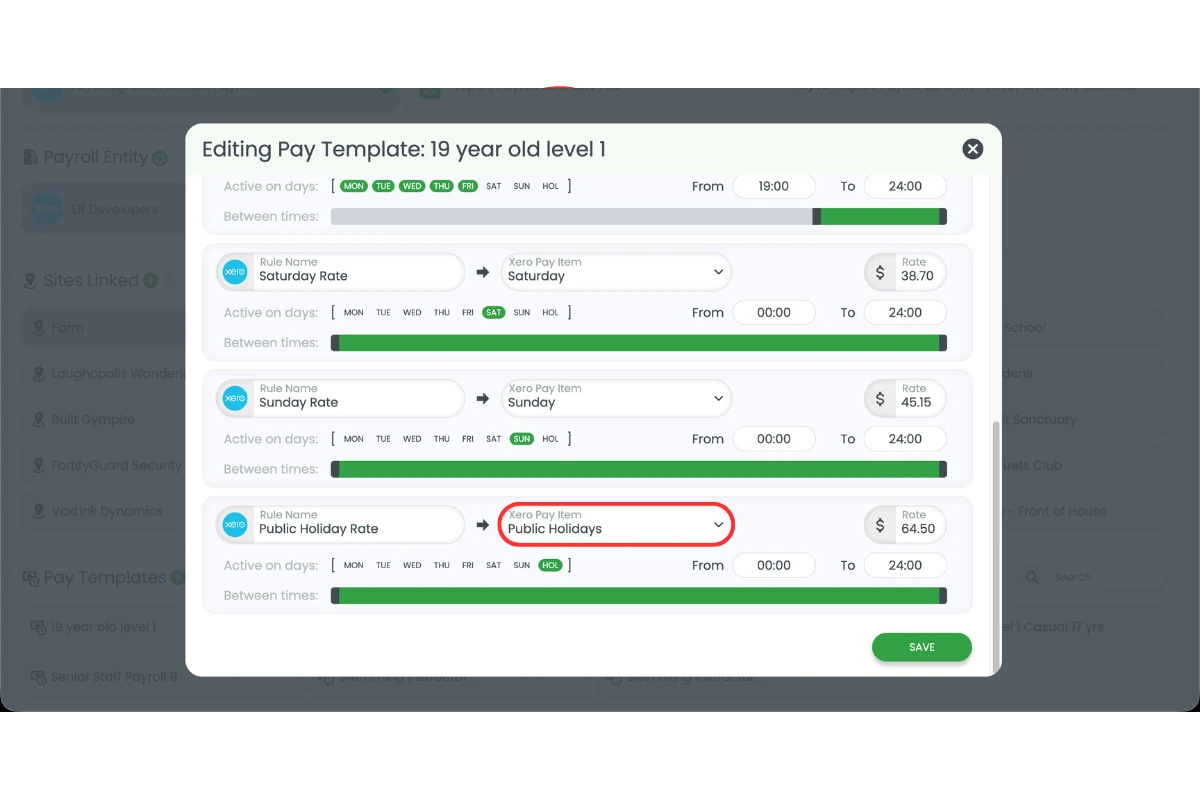
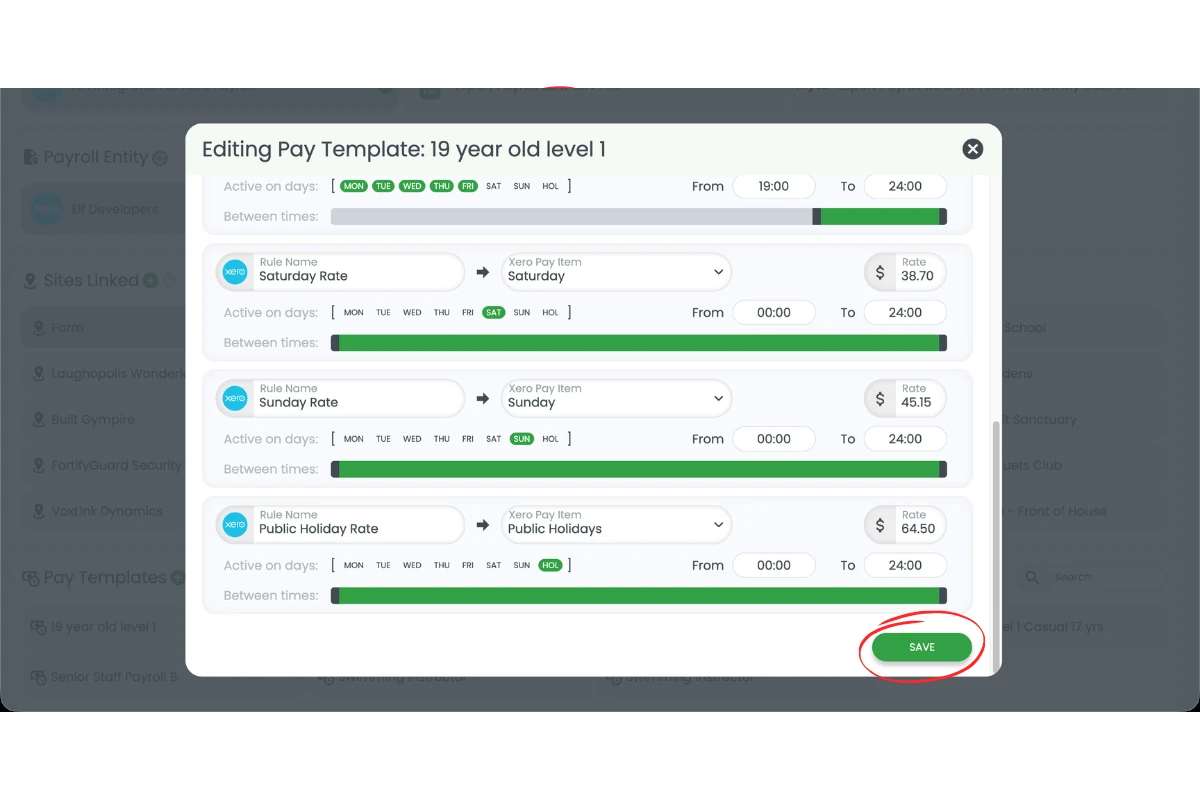
2.1.5 Save if changes are required.
2.2 Roster staff on public holiday
2.2.1 Open the Roster.
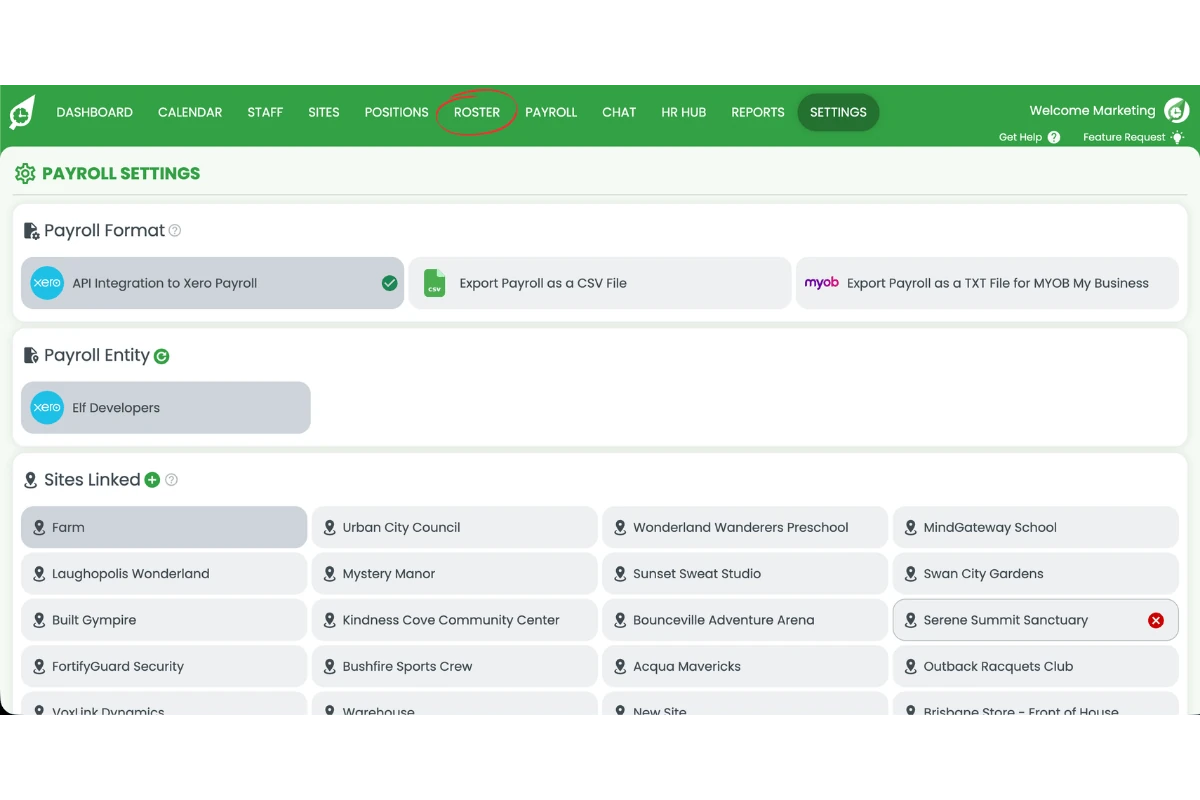
2.2.2 Select the public holiday date.
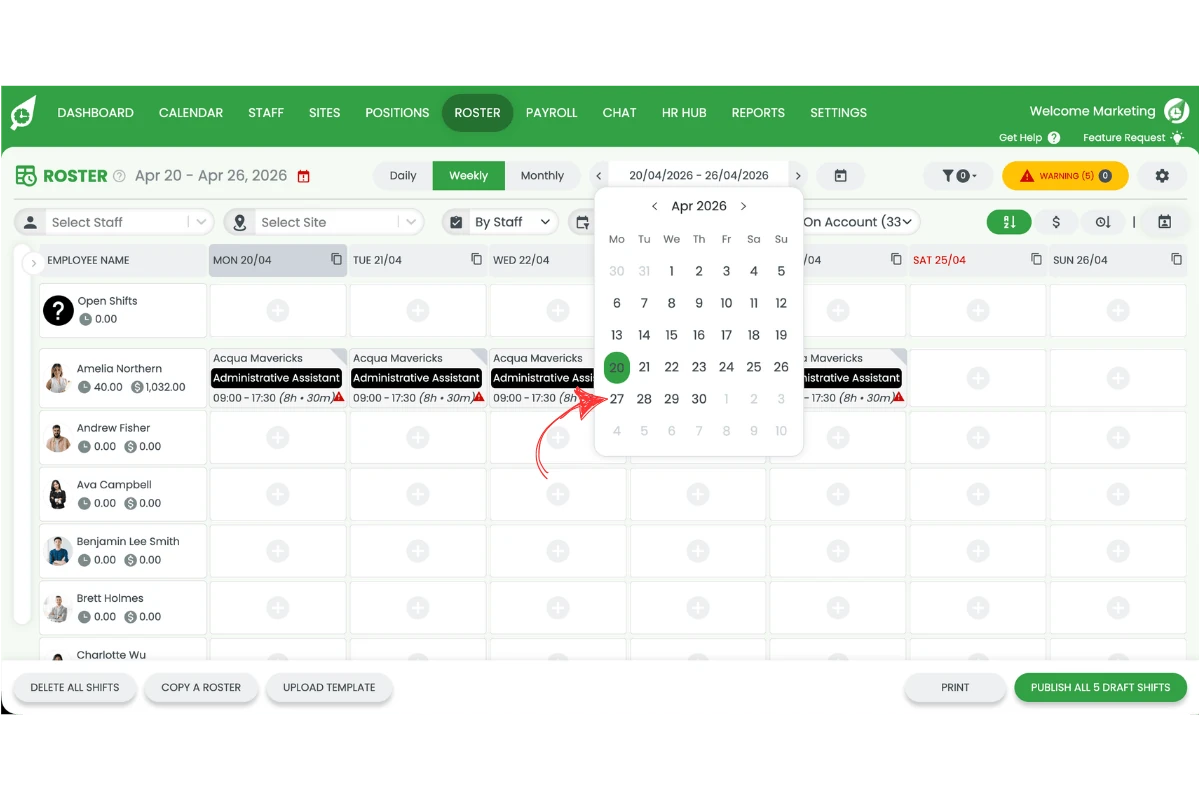
2.2.3 Add the staff member to a shift.
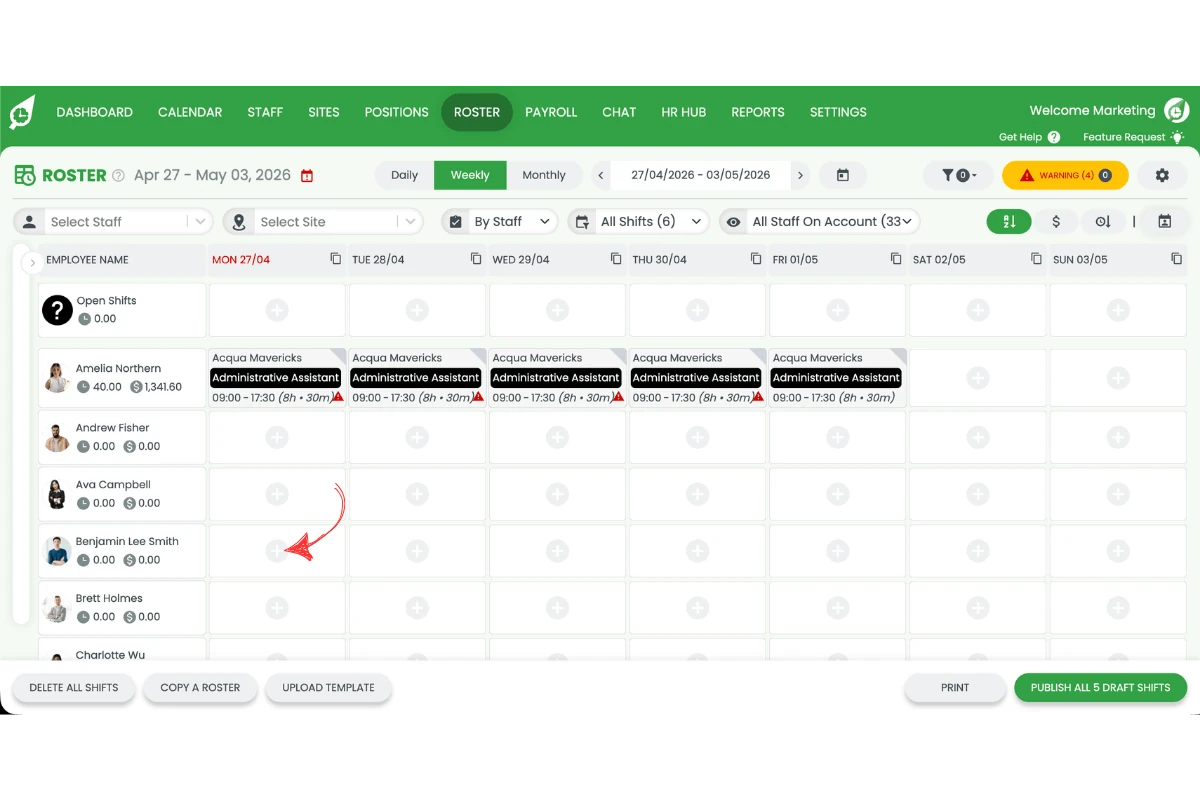
2.2.4 Enter their working hours.
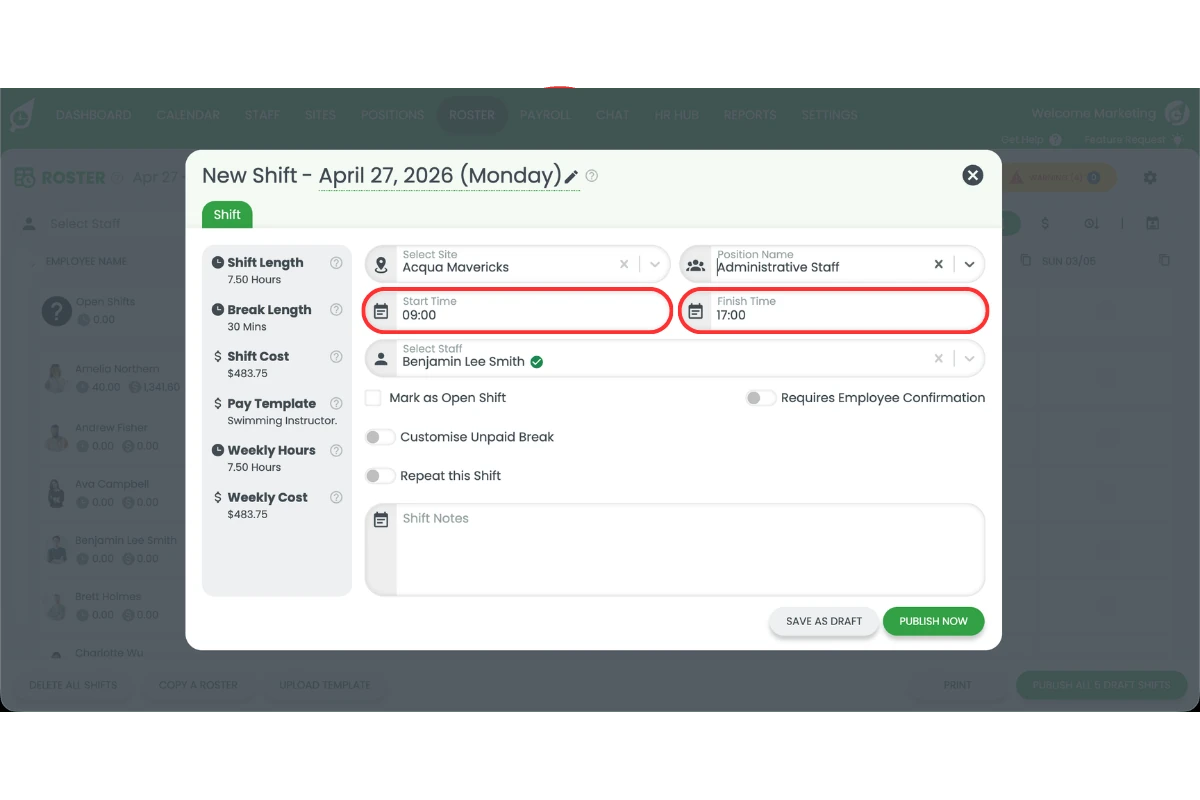
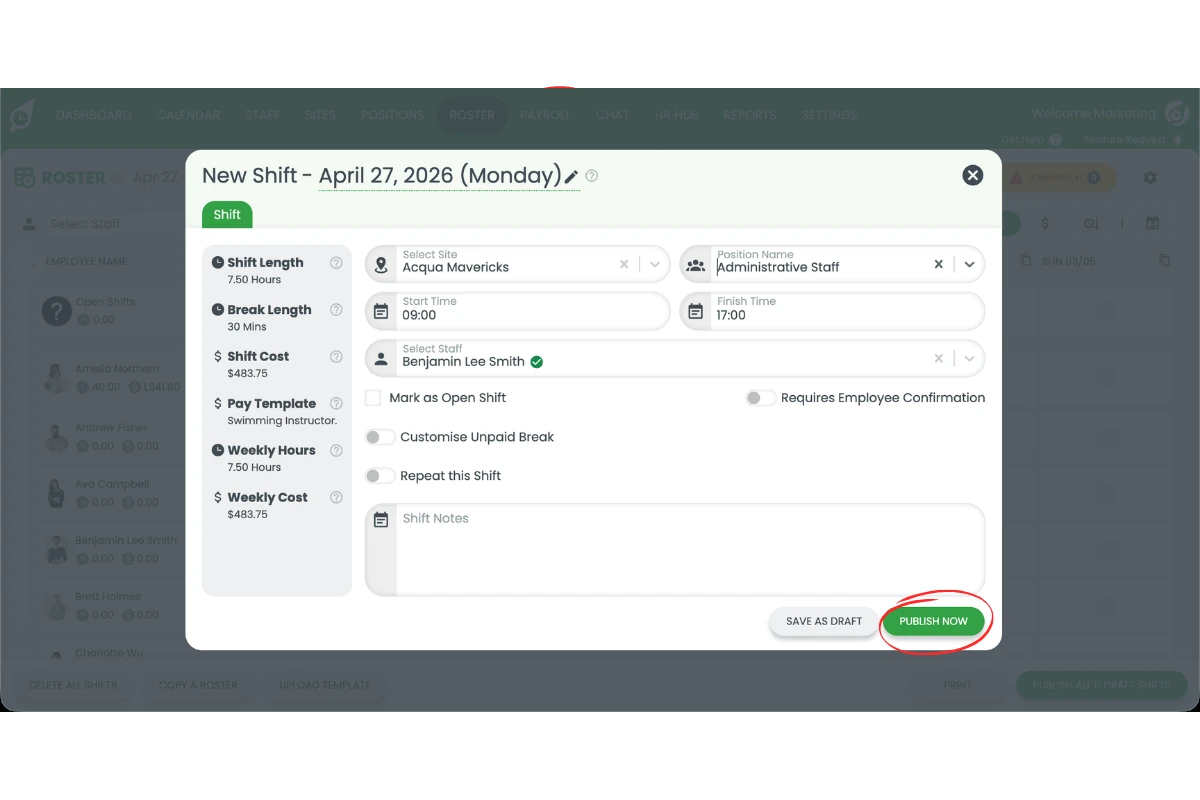
2.2.5 Click Publish.
2.3 Process payroll for worked public holiday
2.3.1 Open Payroll.
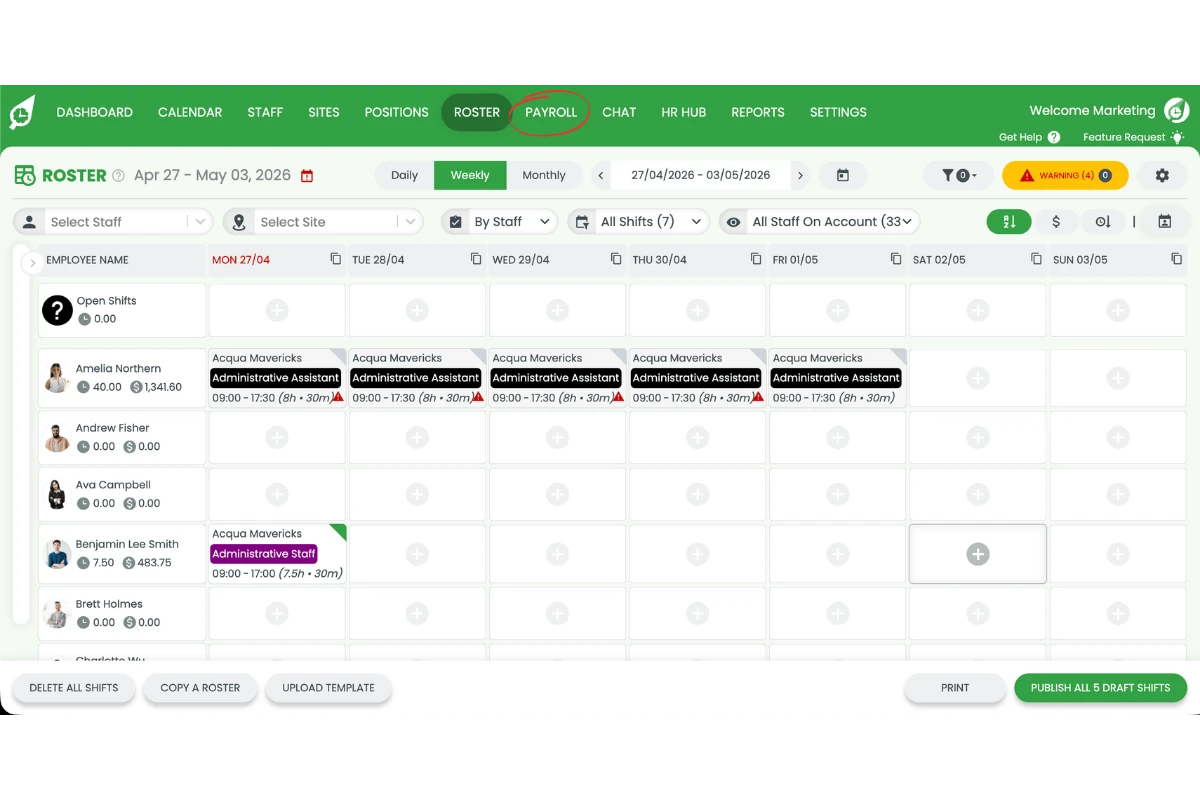
2.3.2 Select the public holiday date.
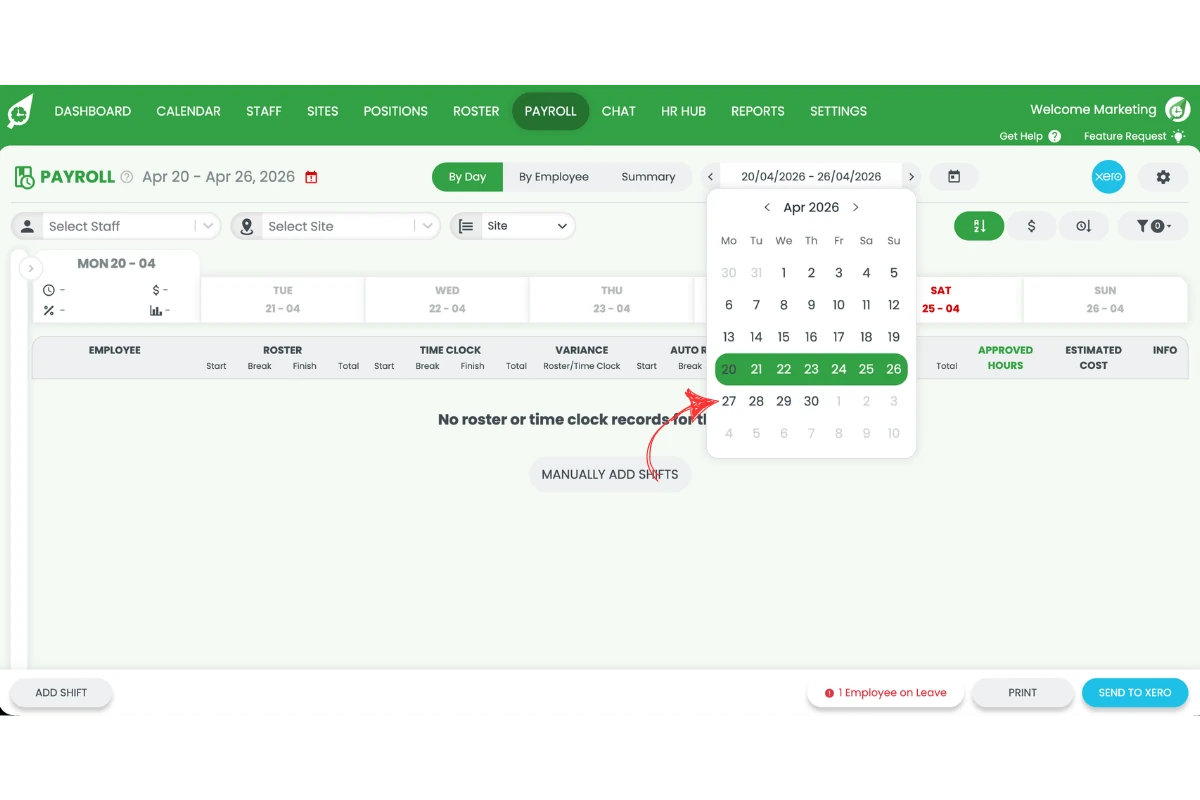
2.3.3 Review the shift with public holiday rates.
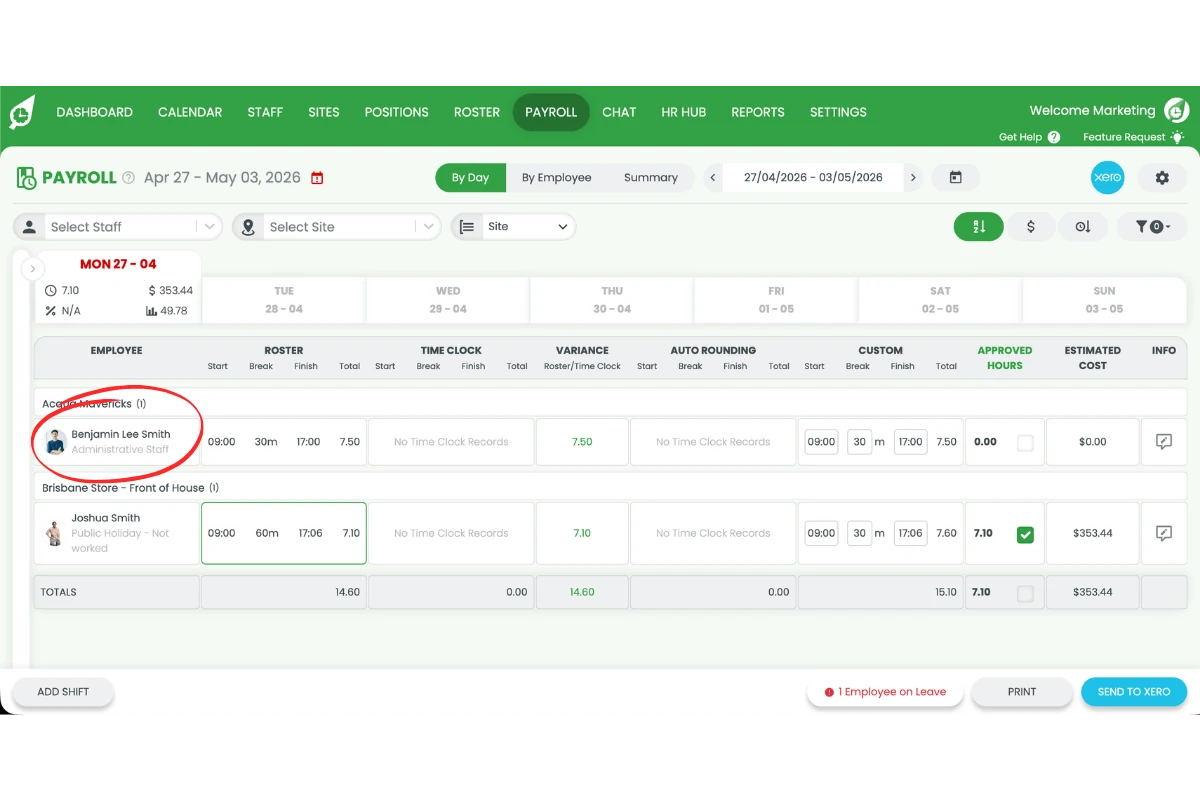
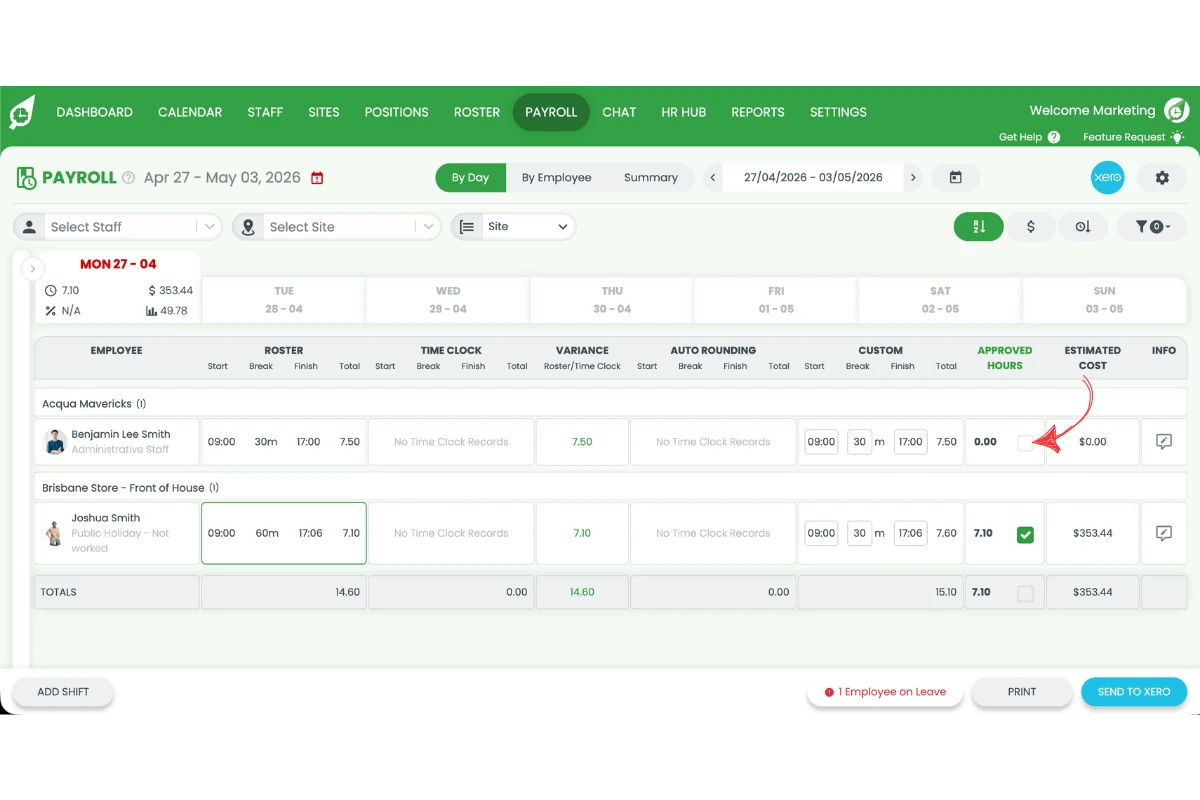
2.3.4 Approve the shift.
Before you roster public holiday shifts
Always check the pay template is configured correctly before rostering. For public holidays not worked, confirm the pay template is set to Ordinary Hours. For public holidays worked, confirm a public holiday rule is applied. This prevents payroll errors that may require corrections after approval.
For further help, visit our support centre or contact our support team.
Frequently asked questions
1. How do I pay staff for public holiday not worked in RosterElf?
To pay staff for public holiday not worked in RosterElf, create a position called Public Holiday Not Worked and link it to a pay template set to Ordinary Hours. Assign this template to the staff profile and roster the shift on the public holiday date. This ensures the system pays regular hours without applying penalty rates.
2. How do I pay staff for public holiday worked in RosterElf?
To pay staff for public holiday worked in RosterElf, ensure the staff pay template includes a public holiday rule. Then roster the shift as normal on the public holiday. When you process payroll, the system automatically applies the correct penalty rates based on the template.
3. Why should I create a public holiday not worked position?
Creating a Public Holiday Not Worked position allows you to separate paid leave from worked shifts. This ensures the system applies Ordinary Hours instead of public holiday penalties. It also helps keep payroll records clear and accurate for reporting and compliance.
4. How do I ensure public holiday pay is processed correctly?
To ensure public holiday pay is correct, check that the pay template is set up properly before rostering. Use Ordinary Hours for days not worked and apply a public holiday rule for days worked. Always review and approve shifts in payroll to confirm the correct rates are applied.
5. Can I use different pay templates for public holidays in RosterElf?
Yes, you can use different pay templates for public holidays in RosterElf. This allows you to control how each type of shift is paid. For example, you can assign one template for public holidays not worked and another for public holidays worked with penalty rates applied.
6. Should I add a leave record instead of using a Public Holiday Not Worked position?
No. Public holidays are managed through your site’s public holiday calendar and paid using a dedicated Public Holiday Not Worked position with a pay template set to Ordinary Hours, not through a leave request. Adding a leave record for a public holiday is not the supported way to pay staff who don’t work that day.
7. Can I combine a public holiday rate with overtime or another penalty in one rule?
Complex combined or stacked rate scenarios, such as overtime rates that also apply on a public holiday, may not be fully supported by a single pay template rule and can depend on your specific award. Contact our support team so they can help you structure this correctly for your business rather than guessing at a rule combination.